
| Last updated | 6 hours ago |
| Total downloads | 5 |
| Total rating | 1 |
| Categories | Mods |
| Dependency string | shiibe-EasyLogiWheelSupport-1.0.1 |
| Dependants | 0 other packages depend on this package |
This mod requires the following mods to function

BepInEx-BepInExPack
BepInEx pack for Mono Unity games. Preconfigured and ready to use.
Preferred version: 5.4.2304README
EasyLogiWheelSupport
Logitech wheel support for Easy Delivery Co.
About
·
What it does
·
Compatibility
·
Features
·
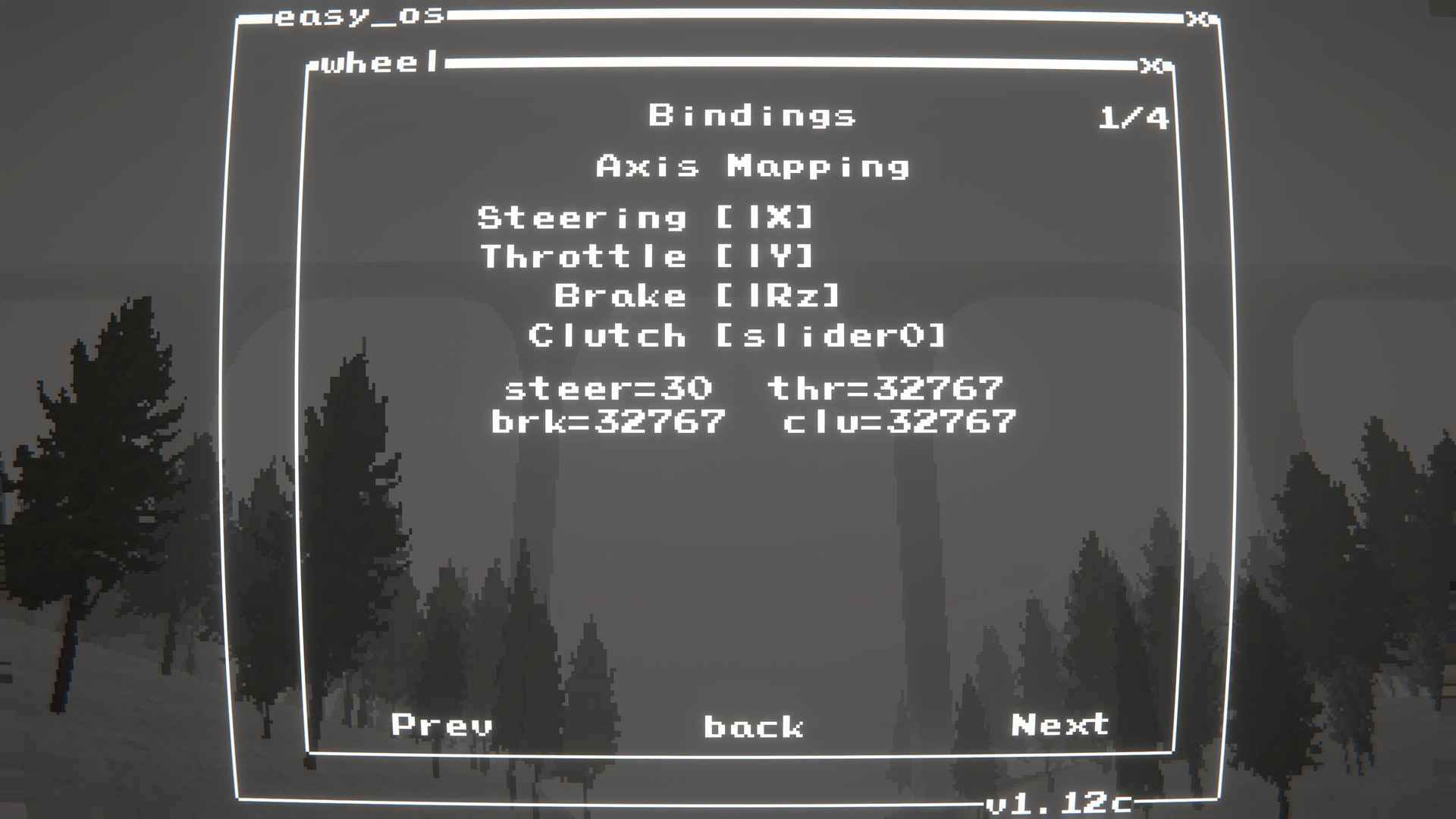
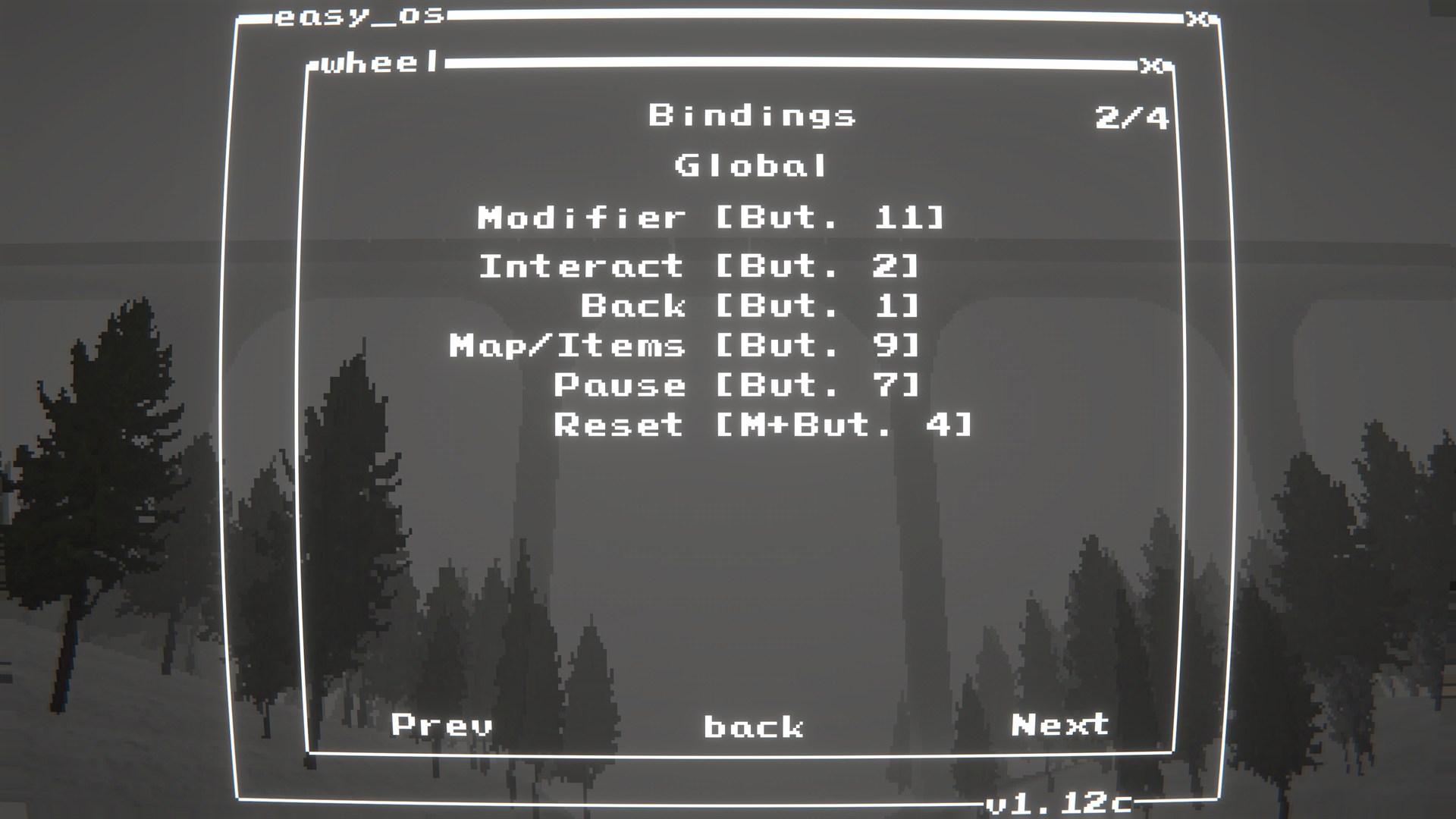
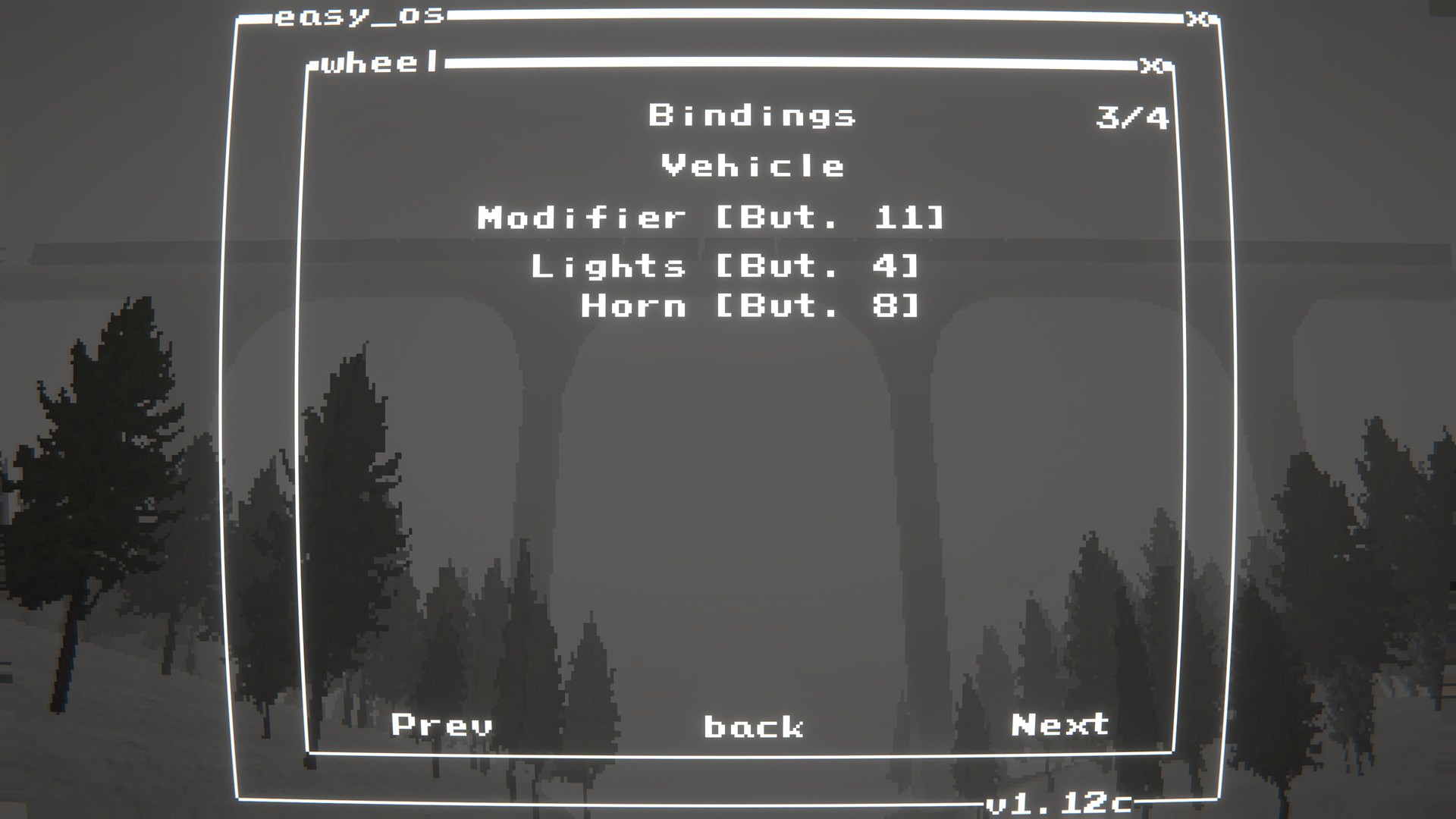
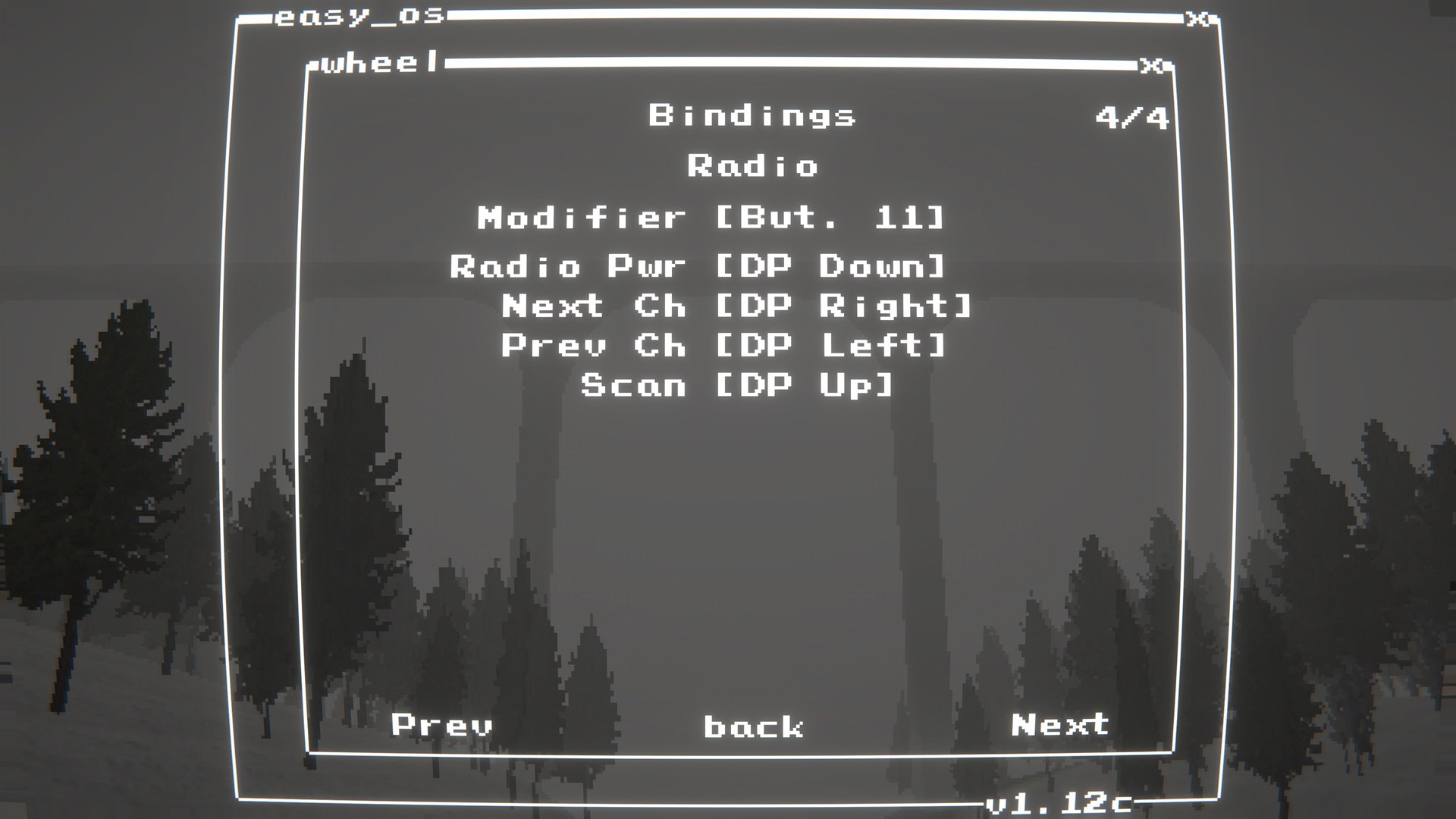
Screenshots
·
Installation
·
Configuration
·
In-game menu
·
Troubleshooting
·
Build
About
This is a BepInEx + Harmony mod intended to add Logitech wheel input support to Easy Delivery Co.
Tested on a G920, but it should work with most (if not all) modern Logitech wheels supported by Logitech G HUB / LGS.
This mod uses Logitech's Steering Wheel SDK wrapper for Force Feedback (FFB).
What it does
- Adds wheel + pedal input while driving
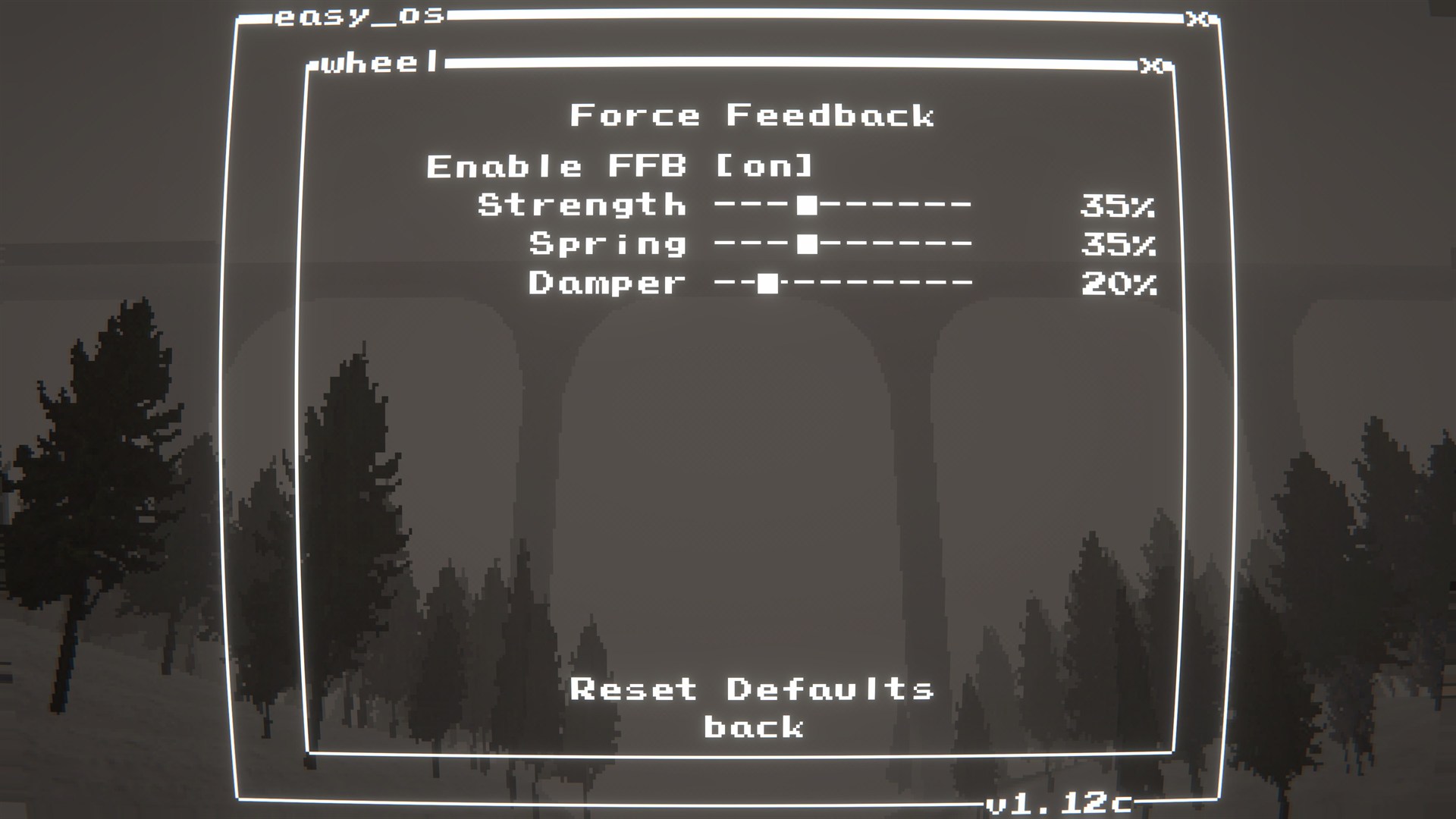
- Adds Force Feedback (optional)
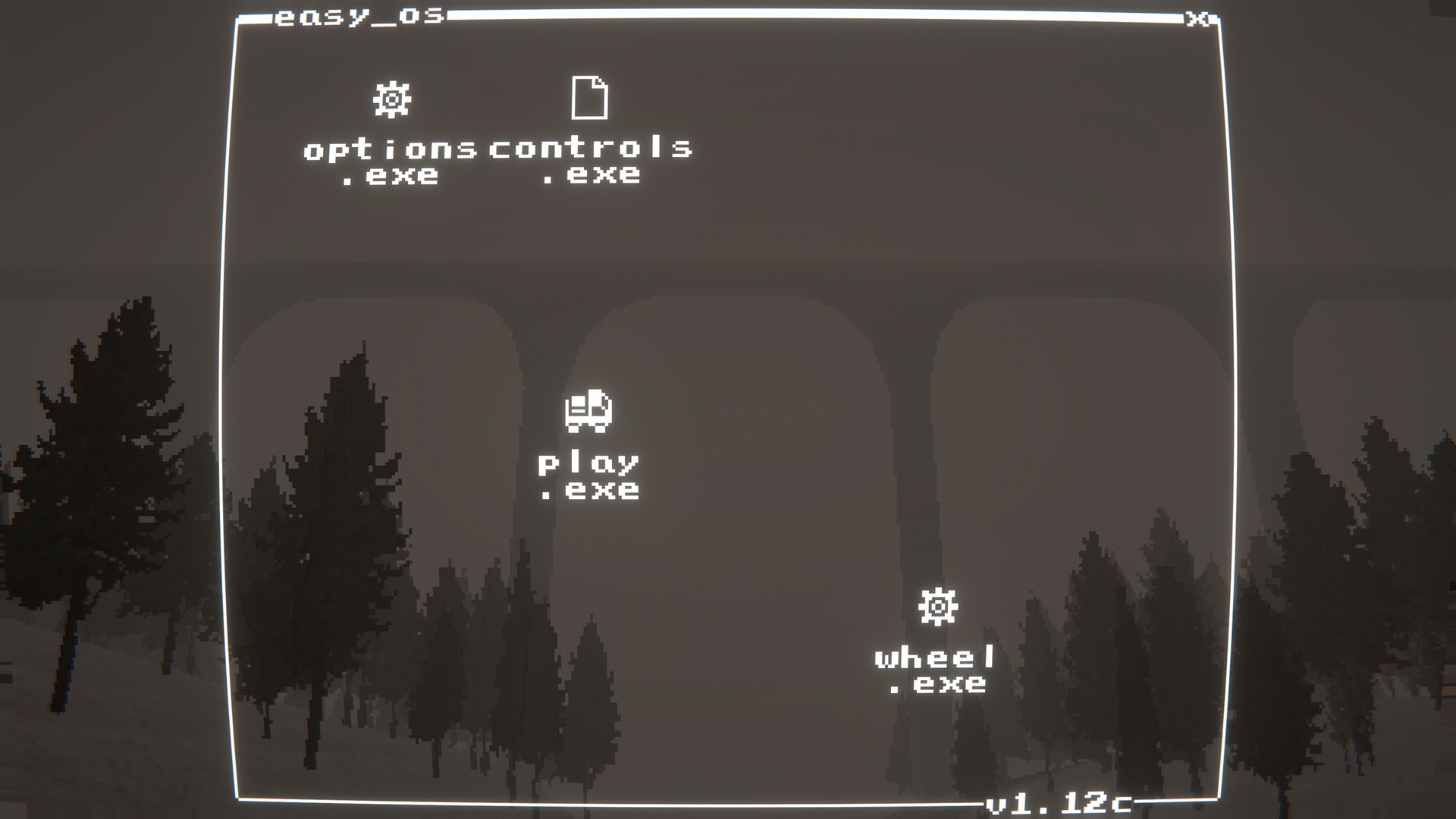
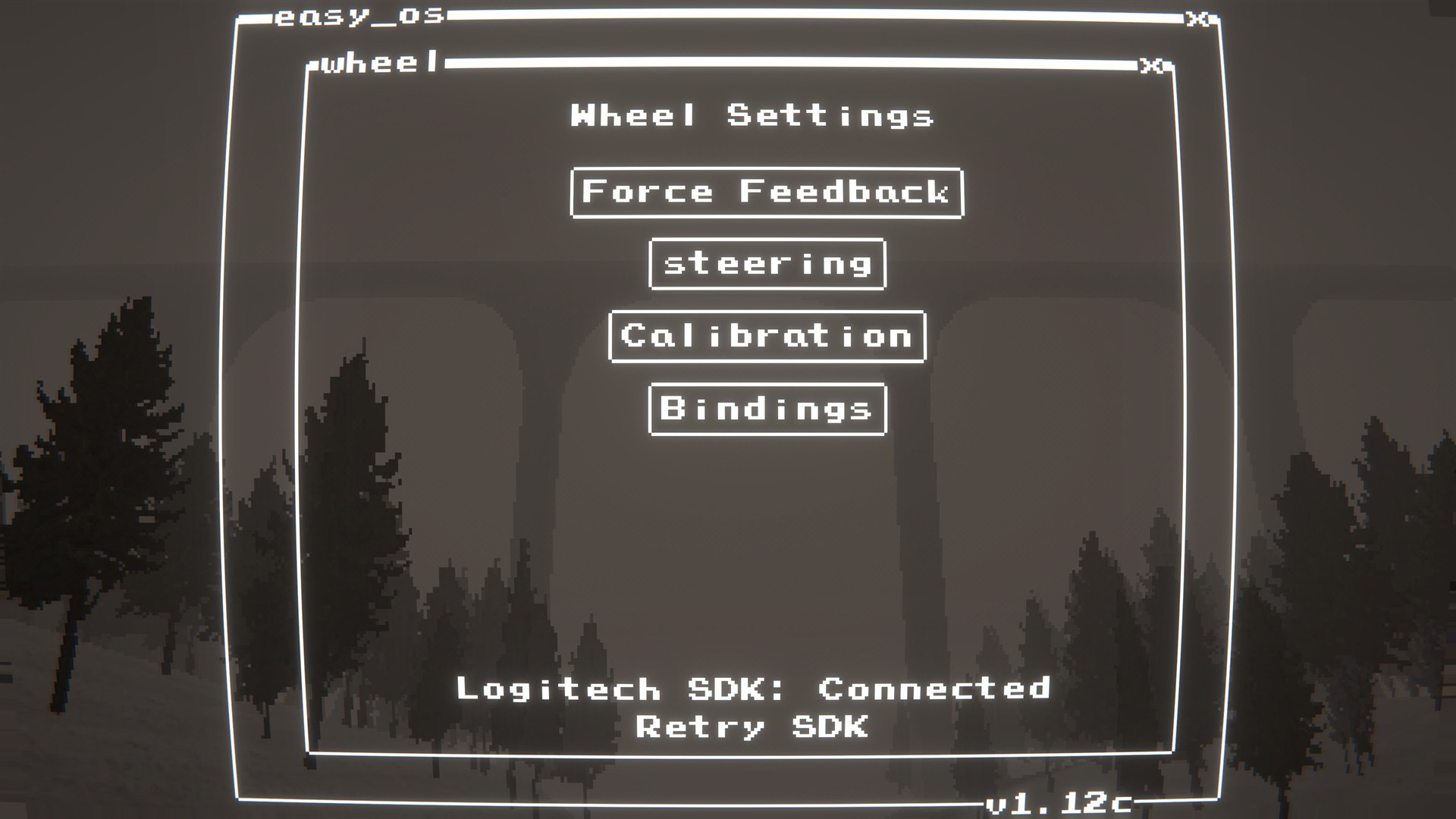
- Adds an in-game settings panel (
wheel.exe) since the game has no native bind menu
Compatibility
- Intended for modern Logitech wheels supported by Logitech G HUB / LGS.
- Tested on: G920
- Likely compatible: G29/G923 and similar Logitech wheels (not guaranteed).
Features
- Wheel steering + pedals
- Force Feedback (FFB)
- In-game
wheel.exesettings menu - Button bindings menu with optional
Modifier(hold to bindM+...for extra inputs) - D-pad support: menus (cursor) + on-foot movement (8-way)
Screenshots
 |
 |
 |
 |
 |
 |
 |
 |
 |
 |
Installation
Dependencies
BepInEx-BepInExPack-5.4.2304
FFB
- Install Logitech G HUB (or older Logitech Gaming Software) so the wheel drivers/components are present.
LogitechSteeringWheelEnginesWrapper.dllmust be alongside the plugin DLL (the build/package includes it).
Install
- r2modman/Thunderstore: install and launch the game
- Manual: copy
EasyLogiWheelSupport.dlltoBepInEx/plugins/EasyLogiWheelSupport/ - FFB DLL: make sure
LogitechSteeringWheelEnginesWrapper.dllis alongsideEasyLogiWheelSupport.dll
Quick start
- Install the mod and start the game once.
- From the main menu, click
wheel.exe. - Go to
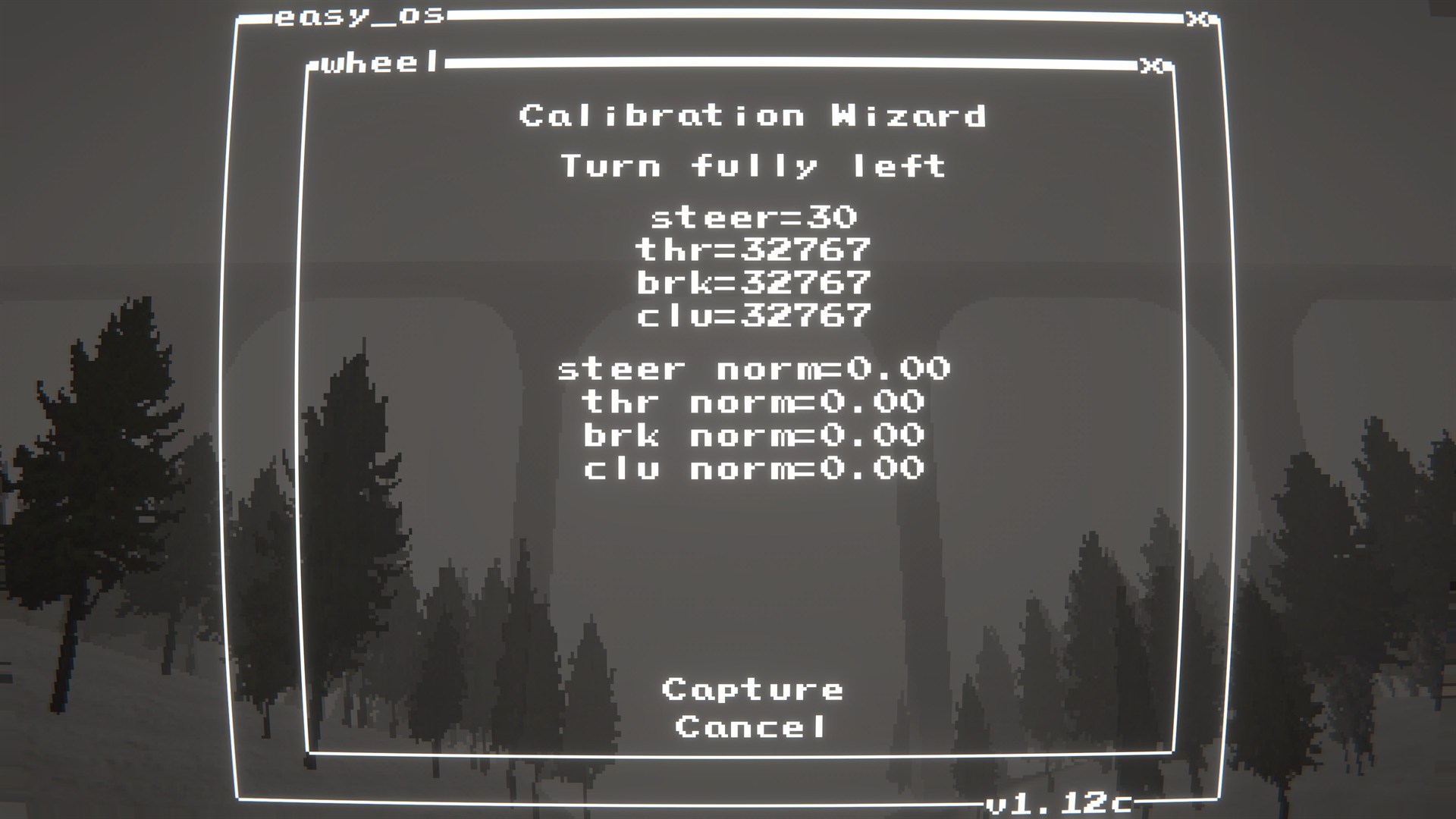
Axis Mappingand confirm steering/throttle/brake/clutch axes look right. - If pedals are wrong or stuck, run
Calibration Wizard. - Go to
Bindingsand setModifier+ your button bindings.
Configuration
- Config file:
BepInEx/config/shibe.easydeliveryco.logiwheel.cfg
In-game menu
- Click
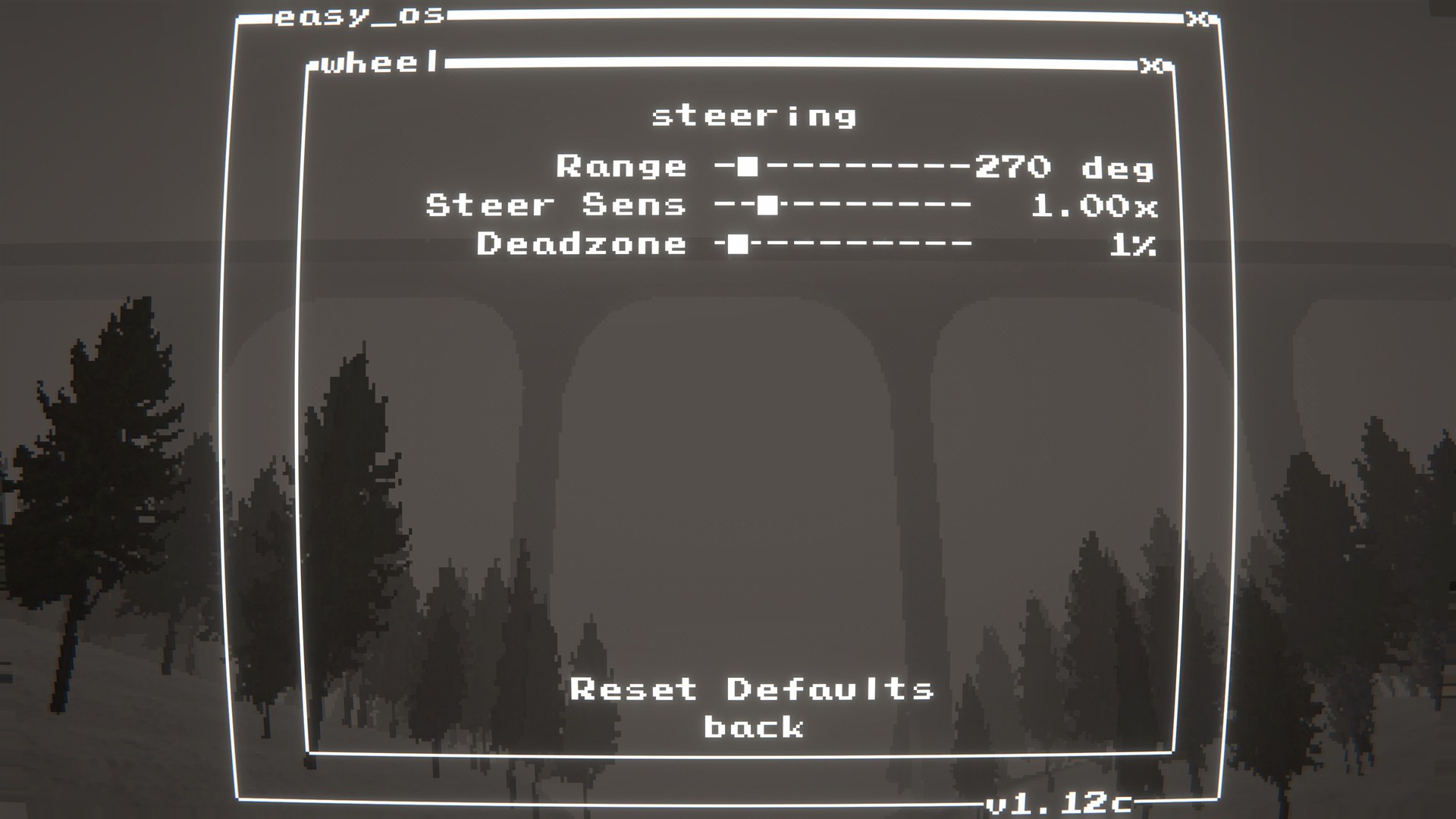
wheel.exein the main menu to adjust wheel/FFB/settings.
Bindings
wheel.exe->Bindings- Use
Prev/Nextat the bottom to switch pages. - Set
Modifierfirst (optional). - When binding an action: hold
Modifierto set anM+...binding (shown asM+But. NorM+DP ...). - If you try to reuse an input, you'll get a warning and can
Replace(unbinds the old one). - Pages:
Global,Vehicle,Radio - Actions you can bind:
Interact,Back,Map/Items,Pause,Reset,Lights,Horn,Radio Pwr,Next Ch,Prev Ch,Scan - Binding labels use the Logitech SDK numbering (
But. N,DP ...). If you're unsure which is which, bind by pressing the physical control.
D-pad behavior
- In menus: D-pad moves the fake mouse cursor.
- On foot: D-pad moves the player (8-way/diagonal).
- While driving: D-pad can be bound to actions.
- While binding: D-pad cursor control is disabled so you can bind DP directions.
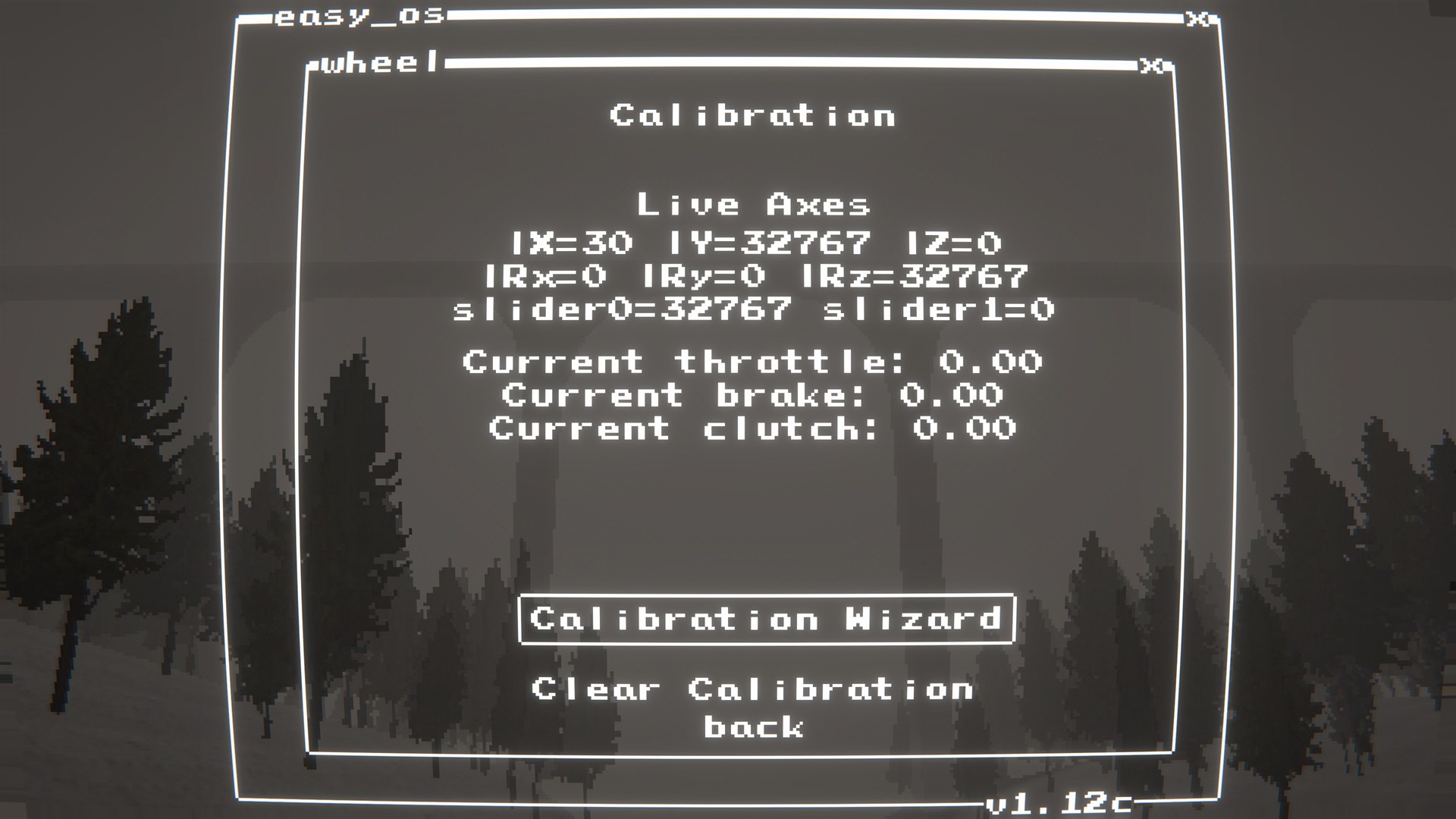
Calibration
- Only needed if throttle/brake axes read incorrectly (e.g., stuck throttle).
- Use
wheel.exe-> Calibration. - Wizard captures: steering center/left/right + throttle/brake/clutch released/pressed.
Troubleshooting
- Wheel not detected: install Logitech G HUB (or LGS), plug wheel in before launching the game, then reopen
wheel.exe. - No FFB: verify
LogitechSteeringWheelEnginesWrapper.dllis next toEasyLogiWheelSupport.dll. - Pedals stuck / inverted: run
wheel.exe-> Calibration Wizard. - Can't bind D-pad: enter binding capture and press a DP direction (cursor movement is disabled on that screen).
Build
- Build:
dotnet build EasyLogiWheelSupport/EasyLogiWheelSupport.csproj -c Release - Package:
powershell -NoProfile -ExecutionPolicy Bypass -File scripts/package.ps1 -Version 1.0.1
