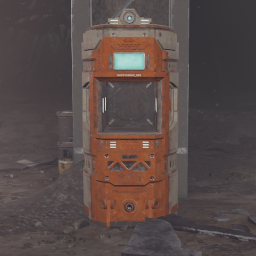
json file documentation

Updated 3 months ago

Creating the files

Inside your Rundown's MTFO Custom folder, create a folder called ShuttleboxData. Then, any .json files inside will attempt to be parsed into the relevant shuttlebox data, the format of which will be detailed below.


An example ShuttleboxData json file for spawning a single shuttlebox

Below is an example filled out json file that will spawn a single shuttlebox using markers

The types of non-primitive, non-custom fields, or fields that are DataBlock IDs, are annotated

[
  {
    "MainLevelLayoutID": 0, // LevelLayoutDatablock ID
    "Shuttleboxes": [
      {
        "DebugName": "NameOfShuttlebox",

        "ZonePlacement": { // DumbwaiterPlacementData
          "PlacementWeights": { // ZonePlacementWeights
            "Start": 0.0,
            "Middle": 0.0,
            "End": 0.0
          },
          "AreaSeedOffset": 0,
          "MarkerSeedOffset": 0
        },

        "DimensionIndex": "Reality", // eDimensionIndex
        "Layer": "MainLayer", // LG_LayerType
        "LocalIndex": 0, // eLocalZoneIndex

        "AbsolutePosition": false,
        "Position": { // Vector3
          "x": 0.0,
          "y": 0.0,
          "z": 0.0
        },
        "Rotation": { // Vector3
          "x": 0.0,
          "y": 0.0,
          "z": 0.0
        },

        "Decorations": { // Dictionary
          "StraightShort": false,
          "TurnShort": false,
          "StraightLong": false,
          "TurnLong": false,
          "DoubleTurnRight": false,
          "DoubleTurnLeft": false,
          "Backward": false,
          "Angled": false,
          "Base": false
        },
        "Colors": {
          "MainColor": { // Color
            "r": 0.5,
            "g": 1.0,
            "b": 0.0,
            "a": 0.8
          },
          "AccentColor": "#FFFF", // Color
          "SerialColor": "#FFFFFF" // Color
        },

        "LinkID": -1,
        "IsClosedAtStart": false,

        "ValidInsertItems": [
          {
            "ItemID": 0, // ItemDataBlock ID
            "ActionOnInsert": "None", // enum - `0 = "None", 1 = "Transfer", 2 = "Consume", 3 = "ConsumeAndRemainClosed"`
            "Events": [ // 
              {
                "Type": 0,
                "Trigger": "OnStart" // What fill this with is important, see "Event Triggers" section
              }
            ]
          }
        ],

        "SpawnedItem": {
          "ItemID": 0, // ItemDataBlock ID
          "IsAvailableAtStart": false,
          "IsWardenObject": false,
          "ChainedObjectiveIndex": 0,
          "ShowOnTerminalList": false,
          "Uses": 0
        }
      }
    ]
  }
]

This template will generate if the ShuttleboxData folder is not present

General Layout

Each file contains a list. The type of this list only has two fields:

  • MainLevelLayoutID
  • Shuttleboxes

Shuttleboxes is the list containing the actual Shuttlebox data which will be detailed below, and MainLevelLayoutID, as the name would imply, is the LevelLayoutDataBlock ID that, when the currently loading level has this as its Main Layer data, then shuttleboxes will start to be placed.

Shuttlebox Information

First up, which doesn't connect with anything else in particular, is DebugName. The primary use of this is to label which shuttlebox is which in your files, however it does serve two other important functions.

  1. It's also used when printing errors in the console. If anything is detected as an error, then it will be printed, and DebugName will be included to specify which shuttlebox had an issue.
  2. It also determines the name of World Event Objects attached to it which the developer can use to interact with the shuttlebox via Events. This will be detailed further down in the Interaction Events section.

Placement Data

There are two different ways that you can spawn shuttleboxes in: Absolute, and Marker. You decide which you want to use by setting the AbsolutePosition field to either true for Absolute, and false for Marker.

Shuttleboxes are placed at the end of the (first) LG_PopulateFunctionMarkersInZoneJob step of building a zone, so no matter what, if a level does not contain a zone that matches the specifications of the shuttlebox's Global Zone Index (specified by DimensionIndex, Layer, and LocalIndex), then the shuttlebox will not spawn, even when in Absolute mode.

When in Marker mode, then all other fields are used to randomly select and use markers similar to how most normal level generation functions work. ZonePlacement functions similarly to the parts of TerminalPlacementData which are not specific to terminals themselves. To summarize:

  • PlacementWeights has the fields Start, Middle, and End which help determine which area of the zone is selected
  • AreaSeedOffset offsets the seed used to determine which area of the zone is selected
  • MarkerSeedOffset offsets the seed used to determine which marker inside the area is selected to spawn the shuttlebox.
    • Just as a note, shuttleboxes look for markers in the room that could have Disinfection Stations.

When in Absolute mode, only AreaSeedOffset is taken into account, and this, in conjunction with the Global Zone Index, determines under which Course Node (room) the Shuttlebox and items inside it are in, which is important for pinging and culling purposes. In this case, AreaSeedOffset is the Area Index of the room in the zone, i.e 0 = area A, 1 = area B, 2 = area C, etc.

I'm reasonably sure the shuttleboxes won't actually cull, so it's mainly for the items in it, and for knowing what GameObject the shuttleboxes get placed under.

Finally, the Position and Rotation fields do roughly what you probably expect, but do function slightly different depending on if you're in Absolute or Marker mode.

When in Absolute mode, then Position is taken as the actual coordinates. You can use F2 in CConsole to get coordinates where you want. As a quick summary:

  • x: negative is West, positive is East
  • y: negative is Down, positive is Up
  • z: negative is South, positive is North

When in Marker mode, then it's relative to the marker (local position). The following descriptions summarize which way it moves when you're looking at the front

  • x: negative pushes it to the right, positive to the left
  • y: negative moves it down, positive up
  • z: negative pushes the shuttlebox backwards, positive will bring it forwards

For Rotation when in Absolute mode, the front of the shuttlebox is facing North when it's set to 0, 0, 0. All of these descriptions will be describing the changes made as though you're looking at the front of the shuttlebox

  • x: negative tilts the top of the shuttlebox backwards (away from you), positive tilts it towards you
  • y: negative twists the shuttlebox to the right (hole will turn West), positive twists to the left
  • z: negative tilts the top of the shuttlebox to the left (East), positive tilts to the right

Visuals

There are two types of visual modification you can do to the shuttleboxes. The first is Decorations. These are additional little pieces that get added on to the shuttlebox. If you set a specific decorate's field to true, then it will be made visible. The template above in Creating the files has a comprehensive list all that are available, and they go inside the Decorations field as key-value pairs.

Here is a list of the names of each decoration and what they look like
StraightShort
TurnShort
StraightLong
TurnLong
DoubleTurnRight
DoubleTurnLeft
Backward
Angled
Base

You can also change the colors of the main shuttlebox body, and the terminal serial. These go under the Colors field, which has 3 more fields of its own: MainColors, AccentColor, SerialColor. All of these are the Color type, and can be input in one of two ways. First is with a Hex code, such as #D96B00C0. This can follow any of the following formats:

  • #RGB
  • #RGBA
  • #RRGGBB
  • #RRGGBBAA
You can also define a color with a json structure, such as this.
"AccentColor": {
  "r": 0.8,
  "g": 0.7,
  "b": 0.65,
  "a": 0.8
}

Spawning with an item

Shuttleboxes can spawn a single item with them. To do so, the SpawnedItem field is used. Inside, you can provide the following:

  • ItemID - The ItemDataBlock ID of the item you want to spawn.
    • If it's any InventorySlot other than ResourcePack (4), Consumable (5), ConsumableHeavy (6), InLevelCarry (8), or InPocket (7), then it can't be spawned.
  • IsAvailableAtStart - true or false, if false then the item will be hidden away until the Summon event is executed (see Interaction Events), otherwise it will be ready and waiting in the shuttlebox.
  • IsWardenObjective - As it sounds, if true then this spawned item will be considered a Warden Objective item. If the objective itself isn't set up for this, then it just makes the objective progression noise when you interact with it.
  • ChainedObjectiveIndex - If you know what chained objectives are, you know what this is. Otherwise, leave this at 0.
  • ShowOnTerminalList - Only relevant if IsAvailableAtStart is false.
    • If this field is false, then the hidden item to be summoned later won't be visible on terminals, nor be Query or Ping-able. If it's a WardenObjective item, then it could still show up in the progression text in [ALL_ITEMS]. Outside of text formatted like this, the only place (I believe) it can show up is on the storing shuttlebox's Query text. Behavior will return to normal once it is summoned.
    • If this field is true, then the item will still show up on terminal lists, be listed as inside the same zone as the shuttlebox, however if you try to Ping it inside that zone, it will be out of range. Additionally, if you Query the item, then it will succeed, and show that it is a Stored Shuttlebox Item, with its location listed as Inside SHUTTLEBOX_XYZ.
  • Uses - This field is to determine how many uses a resource pack or consumable will have. If it's any other inventory slot, it doesn't do anything.

Functionality

First, the two remaining trivial fields are:

  • LinkID - When two shuttleboxes have the same LinkID (and it's 0 or greater), then they will be the destination for each other (see the Transfer action below)
    • Only two shuttleboxes can share the same LinkID. Any subsequent shuttleboxes with that ID will function as though it's unlinked.
  • IsClosedAtStart - As the name suggests, this determines whether the shuttlebox is open or closed when the level starts.

The bulk of shuttlebox functionality comes from defining ValidInsertItems. This is a list of another type which has the following fields:

  • ItemID - The ItemDataBlock ID of the item that these actions will occur for.
    • If you leave this at 0, then it will accept all colored keys that spawned in the level.
  • ActionOnInsert - This is an enum which determines the main thing the shuttlebox will do with the item. The enum values are as follows:
    • 0 - None
      • This shuttlebox will not close at all, but the item will still be marked as valid to be inserted into the shuttlebox, and events can still execute (see Event Triggers)
    • 1 - Transfer
      • If this shuttlebox and another both have the same LinkID, then when this item in inserted (and the destination box isn't busy or full), both boxes will close, and the item will be transferred to the destination box.
    • 2 - Consume
      • When the item is inserted into the shuttlebox, then the box will close, then reopen with the item being functionally removed from the map.
    • 3 - ConsumeAndRemainClosed
      • As the name implies, it's the same as the Consume action, however the shuttlebox will not reopen on its own. (It can still be reopened with the Open event (see Interaction Events))
  • Events - List of WardenObjectiveEventData to execute at the different triggers.

Event Triggers

To determine when you want events from a shuttlebox item insertion to fire, you need to set the Trigger field to one of the following:

  • 1 - OnStart
    • Fires the events as soon as the item is inserted into the box. Mostly for timing, but can be useful when using the None action.
  • 2 - OnMid
    • Fires the events when the shuttlebox finishes closing and most of the sounds from closing are done playing. This is to indicate that the item has been "dealt with" by the shuttlebox.
      • OnMid will fire from the sending shuttlebox when using the Transfer action. It will not on the destination shuttlebox.
  • 3 - OnEnd
    • This fires when the defined item is picked up out of the shuttlebox by the player. Potentially useful for, for example, starting an error alarm when the players have picked up an important item.

Interaction Events

The last way you can interact with a shuttlebox is with the three Interaction events. You trigger these by running a Type 15 (AnimationTrigger) event with a specific WorldEventObjectFilter based on the shuttlebox's defined DebugName. The following are the WorldEventObjectFilter names if the shuttlebox had a DebugName of Example Name:

  • Open - EVT_ShuttleboxPlugin_ForceOpen_Example Name
  • Close - EVT_ShuttleboxPlugin_ForceClose_Example Name
  • Summon - EVT_ShuttleboxPlugin_SetPickupAlign_Example Name

IMPORTANT!

AnimationTrigger events don't actually trigger the animation if the Enabled field on the event is not set to true! So if you're trying to use these interaction events, then make sure you set Enabled to true on your event!

LiveEdit

The ShuttleboxData files will reload when you save them (with a 1.5s cooldown), however there are only four fields that will properly LiveEdit in level: Position, Rotation, MainColor, and AccentColor. (Note that SerialColor is not included, for a weird limitation that I didn't really understand. The actual TextMeshPro vanishes by the time you get into the level, so its color can't just be reset again.)

When the files are reloaded, the full list of shuttleboxes gets reset, and when reloading everything, if the MainLevelLayout of the current level gets shuttleboxes added to it, it will run through the newly reloaded shuttleboxes and the current shuttleboxes in the level. If a level shuttlebox's DebugName matches a reloaded shuttlebox's DebugName, then that shuttlebox will get its Position, Rotation, MainColor, and AccentColor all updated.