

Truck Editor
Decorate your truck, save custom layouts, and let hosts share their truck style across levels, truck lobbies, and shop runs to others!
| Last updated | 5 hours ago |
| Total downloads | 169 |
| Total rating | 1 |
| Categories | Mods Tools Client-side Server-side |
| Dependency string | Omniscye-Truck_Editor-1.0.2 |
| Dependants | 0 other packages depend on this package |
This mod requires the following mods to function

BepInEx-BepInExPack
BepInEx pack for Mono Unity games. Preconfigured and ready to use.
Preferred version: 5.4.2305
README
Truck Editor v1.0.2
Build and decorate your truck, save your layouts, and let hosts share their truck style with other players who have the mod.
Video Showcase
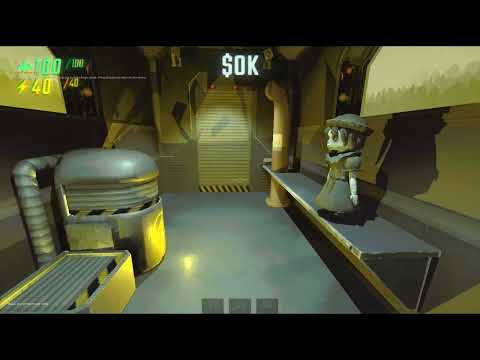
Direct Youtube Link here https://youtu.be/USSM7iEvTLg or click the image below
Message to my awesome friends and the players who use my mods.
- If you need support for my mods or just want to hang out join my new personal server on Discord: https://discord.gg/QXDj8hrdRc
Quick Start
- Click TRUCK EDITOR on the main menu.
- If you enabled it in config, you can also use the fallback button or fallback hotkey.
- You start inside the editing truck in normal walk mode.
- Press
\by default to enter forge mode. - Hold
Left Altby default to use the UI with your mouse. - Press
Uby default to hide or show the UI.
How To Place Things
- Pick a decor item from the list.
- A silhouette preview shows where the item will be placed.
- Left click to place it.
- Use the mouse wheel to move the preview closer or farther.
- Hold
R,T, orYto smoothly rotate the preview on the X, Y, or Z axis. - Press
[or]to move the preview lower or higher.
Editing Pieces
- Right click a placed piece to select it.
- Hold
Gto smoothly rotate the selected piece. - Hold
Ctrland left click to move the selected piece to your crosshair. - Press
Page UporPage Downto move the selected piece up or down. - Press
Cto duplicate the selected piece. - Press
DeleteorBackspaceto remove the selected piece. - Click New in the top right to clear the layout.
- There is no undo yet, so be careful before clearing.
Saving Layouts
- Click the top layout name box and type the name you want.
- Right click to stop typing.
- Click Save.
- Your layout will appear in the saved layouts list.
- Press
Escapewhen you are done to return to the main menu.
Syncing
- The host controls the active truck layout.
- Players who also have Truck Editor installed will see the host's truck layout.
- The shared layout now stays visible during normal levels, the truck lobby, and the shop truck.
- Players without the mod can still join and play normally.
- Players without the mod just will not see the custom truck decorations.
Config
File: BepInEx/config/Omniscye.TruckEditor.cfg
- You can change the active layout name.
- You can turn host sharing on or off.
- You can turn the fallback button on or off.
- You can change the Truck Editor keys.
- The fallback button is off by default.
If you use REPOConfig, you can also check the Truck Editor settings in game through the Mods button on the main menu.
Layout Files
- Saved truck layouts are stored in the Truck Editor
Layoutsfolder. - You can delete them manually if you want to clean them up.
- You can share them with friends if they know where to place the files.
Notes
- Decorations are decorative husks and are not meant to affect normal gameplay.
- Performance impact should stay very low unless you go completely wild with decorations.
- The UI works well now, but it will probably get more polish over time.
Credits
- Made by Omniscye / Empress
