

| Date uploaded | 2 weeks ago |
| Version | 2.0.0 |
| Download link | Zanakinz-ZUI-2.0.0.zip |
| Downloads | 20 |
| Dependency string | Zanakinz-ZUI-2.0.0 |
This mod requires the following mods to function

BepInEx-BepInExPack_V_Rising
BepInEx pack for V Rising. Preconfigured and includes Unity Base DLLs.
Preferred version: 1.733.2README
ZUI - Modern UI Framework for V Rising
ZUI is a powerful, modular UI framework for V Rising that allows developers to create professional, interactive interfaces with minimal effort. Originally built upon the foundation of BloodCraftUI - OnlyFams, ZUI has evolved into a complete UI engine capable of spawning independent windows, rendering custom textures, and providing deep integration with server-side systems.
ZUI features built-in support for BloodCraft, KinPonds, ScarletSigns, and KindredCommands, while providing a robust API for third-party modders to build their own standalone tools.
🖼️ UI Preview
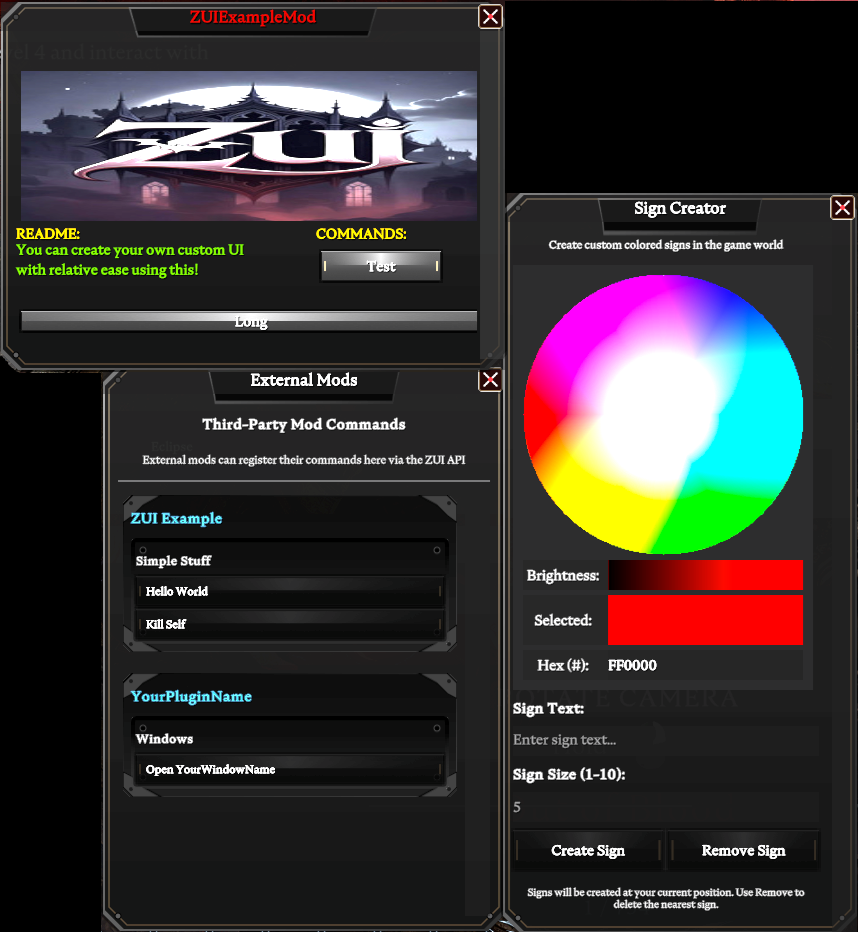
Note: ZUIExampleMod & ScarletSigns are not included with this package. Please download them individually.
✨ Key Features
- Custom Window Engine: Create independent windows using pixel-perfect custom dimensions OR use the visual designer at https://zanakinz.github.io/ZUI to create your own UI visually
- Dynamic Content Registration: Add categories, text blocks, and interactive buttons to any window on the fly
- Custom Image Support: Load and render PNG/JPG textures directly into your UI from your mod's Sprites folder
- Persistent Layouts: All windows support dragging and resizing with automatic data saving; your UI stays exactly where you left it
- Theming & 9-Slicing: Professional visual style using 9-sliced sprites for seamless button and panel scaling
- Input Blocking: Automatic game-input suppression ensures you don't accidentally cast spells or move while interacting with the UI
- Reflection-based Integration: Third-party mods can integrate without compile-time dependencies
🛠️ Installation
- Download the latest release
- Place
ZUI.dlland theSpritesfolder into yourBepInEx/plugins/directory- Note: The Sprites folder is required for the default framework visuals
- Configuration: By default, server-side integrations (like BloodCraft) are disabled. Enable them in the
ZUI.cfgfile if your server supports them
📚 Developer API & Examples
ZUI uses a "Context" based API. You set the plugin and window you want to work on, then add your content.
🔘 Basic Registration (Main Menu Integration)
By default, adding buttons without setting a custom UI context will place them in the global Main menu.
using ZUI.API;

// Best practice: Set your plugin name first
ZUI.SetPlugin("MyAwesomeMod");

// Target the main menu
ZUI.SetTargetWindow("Main");

// Add buttons to the default Main menu
ZUI.AddCategory("General Tools");
ZUI.AddButton("Heal Me", ".heal", "Restores your health");
ZUI.AddButton("Speed Boost", ".buff speed", "Temporary speed increase");
🎨 Custom Window Creation
Create completely custom UI windows with precise control over layout and positioning:
// Initialize your plugin context
ZUI.SetPlugin("MyCustomMod");

// Target a custom window (creates it if it doesn't exist)
ZUI.SetTargetWindow("MyControlPanel");

// Set custom dimensions (width x height in pixels)
ZUI.SetUI(600, 400);

// Set the window title with color support
ZUI.SetTitle("<color=#FF6B6B>My Control Panel</color>");

// Add positioned text
ZUI.AddText("<color=#4ECDC4>Welcome to my mod!</color>", 20f, 50f);
ZUI.AddText("Version 2.0", 20f, 80f);

// Add positioned categories
ZUI.AddCategory("<color=#FFE66D>Settings:</color>", 20f, 120f);
ZUI.AddCategory("<color=#95E1D3>Actions:</color>", 320f, 120f);

// Add positioned buttons
ZUI.AddButton("Execute", ".mycommand", 20f, 160f);
ZUI.AddButton("Custom Action", ".action", 20f, 200f, 250f, 35f);  // With custom size

// Add images (from your mod's Sprites folder)
ZUI.AddImage("logo.png", 20f, 280f, 560f, 100f);
📋 API Reference
| Method | Description | Usage |
|---|---|---|
SetPlugin(string) |
Sets the plugin identifier for UI registration | ZUI.SetPlugin("MyMod"); |
SetTargetWindow(string) |
Targets "Main" menu or a custom window name | ZUI.SetTargetWindow("Main"); |
SetUI(int, int) |
Creates custom window with width × height dimensions | ZUI.SetUI(500, 350); |
SetTitle(string) |
Sets window title (supports Unity Rich Text color tags) | ZUI.SetTitle("<color=#FF0000>My Window</color>"); |
AddCategory(string) |
Adds category label in main menu | ZUI.AddCategory("Admin"); |
AddCategory(string, float, float) |
Adds category label at specific X, Y position | ZUI.AddCategory("README:", 15f, 190f); |
AddButton(string, string) |
Adds button to main menu with text and command | ZUI.AddButton("Heal", ".heal"); |
AddButton(string, string, string) |
Adds button with text, command, and tooltip | ZUI.AddButton("Heal", ".heal", "Restores HP"); |
AddButton(string, string, float, float) |
Adds button at X, Y position | ZUI.AddButton("Test", ".cmd", 320f, 220f); |
AddButton(string, string, float, float, float, float) |
Adds button with position (X, Y) and size (W, H) | ZUI.AddButton("Long", ".cmd", 20f, 280f, 460f, 20f); |
AddText(string, float, float) |
Adds text at specific X, Y coordinates | ZUI.AddText("Hello!", 15f, 210f); |
AddImage(string, float, float, float, float) |
Adds image with filename, X, Y, width, height | ZUI.AddImage("logo.png", 20f, 40f, 460f, 150f); |
OnButtonsChanged |
Event triggered when UI buttons are updated | ZUI.OnButtonsChanged += () => { }; |
💡 Advanced Registration Example
// Setup plugin with multiple categories and custom window
ZUI.SetPlugin("AdvancedMod");
ZUI.SetTargetWindow("AdminPanel");
ZUI.SetUI(700, 500);

ZUI.SetTitle("<color=#E74C3C>Admin Control Panel</color>");

// Player Management Section
ZUI.AddCategory("<color=#3498DB>Player Management</color>", 20f, 50f);
ZUI.AddButton("Full Heal", ".heal max", 20f, 90f, 300f, 30f);
ZUI.AddButton("Speed Boost", ".buff speed", 20f, 130f, 300f, 30f);
ZUI.AddButton("God Mode Toggle", ".god", 20f, 170f, 300f, 30f);

// Server Tools Section
ZUI.AddCategory("<color=#2ECC71>Server Tools</color>", 360f, 50f);
ZUI.AddButton("Spawn Items", ".spawn all", 360f, 90f, 300f, 30f);
ZUI.AddButton("Teleport", ".tp", 360f, 130f, 300f, 30f);
ZUI.AddButton("Clear Area", ".clear", 360f, 170f, 300f, 30f);

// Status Display
ZUI.AddText("Status: <color=#2ECC71>Ready</color>", 20f, 450f);
ZUI.AddImage("server_logo.png", 250f, 250f, 200f, 150f);

// Listen for UI updates
ZUI.OnButtonsChanged += () => {
    Console.WriteLine("UI buttons updated!");
};
🎨 Custom UI Design Tool
Want to design your custom UI visually instead of coding coordinates?
Use the official ZUI Canvas Designer at https://zanakinz.github.io/ZUI
This interactive tool allows you to:
- ✨ Visually position UI elements (buttons, text, images, categories)
- 👁️ Preview your layout in real-time
- 📤 Export code directly for your mod
- 🎯 Experiment with different window sizes and arrangements
- 🎨 Test color schemes and layouts instantly
Instead of manually calculating X/Y coordinates, use the designer to drag and drop elements, then copy the generated code into your mod!
📐 Positioning System
Coordinates are in pixels from the top-left corner (0, 0):
- X increases going right
- Y increases going down
- Origin is the top-left corner of the window
Example: Position (20, 50) is 20 pixels from the left edge and 50 pixels from the top.
🎨 Color Support
ZUI supports Unity Rich Text color tags for all text elements:
"<color=#FF0000>Red Text</color>"
"<color=#00FF00>Green Text</color>"
"<color=#3498DB>Blue Text</color>"
"<color=#E74C3C>Bright Red</color>"
"<color=#2ECC71>Green Success</color>"
"<color=#F39C12>Orange Warning</color>"
"<color=#9B59B6>Purple</color>"
"<color=#ECF0F1>Light Gray</color>"
You can also use named colors:
"<color=red>Red Text</color>"
"<color=green>Green Text</color>"
"<color=blue>Blue Text</color>"
🔧 Integration Guide for Mod Developers
Soft Dependency Pattern (Recommended)
To integrate ZUI without requiring it at compile-time, use reflection:
using BepInEx;
using BepInEx.Unity.IL2CPP;
using System;
using System.Linq;
using System.Reflection;

[BepInPlugin("com.yourname.yourmod", "Your Mod", "1.0.0")]
[BepInDependency("Zanakinz.ZUI", BepInDependency.DependencyFlags.SoftDependency)]
public class Plugin : BasePlugin
{
    private static Type _zui;

    public override void Load()
    {
        if (InitZUI())
        {
            RegisterUI();
        }
    }

    private bool InitZUI()
    {
        if (!IL2CPPChainloader.Instance.Plugins.ContainsKey("Zanakinz.ZUI"))
            return false;

        var assembly = AppDomain.CurrentDomain.GetAssemblies()
            .FirstOrDefault(a => a.GetName().Name == "ZUI");
        _zui = assembly?.GetType("ZUI.API.ZUI");
        return _zui != null;
    }

    private void Call(string name, params object[] args)
    {
        if (_zui == null) return;
        var method = _zui.GetMethods(BindingFlags.Public | BindingFlags.Static)
            .FirstOrDefault(m => m.Name == name && m.GetParameters().Length == args.Length);
        method?.Invoke(null, args);
    }

    private void RegisterUI()
    {
        Call("SetPlugin", "YourMod");
        Call("SetTargetWindow", "Main");
        Call("AddCategory", "Features");
        Call("AddButton", "Test", ".test");
    }
}
Image Assets
Place your custom PNG/JPG images in:
BepInEx/plugins/Sprites/
Then reference them by filename in your code:
ZUI.AddImage("your_image.png", x, y, width, height);
🔍 Troubleshooting
UI doesn't appear:
- Verify ZUI.dll and Sprites folder are in
BepInEx/plugins/ - Check BepInEx console for errors
- Ensure ZUI is loaded before your mod (check load order)
Custom window not showing:
- Verify
SetUI(width, height)is called before adding elements - Check window dimensions are reasonable (100-2000 pixels)
- Ensure
SetTargetWindow()uses a unique name
Images not displaying:
- Verify image files are in
BepInEx/plugins/Sprites/folder - Check filename matches exactly (case-sensitive)
- Supported formats: PNG, JPG
Buttons not responding:
- Verify commands start with a period (e.g., ".heal")
- Check that the command handler is registered in your mod
- Look for errors in BepInEx console
Integration not working:
- Ensure BepInDependency is set correctly
- Check that InitZUI() returns true
- Verify reflection calls match ZUI API method signatures
📦 Built-in Integrations
ZUI includes native support for:
- BloodCraft - Economy and progression systems
- KinPonds - Custom clan management
- ScarletSigns - Sign and messaging systems
- KindredCommands - Extended command framework
These integrations can be enabled/disabled in ZUI.cfg.
🙏 Credits
- Panthernet - BloodCraftUI - OnlyFams was used as a base template
- Zanakinz - ZUI development and evolution
🤖 AI Disclosure
- AI was used in creation of readme's
- AI was used for debugging
- AI was used for image asset generation as I am not an artist
📄 License
This product is licensed under LGPLv3, but the base plugin 'BloodCraftUI - OnlyFams' is registered under MIT, so therefore this is a dual-license between MIT and my works which is LGPLv3.
See LICENSE.LGPLv3 for LGPLv3 details and LICENSE.mit for MIT details.
CHANGELOG
2.1.0
- Added server-side packet functionality
- Added the ability to stream sprites/images through http
2.0.0
- Added the ability to create custom UI panels.
- Added a standardized UI experience.
1.0.2
- Bugfixed the level up panel. It was incorrectly sending values.
- Bugfixed the "Lock UI" toggle to persist throughout restarts.
1.0.1
- Replaced the animated png for the normal non-animated version.
- Fixed the readme.
1.0.0
- First release
