
Please disclose if your mod was created primarily using AI tools by adding the 'AI Generated' category. Failing to do so may result in the mod being removed from Thunderstore.
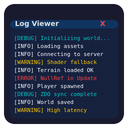
UnityLogViewer
In-game log viewer for Unity Games
| Last updated | 3 weeks ago |
| Total downloads | 124 |
| Total rating | 0 |
| Categories | Mods Tools Client-side Utility AI Generated |
| Dependency string | malafein-UnityLogViewer-0.0.2 |
| Dependants | 0 other packages depend on this package |
README
UnityLogViewer
An in-game log viewer overlay for any BepInEx 5 Unity game, designed to help with debugging while developing mods.


Features
- Real-time in-game log overlay showing Unity log output
- Draggable, resizable window
- Live text filter with regex support
- Auto-scroll to keep up with new log entries
- Pin mode to lock the window in place and hide decorations for an unobtrusive heads-up display
- Configurable syntax highlighting with 8 color-coded regex rules (errors, warnings, debug, etc.)
- Adjustable background opacity
Installation
Thunderstore / r2modman
- Install via Thunderstore Mod Manager or r2modman.
-or- - Download the mod from Thunderstore, and follow the Manual Installation instructions below.
Nexus Mods / Vortex
- Install via Vortex Mod Manager.
-or- - Download the mod from Nexus Mods, and follow the Manual Installation instructions below.
Manual Installation
- Install BepInEx 5 for your game.
- Download the latest release of UnityLogViewer.
- Extract the
UnityLogViewer.dllfile into yourBepInEx/pluginsdirectory.
Usage
Press F7 (default) to toggle the log viewer window. The window displays the most recent log output (500 lines by default, configurable via BufferSize).
- Filter — Type in the filter bar to show only matching lines. Supports regular expressions; falls back to plain text search if the regex is invalid.
- ⌫ — Clears the current filter.
- Clear — Clears the current buffer.
- Auto-scroll — When enabled (default), the view automatically scrolls to the latest log entry. Toggle it off to freeze the view and scroll manually.
- Pin — Click the pin button in the title bar to lock the window in place. Pinned mode hides the title bar, filter bar, and resize handle, leaving only the log text over a transparent background. Click the unpin button in the top-right corner to restore the full window.
- Resize — Drag the handle in the bottom-right corner of the window to resize.
- Drag — Drag the title bar to reposition the window.
Configuration
The config file com.malafein.unitylogviewer.cfg is generated in your BepInEx/config folder after the first run. Settings can also be changed in-game via Configuration Manager.
General
| Setting | Default | Description |
|---|---|---|
| ShowWindow | false | Toggle the log viewer window on/off. Use this if the hotkey doesn't work with your game's input system. |
| ToggleShortcut | F7 | Keyboard shortcut to toggle the log viewer. |
| Filter | (empty) | Persistent filter string (supports regex). |
| FontName | (empty) | Font to use for log text. Leave empty for the default UI font. If valid OS fonts are detected at runtime, a selector appears in the log viewer window. Note: font selection has not yet been tested on all platforms. |
| BackgroundOpacity | 40 | Background opacity of the log window (0–100). |
| Pinned | false | Pin the log view in place, hiding window decorations and disabling interaction. |
| BufferSize | 500 | Maximum number of log lines to keep in the buffer (100–5000). |
Window
These values are saved and updated automatically whenever you move or resize the window, so your preferred layout is preserved between sessions.
| Setting | Default | Description |
|---|---|---|
| WindowX | 833 | Horizontal position of the window (pixels from left). |
| WindowY | 1019 | Vertical position of the window (pixels from top). |
| WindowWidth | 1507 | Width of the window in pixels. |
| WindowHeight | 300 | Height of the window in pixels. |
Highlighting
Eight configurable highlight slots let you color-code log lines by pattern. Each slot has a pattern and a color setting. The first matching rule wins.
| Setting | Default | Description |
|---|---|---|
| Highlight1Pattern | \[ERROR\] |
Regex pattern for highlight rule 1. |
| Highlight1Color | red | Color for highlight rule 1. |
| Highlight2Pattern | \[WARNING\] |
Regex pattern for highlight rule 2. |
| Highlight2Color | yellow | Color for highlight rule 2. |
| Highlight3Pattern | \[DEBUG\]|\[DBG\] |
Regex pattern for highlight rule 3. |
| Highlight3Color | cyan | Color for highlight rule 3. |
| Highlight4Pattern | \[INFO\] |
Regex pattern for highlight rule 4. |
| Highlight4Color | white | Color for highlight rule 4. |
| Highlight5–8 | (empty) | Additional slots available for custom rules. |
Colors can be specified as a named color (red, yellow, cyan, green, blue, magenta, orange, white) or a hex value (#RRGGBB).
Changelog
See CHANGELOG.md for version history.
