
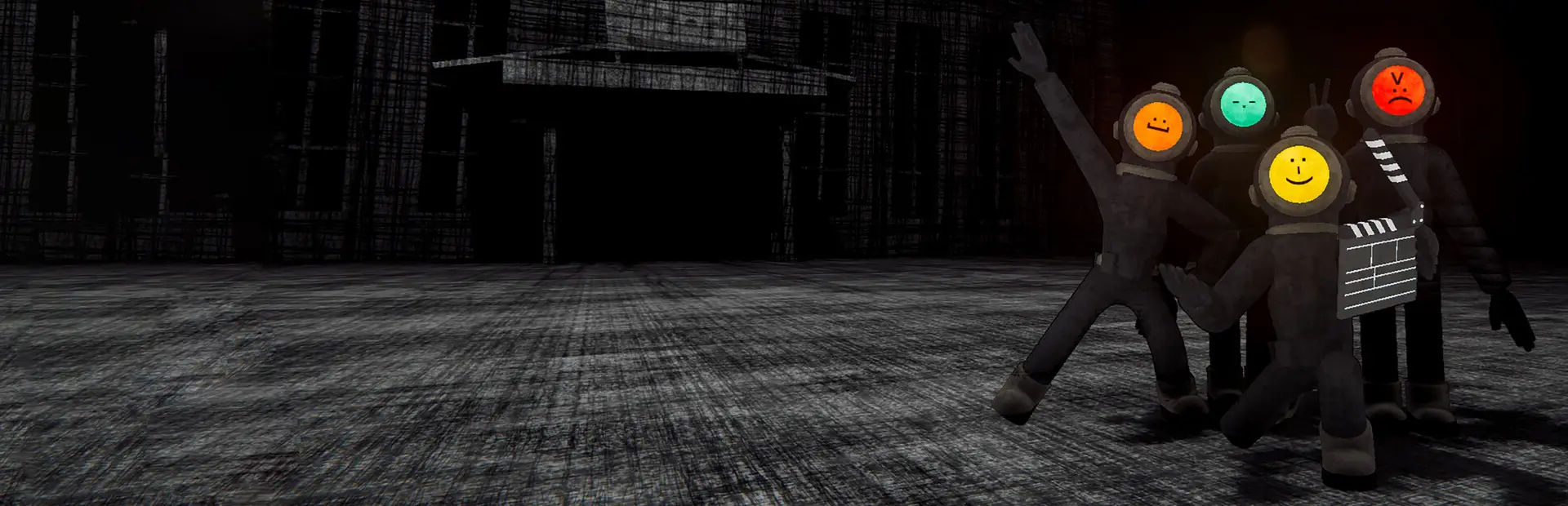

Content Schizophrenia
[20+ Mods] Are you schizophrenic? Then this is the perfect modpack for you!A good ol' modpack to mess around with your friends!
Installation:
MAKE SURE TO UPDATE EVERY MOD.
-
(Thunderstore):
1: Download the Thunderstore Mod Manager and run the executable. 2: Select Content Warning as your game, and create a new profile (you can name it anything that you can remember easily). 3: Select the profile, click "Get mods" on the left bar, Search for "Content Schizophrenia"(by OrangeSkyline2) and click install. 4: Once installed, click on the "Modded" play button in the top right to launch it right away, since the modpack already is configured. You must always launch the game this way if you want to play on a modded version of Content Warning. If you end up wanting to play it Vanilla, or unmodded, then just click on the "Vanilla" play button in the top right.
-
(Manual):
1: When on my mod page, scroll down until you see all of the Dependencies under the "This mod requires the following mods to function" banner. 2: Now, make sure you have downloaded BepInEx at the very minimum, and have installed it to your Content Warning directory(C:\Program Files (x86)\Steam\steamapps\common\Content Warning), then start to download all of the mods by clicking "preferred version". If there is a newer version of that mod, then download it. 3: Once you have all of the mods, then either copy and paste them, or just drag them into your Content Warning directory(C:\Program Files (x86)\Steam\steamapps\common\Content Warning), aka where the .exe is and put them in the BepInEx\plugins folder. 4: Once you have installed all mods, then go to my store modpack, click "Manual Download" and wait until the zip is installed. 5: After that, extract the "Content Schizophrenia" zip folder, open it, and copy the config folder, go back to your Content Warning directory(C:\Program Files (x86)\Steam\steamapps\common\Content Warning) and paste the config folder into BepInEx.
Recommended Actions:
Manual Config Modification:
If you want to modify any mod settings, just go into BepInEx/config and find the mod you want to modify and open the .cfg with any text editor. I would recommend Notepad++ or Visual Studio Code.
Thunderstore Config Modification:
On the left bar, click "Edit config" and pick what mod config file you want to modify.
Modified Thingymajigz:
-
Clips: Videos Folder |
-
Video Length(Seconds): 360 |
-
Video Framerate: 60 |
-
Video Quality(512k Default): 1024k |
-
Friend Joining: True |
-
Allow Late Join: True |
-
Everything Else: Default |