VTuberHats
Adds new hats to look like your favorite VTubers!About
This mod adds new hats so you can look like your favorite VTuber!
It is based on Radsi2's CustomHats mod: https://thunderstore.io/c/peak/p/Radsi2/CustomHats/
Contents
- Chibidoki hair & horns. ( https://linktr.ee/chibidoki )
- More to come! Making this work took a fair amount of time so we'll see what I add next.
Instructions
Download the mod with the Thunderstore app and new hats will automatically be added to your passport.
The Passport pagination mod is required to display all the hats in an organized manner.
If a player does not have the mod, they'll see you bald but you can still play with them.
Mods I recommend using with this one:
- More skin colors: https://thunderstore.io/c/peak/p/figgies/SmoreSkinColors/
- Skin color sliders: https://thunderstore.io/c/peak/p/Snosz/SkinColorSliders/
- Third person toggle: https://thunderstore.io/c/peak/p/Evaisa/ThirdPersonToggle/
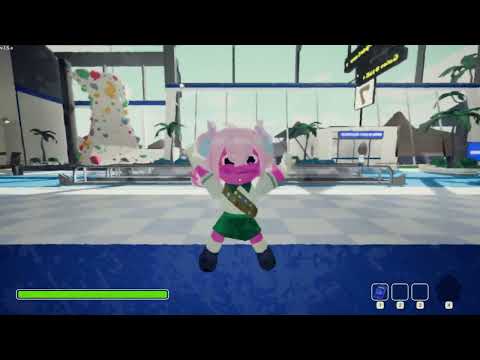
Screenshots & videos
How to make your own mod
Feel free to clone the repository from GitHub if you want to make your own mod that adds hats (here: https://github.com/MonAmiral/VTuberHats )
You'll need an IDE like Visual Studio or equivalent to modify the code and compile it, and Unity 6 to compile the assets into AssetBundles.
First, code:
Find the line in Plugin.cs where it says hats.Add(LoadHat("chibidoki")); and duplicate it as many times as you want, changing the name for each hat.
Find the line where it says string path = System.IO.Path.Combine(directoryName, "vtuberhats"); and replace "vtuberhats" with the name of your choice, it'll be your assetbundle name.
Once you've made these changes compile the project and put its DLL into the mod folder.
I'm not going to go into details about coding, compiling, and preparing your mod. There's plenty of resources out there.

Next, assets:
In Unity, create one prefab and one icon for each hat, and put them directly in the Assets folder (their FBX/textures/etc can be anywhere, but prefab and icon must be at the root).
Associate both prefab and icon with an AssetBundle with a name that matches what you put in the code.
Build the asset bundles using a simple button ( straight up copy code from here: https://docs.unity3d.com/540/Documentation/Manual/BuildingAssetBundles.html )
Copy the asset bundle into the mod folder!

Building the mod:
You can make a zip file with the DLL and the asset bundle and all the files which are needed to make a mod (manifest, icon, etc., check the Thunderstore documentation).

Then you can test the mod by "Loading a Local Mod" in the Thunderstore Mod Manager, and admire the result!