


PEAK WhereCanIStand
A mod for PEAK that highlights where you can stand with a custom shader.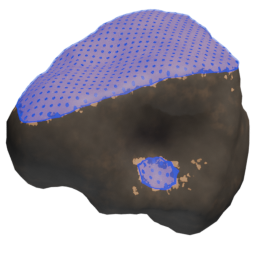
WhereCanIStand
for PEAKThis is a mod for PEAK that allows you to highlight areas you can stand on the rocks through a customizable key bind.
It uses a shader that draws an outline and area on rocks marking where you can stand, making it very friendly on framerate.
Gallery
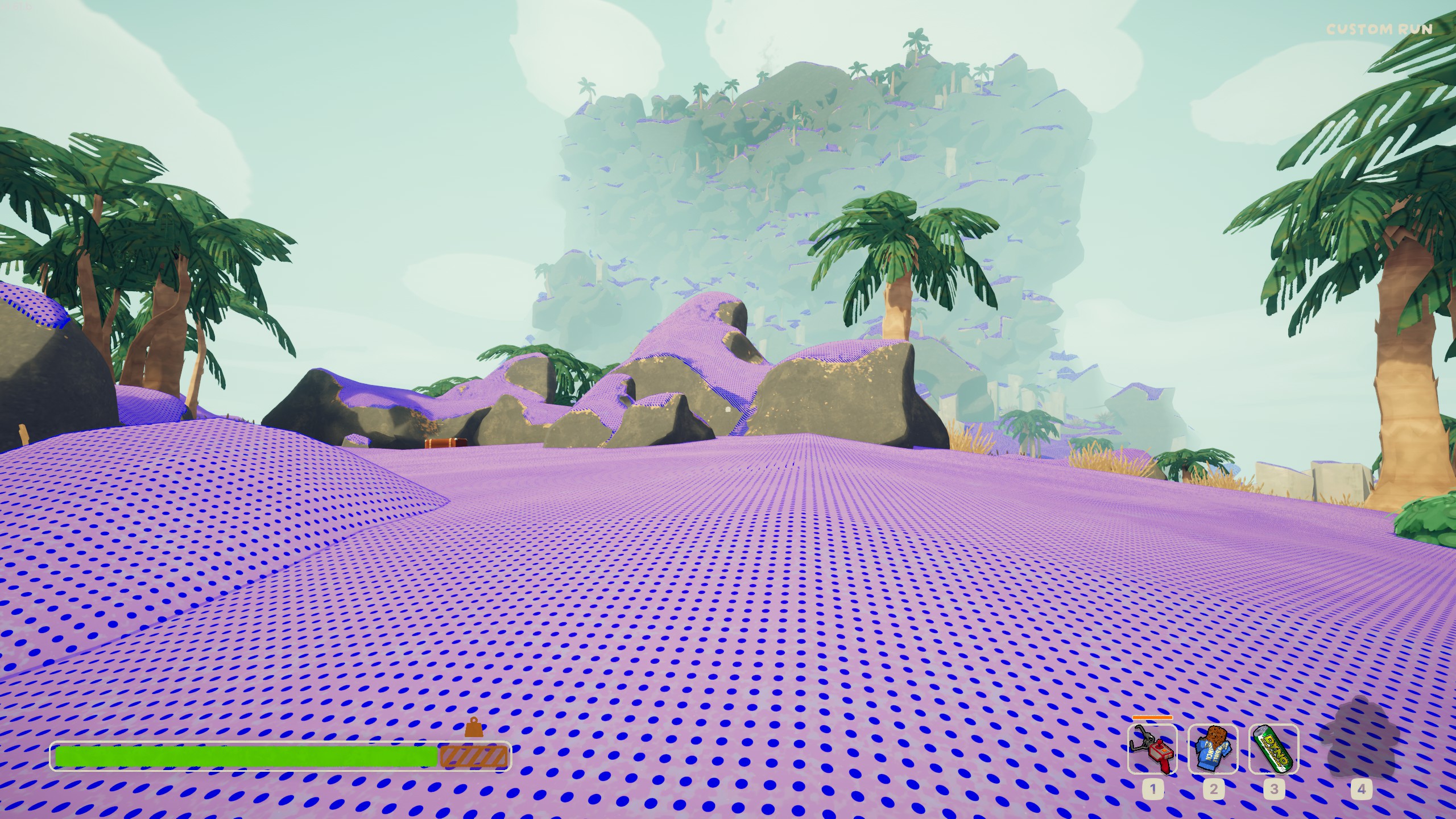
The overlay shows areas that can be stood on
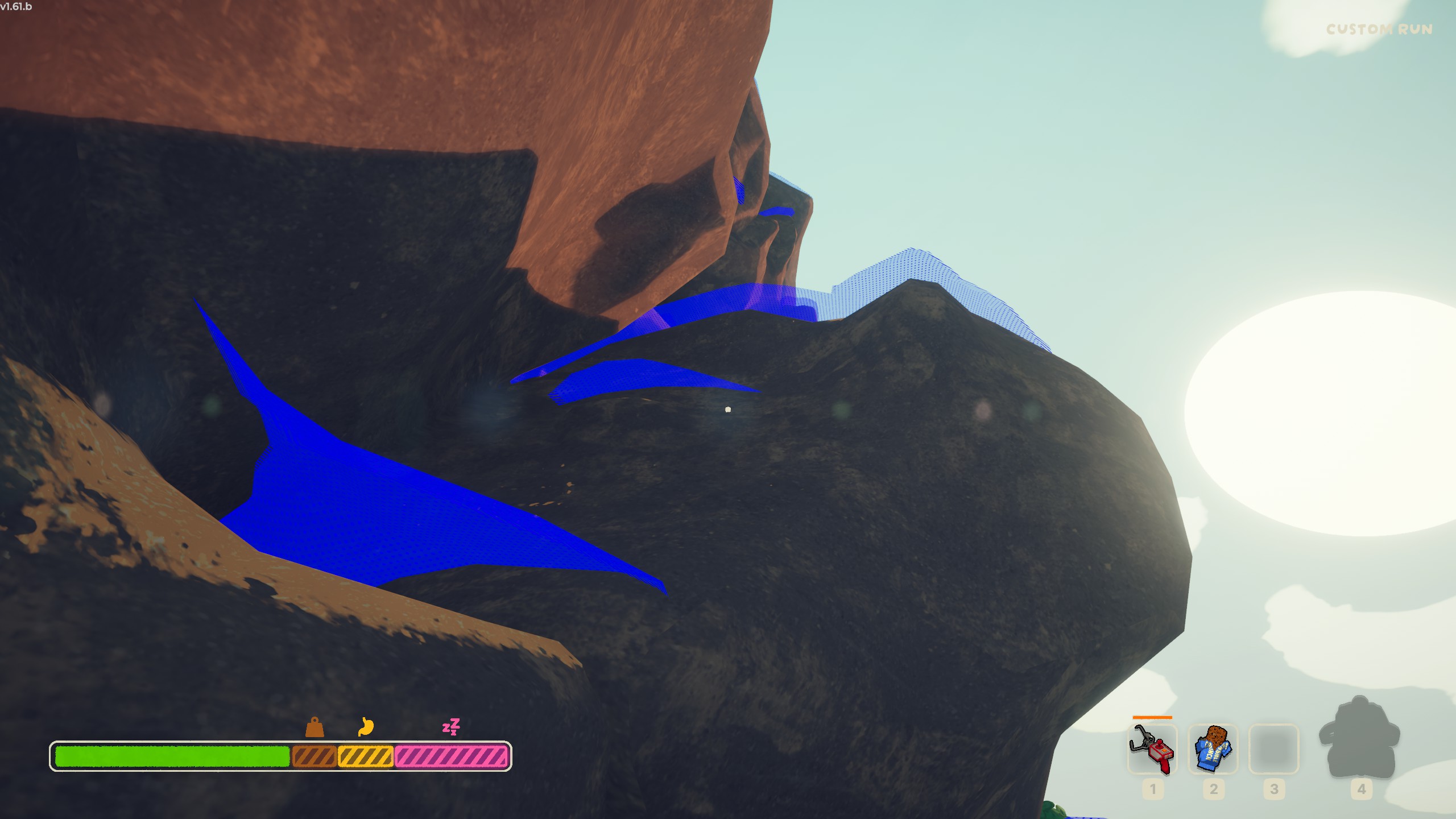
Elevated mode lets you see standable areas from below
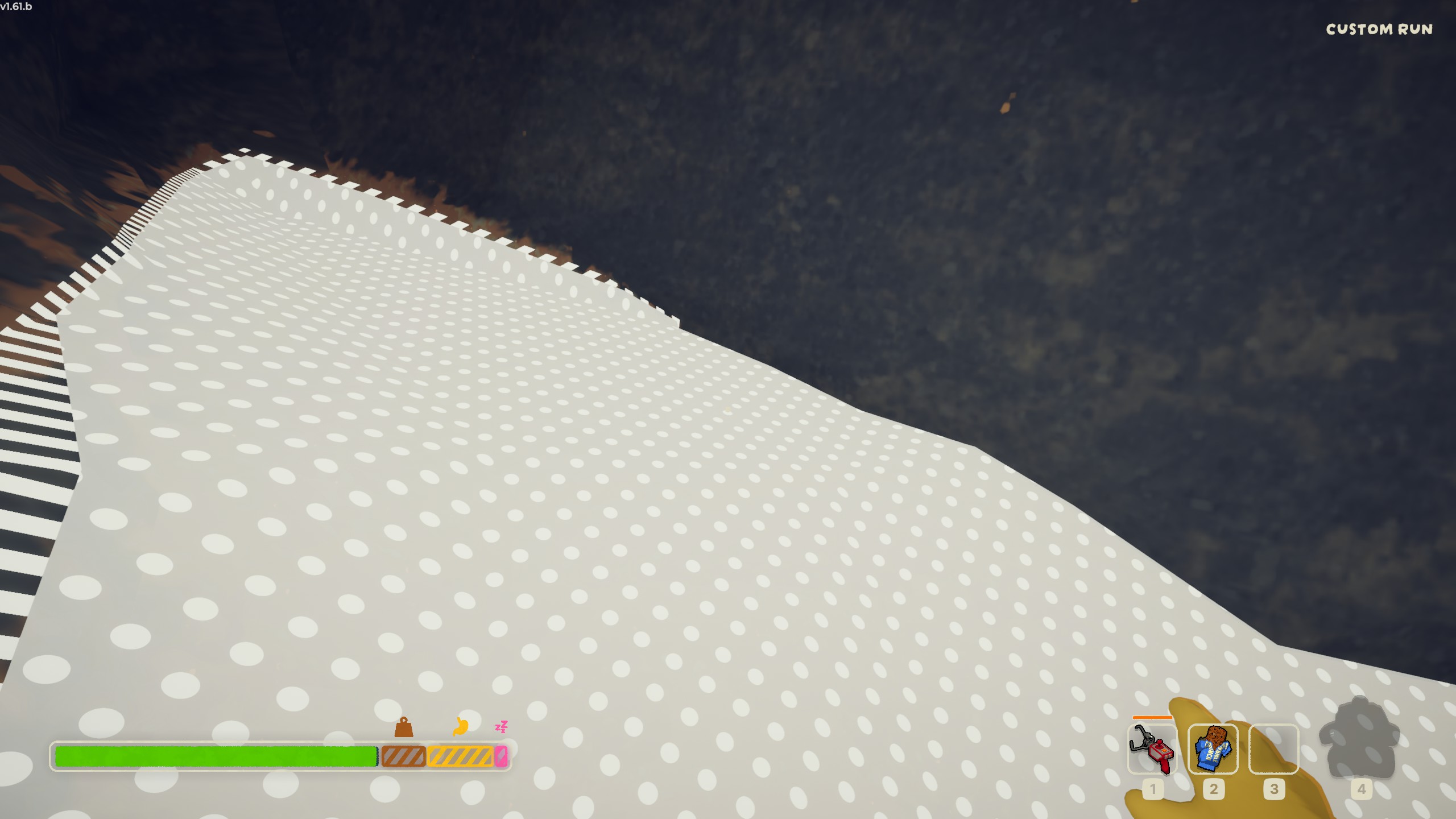
Cycles between colours so you can pick what is easiest to see
Installation
Via Thunderstore
Download the mod from the Thunderstore page.
You will need BepInEx, either through manual installation as below or from the pre-created BepInEx PACK on Thunderstore.
Copy the contents of the BepInEx/plugins folder within the Thunderstore download into your BepInEx/plugins folder within the PEAK install.
You're done!
Manually
Install BepinEx
Install BepinEx from the BepinEx releases page.
The specific version you are recommended to use is BepInEx_win_x64_5.4.23.3.zip because it has the most compatibility with other mods if you choose to use them.
Extract the release zip file and copy the contents into your PEAK folder. The BepinEx folder and winhttp.dll file should be in the same folder as PEAK.exe.
Download a release from the Releases page
Download the latest release from here.
Extract the zip file.
Install mod
Copy the contents of the BepInEx/plugins folder into the BepinEx/plugins within your PEAK install.
You're done!
Usage
Press J on your keyboard to cycle between overlay modes.
You can change the key binding in BepInEx/config/PEAK_WhereCanIStand.cfg.
The overlay will cycle between different colours, and between 'aligned' and 'elevated' mode.
The aligned mode shows the standable surface on the rock itself. The elevated mode shows the overlay 1 meter above the rock, allowing you to see climbable areas from below.
Areas marked with dots can be stood on if your character fits there. The moving dashed line shows areas that can only be stood on in certain conditions, so it might be not be standable every time.
The overlay only shows on opaque surfaces that use the W/Peak_Rock shader. It won't show on semi-transparent surfaces, like the tops of trees in the Tropics.
Building (for developers)
Preparation (assets build)
This mod includes a custom Unity URP shader to show on the top surfaces of the rocks in game.
For the game to be able to use this shader, it has to be built into a compatible AssetBundle.
You will need Unity 6000.3.13f1 installed, ideally through Unity Hub, to do this.
Building assets
Open the WhereCanIStand_UnityProject in Unity by adding it to Unity Hub and opening it.
It may take some time to open the first time as assets import and compile.
Once you're in Unity, click Assets in the top menu bar, and press Build AssetBundles.
This will take some time to compile the shader and build all the asset bundles defined in the project.
The asset bundles will end up in WhereCanIStand_UnityProject/Build.
The only asset bundle that is needed is wherecanistandassets.
The packaging script will detect and bundle this in, so once you have the file, you are done with this step.
Preparation (mod build)
You should have PEAK and BepinEx installed before you attempt to build the mod.
Make sure you have launched PEAK at least once since installing BepinEx because this will allow BepinEx to fetch and create any necessary files.
Installing the dotnet command line
You will need the dotnet command line tool with support for netstandard2.1.
You can read about the .NET CLI here. If you're on Windows, you will most likely want to get it by installing the .NET SDK here.
Build the mod
When building, the mod references the PEAK and BepinEx assemblies directly from your installation folder.
If you have PEAK installed via Steam on your C:\ drive, such that your PEAK installation is stored at C:\Program Files (x86)\Steam\steamapps\common\PEAK, you can simply run build.ps1.
Otherwise, you will need to set the location of your PEAK install as an environment variable:
$env:PEAK_INSTALL_LOCATION = "D:\Program Files (x86)\Steam\steamapps\common\PEAK";
./build.ps1
Packaging the mod
This mod requires the DLL and asset bundle built in the prior step.
The package.ps1 will automatically put them into a structure appropriate for copying into BepinEx's plugin folder, or uploading to GitHub releases.
Run the package.ps1 script, and it should create a Releases folder with a folder and zip file.
Installing the mod
If you have PEAK installed via Steam on your C:\ drive, such that your PEAK installation is stored at C:\Program Files (x86)\Steam\steamapps\common\PEAK, you can simply run install.ps1.
Otherwise, you will need to copy the content of Releases/plugins to your BepinEx/plugins folder inside your PEAK folder or set an environment variable to let it know where to install:
Otherwise, you will need to set the location of your PEAK install as an environment variable:
$env:PEAK_INSTALL_LOCATION = "D:\Program Files (x86)\Steam\steamapps\common\PEAK";
./build.ps1