CustomHUD
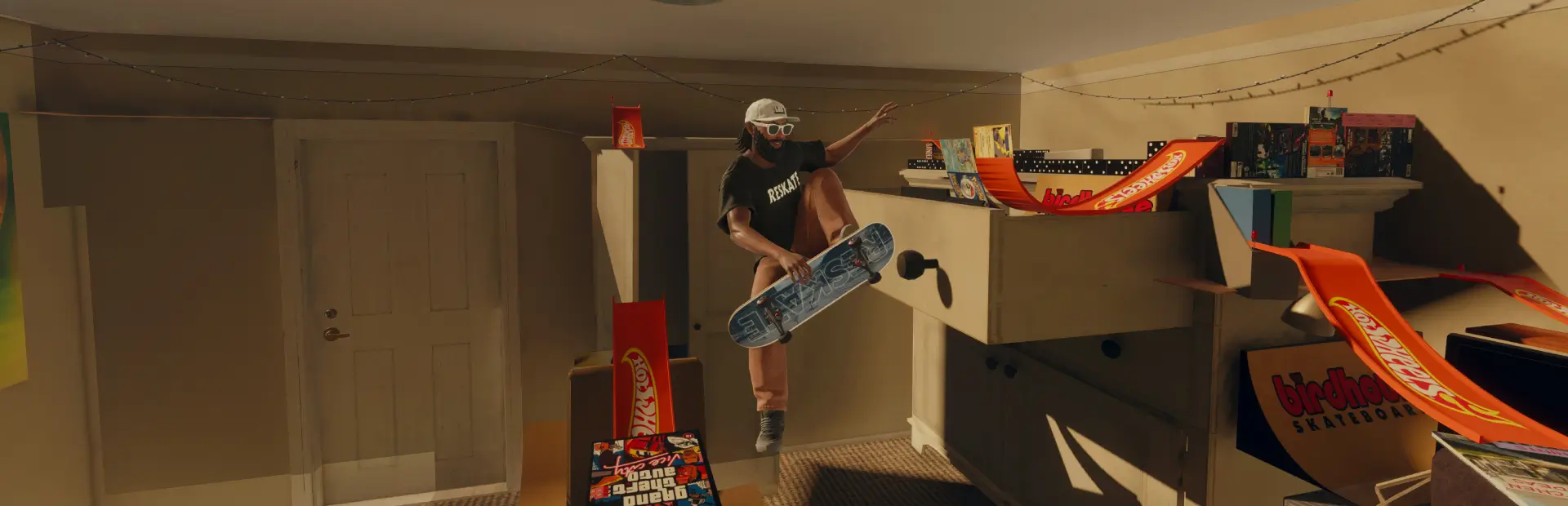
A highly customizable HUD styled similarly to skate 3. Some of the options include custom colors, fonts, styles, background images, arrangement, + more :)Custom HUD
Skate 3's trick multiplier HUD for skate., where every part takes any RGB colour, the trick names, score and multiplier can each use any font on your PC, and the badge can hold a background picture of your own.
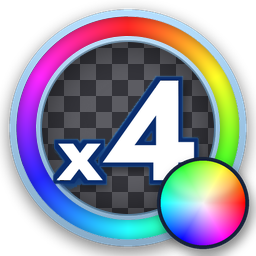
- The Skate 3 multiplier badge: the see-through badge with its rim, dark track and timer ring, the xN number in Skate 3's style, a glow behind the number that grows with the multiplier, and a pop when it goes up. An empty badge before x1.
- x1 to x4, as in Skate 3: one more for every trick in the line, up to x4 (or your own highest, up to x99).
- The line timer ring stays full during a trick and runs out between tricks, over skate.'s own line time (learned as you skate), emptying counter-clockwise.
- Smooth: the ring and pop animate every frame, the score counts up, and the HUD keeps its pictures loaded so a line comes up whole.
- The multiplier number can be turned off (Badge), to show only your picture in the badge, or nothing.
- Two ring styles (Badge > Ring style): Skate 3's, the ring between its edge lines, or flat: one plain band, for a sleeker look.
- Round or square badge (Badge > Look > Shape): the square one's timer runs round the square, for a square background picture.
- Every text part moves and resizes on its own (Text > Positions and sizes): the trick name, its detail, the earlier tricks and the score, or drag them in HUD Studio's preview, to suit your font and your taste.
- A smooth ring or one with lines across it (Badge > Lines across the ring).
- The text beside it: the trick going on now (and its detail, such as "Nollie"), earlier tricks in the line, and the line score in Jost, a free Futura lookalike. After a bail the score turns red with a line through it.
- 19 colours, each with opacity: rim, ring track, ring timer, badge centre, glow, shine, shadow, number, number outline, trick name and its outline, trick detail and its outline, line score and its outline, earlier tricks and their outline, bailed score and the background tint. Each outline also has its own on/off switch.
- Your own fonts: a separate font for the trick names, the line score and the multiplier number, picked from the fonts installed on your PC, with search and favourites.
- Themes: a default (Skate 3 Blue), 10 light and 10 dark starter themes, and up to 31 of your own, saved under names you choose.
- Background pictures: any PNG or JPG, inside the badge (round), behind it or on top of it, with zoom, pan, size and tint.
- Layout: move it, resize it, change the gap and text sizes, turn parts off.
- Preview: a pretend line plays in the bottom-left as soon as you open the settings page, and stops when you leave it.
- skate.'s own scoring HUD is always hidden by default, so it never pops up under this one. You can change that on the Layout tab.
A full guide with pictures of every theme is in guide.html in this folder.
Requirements:
-
ReSkate 2.1.2 or newer (plugin API 1); 2.1.3 recommended.
OR
-
ReSkate 2.1.3 asks you to approve each plugin the first time (and again after an update), and lists what it may do. This one asks for: drawing on screen, its menu page and HUD Studio screen, its settings, trick and fall events, hiding skate.'s HUD, binds, its data folder (themes, trick names), menu sounds, reading other mods'
trick-namesfolders, and reading skate.'s setting names (only when you press SAVE SKATE.'S SETTING NAMES).
Install
Install it with your mod manager, or copy the CustomHUD folder into Mods\ and enable it in Mods\mods.json.
Turn off other HUD mods or both badges will show.
IMPORTANT: adding fonts
ReSkate draws pictures, not font files, so a font is turned into pictures once. The quickest way:
- Copy the font file (
.ttfor.otf) into this mod'sfontsfolder. - In HUD Studio > Fonts, press LOOK FOR NEW FONTS, then OPEN THE COLOUR PICKER, and open that page in Chrome or Edge.
- On the page, press Add it to the game (the first time, it asks for this mod's folder: pick
Mods\CustomHUD). The HUD reloads within a few seconds; choose the font in HUD Studio > Fonts.
Or from the fonts on your PC:
- Open
colour_picker.html(in this folder) in Chrome or Edge. Other browsers cannot list your fonts; there you can still load a font file (.ttf or .otf), which goes straight into the game once the mod folder is connected. - Press Show my fonts and allow access. Search, star your favourites, then press Trick names, Score or Number to use a font there, or Add only to make it a choice in the game without using it yet.
- Press Connect the mod folder, pick
Mods\CustomHUD, then Save to the game. ReSkate notices the change and reloads the HUD within a few seconds, even with the game running. Without folder access, press Download as .zip and unzip it into this folder. - In the game, Custom HUD > Fonts has a list for each of the three, favourites first (marked
*).
How many font changes before a restart? ReSkate lets this HUD show 32 different pictures until it reloads. The badge uses 6 and the built-in font 4, which leaves room for 11 new fonts (fewer if you also show background pictures).
- Showing a font for the first time costs 2, or 4 if it is used for both letters and numbers.
- Importing fonts costs nothing. Fonts that are only in the list are free, and switching back to a font already shown is free.
- When the room runs out, the HUD keeps its current font and tells you on its Fonts tab, which also shows the count. It does not crash.
- To start the count again: save anything from the colour picker page (the HUD reloads by itself), type
plugin reload CustomHUDin the ReSkate console (the name is the mod's folder name, so if your mod manager named the folder666CustomHUD, use that), or restart the game.
HUD Studio
HUD Studio is the HUD's own window, over the game: the sections down the left (or along the top: Settings > Appearance > Sections), the settings in the middle and a live preview on the right. The Tutorial is first in the list. Busy sections are split into tabs (Text: Shown, Falls, Sizes, Positions, Outlines, Names), switched by clicking them or with LT / RT. The controls for the mouse or the controller are shown at the top.
- Open it while you skate: Ctrl + Z on the keyboard or L3 + R3 + LB (L1 on PlayStation) on a controller. Change either on ReSkate's Binds page (CustomHUD > open_studio and open_studio_pad). Or, from ReSkate's menu: PLUGINS > Custom HUD > OPEN HUD STUDIO, then close the menu (Insert). ReSkate does not let a plugin close its menu for you.
- See what you are changing: point at a setting (or move onto it with the controller) and its part of the HUD lights up in the preview, in a bright pulsing colour unlike the one it has. Settings that change the whole HUD (its position, its size) frame all of it.
- The preview plays a pretend line, or holds x1 to x4 (the buttons above it). It shows the HUD at its size in the game, smaller only when it would not fit, with a small map of where it sits on your screen.
- Settings (the gear, bottom left): General (menu sounds, menu size, the highlight, the preview, the window's place, resets), Appearance (10 light and 10 dark themes for the menu, and a custom theme with up to 12 named presets), Controls (every key and button), About (version, the guide, the colour picker, troubleshooting, credits).
- Controller: LB / RB sections, LT / RT tabs, D-pad up / down a setting, left / right change it, A press, B close (or leave a text box), X / Y the colour channel on Colours. Mouse and keyboard: click, drag a slider, wheel to scroll, drag the title to move the window, Esc or right click to close, Enter and Backspace in a text box.
The classic editor (every setting in ReSkate's own menu) is still on the plugin's page: turn on Show the classic editor there.
Changing the colours
In the game: open the ReSkate menu (Insert) > PLUGINS > Custom HUD.
- Colours: pick a part, then set its Red, Green, Blue and Opacity (0 to 255). The hex code shows under the sliders.
- Themes: apply a starter theme, save, update, rename or delete your own (My themes), import
config.json, or reset everything. - Preview starts by itself while the page is open. The PREVIEW switch at the top of every tab turns it off, and Layout > Start the preview when this page opens sets what happens next time.
Naming a theme: Themes > My themes > Save the current look as a new theme opens a name panel on the right. Type the name (it replaces the suggestion). ReSkate does not pass Backspace to plugins, so use Delete the last letter or Clear, then Save.
With the colour picker page: press Open the colour picker in the game (Colours, Fonts or Themes tab) and double-click colour_picker.html in the folder that opens, or open colour_picker.html from this folder yourself. You get a full colour picker, hex codes, fonts and a live preview. Save to the game writes config.json into this folder and the HUD loads it by itself. If you copy a config.json in by hand, press Themes > Import config.json in the game.
Your settings are saved by ReSkate and survive updates to this mod.
Background pictures
- Put PNG or JPG files in
Mods\CustomHUD\backgrounds\(square pictures fit best; plain English letters, numbers, spaces,-and_in the file name). IMPORTANT: ReSkate shows pictures up to 512 x 512 pixels and 2 MB; a bigger one stays blank. The colour picker page shrinks a picture and saves it here for you. - In the game: Custom HUD > Background, press Look in the folder again, then pick your picture.
- Choose where it goes: Inside the badge (round), Behind the badge (square) or On top of the badge (square). Zoom and move it to frame it.
- Its colour and opacity are the Background PNG tint part on the Colours tab. White keeps the picture's own colours.
An example, example_starburst.png, is included.
How it works
skate.'s own multiplier pictures are baked into the game's data, so a colour picked in a menu cannot repaint them. Instead, this plugin draws the HUD itself with ReSkate's overlay. It reads the score, the multiplier and the trick names from skate.'s scoring HUD, and hides skate.'s own bottom-left HUD (always, by default). Every picture is white, and the plugin tints it to your colour as it draws.
Browsers
- Chrome and Edge: everything works: listing your fonts and saving straight into the mod folder.
- Brave: folder saving is off until you open
brave://flags/#file-system-access-api, set it to Enabled and restart Brave. Brave also hides installed fonts, so use Load a font file (fonts are inC:\Windows\Fonts). - Firefox and Safari: use Download as .zip and Load a font file.
- Colours, themes and layout can always be changed in the game instead.
Does it update while the game is running?
Yes. When the colour picker page saves into this folder, ReSkate notices within about two seconds and reloads the HUD with the new settings, fonts and themes. That needs Chrome or Edge with the mod folder connected. A downloaded .zip must be unzipped into the folder first, and a hand-copied config.json needs Themes > Import config.json.
Trick names
The HUD reads trick names from skate.'s trick list, and falls back to the trick name in skate.'s score HUD. Text > Last trick name shows what it got and where from. If trick names never show, that line helps find out why.
skate. writes other text (place names such as "M Corp Plaza - Plot16 - ENT", player card titles) through the same slot as trick names. The HUD keeps a name only when skate. also gave it a stance, side or landing, or when it came during or just after a trick and reads like a trick name. What it leaves out is listed on the Text tab, and with Text > Write trick names to ReSkate's log on, every name kept or left out is written to ReSkate's log (logs\ReSkate.log), so a trick that goes missing can be reported.
Falls and slams
After a fall the line ends at once: the score turns the bail colour with a line through it, as in Skate 3. The HUD hears a fall two ways (skate.'s line break, and every wipeout, between tricks too), and holds the failed line until you are up again, so skate. scoring the fall itself never wipes the line through away.
skate. names a fall as it goes (Flip, Slam, then a slam such as Harsh Slam or Gnarly Slam). The HUD shows those names as skate. gives them: the last one in the trick's place in the bail colour, the trick that failed and the fall's earlier moves above it. Text > Slam names after a fall and Text > Moves (Spread Eagle, Dive, Roll, Flip) turn each kind off. With both off, the trick that failed stays in red.
A missed trick counts as a fall too: a trick that scores nothing, with you then on your feet off the board (or skate. ending its line), ends the line struck through, as in Skate 3. A clean step-off after a landed trick does not.
Each of these is its own switch under Text > FALLS AND MISSED TRICKS: the line through the score, the score in the bail colour, slam names, moves, and whether a missed trick counts. Keep the line through the score with no slam names, or any mix you like.
One slam name a fall (on by default): skate. says Slam at every hit, so a fall keeps one name, and a stronger one (Harsh Slam, Gnarly Slam) takes its place; the next fall starts once you stand up or reset. Turn it off to see every hit.
Landing colours: Text > Falls > Landings: each its own colour (or Colours > Landings > EACH ITS OWN) shows the landing (Perfect, Clean, Sketchy, Sloppy, or a fall's Ouch / Rough) in its own colour, set on Colours > Landings.
Moves off the board (Spread Eagle, Dive, Roll, Flip) show like tricks and count towards the multiplier, as skate. counts them; Text > Moves hides their names (they still count).
Trick packs and your own trick names
Animation mods and trick packs change how a trick looks, but skate. still calls it by its own name. Any mod can rename tricks on this HUD with a trick-names folder next to its manifest.json, holding one or more JSON files:
{
  "_note": "skate.'s name on the left, the name to show on the right (any case). Keys starting with _ are notes.",
  "Kickflip": "Hippie Flip",
  "Varial Heelflip": "Scissor Flip"
}
You can do the same yourself: HUD Studio > Text > MY OWN TRICK NAMES FILE makes trick-names.json in this plugin's data folder and opens it. Your names win over a pack's. Press READ TRICK NAMES AGAIN after saving. A name matches the whole trick name skate. gives (such as "Kickflip"); stance, side and spins are still added around it.
The multiplier
skate.'s own multiplier rises far more slowly than Skate 3's, and can sit between whole numbers. By default the badge counts like Skate 3 instead: x1 for the first trick, then one more for every trick in the line, up to x4. Badge > Custom highest multiplier lets it go higher (a slider from x1 to x99). The score beside it is always skate.'s own.
The ring
The ring is full while a trick goes on and runs out between tricks. skate. does not give plugins its own line timer, so the HUD learns how long skate. keeps a line going after the last trick, from the lines you finish without bailing, and runs the ring over that: it is empty just as skate. ends the line. Badge shows what it has learned; until your first finished line it runs over 2.5 s. When the ring runs out the line ends, as in Skate 3: the next trick starts again at x1. How long skate. itself keeps a line going is skate.'s own rule; the ring follows it, it cannot change it.
Known limits
- The timer ring is timed by this plugin, from skate.'s line time as it learns it (see The ring). A line that skate. keeps going for a reason of its own can end before or after the ring runs out.
- If the HUD ever stops (ReSkate stops a plugin that takes over 50 ms in one go, which a hitch in the game can also cause), type
plugin reload CustomHUDin the ReSkate console, using your mod folder's name (for exampleCustomHUD).plugin listshows whether it is running. - The d-pad hints: skate.'s d-pad hints and its score badge are one corner of its HUD, and ReSkate lets plugins hide that corner only as a whole, and not move it. So by default the hints are hidden with skate.'s badge. Layout > skate.'s HUD > Show its d-pad hints between lines brings them back once this HUD has gone from the screen after a line, so the two never overlap; skate.'s LINE label can then show between lines too. Moving the hints, or showing them with this HUD, needs a change in ReSkate.
- Trick-metric boxes (such as "Step-Up 4.7 m") are part of skate.'s HUD and are hidden with it.
- The compass, area names and button prompts ("X to climb"): ReSkate lets a plugin hide skate.'s HUD only as a whole. Layout > Hide the rest of skate.'s HUD while skating does that (it comes back in menus); there is no way yet to hide those parts one by one. To hide only the button prompts, ReShakal's Immersion CleanView mod does it with game files, and works alongside this HUD.
- Text: trick names use English letters (printable ASCII). Other characters show as
?. Very wide or decorative fonts are drawn smaller so they fit ReSkate's 512 x 512 picture size. - Hiding the HUD for clips: ReSkate's own Hide HUD bind does not reach plugin drawings. Set a key for CustomHUD > toggle_hud on ReSkate's Binds page instead.
- ReSkate's 32-picture limit is shared by fonts and backgrounds; see IMPORTANT: adding fonts.
- Pictures on the graphics card: ReSkate gives all plugins 16 picture slots together. While you skate, the HUD keeps its own (about 10) loaded so it always comes up whole; while a menu or another plugin's screen is open it lets them go. Coming back from a big plugin menu, the HUD may take a moment to load its pictures again.
Credits
- Badge art: drawn from scratch with code, white so it can be tinted, after Skate 3's badge. No Skate 3 or skate. image data is shipped. Skate 3 and skate. are EA's.
- Your fonts: fonts you add are drawn into pictures on your own PC for your own use. If you share your settings, leave out fonts whose licences forbid it.
- Fonts: Jost by indestructible type* (the HUD text and the badge digits) and League Spartan by The League of Moveable Type (the badge's "x"), both under the SIL Open Font License 1.1 (
OFL-Jost.txt,OFL-LeagueSpartan.txt). The glyphs are rendered into the pictures; no font file is shipped.