
You are viewing a potentially older version of this package. View Latest Version
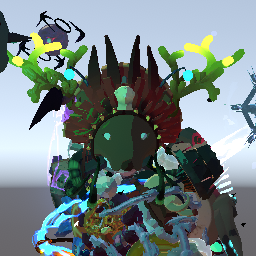
A mod/tool to simplify process of item display placement for item/character developers.

You need to have an item display (default or character-specific), which you will edit and replace its values in code when you have done.
First of all, you need to enter special scene where everything happens. This can be done by pressing F2 (You need to be in the main menu).
You can search for a model by localized name, body object name or model object name.
By default only models that are visible in logbook are included in list, but you can include everything from BodyCatalog by toggle Inlude all bodies from BodyCatalog.

You can search for an item/equipment by name.
Each item display can be enabled/disabled by clicking on corresponding checkbox. Only one equipment display can be enabled at a time, so if you enable new equipment old one will be disabled.
Click on a gear to start/end item display placement (All changes will be lost when you disable item display, so be careful with that).
Enable all - enable all item displays for current model (except equipment)Disable all - enable all item displays for current model (inluding equipment)
Click on a row with item display prefab name to start edit it.

You can type in values in corresponding fields to see how item display will look on a character.

Or you can use Unity-like item editing on the scene:

White circle will rotate object around to camera view axis.

Gray cube in center will scale all axes simultaneously.

When you placed your item where you want you can copy values for that position by clicking Copy IDR values button to paste these values in your code.

You can change copy format by clicking on the gear icon next to Copy IDR values
BlockCopied values will look something like that:
childName = "Head",
localPos = new Vector3(-0.0007F, 0.1699F, 0.028F),
localAngles = new Vector3(332.5399F, 359.8748F, 0.0883F),
localScale = new Vector3(0.7228F, 0.7228F, 0.7228F)
InlineCopied values will look something like that:
"Head", new Vector3(-0.0007F, 0.1699F, 0.028F), new Vector3(332.5399F, 359.8748F, 0.0883F), new Vector3(0.7228F, 0.7228F, 0.7228F)
ForParsingCopied values will look something like that:
Pelvis,-0.203,-0.058,0.058,63.11126,330.4519,181.0795,0.85025,0.85025,0.85025
CustomYou can make your own format by using placeholders to specify where values should be placed.

Fast Coefficient - camera movement speed multiplier when holding SHIFTSlow Coefficient - camera movement speed multiplier when holding CTRLToggle fade when you are close to objects.
Toggle TimeScale between 0 and 1.

Editing space:
Global - move/rotate object in world coordinatesLocal - move/rotate object in object local coordinatesEditor mode:
Move - move object along axis.Rotate - rotate object along axis.Scale - scale object along axis, or along all axes.Scaling is always done in local space.
F2 - Enter ItemDisplayPlacementHelper scene (You need to be in the main menu)F - Move camera focus to currently selected item displayG - Toggle fadeT - Toggle timeW - Select object movement modeE - Select object rotation modeR - Select object scaling modeX - Toggle object editing space (Global/Local)RightMouseButton - Hold and move mouse to look aroundALT + RightMouseButton - Hold and move mouse to rotate camera around focus pointMiddleMouseButton - Hold and move mouse to move cameraALT + MiddleMouseButton - Press once to move focus point to point on the model under mouse.MouseWheel - Scroll to zoom in/out.ALT + MouseWheel - Scroll to move to/from focus pointCTRL - Hold to slow down camera movement speedSHIFT - Hold to speed up camera movement speedIf you have a feature in mind that would be good to have in this mod feel free to ping @KingEnderBrine in RoR modding discord.
1.5.2
Enable fade being turned on by default.RuntimeInspector should be in front of the mod's UIEnable all/Disable all buttons now work only on filtered items (from selected content pack and/or containing search string) instead of all.1.5.1
1.5.0
1.4.2
1.4.1
ForParsing - as it stands from the name useful for parsing copied value, all values are comma-separated without any spaces in the following order: childName, localPos.xyz, localAngles.xyz, localScale.xyz.1.4.0
F to GF will nove camera focus to currently selected item displayBlock - default format, the one that was used pre 1.4.0Inline - all values are in one line and comma-separated without field namesCustom - you can make your own format using available placeholdersCopy precision field as it's now part of the copy format system1.3.0
1.2.0
1.1.1
Tab navigation between IDR input fields.1.1.0
Model animator parameters which will give you a little bit more flexibility on testing how your idrs looks.1.0.2
1.0.1
1.0.0
