
You are viewing a potentially older version of this package. View Latest Version
ColorPicker
This is a dependency plugin to be used by other developers, to present players with color picker gui and get back the selected colorColor Picker Plugin
This is a TaleSpire plugin for developers to persent players with wider color choice
Usage
Developers should reference the plugin dll file in their projects in order to acces plugin methods.
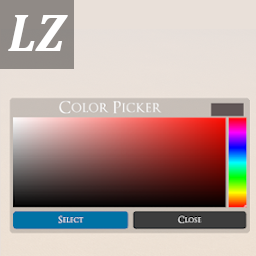
Color Picker GUI
This is example color picker window that will be shown to the player

Example Usage
	public class ColorPicker_ExampleUsage : MonoBehaviour
    {
        // All methods are accessible from a handler class in LonelyZombie namespace
        LonelyZombie.ColorPickerWindowHandle window1;
        // You can create multiple instances of color picker windows, so there is no collision with other plugins using this plugin
        LonelyZombie.ColorPickerWindowHandle window2;

        public void Awake()
        {
            // There are no initial parameters required when instantiating the color picker window handler
            window1 = new LonelyZombie.ColorPickerWindowHandle();
            window2 = new LonelyZombie.ColorPickerWindowHandle();
            // After the instance is created, the window is allready added to the plugin specific canvas and is hidden by default
            // The canvas persistant between load screens, even in main menu, so be careful when unhiding the Color picker window

            // We can control each window position and size in two ways
            // We can set pixel position and size of the color picker window
            window1.setPosition(200, 300);
            window1.setSize(300, 200);

            // Or we can set size and position relative to screen size in normalized percentage values
            window2.setPositionNormalized(0.5f, 0.5f);
            window2.setSizeNormalized(0.2f, 0.2f);
            // So this will create window 2 color picker in the middle of the screen and with 20% width and height of screen size

            // To see how to display the window to the player go to the Update method

            // When the window is displayed to the player, he/she can interact with it causing different events to fire
            // You can subscribe to those events in order to act accordingly.

            // When user is browsing throught the color palette the event_color_select_dynamic is invoked
            // Subscribe to this event if you want to react to player browsing throught the colors in realtime
            // Method that subscribes to this event must take Color as its only parameter
            // This color reprecents user current selection
            window1.event_color_select_dynamic.AddListener(onWindow1DynamicSelect);

            // When user is done browsing through the color palette he/she can press the Select button
            // This invokes the event_color_select and it doesn't close the palette so player can change his/her choice
            // Method that subscribes to this event must take Color as its only parameter
            // This color reprecents user current selection
            window2.event_color_select.AddListener(onWindow2Select);

            // When player is happy with his/her selection he/she can close the color palette with the close button
            // That invokes the event_color_close
            // Method that subscribes to this event must take 0 parameters
            window2.event_color_close.AddListener(onWindow2Close);

            // You can always get the currently selected color by directly accessing the selected color variable
            Color selected_color = window1.selected_color;

            // DISCLAIMER! Whenever you are resizing the color picker window, the color selection is reset!
            // Otherwise the Selected color will remain selected when you hide or unhide the color picker window
            // If you want to reset the color selection manually use following function
            window2.resetSelectedColor();
        }

        public void Update()
        {
            if (Input.GetKeyDown(KeyCode.L))
            {
                Debug.Log("L Button has been Pressed");
                // You can display or hide the window by using this method, where true displays the window
                // Player can close window using the close button
                window1.changeColorPickerVisibility(true);
            }

        }

        void onWindow1DynamicSelect(Color color)
        {
            // This log will spam the log as it is invoked multiple times while user is browsing through color palette
            Debug.Log("window1 color: " + color.ToString());
        }

        void onWindow2Select(Color color)
        {
            // This log will show up only if player will click the select button on color picker window
            Debug.Log("window2 color: " + color.ToString());
        }

        void onWindow2Close()
        {
            // This log will show up only if player will click the close button on color picker window
            Debug.Log("window2 was closed");
        }
    }


## Changelog
- 1.0.0: Initial release

## Shoutouts
Huge thanks to both Hollow and LordAshes
for guiding me through my first steps in plugin development!