

PingMark
Mark loot, creatures, and locations with named pings, colored outlines, and live distances. Sense what's hidden around you and share discoveries with your party.PingMark
Share discoveries and keep your party on target!
See how far away every ping is, something vanilla Valheim never shows. Aim, press Z, and your friends see exactly what you found: a named marker, a colored outline and a live distance. Stand still and press Left Shift + Z to sense loot and creatures hidden in the dark around you.
📸 Screenshots
See what matters at a glance. Live distances, item names and creature highlights.
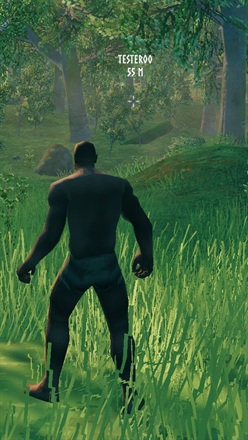
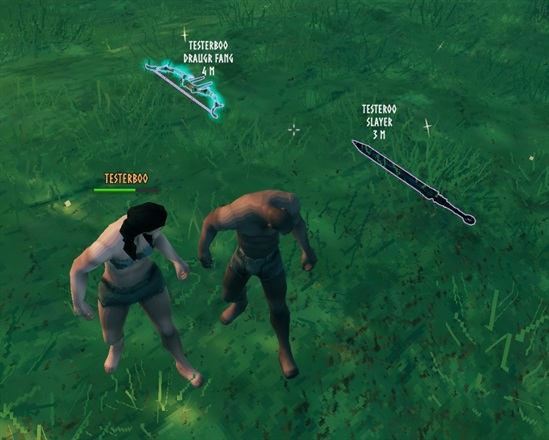
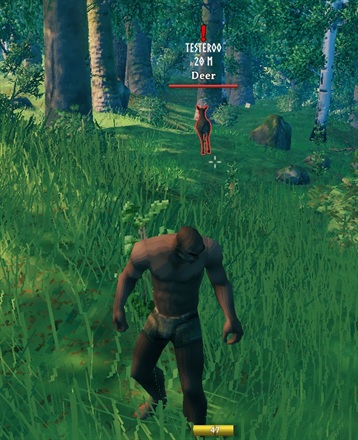
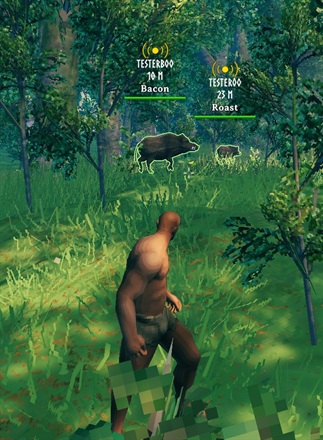
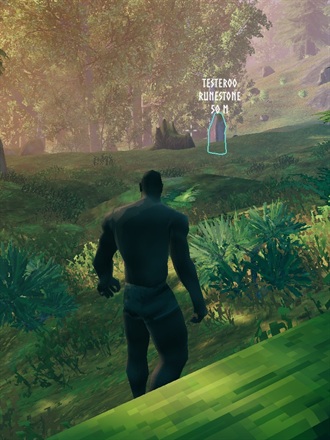
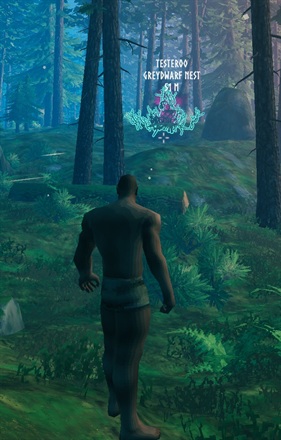
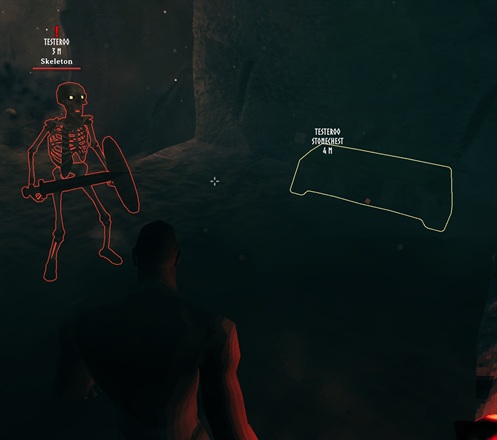
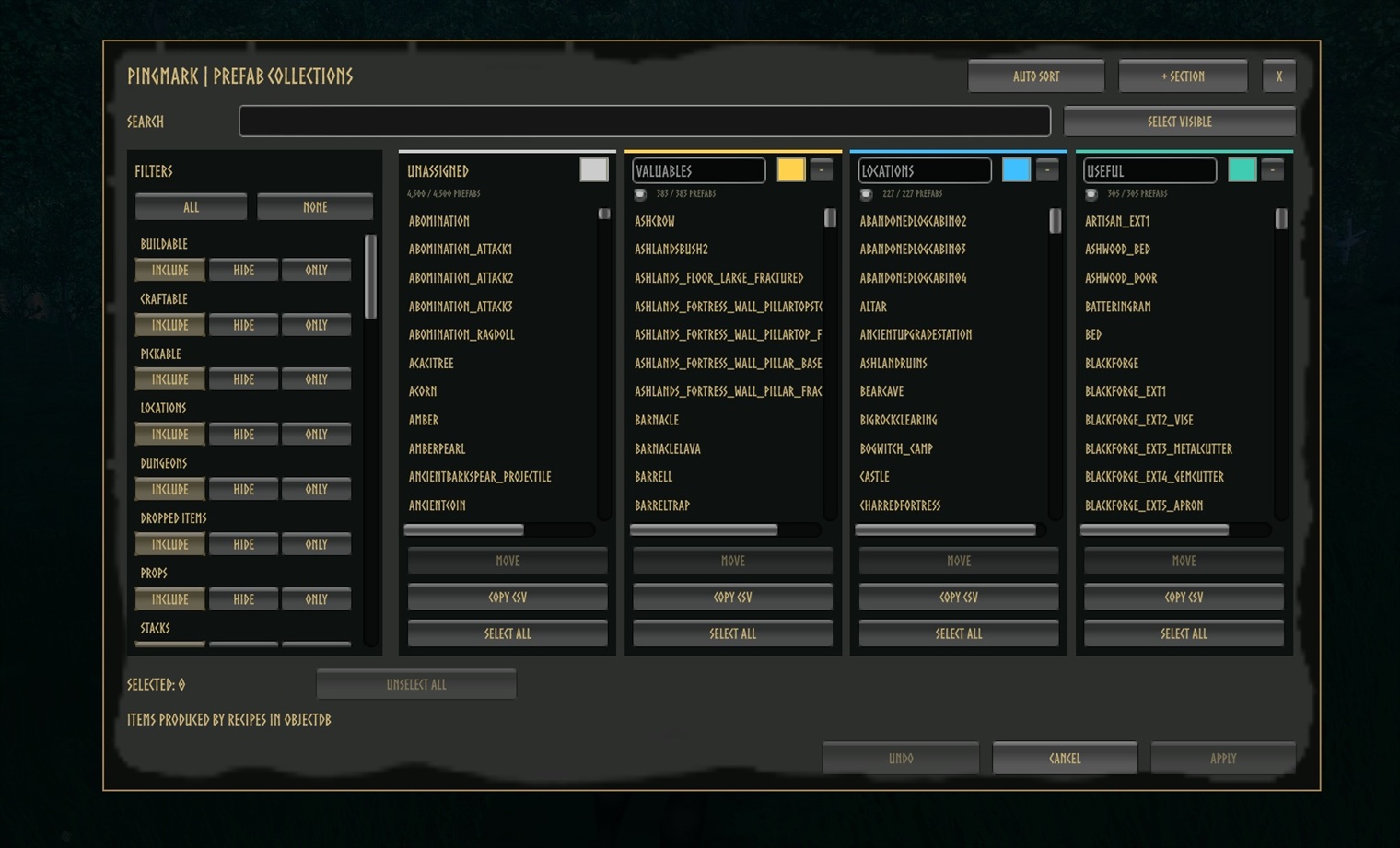
Choose what your party can mark. Objects and locations are sorted into searchable, color-coded collections.
🧭 Features
- 📏 Distance on every ping: world and map pings show who pinged and how far away it is, updating as you move. Works on regular map pings too.
- Aim and ping: mark what you are looking at with its name and an outline, even while running.
- Find the loot: dropped weapons, armor and materials glow so they're easy to spot in the grass, and so do cut logs and broken ore deposits.
- Track creatures: highlight a mob with a nameplate and distance that follow it, colored red (hostile) or green (friendly).
- 🔮 Perception: stand still and press Left Shift + Z to outline listed objects and dropped items around you for a few seconds, handy for coins and gems in dark dungeons. A colored burst marks the moment, and nearby PingMark players see it and the outlines too. Perception Fatigue follows: the more you sensed, the longer it lasts, and it starts early once everything you found is looted or slain.
- Sense creatures: Perception also highlights every hostile and friendly creature around you, beyond the usual highlight limit (turn off Perceive Creatures to sense only objects).
- Mark teammates: optionally highlight players instead of the spot they stood on (off by default).
- Your rules: pick which objects count as Valuables, Locations or Useful, and customize colors, labels, shortcuts and range.
🎮 Controls
| Shortcut | Action |
|---|---|
| Z | Highlight the creature you aim at, or ping the spot/object. |
| Left Shift + Z | Perception (standing still): outline listed objects, drops and creatures near you (nearby PingMark players see them too). |
| Right Ctrl + P | Turn PingMark on or off. |
| Right Ctrl + Right Shift + P | Open the Prefab Collections menu (admins only on servers). |
Shortcuts can be changed in the config under 9 - Inputs.
🛠️ Prefab Collections Menu
Decide which objects get a name and outline when pinged.
- Search and filter every object and location in the game, including modded ones.
- Move objects between colored sections, or add, rename and remove sections.
- Find an object's ID: turn on Debug Ping Names (1 - General, shown with Advanced settings in Configuration Manager) and press Z on it; its IDs appear in the top-left corner.
- Auto Sort rebuilds the default Valuables, Locations and Useful sections, sorting modded objects too: traders and trader outposts, cut logs and deposits are listed, while rocks, roots and props that only drop wood or stone are left out. Undo reverts changes, Apply saves them. Copy YAML copies every section, including unapplied changes; Import YAML replaces all sections from the clipboard. A section's Import button replaces just that section from a copied CSV list or YAML section. Export Report writes every prefab's detected kinds and auto sort result to
BepInEx/config/JoksterCube.PingMark.AutoSortReport.csv, useful for checking modded prefabs.
🔒 On a server with PingMark, only admins can change collections, and the server checks every change. Collections are saved in
BepInEx/config/JoksterCube.PingMark.Collections.ymland synced to all players.
⚙️ Installation
Install with a mod manager (r2modman, Thunderstore App), or manually:
- Install BepInExPack Valheim.
- Extract PingMark into
BepInEx/plugins. - Launch the game. Settings are in
BepInEx/config/JoksterCube.PingMark.cfg.
Installing on the server is optional. It syncs settings, filters ping range on the server and protects the collections.
🧩 Compatibility
- ✅ Works in single-player and on servers without PingMark.
- ✅ Players without the mod can join. They see ordinary pings (no names, outlines or highlights).
- 📏 Z pings reach players within 200 m of you by default. Map pings stay global.
- ⚠️ On a PingMark server, every player with PingMark needs the same version as the server. Players without the mod can still join.
🔧 Configuration
Most players never need to change anything. These are the settings worth knowing about. Synced settings come from the server when it runs PingMark.
| Setting | Default | Synced | What it does |
|---|---|---|---|
| Z Ping Broadcast Distance | 200 m | ✔ | How far your Z pings reach. 0 = unlimited. |
| Send Z Pings To Unmodded Players | On | ✔ | Players without the mod still get an ordinary ping. |
| Ping Cooldown | 0 s | ✔ | Minimum time between Z pings. |
| Enable Other Players | Off | ✔ | Let Z highlight players. |
| Show Pinger Name / Show Distance | On | What ping labels display. | |
| Outline Width | 2 px | 0 hides all outlines. |
|
| Lock Configuration | On | ✔ | Only admins can change synced settings. |
💡 Some settings are hidden as Advanced in Configuration Manager. Turn on Advanced settings there to see them. They are marked with ⚙️ in the full reference below.
Full settings reference
1 - General
| Setting | Default | Synced | What it does |
|---|---|---|---|
| Enabled | On | Turn all PingMark features on or off. | |
| Lock Configuration | On | ✔ | Only admins can change synced settings. |
| Refresh Interval ⚙️ | 0.25 s | ✔ | How often distances update (0.05–5 s). |
| Ping Cooldown | 0 s | ✔ | Minimum time between Z pings and highlights (0–60 s). |
| Z Ping Broadcast Distance | 200 m | ✔ | Sender-to-recipient range (0–10,000 m, 0 = unlimited). Without a modded server, the shorter of both players' ranges applies. |
| Send Z Pings To Unmodded Players | On | ✔ | Send ordinary pings to players without PingMark, at any distance. |
| Debug Ping Names ⚙️ | Off | Show the detected object/location IDs when pinging. Useful for editing collections. |
2 - Ping Label
| Setting | Default | Synced | What it does |
|---|---|---|---|
| Show Pinger Name | On | Show who pinged. | |
| Show Distance | On | Show your distance to pings and highlights. | |
| Show Target Name | On | Show the pinged object's name. | |
| Use Kilometers | On | Show 1,000 m and above as km. | |
| Empty Label Text ⚙️ | PING | Text shown when everything above is hidden. | |
| Ping Color | White | Label color. | |
| Match Ping Text To Outline | Off | Use the outline color for the label instead. |
3 - Camera Ping
| Setting | Default | Synced | What it does |
|---|---|---|---|
| Max Distance | 500 m | How far you can aim (10–2,000 m). | |
| Max Underwater Depth ⚙️ | 10 m | Deeper targets ping the water surface instead (0–100 m). |
4 - Ping Targets
| Setting | Default | Synced | What it does |
|---|---|---|---|
| Enable Drops | On | ✔ | Name and outline dropped items. |
| Enable Gravestones | On | ✔ | Name and outline gravestones. |
| Enable Other Players | Off | ✔ | Highlight players instead of pinging their position. |
| Enable All Other | Off | ✔ | Name and outline anything not in a collection. |
5 - Outlines
| Setting | Default | Synced | What it does |
|---|---|---|---|
| Enable Ping Outline | On | Outline pinged objects and players. | |
| Outline Width | 2 px | 0–10 px, visible through walls. 0 hides outlines. |
|
| Ping Drop Color | Purple | Dropped items. | |
| Ping Gravestone/Player Color | Orange | Gravestones and players. | |
| Ping Anything Color | White | Other objects. | |
| Hostile / Ally Outline Color | Red / Green | Highlighted creatures. |
6 - Mob Highlight
| Setting | Default | Synced | What it does |
|---|---|---|---|
| Enable Mob Highlight | On | ✔ | Allow creature highlights. |
| Enable Mob Outline | On | Outline highlighted creatures. | |
| Mob Highlight Duration | 10 s | ✔ | How long a highlight lasts (1–120 s). |
| Max Highlighted Mobs | 1 | ✔ | Highlights per player at once (1–20). A new one replaces your oldest. |
7 - Prefab Collections
| Setting | Default | Synced | What it does |
|---|---|---|---|
| Color 1 – Color 12 ⚙️ | Gray, White, Red, Orange, Gold, Lime, Green, Teal, Cyan, Blue, Violet, Pink | Palette that collection sections pick from. | |
| Unassigned Section Color ID ⚙️ | 1 | Palette slot for the menu's Unassigned column. |
8 - Player Highlight
| Setting | Default | Synced | What it does |
|---|---|---|---|
| Player Highlight Duration | 5 s | ✔ | How long a player highlight lasts (1–120 s). |
| Hide Own Player Outline | On | ✔ | Don't outline yourself when someone marks you. |
9 - Inputs
| Setting | Default | Synced | What it does |
|---|---|---|---|
| Ping Shortcut | Z | Ping what you aim at, or highlight the creature you aim at. | |
| Toggle Mod Shortcut | Right Ctrl + P | Turn PingMark on or off. | |
| Prefab Editor Shortcut | Right Ctrl + Right Shift + P | Open the Prefab Collections menu. | |
| Perception Shortcut | Left Shift + Z | Outline listed objects and drops near you. Only while standing still (no other key held). | |
| Enable Prefab Editor Shortcut ⚙️ | On | Turn the menu shortcut on or off. |
10 - Perception
| Setting | Default | Synced | What it does |
|---|---|---|---|
| Enable Perception | On | ✔ | Allow the Perception Shortcut. |
| Perception Range | 10 m | ✔ | How far around you Perception looks. |
| Perception Duration | 8 s | ✔ | How long Perception keeps things outlined (the Perception status). Fatigue starts after it. |
| End Perception Early | On | ✔ | End Perception and start fatigue once every drop, pickable, chest, deposit and enemy it found is gone. |
| Perception Max Outlines | 64 | ✔ | Most objects outlined per use, nearest first. |
| Perception Fatigue Duration | 5 s | ✔ | Cooldown once Perception ends, shown as a status effect; the base cost in Relative mode. 0 = none. |
| Perception Fatigue Mode | Relative | ✔ | Fixed: always the duration above. Relative: the duration plus a cost for everything sensed. |
| Fatigue Per Object | 1.5 s | ✔ | Relative mode: added for each listed object outlined. |
| Fatigue Per Drop | 0.25 s | ✔ | Relative mode: added for each dropped item on the ground outlined. |
| Fatigue Per Ally | 0.5 s | ✔ | Relative mode: added for each tamed or non-hostile creature. |
| Fatigue Per Enemy | 2.5 s | ✔ | Relative mode: added for each hostile creature. |
| Perception Max Fatigue | 90 s | ✔ | Relative mode: the longest the fatigue can get. |
| Perceive Creatures | On | ✔ | Perception also highlights every hostile and allied creature in range, ignoring Max Highlighted Mobs. |
| Perception Effect | On | Play a Guardian Power style burst around a player who uses Perception (nearby PingMark players see it too). | |
| Perception Effect Color | Light blue | Color of that burst, for your Perception and other players'. | |
| Perception Sound | sfx_WishbonePing_near | Sound played with the burst (any sound prefab, e.g. sfx_secretfound). Empty = silent. |
💬 Feedback & Support
Report bugs or suggest improvements on GitHub.
Author: JoksterCube
Version: 1.4.0
License: MIT