Krool World UI
HUD/UI: compass, skill XP bars, carry weight bar, food timers, food decay on health/stamina, build materials, day/night bar and clock, save and rested countdowns, workbench map pins, auto repair. Client-side, every game language, controller-ready.
Quality-of-life HUD additions for Valheim: skill XP, carry weight, build materials, food timers, a compass, a day/night bar, and a few countdowns the game doesn't show.
- No new items, mechanics or balance changes.
- Every feature can be switched off or adjusted in game with F7, or from the pause menu.
- Mouse, keyboard or controller, including the Steam Deck.
- In your language: it follows the game's language setting, in every language Valheim offers.
- Client-side. The server and other players don't need it.
- Display only, except two features you can turn off: Bench Pins adds a map pin when you build a workbench, and Auto Repair repairs your gear when you open a crafting station.
All elements at once, using the F7 window's Preview on HUD setup view. In play, each one only shows when it applies.
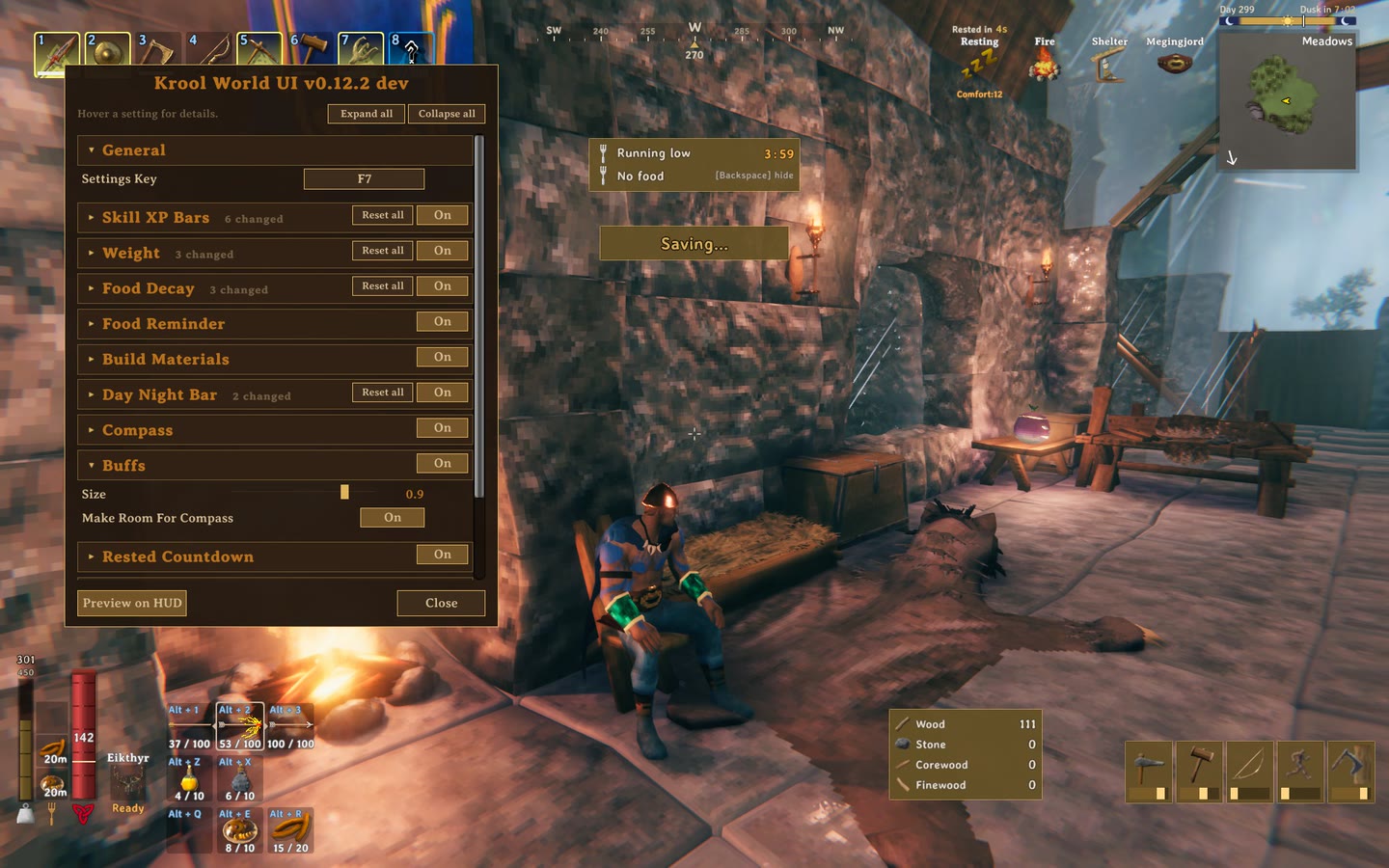
Compass. Your heading, friends and nearby map pins.

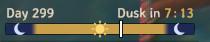
Day/night bar. Time of day and the time until dusk or dawn.
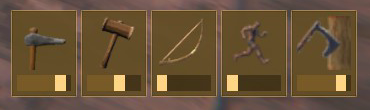
Skill XP. A tile per skill with an XP bar toward the next level.
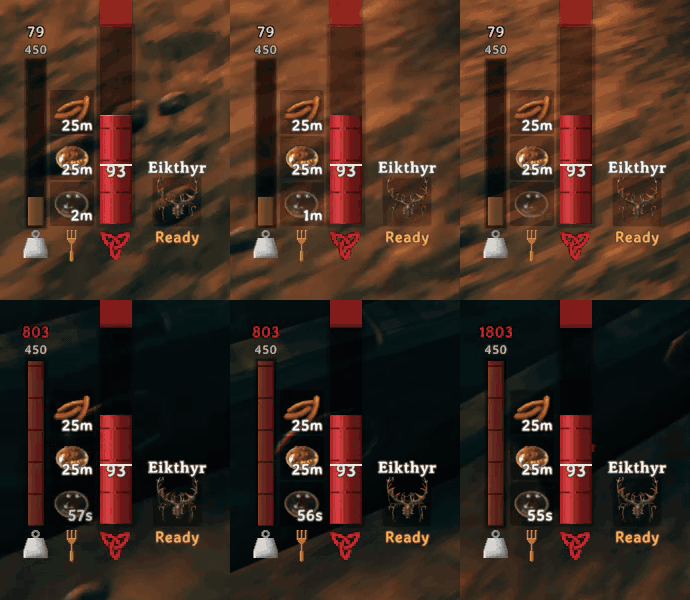
Carry weight. Fills as you pick things up, red when over.
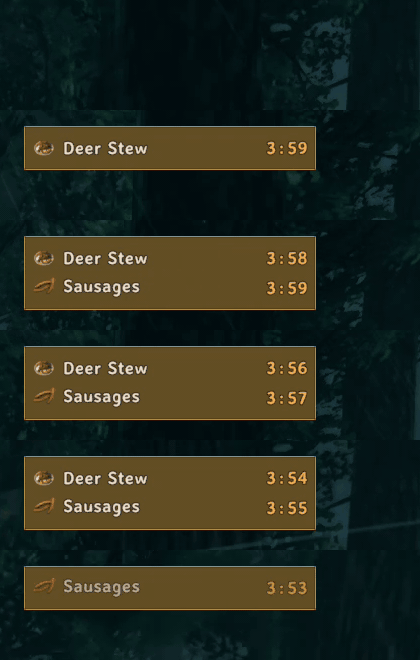
Food reminders. A toast when a food is running out.
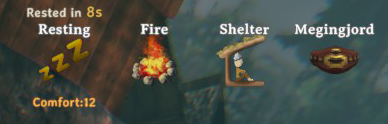
Rested countdown. Seconds until Rested, above the Resting buff.
Features
| Feature | What it does |
|---|---|
| Skill XP bars | Skill tiles with XP bars, and a +0.8% Swords popup as you earn XP |
| Carry weight | Weight bar beside your food |
| Build materials | With the hammer out: what the selected piece costs, what you have, how many you can build |
| Food decay | Shows how much max health, stamina and eitr your food has lost as it wears off |
| Food reminders | Running out, no food, and optionally "can eat again" (off by default) |
| Compass | Heading, friends, pins and pings at the top of the screen |
| Buff icons | Buff icons at 90% size, wrapped before they reach the compass |
| Day/night bar | Day and night above the minimap, with time to dusk or dawn |
| Rested countdown | Seconds until Rested while you rest |
| Save countdown | 5-second warning before the auto-save lag spike |
| Auto repair | Opening a crafting station repairs everything it can |
| Bench pins | A map pin with a Norse name when you build a workbench |
Skill XP bars
Earn XP and a tile for that skill appears at the bottom right, above the key hints.
- The dark part of the bar is where you started; the light part is what you've earned since.
- Up to 4 tiles side by side. A tile fades after 3 seconds without XP.
- A blue
+0.8% Swordsfloats over your character. Can be set to level-ups only, or off. - Skills you don't care about (Run, Jump) can be left out by name.
- Tiles or wide rows, size, level number, color and placement are all settings.
- Hidden while the inventory, map or menu is open.
Carry weight
A vertical bar left of the food icons, with your weight over your max on top.
- Same number as the inventory screen, including Megingjord and backpack mods.
- Grows taller as your max weight goes up (can be turned off).
- Orange from 80%, red and flashing when over. Gradient or single color also available.
- Show it always, only near the limit, or for a few seconds after your weight changes.
Build materials
With the hammer out, a panel beside the build menu's piece box.
- With a piece selected: only what it costs, how many you have (
Wood 245 /2, red if short), and Enough for 12. - With nothing selected: your common building materials. Wood, Stone, Core Wood and Fine Wood once you've found them; Resin, nails, Black Marble and later materials only while carried.
- The panel widens for long material names.
- Each material's rule is a setting, and you can add others by name (
Copper, Deer Hide). - Counts your inventory only, like the game does when placing.
Food decay
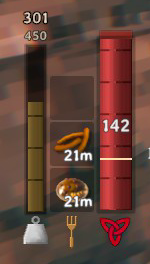
Food bonuses shrink as the food wears off. At half its time a food gives about 81% of its health, stamina and eitr.
- A faint segment past the end of each bar shows what you've lost: red on health, gold on stamina, purple on eitr.
- That's exactly what eating fresh food would give back.
- Each bar has its own switch and color.
Food reminders
A toast at the top of the screen with the food's icon, name and time left.
| Reminder | Default | When |
|---|---|---|
| Running out | On | A food drops under 4 minutes (adjustable) |
| Can eat again | Off | A food passes half its time, when the game lets you eat it again |
| No food | On | While you have no food, until you eat or dismiss it (Backspace, or a controller button you pick) |
| Final minute | Off | A second reminder with one minute left |
- Each reminder shows once per food and fades after 6 seconds.
- A soft chime with each, which can be turned down or off.
Compass

A strip at the top center for calling out directions: "trolls at 210".
- Heading in degrees under the center mark, optionally with the direction (212 SW).
- Shows 120 degrees by default.
- Friends in their colors, with their names when you look at them or always. A friend behind you waits at the edge with an arrow.
- Your map pins, bed, tombstone and bosses within 300 m, and map pings at any distance.
- On a No Map world it shows only your heading and friends in sight, never pins.
- Look at a marker to see its name and distance. Or show distance under every marker.
- Overlapping markers merge with a count, and at most 12 show at once.
- Up and down arrows on markers 10 m or more above or below you.
- Moves down under a boss bar or raid banner.
Buff icons
- The game's buff icons at 90% size (set 1 for the game's size).
- Wrap to a new row before reaching the compass, or after a number you choose.
Day/night bar
A bar on top of the minimap covering the whole day, with a marker for now.
- Dusk in 6:40 by day, Dawn in 2:10 by night. Turns orange in the last minute before dark.
- The day number, and an optional 24-hour clock.
- Uses the game's clock, synced from the server.
- Without a minimap (No Map worlds) it stays in the same corner. It can also sit under the compass or anywhere you like.
Rested countdown
While Resting, Rested in 14s counts down above the Resting buff, with a chime at the end (can be turned off). It reads the game's own timer.
Save countdown
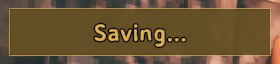
The auto-save every 30 minutes can freeze a big world for a moment. A box counts down World save in 5 before it, then Saving...
- Exact in single player and as host. On a dedicated server it uses the server's 30-second save warning.
- On a server, your character's own save shows as Character save in 5. Can be turned off.
- A tick each second, which can be turned off. Start time and position are adjustable.
Bench pins
Building a workbench adds a map pin with a Norse name like Hrafnvik or Trollhaven.
- No new pin within 50 m of an existing one, so one base gets one pin.
- Choose the icon (fire, house, hammer, dot, portal) and the name (random, station name, or none).
- 100 prefixes and 100 suffixes, both editable in F7.
- Workbenches only by default; can include forges and other stations.
- Removing the bench with the hammer removes its pin, or moves it to another bench nearby. Can be turned off.
Auto repair
Opening a crafting station repairs every item it can, as if you'd pressed its repair button for each.
- Same rules as the button: station type and level decide what gets fixed.
- Same Crafting XP as repairing by hand.
- Can be limited to what you're wearing and holding.
- One sound and one message (Repaired 4 items). The message can be turned off.
Settings window
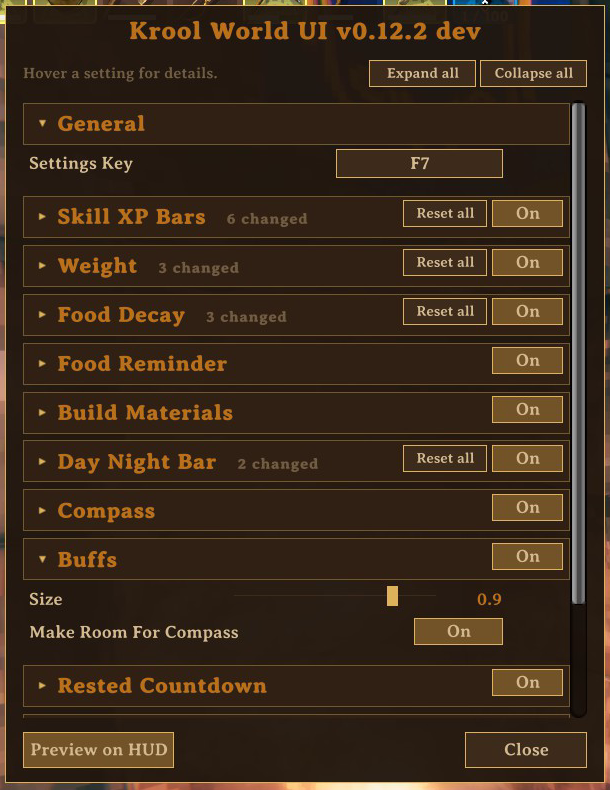
Press F7 in game, or pick Krool World UI in the pause menu.
- One section per feature, each with an On/Off switch. Search finds any setting.
- Mouse, keyboard (arrows, Enter, Esc) or controller (D-pad, A, B; bumpers jump between sections).
- Point at or select a setting to see what it does, its default and its range.
- Settings that don't apply right now are greyed out, with the reason.
- Click a slider's number to type an exact value. Colors have a picker.
- Reset next to anything changed, Reset all per section.
- Preview on HUD shows sample versions of everything so you can place and size them.
- Text stays sharp at any resolution, and the window follows the game's GUI scale. You can resize it.
The General section has a key to hide everything the mod draws, one volume for all its sounds, and colorblind-friendly warning colors.
The same settings are in BepInEx/config/krool.kroolworldui.cfg. Colors there are hex RRGGBBAA.
Full settings list
Generated from the mod's code, so it matches the F7 window.
General
| Setting | Default | Range or choices | What it does |
|---|---|---|---|
| Settings Key | F7 | Any key | Opens this window. On a controller, use Krool World UI in the pause menu. |
| Window Scale | 1 | 0.75 to 1.5 | Size of this window. It also follows the game's GUI scale. |
| Hide Key | Not set | Any key | Hides everything this mod draws until pressed again. Unset by default. |
| Volume | 1 | 0 to 1 | Volume of all the mod's sounds, on top of each feature's own volume. 0 mutes them. |
| Colorblind Friendly | Off | Warning colors that stay distinct with red-green color blindness: orange-red and pink instead of orange and red, sky blue instead of green. |
Skill XP Bars
| Setting | Default | Range or choices | What it does |
|---|---|---|---|
| Enabled | On | Show a skill on the HUD while you gain XP in it. | |
| Style | Tiles | Tiles, Rows | Tiles: the skill icon over its XP bar, side by side. Rows: a wide bar with the icon at the left, stacked. |
| Max Bars | 4 | 1 to 10 | Most skills shown at once, fewer if they do not fit. Past this the oldest is replaced. |
| Hidden Skills | Skills never shown, separated by commas: Run, Jump, Sneak. Names as the game shows them, or English names, which work in every language. | ||
| Tile Size | 64 | 40 to 128 | Tile width in HUD pixels. A tile is a third taller than wide. Used when Style is Tiles. |
| Tile Level | Off | The skill level in the tile's corner. Used when Style is Tiles. | |
| Labels | Name And Level | Name And Level, Icon Only | Name And Level: the skill name and level on the bar. Icon Only: just the icon and bar. Used when Style is Rows. |
| Show Gain Text | On | The XP gained since the bar appeared, as a percent of a level. Used when Style is Rows and Labels is Name And Level. | |
| Bar Width | 220 | 100 to 500 | Row width in HUD pixels. Used when Style is Rows. |
| Bar Height | 22 | 12 to 48 | Row height in HUD pixels. Used when Style is Rows. |
| Bar Color | DBA847FF |
Hex RRGGBBAA (AA = opacity) | Bar color. XP you had shows darker, new XP lighter. |
| Opacity | 1 | 0.2 to 1 | 1 is solid; lower shows the game through it. |
| Hold Seconds | 3 | 0.5 to 30 | Seconds a skill stays after its last XP. |
| Fade Seconds | 0.6 | 0 to 5 | Seconds the fade-out takes. |
| Floating Text | Every Gain | Off, Every Gain, Level Up Only | XP over your character, like a damage number. Only you see it. Every Gain, Level Up Only, or Off. |
| Floating Text Color | 73B8FFFF |
Hex RRGGBBAA (AA = opacity) | Color of the floating XP text. Used when Floating Text is not Off. |
| Placement | Bottom Right | Bottom Right, Below Stamina, Right Side, Custom | Bottom Right: above the key hints. Below Stamina: under the stamina bar. Right Side: below the minimap. Custom: at Anchor X and Anchor Y. |
| Anchor X | 0.5 | 0 to 1 | Center. 0 is the left of the screen, 1 the right. Used when Placement is Custom. |
| Anchor Y | 0.3 | 0 to 1 | Top edge. 0 is the bottom of the screen, 1 the top. Used when Placement is Custom. |
| Offset X | 0 | -400 to 400 | Move left (-) or right (+), in HUD pixels. |
| Offset Y | 0 | -400 to 400 | Move down (-) or up (+), in HUD pixels. |
Weight
| Setting | Default | Range or choices | What it does |
|---|---|---|---|
| Enabled | On | Your carry weight as a bar left of the food icons. | |
| Show | Always | Always, Near Limit, When Changed | Always: always on screen. Near Limit: at or past Near Limit Percent. When Changed: for a few seconds after your weight changes. |
| Near Limit Percent | 80 | 50 to 100 | Percent of your max weight where the bar turns the near-limit color, and where Near Limit shows it. |
| Changed Seconds | 3 | 1 to 15 | Seconds the bar stays after your weight changes. Used when Show is When Changed. |
| Colors | Thresholds | Thresholds, Gradient, Single | Thresholds: fill color, then near-limit past Near Limit Percent, then over when overweight. Gradient: blends through the three. Single: always the fill color. |
| Fill Color | FAC761FF |
Hex RRGGBBAA (AA = opacity) | Bar color under the limit. |
| Near Limit Color | FF8C1FFF |
Hex RRGGBBAA (AA = opacity) | Bar color near the limit. Used when Colors is not Single. |
| Over Color | DB291FFF |
Hex RRGGBBAA (AA = opacity) | Bar color when overweight. It also flashes. Used when Colors is not Single. |
| Text | Current And Max | Current And Max, Current, Percent, None | Numbers above the bar: weight over max, weight only, percent, or none. |
| Text Size | 16 | 10 to 28 | Font size of the numbers. Used when Text is not None. |
| Bar Length | 110 | 40 to 220 | Bar length in HUD pixels at the normal 300 max weight. |
| Bar Thickness | 16 | 6 to 32 | Bar thickness in HUD pixels. The health bar is 32. |
| Scale With Max Weight | On | Grow the bar with your max weight: a Megingjord (+150) makes it half again as long. | |
| Opacity | 1 | 0.2 to 1 | 1 is solid; lower shows the game through it. |
| Offset X | 0 | -300 to 300 | Move left (-) or right (+), in HUD pixels. |
| Offset Y | 0 | -300 to 300 | Move down (-) or up (+), in HUD pixels. |
Food Decay
| Setting | Default | Range or choices | What it does |
|---|---|---|---|
| Enabled | On | A faint segment past the end of the health, stamina and eitr bars: the max your food has lost as it wears off, which fresh food would give back. | |
| Health | On | Segment on the health bar. | |
| Health Color | BF2E2473 |
Hex RRGGBBAA (AA = opacity) | Color of the health segment. Used when Health is on. |
| Stamina | On | Segment on the stamina bar. Like the bar, it shows while stamina is not full. | |
| Stamina Color | EBB83373 |
Hex RRGGBBAA (AA = opacity) | Color of the stamina segment. Used when Stamina is on. |
| Eitr | On | Segment on the eitr bar, for eitr foods. Like the bar, it shows while eitr is not full. | |
| Eitr Color | 9961E673 |
Hex RRGGBBAA (AA = opacity) | Color of the eitr segment. Used when Eitr is on. |
Food Reminder
| Setting | Default | Range or choices | What it does |
|---|---|---|---|
| Enabled | On | Food reminders in a small box at the top of the screen. | |
| Running Out | On | Remind when a food is about to run out. | |
| Threshold Minutes | 4 | 1 to 15 | Remind when a food has this many minutes left. Used when Running Out is on. |
| Final Minute | Off | A second reminder with one minute left. Used when Running Out is on. | |
| Can Eat Again | Off | Remind when a food can be eaten again, half way through its time. | |
| Show Seconds | 6 | 2 to 20 | Seconds a reminder stays on screen. Used when Running Out or Can Eat Again is on. |
| No Food Message | On | Keep a message up while you have no food, until you eat or dismiss it. Also after you respawn. | |
| No Food When | No Food | No Food, Any Slot Empty | No Food: when all your food is gone. Any Slot Empty: whenever a food slot is free. Used when No Food Message is on. |
| Dismiss Key | Backspace | Any key | Hides the no-food message until you next eat. Used when No Food Message is on. |
| Dismiss Button | None | None, Left Stick Click, Right Stick Click, Back | Controller button that hides the no-food message. Each also does something in the game (map, run, crouch), so pick the one you use least. Used when No Food Message is on. |
| Sound | On | A soft chime with each reminder. | |
| Sound Volume | 0.35 | 0.05 to 1 | Chime volume, on top of the game's own volume. Used when Sound is on. |
| Size | 1 | 0.75 to 1.5 | 1 is the normal size. |
| Opacity | 1 | 0.2 to 1 | 1 is solid; lower shows the game through it. |
| Anchor X | 0.5 | 0 to 1 | Center of the box. 0 is the left of the screen, 1 the right. |
| Anchor Y | 0.84 | 0 to 1 | Top of the box. 0 is the bottom of the screen, 1 the top. Moves down by itself to clear the raid banner. |
Build Materials
| Setting | Default | Range or choices | What it does |
|---|---|---|---|
| Enabled | On | With the hammer out, a panel beside the build menu counts the materials you carry. | |
| Selected Piece | On | List what the selected piece costs and how many you have. Red when short. | |
| Can Build Count | On | How many of the selected piece you can build. Used when Selected Piece is on. | |
| Common With Cost | Off | Also list the materials below while a piece is selected. Off: only its cost. Used when Selected Piece is on. | |
| Wood | When Known | Always, When Known, When Carried, Never | When to list Wood. When Known: once you have found one. When Carried: while you have some. |
| Stone | When Known | Always, When Known, When Carried, Never | When to list Stone. When Known: once you have found one. When Carried: while you have some. |
| Corewood | When Known | Always, When Known, When Carried, Never | When to list Corewood. When Known: once you have found one. When Carried: while you have some. |
| Finewood | When Known | Always, When Known, When Carried, Never | When to list Finewood. When Known: once you have found one. When Carried: while you have some. |
| Resin | When Carried | Always, When Known, When Carried, Never | When to list Resin. When Known: once you have found one. When Carried: while you have some. |
| Bronze Nails | When Carried | Always, When Known, When Carried, Never | When to list Bronze Nails. When Known: once you have found one. When Carried: while you have some. |
| Iron Nails | When Carried | Always, When Known, When Carried, Never | When to list Iron Nails. When Known: once you have found one. When Carried: while you have some. |
| Black Marble | When Carried | Always, When Known, When Carried, Never | When to list Black Marble. When Known: once you have found one. When Carried: while you have some. |
| Yggdrasil Wood | When Carried | Always, When Known, When Carried, Never | When to list Yggdrasil Wood. When Known: once you have found one. When Carried: while you have some. |
| Grausten | When Carried | Always, When Known, When Carried, Never | When to list Grausten. When Known: once you have found one. When Carried: while you have some. |
| Ashwood | When Carried | Always, When Known, When Carried, Never | When to list Ashwood. When Known: once you have found one. When Carried: while you have some. |
| Other Materials | More materials to list, separated by commas: Copper, Deer Hide. Names as the game shows them, or item names (DeerHide), which work in every language. | ||
| Size | 1 | 0.75 to 1.5 | Panel size. 1 is the normal size. |
| Opacity | 1 | 0.2 to 1 | 1 is solid; lower shows the game through it. |
| Placement | Beside Build Info | Beside Build Info, Custom | Beside Build Info: right of the piece box at the bottom of the screen. Custom: at Anchor X and Anchor Y. |
| Anchor X | 0.8 | 0 to 1 | Left edge. 0 is the left of the screen, 1 the right. Used when Placement is Custom. |
| Anchor Y | 0.1 | 0 to 1 | Bottom edge. 0 is the bottom of the screen, 1 the top. Used when Placement is Custom. |
| Offset X | 0 | -400 to 400 | Move left (-) or right (+), in HUD pixels. |
| Offset Y | 0 | -400 to 400 | Move down (-) or up (+), in HUD pixels. |
Day Night Bar
| Setting | Default | Range or choices | What it does |
|---|---|---|---|
| Enabled | On | A day and night bar on the minimap: the time of day and how long until dusk or dawn. | |
| Countdown | On | Time left until dusk by day, or dawn by night. | |
| Dusk Warning Seconds | 60 | 0 to 300 | The dusk countdown turns orange this many seconds before night. 0 = never. Used when Countdown is on. |
| Day Number | On | The day number. | |
| Clock | Off | The time as a 24-hour clock. 06:00 is sunrise, 18:00 sunset. | |
| Bar Height | 10 | 6 to 18 | Bar height in HUD pixels. |
| Size | 1 | 0.75 to 1.5 | Text and icon size. |
| Opacity | 1 | 0.2 to 1 | 1 is solid; lower shows the game through it. |
| Day Color | DBAD52D9 |
Hex RRGGBBAA (AA = opacity) | Color of the day part. |
| Night Color | 212B5CE6 |
Hex RRGGBBAA (AA = opacity) | Color of the night part. |
| Placement | Above Minimap | Above Minimap, Top Center, Custom | Above Minimap: along its top edge, or the top right corner without a minimap. Top Center: under the compass. Custom: at Anchor X and Anchor Y. |
| Width | 220 | 120 to 600 | Bar width in HUD pixels. On the minimap it matches the minimap instead. |
| Anchor X | 0.85 | 0 to 1 | Center of the bar. 0 is the left of the screen, 1 the right. Used when Placement is Custom. |
| Anchor Y | 0.95 | 0 to 1 | Bottom of the bar. 0 is the bottom of the screen, 1 the top. Used when Placement is Custom. |
| Offset X | 0 | -400 to 400 | Move left (-) or right (+), in HUD pixels. |
| Offset Y | 0 | -400 to 400 | Move down (-) or up (+), in HUD pixels. |
Compass
| Setting | Default | Range or choices | What it does |
|---|---|---|---|
| Enabled | On | A compass strip at the top of the screen: your heading, friends and nearby map pins. | |
| Heading | On | Your heading under the center mark, for call-outs. 0 is north, 90 east. | |
| Heading Direction | Off | Add the direction after the number: 212 SW. Used when Heading is on. | |
| Focus Info | On | The name of the marker you look at, beside the heading. | |
| Distance | Focused | Focused, All Markers, Off | Focused: the distance of the marker you look at. All Markers: a distance under every marker. Off: none. |
| Friends | On | Other players, each in their own color. Far-away players show if they share their position on the map. | |
| Friend Names | Focused | Focused, Always, Off | Focused: a friend's name when you look at them. Always: under every friend. Off: none. Used when Friends is on. |
| Pings | On | Map pings from you and your friends, at any distance. | |
| Pins | On | Pins you placed on the map, bench pins included. | |
| Bed | On | Your bed. | |
| Tombstone | On | Where you died. | |
| Bosses | On | Boss altars and other boss locations on your map. | |
| Pin Range | 300 | 50 to 2000 | Pins farther than this, in meters, are left off. Friends and pings ignore it. Used when Pins, Bed, Tombstone or Bosses is on. |
| Height Arrow Meters | 10 | 0 to 50 | An up or down arrow on markers this many meters above or below you. 0 = off. |
| Max Markers | 12 | 3 to 24 | Most markers at once. Pings and friends first, then the nearest. |
| Size | 1 | 0.75 to 2 | Overall size. 1 is the normal size. |
| Width | 520 | 300 to 1000 | Strip width in HUD pixels. Kept clear of the minimap on narrow screens. |
| Field Of View | 120 | 60 to 240 | Degrees the strip covers. Narrower is easier to read. |
| Opacity | 0.9 | 0.2 to 1 | 1 is solid; lower shows the game through it. |
| Animations | On | Markers ease in, grow when you look at them, and pings pulse. Off: plain fades. | |
| Offset X | 0 | -600 to 600 | Move left (-) or right (+), in HUD pixels. |
| Offset Y | 0 | -400 to 0 | Move down (-) or up (+) from the top of the screen, in HUD pixels. |
Buffs
| Setting | Default | Range or choices | What it does |
|---|---|---|---|
| Enabled | On | Resize the buff icons at the top right and keep them clear of the compass. | |
| Size | 0.9 | 0.5 to 1 | Buff icon size. 1 is the game's size. |
| Per Row | 0 | 0 to 12 | Most buffs in one row before a new row starts. 0 = the game's 7. |
| Make Room For Compass | On | Start a new row before the buffs reach the compass. Used when the compass is on. |
Rested Countdown
| Setting | Default | Range or choices | What it does |
|---|---|---|---|
| Enabled | On | While you rest by a fire, count down the seconds until you are Rested, above the Resting icon. | |
| Text Size | 15 | 11 to 26 | Font size of the countdown. |
| Sound | On | A soft chime when you become Rested. | |
| Sound Volume | 0.35 | 0.05 to 1 | Chime volume, on top of the game's own volume. Used when Sound is on. |
Save Countdown
| Setting | Default | Range or choices | What it does |
|---|---|---|---|
| Enabled | On | Count down to the auto-save, so its lag spike does not catch you mid-fight. | |
| Seconds | 5 | 3 to 30 | Seconds before the save that the countdown starts. |
| Character Save | On | On a server, also count down to your own character save, which has a smaller hitch. | |
| Sound | On | A soft tick each second. | |
| Sound Volume | 0.35 | 0.05 to 1 | Tick volume, on top of the game's own volume. Used when Sound is on. |
| Size | 1 | 0.75 to 1.5 | 1 is the normal size. |
| Opacity | 1 | 0.2 to 1 | 1 is solid; lower shows the game through it. |
| Anchor X | 0.5 | 0 to 1 | Center of the box. 0 is the left of the screen, 1 the right. |
| Anchor Y | 0.72 | 0 to 1 | Center of the box. 0 is the bottom of the screen, 1 the top. |
Bench Pins
| Setting | Default | Range or choices | What it does |
|---|---|---|---|
| Enabled | On | Add a map pin when you build a workbench, so you can find your camps again. | |
| Pin Stations | Workbench Only | Workbench Only, All Crafting Stations | Workbench Only, or every crafting station: forge, stonecutter, artisan table and the rest. |
| Skip Near Pin Meters | 50 | 0 to 200 | No new pin if one of your pins is this close, in meters, so a base gets one pin. 0 = always pin. |
| Remove With Bench | On | Removing a bench with the hammer removes its pin, or moves it to another bench within Skip Near Pin Meters. | |
| Announce | On | Show the new pin's name in the top-left messages. | |
| Icon | House | Fire, House, Hammer, Dot, Portal | Map pin icon. |
| Names | Random Name | Random Name, Station Name, No Name | Random Name: a Norse-sounding name from the lists below. Station Name: "Workbench". No Name: just the icon. |
| Name Prefixes | Ulf, Hrafn, Jarn, Frost, Grim, Skjold, Bjorn, Eld, Svart, Thor, Odin, Rune, Troll, Mead, Ash, Ygg, Valk, Draugr, Fenris, Storm, Iron, Wolf, Raven, Boar, Elk, Ember, Hel, Njord, Sig, Hjalm, Gunn, Kald, Myrk, Vind, Stein, Gull, Sol, Eikthyr, Bonemass, Greyling, Freyr, Freya, Baldr, Tyr, Loki, Heimdal, Vidar, Skadi, Bragi, Idun, Frigg, Ullr, Mimir, Surt, Ymir, Jotun, Fafnir, Nidhogg, Sleipnir, Hugin, Munin, Geri, Freki, Moder, Yagluth, Fulling, Lox, Serpent, Neck, Blod, Dverg, Alf, Hvit, Raud, Gra, Kol, Haug, Skog, Fjall, Snae, Bear, Orn, Oak, Birch, Pine, Thunder, Bone, Copper, Silver, Amber, Horn, Tusk, Antler, Mist, Ice, Black, Gold, Saga, Skald, Wyrm | First halves of random names, separated by commas. Used when Names is Random Name. | |
| Name Suffixes | heim, gard, vik, stad, borg, holt, fjord, hall, by, hold, keep, stead, haven, mark, fell, dal, ness, wall, rest, ford, hof, skali, rock, watch, hearth, thorp, tun, vang, berg, havn, sund, ey, lund, mire, moor, mere, strand, haug, stein, garth, helm, hollow, hill, crag, peak, spire, tower, gate, bridge, crossing, ridge, reach, rise, falls, wood, grove, glade, field, vale, marsh, fen, bay, port, harbor, shore, cove, isle, point, cliff, cairn, barrow, howe, mound, ring, forge, mill, lodge, camp, post, fort, bastion, bulwark, rampart, longhouse, steading, saeter, hus, bol, toft, rud, vin, akr, hagi, lid, bekk, foss, hammar, tind, vatn, grip | Second halves of random names, separated by commas. Used when Names is Random Name. |
Auto Repair
| Setting | Default | Range or choices | What it does |
|---|---|---|---|
| Enabled | On | Opening a crafting station repairs every item it can, as if you pressed its repair button for each. | |
| Equipped Only | Off | Repair only what you are wearing and holding, not spare gear in your bags. | |
| Announce | On | Say how many items were repaired, in the middle of the screen. |
Settings saved by an older version keep their values. Removed settings are ignored.
Install
- r2modman / Thunderstore Mod Manager: search for Krool World UI and install.
- Manual: install BepInExPack Valheim, then put
KroolWorldUI.dllinBepInEx/plugins.
Compatibility and tips
- Used in a modpack with EpicLoot, ExtraSlots, AdventureBackpacks, Quick Stack, MultiUserChest, PlantEverything and Warfare.
- If something overlaps another mod's HUD, move it with the offsets in F7. Preview on HUD shows where things land.
- Too many XP popups while running or sneaking: set FloatingText to Level Up Only.
- Updates keep your saved settings. Use Reset in F7 to take new defaults.
Source, issues and changelog: github.com/Krool/KroolWorldUI. MIT licensed.