WorldCrawler
Rebuild a server world locally without admin access or server save files.Valheim World Crawler 
World Crawler lets you pull a world's data from a server and rebuild it locally. It starts with the world's seed and unique ID, then captures its buildings, terrain modifications, chests, and chest contents. You do not need to be a server admin or have access to the server's save files.
⚠️ This process can take quite a while when the explored world is large. It may also be detected as cheating by the server, potentially resulting in a ban. Use it responsibly and get the server owner's permission first.
Why?
Sometimes, a world is simply too good to lose:
- A dedicated server admin disappears overnight or decides to move on from the project.
- A public or community server is about to shut down or be wiped, and players want to keep a local copy of their bases and builds.
- Players want to continue the adventure in Singleplayer, without having to rely on the server being online.
How it works
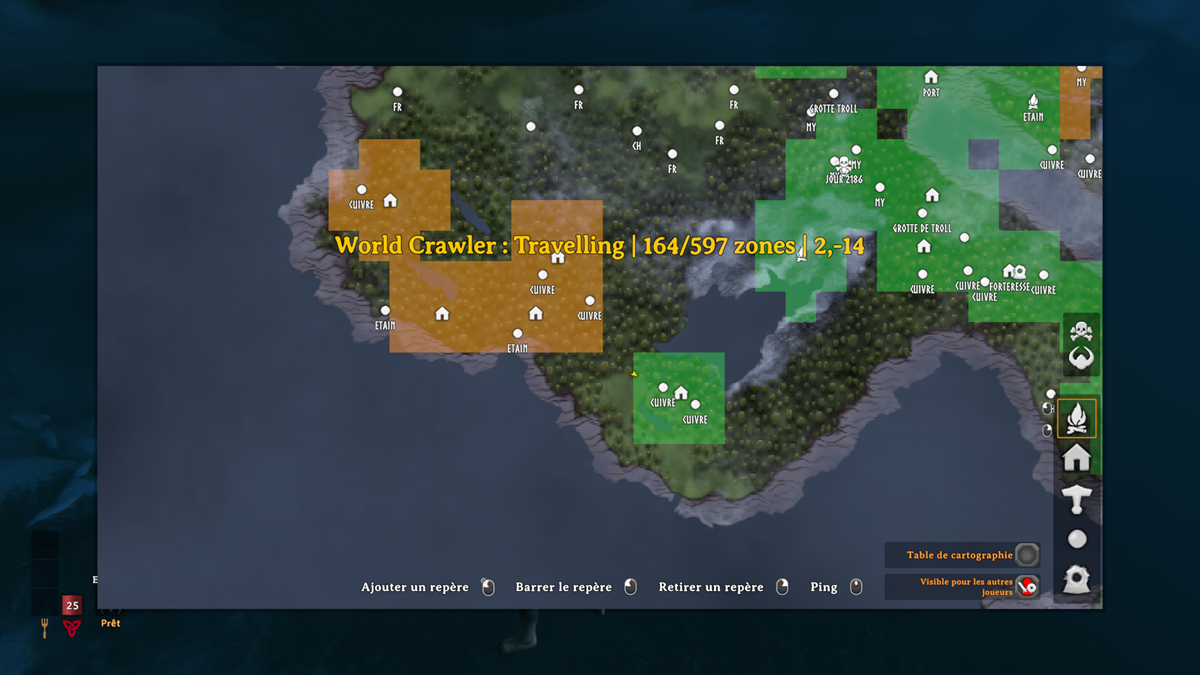
- The mod starts by scanning the areas your character has already discovered.
- It does not export every piece of data from the entire world. It focuses on selected locations instead.
- It captures the zones within 80 metres of known portals and landmarks you have marked on the map.
- Landmarks using the simple round icon are ignored.
- Your character automatically flies between the selected locations and records the buildings, terrain changes, chest contents, signs, and displayed items sent by the server.
- Client-only: no server installation needed. Get the server owner's permission first.
How to use
1. Export the server world
Join the source world with your usual character and press F8. Your character automatically flies between the selected areas to capture and save the world data. Add a personal Home pin to include a missing revealed area. Press F8 to pause or resume.
2. Create the local world
Return to the main menu and press F9. Select the export and confirm. The mod creates a local world with the same name, seed, and UID.
3. Restore the exported areas
Back up your character, enter the new local world, and press F10. Your character automatically flies between the saved areas to restore the world data. Press F10 to pause or resume without starting over.
Screenshot
Contact
Report bugs through GitHub Issues.