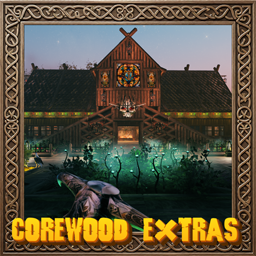
CoreWoodExtras
Adds a large variety of HD core wood build pieces, core wood furniture, greenhouse pieces, market stalls and more!HD Corewood Extras

****** ==Before Updating to v2.2.3== ******
Burt the trader now lists items from a json file stored in your "BepInEx\config\CoreWoodExtras" folder. The item configs have been removed from the config file, so you will need to delete your old config file and let the game create a new one.
Donations:
Please support this project if you can and prevent it from becoming abandoned!
Creating mods is a labor of love, a mix of long hours, personal investment, and a bit of green alchemy. From custom models to scripts and endless tweaks, each piece is hand-grown with care to enhance your Valheim experience.
If you enjoy the journey, the worlds, and the weirdness I create, there is a way to help keep the garden growing. Whether it is brewing up new features or snagging fresh assets, every bit of support helps keep the magic rolling.
Thanks for being part of the adventure. Stay lifted, stay curious!

Configuration:
Configuration options can be modified in-game (using Configuration Manager plugin).
Installation:
Automatic Install
- Plugin is created to be installed with r2modman. For Nexus downloads you will need to install manually.
Manual Install
- Un-zip and place the
pluginsfolder into yourBepInExfolder.
Credits:
- blacks7ar for the original idea.
- firstD for the Picture Frame code.
Plugins Created by Magic Mike:
FAQs:
How do I get Mystical Seeds?
Mystical Seeds can be bought from the traders.How do I customise a Picture Frame?
To customise a picture frame you must first place the image you want to use in to your "BepInEx/config/CoreWoodExtras" directory. It is best to use a 16:9 ratio for the horizontal and vertical picture frames.When in game look at the picture frame and press your use key (default E). Now paste the name off the image you want to add in to the text box.
For example: image-1_h.jpg
Images/Frames can also be scaled by adding the "s" abbreviation.
For example: image-1_h.jpg:s=2 (you can put a pictureframe that is 2 times bigger).
If you would like to run a slideshow of your images, you will need to create a new folder within the "BepInEx/config/CoreWoodExtras" directory. And then use the "i" abbreviation.
For example: horizontalimages:i=5 (Play the images in the horizontalimages folder at five-second intervals).
How do I add/remove items from Burt the trader?
Edit BurtItems.json in the BepInEx\config\CoreWoodExtras folder to add extra items for Burt to sell.Each entry in the ""items"" array supports:
prefabName -------- the internal Valheim/mod prefab name for the item (not its display name).
stack ---------------- how many are sold per purchase.
price ---------------- coin price per stack.
requiredGlobalKey - leave empty to always be available, or set to a global key such as defeated_bonemass to gate it behind a boss kill.
enabled ------------set to false to keep an entry in the file without selling it.
Restart the game after editing BurtItems.json for changes to take effect.
Comments/Suggestions/Help: Nexus.
Donations:
Please support this project if you can!