You are viewing a potentially older version of this package. View Latest Version
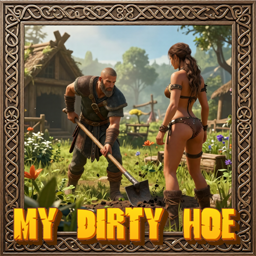
MyDirtyHoe
A dirty little hoe for your terrain modifications!My Dirty Hoe
A dirty little hoe for your terrain modifications!
Donations:
If you enjoy using this Valheim mod, please consider making a small donation to help support its development and future updates.
Even £1 or $1 would be greatly appreciated and would help more than you might think!
Thank you for your support, and happy gaming! ⚔️ ...... (A Paypal account is NOT required!)

Recommended Plugins:
- Better Plant Textures by SANCHS_CAT.
- WiresGrassTweaks by Wire.
Known Conflicts:
- NoHoeDust by Azumatt - Dirty Hoe already removes the effect.
Terrain Modifications:
- Smooth Terrain
- Flatten Terrain
- Lower Terrain
- Raise Terrain
- Cultivate Smooth
- Cultivate Flat
- Paved Road Smooth
- Paved Road Flat
- Mud Path
- Terrain Ramp
Terrain Ramp:
- Select Terrain Ramp from the hoe menu, then click a start point, click an end point, and move the cursor sideways to choose the width. Click a third time to build.
- The ground between the two points is cut or filled into a straight slope, and the edges are blended back into the surrounding terrain.
- The preview turns red when the ramp is too steep, too big, or beyond the terrain height limit.
- Scroll the mouse wheel while the ramp is selected to choose the paint for the ramp surface (None, Dirt, Cultivated, Paved or Grass). The choice is also in the config as Ramp Paint and can be changed live.
- Press the Step Back key (default Z) to undo a point while placing.
- Max slope, width limits, shoulder width and size limit are in the config under Ramp Settings.
Paint Modifications:
- Paint Dirt
- Paint Pave
- Paint Grass
- Paint Cultivate
- Clutter brushes: the Paint category also has a brush for each kind of clutter the game scatters over the ground. Click to paint that clutter inside the brush circle.
- Clear Clutter: erases painted clutter inside the brush circle.
- Clutter brushes use the Hoe Radius controls below. The Brush Density setting (config, Clutter Brush Density) sets how thickly they paint.
Hoe Radius:
- Allows you to modify the size of land affected by the dirty hoe by holding down an optional modifier key (default Left Alt) and scrolling with the mouse, or pressing one of two customizable hotkeys (default disabled).
Terrain Reset:
- To reset terrain using the dirty hoe hold down the modifier key (default Left Ctrl and Left Click).
- resetterrain [radius] is also available in the console. i.e. resetterrain 10 would reset terrain in a 10m radius.
Other Settings:
- Enable or disable durabilty.
- Enable or disable stamina.
- Enable or disable resources.
- Enable or disable workbench.
Console Commands:
- resetterrain - Resets terrain to default state.
- remove_pieces - removes all structures around the player in a configured radius.
- remove_forestry - removes trees, shrubs, rocks etc in a configured radius.
Configuration:
Configuration options can be modified in-game (using Configuration Manager plugin).
Installation:
Automatic Install
Plugin is created to be installed with r2modman or Gale. For Nexus downloads you will need to install manually.
Manual Install
- Un-zip and drag the
MyDirtyHoefolder in yourBepInEx/plugins/folder.
Plugins Created by Magic Mike:
Comments/Suggestions/Help: Nexus.
Credits:
- FaidenX for the original idea.
- aedenthorn for the Terrain Reset and Hoe Radius code.
Donations: