
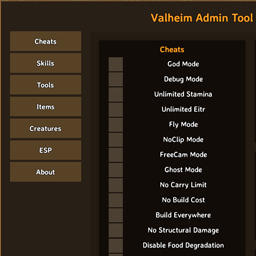
Valheim Admin Tool
A management mod to play Valheim the way you want.Valheim Admin Tool
Made by icecub · Version 0.5.8 · Valheim 1.0 · Requires BepInEx 5
Update 0.5.8 — Valheim 1.0.20
Valheim 1.0.20 changed an internal crafting check used by VAT's virtual workbenches. Older VAT releases could fail during startup, which could leave the menu unavailable. This release updates that check for the new game version.
Close Valheim before updating, then replace your existing ValheimAdminTool.dll with version 0.5.8. Remove duplicate or older copies of that DLL from other plugin folders. Keep your existing configuration and saved-cheat files. If your server runs VAT, update its copy as well. The menu shortcut remains F7 unless you changed it.
VAT now initializes gameplay patch groups separately. If another mod causes one group to fail, VAT reports that group and continues loading unaffected features.
Manage your character, spawn items and creatures, restore your world's resources, and handle common admin tasks from one in-game menu.
Valheim Admin Tool works in singleplayer and multiplayer. Install it on your own client to use its character tools and cheats, or add it to your server to enable admin-only world and player management. Server installation is optional, and Jötunn is not required.
Open the menu with F7. Close it with F7 or Escape. In the hotkey editor, Escape first cancels recording or returns to the binding list.
What can it do?
Cheats and character tools
Choose the tools you need with individual toggles:
- God Mode, Debug Mode and Ghost Mode.
- Unlimited Stamina and Unlimited Eitr.
- Disable Food Degradation: pause eaten food's remaining duration and bonuses while normal healing continues.
- Disable Durability Loss: preserve the current durability of your weapons, armor, shields, tools and equipped items.
- Fly Mode, NoClip Mode and FreeCam Mode.
- Infinite Jumps: press your jump button again to keep jumping in midair.
- No Carry Limit, No Build Cost, Build Everywhere and No Structural Damage.
- Death protection: individually disable item, food, status-effect and skill loss.
- Ship cheats: wind in your back and increased sailing speed.
- Quick actions: heal yourself, receive one hour of Rested, reveal or reset your map, and activate boss powers.
- Show World Seed: show the current world's original seed in an on-screen message and the VAT log; an optional hotkey is available under Quick actions.
- Reveal POI: mark boss locations and possible or confirmed Haldor, Hildir and Bog Witch locations on your map.
- Map Teleport: hold Shift and click your destination on the map.
- Unrestricted Portals: take normally forbidden items, including metals, through portals.
- Forge: Always Succeed: guarantee success for your own Forge of Potential upgrades. Normal materials and other requirements still apply. Starts off, supports a hotkey and is included in Save cheats.
- Instant Crafting: finish inventory, cauldron and crafting-station recipes immediately, including multi-crafting and upgrades.
Build Everywhere also allows normal hammer dismantling in no-build zones while enabled. Normal ward access, workbench requirements and restrictions on occupied or non-removable objects still apply. Resource returns and multiplayer removal use the game's normal handling.
To use Map Teleport, enable Cheats → Map Teleport, close the admin menu and open the large map. Hold either Shift key and left-click your destination. The large map closes when the teleport is accepted. Normal clicks still work for managing map pins.
Reveal POI is beside the map buttons in Cheats. Boss markers are red, trader candidates are gold, and confirmed traders are green, with icons and text labels to distinguish them. It covers the main boss locations, including the Deep North, and all three traders: Haldor, Hildir and the Bog Witch. The game attempts to place up to 10 candidate locations per trader. Once the game selects a trader's location, VAT removes that trader's unused candidates from the overlay automatically.
In singleplayer and worlds you host, Reveal POI reads the world's actual locations. A server running VAT 0.4.2 or newer can provide those same locations. Without that support, VAT calculates locations from the seed and labels them seed estimate: these can differ in worlds generated by older game versions or changed by mods. Calculation may take a moment. Opening the overlay does not select a trader location, spawn anything or uncover the map's fog.
After revealing POI, the button changes to Hide POI. Press it again to remove the overlay while keeping your own map pins. Hiding also cancels an unfinished lookup. You can assign a Reveal / Hide POI hotkey with the same behavior. POI markers last for the current session; Reset Map also clears the overlay. They are not added to shared cartography or your saved cheat selection. Server installation remains optional, and Anti Valheim Admin Tool restrictions still apply.
Unrestricted Portals removes inventory restrictions for your own character. Enable it under Cheats and walk through a connected portal as usual. Item properties stay unchanged, and disabling the cheat restores normal item restrictions immediately. It starts off, supports a configurable hotkey and is included in Save cheats. Server installation is optional; Anti Valheim Admin Tool restrictions still apply. Portals still need a destination and must be permitted by the world's portal and boss-event settings.
Instant Crafting removes the progress-bar wait after you start a craft. It works with your inventory, ordinary crafting stations and VAT's virtual workbenches. Normal material costs, recipe requirements, station levels and inventory space checks still apply. It does not speed up automatic processing in smelters, kilns, ovens or fermenters. The toggle starts off, supports a configurable hotkey and is included in Save cheats. It works client-side and follows the same server restrictions as the other cheats.
Disable Food Degradation pauses food at its current remaining duration; it does not refresh food that has already degraded. Newly eaten food keeps its full duration. Turn it off to resume normal decay. Eating and food replacement still follow Valheim's normal rules. This option starts off and supports a configurable hotkey. Food loss on death is controlled separately by Disable Food Loss.
Debug Mode enables Valheim's native debug shortcuts in singleplayer and worlds you host: B toggles free building, Z toggles flight, K kills enemies and L removes item drops in the loaded area. Hold left Ctrl and middle-click the map to teleport. Native command requirements still apply; Valheim may ask you to confirm cheat use before K can execute. These native shortcuts retain Valheim's host restriction on external servers; use VAT's separate Fly Mode, No Build Cost and Map Teleport controls there. Hold Shift+C and move the mouse to adjust time of day and camera field of view.
Disable Durability Loss prevents further wear from combat, blocking, building, repairing structures and continuous equipment use. Existing damage stays as it is; normal repairs still work. Turn it off to resume wear. The option affects your own character, starts off, supports a configurable hotkey and follows the same server permissions as the other cheats.
Infinite Jumps lets you keep jumping while airborne with your normal jump button. Press again for each extra jump. Normal stamina costs and fall damage still apply; combine it with Unlimited Stamina for jumping without stamina loss. It starts off, supports a configurable toggle hotkey and follows the existing server permissions.
Fun cheats
The Fun box in Cheats adds a few ways to play around:
- Moon Gravity: floatier jumps and falls with 20% of normal gravity, plus no fall damage while enabled. Turning it off restores normal fall damage.
- Super Knockback: send creatures flying back with stronger knockback and unchanged damage. It does not affect players, buildings or trees.
- Bouncy Mode: jump or fall to start bouncing whenever you land. It pauses while chat or menus have control.
- Party Hits: colored confetti bursts on your creature hits, visible on your own client. The confetti lingers for 2–3 seconds and fades gradually.
- Super Jump: adjust jump power from 25% to 500%.
- Giant / Tiny: adjust your player size from 25% to 300%.
The sliders each have a Reset button; 100% is normal. Your chosen size stays active when sitting on thrones, chairs and benches, and when standing up. You can adjust or reset your size while seated. Size temporarily returns to normal while in bed, riding, attached to a ship, teleporting or dying, then reapplies when you resume play. All four toggles default to off and support configurable hotkeys. Use Save cheats to keep your selection for future sessions. Active effects still reset when leaving the session or losing VAT access.
These options work together, including with Infinite Jumps. Normal stamina costs still apply. Fall damage is disabled while Moon Gravity is active; Unlimited Stamina and God Mode remain separate choices.
Save your cheat selection
Click Save cheats below the categories on the left to remember the current Cheats checkboxes, including Death, Ship and Fun, plus your Super Jump and Giant / Tiny sliders, inventory rows and custom maximum carry weight. Inventory settings use the values you have applied, not unfinished input. The selection loads automatically when you next enter a world and VAT is allowed on that server. One selection is shared across your characters and worlds on this client installation.
Changes are saved only when you click the button. You can make temporary changes afterward; click again to replace your saved selection. To save normal defaults, turn off the checkboxes, reset both Fun sliders to 100%, and use the Inventory reset buttons before saving.
This saves cheat toggles, jump power, player size, inventory rows and your custom carry limit. Saving with the carry limit reset remembers normal game behavior. Older cheat profiles remain compatible and leave inventory settings alone until you save again. It does not save Time, Weather, Speeds, skills, ESP, items, creatures or world state, and does not replay quick actions or boss powers. Server restrictions always apply. Losing access clears active effects without deleting the saved selection.
The saved file is BepInEx/config/com.icecub.valheimadmintool.cheats.cfg. Your existing hotkey configuration remains separate.
Configurable hotkeys
Click the Hotkeys gear in the menu header to assign shortcuts to all Cheats functions, including quick actions, death protection, ship cheats and boss powers. Tools → Remove Drops is also available in this editor. Its shortcut starts unassigned and clears loaded drops within 50 metres, just like the Tools button. No admin rights or server installation are needed, provided the server permits you to use VAT. It runs once per press and stays inactive while typing in chat or the console. You can change the menu shortcut there too.
Choose an action, then Record keys or select a main key and modifiers using the mouse. The mouse controls let you configure a combination without having to press its keys together. Click Save to keep your changes or Clear to remove a cheat shortcut. Use Escape to cancel recording. Left and right Ctrl, Shift and Alt work interchangeably; mouse buttons are also available.
New cheat shortcuts start unassigned, and the menu keeps F7 unless you change it. Duplicate VAT bindings are flagged. Cheat shortcuts work during gameplay with menus closed, are suppressed while typing or editing bindings, and follow the same server permissions as the menu. VAT does not replace Valheim's own key bindings.
Skills
Adjust individual skill levels directly with 0–100 sliders. The list follows your character's registered skills, including skills you have not trained yet.
Time
Choose a time from 00:00 to 23:59, or use the Midnight, Sunrise, Noon and Sunset buttons. Select Freeze time before applying to keep that time fixed; otherwise it continues advancing.
- Apply locally: change the time of day for yourself without changing the server's world clock.
- Reset time: remove your local override and follow the world clock again.
- Apply globally: hosts and verified server admins can change the world's time for everyone, including players without VAT. Remote servers need VAT 0.4.4 or newer for these controls.
- Resume global time: release a global freeze without undoing the chosen time.
Global time changes affect the world's clock and processes that use it; freezing it also prevents the sleep time-skip from advancing that clock. A global freeze is released if the initiating admin disconnects, loses permission or their VAT connection expires. Your own local override takes priority over global time until you press Reset time. On clients without VAT, a frozen clock follows the game's periodic time updates rather than a local freeze patch.
Weather
Choose a preset from the game's available environments, such as Clear, and press Apply locally. Enable Freeze weather first to keep it until you reset it. Without freezing, the override lasts one normal weather period before natural weather resumes.
Reset weather removes your override and returns to the normal weather at your location. Weather controls affect only your own client. Presets follow Valheim's normal environment behavior, including wet/cold effects and any special forced environments. Time and Weather overrides are temporary: they clear when leaving the session or losing access and are not included in Save cheats.
Speeds
Adjust Walking, Running, Swimming, Flying and Mounted independently with sliders from 10% to 300%. 100% is normal speed, so you can move both slower and faster. Each slider has a Reset button, plus a button to reset all five.
Walking includes normal movement, walking and sneaking. Flying applies while Fly Mode is active, including ascending and descending. Mounted affects the walking, running and swimming speed of the animal you are currently riding. The game's usual skill and equipment modifiers still apply.
Optional SNEAKer support: compatible with SNEAKer 1.1.8 without any extra setup. Walking at 100% keeps SNEAKer's sneak speed; other percentages scale its result. SNEAKer is not required.
Settings stay active while you play and reset when leaving the session or losing VAT access. Mounted speed returns to normal when you dismount. Ships are handled separately by the existing ship cheats.
Virtual workbenches
The Workbenches category lets you open a crafting station's menu anywhere. Choose a workbench, forge, cauldron or another available station, select its Station level, then press Open workbench. Level 1 is the base station; each additional level counts as one upgrade.
Station types and level choices follow the loaded game and compatible modded content. The normal crafting, upgrade and repair options depend on the selected station. No nearby building, roof or fire is needed. Materials and normal recipe requirements still apply unless a separate cheat changes them.
Nothing is built or added to the world. Closing the crafting menu dismisses the virtual station; switching stations cancels any unfinished craft. Virtual workbenches work client-side and respect the server's Anti Valheim Admin Tool policy.
Inventory
Choose 1–9 inventory rows from the dropdown and click Apply size. A normal inventory has 4 rows / 32 slots; 9 rows provide 72 slots at the normal width. The dropdown shows the slot count for your inventory's current width. Reset to 4 rows restores the normal number of rows.
Move items out of the rows you want to remove before shrinking. VAT refuses a change that would drop items, including when restoring a saved size. Close the normal inventory or crafting window before applying a size change. Resizing does not change item stacks, equipment or carrying capacity.
Under Maximum carry weight, enter a value from 1 to 99999 and click Apply. Decimal points and commas are accepted. This sets the exact limit in place of the normal equipment and world bonuses. Reset restores the game's normal calculation. No Carry Limit takes priority while enabled; your custom value becomes active again when you disable that cheat.
Click Save cheats to include your applied inventory size and carry limit in the selection restored next session. Valheim also stores inventory rows with the character independently. A saved smaller size is skipped with a message if items occupy the rows it would remove; those items stay in your inventory. The custom carry limit is temporary unless saved.
These controls affect your own character and require neither server installation nor server admin rights. The server's Anti Valheim Admin Tool policy still applies.
Items
Browse item categories or search the entire catalog by item name or internal prefab name. Choose an amount, then spawn items in the world or add them to your inventory.
The Quality dropdown offers levels from 1 to the selected item's supported maximum, including limits from other mods. Both spawn buttons use your selection. Items without upgrades stay at quality 1 and show a disabled selector. Selecting a different item resets the choice to quality 1.
Items without their own icon use a blue V tile, so they remain easy to spot in the catalog.
Creatures
Browse creatures by biome or search across all categories. Select a creature and its level, then spawn it nearby. The Tamed option is available for creatures that support taming.
World and player management
The Tools category contains:
- Reset dungeons.
- Reset resources.
- Regenerate nature.
- Remove Drops: remove loaded loose item stacks within 50 metres of your character, including drops currently owned by another player. No admin rights or server installation required.
- Reset terrain: restore the original ground within a radius of 1–50 metres, adjustable in 1-metre steps. Hold the radius slider to preview the area with a yellow circle around you.
- Pickup Radius: adjust automatic item pickup to 1–10 metres, with a Reset button for the game's normal range.
- Teleport to another player or bring a player to you.
- Kick or ban players.
- Ward override: under Tools → Admin functions, bypass ward area protection for your own confirmed admin character, including digging down to buried wards. Requires a current admin confirmation from a VAT server; no offline, unsupported-server or implicit-host fallback. Ownership and permitted players stay unchanged. Other building/tool requirements remain in effect. Session-only, excluded from Save cheats; an optional hotkey is available under Admin functions.
Automatic dungeon and resource resets are also available through configuration, with adjustable intervals. These run on the world host or server and are off by default.
Remove Drops works locally on loaded drops around your own character, in singleplayer and multiplayer, with or without VAT installed on the server. It claims network ownership before removing each item and synchronizes the removal to connected players. Local means nearby loaded objects; the items are removed for everyone. Distant or unloaded drops are not touched. Placed items, buildings, containers and gravestones are excluded; swimming fish are preserved. Removed stacks cannot be recovered with an undo button. The button and hotkey both remain subject to Anti Valheim Admin Tool restrictions.
Terrain reset restores ground height and paint, including hoe paths and cultivated soil. It does not delete buildings, trees or resource nodes, but changing the ground can affect building support. Very old terrain edits that overlap the edge of the circle are retained and reported; choose a larger radius to include their full area. Move the menu aside if you want a clearer view of the yellow preview.
Terrain ownership protection: you can reset around your current character without admin rights when the entire area can be checked and contains no building pieces, or only pieces built by that same character. Pieces partially overlapping the circle count too. Another character's pieces or an unknown builder require verified admin rights. A second character on the same account is a different builder. Stand still during the check. Missing area data, unsupported geometry or changed terrain cancels the operation before any reset is applied.
With VAT on the server, the server checks ownership and performs the reset. Update both client and server to the current VAT release for this feature. A detected older server, incompatible reply or expired permission disables terrain reset until current support is available. Without VAT on the server, only completely loaded local terrain can be checked and reset; there is no admin override for someone else's buildings in that mode. Reduce the radius or wait for loading if needed.
Pickup Radius keeps Valheim's normal automatic-pickup toggle, item eligibility and inventory checks. It changes automatic pickup only and retains the normal Tools admin requirement. Both radius settings last for the session and are excluded from Save cheats.
Access to Tools depends on the server setup described below. Dungeon, resource and nature resets skip zones around recognized player bases. Terrain reset uses your chosen circle with the ownership check above. Make a world backup before using reset or regeneration actions.
ESP and diagnostics
Use the ESP overlay to highlight players, creatures, dropped items, resources, pickables and dungeons available to your client. Resource recognition works independently of the game language. Search by a localized name, internal prefab name or localization key, and set a maximum distance. For example, CopperDeposit remains searchable in any language. Searches ignore case, accents, spaces, underscores and hyphens. Changing language refreshes the labels; changing or clearing the filter updates the cached results immediately.
The About page shows the mod version, reloads your configuration, and provides an in-game log viewer. Copy individual messages or the retained log buffer to the clipboard when reporting a problem.
Installation for players
- Install BepInEx 5 for Valheim if you do not already have it.
- Close the game and extract the Valheim Admin Tool download.
- Copy
ValheimAdminTool.dllinto your Valheim installation'sBepInEx/plugins/ValheimAdminTool/folder. Create theValheimAdminToolfolder if needed. If your download includes aBepInExfolder, you can instead merge that folder into your Valheim installation. - Start the game, load a character into a world and press F7.
For a manual DLL installation, the resulting path should be:
Valheim/
└── BepInEx/
    └── plugins/
        └── ValheimAdminTool/
            └── ValheimAdminTool.dll
Only ValheimAdminTool.dll is required to play once BepInEx is installed. The .pdb file is optional debug information.
The configuration file is created when the mod first loads:
BepInEx/config/com.icecub.valheimadmintool.cfg
You can change the menu shortcut there. After editing the file, use About → Reload configuration to load the changes.
How does multiplayer work?
You do not need the mod installed on a server to use its ordinary client features. These are Cheats, Skills, Speeds, Workbenches, Inventory, Items, Creatures, ESP and About, including Map Teleport—subject to the server's Anti Valheim Admin Tool policy.
Without the main mod on the server
Reset resources and Regenerate nature work only in eligible, already loaded areas around you. Your client cannot reset distant areas it has not loaded.
Reset terrain is also available locally when the entire area is loaded and the ownership check passes. No admin override is assumed without VAT server support.
Remove Drops is available for loaded loose items within 50 metres, without admin rights.
Every other action in Tools is disabled: dungeon resets, Pickup Radius, both player-teleport buttons, kicking and banning. This also applies to admins when the main mod is absent from the server.
With the main mod on the server
The server enables the full Tools category for admins. Resource and nature resets can process the world's generated zones beyond an individual player's loading range.
Non-admins still have access to ordinary client features, local Remove Drops and ownership-checked Reset terrain. Other Tools actions remain disabled. To restrict the entire mod to admins, also install Anti Valheim Admin Tool.
The server checks admin rights against its own adminlist.txt, using the player's connection identity. Changing a display name does not grant admin access.
Permissions at a glance
This table applies to players connecting to a server. “Client features” means Cheats, Skills, Speeds, Workbenches, Inventory, Items, Creatures, ESP and About.
| Installed on the server | Non-admin players | Admin players |
|---|---|---|
| Neither mod | Client features + local Remove Drops + nearby resource/nature resets + ownership-checked local terrain reset | Same; no terrain admin override |
| Valheim Admin Tool | Client features + local Remove Drops + ownership-checked terrain reset | Client features + full Tools |
| Anti Valheim Admin Tool only | Entire tool blocked | Client features + local Remove Drops + nearby resource/nature resets + ownership-checked local terrain reset |
| Both mods | Entire tool blocked | Client features + full Tools |
Singleplayer and the local player hosting a world have full access. After joining a remote server, the menu may briefly show Checking server permissions while it checks the server setup.
Optional server installation
Install the main mod on your server if you want admins to use the full world and player management tools:
- Stop the server and ensure BepInEx 5 is installed for that server.
- Copy
ValheimAdminTool.dllinto the server'sBepInEx/plugins/ValheimAdminTool/folder. - Add your intended admins' platform IDs to the server's
adminlist.txt. - Start the server again.
Admins who want the menu also need the mod on their own clients. Other players do not need to install it. A player receiving a remote teleport does not need the mod either.
For automatic resets, edit the server's com.icecub.valheimadmintool.cfg. Enable the desired dungeon or resource reset and set its interval in hours. Restart the server to apply server configuration changes.
Server owners: restricting the mod to admins
Anti Valheim Admin Tool is a separate, server-only mod that restricts use of the official Admin Tool to your server's admins.
It works independently: you can install the blocker without installing the main Admin Tool on the server. Players do not need to install the blocker.
Install Anti Valheim Admin Tool
- Stop your server and ensure BepInEx 5 is installed.
- Extract the Anti Valheim Admin Tool download.
- Copy
AntiValheimAdminTool.dllinto the server'sBepInEx/plugins/AntiValheimAdminTool/folder. - Check that authorized admins are listed in
adminlist.txt. - Start the server again.
With the blocker active, the compatible official Admin Tool closes its menu and disables its active cheats for non-admins. Admin permissions are refreshed while connected, so losing admin rights also removes access. Changes already made to items, skills or the world are not rolled back.
Install both mods on the server to give admins the full toolkit while blocking ordinary players from using it.
What does the blocker cover?
The blocker works with compatible official Valheim Admin Tool clients, starting with version 0.3.0. It does not block older versions that lack the policy, modified clients that ignore it, or unrelated cheat mods. It is not a general-purpose anti-cheat system and does not require ordinary unmodded players to install anything.
Updating and reporting problems
Close the game or stop the server before replacing the existing DLL with a newer version. Keep your configuration file and avoid installing duplicate copies of the same mod.
If you are upgrading from a development build with a different configuration filename, rename that mod's existing config to com.icecub.valheimadmintool.cfg while the game or server is stopped. If the new file already exists, merge your preferred settings instead of overwriting it.
For a bug report, open About → Open log messages and use Copy to clipboard, or copy an individual error. Include the mod version, what you were doing, and whether you were playing singleplayer or on a server. For multiplayer issues, mention which of the two mods the server has installed.
Discord
Join the Discord to report issues, suggest features and discuss the mod:
Credits
Special thanks to Astropilot for releasing ValheimTooler under the MIT license. His code helped develop part of Valheim Admin Tool.
EquipmentAndQuickSlots compatibility
VAT 0.5.1 automatically recognizes EquipmentAndQuickSlots when installed. Save cheats stores normal base rows instead of counting hidden equipment/quickslot rows. Its extra inventory rows and slots remain controlled by EAQS. Inventory resizing protects occupied ordinary rows and requires the mod's size/drop-protection hooks. Tested with the supplied EAQS 3.1.3 DLL. Save cheats again after updating to refresh an older profile.
Spawn protection overlay
Enable Tools → Spawn protection → Show spawn protection to see a transparent terrain overlay within 50 metres. Green shows live player-base protection or structural cover; red shows gaps in those protections. Actual game effect areas are used, including upgraded station radii. Round base areas are combined geometrically, so thin gaps between them can appear within the terrain grid. Loaded terrain only, with periodic refresh. The overlay stays visible while walking and refreshing; sudden teleports clear the old surface.
This is a local visual tool, with normal VAT access checks and no server admin requirement. It starts off and has an optional Hotkeys → Tools binding, unassigned by default. It is not saved by Save cheats.
Red does not guarantee spawning: creature-specific rules, biome, weather and other conditions still apply. Player proximity is intentionally excluded to reveal gaps that remain after players leave. Physical spawners, boss summons and creatures that ignore base protection are not covered. Round boundaries use conservative chords with approximately 5 mm inward error. Terrain height and structural cover remain approximate; unusual non-spherical mod areas use point sampling. Unknown terrain is left unpainted. This is an experimental improvement, not a guarantee of centimetre accuracy on uneven terrain.
NoClip liquid fix (0.5.5): tar and water registrations are cleared when NoClip disables character colliders, preventing stuck liquid effects after leaving a pool. Normal liquid contact resumes when NoClip is turned off. Existing temporary status effects expire normally.