
You are viewing a potentially older version of this package. View Latest Version
Build complete multi-level structures in Valheim from pre-designed floor plans.
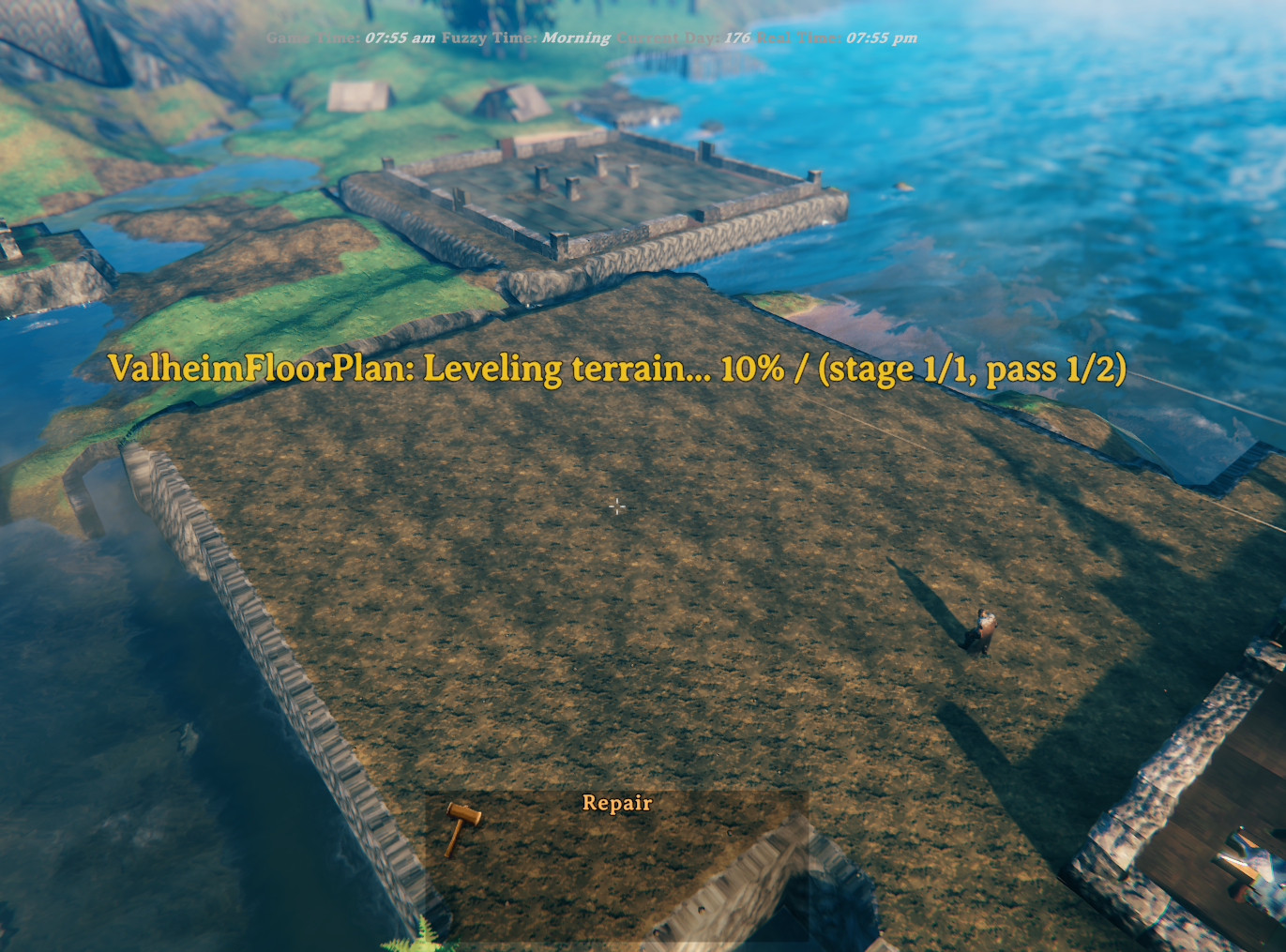
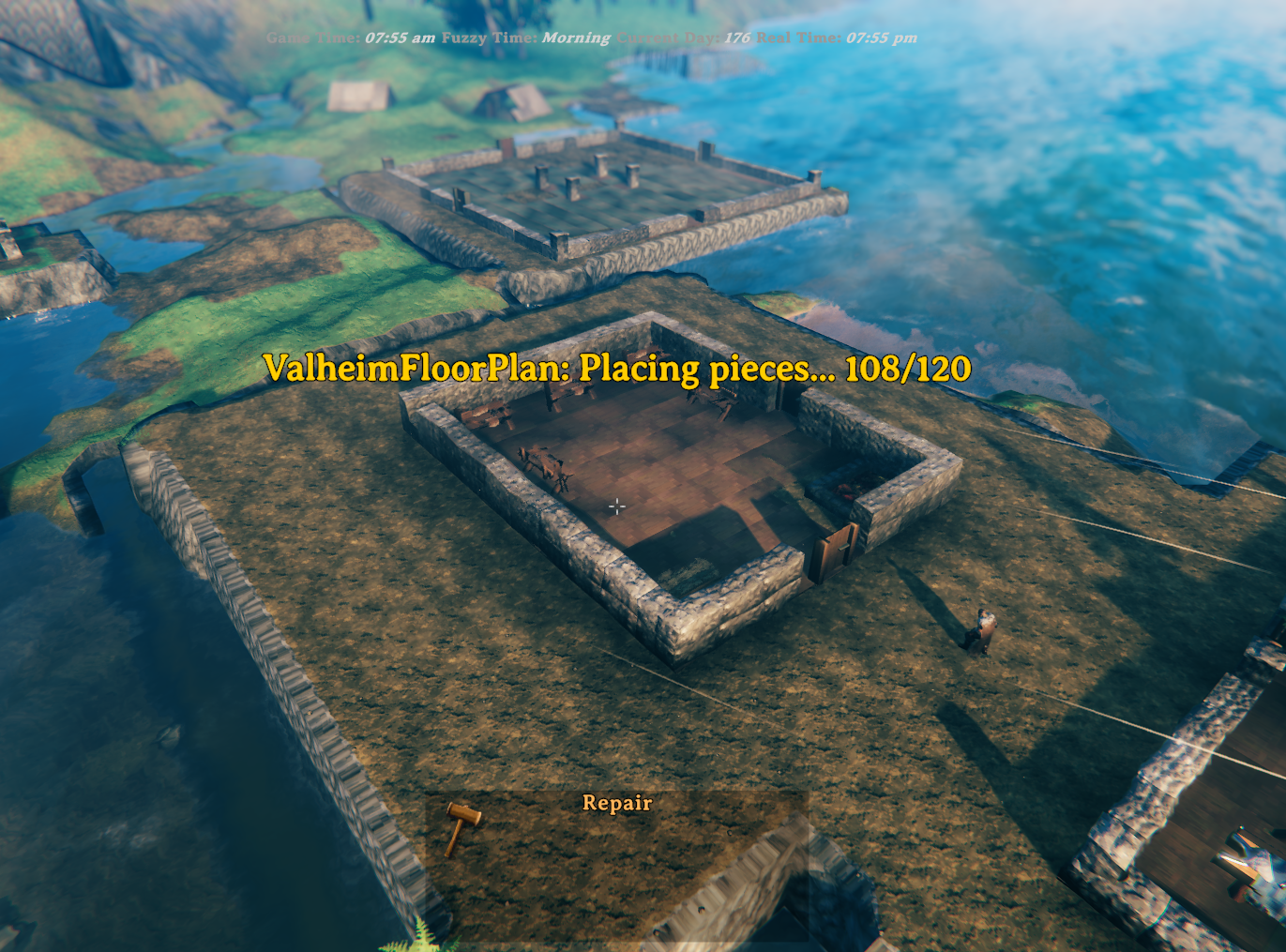
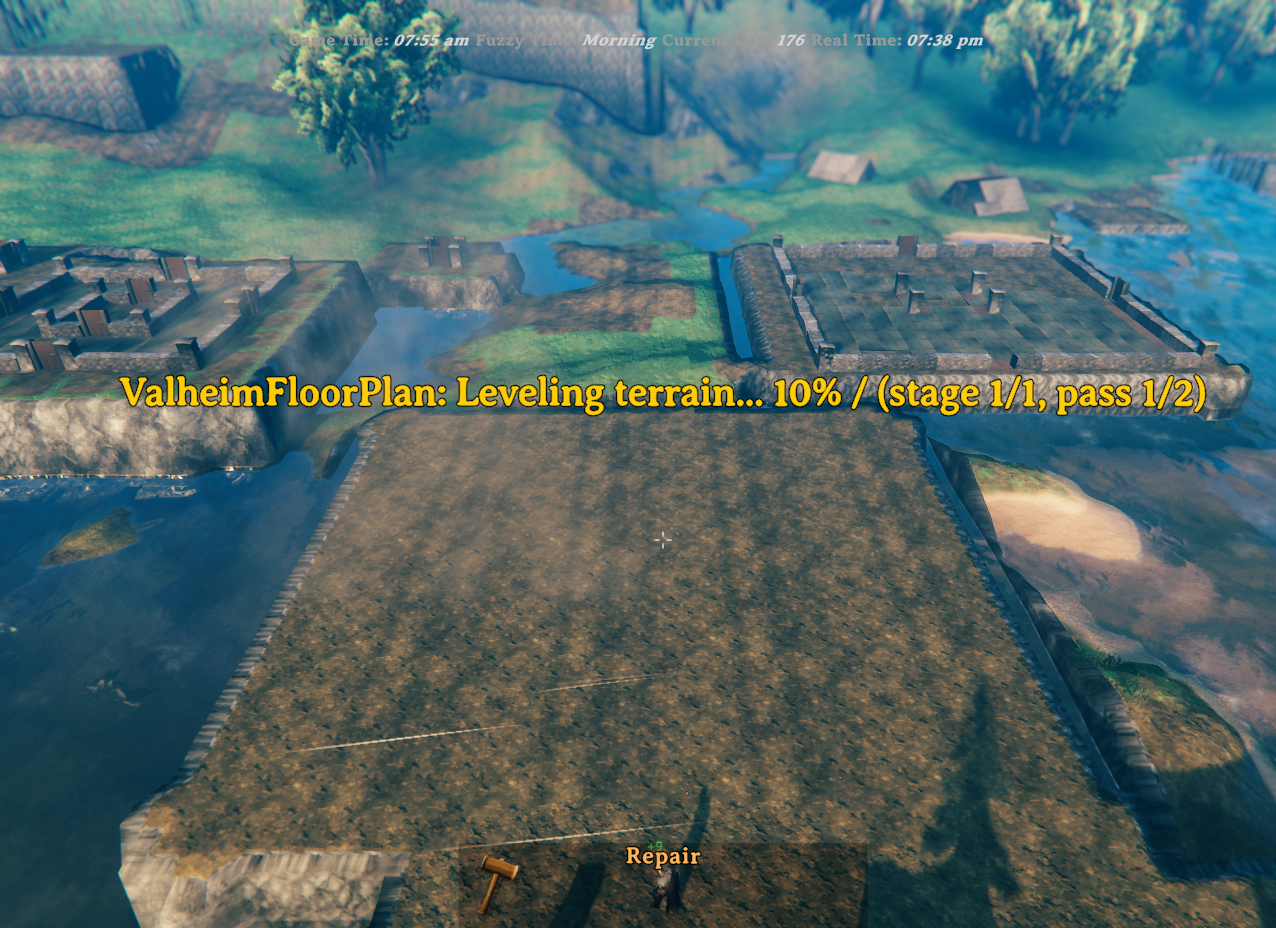
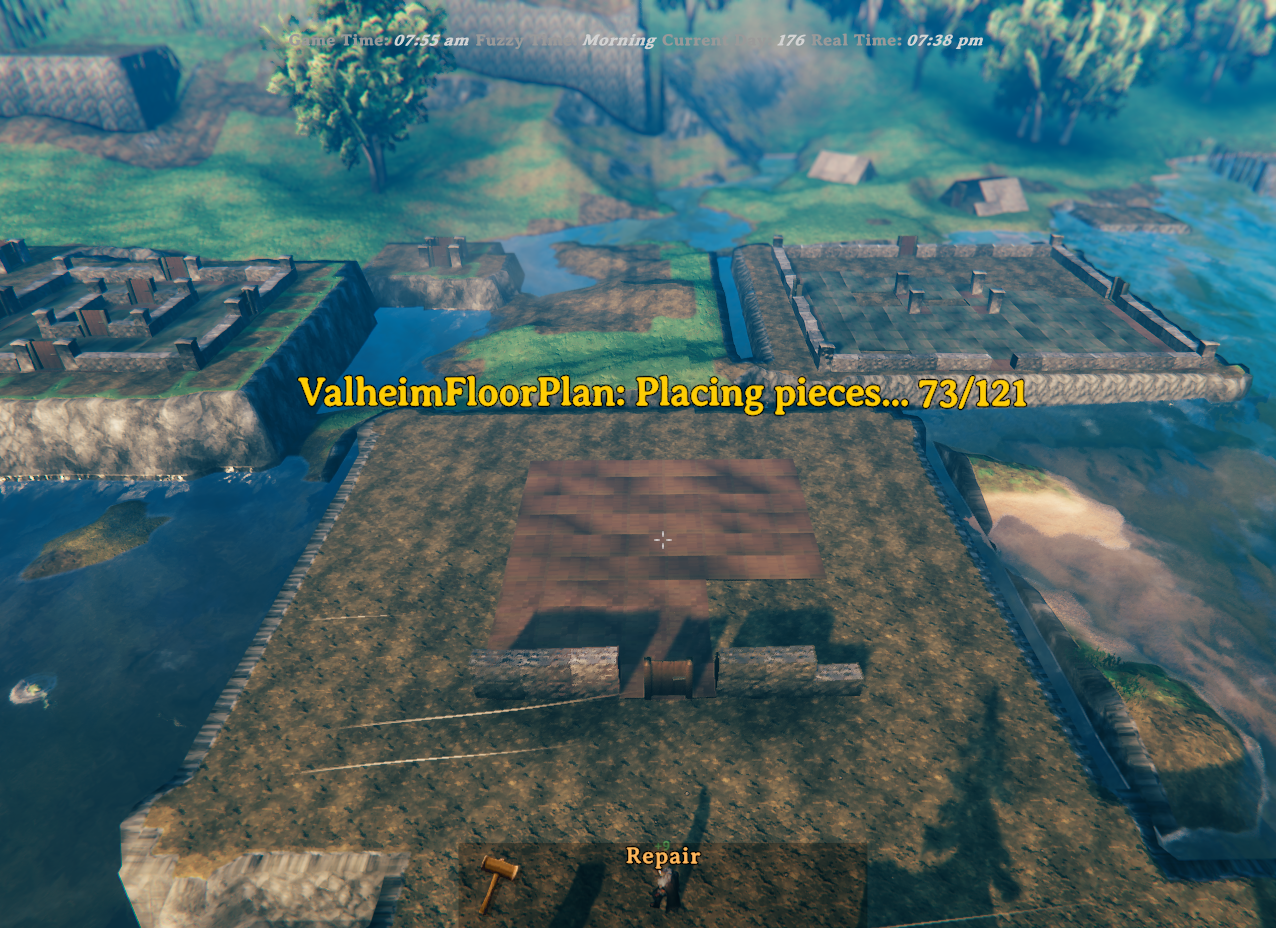
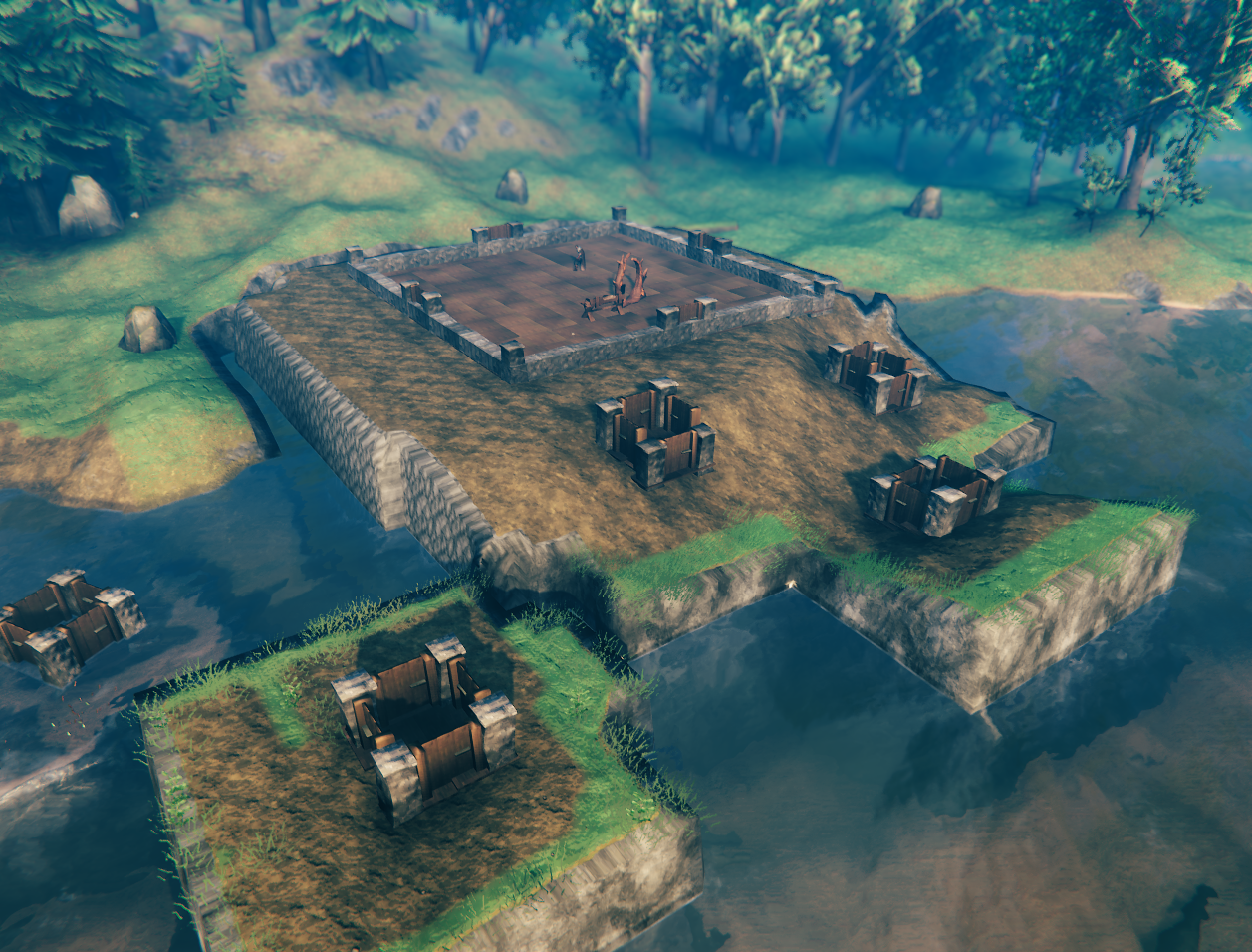
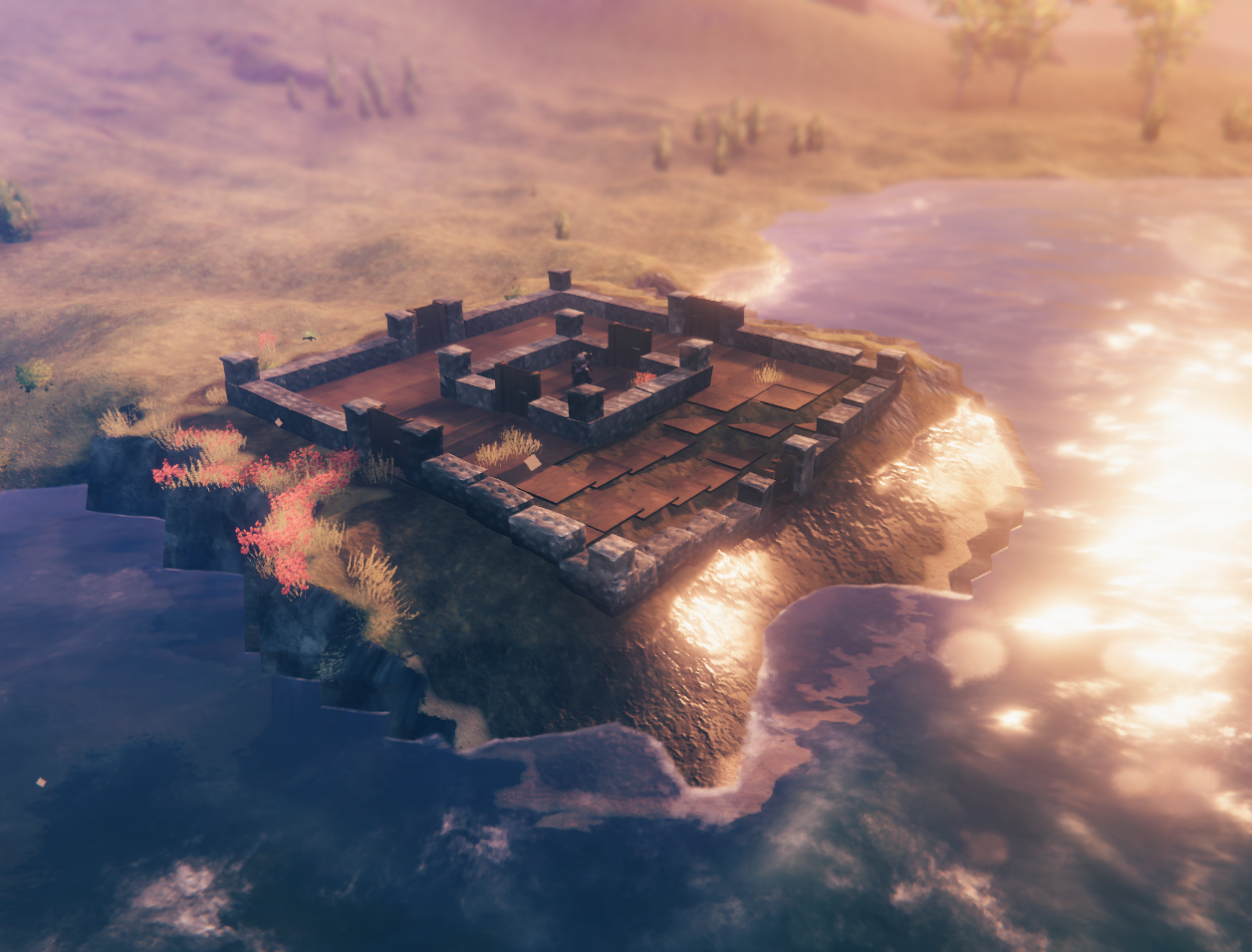
Anyone who has spent time building in Valheim knows the real effort starts before the first wall goes up — clearing uneven ground, wrestling with terrain spikes, and nudging pieces into alignment one agonising centimetre at a time. Valheim Floor Plan takes all of that away. Design your layout in the included browser-based Designer, save it as a .vfp plan file, and the mod handles the rest: it levels and blends the terrain, captures a snapshot for instant undo, and places the entire foundation in seconds.
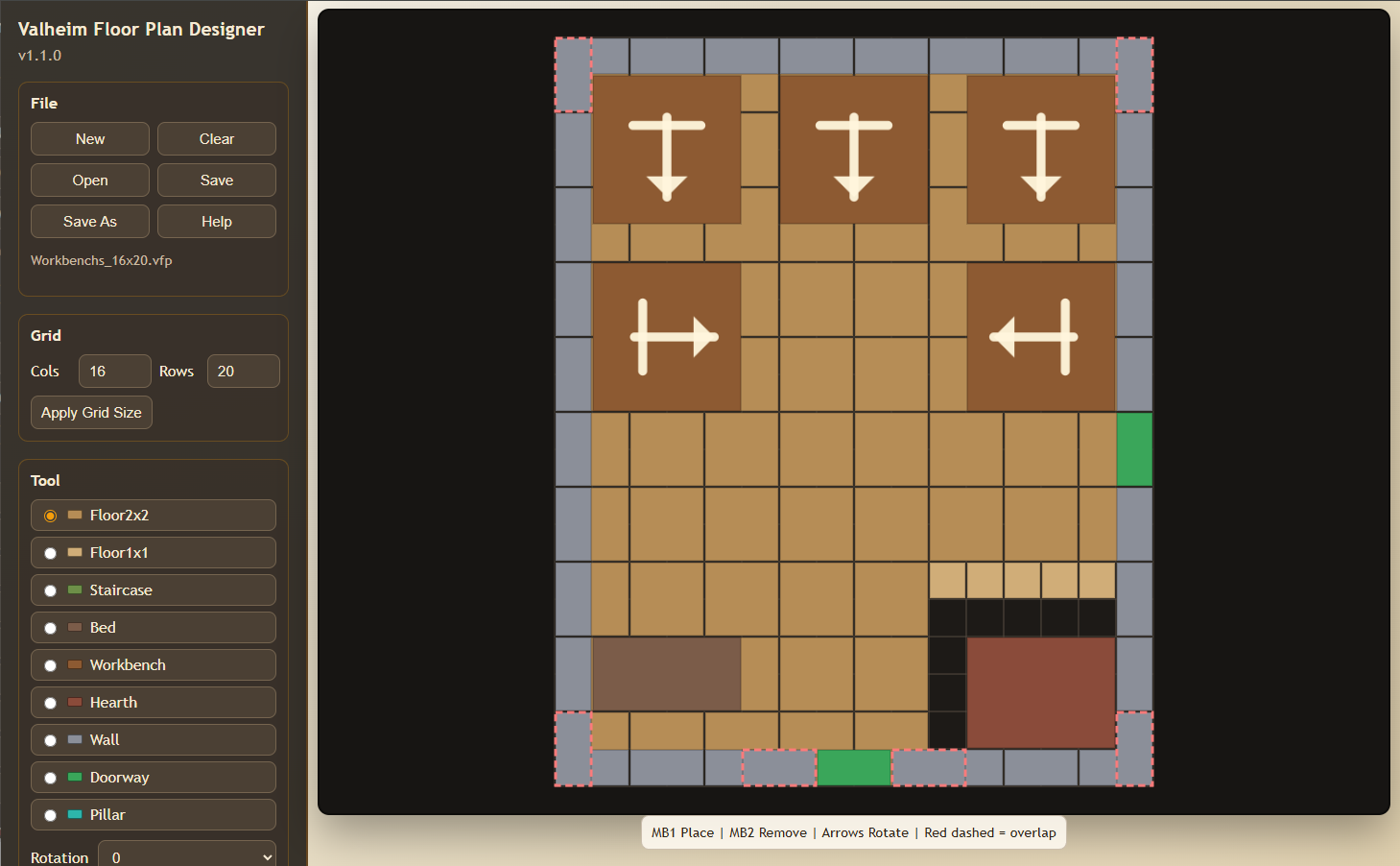
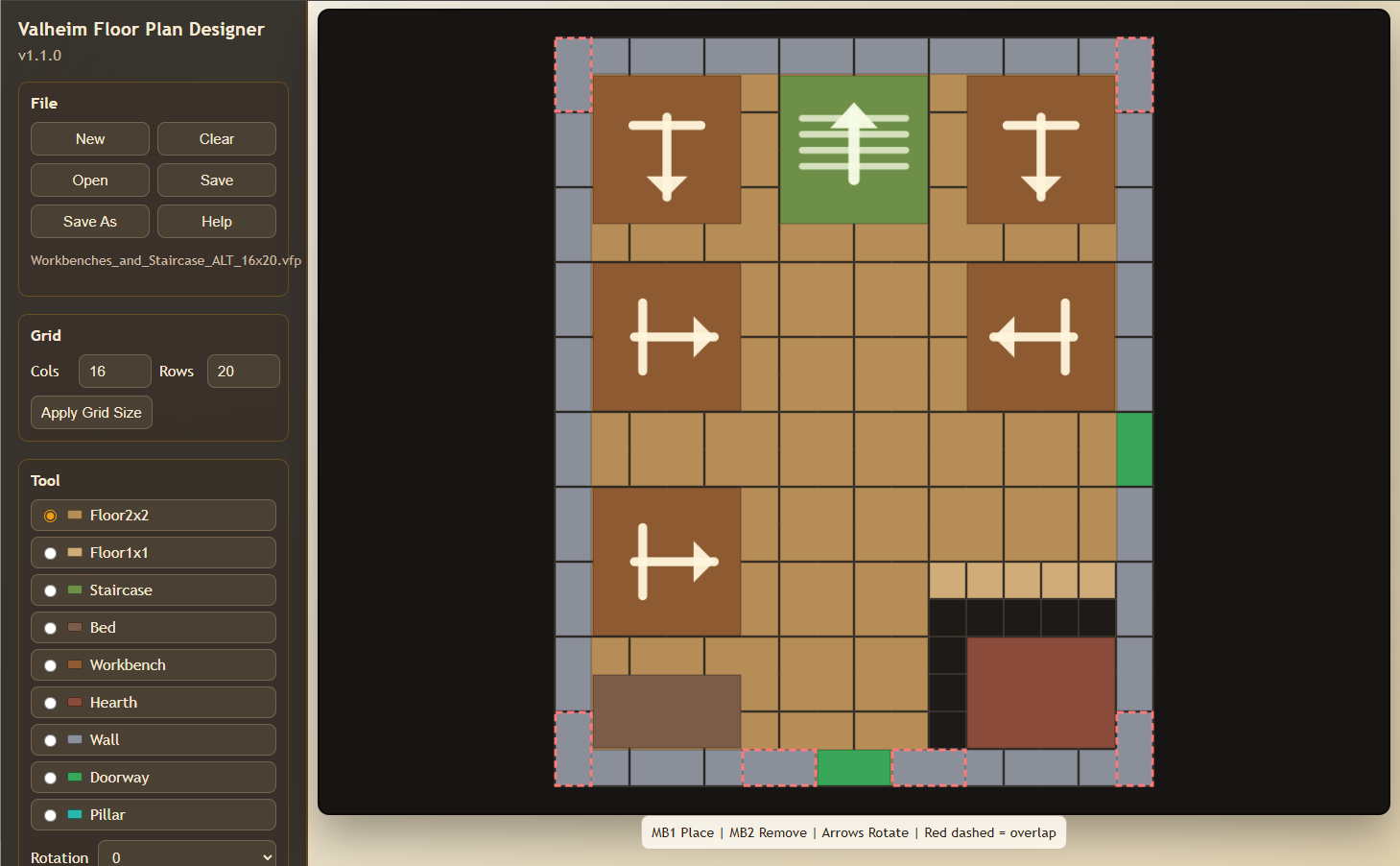
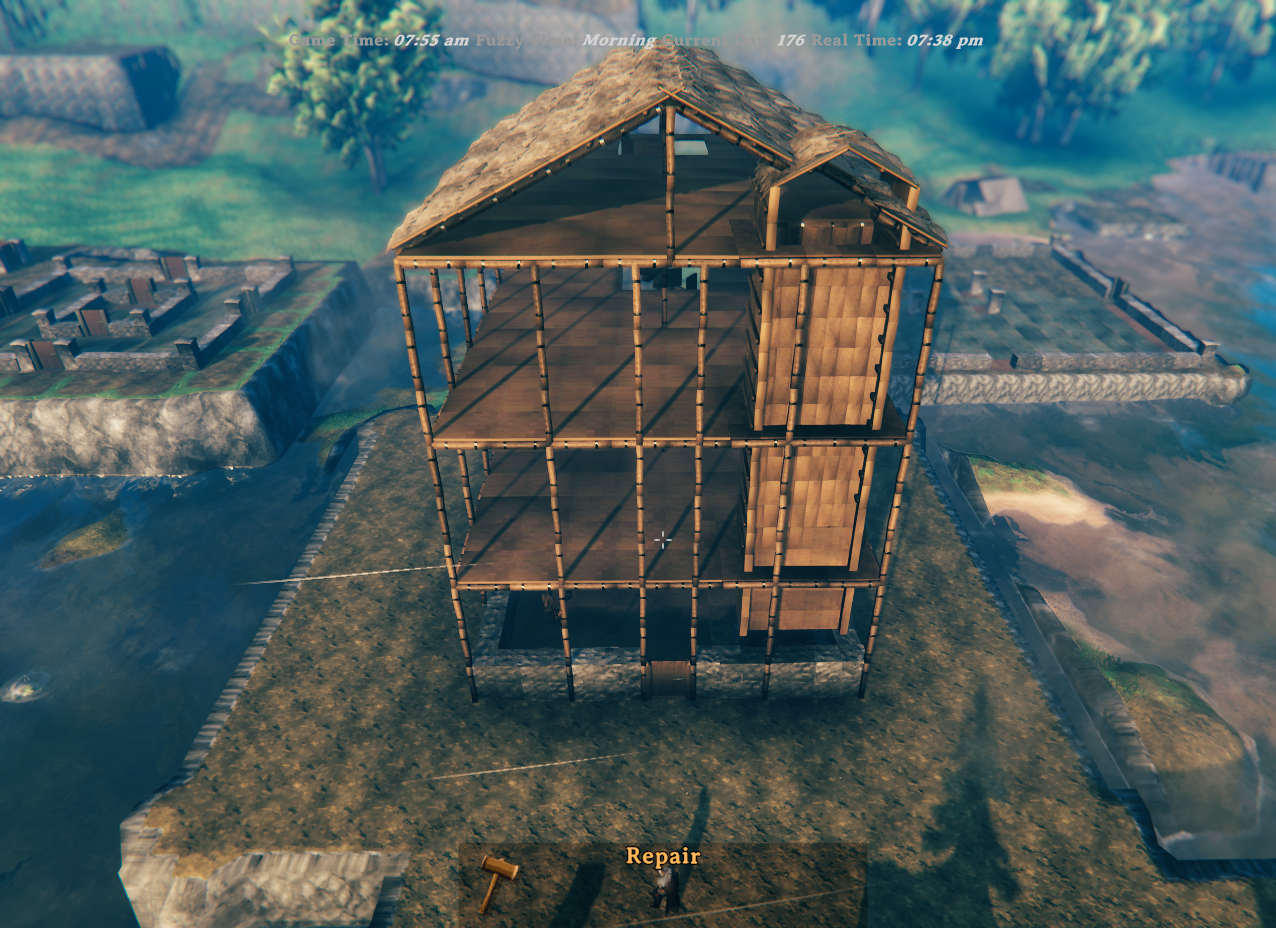
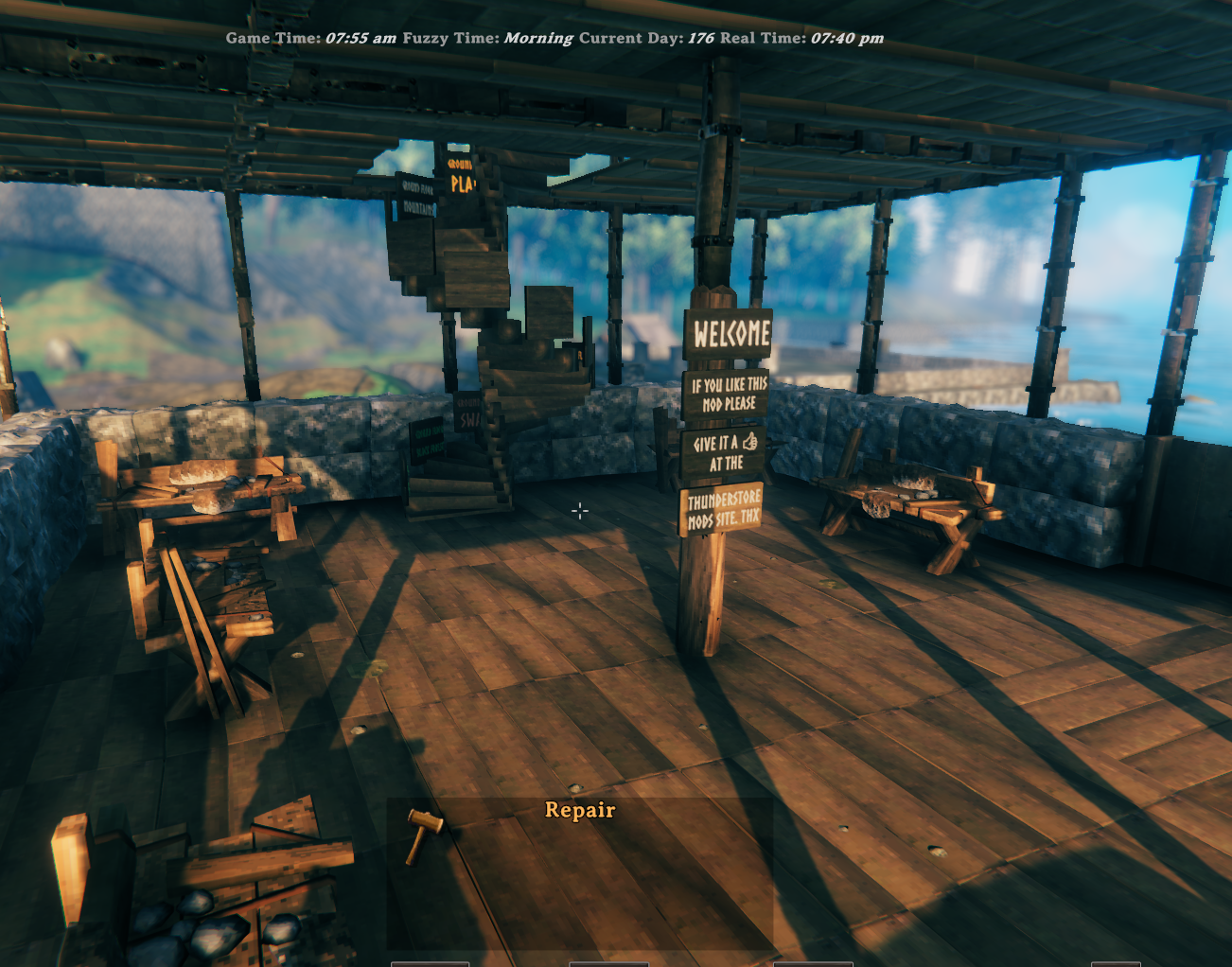
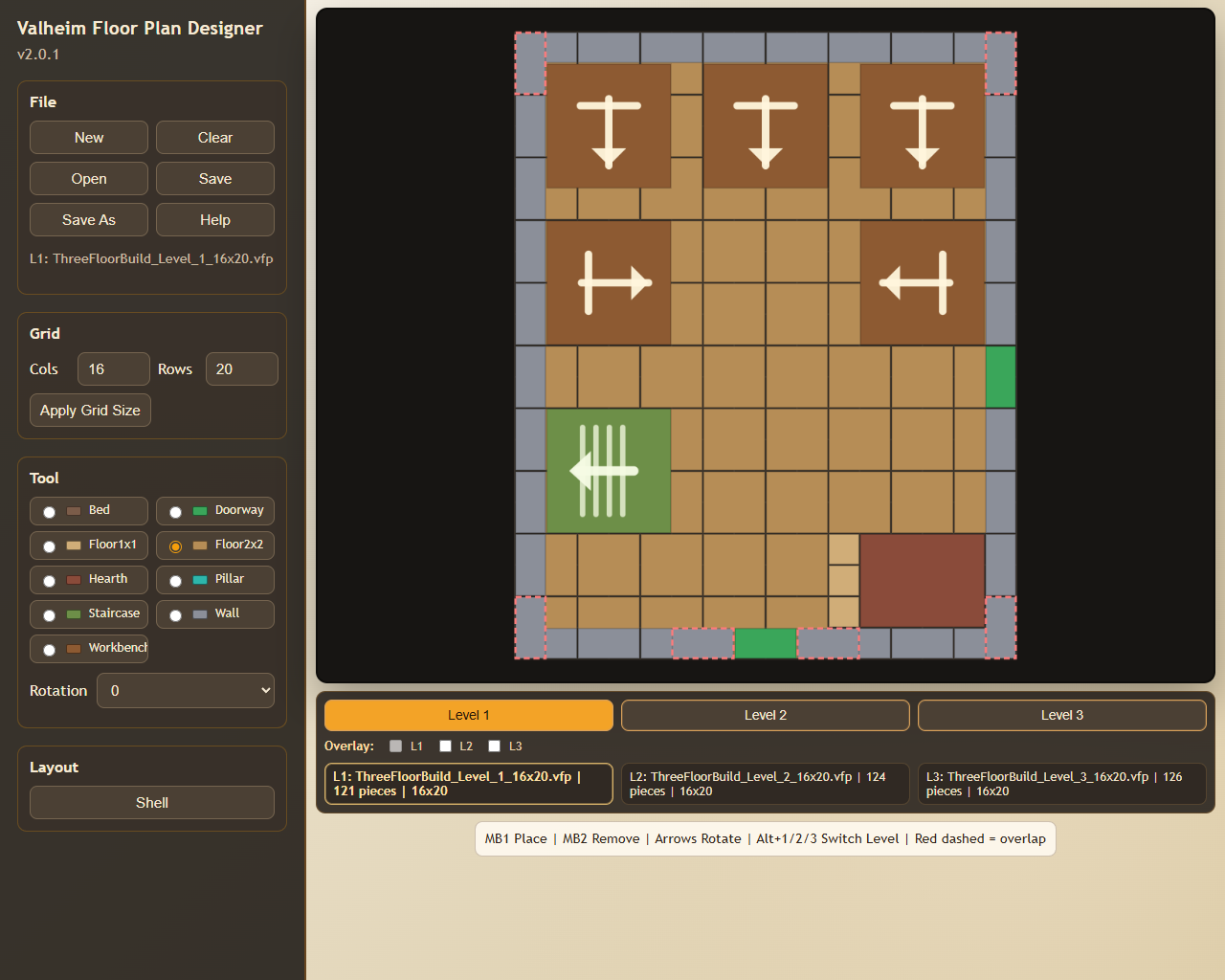
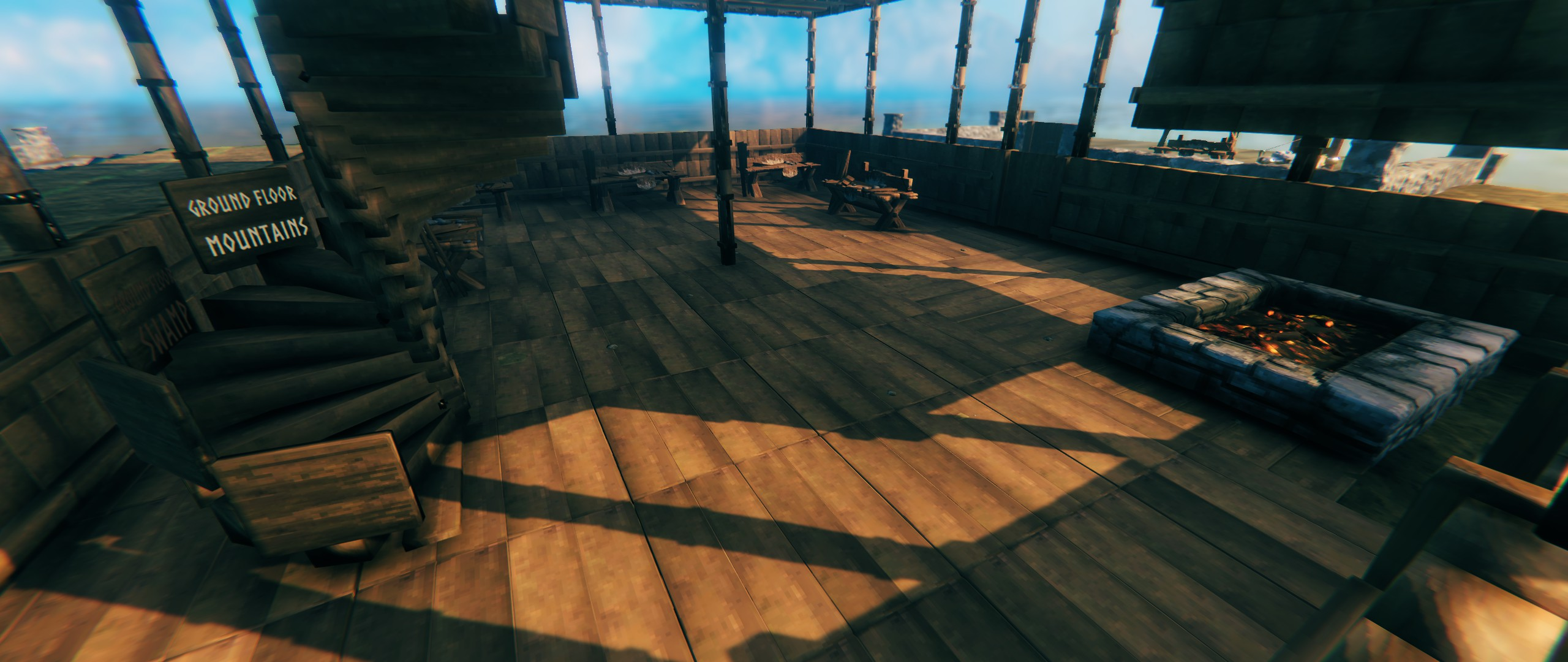
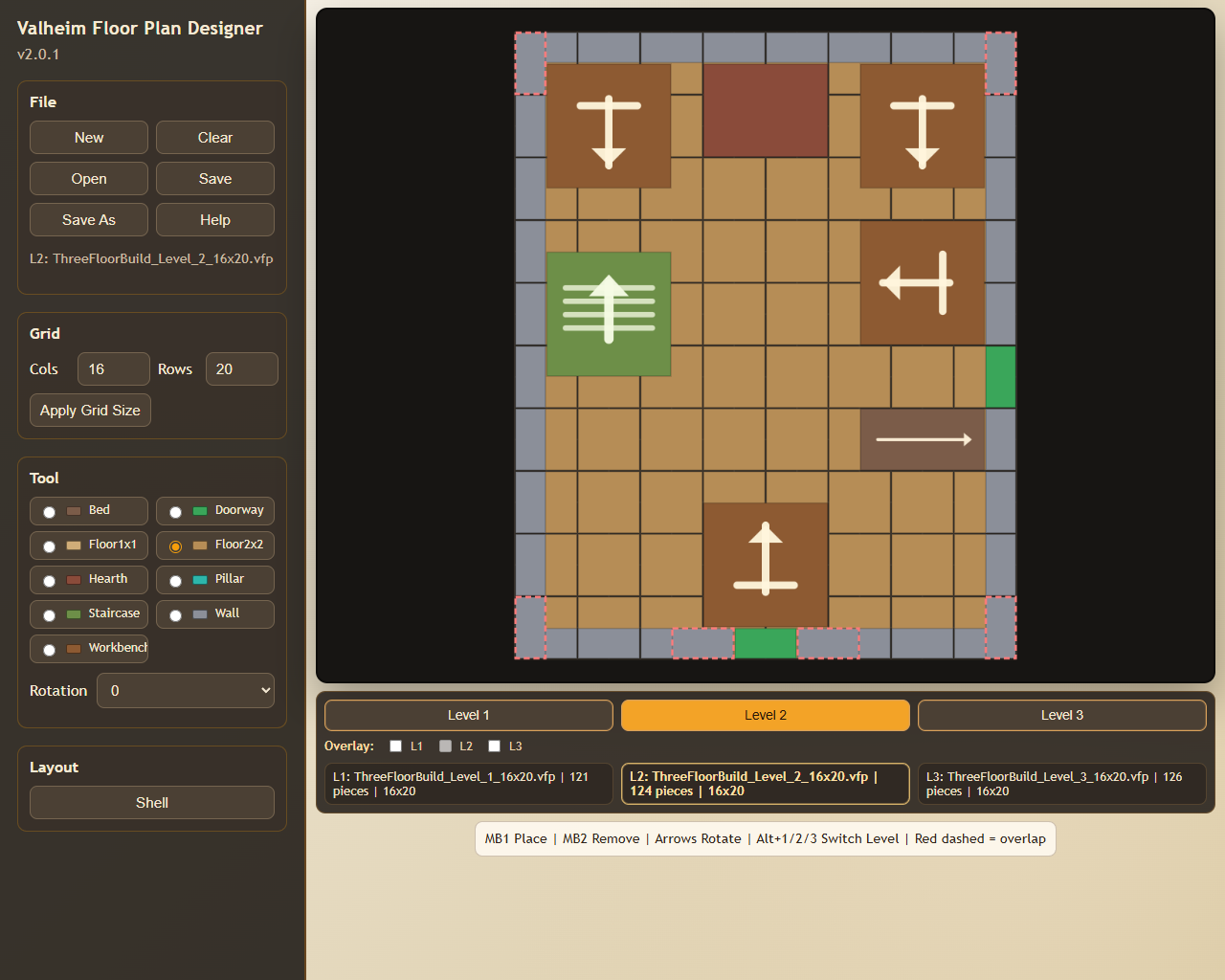
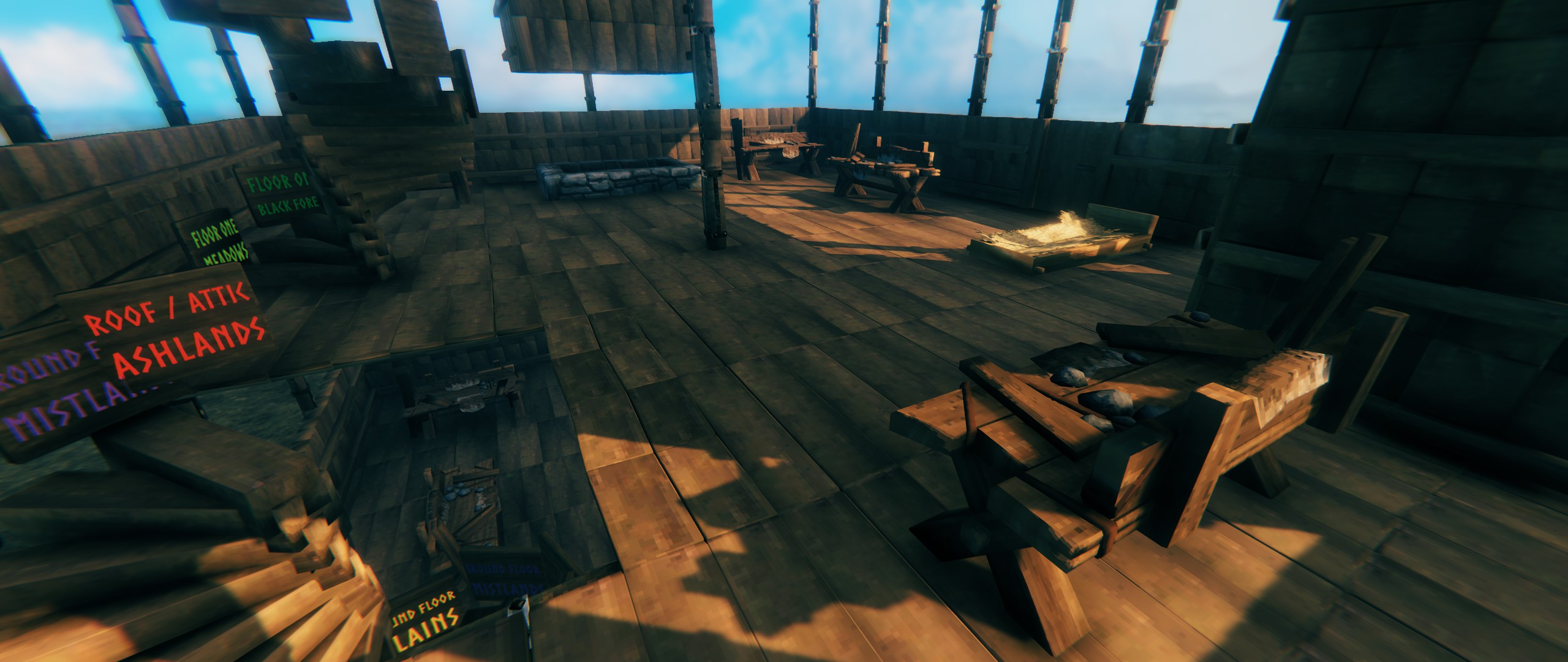
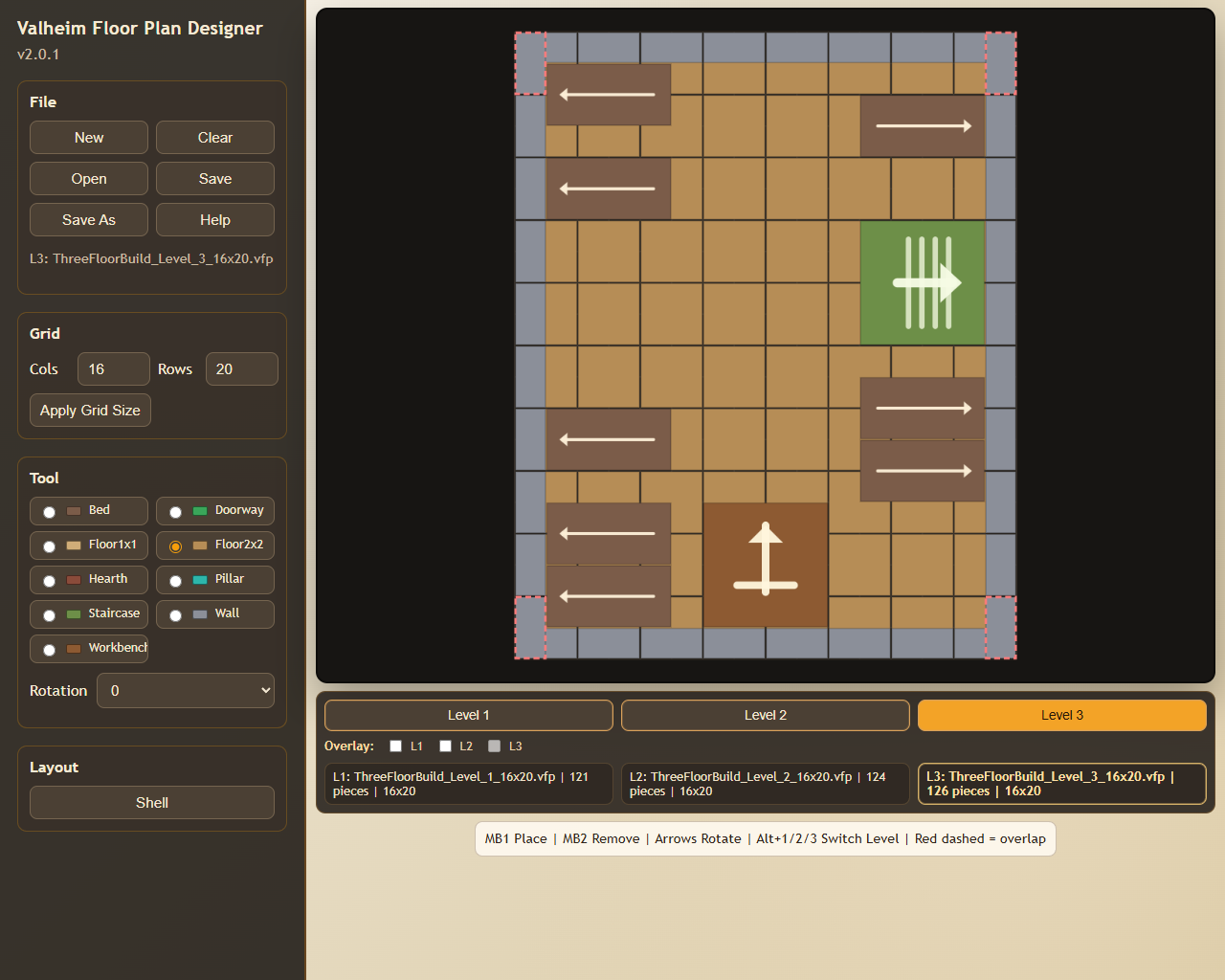
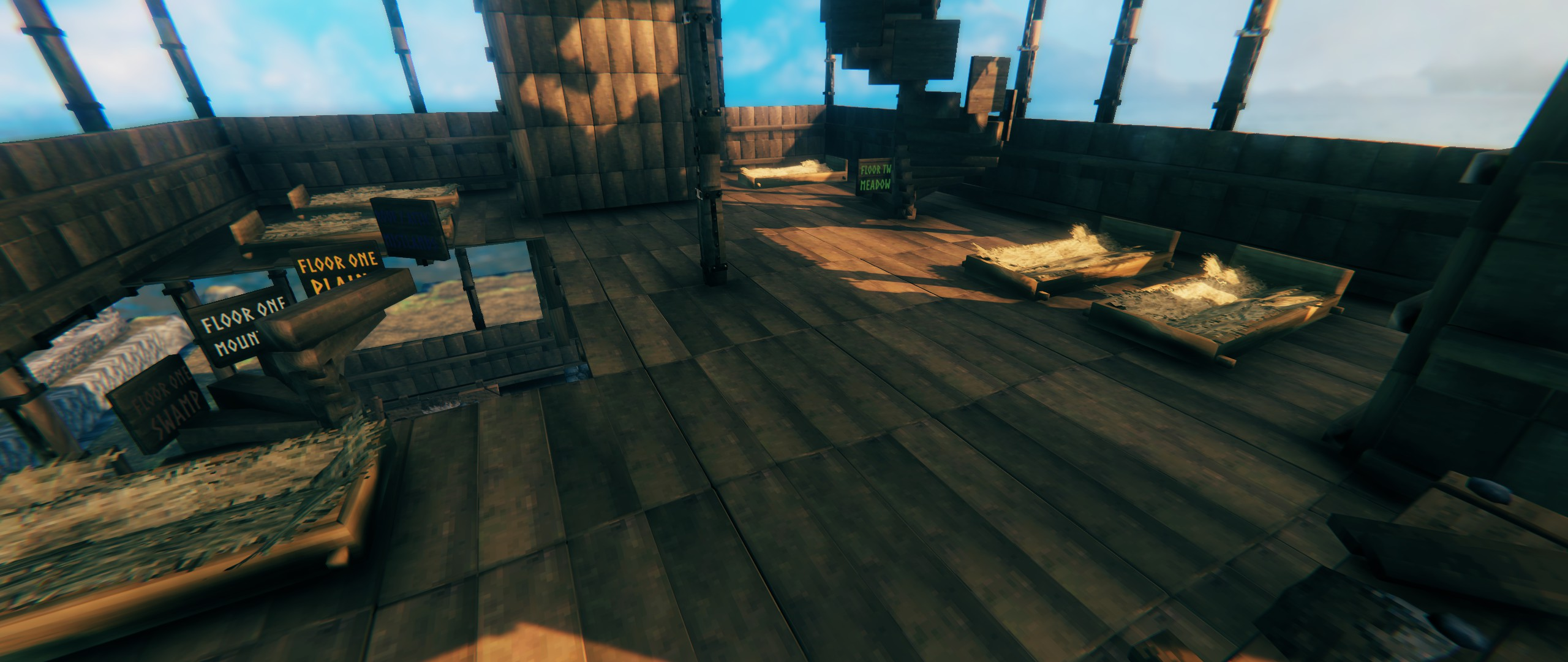
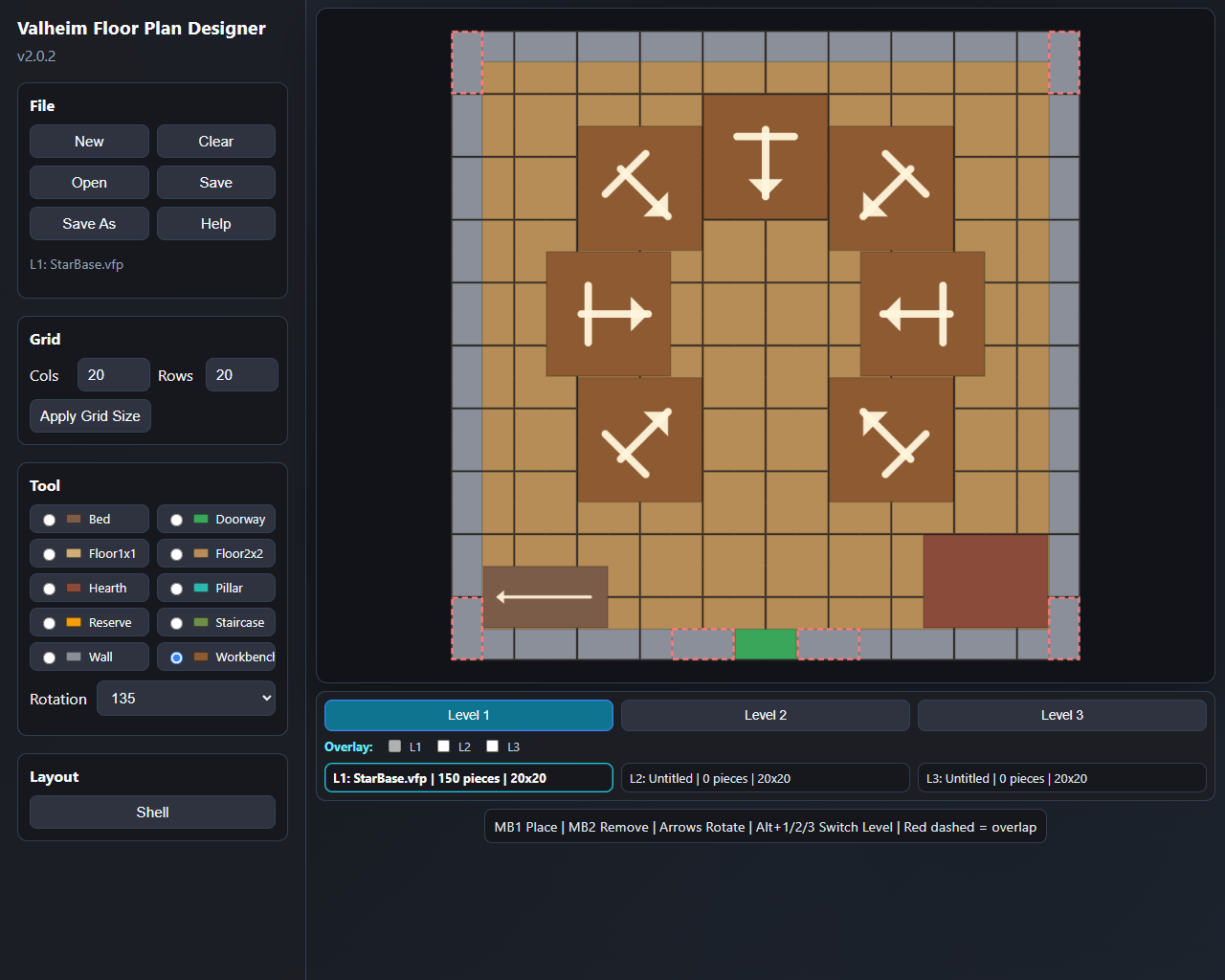
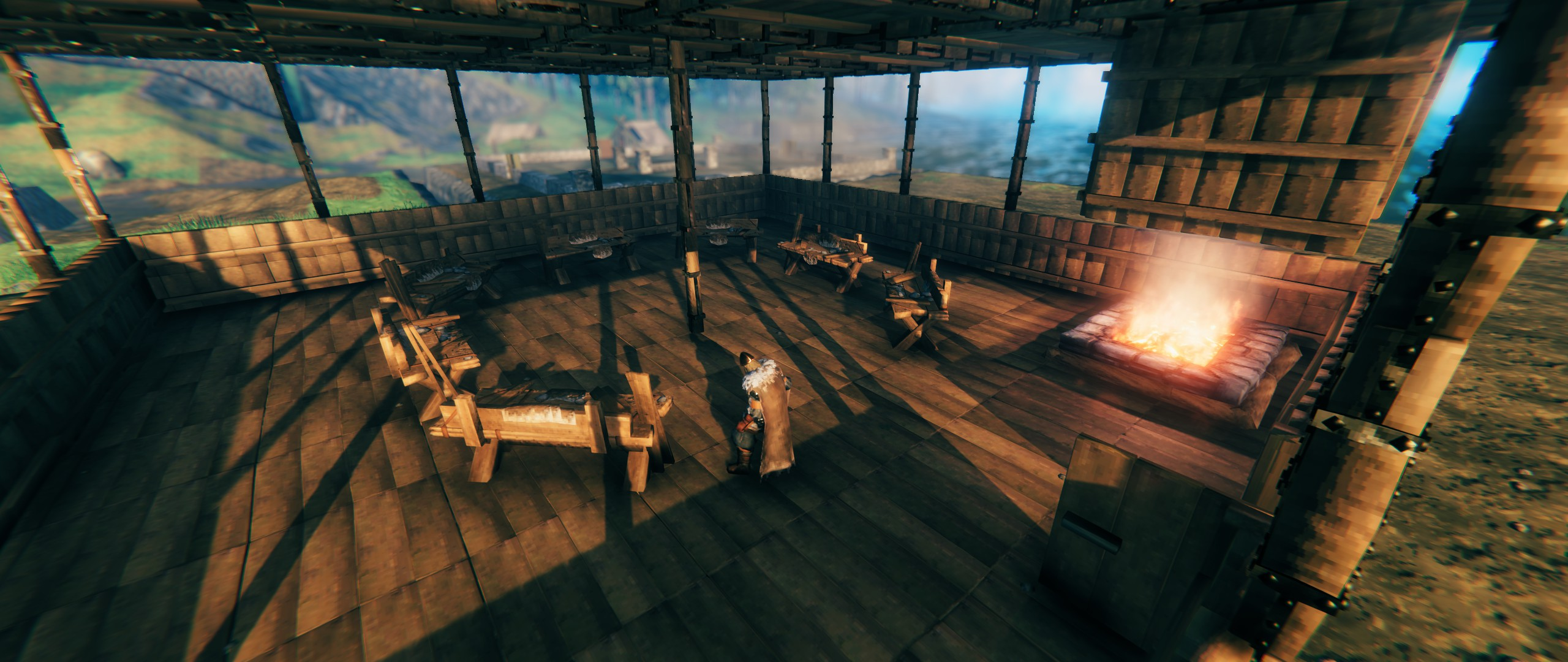
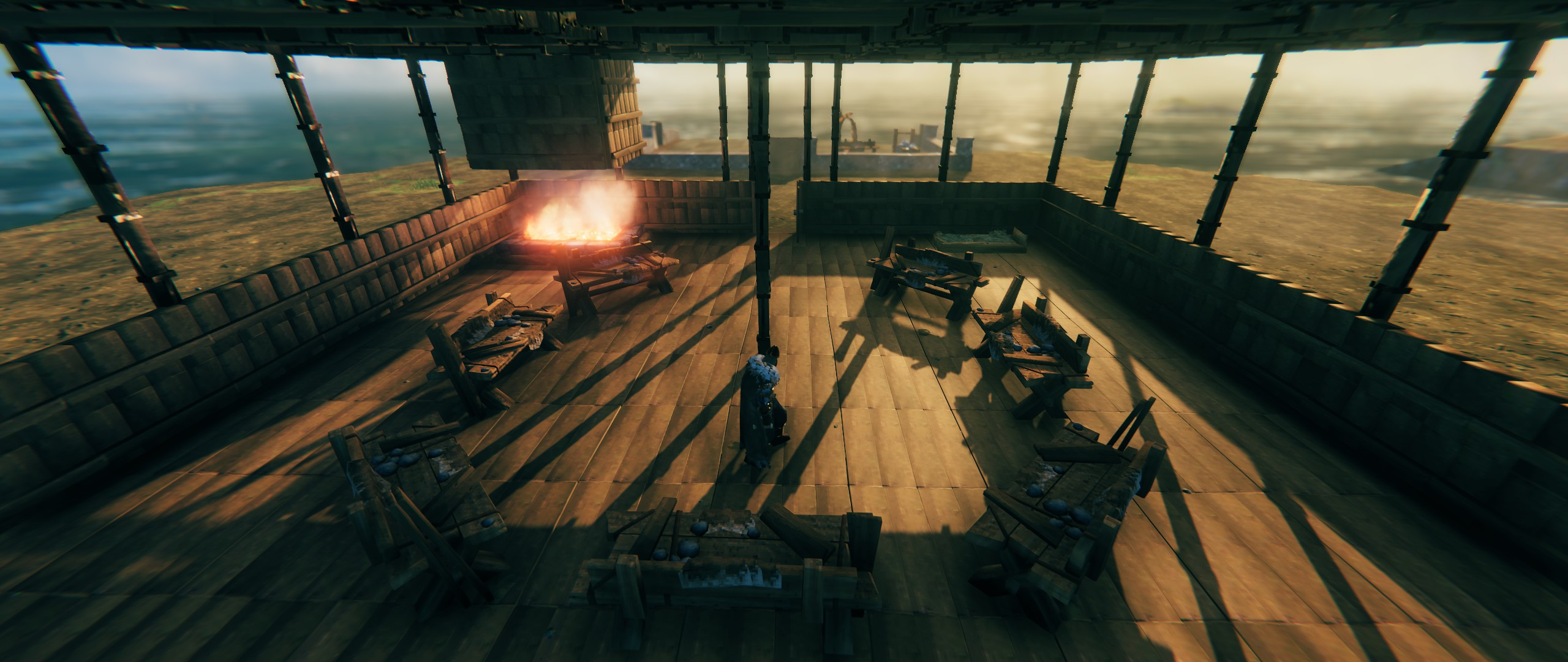
The Designer supports up to three in-memory level layouts with quick switching, per-level overlay rendering, and cross-level clash hints so you can plan multi-storey builds before committing a single piece. Orientation-sensitive tools — including Beds, Workbenches, and Staircases — show directional arrows so what you see in the Designer matches exactly what gets built in-game.
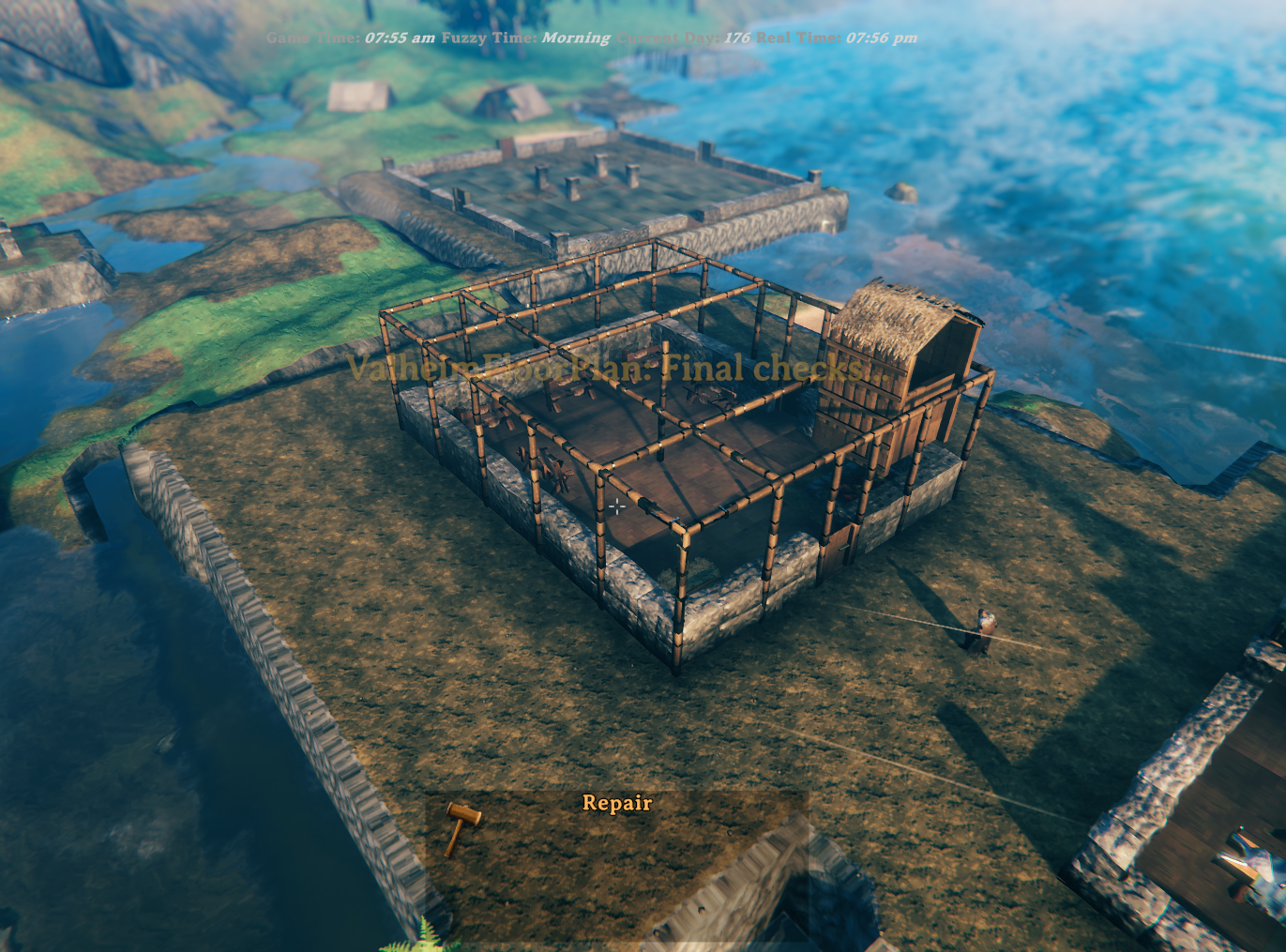
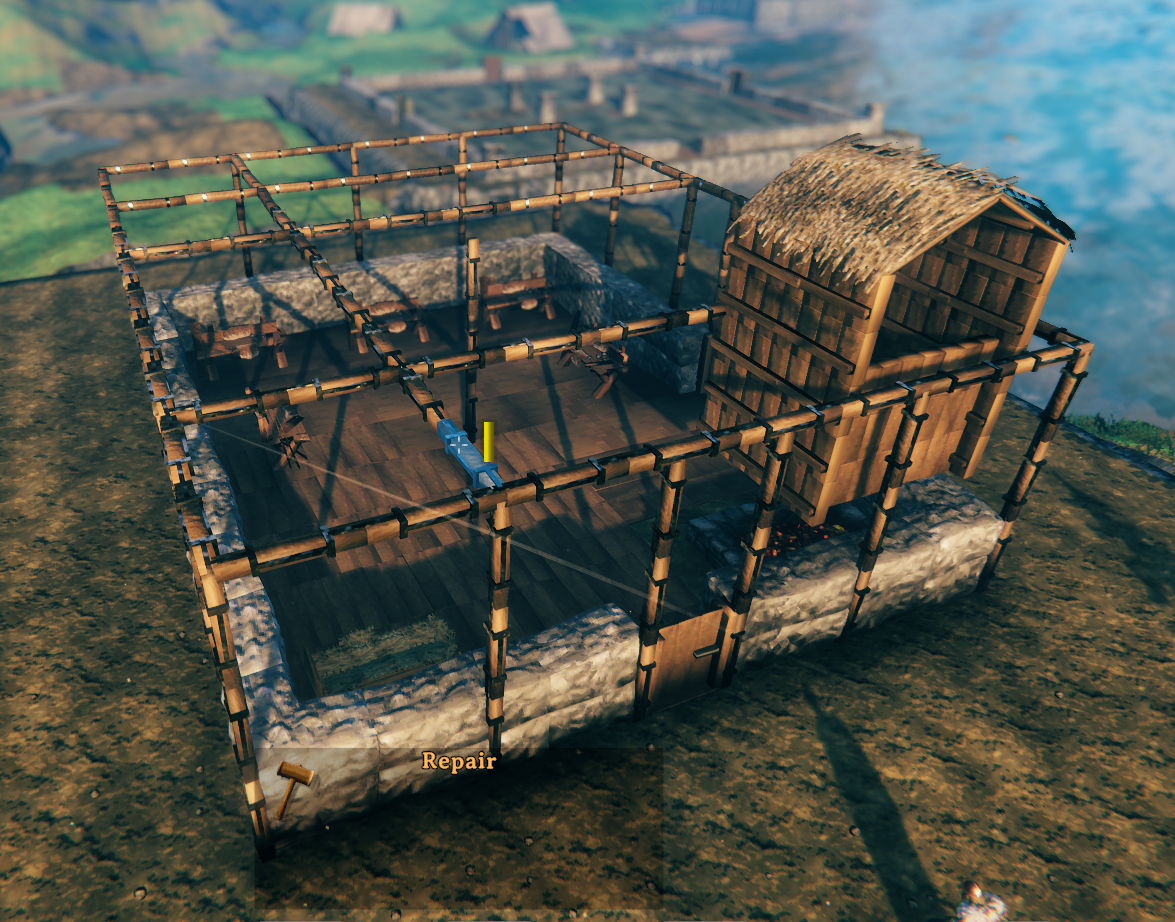
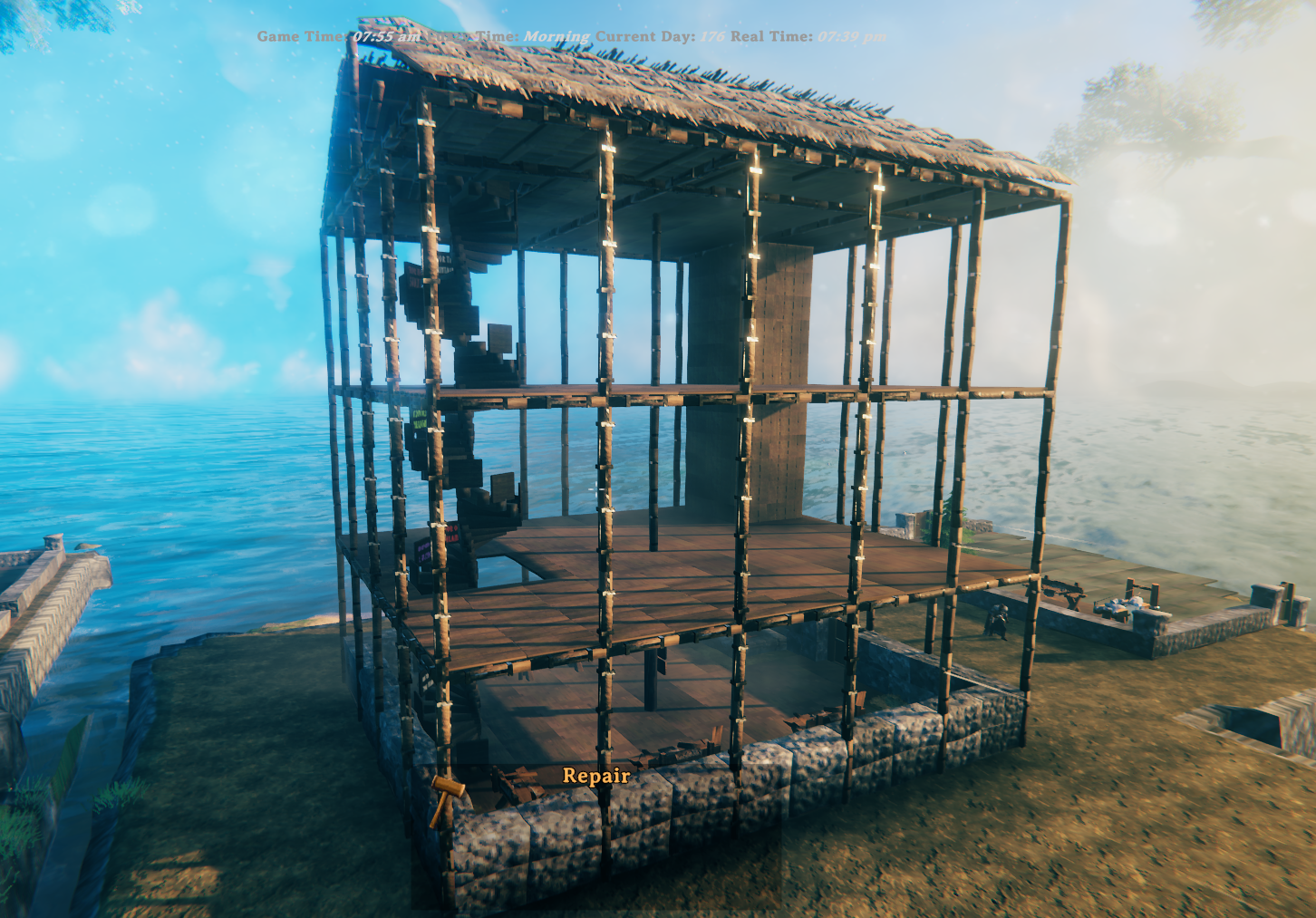
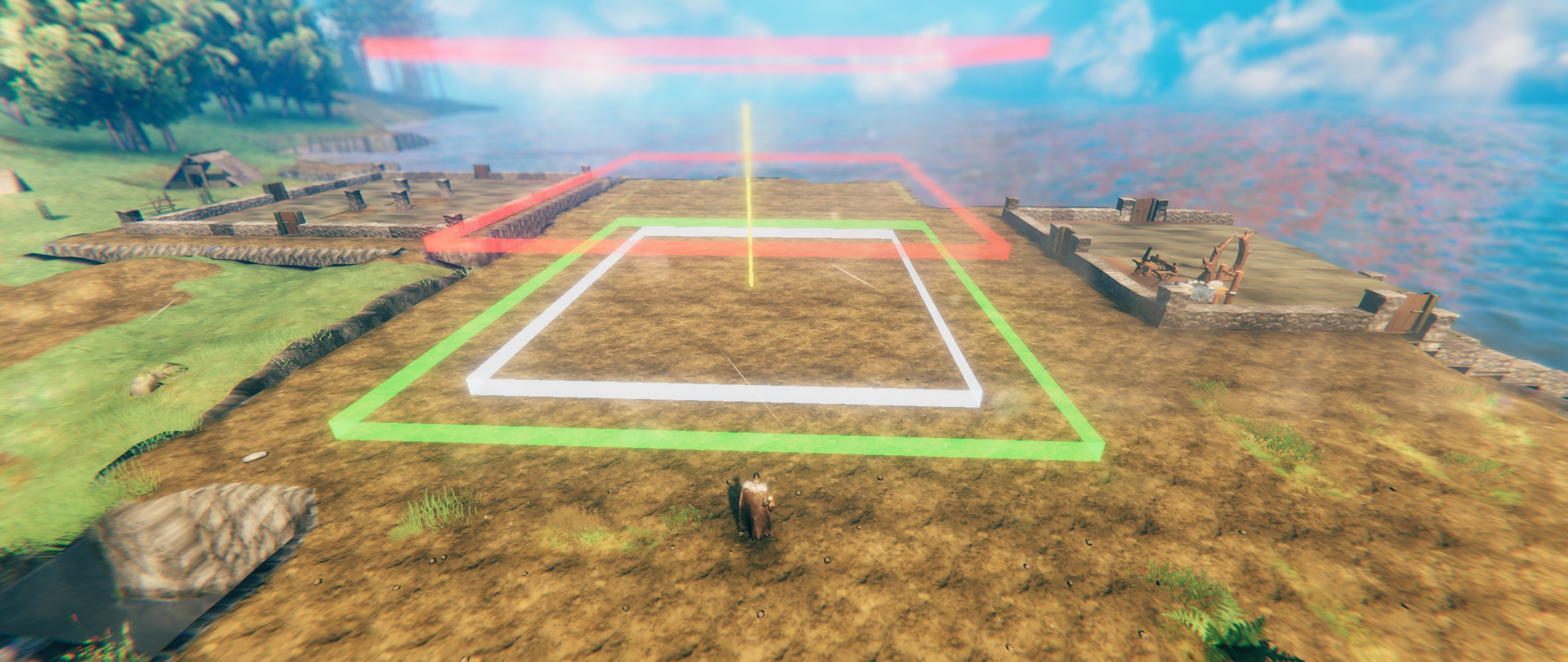
Once you're happy with the design, press the build hotkey, position the preview in-world, and confirm. The mod levels the terrain, places every piece in the right order, and handles scaffold framing for upper floors automatically. For multi-level builds, additional red floating rectangles appear in the preview at each upper-floor height so you can see the full vertical footprint before committing. If something is off, undo restores both pieces and terrain in one keypress — or use the keep-terrain undo (Ctrl+F9) to remove pieces while leaving the leveled ground intact.
This package includes two components:
.vfp plan files and builds them in-game..vfp plan files.Demo video: https://youtu.be/jz39KSSfhJ0
Included in this package:
BepInEx/plugins)BepInEx/plugins/ValheimFloorPlan/Designer/).vfp plans to get started immediatelyOpen the Designer to create or edit a plan. It is a local web page installed by Thunderstore Mod Manager. Copy the path below and paste it into your browser address bar to open it :
%APPDATA%\Thunderstore Mod Manager\DataFolder\Valheim\profiles\Default\BepInEx\plugins\RetiredCoders-ValheimFloorPlan\ValheimFloorPlan\Designer\index.html

e.g.    C:\Users\{Username}\AppData\Roaming\Thunderstore Mod Manager\DataFolder\Valheim\profiles\Default\BepInEx\plugins\RetiredCoders-ValheimFloorPlan\ValheimFloorPlan\Designer\index.html
Save/export a .vfp file.
Point the mod config FloorPlanFile to that .vfp file.
In game, press the build hotkey (default F8) and place the design. A terrain snapshot is taken automatically before placement.
While the preview is active, use these keys to adjust placement:
| Key | Action |
|---|---|
↑ ↓ ← → |
Move the plan forward / backward / left / right |
Q |
Rotate left (default coarse step: 90°) |
G |
Rotate right (default coarse step: 90°) |
Left Shift (hold) |
Fine-adjust mode — smaller move/rotate steps |
E |
Confirm and build at current position |
RMB / Escape |
Cancel placement |
Note: All keys are configurable in the BepInEx config file.
Rotation note: confirmed builds snap to BuildRotationSnapDegrees (default 90°) so the finished structure stays aligned to angles that still work with Valheim's normal manual piece snapping. Fine preview rotation uses 22.5° steps by default.
The rotation-related config entries live together in the Preview - Rotation section.
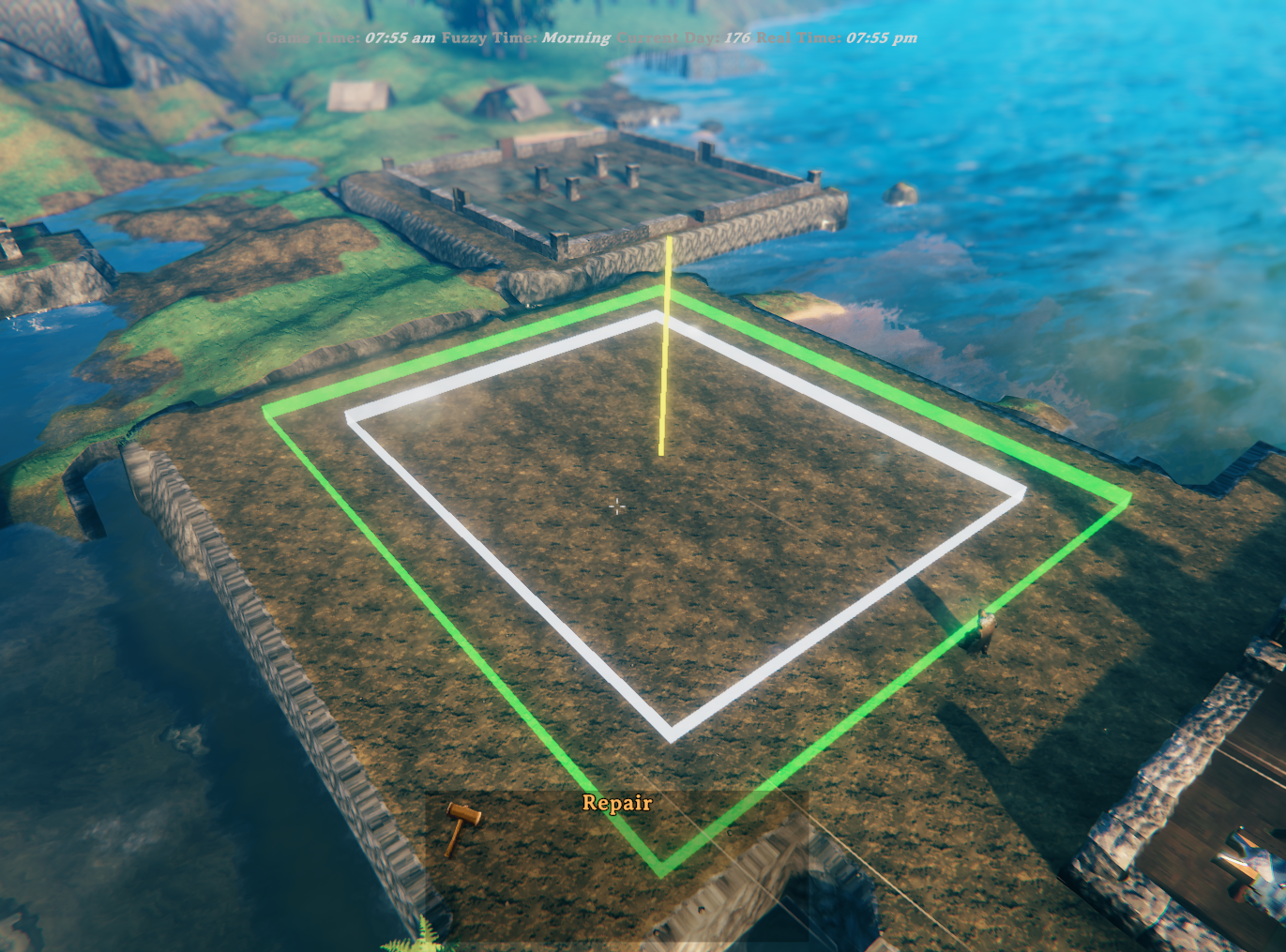
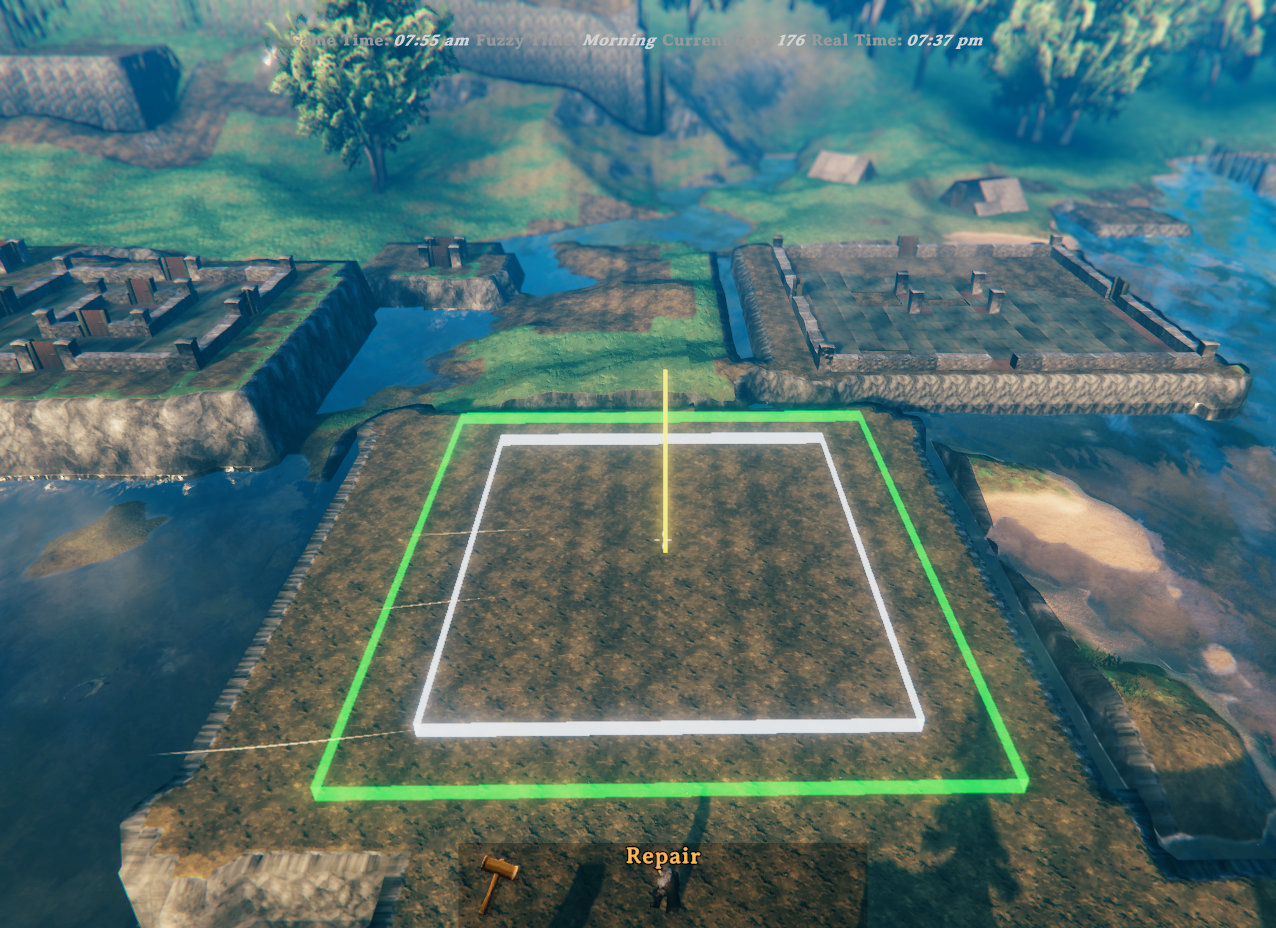
While positioning the plan, watch for these visual markers in the world:
FloorPlanLevels is 2 or 3.Note: A HUD message also reports the current risk level (LOW / MEDIUM / HIGH) along with step (the steepest cross-edge height jump) and relief (total height range around the footprint) to help you judge whether to nudge the plan before building.
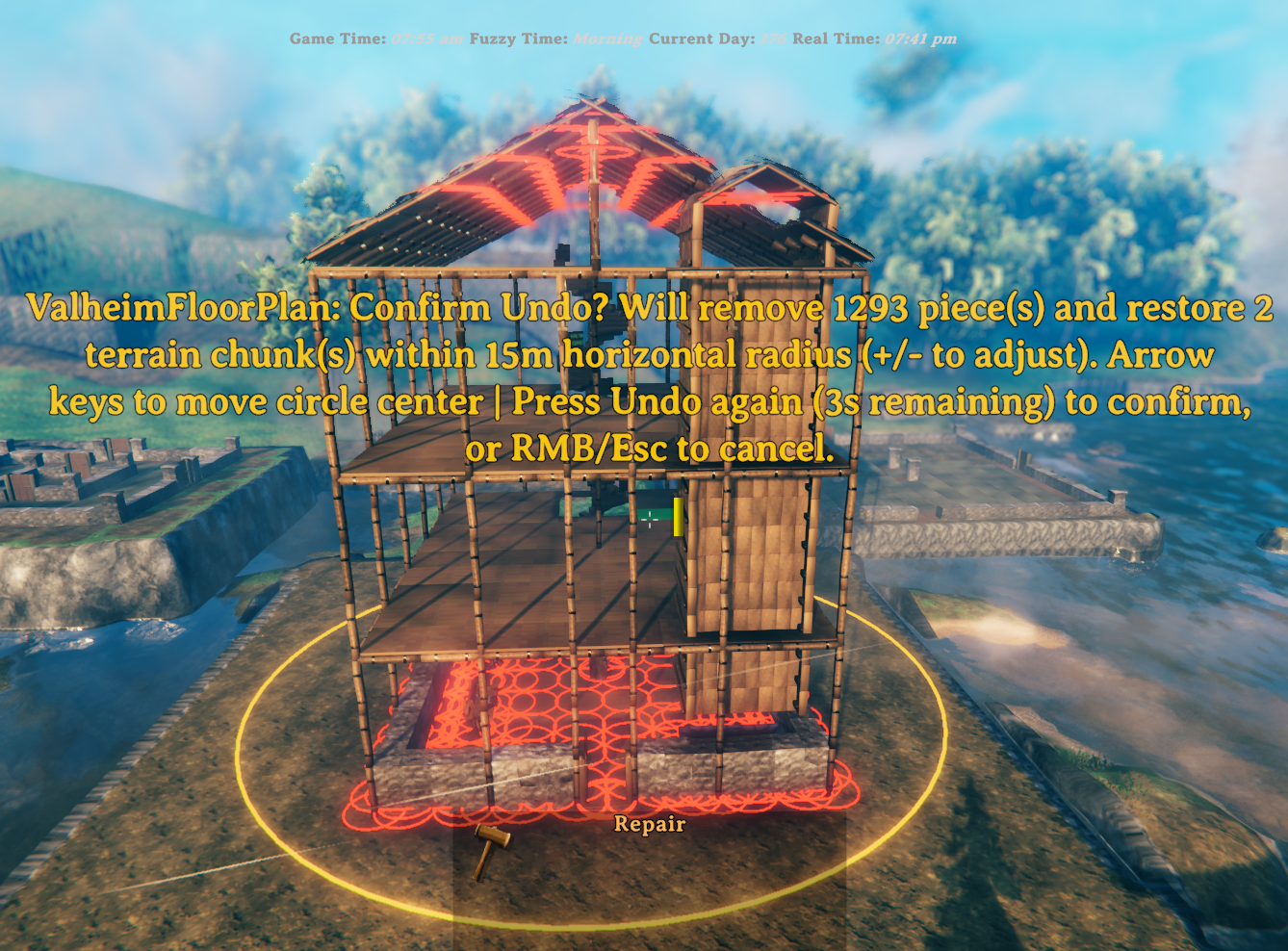
To undo, press the undo hotkey (default F9). A 5-second confirmation window opens showing:
Optional mode: press Ctrl+F9 (configurable via UndoKeepTerrainHotkey) to start piece-only undo that keeps the leveled terrain. In this mode the terrain snapshot is discarded instead of restored.
During the confirmation window you can:
| Key | Action |
|---|---|
↑ ↓ ← → |
Move the search circle centre to target different pieces. Movement respects camera angle. Hold Left Shift for fine movement. |
+ / - (or numpad) |
Increase / decrease the search radius by 5 m. The new radius is saved to config. |
F9 (undo hotkey again) |
Confirm normal undo — removes all marked pieces and restores terrain. |
Ctrl+F9 (UndoKeepTerrainHotkey) |
Start or confirm keep-terrain undo — removes marked pieces and discards the current terrain snapshot. If started with Ctrl+F9, confirmation can be done with either Ctrl+F9 or F9. |
RMB / Escape |
Cancel — clears all highlights without removing anything. |
The HUD message shows the current radius and remaining time throughout the window. All adjustments (movement or radius) restart the 5-second confirmation timer.
IMPORTANT: Terrain can only be restored within the current session — if you leave the area or reload, the terrain snapshot is lost. Building pieces can be undone across sessions because they are tagged as built by Valheim Floor Plan.
Tip — keep the leveled terrain: if you want to remove your build but keep the flat ground (e.g. to iterate on a design), use Ctrl+F9 (UndoKeepTerrainHotkey) instead of F9. Pieces are removed as normal, but the terrain snapshot is discarded rather than restored.
Preset bundles let you share/reload a complete setup: Level 1/2/3 .vfp files plus non-key build/config values.
.vpfset (zip container)BepInEx/plugins/RetiredCoders-ValheimFloorPlan/ValheimFloorPlan/PresetBundles/Default controls:
| Key | Action |
|---|---|
Ctrl+F8 (ExportBundleHotkey) |
Export current setup as a new timestamped bundle named <BundleName>-YYYYMMDD-HHMMSS.vpfset. |
Alt+F8 (ImportBundleHotkey) |
Start timed import selection mode. |
Right Arrow / Left Arrow |
While import selection is active, move to next/previous bundle. |
Enter |
Import currently selected bundle. |
Escape |
Cancel import selection. |
While import selection is active, the HUD shows:
bundle X of NRight, Left, Enter, Escape)If the timer expires, import selection is canceled automatically.
After a successful import, BundleName is automatically normalized to the imported preset prefix (timestamp suffix removed).
When FloorPlanLevels is set to 2 or 3, the mod builds one level at a time.
For each upper level, it follows this order:
This helps avoid the "nothing gets built" situation where pieces can block each other if placed in the wrong order.
Config file path:
BepInEx/config/com.alexdroz.valheimfloorplan.cfgAll values below are configurable in that file.
| Option | Default | Allowed values | What it does |
|---|---|---|---|
FloorPlanFile |
(empty) | Any valid file path | Full path to the .vfp file exported by the Designer. |
FloorPlanLevels |
1 |
1 to 3 |
Number of layout levels to build. 1 uses only FloorPlanFile, 2 also uses FloorPlanFileLevel2, 3 also uses FloorPlanFileLevel3. Values above 1 enforce multi-level scaffolding requirements. |
FloorPlanFileLevel2 |
(empty) | Any valid file path | Optional full path to a Level 2 .vfp file. If set, its footprint must fit within the Level 1 (FloorPlanFile) footprint. |
FloorPlanFileLevel3 |
(empty) | Any valid file path | Optional full path to a Level 3 .vfp file. If set, its footprint must fit within the Level 1 (FloorPlanFile) footprint. |
BuildHotkey |
F8 |
Any valid KeyboardShortcut |
Starts plan preview/build flow. |
UndoHotkey |
F9 |
Any valid KeyboardShortcut |
Removes placed VFP-tagged pieces and restores terrain snapshot. |
UndoKeepTerrainHotkey |
LeftControl + F9 |
Any valid KeyboardShortcut |
Starts piece-only undo mode: removes VFP pieces and discards the current terrain snapshot so leveled terrain remains. |
BundleName |
MyBuild |
Any valid file-name text | Preset name prefix used when exporting bundles. Export file name format is <BundleName>-YYYYMMDD-HHMMSS.vpfset. After import, this is reset to the imported prefix (timestamp removed). |
ExportBundleHotkey |
LeftControl + F8 |
Any valid KeyboardShortcut |
Exports a preset bundle to PresetBundles as <BundleName>-YYYYMMDD-HHMMSS.vpfset (layout files + non-key settings). |
ImportBundleHotkey |
LeftAlt + F8 |
Any valid KeyboardShortcut |
Starts timed bundle import selection mode (Right/Left choose, Enter import, Escape cancel, auto-timeout cancel). |
UndoRadius |
15 |
5 to 150 |
Search radius in metres around the undo circle centre when scanning for VFP pieces to remove on Undo. Adjustable live during the confirmation window with +/-, and circle centre is adjustable with arrow keys. |
ProgressMessagePosition |
CenterLeft |
Valheim MessageHud positions (Center, TopLeft, TopRight, etc.) |
HUD slot for build-progress messages. CenterLeft is accepted as an alias and maps to Center. |
WarningMessagePosition |
TopLeft |
Valheim MessageHud positions (Center, TopLeft, TopRight, etc.) |
HUD slot for warnings/risk messages. CenterLeft is accepted as an alias and maps to Center. |
| Option | Default | Allowed values | What it does |
|---|---|---|---|
ExternalWallHeightLevel1 |
1 |
1 to 6 |
Stacks Level 1 outer-perimeter Wall/Pillar pieces vertically. Dynamic cap: ScaffoldingFloorHeight x 2. |
ExternalWallHeightLevel2 |
1 |
1 to 6 |
Stacks Level 2 outer-perimeter Wall/Pillar pieces vertically. Dynamic cap: ScaffoldingFloorHeight#2 x 2. |
ExternalWallHeightLevel3 |
1 |
1 to 6 |
Stacks Level 3 outer-perimeter Wall/Pillar pieces vertically. Dynamic cap: ScaffoldingFloorHeight#3 x 2. |
WallPillarMaterial |
Stone |
Stone, Wood |
Chooses material set used for Wall and Pillar types. |
StaircaseReachMode |
ToTheNextLevelOnly |
ToTheNextLevelOnly, AllTheWay |
Controls staircase vertical reach. ToTheNextLevelOnly climbs one level at a time. AllTheWay climbs toward the highest available scaffold level. |
| Option | Default | Allowed values | What it does |
|---|---|---|---|
RoofScaffolding |
false |
true / false |
Adds scaffold poles and perimeter beams around the plan during the build. Automatically forced to true when FloorPlanLevels > 1. |
RoofScaffoldingType |
Gable |
Gable, Flat |
Controls the topmost scaffold deck shape when ScaffoldingFloors is enabled. Gable builds a pitched roof layout and extends front-mid/back-mid/center support columns up to the apex. Flat tiles the topmost level with ridge roof pieces edge-to-edge (one piece per 2x2 tile area). |
RoofScaffoldingGableFlooring |
RoofWithFloorUnderlay |
RoofWithFloorUnderlay, RoofOnly |
Gable-only top-surface behavior (used only when RoofScaffoldingType=Gable). RoofWithFloorUnderlay places floor tiles under the top gable roof. RoofOnly places only gable roof pieces. |
ScaffoldingLevels |
1 |
1 to 3 |
Number of stacked scaffolding levels when RoofScaffolding is enabled. Each extra level repeats the same scaffold pattern +4m above the previous level. |
ScaffoldingFloorHeight |
4 |
2, 4, 6 |
Vertical height in metres between scaffold levels. Must be a multiple of 2m so stacked wood-iron support segments line up correctly. |
ScaffoldingFloorHeight#2 |
4 |
2, 4, 6 |
Vertical height in metres for the second scaffold level. Used when ScaffoldingLevels is 2 or 3. |
ScaffoldingFloorHeight#3 |
4 |
2, 4, 6 |
Vertical height in metres for the third scaffold level. Used when ScaffoldingLevels is 3. |
ScaffoldingFloors |
false |
true / false |
Builds wood floor decks across each scaffolding level when RoofScaffolding is enabled. Automatically forced to true when FloorPlanLevels > 1. |
TransverseScaffoldingBeams |
false |
true / false |
Adds west-to-east horizontal scaffold beams at each scaffold pole row. Automatically forced to true when FloorPlanLevels > 1. |
LongitudinalScaffoldingBeams |
false |
true / false |
Adds south-to-north horizontal scaffold beams at each scaffold pole column. Automatically forced to true when FloorPlanLevels > 1. |
| Option | Default | Allowed values | What it does |
|---|---|---|---|
BuildOriginForwardOffset |
0 |
0 to 20 |
Extra distance added to the auto-computed player-to-build-center preview offset (meters). Usually not needed. |
MoveStep |
2.0 |
0.25 to 10.0 |
Nudge distance per move key press (meters). |
FineMoveStep |
0.5 |
0.05 to 5.0 |
Nudge distance per move key press while fine-adjust key is held (meters). |
| Option | Default | What it does |
|---|---|---|
MoveForwardKey |
UpArrow |
Move preview center forward relative to camera. |
MoveBackwardKey |
DownArrow |
Move preview center backward relative to camera. |
MoveLeftKey |
LeftArrow |
Move preview center left relative to camera. |
MoveRightKey |
RightArrow |
Move preview center right relative to camera. |
RotateLeftKey |
Q |
Rotate preview counter-clockwise. |
RotateRightKey |
G |
Rotate preview clockwise. |
ConfirmKey |
E |
Confirm current preview placement and start build. |
CancelKey |
Escape |
Cancel preview. (Right-click cancels too.) |
FineAdjustKey |
LeftShift |
Hold for fine movement and fine rotation. |
| Option | Default | Allowed values | What it does |
|---|---|---|---|
RotateStepDegrees |
90 |
22.5, 45, 90 |
Rotation applied per coarse rotate key press (degrees). |
FineRotateStepDegrees |
22.5 |
22.5, 45, 90 |
Rotation applied per rotate key press while fine-adjust key is held (degrees). |
BuildRotationSnapDegrees |
90 |
22.5, 45, 90 |
Snaps the final build rotation to the nearest allowed angle when preview starts and when build is confirmed. |
| Option | Default | Allowed values | What it does |
|---|---|---|---|
TerrainLevelPasses |
2 |
1 to 5 |
Main leveling pass count before spike cleanup. Lower is faster; higher can smooth stubborn terrain. |
TerrainSpikeCleanupPasses |
2 |
1 to 5 |
Post-leveling spike cleanup pass count. |
TerrainStampRadius |
3.0 |
3.0 to 6.0 |
Radius of each terrain stamp disc (meters). Also controls outer terrain blend reach. |
TerrainHighPointDelta |
0.0 |
0.0 to 4.0 |
Extra height added to sampled highest point (targetY = highest + delta). |
TerrainUseStagedRaise |
false |
true / false |
Experimental staged vertical raise mode instead of single full-height raise. |
TerrainRaiseStepHeight |
0.5 |
0.15 to 1.5 |
Max vertical raise per stage when staged raise is enabled (meters). |
TerrainMaxRaiseStages |
1 |
1 to 16 |
Hard cap on number of staged raises when staged mode is enabled. |
TerrainSkipSatisfiedCenterStamps |
true |
true / false |
Skips center stamps where sampled terrain is already at/above target height. |
The samples/ folder contains ready-to-use .vfp examples:
samples/myfloorplan4x4.vfpsamples/myfloorplan8x8.vfpsamples/myfloorplan12x12.vfpsamples/myfloorplan16x16.vfpsamples/myfloorplan16x20.vfpsamples/myfloorplan20x20.vfpsamples/myfloorplan20x20_double.vfpsamples/myfloorplan24x24.vfpsamples/myfloorplan28x28.vfpsamples/StarBase20x20.vfpsamples/ThreeFloorBuild_Level_1_16x20.vfpsamples/ThreeFloorBuild_Level_2_16x20.vfpsamples/ThreeFloorBuild_Level_3_16x20.vfpsamples/Workbenches_16x20.vfpsamples/Workbenches_and_Staircase_16x20.vfpsamples/Workbenches_and_Staircase_ALT_16x20.vfp.vfp files. Red dashed outlines flag conflicts, with directional rules for Staircases and Hearths.Ctrl+F9 instead of F9 to start undo. Pieces are removed but the leveled terrain stays. This is especially useful when iterating on a design in the same spot.FloorPlanLevels is 2 or 3, floating red bands appear during preview at the height of each upper floor. Use them to check clearance and surroundings before confirming.+/- resizes the search circle and arrow keys reposition it. This is useful when two builds are close together and you only want to remove one.FloorPlanLevels > 1, RoofScaffolding, ScaffoldingFloors, TransverseScaffoldingBeams, and LongitudinalScaffoldingBeams are all automatically enabled. You do not need to set them manually.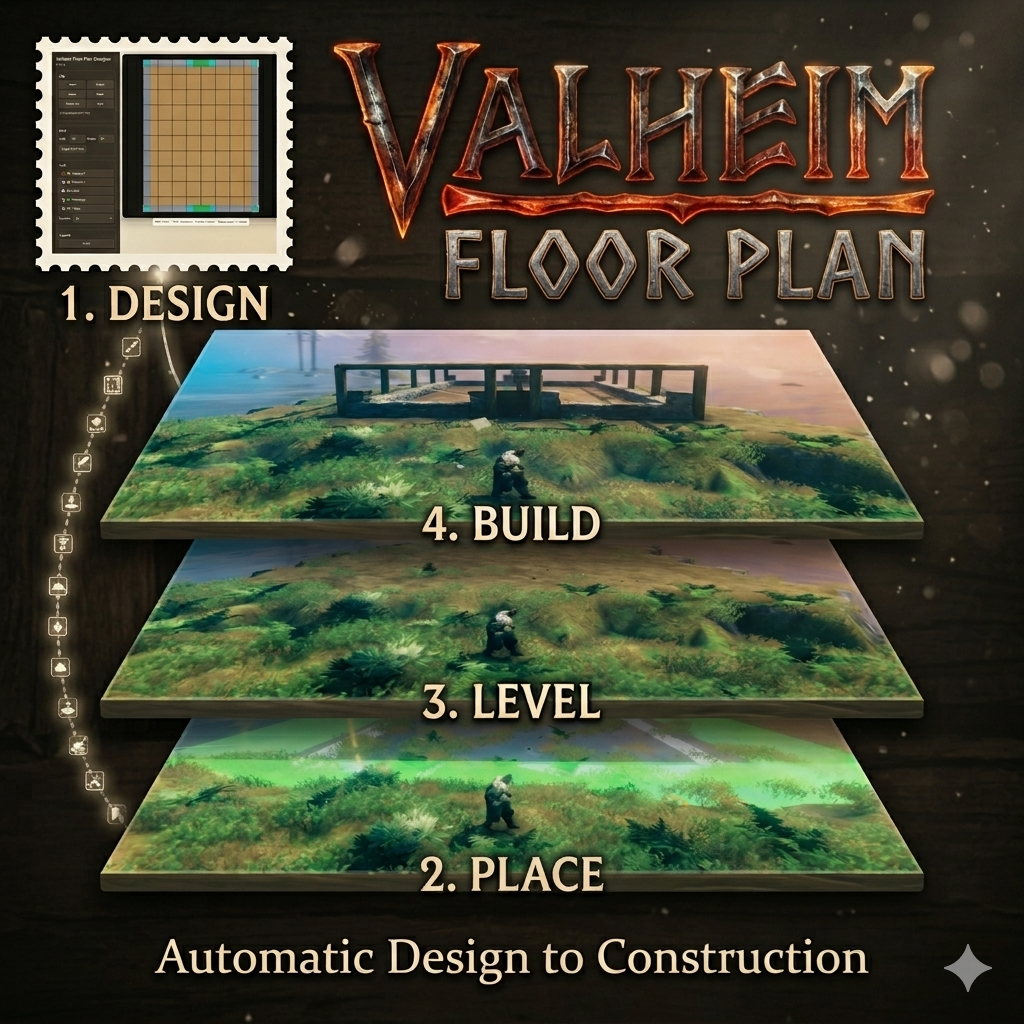
BepInEx/plugins/ValheimFloorPlan/ValheimFloorPlan.dllBepInEx/plugins/ValheimFloorPlan/Designer/...images/... (included in the package archive)samples/... (example .vfp plans).vfp is the contract between the Designer and the mod.Development of the Valheim Floor Plan mod and the Valheim Floor Plan Designer web app used:
