
You are viewing a potentially older version of this package. View Latest Version
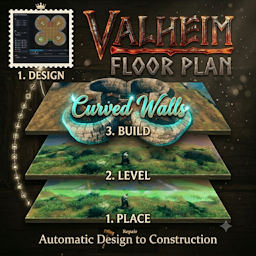
Build complete multi-level structures in Valheim from pre-designed floor plans.
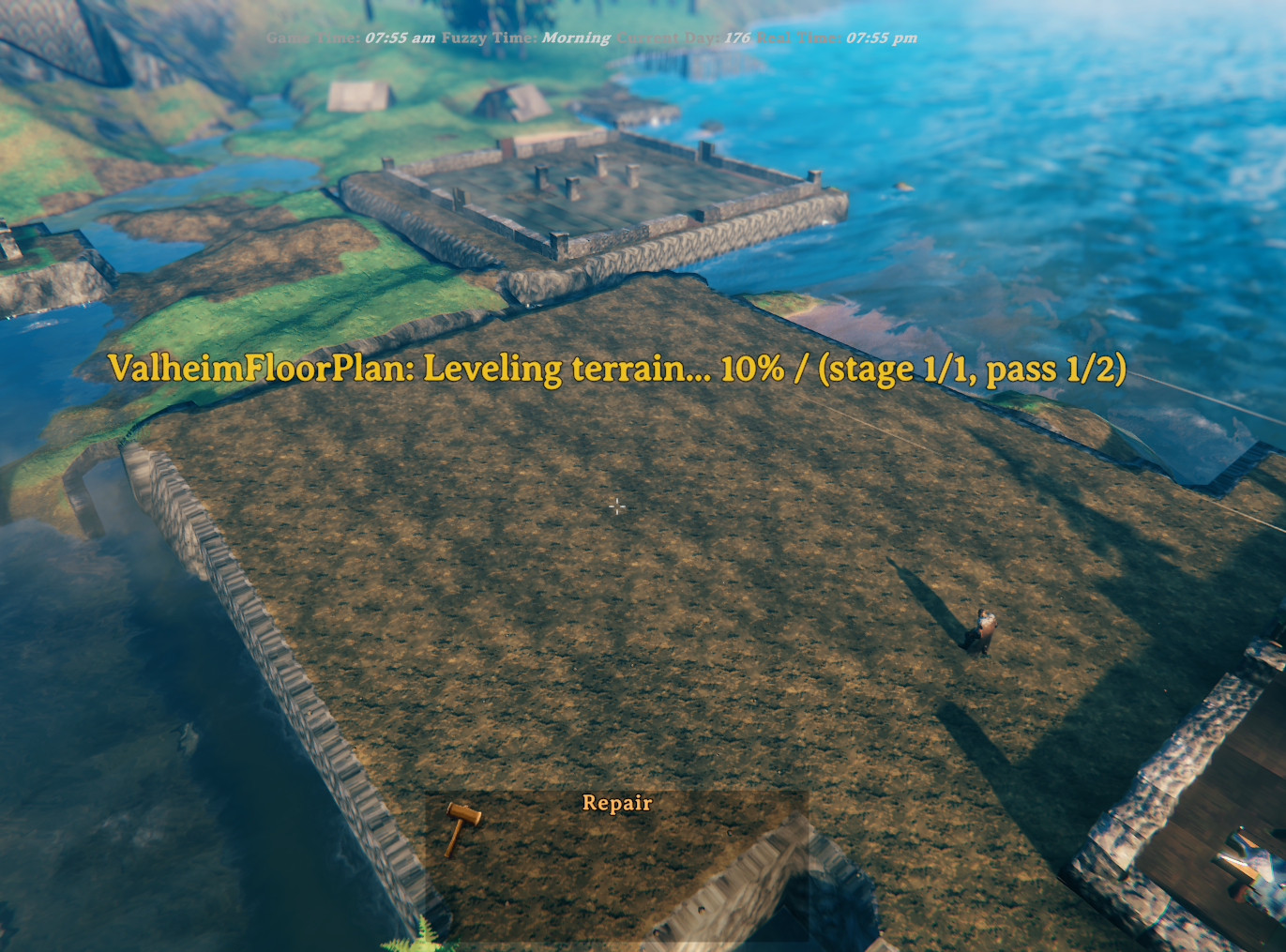
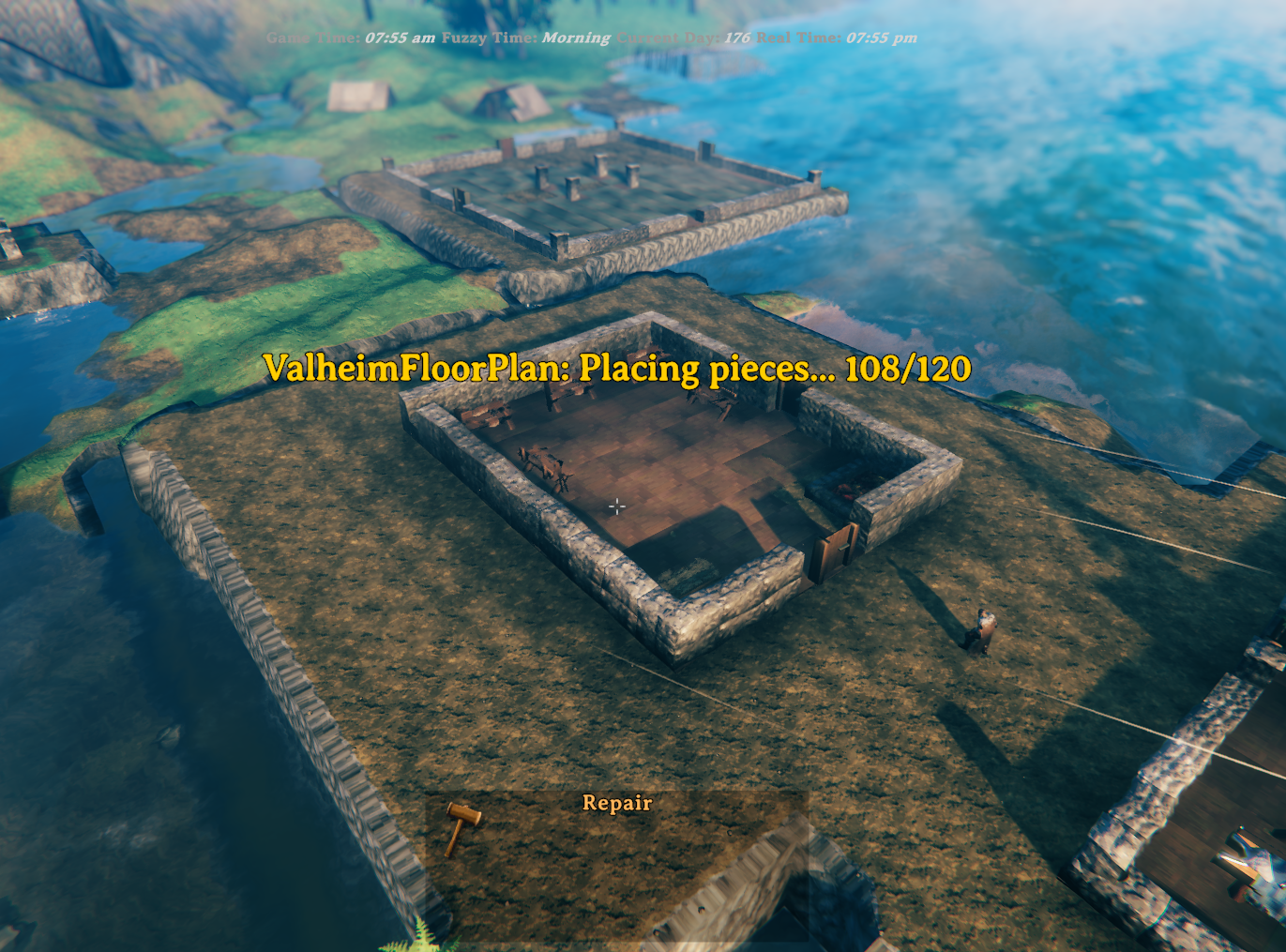
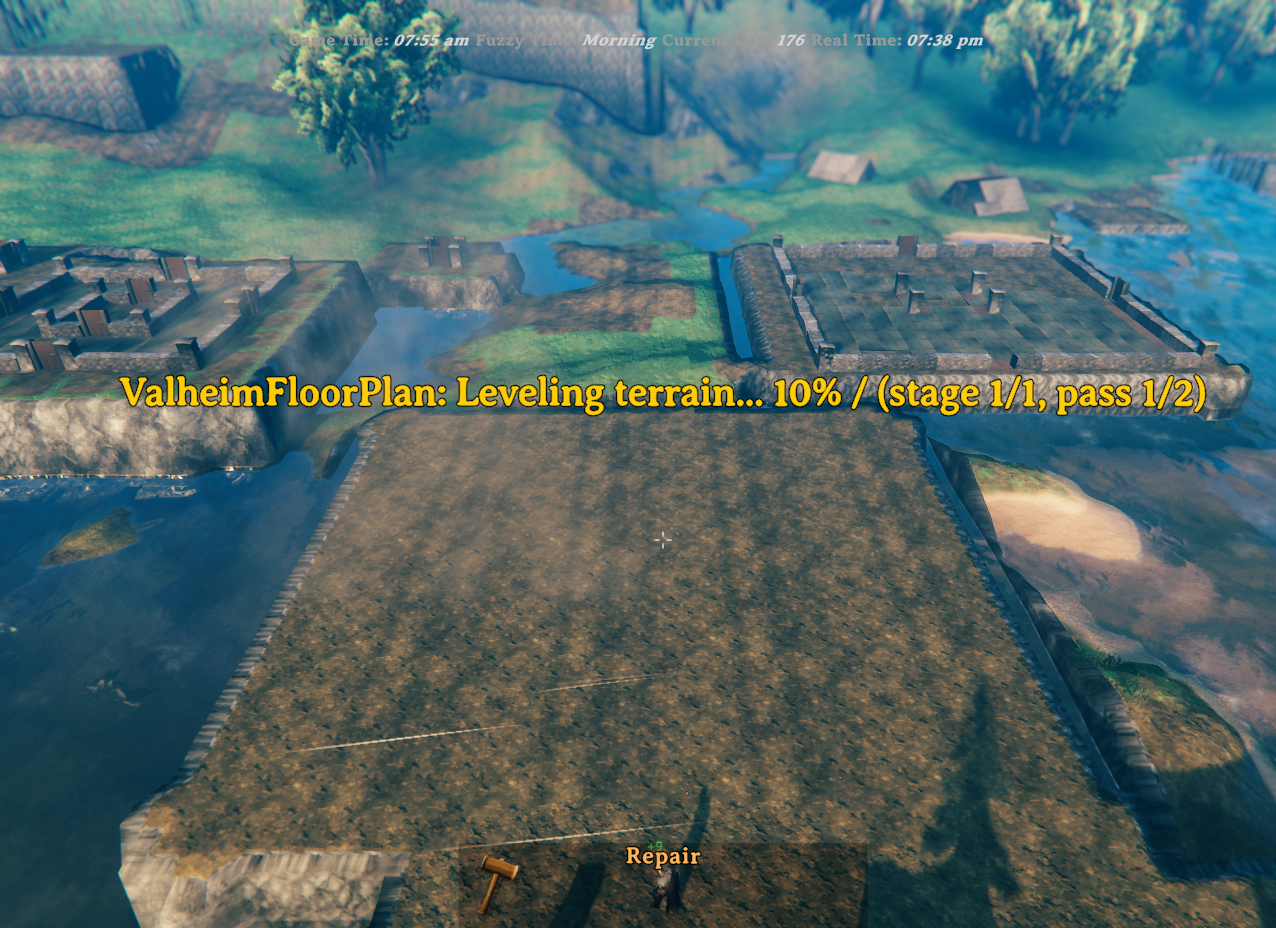
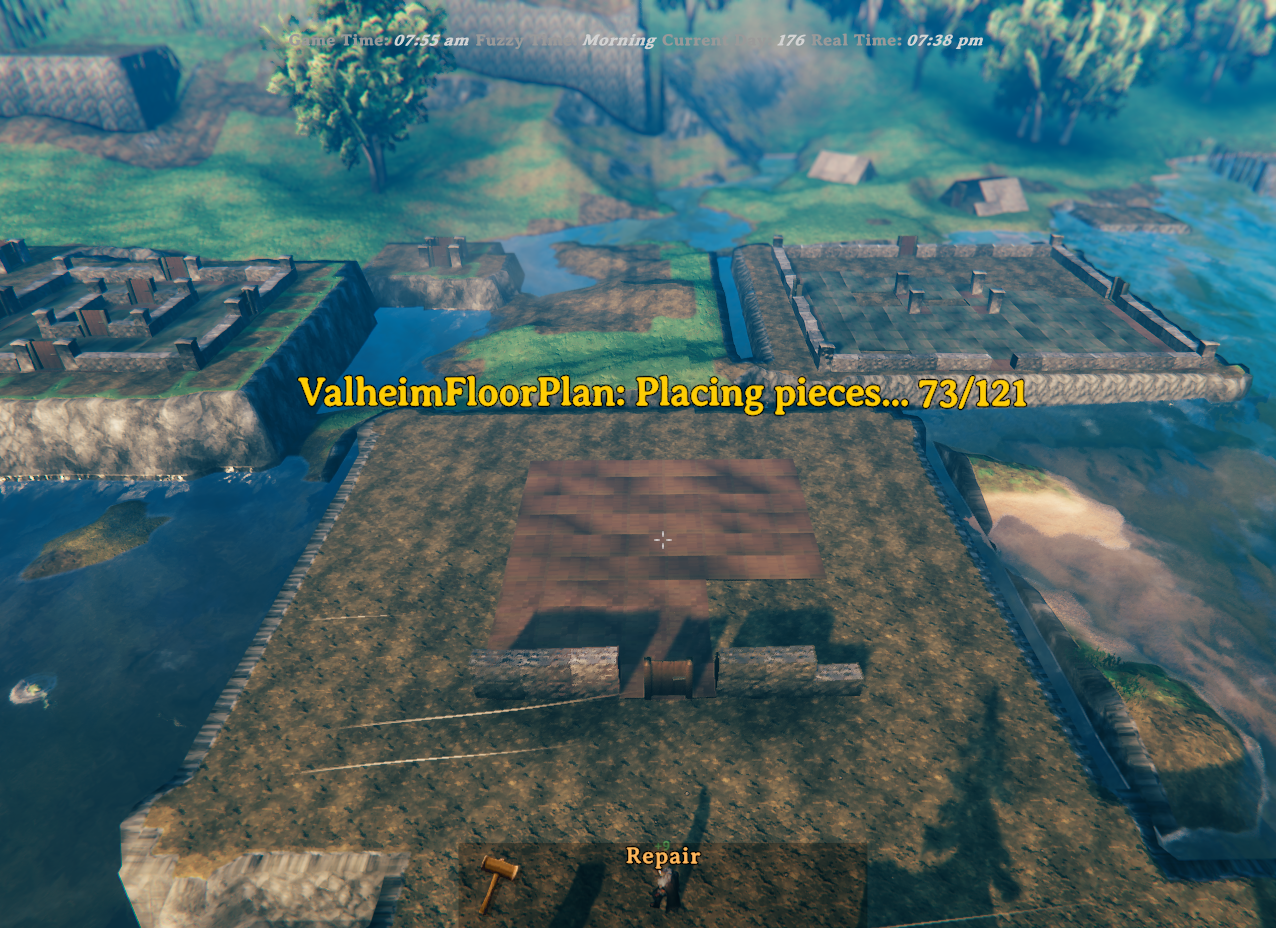
Anyone who has spent time building in Valheim knows the real effort starts before the first wall goes up — clearing uneven ground, wrestling with terrain spikes, and nudging pieces into alignment one agonising centimetre at a time. Valheim Floor Plan takes all of that away. Design your layout in the included browser-based Designer, save it as a .vfp plan file, and the mod handles the rest: it levels and blends the terrain, captures a snapshot for instant undo, and places the entire foundation in seconds.
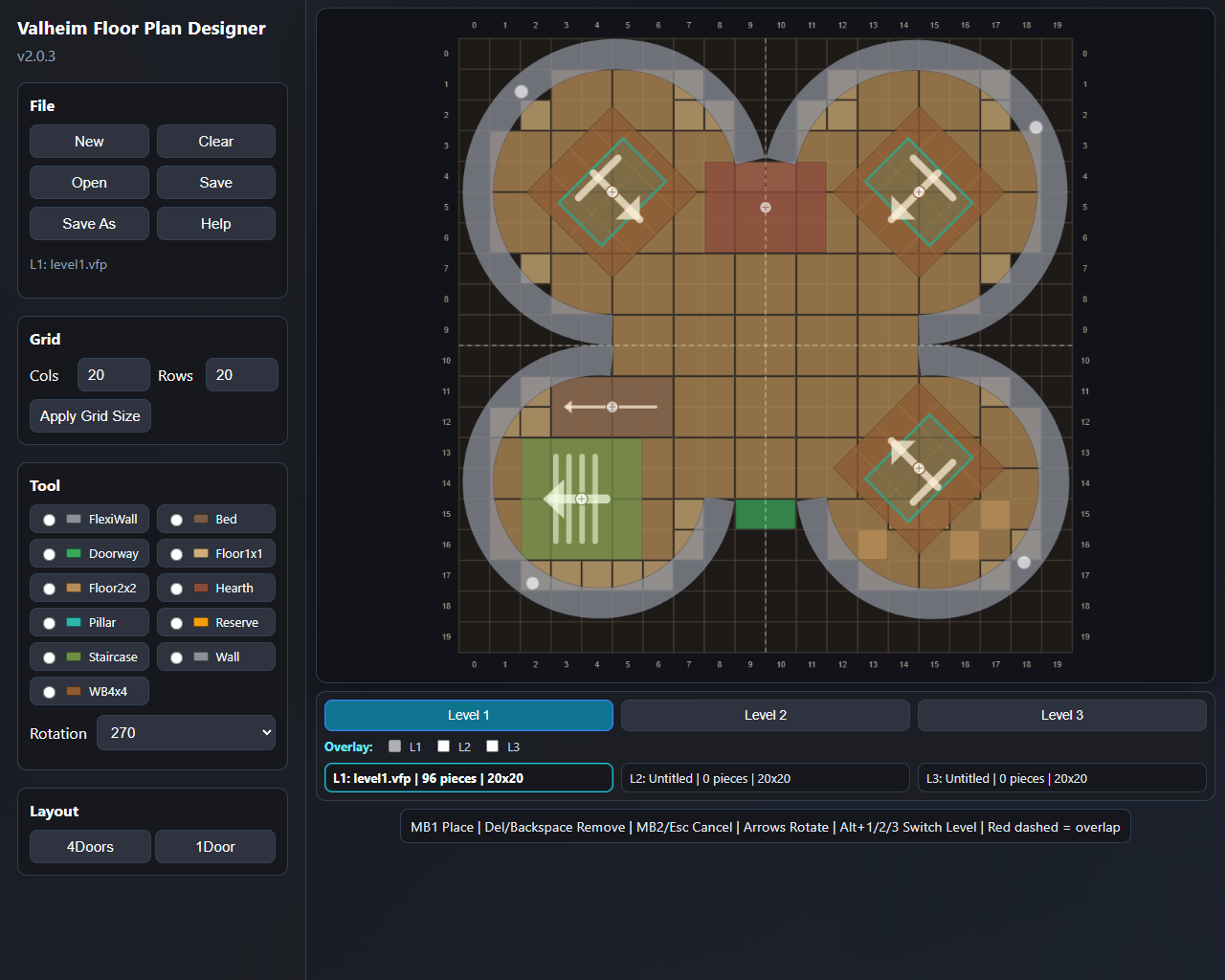
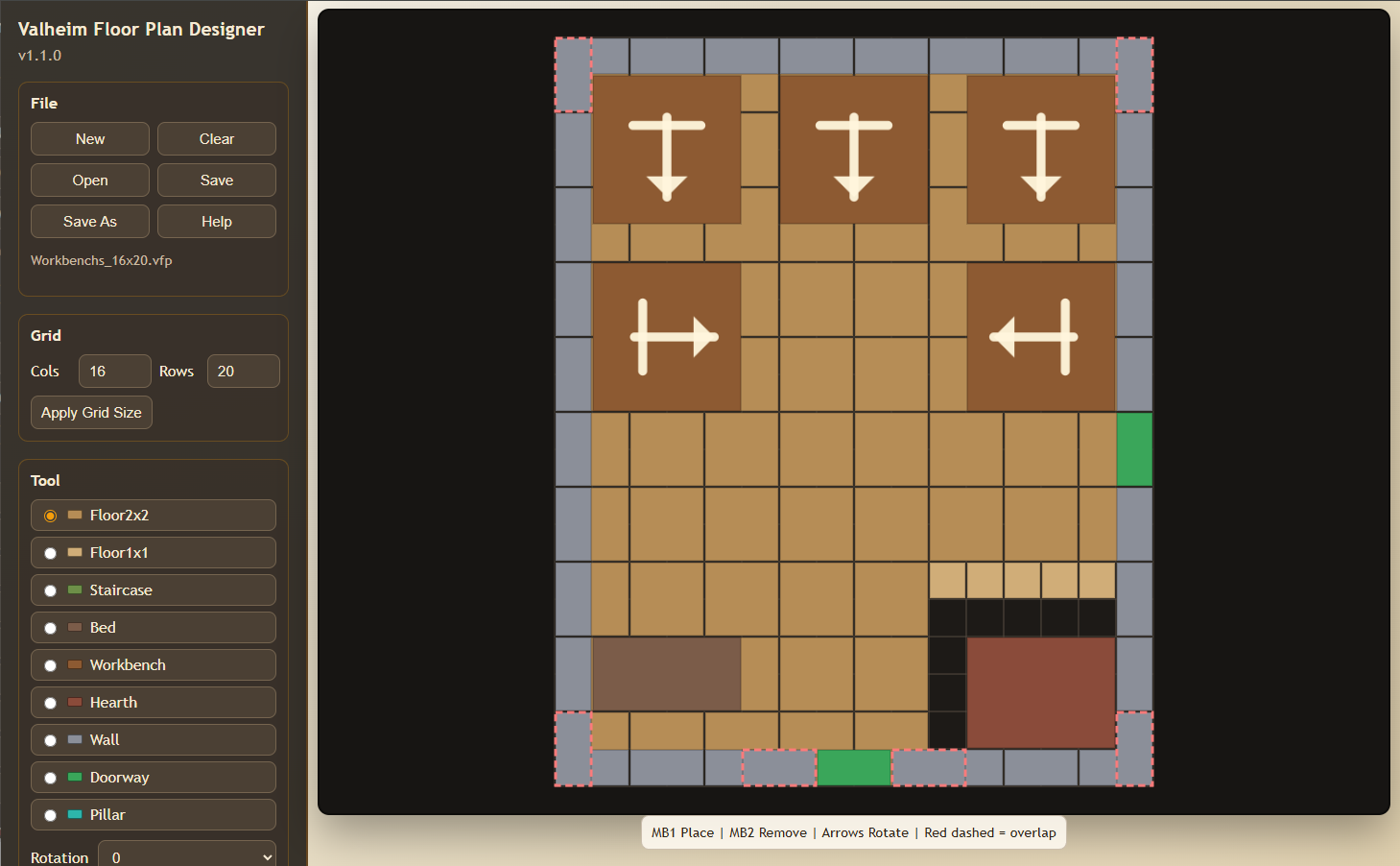
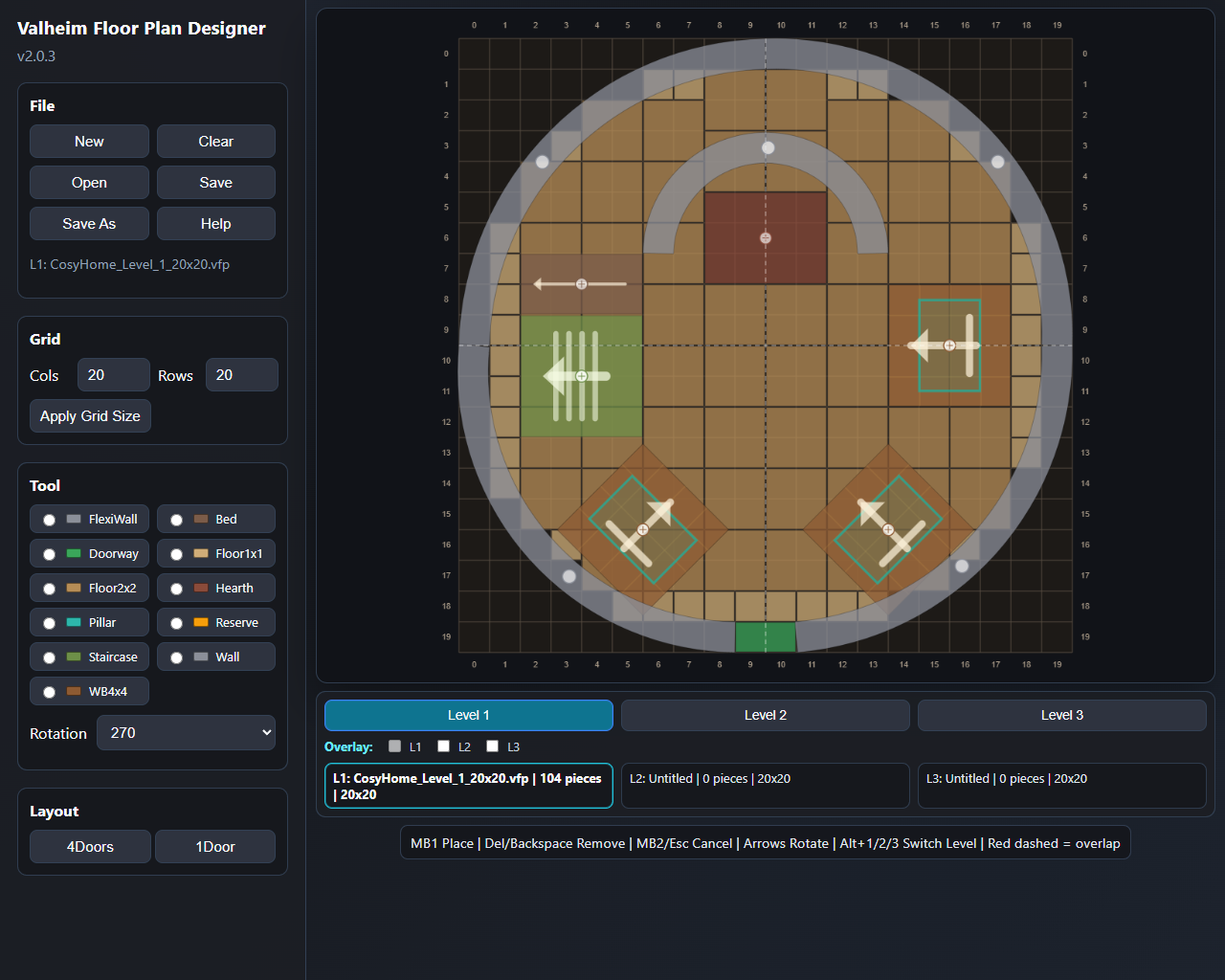
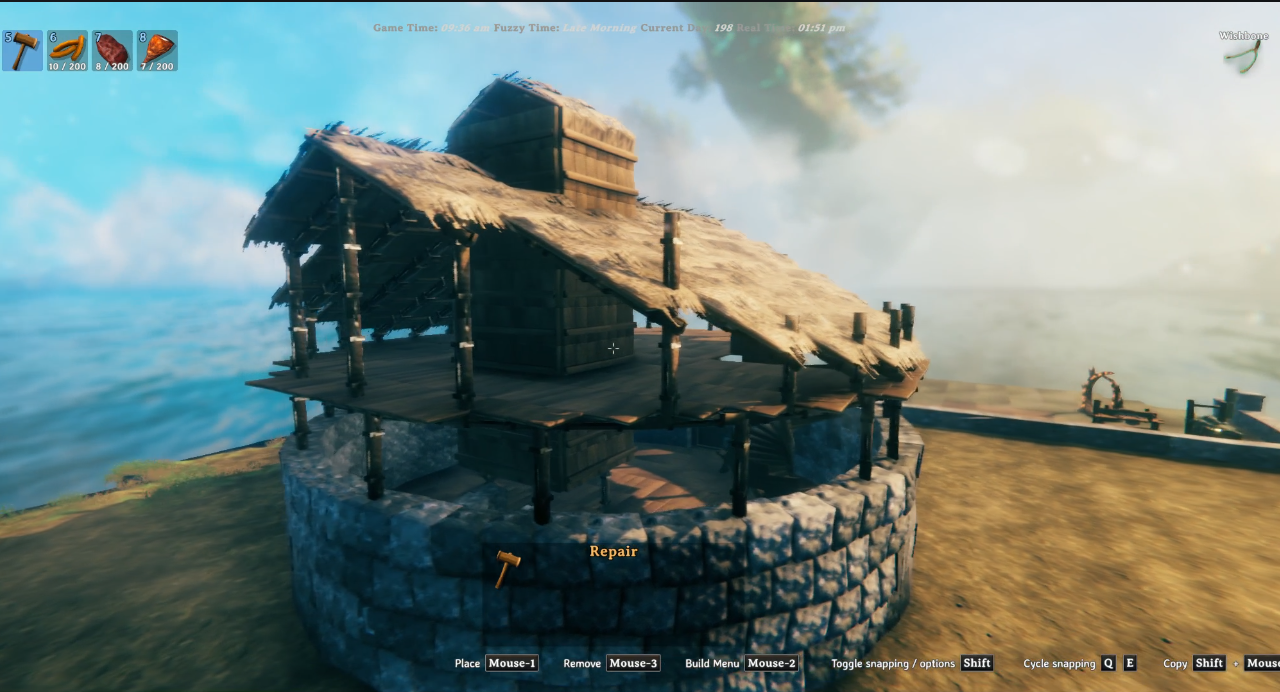
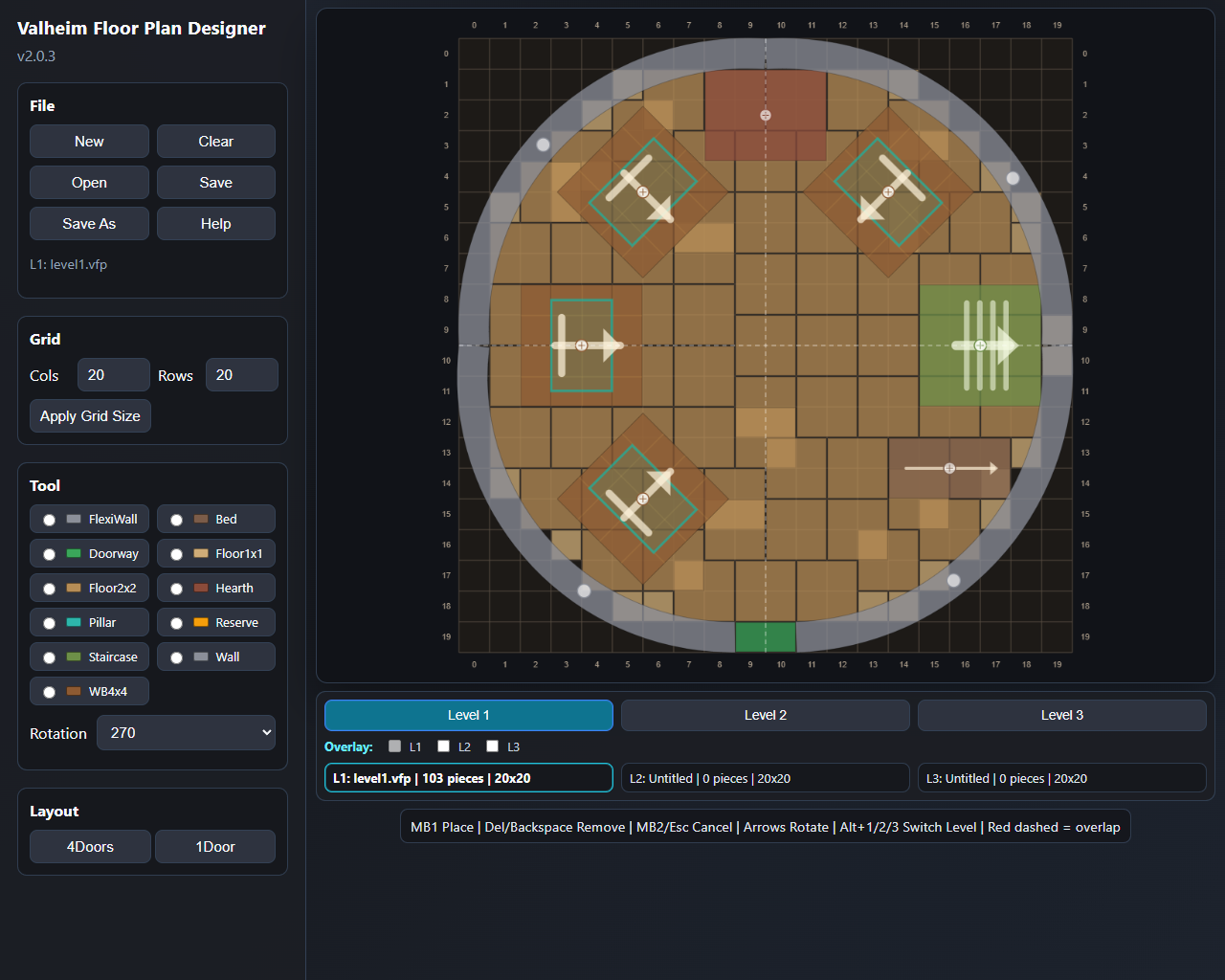
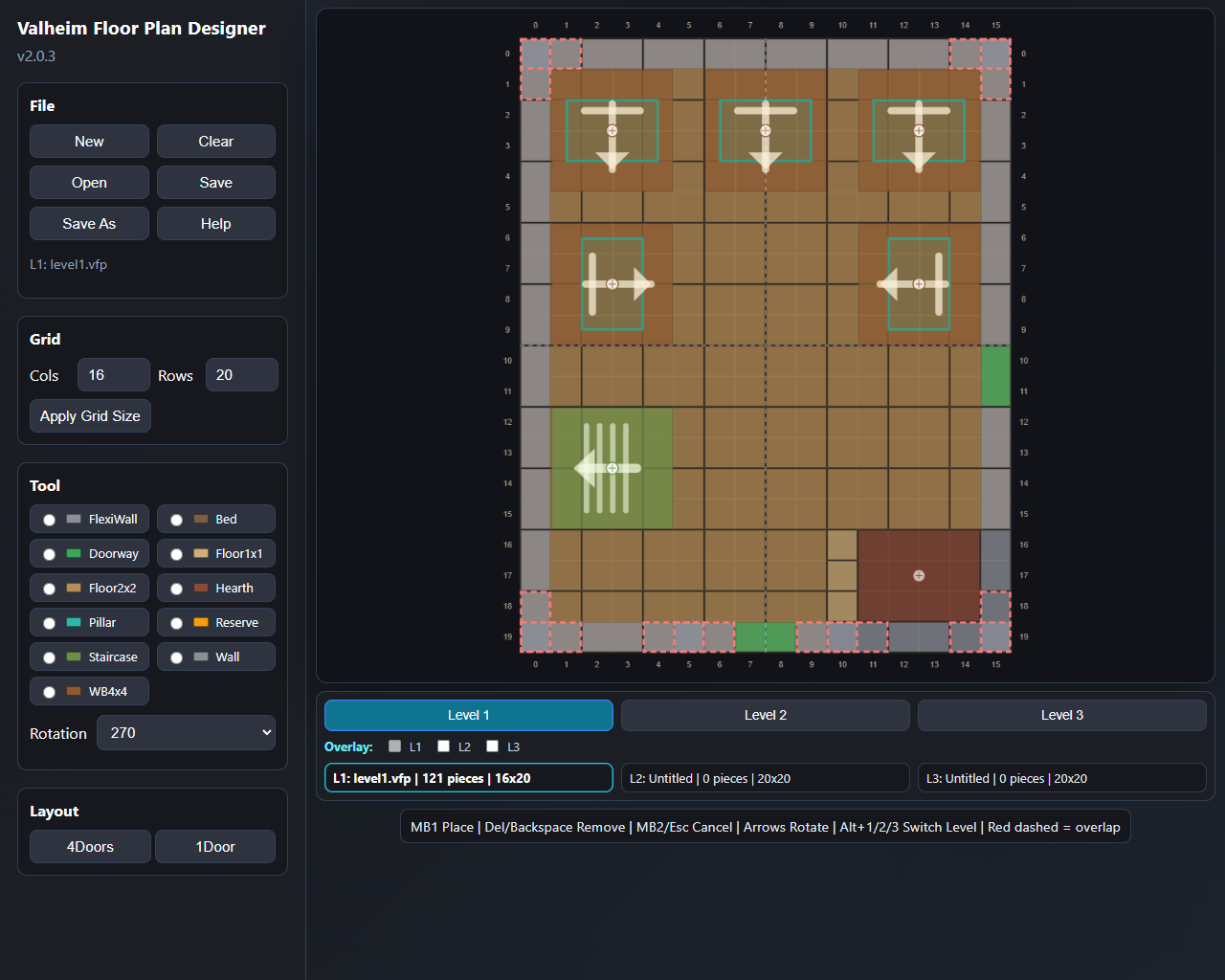
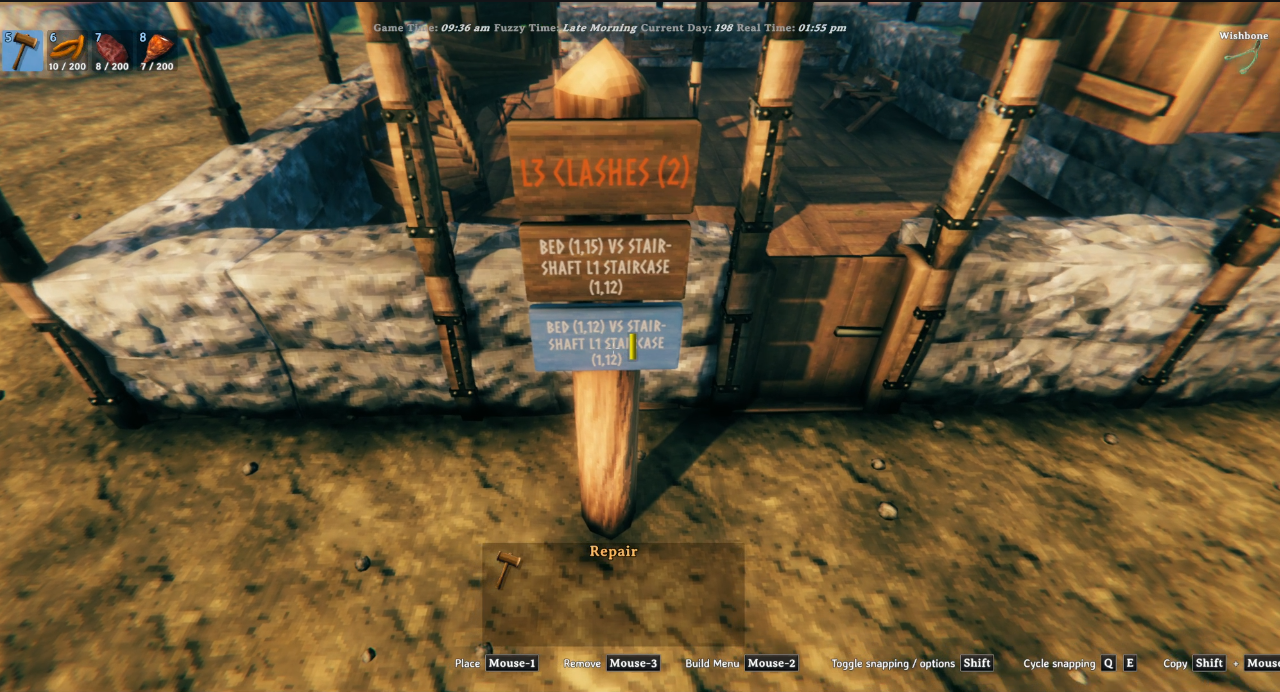
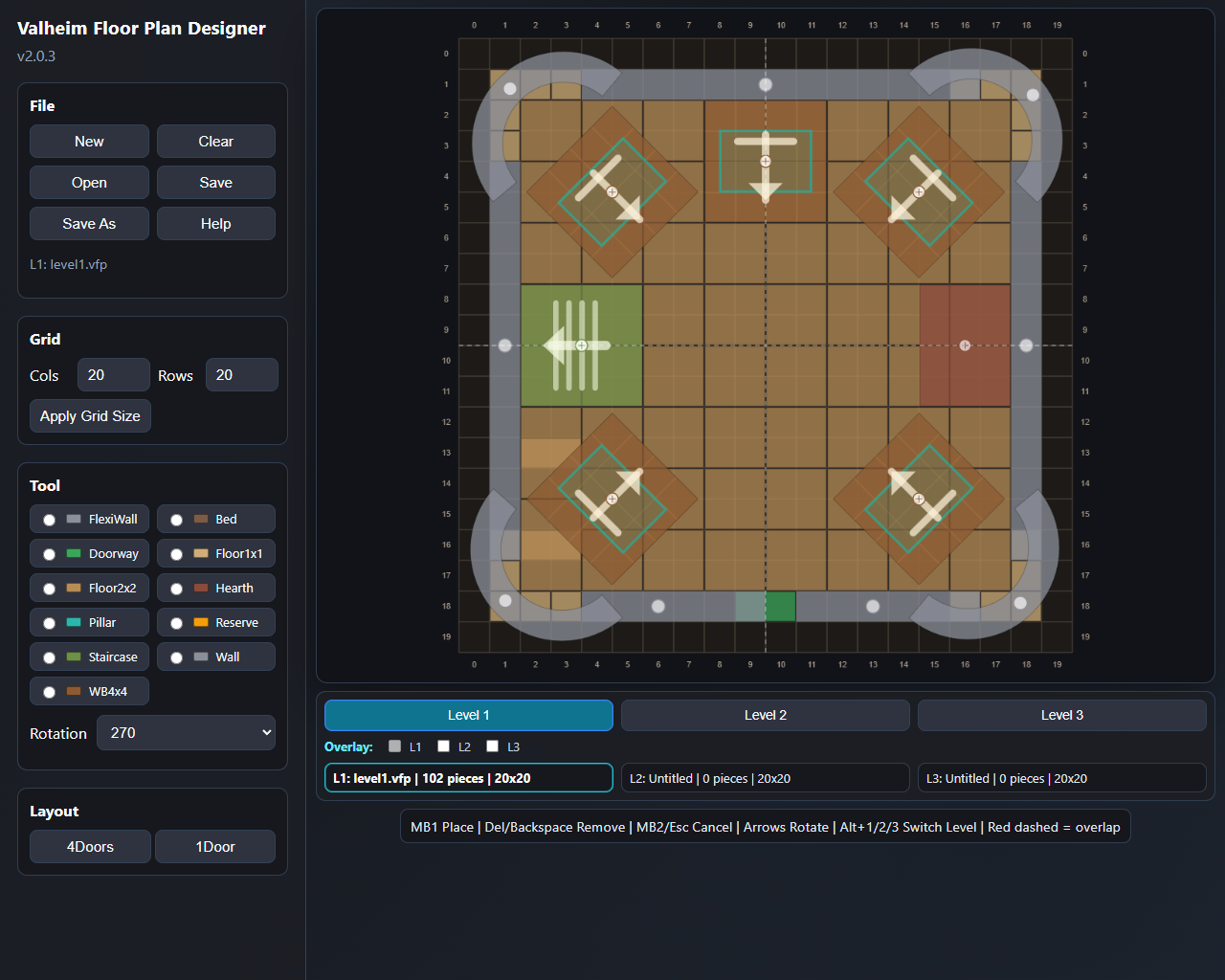
The Designer supports up to three in-memory level layouts with quick switching, per-level overlay rendering, and cross-level clash hints so you can plan multi-storey builds before committing a single piece. Orientation-sensitive tools — including Beds, Workbenches, and Staircases — show directional arrows so what you see in the Designer matches exactly what gets built in-game. The FlexiWall tool lets you draw curved stone walls of any shape — arcs, sweeping curves, and full circles — that are not constrained to the rectangular grid.
Excel-style row/column reference labels run along all four edges of the grid to help with precise placement, and furniture pieces (Bed, Staircase, Hearth, Workbench) show a small centre handle once placed — drag it to move the piece, click it to select it, then rotate in place with the arrow keys or mouse wheel. Right-click and Escape simply cancel whatever's active (tool, selection, or in-progress draw) without deleting anything; to remove a piece, hover it and press Delete/Backspace.
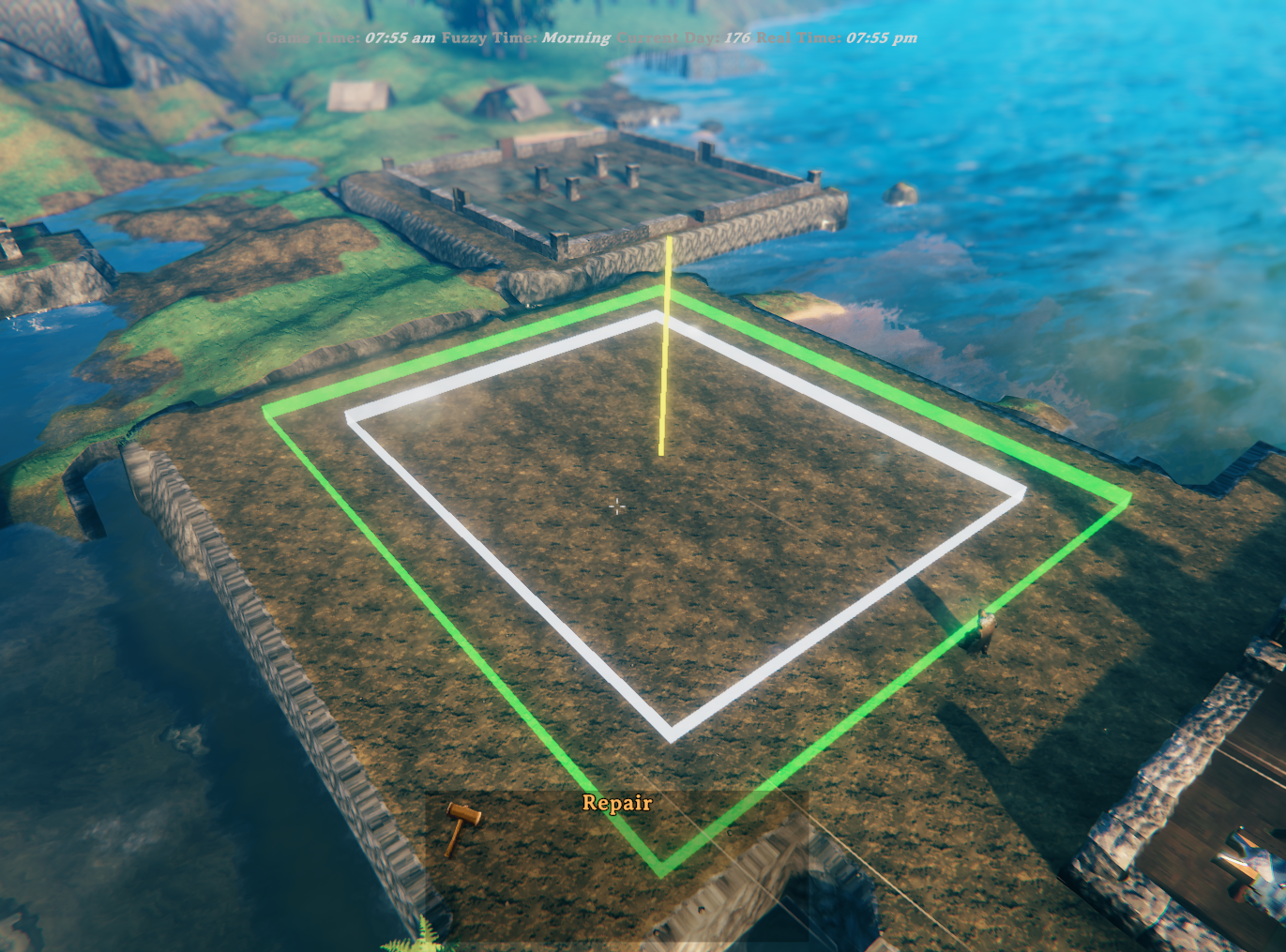
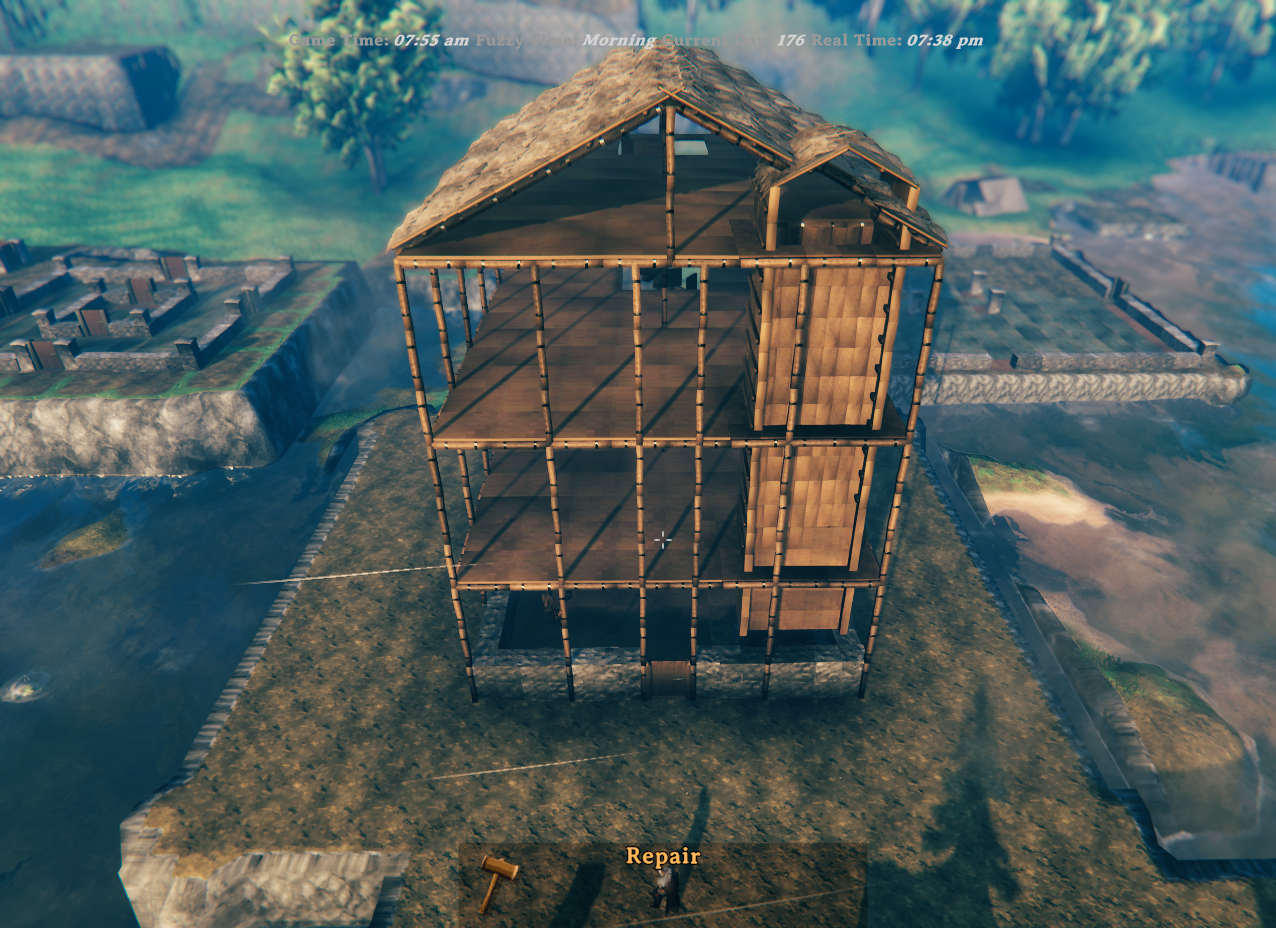
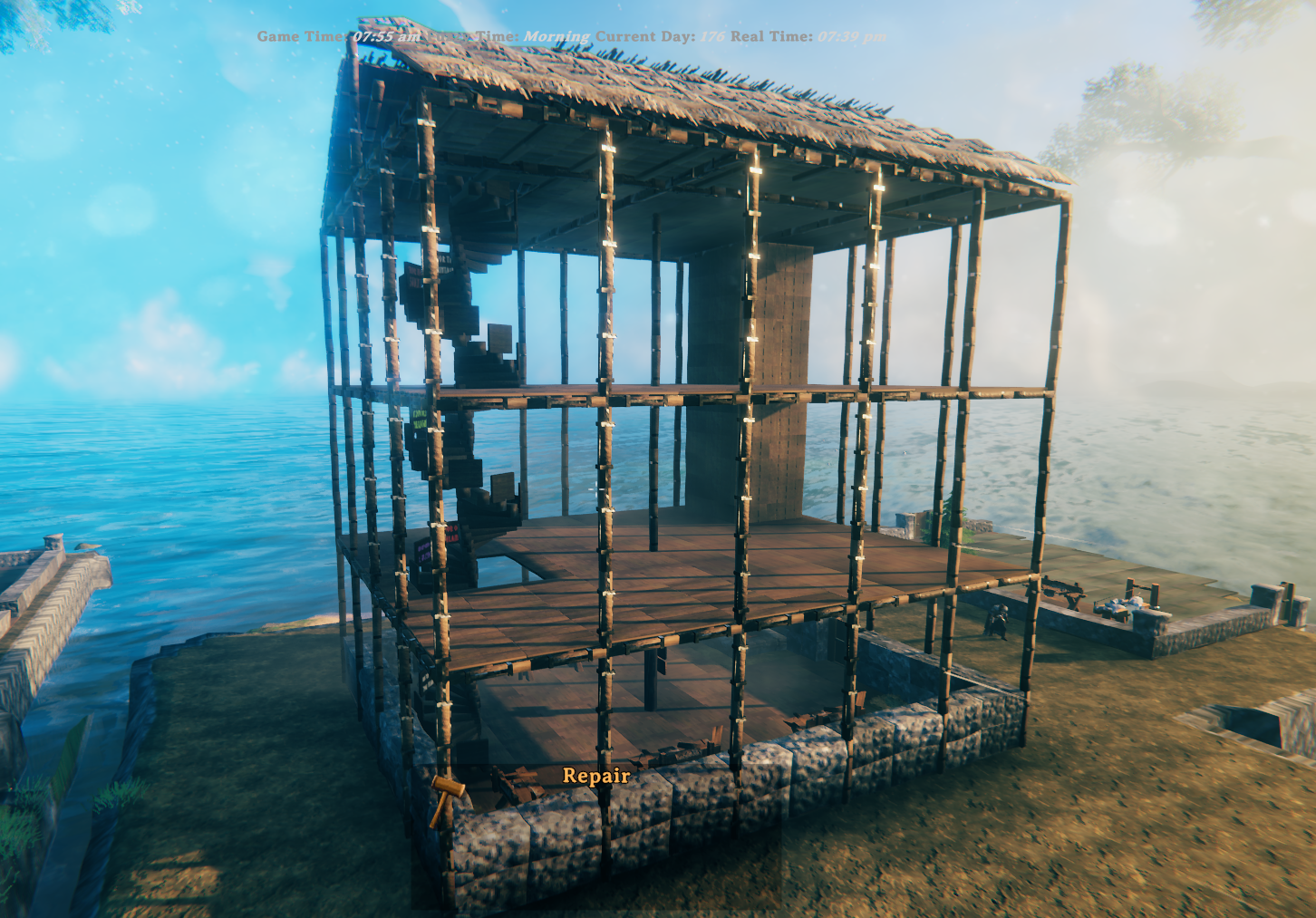
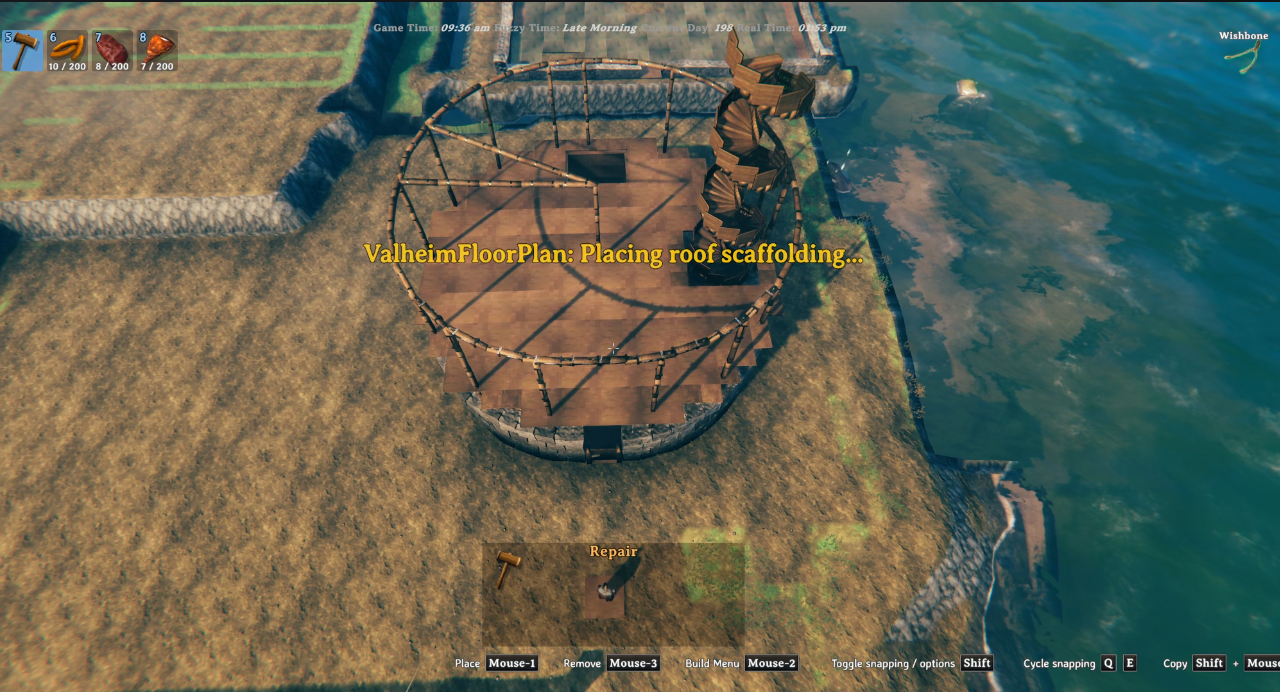
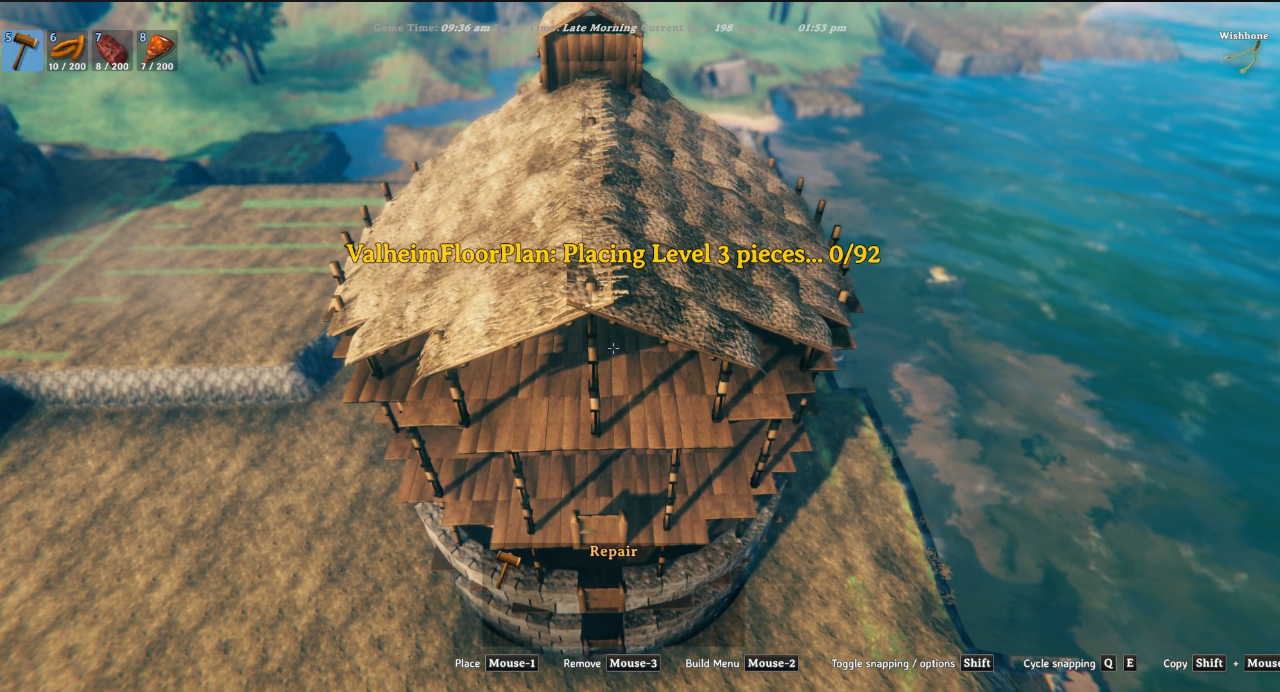
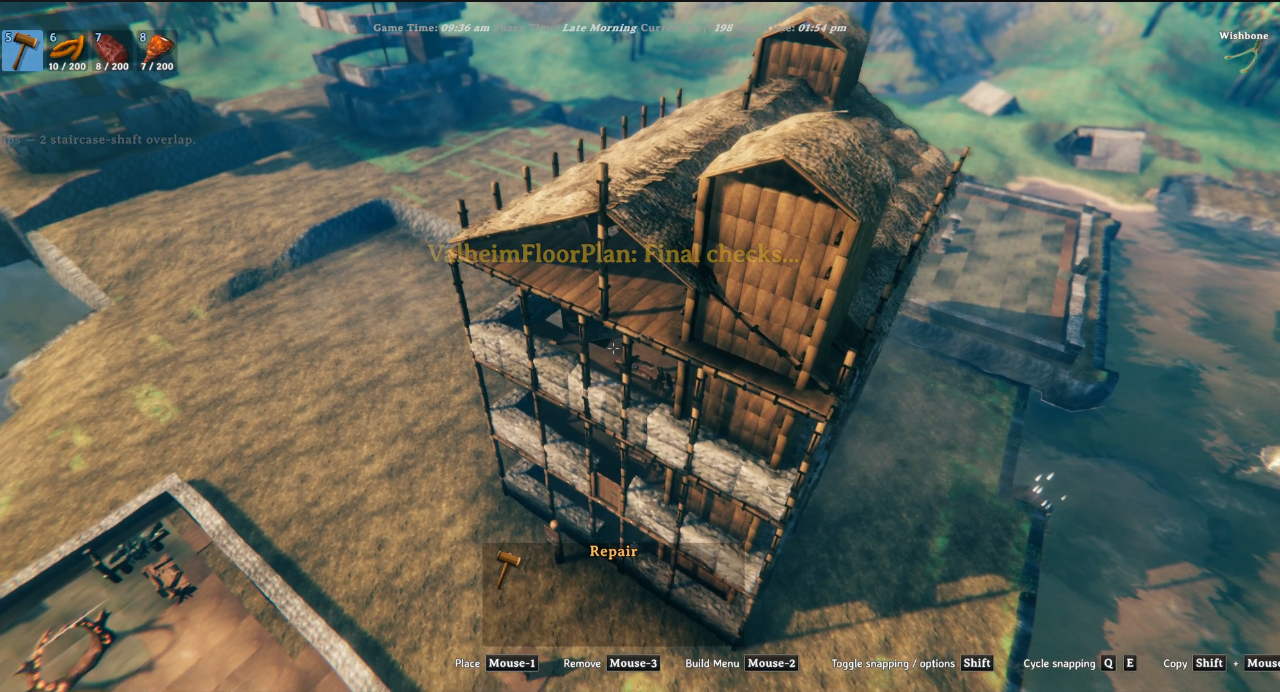
Once you're happy with the design, press the build hotkey, position the preview in-world, and confirm. The mod levels the terrain, places every piece in the right order, and handles scaffold framing for upper floors automatically. For multi-level builds, additional red floating rectangles appear in the preview at each upper-floor height so you can see the full vertical footprint before committing. If something is off, undo restores both pieces and terrain in one keypress — or use the keep-terrain undo (Ctrl+F9) to remove pieces while leaving the levelled ground intact.
This package includes two components:
.vfp plan files and builds them in-game..vfp plan files.Demo video: https://youtu.be/jz39KSSfhJ0
Included in this package:
BepInEx/plugins)BepInEx/plugins/ValheimFloorPlan/Designer/).vfp plans to get started immediatelyOpen the Designer to create or edit a plan. It is a local web page installed by Thunderstore Mod Manager. Copy the path below and paste it into your browser address bar to open it:
%APPDATA%\Thunderstore Mod Manager\DataFolder\Valheim\profiles\Default\BepInEx\plugins\RetiredCoders-ValheimFloorPlan\ValheimFloorPlan\Designer\index.html

e.g.    C:\Users\{Username}\AppData\Roaming\Thunderstore Mod Manager\DataFolder\Valheim\profiles\Default\BepInEx\plugins\RetiredCoders-ValheimFloorPlan\ValheimFloorPlan\Designer\index.html
Save/export a .vfp file.
Point the mod config FloorPlanFile to that .vfp file.
In game, press the build hotkey (default F8) and place the design. A terrain snapshot is taken automatically before placement.
While the preview is active, use these keys to adjust placement:
| Key | Action |
|---|---|
↑ ↓ ← → |
Move the plan forward / backward / left / right |
Q |
Rotate left (default coarse step: 90°) |
G |
Rotate right (default coarse step: 90°) |
Left Shift (hold) |
Fine-adjust mode — smaller move/rotate steps |
E |
Confirm and build at current position |
RMB / Escape |
Cancel placement |
Note: All keys are configurable in the BepInEx config file.
Rotation note: confirmed builds snap to BuildRotationSnapDegrees (default 90°) so the finished structure stays aligned to angles that still work with Valheim's normal manual piece snapping. Fine preview rotation uses 22.5° steps by default.
The rotation-related config entries live together in the Preview - Rotation section.
While positioning the plan, watch for these visual markers in the world:
FloorPlanLevels is 2 or 3.Note: A HUD message also reports the current risk level (LOW / MEDIUM / HIGH) along with step (the steepest cross-edge height jump) and relief (total height range around the footprint) to help you judge whether to nudge the plan before building.
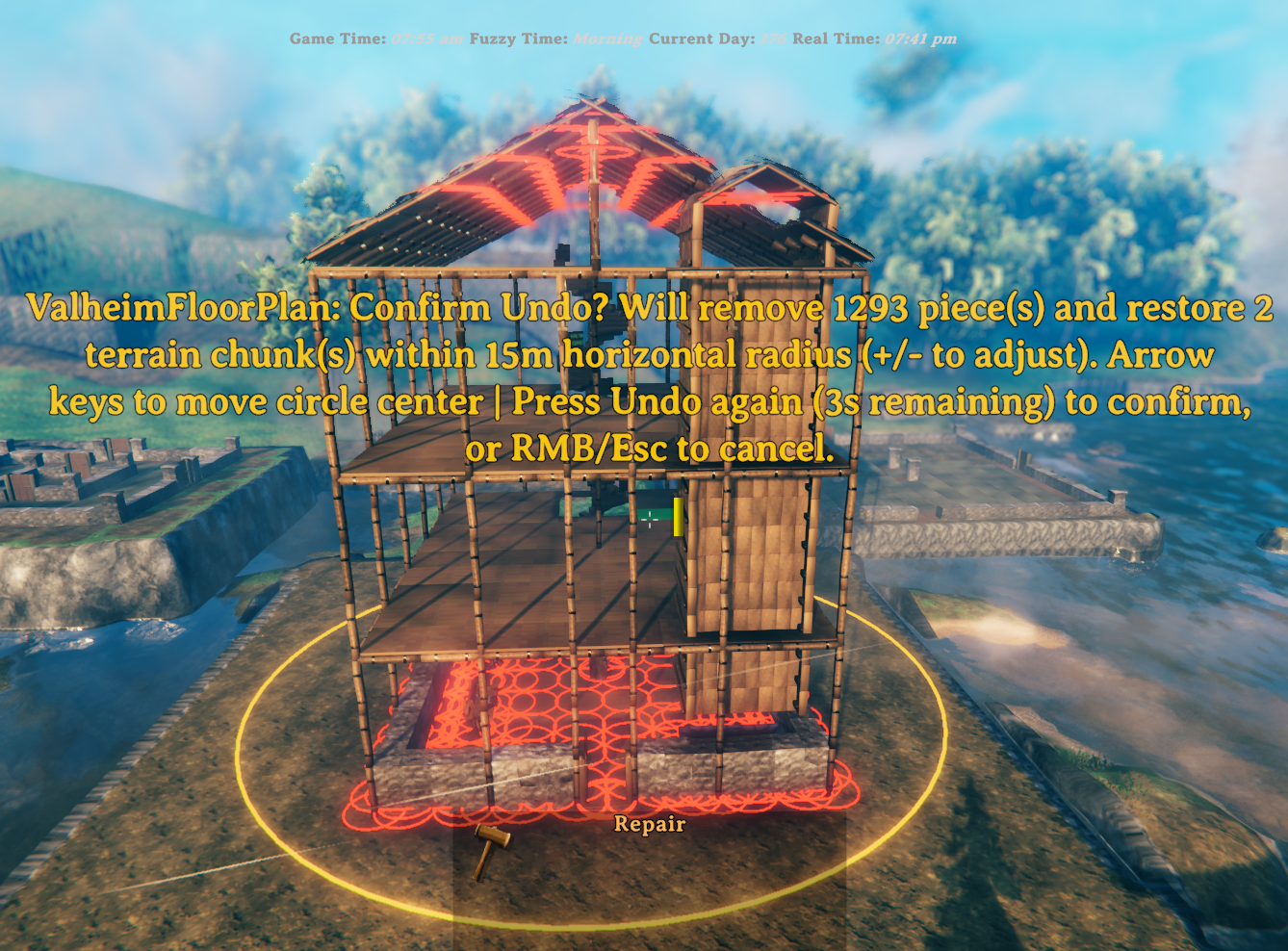
To undo, press the undo hotkey (default F9). A 5-second confirmation window opens showing:
Optional mode: press Ctrl+F9 (configurable via UndoKeepTerrainHotkey) to start piece-only undo that keeps the levelled terrain. In this mode the terrain snapshot is discarded instead of restored.
During the confirmation window you can:
| Key | Action |
|---|---|
↑ ↓ ← → |
Move the search circle centre to target different pieces. Movement respects camera angle. Hold Left Shift for fine movement. |
+ / - (or numpad) |
Increase / decrease the search radius by 5 m. The new radius is saved to config. |
F9 (undo hotkey again) |
Confirm normal undo — removes all marked pieces and restores terrain. |
Ctrl+F9 (UndoKeepTerrainHotkey) |
Start or confirm keep-terrain undo — removes marked pieces and discards the current terrain snapshot. If started with Ctrl+F9, confirmation can be done with either Ctrl+F9 or F9. |
RMB / Escape |
Cancel — clears all highlights without removing anything. |
The HUD message shows the current radius and remaining time throughout the window. All adjustments (movement or radius) restart the 5-second confirmation timer.
IMPORTANT: Terrain can only be restored within the current session — if you leave the area or reload, the terrain snapshot is lost. Building pieces can be undone across sessions because they are tagged as built by Valheim Floor Plan.
Tip — keep the levelled terrain: if you want to remove your build but keep the flat ground (e.g. to iterate on a design), use Ctrl+F9 (UndoKeepTerrainHotkey) instead of F9. Pieces are removed as normal, but the terrain snapshot is discarded rather than restored.
The FlexiWall tool draws curved or straight walls along any path in the Designer. Walls are built in-game as stacked stone pieces following the arc, with the same brick-bond row offset as regular walls.
| Designer layout | In-game result |
|---|---|
 |
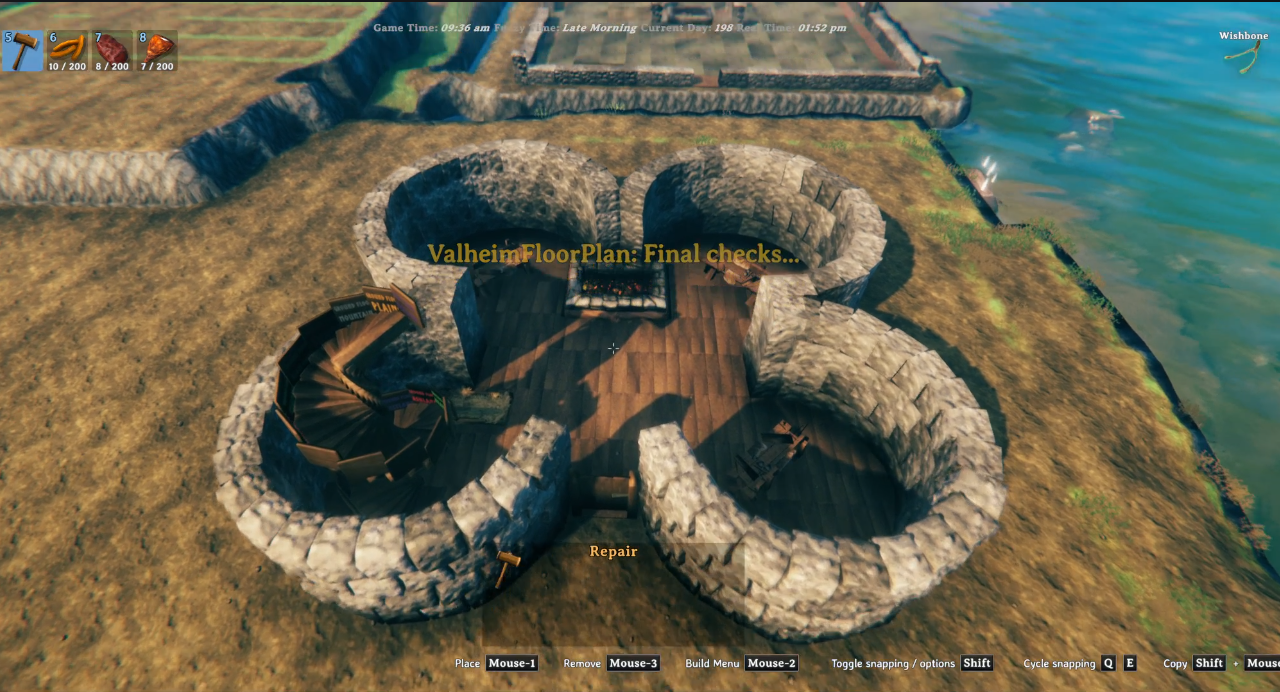 |
FlexiWall Examples video: https://youtu.be/N8CvcGpX-BQ
To remove a placed FlexiWall, click its midpoint handle to select it (shown with a dashed outline, just like furniture pieces), then press Delete or Backspace — you don't need the FlexiWall tool active to do this.
FlexiWall endpoints snap to the cell-edge boundary that is tangential to the arc at that point, rather than to the cell centre. This means two FlexiWalls that share a cell boundary will meet at exactly the same world coordinate — no gap in the build.
Green and red dots on placed walls show the exact snapped start and end positions so you can see where each wall begins and ends.
To build a complete ring, place the start and end cells adjacent to each other (one cell apart), then drag the midpoint handle to the opposite side of the circle. The Designer will draw a closed ring and the builder will produce a full circle of wall pieces.
For very large circles, or if you want separate arcs with a doorway gap, you can use two FlexiWalls end-to-end.
FlexiWalls work in Level 1, Level 2, and Level 3 plan files. Upper-level FlexiWalls are placed at the correct scaffold-deck height alongside other upper-level pieces. The footprint validation and terrain levelling area both include FlexiWall extent, so a plan containing only FlexiWalls (no regular grid pieces) still produces a correct build preview and levelled pad.
Preset bundles let you share/reload a complete setup: Level 1/2/3 .vfp files plus non-key build/config values.
.vpfset (zip container)BepInEx/plugins/RetiredCoders-ValheimFloorPlan/ValheimFloorPlan/PresetBundles/ by default. If FloorPlanDirectory is set, bundles are exported to and imported from that folder instead.Note: when a bundle is imported, the extracted .vfp files are written into a subfolder named after the bundle inside the bundle output folder, and FloorPlanFile/FloorPlanFileLevel2/FloorPlanFileLevel3 are updated to those full extracted paths. If you are using FloorPlanDirectory, you may want to move the extracted files into your directory and update the file fields to bare filenames afterwards.
Default controls:
| Key | Action |
|---|---|
Ctrl+F8 (ExportBundleHotkey) |
Export current setup as a new timestamped bundle named <BundleName>-YYYYMMDD-HHMMSS.vpfset. |
Alt+F8 (ImportBundleHotkey) |
Start timed import selection mode. |
Right Arrow / Left Arrow |
While import selection is active, move to next/previous bundle. |
Enter |
Import currently selected bundle. |
Escape |
Cancel import selection. |
While import selection is active, the HUD shows:
bundle X of NRight, Left, Enter, Escape)If the timer expires, import selection is cancelled automatically.
After a successful import, BundleName is automatically normalized to the imported preset prefix (timestamp suffix removed).
When FloorPlanLevels is set to 2 or 3, the mod builds one level at a time.
For each upper level, it follows this order:
This helps avoid the "nothing gets built" situation where pieces can block each other if placed in the wrong order.
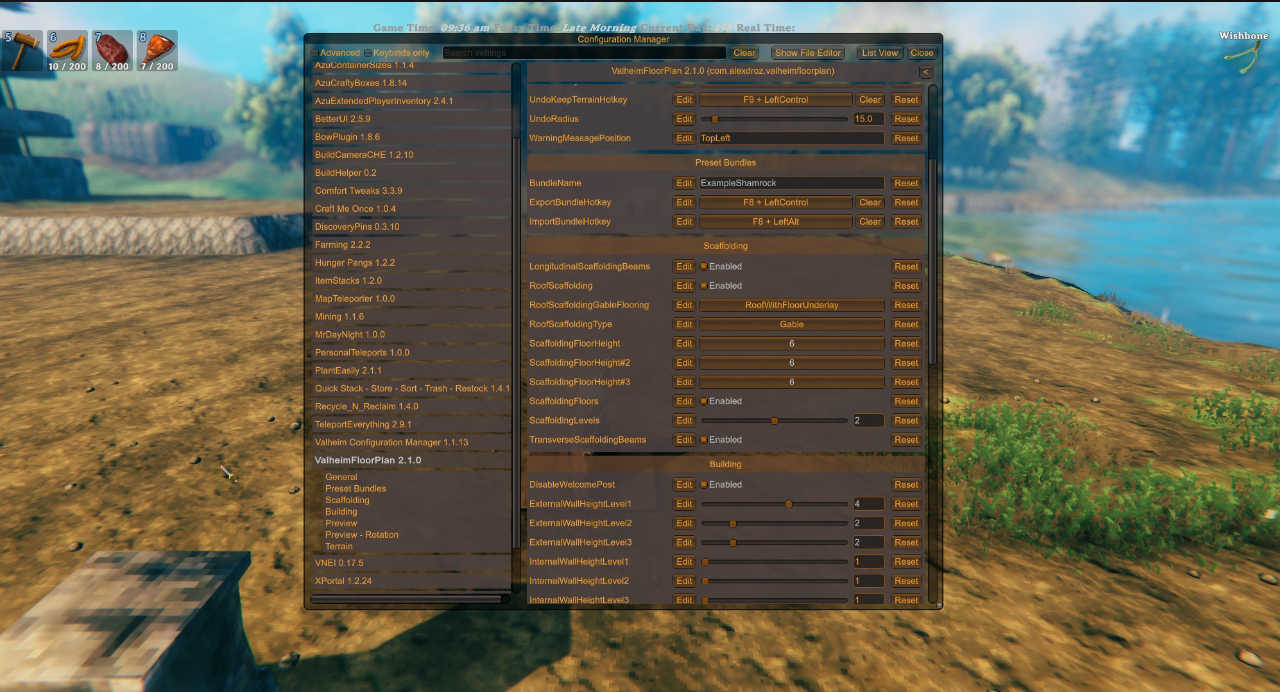
All values below are configurable in the BepInEx config file.
| Option | Default | Allowed values | What it does |
|---|---|---|---|
FloorPlanDirectory |
(empty) | Any valid folder path | Optional base folder for .vfp files and preset bundles. When set, FloorPlanFile, FloorPlanFileLevel2, and FloorPlanFileLevel3 can be bare filenames instead of full paths, and bundle export/import uses this folder instead of the default PresetBundles subfolder. Existing configs with full absolute paths in the file fields continue to work unchanged. |
FloorPlanFile |
(empty) | File path or bare filename | Path to the .vfp file exported by the Designer. A bare filename (e.g. myhouse.vfp) is sufficient when FloorPlanDirectory is set; otherwise provide the full path. |
FloorPlanLevels |
1 |
1 to 3 |
Number of layout levels to build. 1 uses only FloorPlanFile, 2 also uses FloorPlanFileLevel2, 3 also uses FloorPlanFileLevel3. Values above 1 enforce multi-level scaffolding requirements. |
FloorPlanFileLevel2 |
(empty) | File path or bare filename | Optional Level 2 .vfp file. A bare filename is sufficient when FloorPlanDirectory is set. If set, its footprint must fit within the Level 1 (FloorPlanFile) footprint. |
FloorPlanFileLevel3 |
(empty) | File path or bare filename | Optional Level 3 .vfp file. A bare filename is sufficient when FloorPlanDirectory is set. If set, its footprint must fit within the Level 1 (FloorPlanFile) footprint. |
BuildHotkey |
F8 |
Any valid KeyboardShortcut |
Starts plan preview/build flow. |
UndoHotkey |
F9 |
Any valid KeyboardShortcut |
Removes placed VFP-tagged pieces and restores terrain snapshot. |
UndoKeepTerrainHotkey |
LeftControl + F9 |
Any valid KeyboardShortcut |
Starts piece-only undo mode: removes VFP pieces and discards the current terrain snapshot so levelled terrain remains. |
BundleName |
MyBuild |
Any valid file-name text | Preset name prefix used when exporting bundles. Export file name format is <BundleName>-YYYYMMDD-HHMMSS.vpfset. After import, this is reset to the imported prefix (timestamp removed). |
ExportBundleHotkey |
LeftControl + F8 |
Any valid KeyboardShortcut |
Exports a preset bundle to PresetBundles as <BundleName>-YYYYMMDD-HHMMSS.vpfset (layout files + non-key settings). |
ImportBundleHotkey |
LeftAlt + F8 |
Any valid KeyboardShortcut |
Starts timed bundle import selection mode (Right/Left choose, Enter import, Escape cancel, auto-timeout cancel). |
UndoRadius |
15 |
5 to 150 |
Search radius in metres around the undo circle centre when scanning for VFP pieces to remove on Undo. Adjustable live during the confirmation window with +/-, and circle centre is adjustable with arrow keys. |
ProgressMessagePosition |
CenterLeft |
Valheim MessageHud positions (Center, TopLeft, TopRight, etc.) |
HUD slot for build-progress messages. CenterLeft is accepted as an alias and maps to Center. |
WarningMessagePosition |
TopLeft |
Valheim MessageHud positions (Center, TopLeft, TopRight, etc.) |
HUD slot for warnings/risk messages. CenterLeft is accepted as an alias and maps to Center. |
| Option | Default | Allowed values | What it does |
|---|---|---|---|
ExternalWallHeightLevel1 |
1 |
1 to 6 |
Stacks Level 1 outer-perimeter Wall/Pillar pieces vertically. Dynamic cap: ScaffoldingFloorHeight x 2. |
ExternalWallHeightLevel2 |
1 |
1 to 6 |
Stacks Level 2 outer-perimeter Wall/Pillar pieces vertically. Dynamic cap: ScaffoldingFloorHeight#2 x 2. |
ExternalWallHeightLevel3 |
1 |
1 to 6 |
Stacks Level 3 outer-perimeter Wall/Pillar pieces vertically. Dynamic cap: ScaffoldingFloorHeight#3 x 2. |
InternalWallHeightLevel1 |
1 |
1 to 6 |
Stacks Level 1 interior FlexiWall pieces vertically (walls whose control points do not touch the layout perimeter). |
InternalWallHeightLevel2 |
1 |
1 to 6 |
Stacks Level 2 interior FlexiWall pieces vertically. |
InternalWallHeightLevel3 |
1 |
1 to 6 |
Stacks Level 3 interior FlexiWall pieces vertically. |
WallPillarMaterial |
Stone |
Stone, Wood |
Chooses material set used for Wall and Pillar types. |
StaircaseReachMode |
ToTheNextLevelOnly |
ToTheNextLevelOnly, AllTheWay |
Controls staircase vertical reach. ToTheNextLevelOnly climbs one level at a time. AllTheWay climbs toward the highest available scaffold level. |
StaircaseStepRise |
0.16 |
0.10 to 0.40 |
Vertical height in metres between staircase treads. Lower values produce shallower, easier-to-climb steps but increase total tread count. |
StaircaseStepAngleDeg |
15 |
10 to 30 |
Degrees of rotation between staircase treads. Lower values produce a wider, gentler spiral. |
StaircaseStepRadius |
0.75 |
0.50 to 1.00 |
Distance in metres from the centre pole to the midpoint of each tread. Keep at or below 1.0 to stay within the 4×4 staircase footprint. |
| Option | Default | Allowed values | What it does |
|---|---|---|---|
RoofScaffolding |
false |
true / false |
Adds scaffold poles and perimeter beams around the plan during the build. Automatically forced to true when FloorPlanLevels > 1. |
RoofStyle |
Gable |
Gable, Flat |
Topmost scaffold deck shape when ScaffoldingFloors is enabled and OpenTop is false. Gable builds a pitched roof layout and extends front-mid/back-mid/centre support columns up to the apex. Flat tiles the topmost level with ridge roof pieces edge-to-edge (one piece per 2x2 tile area). |
OpenTop |
false |
true / false |
When true, the topmost scaffold level is left open to the sky — no roof deck, beams, or vertical scaffolding on the external walls of the topmost level, regardless of ScaffoldingFloors or RoofStyle. Hearth chimneys still rise through the open level. Staircases are clamped to the highest real floor deck. |
RoofScaffoldingGableFlooring |
RoofWithFloorUnderlay |
RoofWithFloorUnderlay, RoofOnly |
Gable-only top-surface behavior (used only when RoofStyle=Gable). RoofWithFloorUnderlay places floor tiles under the top gable roof. RoofOnly places only gable roof pieces. |
ScaffoldingLevels |
1 |
1 to 3 |
Number of stacked scaffolding levels when RoofScaffolding is enabled. Each extra level repeats the same scaffold pattern +4m above the previous level. |
ScaffoldingFloorHeight |
4 |
2, 4, 6 |
Vertical height in metres between scaffold levels. Must be a multiple of 2m so stacked wood-iron support segments line up correctly. |
ScaffoldingFloorHeight#2 |
4 |
2, 4, 6 |
Vertical height in metres for the second scaffold level. Used when ScaffoldingLevels is 2 or 3. |
ScaffoldingFloorHeight#3 |
4 |
2, 4, 6 |
Vertical height in metres for the third scaffold level. Used when ScaffoldingLevels is 3. |
ScaffoldingFloors |
false |
true / false |
Builds wood floor decks across each scaffolding level when RoofScaffolding is enabled. Automatically forced to true when FloorPlanLevels > 1. |
TransverseScaffoldingBeams |
false |
true / false |
Adds west-to-east horizontal scaffold beams at each scaffold pole row. Automatically forced to true when FloorPlanLevels > 1. |
LongitudinalScaffoldingBeams |
false |
true / false |
Adds south-to-north horizontal scaffold beams at each scaffold pole column. Automatically forced to true when FloorPlanLevels > 1. |
| Option | Default | Allowed values | What it does |
|---|---|---|---|
BuildOriginForwardOffset |
0 |
0 to 20 |
Extra distance added to the auto-computed player-to-build-centre preview offset (metres). Usually not needed. |
MoveStep |
2.0 |
0.25 to 10.0 |
Nudge distance per move key press (metres). |
FineMoveStep |
0.5 |
0.05 to 5.0 |
Nudge distance per move key press while fine-adjust key is held (metres). |
| Option | Default | What it does |
|---|---|---|
MoveForwardKey |
UpArrow |
Move preview centre forward relative to camera. |
MoveBackwardKey |
DownArrow |
Move preview centre backward relative to camera. |
MoveLeftKey |
LeftArrow |
Move preview centre left relative to camera. |
MoveRightKey |
RightArrow |
Move preview centre right relative to camera. |
RotateLeftKey |
Q |
Rotate preview counter-clockwise. |
RotateRightKey |
G |
Rotate preview clockwise. |
ConfirmKey |
E |
Confirm current preview placement and start build. |
CancelKey |
Escape |
Cancel preview. (Right-click cancels too.) |
FineAdjustKey |
LeftShift |
Hold for fine movement and fine rotation. |
| Option | Default | Allowed values | What it does |
|---|---|---|---|
RotateStepDegrees |
90 |
22.5, 45, 90 |
Rotation applied per coarse rotate key press (degrees). |
FineRotateStepDegrees |
22.5 |
22.5, 45, 90 |
Rotation applied per rotate key press while fine-adjust key is held (degrees). |
BuildRotationSnapDegrees |
90 |
22.5, 45, 90 |
Snaps the final build rotation to the nearest allowed angle when preview starts and when build is confirmed. |
| Option | Default | Allowed values | What it does |
|---|---|---|---|
TerrainLevelPasses |
2 |
1 to 5 |
Main levelling pass count before spike cleanup. Lower is faster; higher can smooth stubborn terrain. |
TerrainSpikeCleanupPasses |
2 |
1 to 5 |
Post-levelling spike cleanup pass count. |
TerrainStampRadius |
3.0 |
3.0 to 6.0 |
Radius of each terrain stamp disc (metres). Also controls outer terrain blend reach. |
TerrainHighPointDelta |
0.0 |
0.0 to 4.0 |
Extra height added to sampled highest point (targetY = highest + delta). |
TerrainUseStagedRaise |
false |
true / false |
Experimental staged vertical raise mode instead of single full-height raise. |
TerrainRaiseStepHeight |
0.5 |
0.15 to 1.5 |
Max vertical raise per stage when staged raise is enabled (metres). |
TerrainMaxRaiseStages |
1 |
1 to 16 |
Hard cap on number of staged raises when staged mode is enabled. |
TerrainSkipSatisfiedCenterStamps |
true |
true / false |
Skips center stamps where sampled terrain is already at/above target height. |
The samples/ folder contains ready-to-use examples.
Blank starter grids:
samples/myfloorplan4x4.vfp, myfloorplan8x8.vfp, myfloorplan12x12.vfp, myfloorplan16x16.vfp, myfloorplan16x20.vfp, myfloorplan20x20.vfp, myfloorplan20x20_double.vfp, myfloorplan24x24.vfp, myfloorplan28x28.vfp — empty grids in common sizesPreset bundles (.vpfset) — load with Alt+F8 in-game:
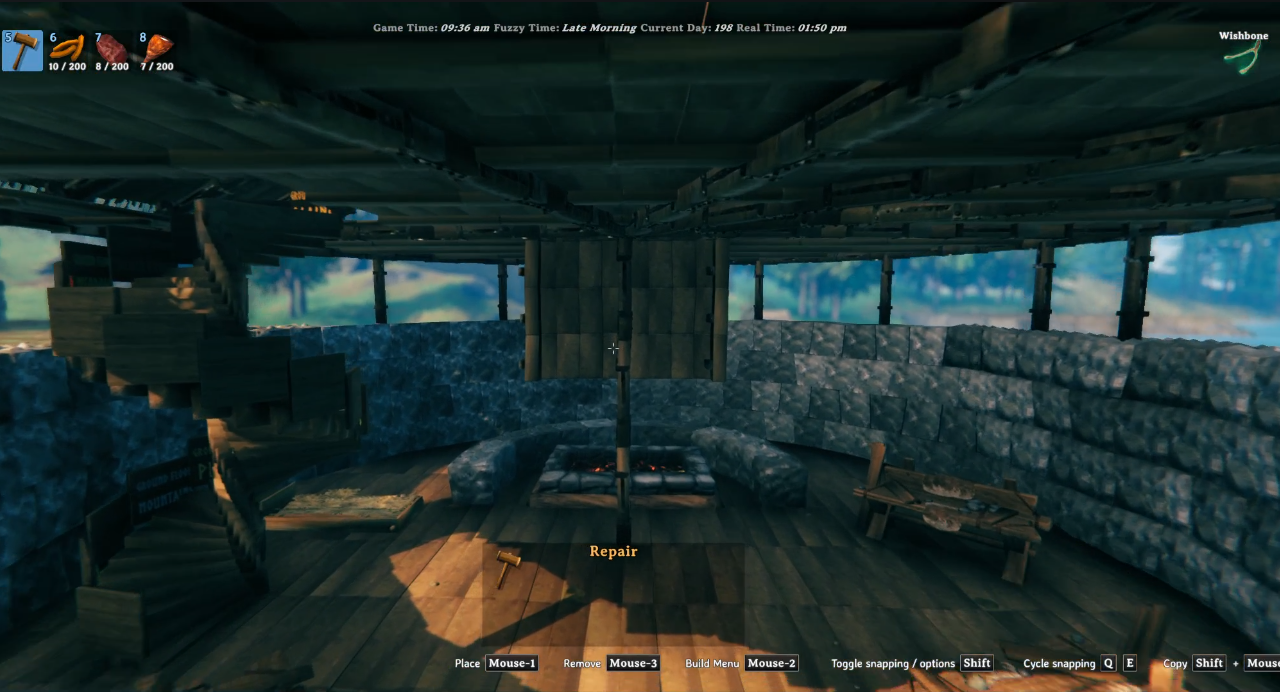
samples/ExampleRoundHouse.vpfset — three-level FlexiWall round house (20×20); level files: RoundHouse_Level_1/2/3_20x20.vfpsamples/ExampleCircular.vpfset — three-level circular FlexiWall build (20×20); level files: Circle_Level_1/2/3_20x20.vfpsamples/ExampleShamrock.vpfset — three-level shamrock multi-arc FlexiWall build (20×20); level files: Shamrock_Level_1/2/3_20x20.vfpsamples/ExampleShamrockGroundFloorOnly.vpfset — ground-floor-only shamrock layoutsamples/ExampleCosyHouse.vpfset — cosy home with beds, hearth, and workbenches; level files: CosyHome_Level_1_20x20.vfpsamples/ExampleHeart.vpfset — three-level heart-shaped FlexiWall build (20×20); level files: Heart_Level_1/2/3_20x20.vfpsamples/ExampleTurrets.vpfset — three-level build with FlexiWall turret towers (20×20); level files: Turrets_level_1/2/3_20x20.vfpsamples/ExampleCastle_2_Levels.vpfset — two-level castle keep with FlexiWall circular corner towers and battlements (20×20); level files: Castle_Level_1/2_20x20.vfpsamples/ExampleCastle_3_Levels.vpfset — three-level version of the castle keep; level files: Castle_Level_1/2/3_20x20.vfpsamples/ExampleThreeFloorBuild.vpfset — three-level rectangular build (16×20); level files: ThreeFloorBuild_Level_1/2/3_16x20.vfpStandalone single-level plans:
samples/StarBase20x20.vfp — star-shaped base layoutsamples/RoundHouse.vfp — single-level FlexiWall round housesamples/Target.vfp — concentric-ring FlexiWall target layoutsamples/Turrets.vfp — single-level turret layoutsamples/Workbenches_16x20.vfp — 16×20 plan with workbenchessamples/Workbenches_and_Staircase_16x20.vfp — 16×20 with workbenches and staircasesamples/Workbenches_and_Staircase_ALT_16x20.vfp — alternate staircase placement.vfp files. Red dashed outlines flag conflicts, with directional rules for Staircases and Hearths.Ctrl+F9 instead of F9 to start undo. Pieces are removed but the levelled terrain stays. This is especially useful when iterating on a design in the same spot.FloorPlanLevels is 2 or 3, floating red bands appear during preview at the height of each upper floor. Use them to check clearance and surroundings before confirming.+/- resizes the search circle and arrow keys reposition it. This is useful when two builds are close together and you only want to remove one.col/row values and .vfp file contents — handy for lining up pieces or cross-checking coordinates.Bed, Staircase, Hearth, and Workbench pieces show a small handle at their centre once placed (or reloaded from a file). Drag the handle to move the piece, click it to select it, then use the arrow keys or mouse wheel to rotate it in place. Press Escape or click elsewhere to deselect.Delete or Backspace — this also removes the currently selected piece (furniture or FlexiWall) if one is selected.Hearth tool selected, Delete/Backspace can only remove Hearth pieces — Floors, Walls, and other types under the cursor are left untouched. Switch tools (or select a placed piece via its handle, which switches the tool to match) to delete a different type. With no tool selected, any piece type can be removed.Delete/Backspace works as soon as you hover the grid — even right after picking a tool from the menu. Clicking a tool button no longer "traps" the shortcut; you can select a tool, hover over a placed piece of that type, and delete it immediately without first placing anything.Delete/Backspace would remove. The targeted piece — whether it's the top-most match under the cursor or your current selection — is outlined and tinted in red on the canvas, so there's never any guessing about what the next press of the key will do.Delete/Backspace to remove it. This works with any tool active — you don't need to switch to the FlexiWall tool first. While the FlexiWall tool is active, that same handle still drags to reshape the curve as before.FloorPlanLevels > 1, RoofScaffolding, ScaffoldingFloors, TransverseScaffoldingBeams, and LongitudinalScaffoldingBeams are all automatically enabled. You do not need to set them manually.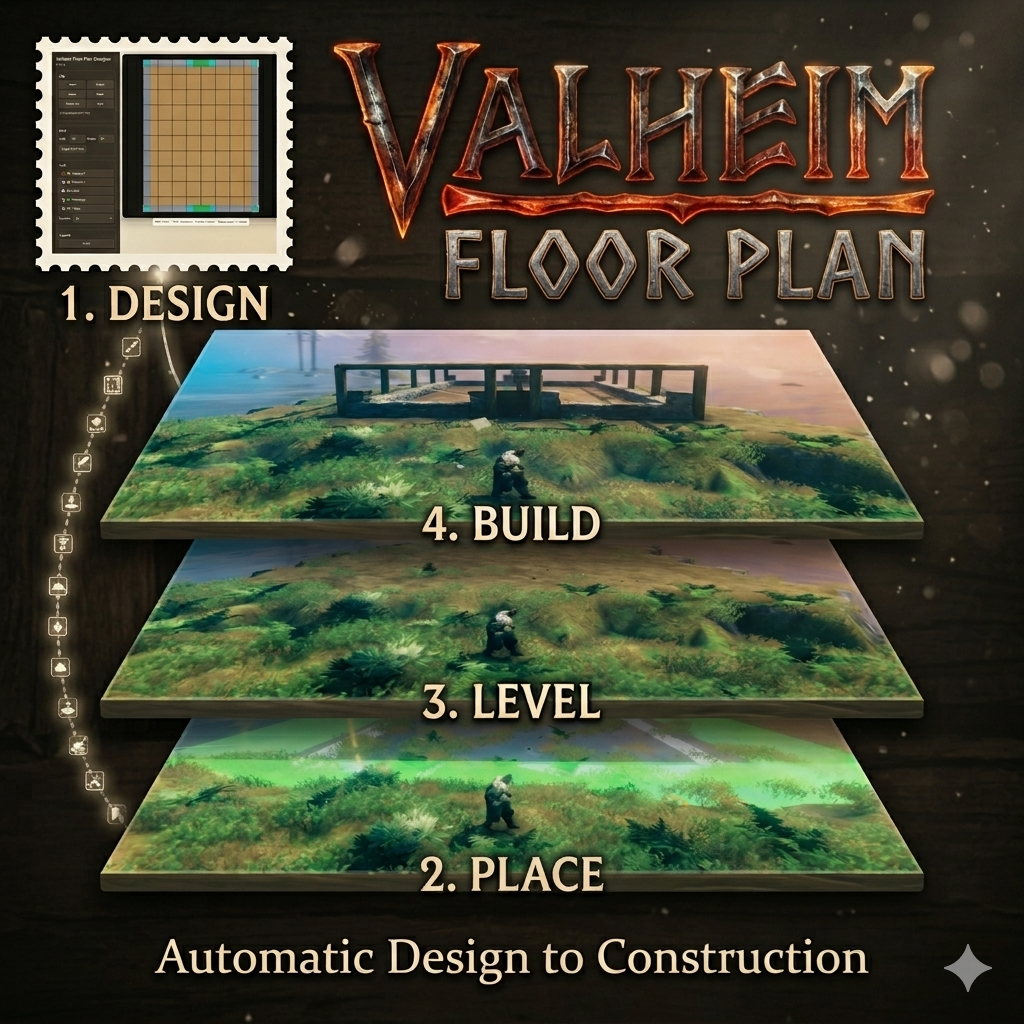
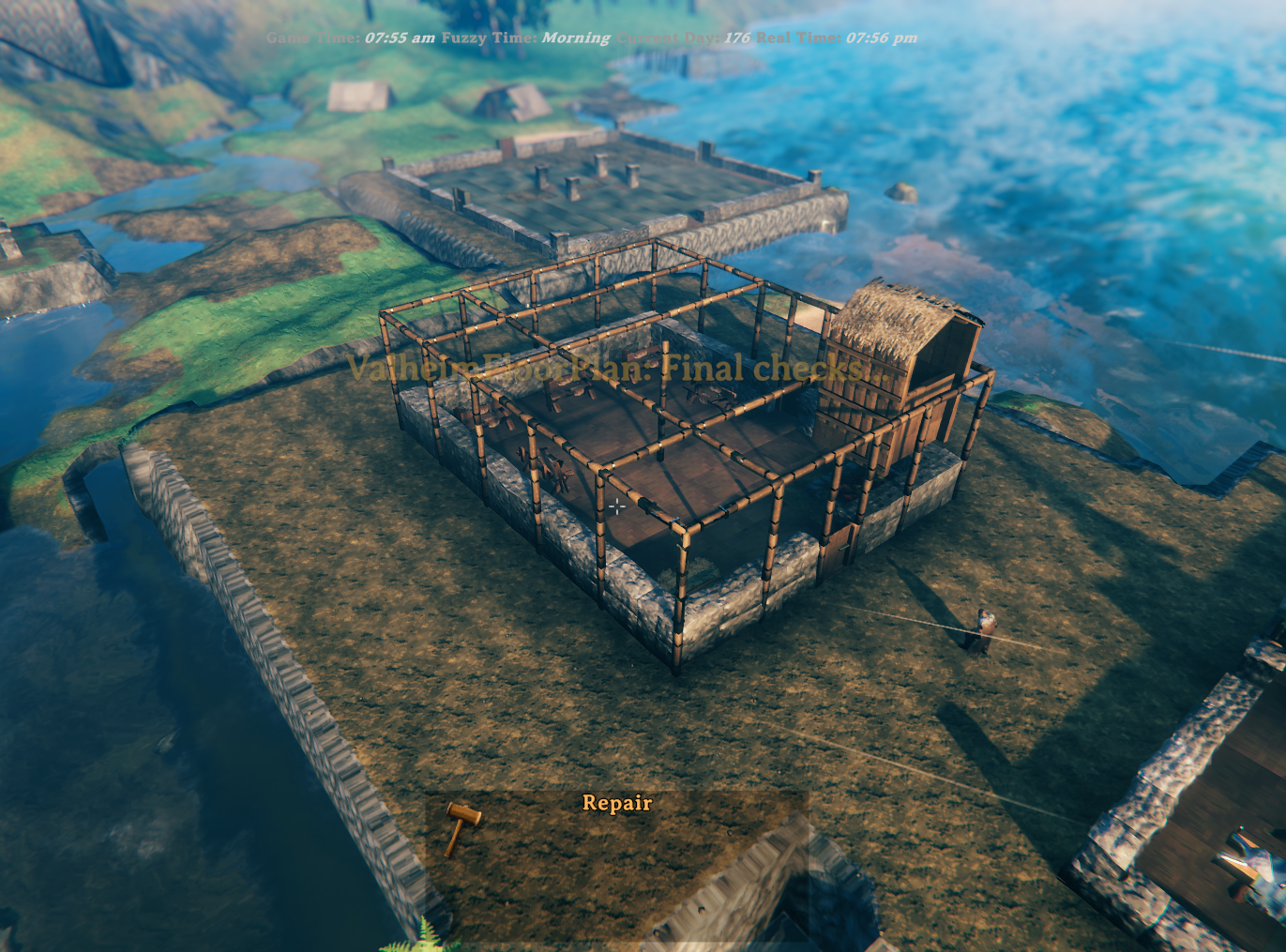
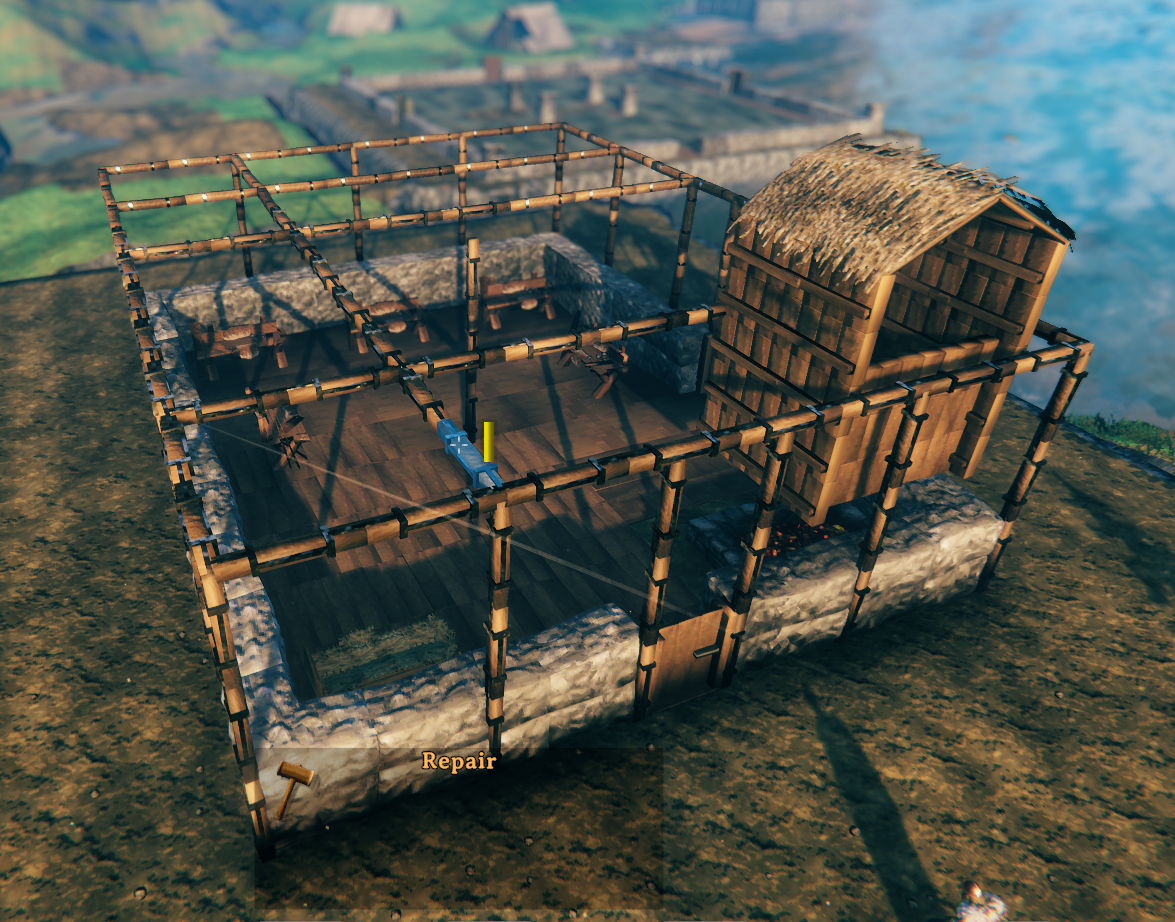
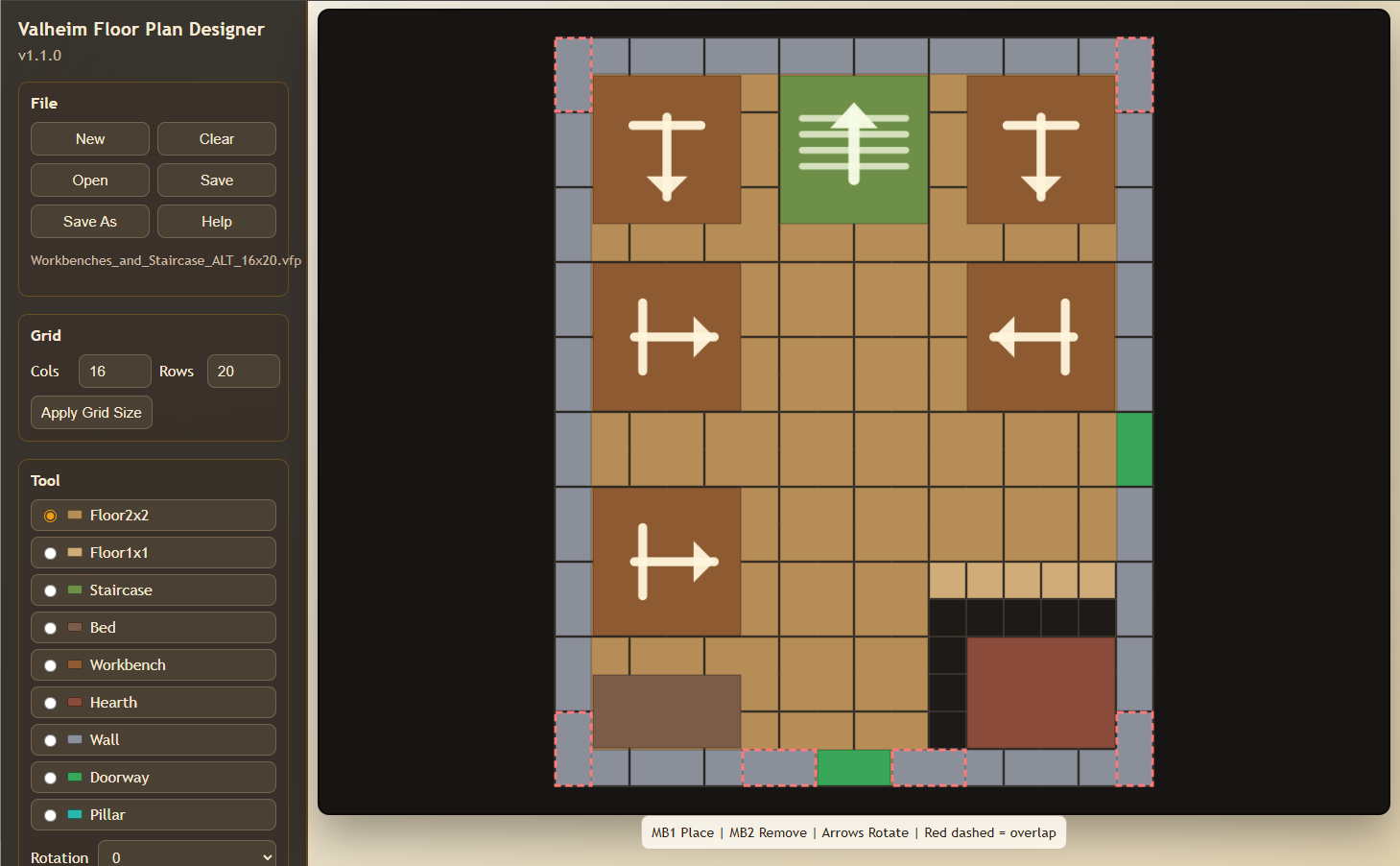
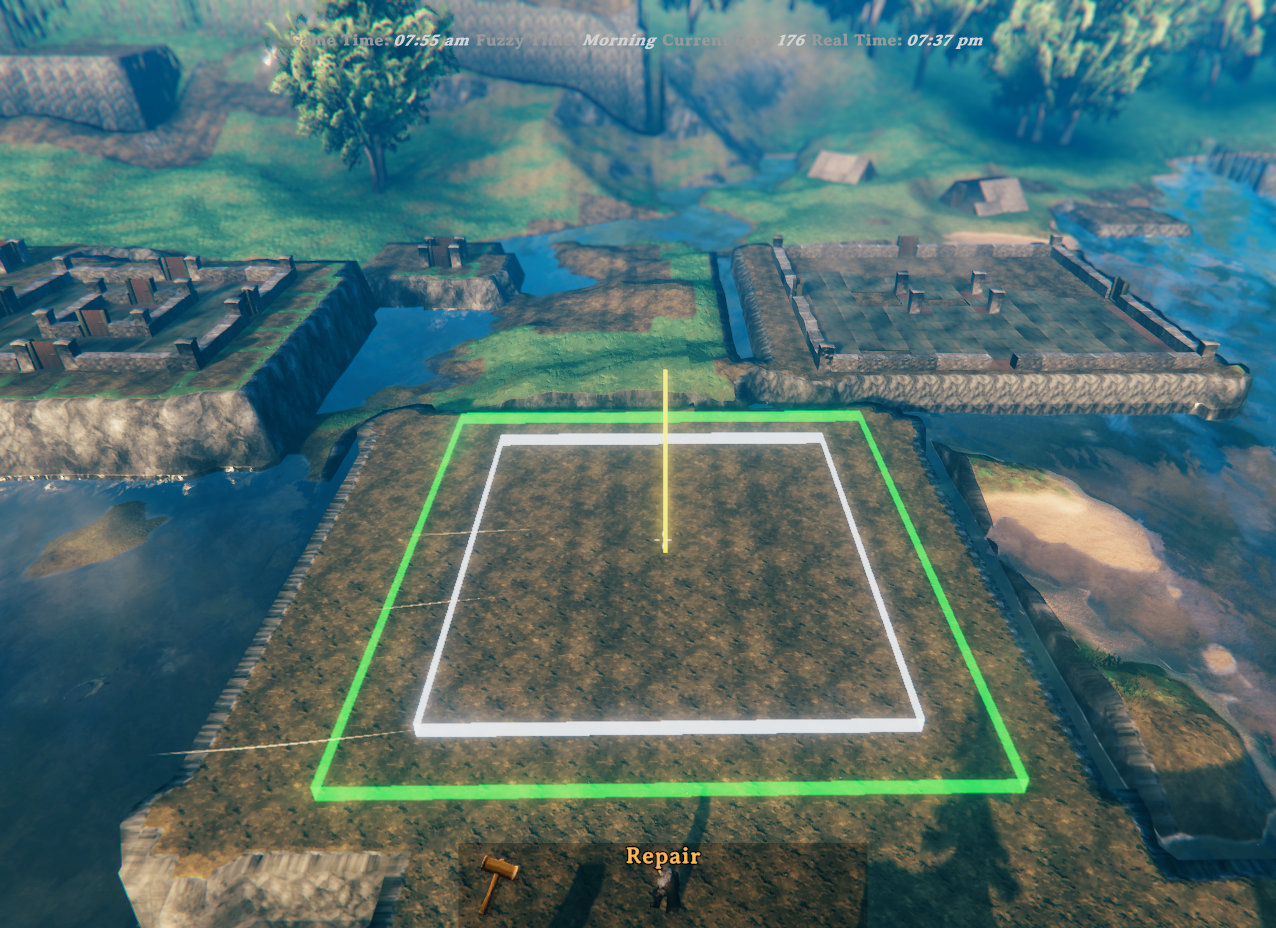
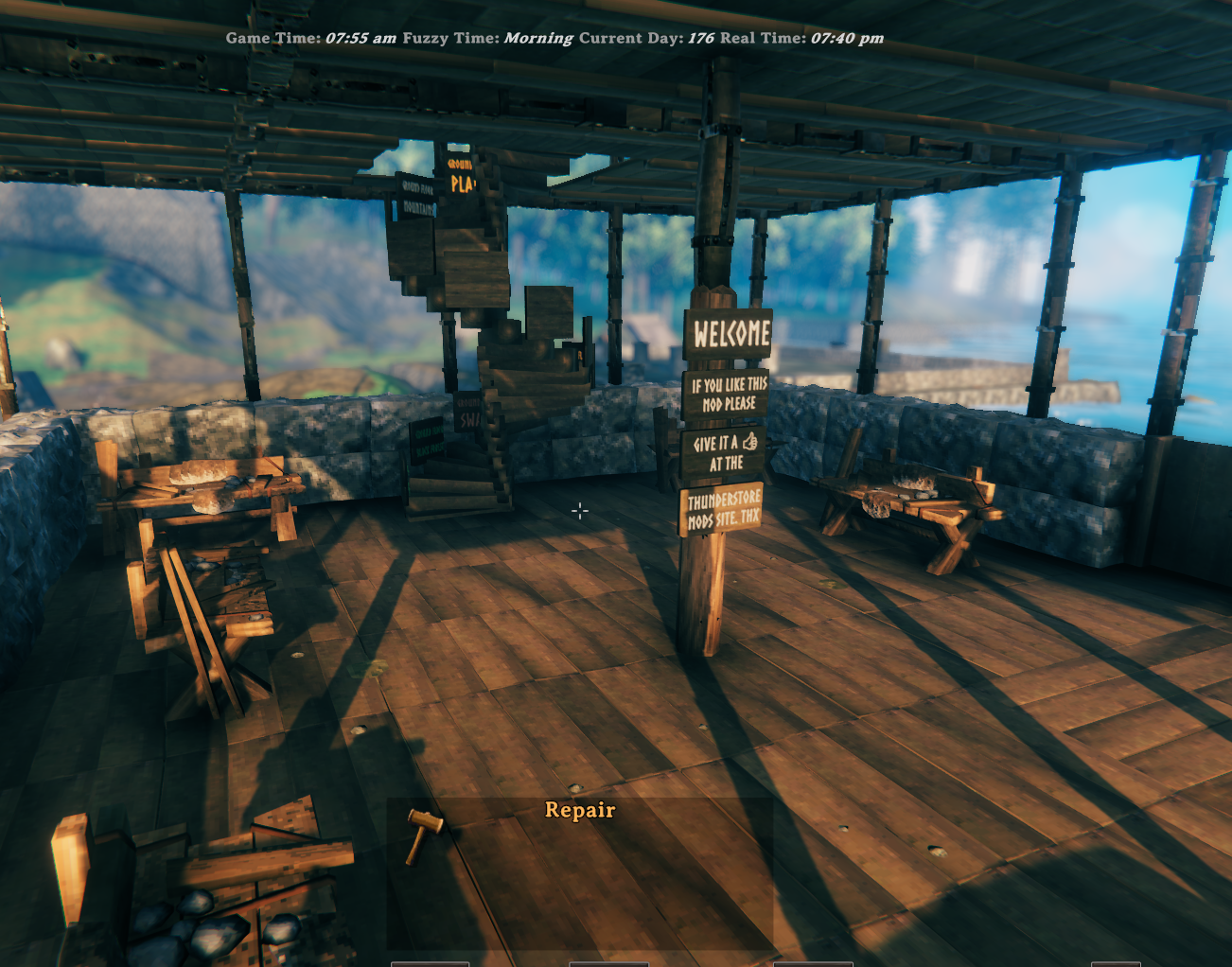
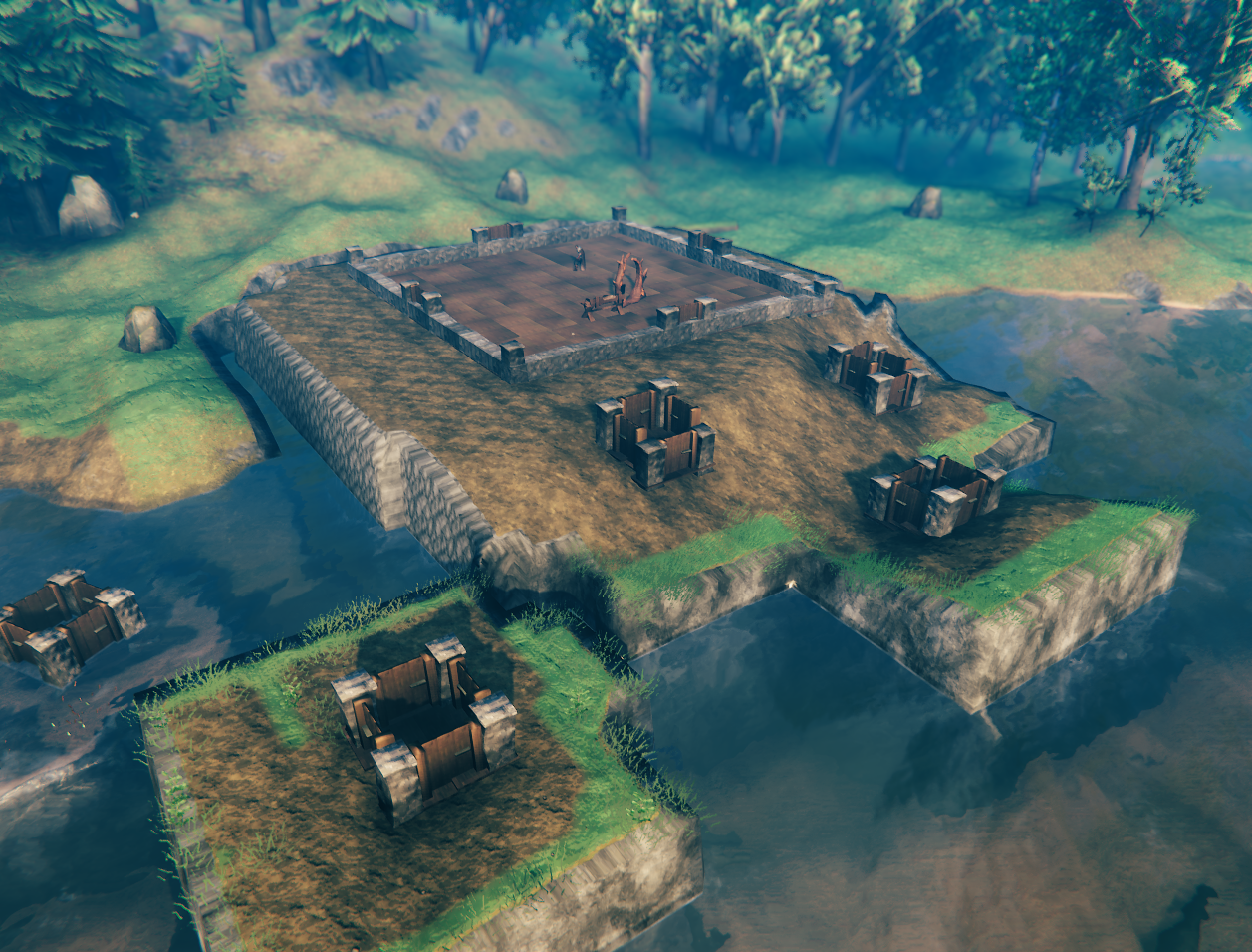
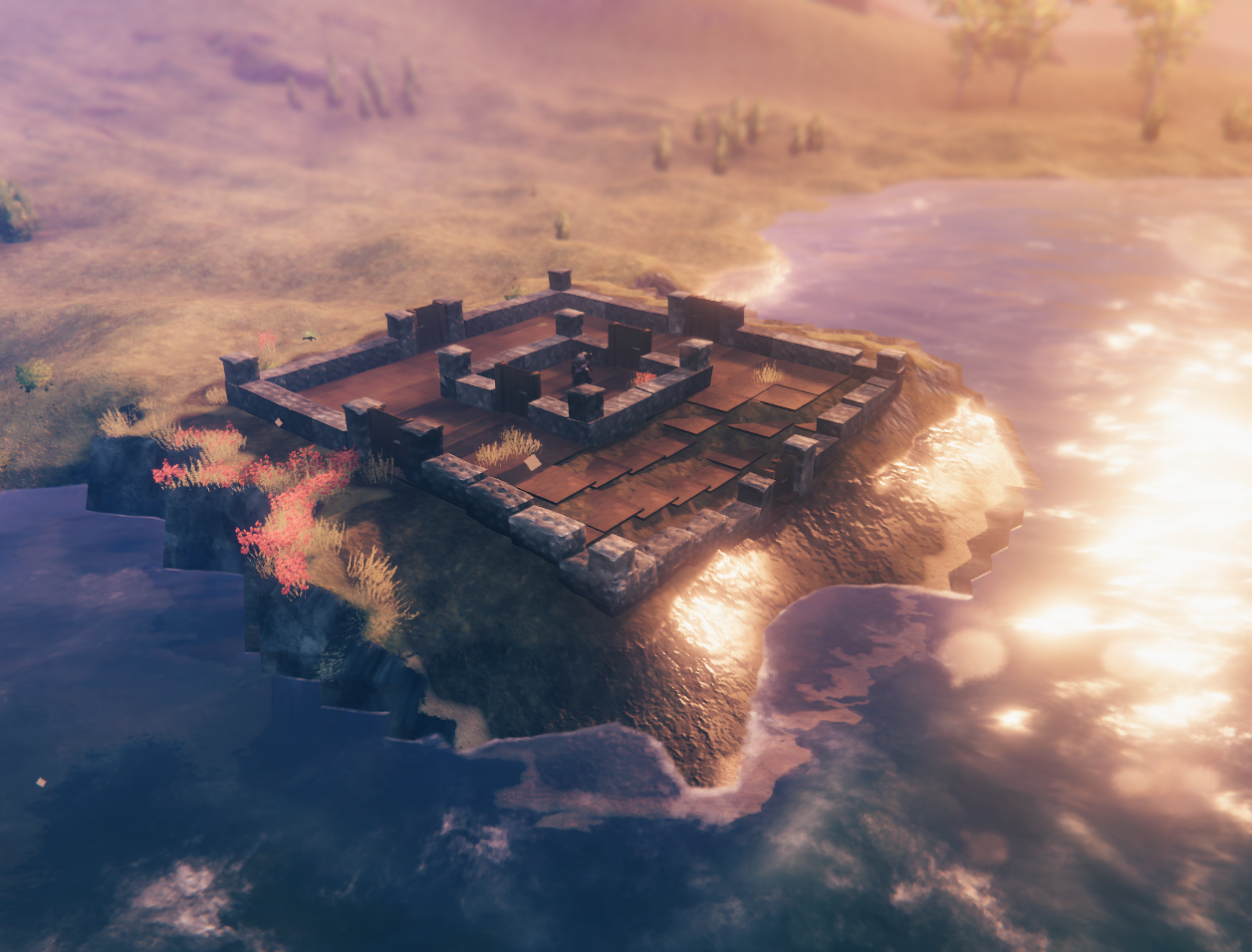
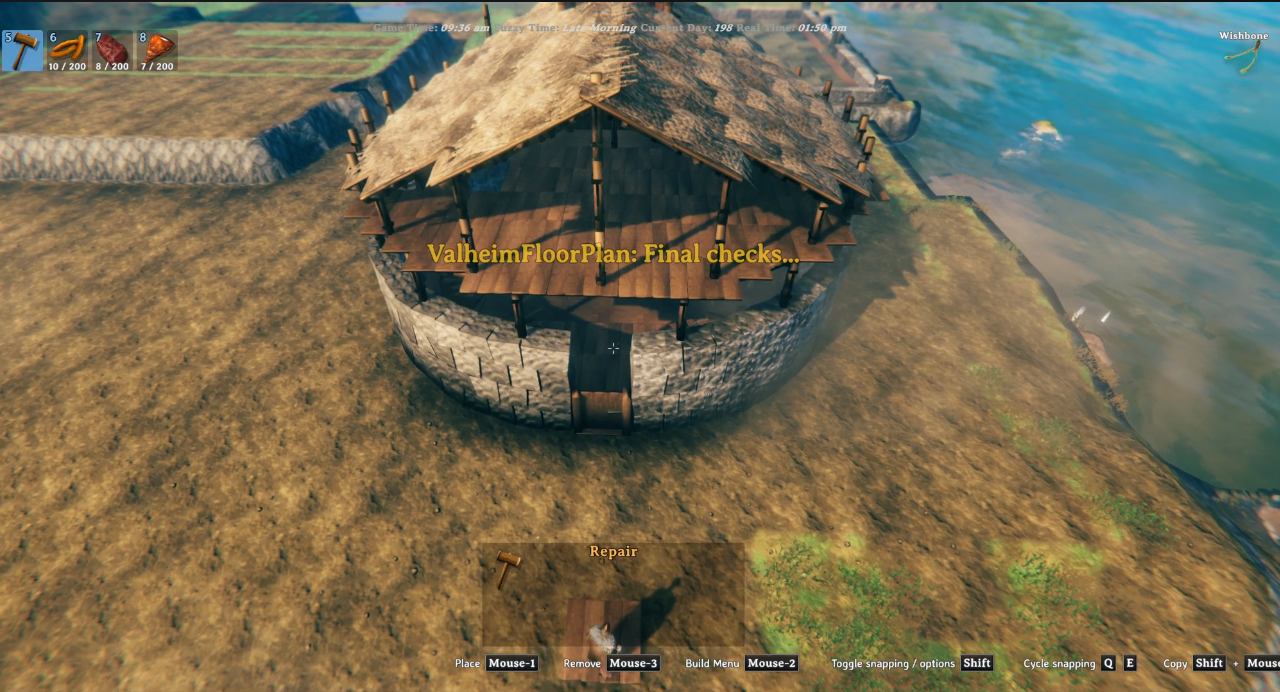
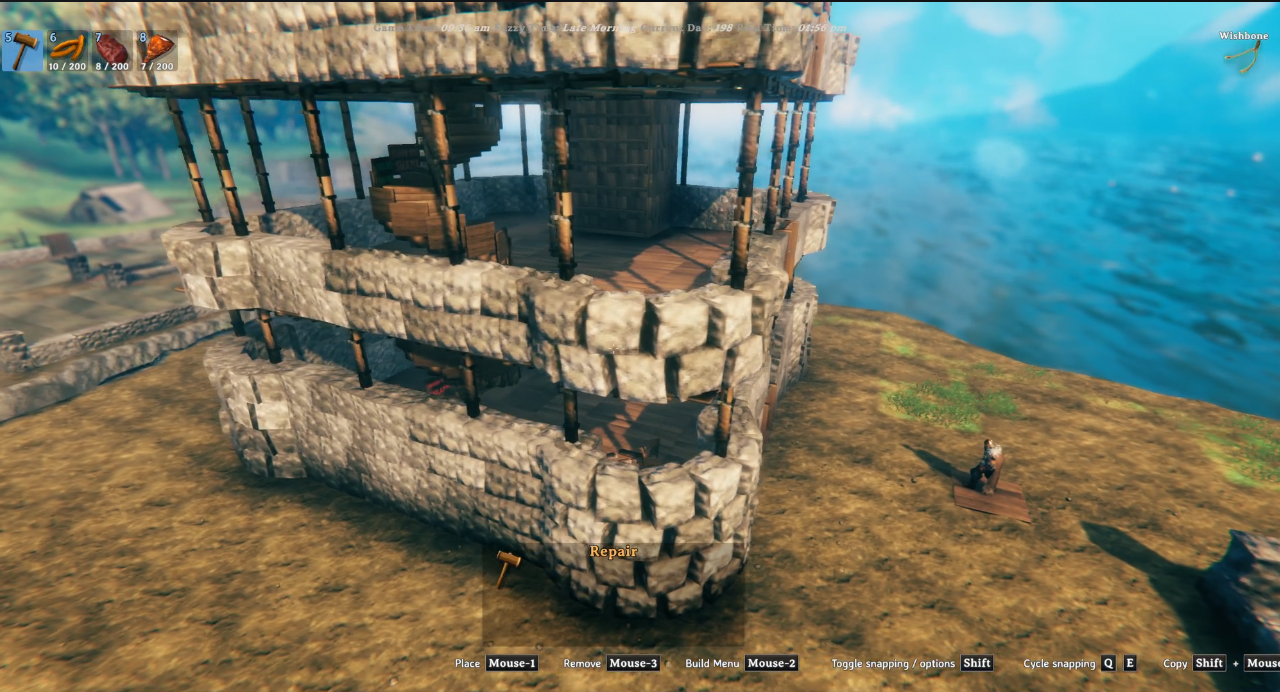
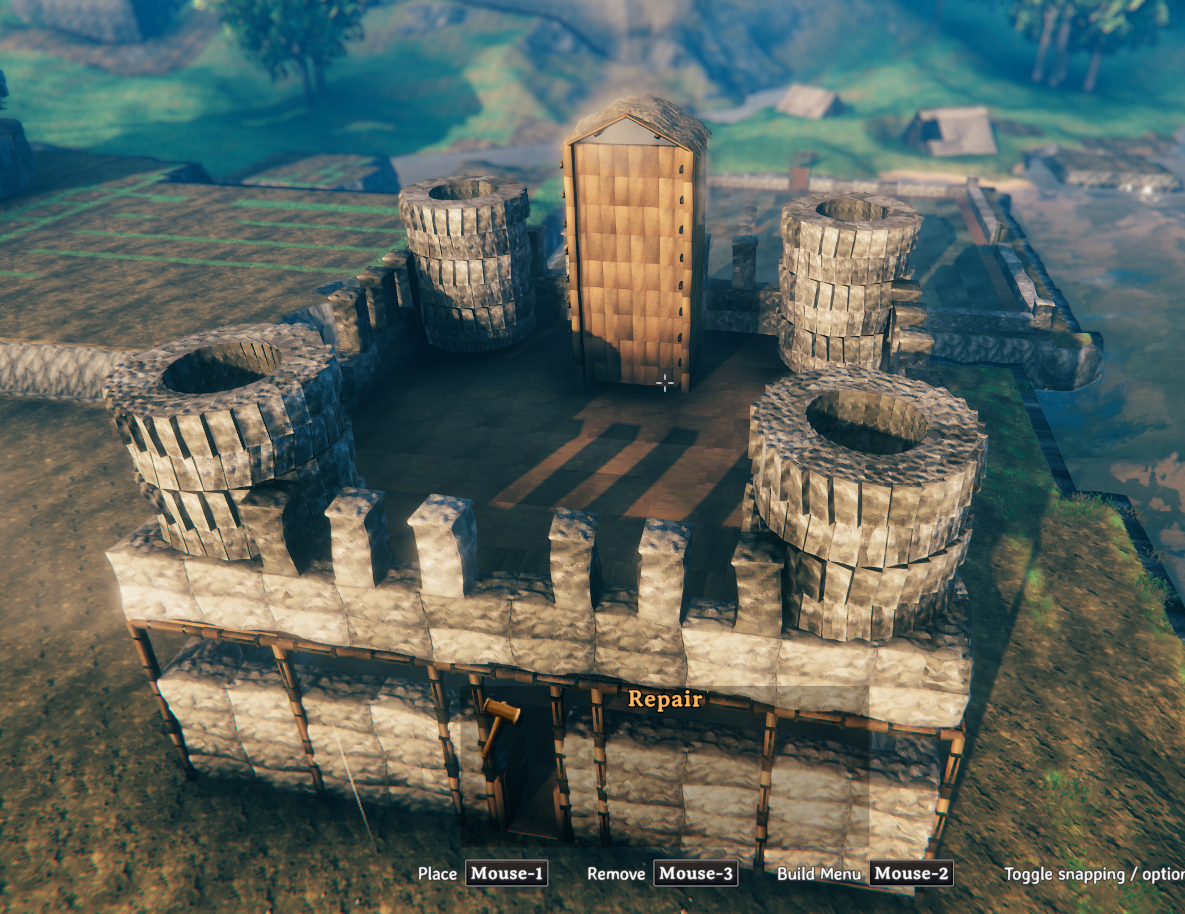
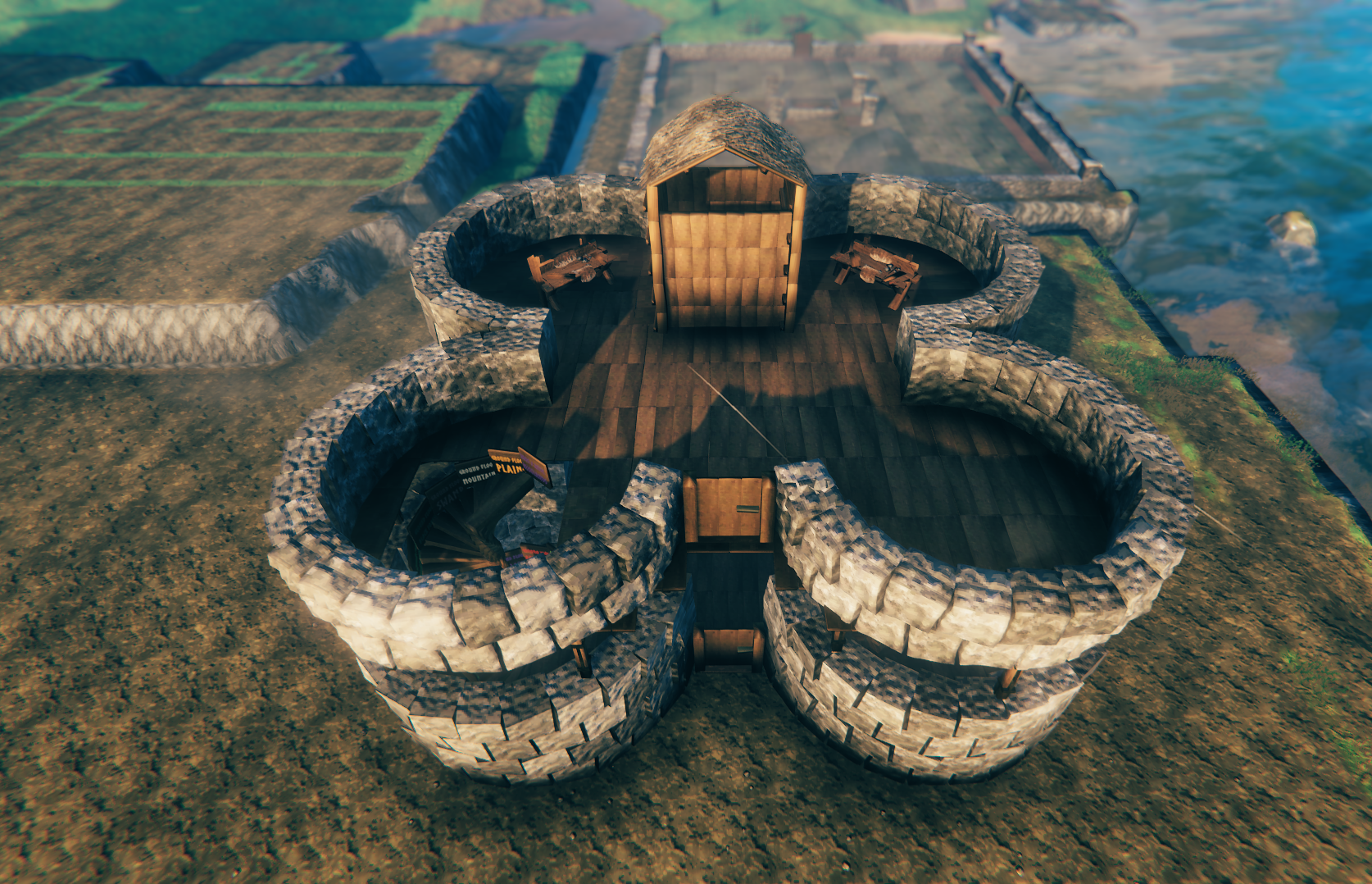
Round houses, multi-arc layouts, and multi-level curved stone builds using the FlexiWall tool.
BepInEx/plugins/ValheimFloorPlan/ValheimFloorPlan.dllBepInEx/plugins/ValheimFloorPlan/Designer/...images/... (included in the package archive)samples/... (example .vfp plans).vfp is the contract between the Designer and the mod.Development of the Valheim Floor Plan mod and the Valheim Floor Plan Designer web app used:
