
ContinueGame
Continue your last single-player world or server session with one click. Automatically selects your saved character and remembers encrypted server passwords.ContinueGame
Resume your last Valheim session with one click: a single-player world, your own hosted world or a remote server.
Features
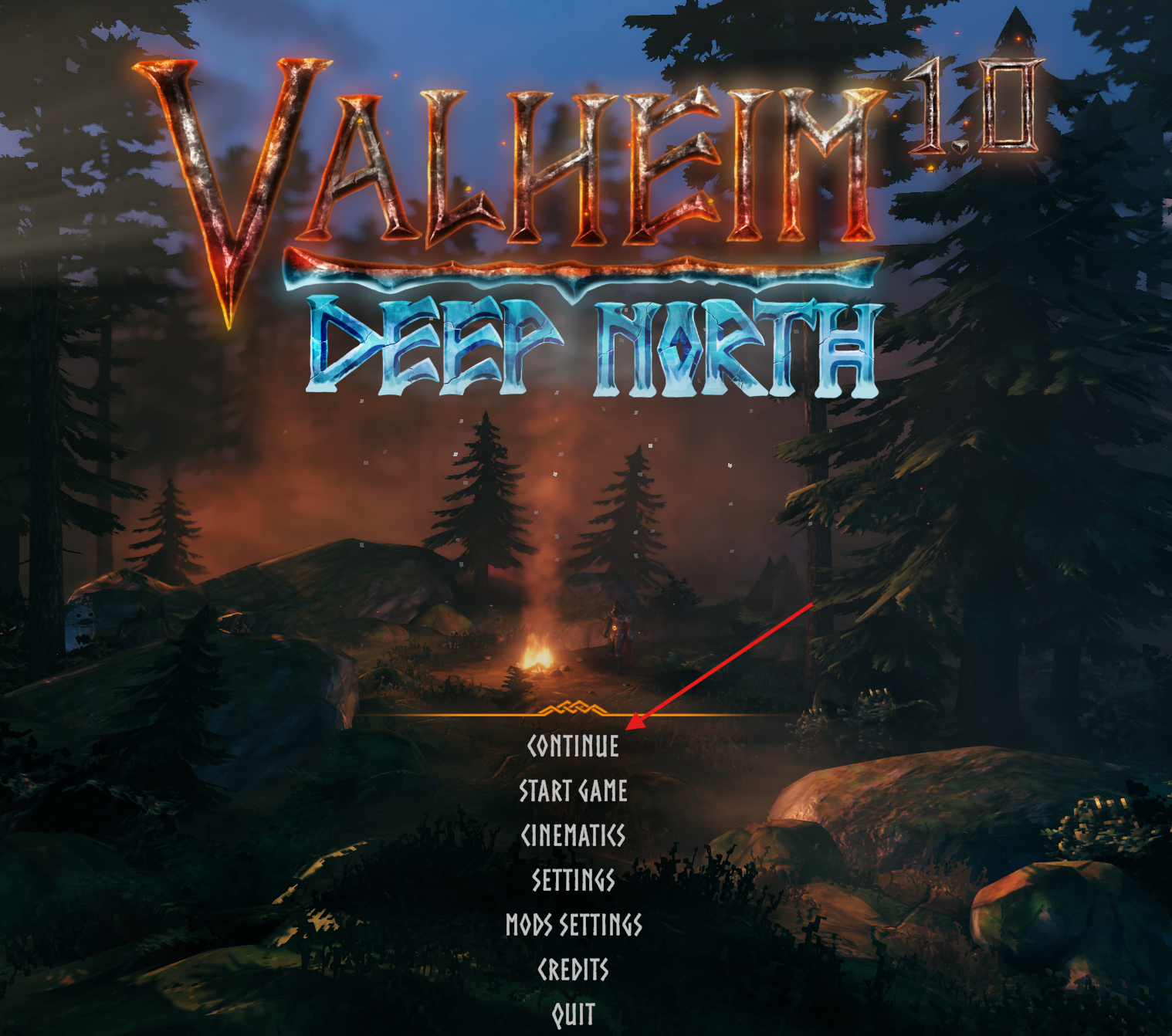
- Adds a Continue button that selects your saved character and resumes your last single-player world or server.
- Shows the full server or world name and saved character beside Continue when you hover over the button.
- Tries a server connection up to three times, waiting five seconds between attempts after a temporary connection failure.
- Requests a new password if the server rejects the saved one, and remembers it after a successful login.
- Resumes your own hosted world with its saved Start Server, Community Server, Crossplay and encrypted server password settings.
- Remembers the world or server and character after you successfully enter the game. Server passwords are encrypted.
- Shows Loading, the current connection stage and an animated gold bar while waiting for Valheim's loading screen.
- Supports dedicated server addresses, Steam connections and crossplay servers through PlayFab.
Installation
Requires BepInEx 5 configured for your Valheim installation. Install the mod on your game client.
- Close Valheim.
- Copy the archive's
BepInExfolder into your game directory or existing mod manager profile. The DLL belongs inBepInEx/plugins/ContinueGame/. - Launch Valheim.
How to use
Start a single-player world, host a world or join a server normally once. Choose your character and enter any required server password. After your character appears in the game, return to the main menu or restart the game and press Continue.
Hover over Continue to see the full destination name and saved character to the right of the button. The destination is labelled Local for a single-player world, Local server for your own world with Start Server enabled, or Server for a remote server. The details are hidden when you move the pointer away.
The button becomes available once a session has been saved. Each successful start or connection updates the saved session; failed attempts keep the previous one.
Single-player worlds resume in single-player mode, including worlds stored in Valheim cloud saves. Worlds hosted by your own client resume with the saved server toggles and password. Start a hosted world normally once and wait for your character to appear to remember these settings. If a saved world or character has been removed, start a game normally to choose a new session.
Saved data
Saved logins are stored in the local Valheim save directory, under ContinueGame/<profile-id>/, separately from character and world files. The path is obtained from Valheim and follows the game's selected local save directory.
On Windows, the default location is %USERPROFILE%/AppData/LocalLow/IronGate/Valheim/ContinueGame/<profile-id>/.
The directory contains last-session.json and, when saving a server password on Linux or macOS, keys/password.key. Single-player sessions do not need a password or encryption key. Each mod manager profile has a separate saved login. The mod uses local files and does not upload credentials through Valheim's cloud save system.
Passwords are encrypted. Windows uses protection tied to your Windows account. Linux and macOS use a separate encryption key. Access to these files follows your system's normal permissions. These protections do not prevent access by software running as your account. Do not share the ContinueGame directory when sharing or backing up game saves.
To forget a saved login, close Valheim and delete its ContinueGame profile directory. After moving to another account or operating system, connect normally to save a new login.