


Build Hotbar
Saved building shortcuts for keyboard and controller: paged radial menu, custom bindings, native control hints, adjustable sizes and built-in settings.Build Hotbar
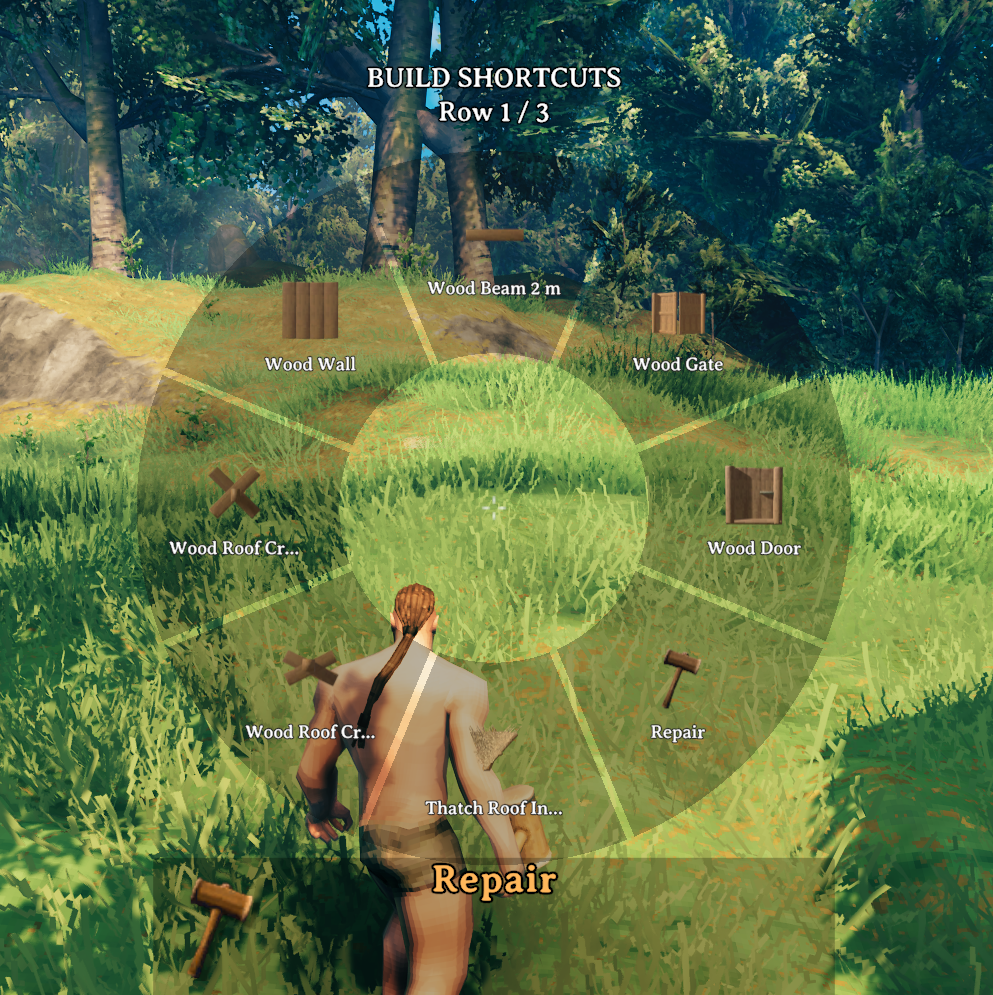
Keep your favourite building pieces close at hand with a keyboard hotbar or a paged controller radial. A standalone client-side Valheim mod with built-in keyboard and controller settings.
Download on Hexium | Download on Thunderstore
Getting started
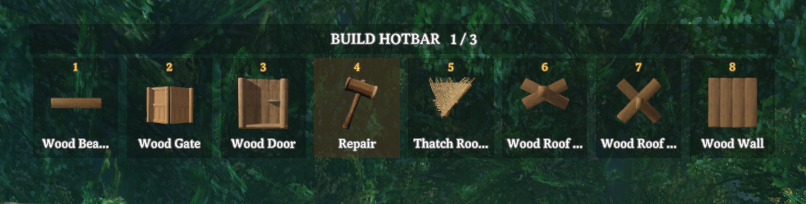
Equip a hammer or another building tool. The hotbar activates automatically in new configurations. Existing users keep their activation preference; enable Auto activate on equip in Settings if desired. F6 toggles keyboard hotbar activation.
Eight slots and three saved rows are available by default. Keyboard and controller share the same saved pieces.
Controller
Hold Square (PlayStation) / X (Xbox) to open the radial, point the left stick at a slot, then release Square/X to select the highlighted piece. Letting the stick return to centre keeps the highlight. Selecting a piece does not place it.
| While the radial is open | Action |
|---|---|
| Left stick | Highlight a slot |
| Release Square / X | Select the highlighted piece |
| D-pad left / right | Switch saved rows |
| R2 / RT | Save your current building piece to the highlighted slot |
| L2 / LT | Clear the highlighted slot |
| Left-stick click | Deselect the target slot |
| Circle / B | Cancel |
| D-pad down | Open hotbar settings |
Assign from the build menu: highlight a building piece, hold R2/RT to open the radial, aim at a slot with the left stick, then release R2/RT to save. Click the left stick to deselect the target if you do not want to save anything. Build-menu navigation is paused while you choose the slot.
Controller settings: press D-pad down from the radial, or Options/Menu from the normal build menu. Use the D-pad to navigate and adjust settings, Cross/A to edit, and Circle/B to go back. Change opening and additional save combinations, stick deadzone, menu sizes and more. An optional toggle mode uses Cross/A to confirm instead of releasing the opening shortcut.
The horizontal hotbar hides while using a controller. Control hints use the game's button icons and appear at the bottom. Normal snapping and rotation controls remain available outside the radial.
Keyboard and mouse
Open the build menu and hover over a piece, then press Shift plus a slot key to save it. With no menu item hovered, this saves your currently selected building piece instead.
| Default control | Action |
|---|---|
| F6 | Enable or disable keyboard building shortcuts |
| 1 to 8 | Select a saved piece in the current row |
| Shift + slot key | Save the hovered or selected piece |
| Alt + slot key | Clear that slot |
| Alt + mouse wheel | Switch saved rows |
Open the building menu to access Settings, Enable/Disable and collapse controls. Drag the title to move the hotbar. Keyboard bindings are configurable; click a binding and press a key, Escape to cancel or Backspace to unbind. Bottom control hints reflect your bindings.
Make it yours
- Choose 1–8 slots per row and 1–12 rows. Reducing rows or slots preserves hidden assignments.
- Scale the horizontal hotbar and radial independently from 50% to 200%. Menus fit within the available screen space.
- Set automatic activation on equip, bar position, collapsed appearance and mouse-wheel paging direction.
- Changes save immediately. Saved pieces are separate for each building piece table and shared across characters/worlds within your mod profile.
Putting away or changing the building tool resets activation. Normal material requirements and building restrictions still apply. Collapse only changes appearance; use Disable or F6 to turn keyboard building shortcuts off.
For screenshots, keep the radial open and press an in-game screenshot key. Keyboard input no longer dismisses it. Losing game focus still cancels the radial.
Screenshots
Controller settings | Keyboard settings
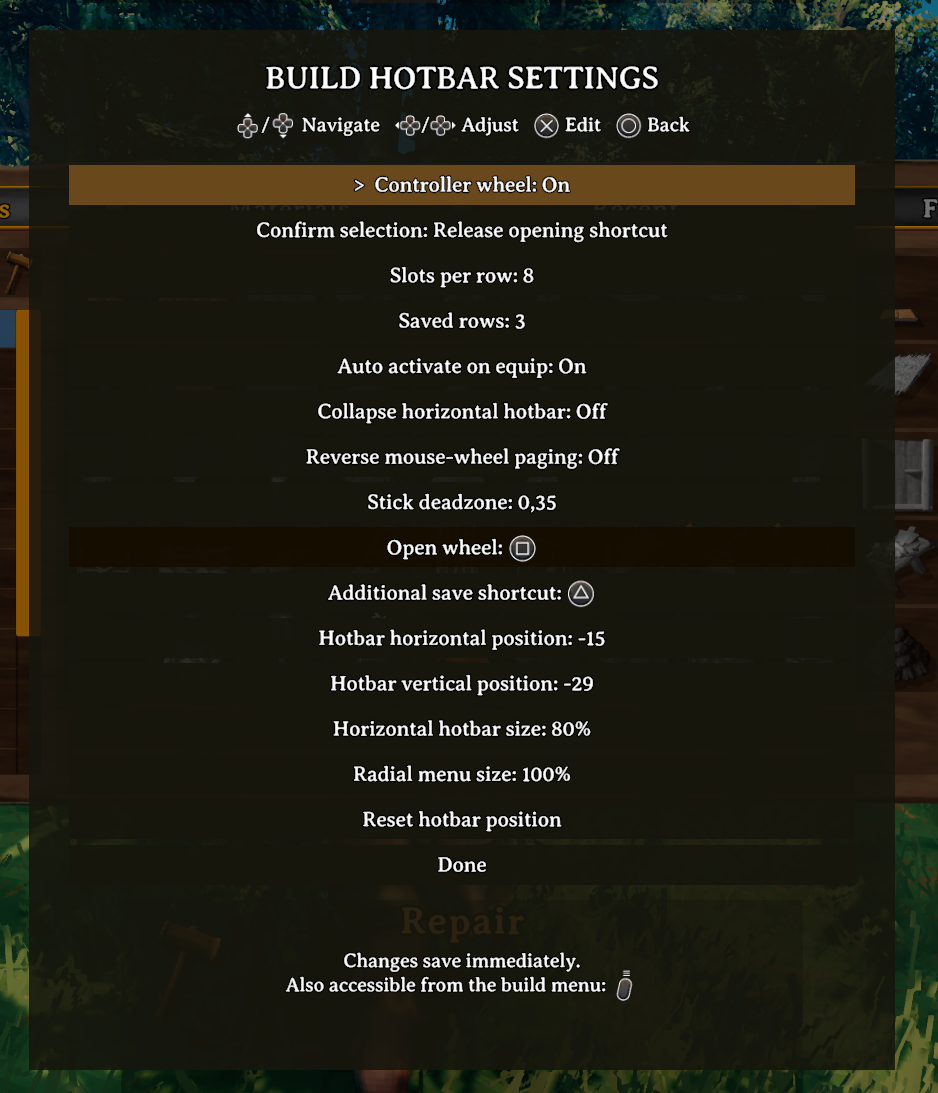
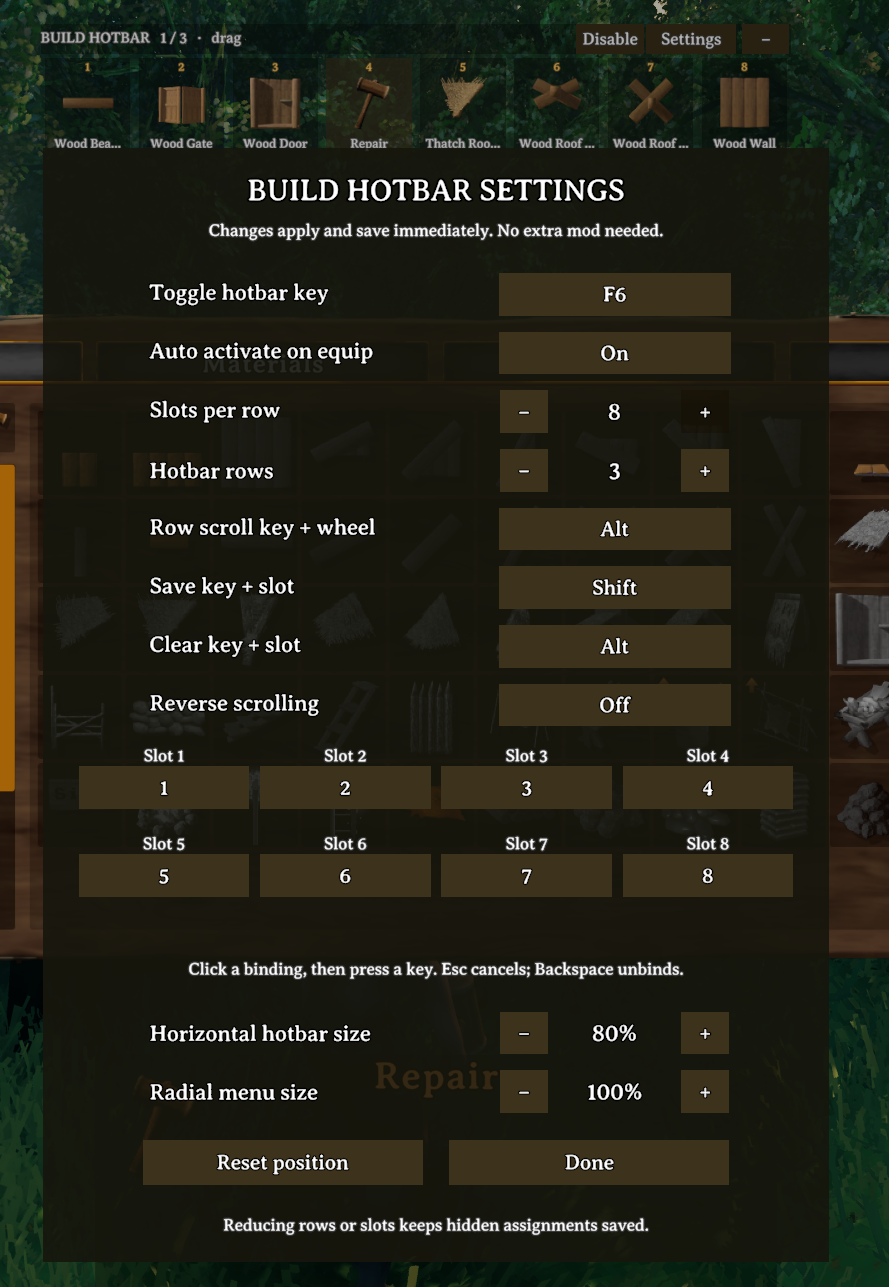
Screenshots are hosted online and displayed on the mod pages, keeping them out of the download. They show a customised profile; defaults are eight slots, three rows and 100% menu sizes. The additional save shortcut shown in controller settings is customised; R2/RT always saves while the normal radial is open.
Installation and updating
Install with your mod manager and launch modded. Each player who wants the hotbar installs it locally; the server does not need it. BepInEx is required.
For manual installation, close the game and copy plugins/BuildHotbar into BepInEx/plugins. Keep only one BuildHotbar.dll installed.
Updating from 0.8.0 preserves saved pieces and settings, including your existing auto-activation preference. Configuration remains at BepInEx/config/ValheimEnthusiestKakimaki.BuildHotbar.cfg. No test-profile configuration is included in the release.
Reporting issues
Open an issue with your Valheim and mod versions, whether you use keyboard or controller, the building tool, steps to reproduce, and what you expected to happen. Include other building or UI mods and relevant log entries. Screenshots help with layout and selection problems.
Browse existing issues before reporting a problem.
Development
GitHub source | Building and testing
Source code, tests and build instructions are available in the GitHub repository. Downloads contain the plugin and package documentation only, with no source archives, scripts or screenshots.
To build the source, install the .NET SDK and .NET Framework 4.8 targeting pack. Place BepInEx.dll and 0Harmony.dll from BepInEx/core in tools/, then run:
dotnet build BuildHotbar.csproj -c Release -p:GameManaged="YOUR_VALHEIM/valheim_Data/Managed"
Output: bin/Release/net48/BuildHotbar.dll. Run Test-Wheel.ps1 for the selection, paging, binding and scaling checks. Release 0.9.4 removes the nested source archive and updates version metadata. Saved pieces, settings and gameplay are unchanged.
License
Created by ValheimEnthusiestKakimaki / KakimakiDev. GNU GPL v3.