

StorageGroups
Put chests in groups and items move to the right chest by themselves. Works in multiplayer, respects wards, works with AzuAutoStore. Not compatible with other chest sorting mods like Smart Containers.Storage Groups
Work in progress. Use at your own risk. This mod is not fully tested yet, especially in multiplayer and with wards. Back up your world before using it.
A Valheim mod. Put your chests in groups, and items move to the right chest by themselves.
Licensed under Apache 2.0. See LICENSE and NOTICE for terms and project credit.
How it works
Open any chest. The Storage Groups controls sit next to the chest window, and they change with the chest.
A chest without a group
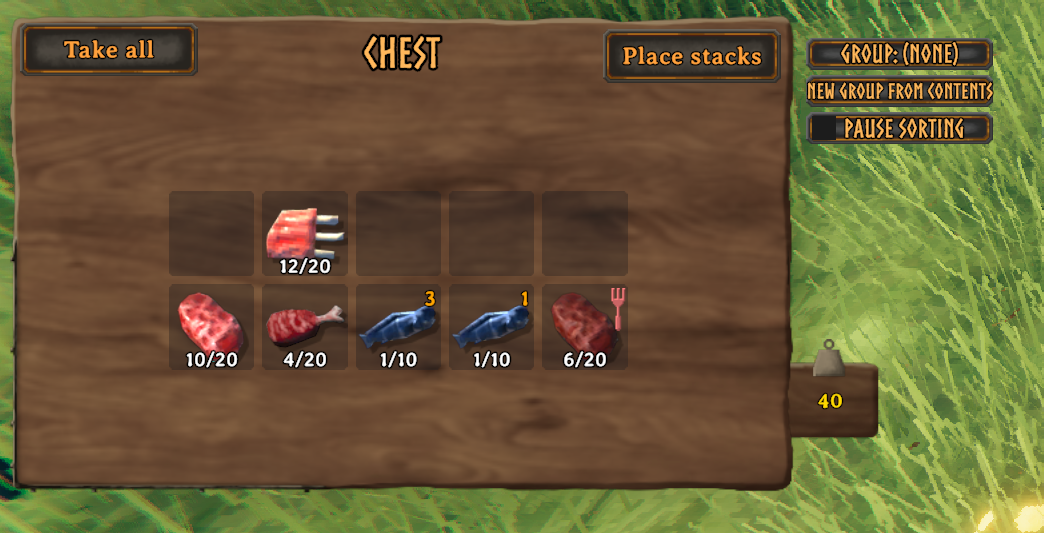
- Group: (none): click to open the group menu and pick a group for this chest. Hover to see the group chests nearby (closest first, marked if full or behind a ward edge) and which groups are Strict.
- New Group From Contents: makes a group from what's in the chest. The name is filled in for you from the item there is most of (for example "Wood"); press Enter, or type your own. The chest joins the new group and all its item types are added. If an item belonged to another group, it moves to this one and the game tells you.
- Pause sorting: while ticked, nothing moves in or out of this chest. Handy when you want to collect items first, for example ones that already belong to another group, before making a group from them. Turns off when you close the chest.
A chest with a group
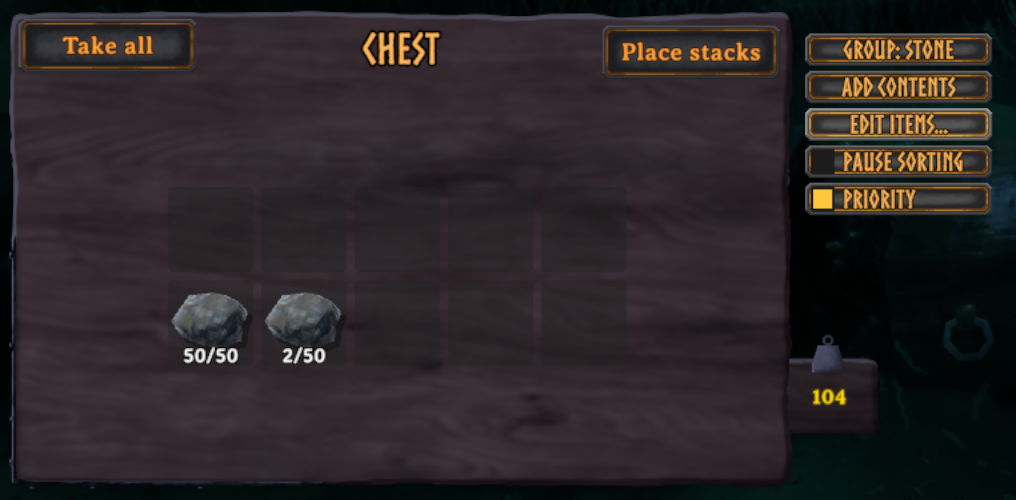
- Group: Stone: hover to see the group's items and the group chests nearby; click to open the group menu.
- Add Contents: adds this chest's item types to its group. The group keeps the items it already had. If an item belonged to another group, it moves to this one and the game tells you.
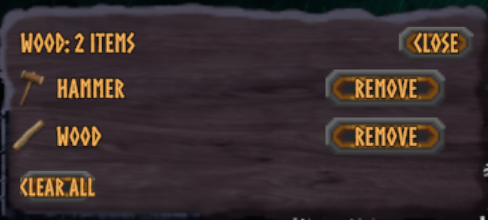
- Edit Items...: the group's item list. Remove single items, or use Clear all (click it twice) to start over.
- Pause sorting: same as above.
- Priority: this chest fills first. The group's other chests nearby also move their items into it whenever it has room (for example right after you take something out), so your stock gathers in one place. Tick it on the chest you use most. With several Priority chests in a group, items already in one of them stay there.
A Locked chest
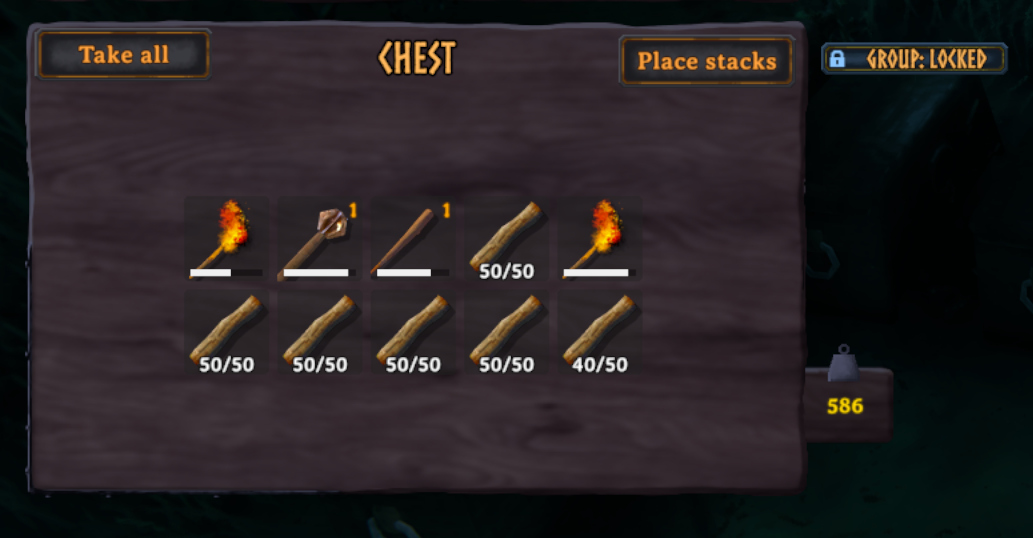
Put a chest in the built-in Locked group to keep it to yourself: nothing moves into or out of it automatically. You can still put items in and take them out by hand. Good for personal gear, boss loadouts, or materials saved for a build. A Locked chest only shows the Group button (blue, with a padlock); pick another group to unlock it.
The group menu
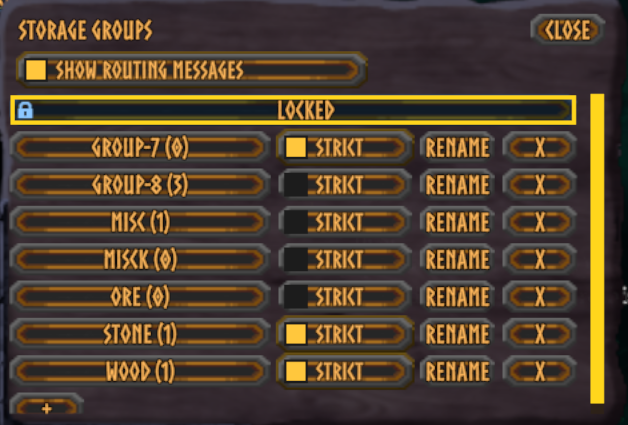
-
Locked is always at the top. It's built in: it can't be renamed, deleted or given items. If your world already had a group called "Locked", it's now called "Locked (old)", with its chests and items unchanged.
-
Every group, with how many item types it has. The one with the border is this chest's group; click it again to take the chest out of the group. + at the bottom of the list makes a new, empty group.
-
Strict (per group, optional): a strict group's chests only keep the group's own items. Anything else goes to a chest of its own group nearby. If none has room, it goes to a nearby ungrouped chest, or failing that to a chest of a group that isn't Strict (never to a Locked chest). Without Strict, other items stay where they are.
-
Rename, and X to delete a group. Deleting a group never deletes items; its chests just become ungrouped.
-
Show routing messages (just for you): shows a short message every time an item is routed near you, like "Evicted 3 Stone to an ungrouped chest (7 m)". Handy to see what the mod is doing. Off by default.

Where items go
When an item lands in any chest, and a chest of that item's group is within 10 meters with room, the item moves there. Priority chests first, then the closest chest.
- If its group's chests are all full or too far away, the item stays put, unless the chest it landed in is Strict (see above). Nothing is lost.
- Items with no group stay where you put them, unless the chest is Strict.
- Locked chests are skipped completely: nothing leaves them, nothing is sent to them.
- Changing a chest's group re-checks everything in it.
- Hover over a chest to see its group, whether it's Strict, and whether it is inside a ward.
Where does an item go?
                  An item lands in a chest
                            |
                            v
        +-------------------------------------+
        | Is this chest Locked?               |--- yes ---> STAYS
        +-------------------------------------+
                            | no
                            v
        +-------------------------------------+
        | Is this chest in the item's group?  |--- yes ---> STAYS (it is home),
        +-------------------------------------+             unless a Priority chest
                            | no                            of the group nearby has
                            v                               room: then it MOVES there
        +-------------------------------------+
        | Is a chest of the item's group      |--- yes ---> MOVES there
        | within 10 m, with room, and in the  |             (Priority chests first,
        | same ward (or both outside wards)?  |              then closest)
        +-------------------------------------+
                            | no
                            v
        +-------------------------------------+
        | Is this chest's group Strict?       |--- no ----> STAYS
        |                                     |             (waits for room)
        +-------------------------------------+
                            | yes
                            v
        +-------------------------------------+
        | Is an ungrouped chest nearby        |--- yes ---> MOVES there
        | with room (same ward rule)?         |
        +-------------------------------------+
                            | no
                            v
        +-------------------------------------+
        | Is a grouped chest that is NOT      |--- yes ---> MOVES there
        | Strict (or Locked) nearby with room?|
        +-------------------------------------+
                            | no
                            v
                  STAYS (nowhere to send it)
Locked chests never take part. An item moves at most three times, and never back and forth. A group chest works like a sink: it keeps pulling in its group's items from nearby chests until it is full.
Everything is checked again when:
- an inventory changes (this chest and nearby chests are rechecked),
- a chest's group is set, changed or cleared, or its Priority is turned on or off,
- any group setting or item list changes, including Strict turning off,
- Pause sorting is turned off,
- a group is deleted,
- a chest is built nearby, or loads in as you come near (a new place for items with nowhere to go).
Install
You need BepInExPack for Valheim installed first.
Install with a mod manager such as Gale or r2modman. That's all.
The mod is exactly two files: StorageGroups.dll and StorageGroups.Core.dll. Everything else it uses already comes with Valheim or BepInExPack.
With Gale (manual profile install):
- Open your profile folder. In Gale: the profile menu, then "Open profile folder".
- Go to
BepInEx/plugins. - Make a folder called
StorageGroupsand put both DLLs in it. - Start the game through the mod manager.
Manual install:
- Go to your Valheim folder (Steam: right-click Valheim, Manage, Browse local files).
- Go to
BepInEx/plugins. - Make a folder called
StorageGroupsand put both DLLs in it.
Updating: a mod manager replaces the files for you. If you ever installed by hand, make sure no loose StorageGroups.dll or StorageGroups.Core.dll sits directly in BepInEx/plugins: an old leftover copy can be loaded instead of the new one. If that happens, the mod turns itself off and the log (BepInEx/LogOutput.log) names the file to delete.
Uninstall: delete the StorageGroups folder. Your chests keep their items.
Multiplayer
- Install on the server and on every player, and keep everyone on the latest version.
- Mixed versions still work, with warnings that only appear when an older version is certain: such a player gets a message asking them to update, and everyone else is told who's outdated. Older versions don't know Locked, so while such a player is around, Locked chests they handle aren't fully protected.
- Players without the mod: the game lets the nearest player's game look after the chests around them. While a player without Storage Groups (or on a version older than 0.2.3) looks after a chest, this mod doesn't send items to it, and can't sort it. Items simply stay where they are; nothing is lost and nothing piles up. Everyone with the mod gets a message when such a player joins (turn it off with
UI.WarnAboutPlayersWithoutMod), and that player is asked to install it. - Groups are shared by everyone on the server. Anyone can create, rename or delete a group, and change its settings, except the built-in Locked group, which nobody can change.
- All chests work together, no matter who built them or who has them open.
- Renaming a group keeps every chest in it, for everyone.
Wards
- Items never cross the edge of a ward. Chests inside a ward only send items to chests inside the same ward, and chests outside wards only to chests outside wards.
- A chest standing where two wards overlap only routes with chests covered by the same wards.
- Private chests are never touched.
Works with
- AzuAutoStore: AzuAutoStore puts the item in a chest first, then this mod moves it to the right group chest. Tip: turn on Strict for your groups, because AzuAutoStore stores into any chest that already has that item.
- Other mods don't know about Locked. AzuAutoStore can still put items into a Locked chest (this mod then leaves them there), and mods that craft from nearby chests, such as AzuCraftyBoxes, can still take from one.
Does NOT work with
- Smart Containers / Smarter Containers, and other mods that move items between chests on their own. Two sorting mods fight over the same items. This mod will not load if Smart Containers is installed. Remove it first.
Settings
After the first launch, the config file BepInEx/config/com.jonasd.valheim.storagegroups.cfg appears. With a mod manager, open it from the manager's config editor.
Routing.RangeMeters(default 10): how far, in meters, an item can travel to reach another chest. Everyone on a server should use the same value.UI.ShowRoutingMessages(default off): same as the checkbox in the group menu.UI.WarnAboutPlayersWithoutMod(default on): show a message when a player joins without Storage Groups.
Disclaimer
- This is a work in progress and not fully tested. Use at your own risk.
- Multiplayer and ward support are the least tested parts. Back up your world before using it on a server, and report anything odd.
- Items are only moved, never created or deleted on purpose. Still, if something goes wrong, the backup is your safety net.