

ImmersiveCameraEnhanced
Bring Valheim closer with Bodycam, custom crosshairs, Alt bow aiming, optical zoom, Advanced Camera, explored cave minimap, Camera Cull and configurable collision. Client-side; no server installation required.Immersive Camera Enhanced
Current release: 1.6.1
See Valheim from a whole new perspective. Step into an immersive, head-following first-person Bodycam, keep foliage from stealing the action, glide through tight interiors, and build a reticle that fits every weapon. Every feature is yours to tune, runs locally, and leaves your server and friends installation-free.
Features and demonstrations
Camera Cull — keep the action in sight
Keep the action in frame and let visual clutter fall away. Camera Cull clears leaves and selected foliage from your camera’s path while preserving gameplay colliders, so trees stay solid: cut them, gather from them, and fight around them. On Yggdrasil sprouts, it can hide identified leaves while keeping the trunk and branches visible. Leaves Only keeps trunks and branches in view; Movement Leaves Only waits until you move toward the camera before clearing the view.
Want a clearer view through a build? Cull Supports & Stone Arches starts off, so those pieces stay visible until you enable it. Shape the culling volume, check interval, restore delay and foliage shadows to decide how the world clears around your camera. Visual culling and collision pass-through are independent settings.
Demo: Camera Cull and selected-object pass-through.

Camera collision — move through your base comfortably
Explore tight spaces without losing your view behind solid geometry. Enable New Camera Collision gives the camera firm, responsive contact through a custom cylinder: it pulls in immediately when blocked, then glides back at the speed set by Camera Return Smooth Speed. Switch it off for Valheim’s native collision; both modes share the same object-ignore rules.
Choose what the camera can pass through: recognized vegetation, supports and arches, props and lights, entities, or boats. Boat mast colliders and the hammer placement preview are always ignored. The full boat is bypassed temporarily only while steering, holding its mast or sitting on a boat seat; simply standing aboard preserves hull collision. Ignore All Boat Collision keeps the full vessel ignored at all times. Structural walls, floors, roofs, terrain, rocks and ores stay solid; Ashlands rock formations remain solid even when vegetation collision pass-through is enabled.
Ignore Moving Door Collision, enabled by default, keeps opening and closing doors from jolting the camera. The camera passes through while the door moves, then treats it as a solid camera obstacle at either endpoint. It works with custom and native collision and never changes player or projectile collision.
Native hammer-built construction colliders are fitted to the visible shape across supported wear variants, bringing camera, player and projectile contact closer to what you see. Openings and compound parts stay intact; roofs, small props and modded pieces are excluded. Boats retain their original colliders to preserve ladder and helm interaction.
Demo: camera pass-through with the support/pillar option enabled.
Camera distance — choose your perspective
Shift in an instant from Viking-eye immersion to a sweeping third-person orbit. Set separate maximum distances on foot and in boats, then dial in how far each scroll moves the camera. Advanced Camera has its own 0.75 m default step, and inventory scrolling never knocks your view off course. Camera Base Position lets you sculpt the third-person angle, blending its vertical shift by distance.
Keep a reliable view when an obstruction lingers with Collision Distance Cut: after two seconds, it can lock in a shorter camera distance. Its minimum is calculated from your configured maximum distance and minimum reduction. The optional Camera Distance HUD puts your current distance and active cut at a glance.
Demo: changing camera distance from the character.

First person and Bodycam — step into Valheim
See Valheim from your Viking’s own eyes and make first person feel like a whole new way to play. With Enable First Person on, a scroll to 0.5 m drops you straight into the world. Two outward scrolls return to third person by default, preventing accidental exits; switch off Require Two Scrolls to Exit First Person for a quicker return.
Stay close without seeing through the world: first-person collision protects the final camera position, including Bodycam movement, and always respects solid objects. Third-person collision-ignore settings do not apply here. Native near-camera tree cutouts are suppressed during the gameplay render in both first and third person, so nearby trunks and roots remain intact. Intentional Camera Cull hiding and third-person collision-ignore settings retain their own controls.
Bring the camera to life with Bodycam: it follows the animated head so every lean and turn feels personal. Bodycam, Bodycam Footsteps, Show First Person Body, and Show First Person Held Items all start on, with independent controls. Footsteps carries the Viking’s step height and crouch into the view; turn it off for a steadier horizon. Add optional crouch lowering, camera sway and first-person FOV to make the perspective your own.
Look down to see your body and worn gear grounded in the scene, with the head, helmet, hair and beard cleanly hidden behind a sealed neck cut. Prefer pure hands-on action? Turn body visibility off and keep everything equipped in either hand on its own toggle: weapons, shields, tools and mod-added items. Frame-based locomotion blending, a visual rig aligned to the rendered view, direct mouse response, a stable near plane and deck-relative boat sway keep the view connected to the world.
Hide Held Items Above 5x Zoom starts on: optical zoom above 5x temporarily clears weapons, shields, tools and modded hand items from the first-person view. They return at 5x or below or when zoom ends. Body visibility and attacks keep their own behavior.
Demo: first-person view with animated held weapons and tools.

Optical zoom — bring distant details closer
Pull far-off details into focus without giving up your chosen camera distance. Hold Mouse4 and scroll to magnify in first or third person; release to glide smoothly back to normal view. Fine-tune magnification, scroll step, transition speed, key and mouse sensitivity, with independent FOV controls for each perspective.
Demo: hold-to-zoom and magnification changes.

Advanced Camera — make room indoors
Take command of the camera where ordinary views feel cramped. Advanced Camera activates with Valheim’s Shelter status when a player-placed building collider is overhead, and opens an indoor orbit up to 3 m. Natural caves, dungeons and other world-generated shelters do not activate it. After leaving the house, nearby player-built overhead geometry can keep your view free; overhead obstruction alone never activates the feature. The default exit check runs every 3 seconds.
Advanced Camera pauses automatically while sitting or lying down, including chairs, beds and compatible modded seats. Standing up restores the usual shelter checks.
With Advanced Height, raise or lower the camera with the mouse to find the angle your room allows. Movement stays within 50% of shared floor-to-ceiling free space, with corner clearance for height changes. Both collision modes remain available to keep the camera close when obstacles close in.
Double-tap the configurable Temporary Disable Key (Left Alt by default) within 2 seconds to suspend Advanced Camera. Double-tap it again inside a qualifying player-built shelter to reactivate it immediately. If left off, it automatically resumes after you have spent 1 minute outside that shelter.
Cave Map — chart the passages you explore
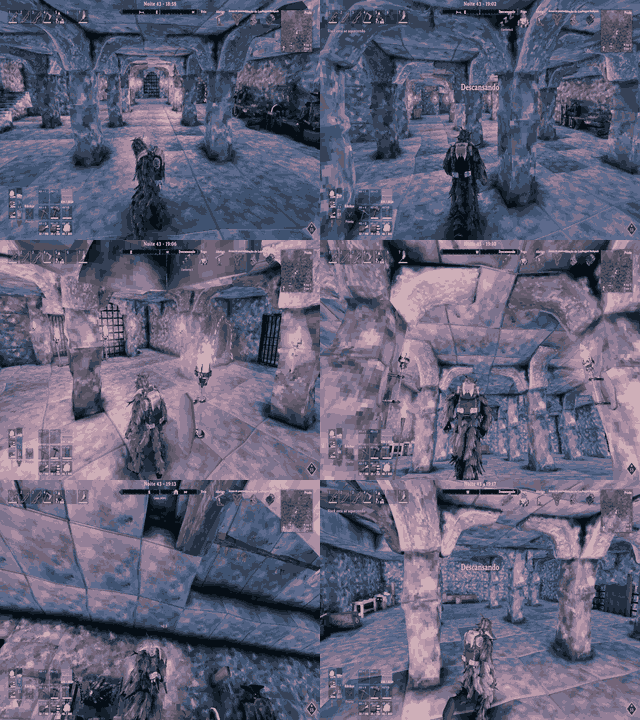
Turn every descent into a charted expedition. Inside a generated cave or dungeon, the minimap becomes a parchment map of the ground you explore, including Infested Mines and returning to a game saved underground. Discover visible walkable ground within 6 metres, following narrow corridors and stairs while walls, unvisited rooms and deep pits limit discovery. Exploration is saved locally per world.
Press M to open the cave map, drag to pan and scroll to zoom toward your player marker. Switch between cave and world views or browse floors with the on-screen controls; the minimap always follows your current floor. The entrance landing is floor 0, with positive levels above and negative levels below. Small steps stay on the same floor, and exits, doorways, graves and players use their own landing.
Keep your familiar player icons, including replacements from mods such as Path of Valheiman. Your arrow follows the camera; multiplayer markers respect the game's public-position sharing. Middle-click a death marker to ping its exact stored location, left-click to check it, or right-click to remove its map marker. Names follow the game language. Free pings and custom marker insertion are unavailable in cave view; removing a marker leaves the physical tombstone and its contents intact.
Enable Satellite Map Compatibility in 50 — Cave Map to switch from its terrain tiles to the cave plan and restore them on exit. Other map markers are preserved. A Vegvisir boss reveal opens the world map for that visit; close it and press M again to return to the cave view. The custom crosshair stays hidden on the open map. No extra dependency or server installation is required.
Alt free look — look around, keep your heading
Scan your surroundings without surrendering your heading. Hold Left Alt to move the view while your movement direction stays true; release to restore the captured view. When drawing a bow or crossbow, Alt becomes your dedicated mouse-aim control instead.
Demo: looking around with Alt while retaining movement heading.

Crosshair and bow aiming — put your aim where you want it
Make every shot and every swing feel like yours. Customize Default, Melee, Bow/Crossbow, Magic and Tools independently with screen-relative X/Y position, size, RGB color, thickness and center gap. Choose from 12 built-in styles, from crisp precision dots to vivid holographic marks, or add a transparent PNG up to 1024 × 1024 in the plugin’s Crosshairs folder or a supported BepInEx configuration folder.
Keep your aim under your control across every weapon category: shots follow the reticle’s viewing direction without normal aim snapping to scenery or mobs. Draw a bow or crossbow and hold Alt to guide the reticle while the camera stays still. Hold for 2 seconds by default to latch aim for that draw, then tap Alt to unlock. Releasing an unlatched Alt restores camera control immediately. Tune aim sensitivity, X/Y inversion and post-shot delay.
Choose how Alt aim gets on target: Aim Along Crosshair Direction follows the reticle’s direction, or converges on the target beneath it. The bow reticle tightens with the game’s draw and skill accuracy. Head Follows Camera Direction keeps your character looking with the camera instead of the offset reticle.
Never lose the interaction point while tailoring your aim. Show Vanilla Interaction Crosshair, on by default, keeps the original marker visible beside an offset custom reticle so you can still see exactly where a chest or object can be used; it hides when both markers overlap. The custom reticle hides on Esc and can remain visible over Configuration Manager. Automatic Crosshair Position compensates for the third-person pivot when the custom reticle is off.
Using BowTrajectory? Optional compatibility tunes its preview to live arrow speed and supported range modifiers, including Path of Valheiman’s range bonus. A toggle lets you switch back to BowTrajectory’s own preview at any time. With Better Archery installed, its original bow zoom is layered over Immersive Camera’s configured FOV and optical zoom, keeping the two magnifications continuous.
Demo: custom reticles and mouse-guided bow aiming.

Damage direction — find the source of a hit
Read incoming danger in a glance. A local 3D arrow reveals the attacker or incoming hit direction, with adjustable duration, update interval, color, size and separate first- and third-person positions. Fall and drowning damage do not produce an arrow.
Demo: the damage-direction indicator during combat.

Brightness — shape your local view
Set the mood of your world, your way. Optional day, night, fog and cave controls are off by default; brighten or darken the local scene, with values above 100 for an extra lift. These settings never change world simulation.
Demo: adjusting local brightness.

Water, building and diagnostics
Carry your view beneath the surface while swimming, then let Valheim’s normal water-level limit take over when you leave the water. Swim state follows the game and compatible changes from mods such as BetterDiving, with no artificial underwater overlay.
Keep building precise and uninterrupted. Building Hammer Behavior independently chooses which features pause with the hammer in hand. Disable Custom Crosshair starts on and restores the original reticle; custom collision yields to native collision, and camera-distance scrolling is blocked by default while piece rotation still works.
One General switch turns the mod off and restores temporary state. For precise tuning, show the culling volume in green, the active collision volume in pink, and every contacted collider for 30 seconds after its latest contact. Optional verbose logs help diagnose behavior.
Quick controls
- Scroll: change distance; enter first person at the minimum. Two outward steps exit by default.
- Hold Mouse4 + scroll: change optical magnification. Release Mouse4 to reset zoom.
- Hold Left Alt: free look. While drawing a bow/crossbow, steer the aim reticle instead.
- Hold Alt for the latch duration: keep bow mouse-aim active for that draw. Tap Alt again to unlock.
- F1: open the optional Configuration Manager. Without it, edit the generated config file.
Requirements
Requires Valheim and BepInExPack Valheim 5.4.2333 or newer. Install on the client that wants the camera changes; dedicated servers and other players do not need it. Configuration Manager and BowTrajectory are optional, not required dependencies.
Optional companion mods
- Valheim Configuration Manager by shudnal (Nexus Mods): edit settings in game. The config file remains available without it.
- BowTrajectory by ModdedWolf (Nexus Mods): display a predicted bow/crossbow flight path. Enable Bow Trajectory Compatibility defaults to on and takes effect only when BowTrajectory is installed. With Better Archery, the compatibility toggle selects the aim source both normally and while zooming: when enabled, the configured Immersive Camera reticle guides the shot and preview using the active zoom FOV; when disabled, Better Archery keeps its native aim. Alt mouse-aim remains available in either mode.
Installation
-
Thunderstore / r2modman / Gale: select your Valheim profile, install Immersive Camera Enhanced, and launch from that profile.
-
Manual / Nexus Mods: install BepInExPack, then extract this release into the Valheim game folder. The DLL should end up at
BepInEx/plugins/ImmersiveCameraEnhanced/ImmersiveCameraEnhanced.dll. -
Launch once to create
BepInEx/config/com.kimbauer.valheim.cameracull.cfg. Use F1 with Configuration Manager, or edit that file while the game is closed. Updating the DLL preserves saved choices; new defaults apply to new/reset settings.
Configuration
- 00 — General: master switch.
- 01 — Camera Cull: foliage/support culling, Leaves Only, movement activation, volume and timing.
- 10 — Camera Collision: custom/native collision, ignore rules, moving doors, distance cuts, recovery and debugging.
- 20 — Camera Improvements: Bodycam/first person, footsteps, body/equipment, crouch, FOV, camera distance/pivot, zoom, free look and Advanced Camera.
- 25 — Crosshair Position and Mouse Aim: enable switches, interaction marker, category positions/sizes, thickness/gap, Alt aiming, sensitivity, release delay and compatibility.
- 26 — Crosshair Appearance: category styles, PNG selection, draw-accuracy animation and colors.
- Damage / Visual / Performance and Debug / Building Hammer: hit indicators, lighting, diagnostic controls and hammer-specific behavior.
Compatibility and behavior
Custom and native camera-collision modes are alternatives; the mod does not run both solvers together. Their active queries share the ignore rules, including moving doors. Camera Cull preserves gameplay colliders; construction fitting is a separate local physics adjustment. Door animation filtering only changes camera-query acceptance. The mod does not edit saved worlds or server settings. Mods that replace the camera can conflict with camera features; features and optional BowTrajectory compatibility can be toggled separately.
Credits
Project by Xinelada Lendária.