

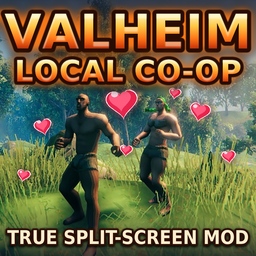
ValheimLocalCoOp
Native split-screen local co-op for Valheim on a single PC.Valheim Local Co-op
note from lace: Made this so my girlfriend and I could play together on one screen. If it helped you out too, feel free to buy me a coffee: Ko-fi/lacefield
Where the mod goes The mod is a single file, ValheimLocalCoop.dll, and it goes in:
Valheim/BepInEx/plugins/ValheimLocalCoop/ValheimLocalCoop.dll
--Mod Hotkeys--
(Keyboard) These are the mod's own keys, for version 0.10.3. Everything else uses Valheim's normal controls and your layout from Settings.
F10 — Start split-screen: opens the device setup. Press again during setup to cancel, or in-game to end split-screen (Player 2's character is saved).
F6 — Rescue: Player 2 vanishes in a puff of smoke and reappears beside Player 1. If Player 2 is dead or missing, they respawn right away. Also repairs Player 1's view (stuck black screen).
F8 — Open or close the appearance panel for the keyboard player.
Shift + F8 — Open or close the appearance panel for the other player.
F9 — Debug overlay on/off; also writes diagnostics to the log.
Hold Alt — Frees the mouse cursor so the keyboard player can click and drag windows, including the other player's.
ControllerEach controller only controls its own player. All normal game buttons follow Valheim's controller layout (including Classic) from Settings.
$L3+R3$ together — Open or close the appearance panel for that controller's player.
Hold R3 — Valheim's radial wheel (emotes, items); it opens only in that player's half and acts for that player.
Inventory button — That player's own inventory window, in their half.
Any button (during setup) — Claims this controller for the next player in the device setup.
Note: Only if SeparateInventories is turned off, Player 2 gets a simple backpack window instead: D-pad moves, A uses an item, RB or LB picks up and places, X drops, B closes.
Keyboard and MouseThe keyboard and mouse belong to one player only (whoever claimed them in setup). All normal keys are Valheim's own.
G/T — Valheim's radial wheels; they open in the keyboard player's half. How the mouse steers them is the WheelMouseMode setting.
Middle mouse button + drag — Move an inventory panel (inventory, crafting, info). Works with both players' inventories open. Positions stay until the game restarts.
Alt + left mouse drag — Same as above, for when a middle button is awkward.
Mouse wheel — Scroll the character list in Player 2's character picker.
Any key or mouse click (during setup) — Claims keyboard and mouse for the next player in the device setup.
MenusEach menu opens in the half of the player using it, and both players can use their own menus at once. The mouse works on every menu, and any window can be dragged by its title bar.
Device setup (after F10): Press any button to claim this controller.
First device = Player 1, second = Player 2. Keyboard: Press any key or click. F10 cancels.
Character picker (Player 2): D-pad or stick to choose, A to select: New character, an existing character, or Guest (not saved).
Keyboard: Arrows + Enter, mouse click, mouse wheel to scroll.
On-screen keyboard (names): D-pad to move, A types, B deletes, X adds a space, Start finishes.
Keyboard: Just type. Enter finishes, Backspace deletes.
Appearance panel: Up/down picks a row, left/right changes it or moves a slider, A selects, B closes. Keyboard: Arrows + Enter, or click the < > buttons and drag sliders.
The appearance panel has Name, Body, Hair, Beard, Skin tone, Hair colour, Saturation, Brightness, Costume, Save and Close, plus a live preview. Player 2 also gets Rename, which opens the on-screen keyboard; for a Guest, Rename turns them into a saved character.
 What Happens AutomaticallyTether: If Player 2 gets more than 200 m from Player 1, they vanish in a puff of smoke and reappear on clear ground beside Player 1.

 Portals and dungeon entrances: If Player 2 goes in alone, both players travel together. If Player 1 goes in, Player 2 follows with a puff once Player 1 arrives.

 Respawning: Player 2 respawns next to Player 1, 10 seconds after dying.

 Map: Each minimap is centred on its own player, and each player shows on the other's map like a friend online.
 Exploring reveals the map for both and saves to both characters. The full-screen big map is Player 1's.

 Sound: Each player hears the action sounds nearest to them (footsteps, running, combat, cooking, bows) from their own point of view, in 3D. Music and ambience are shared.

 Black-screen guard: If Player 1's screen goes black for no reason, it clears itself within about 3 seconds. F6 does the same instantly.

 Saving: Player 2's character saves with the game's autosave and when split-screen ends.

 SettingsAll settings live in BepInEx/config/dev.example.valheim.localcoop.cfg in the mod profile. Close the game before editing.

 SectionSettingDefaultWhat it changesCo-opTether Distance200Metres before Player 2 is pulled back.

 Co-opRescueKeyF6The rescue key.

 Co-opRespawn Delay10Seconds before Player 2 respawns.

 InputJoinLeaveKeyF10Start or end split-screen.

 InputAskForDevicestrueShow the device setup after F10.

 InputWheelMouseModePointerFixHow the mouse steers radial wheels: PointerFix, Off or VirtualStick.

 CharactersAppearanceKeyF8The appearance panel key.   CharactersAskForCharactertrueShow Player 2's character picker.

  AudioPlayer2SoundstrueEach player hears the action sounds nearest them from their own point of view.

  LayoutSplitModeSideBySideSideBySide or TopBottom.

  WorldExtraGrass Distance50Extra metres of grass so it reaches Player 2.

  DebugDebugKeyF9