


Hugins Desk Configuration Manager
Hugin's Desk: an in-game configuration manager with persistent browser tabs, search, config profiles, undo/redo, an in-game console and a compact graphite overlay.Join the TRXTR Discord — support, feedback and updates.
Hugin's Desk — Configuration Manager
Your mod settings, one shortcut away.
Hugin's Desk brings your Valheim mod settings into a clean, comfortable workspace. Open several mods in tabs, find a setting in seconds, switch between config profiles and run Valheim and mod commands from an in-game console.
Press F1 to open it. Pick up exactly where you left off, even after restarting Valheim.
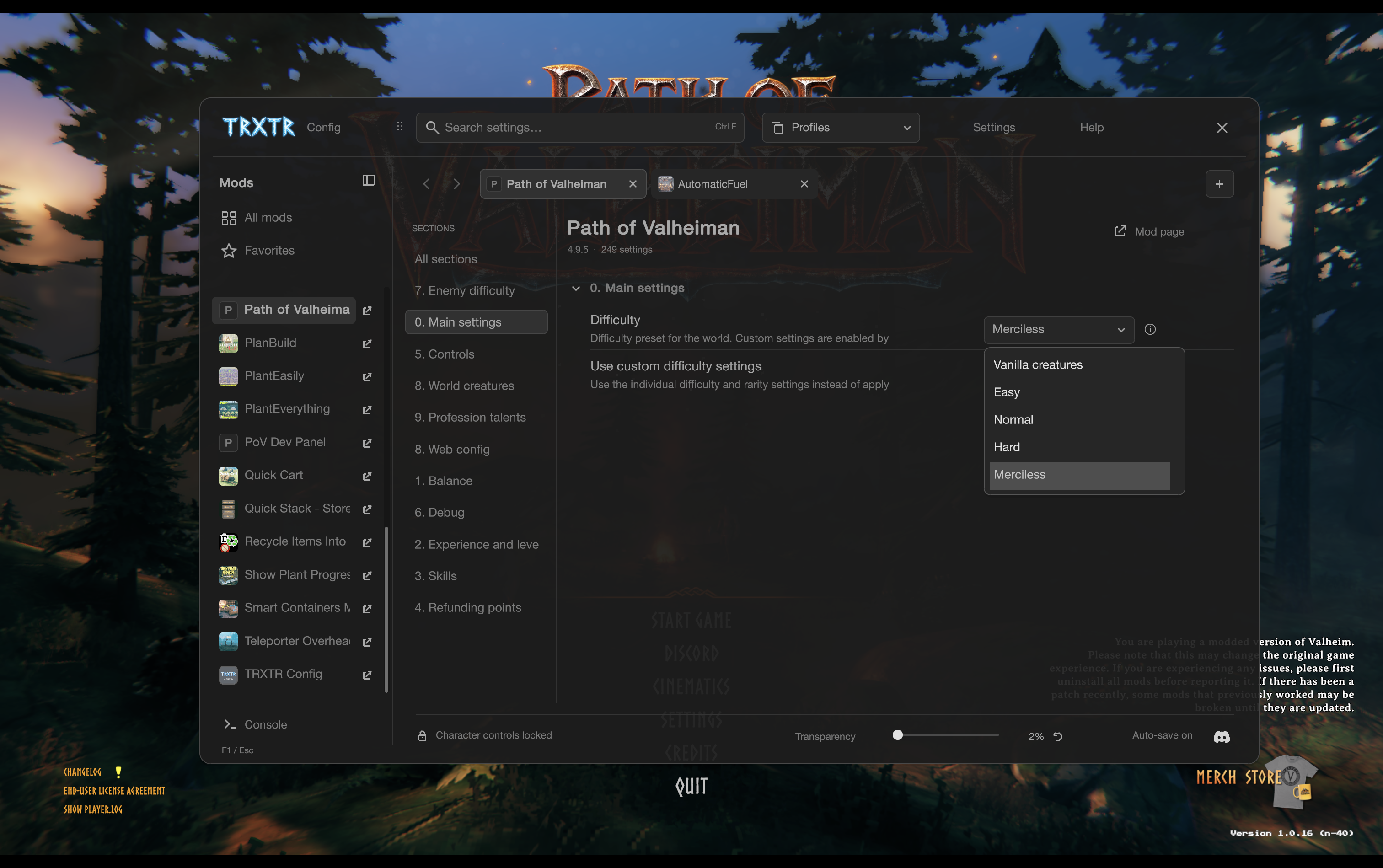
Screenshots show the interface under its previous name, TRXTR Config.
A workspace that remembers you
Open mods in browser-style tabs and arrange them however you like. Keep different mods side by side, or open multiple sections of the same mod in separate tabs.
Your tabs, their order, searches, selected sections and scroll positions are remembered between sessions. Close the game today and return to the same workspace tomorrow.
- Familiar browser controls: new tabs, close and reopen, tab cycling, numbered shortcuts, back and forward.
- Mouse and trackpad support: middle-click to open or close tabs, drag to reorder, side buttons for history and horizontal scrolling for navigation where supported.
- Clear navigation: mod icons, vertical settings sections and collapsible groups. Collapse the mod list to a slim icon column when you want more space.
Find it. Change it. Keep it handy.
- Search across your mods by name, setting, section, description or value.
- Favorites keep the settings you use most within easy reach.
- Useful filters help you find changed settings, keybinds and advanced options.
- Undo and redo let you step back through setting edits with Ctrl+Z and Ctrl+Y.
- Reset controls restore a single setting or the visible settings of a mod to their defaults.
- Descriptions on demand: click the small ⓘ beside a field for its explanation, range and default value.
- Comfortable editing: toggles, sliders, precise value entry, dropdowns, keybinds and a detailed editor for more complex settings.
Config profiles, right in the game
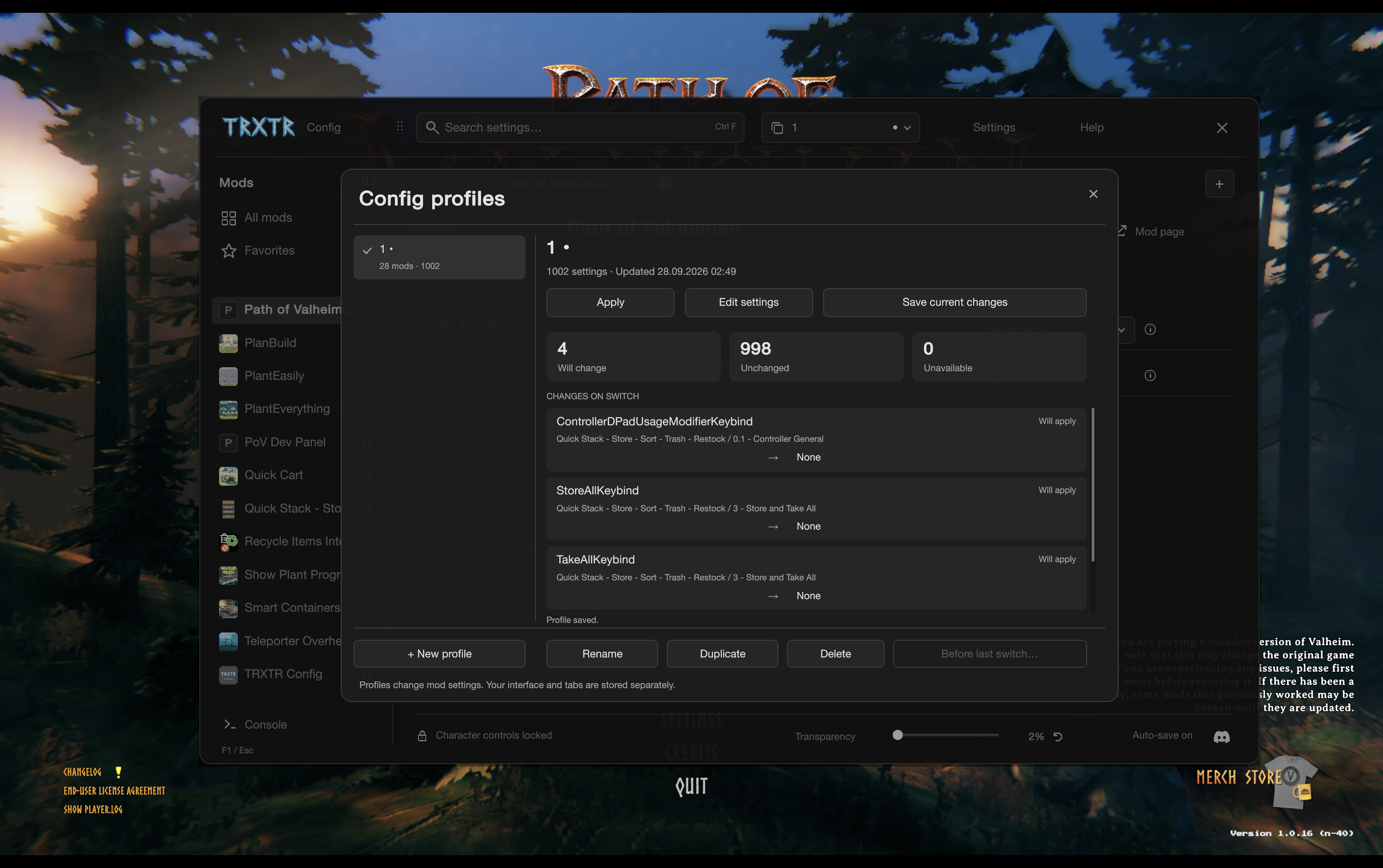
Keep different sets of mod settings for different ways to play. Create a building setup, a harder adventure or a profile for testing, then switch from the selector at the top of the window.
Create, rename, duplicate, edit and delete profiles without leaving Valheim. See what will change before applying one. Save your edits when you are happy with them; the manager prompts you about unsaved profile changes before switching away.
Need to go back? Restore the settings from before the last switch. Your tabs and window preferences stay separate from your config profiles.
Spotlight — commands and settings at a keystroke
Press ` / ё while playing to open the compact Spotlight search. Type command names in English, mod names or settings: fuzzy matches include names, descriptions and sections. Every result shows its source mod and icon; native commands are labelled Valheim.
Numbers stay attached to command suggestions: fly 20 runs fly 20, and spaw Wood 10 suggests spawn Wood 10. Exact command names preserve all following arguments. Enter runs the selected command and closes Spotlight, or opens the selected setting in Hugin’s Desk’s editor. Settings include advanced entries, respecting author visibility. An adjacent help bubble shows the controls.
↓ / ↑ navigate results. ↑ above the first result recalls previous commands; ↓ in history returns toward the newest command and restores your draft. Tab completes; Esc / ` closes. Typing in chat, the native console, a manager field or a keybind editor keeps its normal input. Command history is shared with the integrated console. Developer commands initialize automatically; the same game/server permissions apply.
In-game console
Open the built-in game console to run Valheim and mod commands alongside your settings. Command suggestions, descriptions, completion, output and history are all in one place. Your command draft and history are remembered too.
Enter runs a command; Ctrl+Enter runs it and closes Hugin’s Desk. Tab completes it, and ↑ / ↓ browse your command history while keeping the input focused. Reopening the configuration window with the console open focuses its input automatically. On the first console opening per game session, devcommands is applied automatically unless already enabled. Opening this drawer enables Valheim's console for the current game session; no -console launch option is needed. Developer commands from this drawer work after the automatic devcommands initialization, without a separate confirmcheats step. Commands follow the game's normal permissions. Valheim restricts commands such as fly to the host/local world unless a server mod provides permission.
Make it feel right
- Minimal graphite design with soft corners and a compact layout.
- Live transparency control in the main window, plus interface scaling and compact rows.
- Move the window by dragging any empty background area. Its position is remembered.
- Click outside to return to the game, or close with F1 / Esc. Character controls are blocked while you work by default.
- Mod page shortcuts lead to available Thunderstore, Nexus or Hexium pages, with a search option when a direct link is unavailable.
- English and Russian interface, with an organized in-game Help guide for features and shortcuts.
- A config file editor for the times you need to work with a file directly.
Shortcuts you already know
| Action | Shortcut |
|---|---|
| Open / close the manager | F1 |
| Close the current panel | Esc |
| Find a setting | Ctrl+F |
| New tab / close tab / reopen closed tab | Ctrl+T / Ctrl+W / Ctrl+Shift+T |
| Next / previous tab | Ctrl+Tab / Ctrl+Shift+Tab |
| Select a tab | Ctrl+1–9; 9 selects the last tab |
| Open a mod in a background tab | Middle-click or Ctrl+click; add Shift to switch to it |
| Close / reorder a tab | Middle-click / drag its title |
| Back / forward | Alt+← / Alt+→, navigation buttons or mouse side buttons |
| Undo / redo a setting edit | Ctrl+Z / Ctrl+Y or Ctrl+Shift+Z |
| Open the in-game console | Ctrl + Backtick |
| Detailed setting editor | Right-click the setting name |
On Mac, ⌘ also works for search, new/close/reopen tabs, numbered tabs, undo/redo and the in-game console. Use ⌘[ / ⌘] for back and forward. Tab cycling uses Ctrl. The Help button has the full guide.
Get started
- Install Hugin's Desk and its required dependencies with your mod manager.
- Disable your previous configuration manager so only one is active.
- Start Valheim and press F1.
Ordinary setting edits apply immediately; some mods require a restart. Server-controlled settings remain protected. Config profiles change settings, not which mods are installed. Switching a profile clears the individual edit history; use Before last switch to restore the previous setup. The world can keep running while the manager is open.
Credits
Based on ConfigurationManager by shudnal, with thanks to the upstream contributors. Hugin's Desk is an independent project; Path of Valheiman is not required.
Pause while configuring
In Settings, enable Pause when opened to pause the game automatically while Hugin’s Desk is open. Closing the window resumes a pause started by Hugin’s Desk; a pause from the game menu is preserved. Changes take effect immediately and are saved for future launches. Available only when Valheim permits pausing. The checkbox is off by default.
The console command list shows all registered game and mod commands when the input is empty. Scroll the right-hand list to see more; typing filters by command name or description. Suggested first arguments also scroll without a six-result limit. Listing a command does not grant permission to execute it.