VEmu
A physical libretro frontend inside Voices of the Void. Play your own ROMs inside the game!
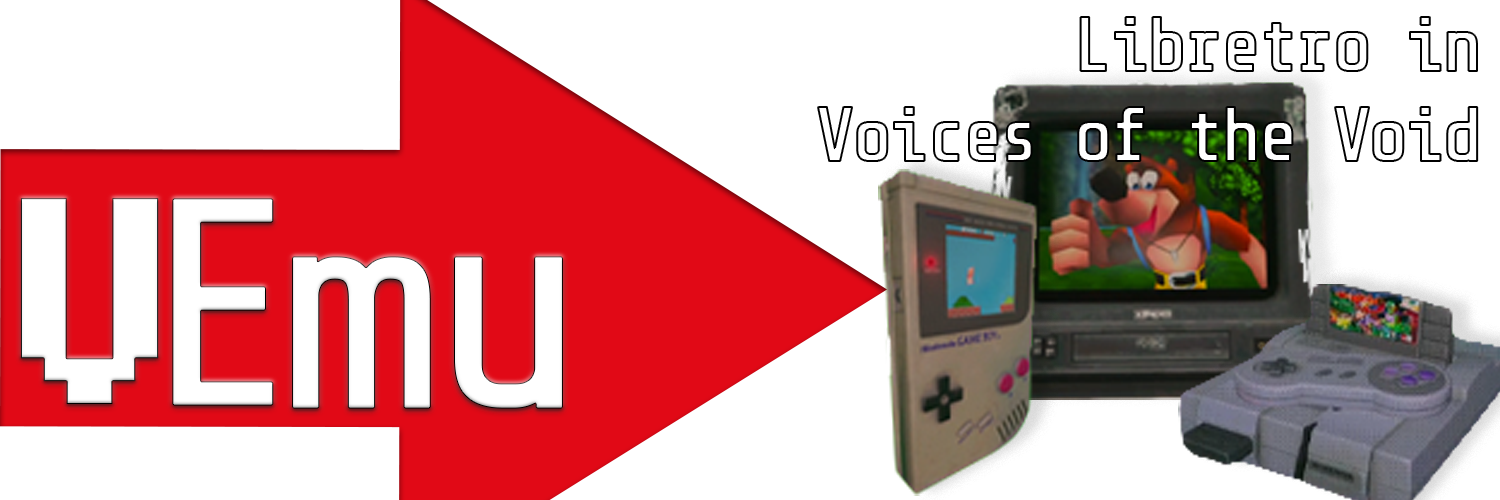

Play S/NES, GB/C/A, N64, PSX/2, DOOM (yes really) and more all inside Voices of the Void.
VEmu adds libretro-backed props into your game that let you load your own ROMs and play in-game on consoles and handhelds. All audio/video is rendered by the mod inside the game, real-time with no external windows, no lag, and full support for UE4's spatialized audio and post-processing. You do not need RetroArch or any other program installed to use this mod. See Quick start to get started.
Built on libretro - in theory any core that runs in RetroArch can be wired up. I've personally tested only a handful (see below) - the rest are not unusable, just untested by me.
The known hard limits are Dolphin has visual artifacts; gameplay otherwise functional, Vulkan-only cores don't work (skipped at scan time), and core-side threaded-renderer modes (e.g. mupen64plus-ThreadedRenderer=True) may still crash the loaded core.
VEmu plays best currently with VotV FPS limited to ~60-120 and V-Sync OFF!
Data Move Notice (0.9.0 -> 0.9.1)
New location for all user data:
%LOCALAPPDATA%\VEmu\ e.g. C:\Users\moddy\AppData\Local\VEmu
(Paste that into Explorer's address bar to open it.) Subfolders cores\, roms\, system\, saves\, keymaps\ are auto-created on first launch.
If you updated to v0.9.0 → v0.9.1 and have a backup from before the wipe: copy your old cores\, roms\, system\, saves\, and keymaps\ folders into %LOCALAPPDATA%\VEmu\ and re-launch.

-
Install the mod through r2modmanager.
-
Launch VotV once so the mod creates
%LOCALAPPDATA%\VEmu\and its subfolders. Paste%LOCALAPPDATA%\VEmuinto Explorer's address bar to open it. All ROMs / cores / BIOS / saves live here. (Pre-v0.9.1: these lived in the mod folder. Don't use that path anymore - it gets wiped on update.) -
Drop a core DLL into
%LOCALAPPDATA%\VEmu\cores\. Cores are emulator backends - one per system you want to play. Grab them from the libretro buildbot:https://buildbot.libretro.com/nightly/windows/x86_64/latest/
For example, drop
snes9x_libretro.dllto play SNES games. -
Drop a ROM under
%LOCALAPPDATA%\VEmu\roms\. Just putsuper_mario_world.sfcdirectly inroms\and the mod figures out the system from the extension. (For zips and more advanced layouts, see ROMs.) -
(Optional) If the core needs a BIOS, drop it into
%LOCALAPPDATA%\VEmu\system\. Checksystem\required_bios.txtafter the first launch to see what's needed. -
Launch VotV.:
- Props are located under the Store -> Essentials -> Electronics
- Purchase the GameToy (handheld) or SGES home console from the store.
- Purchase the Cartridge Dispenser.
- Choose your ROM from the dispenser. It dispenses a physical cartridge.
- Insert the cartridge into the console. For the SGES, plug the AV cord into a TV.
- Controller recommended. Xbox-type works out of the box; PS controllers need DS4Windows.
Basic controls (once playing)
- LEFT click while holding the device to "gate" your input to the emulator. Without this, keyboard keys drive your character too. Gamepads work without gating.
- RIGHT click + drag on the GameToy to rotate it in your hands. Hold SHIFT to translate sideways, ALT to translate forward/back. (press ALT after RIGHT click)
- F5/F6 to quicksave/quickload. Tab to fast-forward. F8 to reset the core. Full hotkey list in Controls.
That's enough to play. The rest of this README covers customization, ROM layouts, save data, settings, and troubleshooting.
Do you know what RHI mode you're on? It matters for this mod!
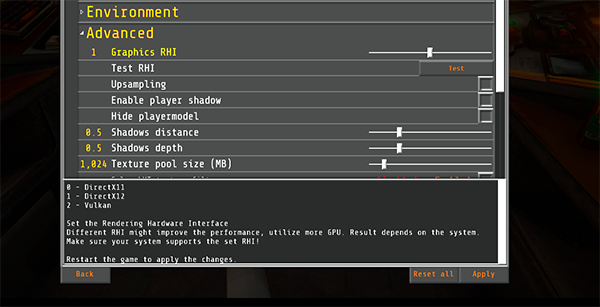
Set this in Settings → Video → Advanced → RHI Mode, then restart.
RHI Modes:
- 0 (D3D11) : Fully supported end-to-end (default, recommended)
- 1 (D3D12) : Fully supported end-to-end
- 2 (Vulkan) : Not supported — no video for any core. UE4 4.27's Vulkan RHI can't import the mod's shared GPU texture, so the screen stays black (audio still plays). If you're on Vulkan, set RHI Mode to 0 or 1 and restart. (A CPU-upload fallback for Vulkan is a possible future addition.)

This is, as far as I'm concerned, a near-feature-complete Libretro frontend baked into VotV. Almost any core runs, it has full gamepad support, save states, fast forward, and more.
- Xbox-type controllers: Should work out of the box.
- DS4/5 playstation-type controllers: Use DS4Windows or similar program to convert to XInput.
- Disable Steam support/Desktop configuration.
Right now every system works on any kind of cartridge/system prop (there's only two currently.)
I've put a lot of work into making sure this mod works seamlessly with VotV's systems, doesn't introduce lag or input latency, and supports a wide variety of cores. That being said, this mod is easily the most architecturally and technically complex mod I've ever released. There may be issues, odd bugs, potential crashes, and other weirdness.
Included in this Readme are the cores I've personally tested, but I haven't tested every single one, and I have only my specific hardware (Intel CPU, NVIDIA GPU) - Please report any issues you may encounter on GitHub or Discord.
Code in this mod is either written by me or used under permissive open-source licenses (MIT for libretro headers, miniz, and bundled .info files). Non-code assets are my own work or used with credit under their respective licenses (CC BY, etc). No ROMs, BIOS files, or commercial game content are bundled.

Starting in v0.9.1 the mod uses two folders. The split exists because r2modman deletes the mod folder during updates -- so user data lives outside it.
1. Mod folder (shipped binaries - wiped on update, do not edit)
C:\Users\<user>\AppData\Roaming\r2modmanPlus-local\VotV\profiles\<profile>\shimloader\mod\Moddy-VEmu\dlls\
├── main.dll                       ← the mod itself
├── libretrocpp_corehost.exe       ← the per-core child process host
├── settings.ini                   ← auto-generated on first run; resets on each update
├── cores\info\                    ← shipped .info metadata files (~298 files, refreshed each release)
└── keymaps\_reference.txt         ← shipped reference doc for the keymap format
2. User data folder (your stuff - survives updates, profile resets, uninstalls)
%LOCALAPPDATA%\VEmu\ - paste that into Explorer's address bar.
├── cores\                ← drop your core DLLs here
│   └── info\             ← (optional) drop newer .info files here to override shipped ones
├── roms\                 ← drop your ROMs here (see ROMs section for layouts)
│   └── <system>\         ← one auto-created per installed core (snes/, nes/, nintendo_64/, ...)
├── system\               ← drop BIOS files here (only if a core needs one)
│   └── REQUIRED_BIOS.txt ← auto-generated each scan; lists what's needed / present
├── saves\                ← SRAM, save states, and core options (auto-created)
│   ├── <system>\         ← per-system subdir: <rom_id>.srm, .state<N>, .state<N>.png, .opt
│   ├── <core>.opt        ← per-core libretro option overrides
│   ├── .procedural_covers\  ← auto-generated cover art cache
│   └── corrupted\        ← corrupted ROMs land here
├── keymaps\              ← per-system keybind INIs (auto-generated on first cart load - edit freely)
│   ├── _global.ini       ← frontend hotkey bindings (auto-generated, edit freely)
│   └── _descriptors\     ← auto-generated per-cart input descriptors (reference only)
├── music\               ← drop .xm tracker tunes here; play in the Everdrive ROM browser
└── .core_cache\          ← per-instance core copies (auto-managed)
roms\ may not exist before the first scan - it'll appear (along with one <system>/ subfolder per installed core) the first time the mod loads.
Putting the user data folder somewhere else
Don't want it on your C: drive? Point VEmu at any folder by setting user_data_dir under [Paths] in settings.ini:
[Paths]
user_data_dir = D:\Games\VEmu
# environment variables work too:
# user_data_dir = %USERPROFILE%\Documents\VEmu
The path is taken literally - whatever you name becomes the root that holds cores\, roms\, saves\, etc. (no \VEmu is appended for you). A relative path is resolved against the mod folder. The folder is created if it doesn't exist.
Two things to know:
- It only applies at game launch. Unlike most settings (which re-apply on cart eject/reinsert), the data root is locked in once at startup - change it and restart VotV.
- Move your data first. VEmu doesn't migrate anything. Before launching with a new
user_data_dir, copy your existing%LOCALAPPDATA%\VEmu\contents into the new folder, or you'll start with empty cores/ROMs/saves libraries.

No cores are bundled - you must supply your own. The matching .info files are bundled (metadata that tells the mod what each core supports).
Adding a core
-
Grab the core DLL from the libretro buildbot:
https://buildbot.libretro.com/nightly/windows/x86_64/latest/
(Or download them all: https://buildbot.libretro.com/nightly/windows/x86_64/RetroArch_cores.7z)
-
Drop the
.dllinto%LOCALAPPDATA%\VEmu\cores\.
For the full list of available cores and what systems they emulate, see the libretro core list:
Hard limits
Some issues:
- Dolphin (GameCube/Wii) has visual artifacts but otherwise plays.
Architecturally unsupported:
- Vulkan-only cores are excluded (e.g.
parallel_n64_libretro.dll). Only OpenGL and software cores work. - Core-side threading options like
mupen64plus-ThreadedRenderer=Truemay crash the core. The crash is contained in the child process - VotV stays up and the cart marks itself crashed - but the core won't run. Leave those off in core options.
Personally tested
I've confirmed these work. Anything not on this list isn't unsupported; it just hasn't been verified by me. Please report results either way.
| System | Core DLL |
|---|---|
| SNES | snes9x_libretro.dll |
| NES | fceumm_libretro.dll |
| GB/GBC/GBA | gambatte_libretro.dll, mgba_libretro.dll |
| N64 | mupen64plus_next_libretro.dll (gLideN64 OpenGL, no threaded renderer) |
| PSX | pcsx_rearmed_libretro.dll, mednafen_psx_hw_libretro.dll (Beetle PSX HW) |
| PS2 | pcsx2_libretro.dll (LRPS2) |
| PSP | ppsspp_libretro.dll |
| Dolphin | dolphin_libretro.dll (some rendering issues) |

Some emulator cores need a BIOS file (the firmware from the original console) to run games. These go in %LOCALAPPDATA%\VEmu\system\.
Do I need one?
Depends on the core. Each libretro core has its own page in the libretro docs that lists exactly which BIOS files it needs, which are optional, and what the expected filenames + checksums are. That's the authoritative source - go there first:
https://docs.libretro.com/library/bios/ (pick your core, it will jump to BIOs section)
Example: PCSX-ReARMed's BIOS list lives at https://docs.libretro.com/library/pcsx_rearmed/#bios.
system/required_bios.txt (auto-generated)
Every time the mod scans the manifest, it writes a fresh required_bios.txt into system/ summarising what each installed core wants and whether the file is currently present. It's the fastest way to see what's missing.
## pcsx_rearmed_libretro.dll  (PCSX-ReARMed)
    [X] scph5500.bin                  optional  -- scph5500.bin (PS1 JP BIOS)
    [X] scph5501.bin                  optional  -- scph5501.bin (PS1 US BIOS)
    [X] scph5502.bin                  optional  -- scph5502.bin (PS1 EU BIOS)
    [ ] psxonpsp660.bin               optional  -- psponpsx660.bin (PSP PSX Emu BIOS)
[X] = present, [ ] = missing. REQUIRED means the core won't run games without it; optional means it improves accuracy or boot logos but isn't load-blocking. The file is regenerated on every scan (don't edit).
How to add a BIOS
- Legally acquire the file. VEmu will never ship any BIOS files.
- Use the exact filename the core expects. Filenames are case-sensitive on some systems and the core won't search for variants. Either copy the name straight out of
required_bios.txt, or check the core's libretro docs page. - Drop it directly into
%LOCALAPPDATA%\VEmu\system\- no subfolders (unless the core specifies one, e.g.Mupen64plus/IPL.n64). - Restart the game. Cores read the BIOS once at load time. Requires full reload.

ZIPs are supported.
It's recommended your ROM file or folder names follow the "No-Intro" naming convention, i.e. Donkey Kong Country (USA, Europe) (En,Fr,De,Es,It).zip for Thumbnail images to resolve properly.
Three layouts work, and you can mix them.
Layout 1 - loose ROMs at the root
roms\
├── pokemon_red.gb
├── super_mario_bros.nes
└── super_mario_world.sfc
Do not place loose zips in roms\. Zip files must go in system-specific ROM directories.
System inferred from extension. Cover art beside the ROM (pokemon_red.png) is picked up automatically.
Layout 2 - system folders
roms\
├── snes\
│   ├── super_mario_world.sfc
│   └── chrono_trigger.zip
├── nes\
│   └── zelda.nes
└── n64\
    └── mario_64.z64
.zip files only work inside a system folder, or with a core.txt override (since the extension alone doesn't tell us which core to use).
Recognized folder names:
- Short aliases (5):
snes,nes,gb,gbc,gba- friendly shortcuts that map to the libretro database name. - Anything else: the
systemidfrom a core's.infofile - e.g.nintendo_64,playstation,playstation_portable,nintendo_gamecube,nintendo_ds,sega_genesis. Check the systemid line in the mod folder'scores\info\<core>_libretro.info(shipped metadata) if you're unsure.
You don't have to create these yourself. On every scan, the mod auto-creates an empty roms/<system>/ for each installed core (alias name where one exists, otherwise the systemid). So dropping snes9x_libretro.dll into cores/ and re-launching is enough to make roms/snes/ appear.
Layout 3 - one folder per ROM
roms\
└── snes\
    └── super_mario_world\
        ├── super_mario_world.sfc
        ├── cart.png         ← cover art (optional)
        └── core.txt         ← per-ROM core override (optional)
Use this layout if you:
- Have multi-file disc images
- Want a custom cover, a custom display name, or to override which core runs the game.
The folder name becomes the cart's display name (underscores become spaces).
Cover art
Put cart.png (or cover.png, box.png, art.png) in the cart folder. For loose ROMs, name it after the ROM stem (pokemon_red.png).
If you don't provide one, the mod tries to grab a cover from libretro-thumbnails on first cart spawn:
- Folder layout: image lands at
<cart-folder>\cart_auto.png(yourcart.pngis never touched - manual covers always win). - Loose ROMs: image lands at
<rom-stem>.pngnext to the ROM. If you want to keep a manual one, place it first.
Per-ROM core override
Drop a core.txt file into the cart folder containing one line - the core DLL filename:
snes9x2010_libretro.dll
This wins over the system default. Useful if you want a different core for one specific game (or to use a core whose .info file you don't have).

You can currently buy three props from the store. Props are located under the Store -> Essentials -> Electronics.
- GameToy - Handheld - Hold-and-play, has its own screen.
- SGES - Home console - Super Gaming Entertainment System. Needs a TV. Plug in with the included AV cord; the screen output appears on the TV.
- Also added is the SGES Controller - needed to control the home console.
- Cartridge dispenser - A prop that lists every ROM and allows you to spawn them as cartridges. Costs points per cartridge.
VEmu Everdrive (in-game ROM browser cartridge)
The dispenser also lists a VEmu Everdrive cartridge. Instead of being one game, it's a flash-cart: insert it into the GameToy or SGES and an on-screen ROM browser appears on the device's own screen - no separate window, rendered right through the same video path as the games.
- Browse with the D-pad / arrow keys: ◄ ► switches between system columns (SNES, NES, N64, PSX...), ▲ ▼ moves through that system's ROM list.
- Type to search - start typing and the list filters across all systems (live, as-you-type); B clears the filter.
- A launches the highlighted ROM - it loads exactly as if you'd inserted that game's own cartridge, while the Everdrive stays in the slot.
- Return to the browser any time from in-game with F7 (rebind
Frontend_OpenMenuin_global.ini; a gamepad button works too).
Same input rules as playing: keyboard navigation needs you to "gate" the device first (LEFT click while holding), gamepad navigation works without gating.
Background music (optional)
Drop .xm tracker modules (FastTracker II / keygen-style chiptunes) into %LOCALAPPDATA%\VEmu\music\. While the Everdrive browser is open they play shuffled, looping the folder, out of the device's speaker (3D-attenuated, at your master volume). No music = silent browser. VEmu ships no music - bring your own (the same BYO policy as ROMs/BIOS).
Connecting a console to a TV
Use the AV cord on the back of the console. The mod connects to vanilla TV props. (Not SmartTV - ironic, I know. Coming soon?) Make sure the TV is set to a channel, not the default "invalid channel".

[SPOILERS] - Click below to expand if you want the full mechanic explained.
Click to reveal corruption mechanic
You can microwave cartridges to corrupt them. This is exactly like the corruption tools you might find online, but randomly done on the cartridge's ROM behind the scenes. It only does it once on the first zap. If you take it out, hold it, put it in your inventory, etc, it will reset and allow you to microwave it again. You can technically re-corrupt the already corrupted ROM.The corruption is actually deterministic - it gives it a seed, and writes the corrupted ROM to saves\corrupted\ with a filename that includes the original ROM ID and the microwave seed. The original ROM is left untouched in roms\.
- Corrupted ROMs are written to
saves\corrupted\<rom_id>_<seed>.<ext>. Originals are never modified. - Per-system protection attempts to keep the game playable
- Each microwave session uses a fresh random seed, baked into the filename. Same seed + same corruption, so you can save an interesting one for later.
"Un-corrupting" can be done by dunking it in water.
Warning: these ROMs can be very unstable. HW cores like mupen64plus_next, psx_rearmed, and dolphin are more likely to crash horribly. Simple software cores like snes9x and gambatte are safer for this.

Some default keymaps live in keymaps\<system>.ini. They ship pre-configured for keyboard + Xbox-style gamepad. Changes take effect on the next cart insert.
Keyboard - cart-era systems (NES, SNES, GB/GBC, GBA)
Matches RetroArch's default Player 1 keyboard layout.
| Key | Action |
|---|---|
↑ ↓ ← → |
D-Pad |
Z / X |
B / A |
A / S |
Y / X (SNES only) |
Q / W |
L / R (SNES, GBA) |
Enter |
Start |
RightShift |
Select |
Keyboard - stick-driven systems (N64, PSX/PS2)
D-pad on arrow keys, WASD drives the left analog stick (so games that switch to analog mode work on keyboard).
| Key | Action |
|---|---|
↑ ↓ ← → |
D-Pad |
W A S D |
Left analog stick (full deflection) |
Z / X |
B / A (N64: A/B • PSX: Cross/Circle) |
C / V |
Y / X (PSX/PS2 only: Square/Triangle) |
I J K L |
C-Up / C-Left / C-Down / C-Right (N64) |
Q / E |
L / R (L1/R1 on PSX) |
LeftShift |
Z trigger (N64) |
1 2 3 4 |
L2 / R2 / L3 / R3 (PSX/PS2) |
Enter |
Start |
RightShift |
Select (PSX/PS2) |
Keyboard - DOOM (PrBoom)
FPS-style layout. WASD is split: W/S move forward/back via D-pad, A/D strafe via libretro L/R (PrBoom's "Strafe Left/Right"), and the arrow keys turn the camera.
| Key | Action |
|---|---|
W / S |
Move forward / back |
A / D |
Strafe left / right (L / R) |
← / → |
Turn left / right (D-pad) |
LeftCtrl |
Fire (A) |
Space |
Use (B) |
LeftShift |
Run, hold (Y) |
LeftAlt |
Strafe modifier, hold (X) |
Z / X |
Previous / next weapon (L2/R2) |
Enter |
Menu (Start) |
M |
Map (Select) |
If you switch PrBoom's User 1 device type to Gamepad Modern in core options, the analog sticks should drive strafe + look automatically (already bound on the gamepad side).
Regenerating a keymap file. The mod writes keymaps\<system>.ini once on first cart load and never touches it again. Delete the file and re-launch to re-generate.
Frontend hotkeys (any cart, any system)
These come from keymaps\_global.ini:
| Key | Action |
|---|---|
F5 |
Quick save (slot 0) |
F6 |
Quick load (slot 0) |
F1 / F2 |
Save / load slot 1 |
F3 / F4 |
Save / load slot 2 |
F8 |
Reset core |
F9 |
Toggle FPS overlay |
F10 |
Toggle Quick Menu |
Pause |
Pause / resume |
Tab |
Fast-forward (hold) - default 4x |
Backspace |
Frame advance |
F7 |
Open VEmu Everdrive browser (for carts launched from it) |
Note for F10 binds: UE4SS Open Console is bound to this by default, recommended to change this in \shimloader\mod\ConsoleEnablerMod\Scripts\main.lua or switch Quick Menu bind.
Save state slots 0-9 are supported (Frontend_SaveState_<N> / Frontend_LoadState_<N>); only a few are bound by default - bind the rest in _global.ini if you want them.
The FPS overlay toggle (Frontend_ToggleFps) is runtime-only - it flips the overlay on/off this session but doesn't persist to settings.ini. To make it permanent, edit [Debug] fps_overlay in settings.ini.
Gamepad bindings work here too. The defaults above are keyboard for convenience, but any Frontend_* action accepts a gamepad button on the LHS - add a line like Gamepad_FaceButton_Top = Frontend_Pause (Y button on Xbox) to _global.ini and you can pause / quicksave / fast-forward with the controller alone (no need to gate via LEFT click). Gamepad-bound frontend hotkeys dispatch even when the device isn't currently focused, same as gamepad cart inputs.
Keyboard vs gamepad gating
- Keyboard keys feed the emu only while you're actively "using" the device (LEFT click while holding either GameToy or SGES Controller). This stops
Wfrom driving both your character and the d-pad. - Gamepad buttons (anything starting with
Gamepad_) always feed the emu when the device is held or TV-connected, gated or not. So you can game / pause / quicksave with a controller without focusing the device.
Customizing keybinds
Keybinds live in per-system .ini files under keymaps\. You don't have to create these yourself: the mod auto-writes keymaps\<system>.ini (and _global.ini) the first time you insert a cart for that system, seeded from the compiled defaults. Changes take effect on the next cart insert.
keymaps\
├── _global.ini       ← frontend hotkeys (pause, save state, etc.)
├── _reference.txt    ← full list of valid key names and actions
├── _descriptors\     ← auto-generated per-cart input descriptors (read-only reference)
├── snes.ini          ← appears after first SNES cart insert
├── nes.ini           ← appears after first NES cart insert
├── gb.ini
├── gba.ini
└── n64.ini
Format is <UE-key-name> = <action>. Key names are UE FKey FNames - so RightShift, not Right Shift - Tab, BackSpace, Gamepad_FaceButton_Bottom, etc. See _reference.txt for the complete bindable-key list and actions. Empty right-hand side unbinds.
How to layer keybinds
Load order, top-to-bottom: First loaded, last loaded. Last loaded wins.
For a SNES ROM file called Super Mario World:
| Cart input | Frontend hotkeys |
|---|---|
| compiled defaults | (none) |
snes.ini |
_global.ini |
snes.super_mario_world.ini |
_global.snes.ini |
_global.snes.super_mario_world.ini |
<rom> matches the rom_id used in roms/<system>/<rom>.srm and _descriptors/<system>.<rom>.txt - copy from there to avoid typos.
Corrupted carts inherit regular bindings. A corrupted cart's customized keymap would need a seed suffix (banjo-tooie (usa)_1815209044.ini). The regular file loads first, then the seed-specific one on top.
keymaps\_descriptors\ (auto-generated)
ROM-specific keybind information returned by cores:
Click to read about keymap descriptors
The first time any cart loads, the running core reports its **input descriptors** via libretro's `RETRO_ENVIRONMENT_SET_INPUT_DESCRIPTORS` callback - basically "for this game, the A button means X, the L trigger means Y". The mod captures that and writes it to `keymaps\_descriptors\<system>.<rom>.txt` as a read-only reference. The runtime does **not** parse these files; they exist purely so you can see what each RetroPad button actually does in a specific game before you bind a real key to it.Example (Banjo-Tooie, N64):
[port 0]
B            -- "A Button (C3)"
Y            -- "B Button (C2)"
A            -- "(C1)"
X            -- "(C4)"
R2           -- "C Buttons Mode"
L2           -- "Z Trigger"
...
If a button or axis is missing from this file, the core didn't advertise it (usually means the game doesn't use it). Use the action tokens here (B, Y, L2, Stick_L_X, etc.) as the RHS values when writing a per-cart override like keymaps\n64.banjo-tooie (usa).ini.
Controller device type ([devices])
Some cores emulate more than one kind of controller per port and only hook up the right one when the frontend asks for it. The headline case is Dolphin: a Wii game that needs the Nunchuk gets a bare Wii Remote (no stick, no C/Z buttons) unless you explicitly select the Wiimote + Nunchuk type. Without this, nunchuk-required games are unplayable even though the core "runs".
Add a [devices] section to a keymap file. It layers exactly like the keybind sections - <system>.ini sets a per-core default, <system>.<rom>.ini overrides it per game. Keys are port0..port3 (port alone means port0); only the ports you name change.
[devices]
port0 = nunchuk        ; attach Wii Remote + Nunchuk on port 0
The value is a friendly alias or a raw libretro device id (decimal or 0xHEX). The aliases cover Dolphin's Wii/GC types and the PlayStation pad types; the numeric form works for any core.
| alias | id | meaning |
|---|---|---|
joypad / wiimote |
0x1 |
RetroPad / bare Wii Remote |
wiimote_sideways |
0x201 |
Wii Remote held sideways |
wiimote_nunchuk / nunchuk |
0x301 |
Wii Remote + Nunchuk |
classic / classic_controller |
0x401 |
Classic Controller |
classic_pro |
0x501 |
Classic Controller Pro |
gamecube / gc |
0x601 |
GameCube pad on a Wii title |
real_wiimote |
0x600 |
real Bluetooth Wii Remote passthrough |
dualshock |
0x205 |
PlayStation DualShock (analog sticks live) |
analog_controller |
0x105 |
PlayStation Analog Controller |
guncon |
0x104 |
PlayStation Guncon light gun |
justifier |
0x204 |
PlayStation Konami Justifier light gun |
none |
0x0 |
explicitly disconnect the port |
PlayStation already defaults to dualshock so the analog sticks work out of the box. To go back to the plain digital pad, set port0 = (empty) under [devices] in your playstation.ini. The dualshock / analog_controller / guncon / justifier aliases use the ids both shipped PSX cores agree on; rarer pads (neGcon, analog joystick) differ between cores, so use the numeric id from the corehost log for those.
Finding the right id for a non-Dolphin core: load the game once and check the corehost log - each port prints what it advertises, e.g. controller info: port 0 ... id=0x301 -- "WiiMote (Nunchuk)". Drop that id (alias or number) into [devices].
Wiimote pointing (IR): by default Dolphin maps the IR pointer to the right analog stick (dolphin_ir_mode), so aiming works on a normal gamepad with no extra setup - C → face X, Z → face Y, Nunchuk stick → left stick. Dolphin's mouse IR mode (dolphin_ir_mode = 2) and lightgun/touch-screen pointer input aren't wired yet.
Example file keymaps\<dolphin_system_tag>.<rom>.ini:
[devices]
port0 = nunchuk

Everything lives under %LOCALAPPDATA%\VEmu\saves\<system>\:
| File | What |
|---|---|
<rom_id>.srm |
Battery save (SRAM). Flushed every 30 s while the cart is loaded; tunable via [SRAM] flush_interval_sec in settings.ini. |
<rom_id>.state<N> |
Save state slot N (0-9). A toast appears when one is written. |
<rom_id>.state<N>.png |
Thumbnail PNG of the framebuffer at the moment of save - written automatically next to the state file. Useful when picking a slot to load. |
<rom_id>.opt |
(optional) Per-game libretro core options. Overlays whatever's in %LOCALAPPDATA%\VEmu\saves\<core>.opt. See Per-game core options. |
All of these follow you across hold/drop cycles and across game sessions. Pull the cart, save it for later, come back next session, it'll pick up where you left off. To wipe a save: delete the file. To back up: copy the saves\ folder.
Per-game core options
Libretro cores expose their own option grids (renderer, region, internal resolution, etc.) - these are advertised to the frontend at game-load time. VEmu writes the live values to %LOCALAPPDATA%\VEmu\saves\<core>.opt whenever the core asks. You can also hand-edit that file.
For per-game overrides (e.g. force a specific renderer for one game), drop a file at %LOCALAPPDATA%\VEmu\saves\<system>\<rom_id>.opt with the keys you want to override - same key = value format. Loaded on top of the per-core file, so you only need to list the keys you're changing.
For what keys each core exposes, see that core's libretro docs page under "Core options".

Install-wide preferences live in settings.ini in the mod folder (next to main.dll). This is the "frontend config" tier - like RetroArch's retroarch.cfg. r2modman's config UI can read/write it from this location.
Auto-generated on first run
You don't have to create or copy anything. No settings.ini and no settings.example.ini is included - the first time you launch with the mod loaded and no settings.ini is present, it makes a fresh template right next to main.dll.
Heads up: settings.ini resets on every mod update (because r2modman wipes the mod folder during update). If you've customized it heavily, copy it somewhere safe before clicking Update. Only your preferences live in this file - ROMs / saves / BIOS / keymaps are in %LOCALAPPDATA%\VEmu\ and survive updates.
To customize: open settings.ini, uncomment the lines you want, edit values, save. Changes take effect on the next cart eject + reinsert (with three exceptions called out under Reload behavior).
To start over: delete settings.ini and re-launch.
What's in it
| Section | What it tunes |
|---|---|
[Paths] |
user_data_dir - relocate the whole user-data folder (details). Launch-time only. |
[Defaults] |
Fallback core = / rom = for the cartridge dispenser |
[Frontend] |
OSD toast duration, fast-forward speed multiplier |
[State] |
Save state slot range (defaults 0..9 - match the shipped hotkeys) |
[SRAM] |
Battery-save flush cadence (default 30 s) |
[Runtime] |
threaded_core |
[Audio] |
Sample rate, ring/pre/mixer buffer sizes, master volume, resampler (linear or sinc[-quality]), dsp_preset (audio effect chain, names resolve against the dsp\ folder). Spatial/falloff stays in UE4 attenuation on the BP audio component. |
[Device] |
Park-and-claim TTL, recent-spawn migration window |
[Debug] |
OSD texture-bake toggle, FPS overlay, log verbosity floor, verbose-diagnostics gate |
settings.ini is global only. Per-system and per-cart customization lives in the other two config tiers, which DO cascade:
- Input bindings + frontend hotkeys ->
keymaps\(seekeymaps\_reference.txt). Per-system override files likesnes.super_mario_world.iniwork here. - Libretro core options ->
saves\<core>.optandsaves\<system>\<rom>.opt. Per-core, then per-game overlay.
Reload behavior
Most settings re-apply on cart eject + reinsert (the child process is set up fresh on each insert, so [Audio] knobs and the [Debug] flags ride in on the new LOAD_CORE IPC header).
[Debug] fps_overlay toggles live (the F9 hotkey pushes the new state to the running child via a SET_DEBUG_FLAGS message; the next rendered frame reflects it).
[Runtime] threaded_core requires a UE restart - the worker thread lifecycle is decided at first cart load and cached.
[Paths] user_data_dir also requires a UE restart - the user-data root is resolved once at startup, before any cart is inserted.
If you change a value and don't see it apply, eject the cart and reinsert it (or restart for threaded_core / user_data_dir).
Bad values
Bad values are logged and ignored. See your UE4SS log for more info.

Click to read some technical notes about the mod
I never really thought I'd end up making an entire libretro frontend for this mod, but that's basically where it's at. There are only a handful of features it's still lacking, to name a few:- Rewind
- A UI for editing keybinds (core options and cheats now have one via the in-game Quick Menu)
For rendering, it started with "can I get a SNES ROM displayed in-game?" Game Boy and SNES era video is cheap to render - your CPU can do it without breaking a sweat. I started by passing properly formatted pixel data to one of the game's plugins that converts it into a Texture2D.
This eventually grew into a more complex engine integration that did direct render-thread texture uploads via vtable injection into UE4's RHI, bypassing the BP plugin to avoid extra copies. Hardware cores like mupen64plus got an offscreen OpenGL context with the framebuffer pulled back via async PBO readback on the render thread. Things worked, but required careful threading work and workarounds for core teardown. Everything was driven from the main mod, with each core given its own CoreWorker thread.
Once I started diving into the more intense cores like PCSX2, things got hairy. The workarounds were for cores that would crash on teardown - and crashes in the mod meant crashes in the host game. I wanted to avoid that entirely, so I made an architectural change.
Thanks to things like libco fiber switching, MTGS sync waits, and other core-internal threading weirdness, I refactored into a mod DLL + corehost EXE pair. The mod DLL dispatches corehost processes that handle all the libretro frontend work - loading a core, loading a ROM, dispatching retro_run. The two processes communicate via D3D11-pivot shared textures (via NT handles and keyed mutexes), IPC pipes for control, and shared memory rings for audio and input.
End result: a zero-copy (or at most single-copy) GPU round-trip for video data, with all core crash weirdness contained in its own process. No matter what a core does internally, it can't take down the main game.
Overall, I'm very pleased with the results, and I'm more than delighted to share this with the community. Please enjoy.

Game won't load / nothing happens when I insert the cart.
Open <votv>\WindowsNoEditor\VotV\Binaries\Win64\UE4SS.log and search for [VEmu]. Common causes:
- Missing core DLL - check
cores\for the right filename. The mod logsmanifest: skipping <rom> -- no core for .<ext>when nothing matches. - Missing BIOS - some cores need a BIOS in
system\. Checksystem\required_bios.txtfor the current state, and the core's libretro docs page for filenames. - ROM file not where the manifest scanner expected - try Layout 1 (loose at root) as a sanity check.
- For a core whose
.infofile isn't shipped: either drop the.infointocores/info/(grab it from the libretro buildbot alongside the DLL) or use a per-cartcore.txt.
Black Screen / Audio but no video: Hybrid/dGPU
Set libretrocpp_corehost.exe to 'High performance' in Windows -> System -> Display -> Graphics, restart the game, and re-insert the cartridge.
Cover art didn't download.
Check your internet, then delete <cart-folder>\cart_auto.failed (or <rom-stem>.cover_failed for loose ROMs) and reload. Or just drop your own cart.png next to the ROM.
Cart shows up greyed-out in the dispenser.
The system needs a BIOS that isn't in system\. Check required_bios.txt for the expected filename.
Keys don't work in-emu but work in-game.
You probably aren't "gated" on the device - interact with it (default Left Click) first. Gamepad bindings work without gating; keyboard ones need it (so W doesn't drive both your character and the d-pad).
I don't know what a given button does in this game.
Check keymaps\_descriptors\<system>.<rom>.txt - the core writes what each RetroPad button means for this specific game.
My emulator games lag
Try disabling V-Sync, lowering settings, or trying lower-performance cores (SW cores like snes9x)
My inputs/audio are delayed or the emulator plays weird
Limit VotV FPS to ~60-120.

VEmu ships no cores, no ROMs, and no BIOS files. You bring your own.
- Cores are GPL/MIT/etc. licensed builds from the libretro project - see each core's license.
- ROMs/BIOS files are your responsibility. Dump your own; don't pirate.

- Huge thanks to Libretro and core developers
- Shoutout to the UE4SS team (the framework that makes any of this possible)
- MrDrNose for The Game.
- The Thunderstore team for the modding infrastructure that makes this distribution possible
Model credits:
GameToy model by cobracso is licensed under Creative Commons Attribution.
SGES model by Manny Ruiz is licensed under Creative Commons Attribution.
Super Epic Beta Testers:
-
milk - early testing, keymap fixes
-
Viru - early testing, keymap fixes
-
Jake_489 - audio latency fix
-
Mohl - early testing, audio/input latency fixes
-
Robeebert - dx11 crash fix, ps2 l2/r2 input fix
-
Valkyria Hammerlocke - ps2 l2/r2 input fix