Stamps
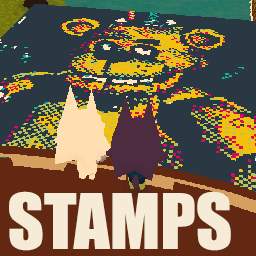
A stamp and art saving mod for for WEBFISHING using GDWeave
General Information
- You can paste images / gifs into the menu directly or select a file
- Stamps are automatically adjusted to be upright relative to the player camera
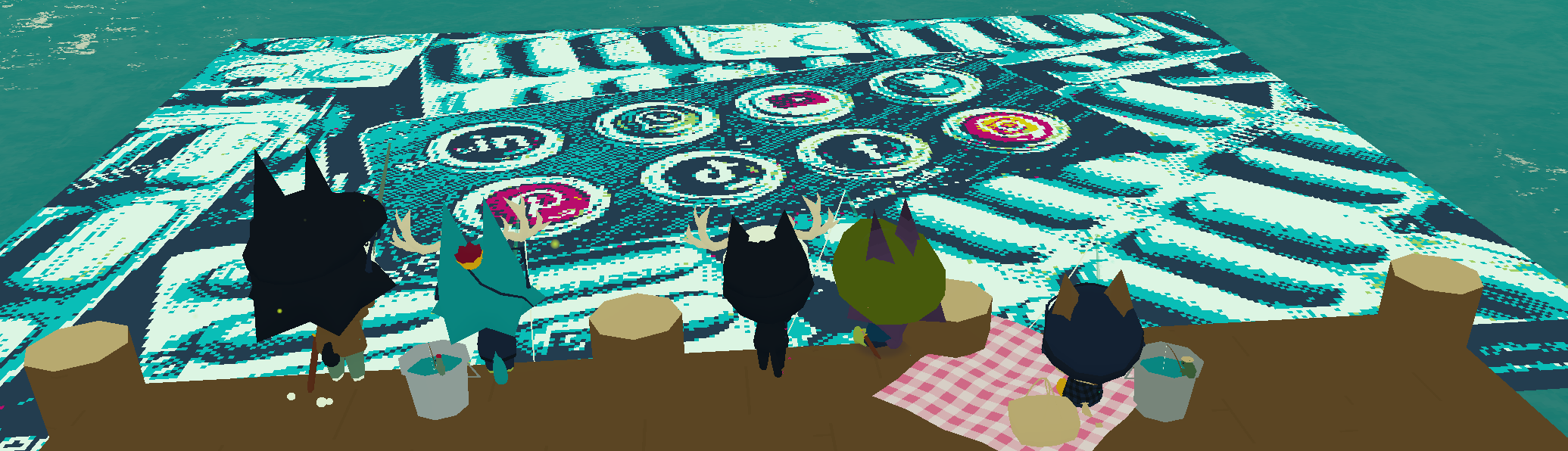
- In-game canvases have a 200x200 resolution. I recommend keeping stamps below this size
- Off-canvas: a maximum of four chalk canvases (200*200) can be placed
- Saved stamps are located at
%appdata%/local/webfishing_stamps_mod
- Be mindful of performance and lag, especially if playing GIFs. This is a server side mod, and people play on potatoes
- I recommend installing the Calico mod! (it can cause stuttering with gifs though)
Keybinds
Keybinds are fully customizable using the game's built in controls settings, courtesy BlueberryWolfiAPIs
-
F4 Key
- Opens my stamp menu executable or brings it to the front.
-
PLUS Key (+)
- Spawns a stamp at the cursor position.
- Spawns a stamp at the player position if
SHIFT is held.
- Spawns a stamp at the dock if
CTRL is held.
- Spawns a stamp on Canvas 1, Canvas 2, Canvas 3, or Canvas 4 if combined with
1, 2, 3, or 4, respectively.
-
Minus Key (-)
- Toggles GIF playback if a GIF has been placed down.
-
BACKSPACE Key
- Works as Ctrl+Z, undoing the last placed stamps in order.
Image Processing Guide
Here’s a quick overview of how to process your images:
-
Color Match
A simple, reliable option that maps each pixel to the closest chalk color. If you're unsure where to start, pick this for clean, predictable results.
-
K-Means Mapping
Groups similar colors into clusters. Great for noise reduction and simplifying complex images. Adjust the number of clusters to control how stylized the result looks.
-
Dithering
If your image has colors that don’t neatly match the available chalk palette, dithering can help fill those gaps. It creates patterns or “noise” to transition between colors smoothly. There are many dithering methods (Atkinson, Floyd, Jarvis, etc.)—each one handles color transitions differently. Generally:
- Hybrid Dither automatically switches between methods for mixed textures.
- Pattern Dither creates a retro, pixel-art style.
- Random Dither adds noise for a more natural, hand-drawn look.
Ultimately, you should experiment with different methods to find the style that best fits your image!
Color Options
Choose what chalk colors to use by enabling or disabling them.
- Use RGB to map an image’s colors to RGB chalk.
- Use Blank to make certain colors fully transparent.
Boost and Threshold Adjustments
- Boost: Enhances the intensity of specific chalk colors in an image, making muted tones stand out more. Higher values = brighter colors.
- Threshold: Adjusts how closely a pixel's color must match a chalk color to be boosted. Lower values are more precise, while higher values affect broader ranges.
What is LAB and When to Use It?
LAB is a color space that better reflects how humans perceive color, improving the accuracy of color matching compared to RGB.
- Turn LAB On: For images with subtle gradients or color shifts where precise matching matters.
- Turn LAB Off: For bold, flat colors... I think?
Basically, if you aren't happy with a result, try turning it off! It's on by default but not always better~
Sometimes disabling green chalk will make LAB results look better :3
Canvas map
If you wish to know the location of a specific canvas, please refer to the below map.
Installation (for the peeps)
Ensure to not accidentally download from Code
- Ensure GDWeave is installed and working properly.
- Download for Windows or for Linux
- Extract to
PurplePuppy-Stamps (PurplePuppy-Stamps-Linux for linux) and be careful to not rename it.
- Download BlueberryWolfi.API for keybinds and extract to
BlueberryWolfi.APIs
- Place folders in
WEBFISHING/GDWeave/Mods/
Requires: