FB Hand Template Palette
Useful base for creating custom hand cosmetics with palettes!Description
Useful base to create hand cosmetics
Labels
Sheet names are displayed in-game. This is the easiest way to find what sheets an item uses, just by picking up the item. Also useful for testing alignment!

Palettes
High contrast palettes for easy color replacement on sprites. (Instructions down below)

Bounds
Pixels are included in opposing corners to frame the available draw space

Format
Files are in the correct folders and named properly to ensure future compatibility and integration with Resourceful Hands. Complete with sample cosmetic card images and screen icons ("interacts").

How to use
- From the main menu: Cosmetics>Hands>"TEMPLATE" to equip the cosmetic.

- Load into a game (highly recommend the Dev Playground mode found through the Tutorial)
- Perform the action of the sprite you want to edit (crouch, grab, pick up an item, etc.)
- Check for a code next to the hand (code explained further below!)

- Edit the sprite in your preferred image editor (make sure you SAVE/EXPORT)
- Back in game, use the command
refreshcosmetics; reloadpacks
Then your sprite should show up instead of the template sprite!
(Some tips: Injectors increase your fov if the labels are offscreen. The command timescale is convenient for checking frames mid-animation as well)
Deciphering Labels
Blue is the "Background" (B) sprite, red is the Foreground (F) sprite. This separates what goes behind an item (usually the palm) from what goes in front of an item (usually the fingers).
The number after is the sheet number. For example "F3" is Foreground 03

The characters after the colon are coordinates for where the sprite is on the base sheet. The letter is the Y value, the number is the X value, with the origin in the top left (like you're reading a page of a book).

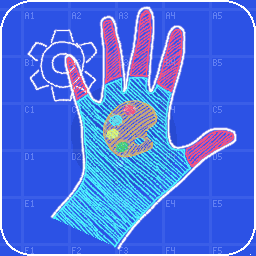
(If you ever forget, the image in the cosmetic menu shows all this in shorthand!!!)
Creating Palettes
- In the cosmetics menu, click the gear next to the TEMPLATE cosmetic.
- Palettes can contain up to 256 colors, this pack has presets for up to 16 (5 bit) or 32 (6 bit) colors. Depending on the complexity of your sprites, select the appropriate palette.

- The colors will be very wacky, this makes it obvious which pixel in the palette image you need to correct. Open the selected palette in an image editor and change the colors. (To change the color of a yellow region to blue, replace the yellow pixel in the palette with blue. Example image below. Make sure you SAVE/EXPORT)
- Back in game, use the
refreshcosmetics; reloadpackscommand. The colors should be updated!
