
GK2 Move Buildings
Move buildings instead of rebuilding them: nothing spent, nothing refunded. Upgrade in place, move graves and the factory's belts and machines, copy-paste factory blueprints you can share as text. Works with Build Tools.GK2 Move Buildings
Built it wrong? Just move it.
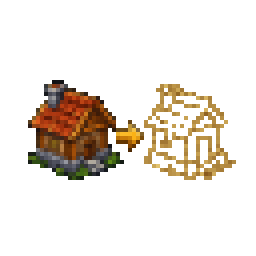
The build menu gets a Move button next to Remove. Pick a building, and it goes back on your cursor. Put it down wherever the game lets you build, with the same zones and snapping as always. Nothing spent, nothing refunded.
- Carry the contents (on by default): a moved chest keeps what it holds. Turn it off and the contents are dropped beside the building instead. (An existing config keeps the value it had.)
- Workbench extensions (buckets, tool racks, bellows) link back to their workbenches after a move.
- A building can be shifted by a cell or two.
- In remove mode, hold Left Ctrl and click to move instead of demolish.
- In remove mode, a click on something the game won't remove tells you why.
- Unlock protected layouts (off by default): remove or move the graveyard layouts the game protects, once they're empty. At your own risk.
- Move graves: a finished grave keeps its body, decor and quality. Put it on any free grave place.
- Upgrade in place: build a better one of the same kind on top of the old one, or press the small arrow next to a station's portrait. The old one hides under the construction site and becomes the new one when it's finished, with everything it held. Normal price, usual refund for the old one.
- A working station is moved with its crafts: the queue and progress stay.
- Hold Left Ctrl and click a graveyard layout to remove it together with its empty grave places.
- Destroy rusty tools (off by default): get rid of the rusty starting tools once you carry a better one.
- Give back the rusty tools: destroyed them too early? Get one of each back, if it's nowhere in your save.
- Underground workshop: belts, splitters and machines can be moved too; they reconnect to their neighbours.
- Factory blueprints (beta): in the underground factory's build window, Copy area (click two corners) turns part of it into a blueprint: a text starting with
GK2BP1:that you keep in a library or share in chat. Paste blueprint (R turns it, Esc or a right click leaves) puts it down elsewhere: every piece is checked first, then built and paid for like by hand; chest filters and repeating craft queues come along. Short of materials? Build what you can afford, or let Shopping List (0.10.0 or newer, "Layout from clipboard") turn the blueprint into a shopping list; the task leaves the list when everything is pasted. The Blueprint buttons setting hides the two buttons. - Keep moving (on by default): after a move you stay in move mode for the next building.
- Garden scarecrows: remove them, or move them anywhere; "Bring the scarecrows back" restores them.
- Upgrade arrow setting: hide the arrow in station windows if it's in the way.
- Works with Linked Storage and with Build Tools 1.3: its Edit mode, Move and plan mode are left alone, and its Clerk and Reporter desks are not moved (the clerk or reporter would be lost). Move Buildings tells other mods which building became which after a move.
- Made for game 1.010.
- Right click or Escape cancels. Gamepad supported.
Settings
In the settings window of the SaintArchI mods (F7, or the "SaintArchI mods" button in the pause menu), in the Mods menu (with GK2 Mod Framework), in ConfigurationManager, or in BepInEx/config/gk2.movebuilding.cfg. The settings are grouped in blocks (Moving, Upgrades, Blueprints, Extras, Gamepad, Language); Settings.txt next to the DLL explains each one, in the game's languages.
Manual install
Put GK2MoveBuilding.dll, move_icon.png and the Settings*.txt files into BepInEx/plugins/GK2MoveBuilding/. Needs BepInEx 5.4.23.x (x64).
Move icon by Axness. Thank you!
Questions and bug reports: Nexus page.