
You are viewing a potentially older version of this package. View Latest Version
PeakPitchCrosshair
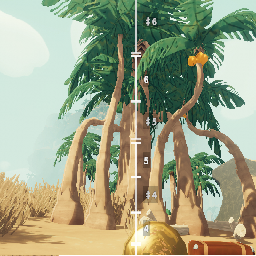
Peak Pitch Crosshair can display world-anchored pitch markers in the game.Peak Pitch Crosshair
Peak Pitch Crosshair is a Unity plugin that visually overlays pitch-aligned markers (e.g., musical note ranges) in your 3D scene. Instead of a static HUD, the markers are world-anchored using raycasts—so they “stick” to scene objects (like trees) and move naturally as you look up and down.
Features
- World-anchored pitch ranges: Each note’s angle range is represented by a bracket or label that aligns with whatever world object it hits.
- Corrected angle boundaries: No overlapping ranges; bottom note (“1′”) properly extends toward the horizon edge.
- Edge clamping: Optional extension of first/last ranges up to ±EdgeClampDeg (default is 85°).
- Raycast fallback: Configurable fallback option to render markers even when raycast doesn't hit any object.
- Sharp toggle (F7): Show or hide sharp (
#) note ranges at runtime. - Readable labels: Uses in-game fonts, big bold characters, text outlines, and dark semi-transparent backgrounds for high visibility.
- Configurable styling: Adjust font size, boldness, tick width/thickness, opacity, and more via BepInEx config.
Installation
- Install BepInEx in your Unity game.
- Place
PeakPitchCrosshair.dllinto theBepInEx/plugins/folder. - Launch the game and press F6 to toggle the overlay on/off, or F7 to toggle sharp notes visibility.
Configuration
All settings are accessible in the generated config file (BepInEx/config/PeakPitchCrosshair.cfg). Configurable options include:
EdgeClampDeg: Maximum angle to extend topmost/bottommost note ranges (default: 85).FallbackWhenNoHit: Whether to render markers even when no object is hit (default: true).- Font styling:
FontSize,FontBold,PreferredFontName. - Visual settings:
TickHalfWidthPx,TickThicknessPx,BracketThicknessPx, label opacity settings. - Behavior settings:
InvertPitch,ShowLabels,HighlightActive,ShowSharps.
Usage
- Toggle the marker display with F6.
- Toggle sharp (
#) note ranges with F7. - View and customize appearance and behavior via the config file during runtime.
Compatibility
- Unity 2019+ (IMGUI-based rendering).
- BepInEx plugin framework.