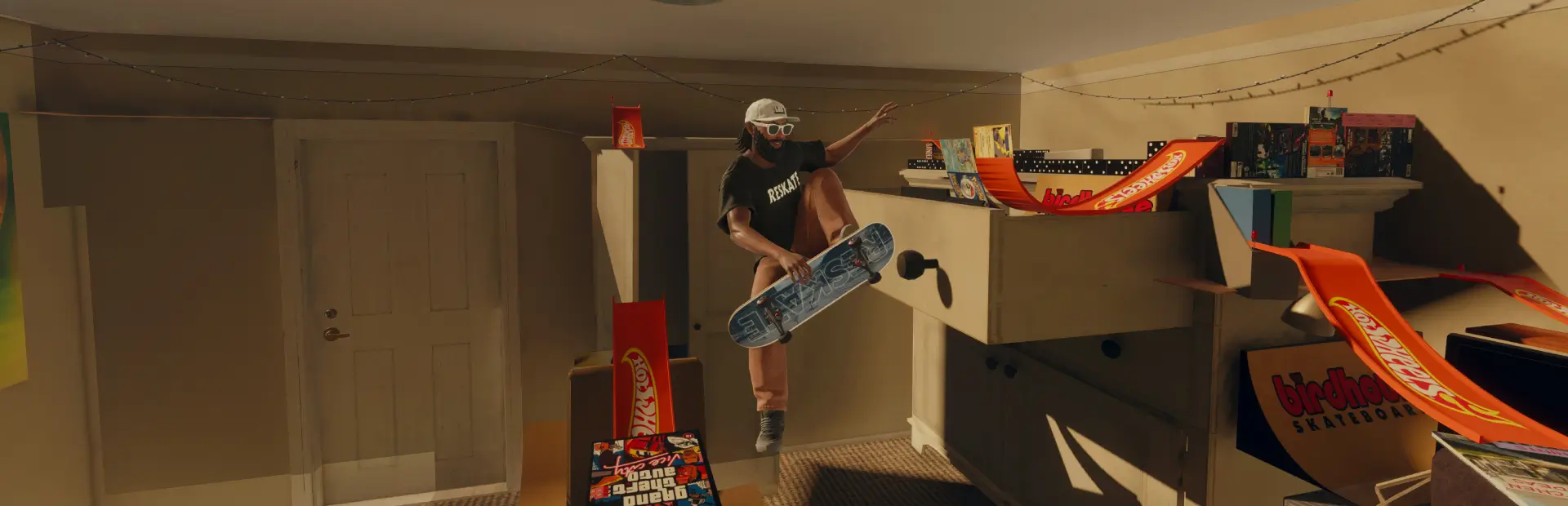

MSC Skate
Multiplayer and Solo S.K.A.T.E. with expanded flip and grind matching, configurable host rules, and custom spectating. Includes flips, grinds, grabs, manuals and configurable trick calls.MSC S.K.A.T.E.
Set a trick or combo for other skaters to copy. When a defender runs out of tries, they earn a letter. Reach the selected Game Length and you are out. Outlast the other players to win, or practise locally with Solo Match.
Host or join
- Join a multiplayer session running the same MSC Skate version as your game.
- Open MSC S.K.A.T.E. from Throwdowns, the optional MSC Plugin Handler, or Insert → Plugins.
- In Setup, choose 2–10 players, a 10–300 second turn timer, and a Game Length of 3–7 letters. The default game length is five letters.
- Review the Rules tab and choose your natural Regular or Goofy stance when prompted.
- Select Place Flag, then confirm with E / X / Square. Use Backspace / B / Circle to cancel. The small floor arrow shows the direction skaters face when they start.
- Friends can join within four metres of the flag. Once at least two skaters have joined, the host can start from the lobby, nearby flag, or lobby card. Gather at the start to begin taking turns.
The top-left lobby card shows who has joined. Closing its menu keeps you enrolled.
Set, defend and win
The setter lands a trick or combo, then defenders try to match it within their turn timer. Trick order, stance, spins, and supported modifiers count. You may be asked to retry if a capture is unclear. Established tricks cannot be set again. A successful defender can earn the next set after the defence round.
Tries per set and Tries per letter control how many attempts each player gets. Extra tries on final letter are added when the defender's next letter would eliminate them. The Attempts box under the letters shows your progress. Between Try Time controls the wait before the same skater retries and defaults to 3 seconds. Post Turn View controls the wait after a successful set or a turn-ending bail and defaults to 5 seconds. Both can be set from 0–300 seconds in Rules → Attempts.
Trick Calling
Hosts can enable Trick Calling under Rules → Match Options. Only the setter calls. Press Left D-pad to open the picker, use /ct, /cf, or /calltrick in chat, or use skatecall in the ReSkate console for Solo Match.
In the picker, use LB/RB to switch trick categories, LT/RT to switch available flip lists, and X/Square to cycle stance. Use D-pad Up/Down to select a trick and Left/Right to adjust spin where available or cycle an inline direction or rotation. A/Cross selects, R3 confirms, L3 undoes the last trick, and B/Circle backs through the picker.
- Type a full name or a shorthand such as tre, varial kick, or laser. Type combos in order, for example /ct kflip nose manny heel. Use + or > to separate tricks if needed.
- A single close spelling match locks automatically. If several matches are possible, use /ct confirm 1 or the number shown in chat. An Already set message means you can call a different trick while the timer runs.
- The Call timer defaults to 90 seconds and can be adjusted in Match Options. The separate set timer begins once the call is locked and preparation is complete.
- Trying a trick before calling counts as a bail. A wrong landing, bail, or timeout passes the set to the next setter. The setter's Visualizer shows the locked call, and defenders see the actual landed set.
Match rules and landing zones
The host chooses scored categories, manual combinations, dark catches, and match options before placing the flag. Rules are fixed for that match. Physics tuning defaults to Off, which lets players use their own settings. Choose Default to use stock physics. Use LB/RB to cycle Setup, Rules, and Presets, and LT/RT to cycle categories within Rules. On the Presets page you can save, load, rename, or delete named match configurations. Loading a preset updates the next match setup. Personal camera and display options are saved separately.
Enable Landing Zone to place a box. Trick In requires landing inside it. Trick In & Out also allows landing outside after taking off inside or making contact with the zone during the same captured attempt. An optional opening cinematic plays before the countdown.
In Insert → MSC S.K.A.T.E. or Rules → Match Options, set your personal Landing Zone Display to Full Box, Floor Only, Floor Only Filled, or None. The placement editor still shows its guides. Floor visuals follow sampled terrain and the fill and outline mask behind your skater.
In zone Move mode, use the left stick to move the draft and the right stick to orbit it. LB/RB rotate left or right and the triggers adjust elevation. The D-pad resizes relative to the camera. Hold X/Square to adjust height. Click the left stick to toggle fine or fast adjustments, or click the right stick to switch between Move and Edit. Press A/Cross to place the draft, then press again to confirm.
Marker Type selects Session Marker, Game Marker, or Disabled. Press D-pad Up to use an allowed marker. Turn Failure on Return to Marker can penalize a manual return during a trick (After Trick, the default), penalize any permitted manual return during the active turn (Before Trick), or disable the penalty. Automatic returns, waiting, countdowns, and other players' turns are exempt.
Solo Match
Enable Solo Match at the top of Setup or under Insert → Quick Setup. Placing the flag starts local practice. Set a trick, defend your own set, and continue until letter elimination.
Controls
| Action | Keyboard | Xbox / PlayStation |
|---|---|---|
| Place flag or use a nearby flag | E | X / Square |
| Cancel flag placement | Backspace | B / Circle |
| Join from invitation, start as host, or return as guest | Flag or lobby menu | Hold Y / Triangle for one second |
| Leave lobby, end as host, or dismiss invitation | Lobby menu | Hold B / Circle for one second |
| Open the active match menu | Insert, then MSC S.K.A.T.E. | Tap Start / Options |
| Open the MSC phone during play | Handler shortcut | Hold Start / Options |
| Select or go back in custom menus | Enter / Backspace | A / B or Cross / Circle |
Nintendo lobby prompts use X for the Y/Triangle action and A for the B/Circle action. Menu leave and end actions ask for confirmation. Hide players outside my match is a personal option under Insert.
Spectating and Visualizer
Auto Spectate follows the active skater while you wait, including after elimination. Choose Lock On, Stable Follow, or Filmer in Camera Settings. Press X/Square while spectating to cycle the modes. In Stable Follow, use D-pad Left/Right to pick a side and Up/Down for a high or low shot. Opening the MSC phone keeps the camera running behind it. Your camera and movement controls return for your preparation period and turn.
A playing Skate match takes priority over manual phone spectating. The Visualizer section under Insert has a preview and controls for size and position. With MSC Plugin Handler running, the phone’s Settings → Flickit Visualizer sliders use the same preview and settings.
Rewards and help
A qualifying completed multiplayer win on an MSC reward-enabled server can pay 100 MSC per opponent enrolled at the start. Successful sets and defence attempts are required. Payment appears after confirmation. Cancelled and Solo matches do not pay.
If captures seem wrong, check your natural stance, the host's scored categories, and the target on screen. Debug mode enables detailed capture feedback for troubleshooting. It defaults to Off.