

CommandQueueRemastered
Plan Command item queues in the game scoreboard with item icons, permanent inventory counts, descriptions, presets and optional mod integrations.CommandQueue Remastered
Beta 0.3.4 — plan your Artifact of Command picks directly in the Risk of Rain 2 scoreboard.
Build item queues, repeat your preferred picks and save presets without leaving the game's interface. Remastered combines the functionality of CommandQueueExtended, CommandQueueExtendedIconFix and ProperSave_CommandQueueExtended in one mod.
Features
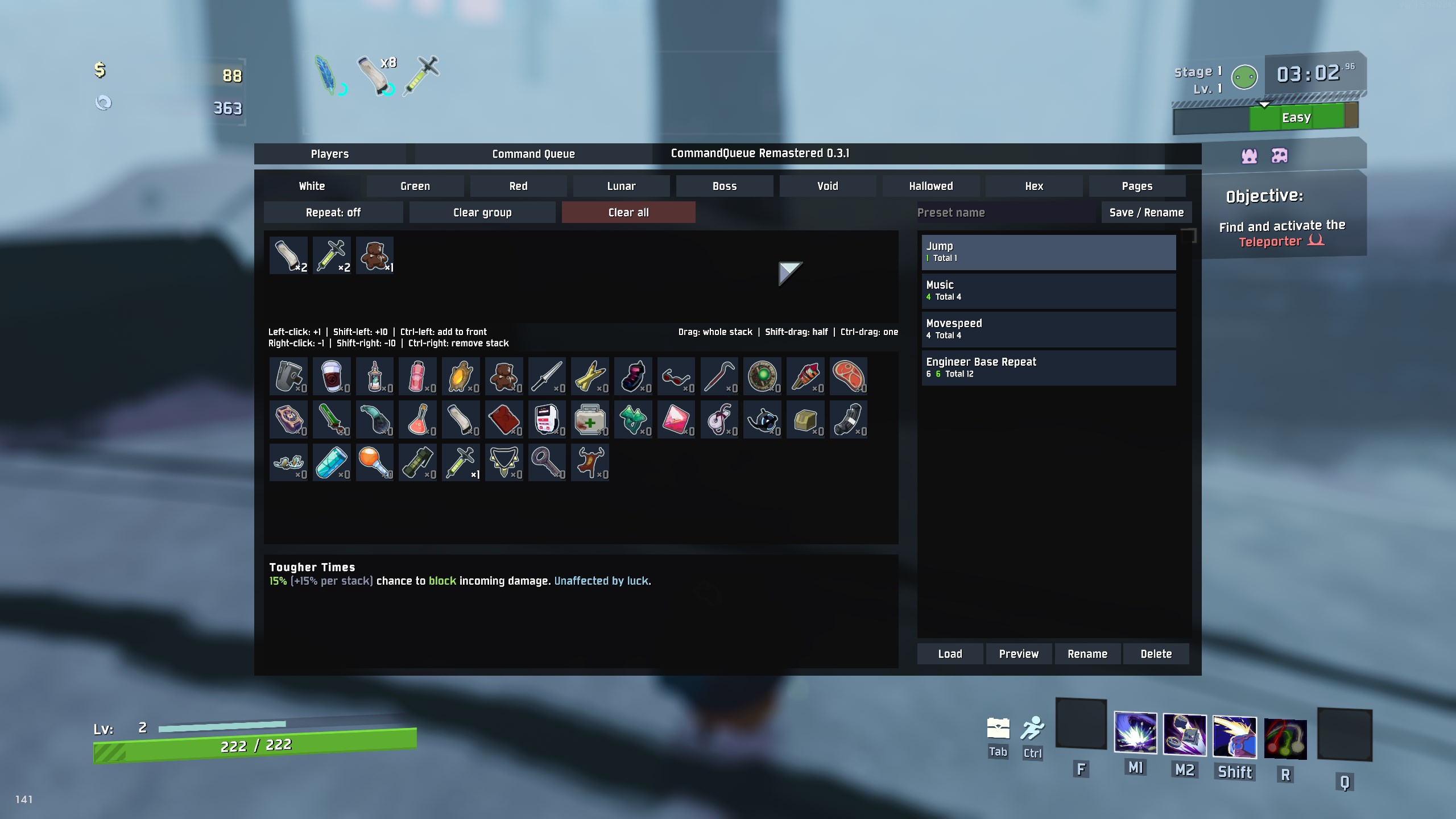
- Scoreboard integration: switch between the original Players overview and Command Queue using the game's configured scoreboard key.
- Optional gameplay controls: choose
On,CommandQueueOnlyorOffforBlockGameplayInputto control which scoreboard views block movement and gameplay buttons. - Item queues: add quantities, reorder or split stacks with drag and drop, remove items and clear queues with confirmation.
- Automatic Command selection: selects the next queued item for the essence's actual tier. Empty queues or unavailable next items normally open the manual selection menu; the exclusive-item setting below provides an optional exception.
- Pause: pause automatic selection independently for each item group without losing quantities or Repeat progress. The Pause button turns orange-yellow when the currently selected group is paused.
- Repeat modes: rotate selected items to the end, or cycle through the planned quantities while keeping the displayed order and counts fixed.
- Presets: save, load, preview, rename and delete queue plans. Drag preset rows to reorder them; the order is saved automatically.
- Item information: icons, permanent inventory counters and a scrollable description panel with optional LookingGlass stats.
- Configurable special pickups: choose separate behavior for temporary and ethereal Command items. Configure six exclusive items to select when queued anywhere or automatically even without a queue entry.
- Optional integrations: RiskOfOptions for in-game settings, LookingGlass for descriptions and ProperSave for run queue persistence.
Groups appear in this order: White, Green, Red, Lunar, Boss, Void, Hallowed, Hex, Pages. Void items share one tab and show rarity color strips; automatic selection and Repeat remain separate for each actual Void tier.
Installation
Install with r2modman or another Thunderstore-compatible mod manager. BepInExPack and SeekersPatcher must be installed.
Disable or remove these older mods from the same profile before using Remastered:
- CommandQueueExtended
- CommandQueueExtendedIconFix
- ProperSave_CommandQueueExtended
Remastered replaces them and prevents simultaneous loading. ProperSave itself is a separate optional mod and should remain installed if you want to save your queue with a run.
RiskOfOptions and LookingGlass are optional. Without RiskOfOptions, use the configuration file. Without LookingGlass, descriptions use the game's normal text.
Getting started
- Start a run with the Artifact of Command enabled.
- Open the scoreboard using your game key, normally Tab, and select Command Queue.
- Choose an item group and click the items you want to queue.
- Interact with a matching Command essence. Remastered selects the next eligible queued item automatically.
The Players button returns to the original scoreboard overview. Keyboard and mouse are the intended controls; controller support has not been tested and controller compatibility is unverified.
Controls
| Action | Result |
|---|---|
| Left-click an available item | Add one to the queue |
| Left-click a queued item | Increase that stack by one |
| Shift + left-click | Add ten |
| Ctrl + left-click | Add one at the front of the displayed group |
| Ctrl + Shift + left-click | Add ten at the front of the displayed group |
| Right-click a queued item | Remove one |
| Shift + right-click | Remove up to ten |
| Ctrl + right-click | Remove the whole stack |
| Drag a queued item | Move the whole stack |
| Shift + drag | Move half the stack, rounded down |
| Ctrl + drag | Move one item |
| Click Pause | Pause or resume automatic selection for the currently selected group |
| Drag a preset row | Reorder presets and save the new order |
Ctrl takes priority over Shift when removing or dragging. Matching neighboring items within a group merge after moves, removals and Repeat rotation. A full stack remains separate from any overflow; quantities are preserved.
Hover over an item to read its description. If the text is too long, use the mouse wheel over that item or the description panel to scroll it. Descriptions work independently of the game's Enable Inspect setting.
Inventory counters show permanent owned items, excluding temporary and ethereal stacks. Queue badges show planned quantities instead.
Repeat and presets
Pause, between Repeat and Clear group, pauses automatic selection only for the currently selected group. It turns orange-yellow when that group is paused. Essences for paused groups open their normal selection menus; other groups continue selecting automatically. Each group keeps its own pause state, including all Void tiers together in the shared Void tab. Queue quantities, order and Repeat progress remain intact. Click again in the group to resume. All group pauses reset at run start/end and are not stored in presets or ProperSave.
Drag preset rows to change their order. A cursor label and insertion line show the destination; the list scrolls when dragging near its edges. Order is saved immediately and retained after restarting. Drop outside the list or press Escape to cancel. Selection and preview stay with their preset.
Enable Repeat for the selected group to keep using its plan. With RotateRepeatedItems enabled, each selected item moves to the end and stacks with a matching neighbor. With rotation disabled, the queue cycles through every planned quantity while its displayed order and counts stay fixed. Editing the queue or restoring it starts a new cycle.
Enter a preset name and use Save / Rename to save your plan. Select a saved row, then use Load, Preview, Rename or Delete.
Loading replaces only groups containing items in that preset; other groups and their Repeat settings stay intact. An empty preset leaves the queue unchanged. Preview is read-only and shows saved quantities and order.
Presets are stored in BepInEx/config/commandQueueRemastered.presets.json. With ProperSave installed, run queue persistence is available for singleplayer and the multiplayer host. Multiplayer-client queue persistence is not implemented.
On startup, Remastered imports presets from BepInEx/config/commandQueueSaves.json in the same profile once. Existing Remastered presets remain; the old file stays unchanged. Names, item order and quantities are retained. Repeat starts off because the old file does not store it. Deleting imported presets does not import them again. If the source is missing, it can be added before a later startup; invalid input is logged and retried on the next startup.
Settings
With RiskOfOptions installed, open Settings → MOD OPTIONS → CommandQueue Remastered. Otherwise edit BepInEx/config/local.commandqueue.remastered.cfg.
| Section | Setting | Default |
|---|---|---|
| Groups | Nine independent group toggles | All enabled |
| General | RotateRepeatedItems | Enabled |
| General | BlockGameplayInput | On |
| General | MenuScale | 1.00x, range 0.50x–2.00x |
| General | ItemScale | 1.00x, range 0.50x–2.00x |
| Special items | TemporaryItemBehavior | ManualMenu |
| Special items | EtherealItemBehavior | ManualMenu |
| Special items | ExclusiveItemSelection | Default |
BlockGameplayInput has three choices and defaults to On:
| Mode | Players | Command Queue |
|---|---|---|
| On | Gameplay blocked | Gameplay blocked |
| CommandQueueOnly | Gameplay active | Gameplay blocked |
| Off | Gameplay active | Gameplay active |
Changes and view switches apply immediately. In an unblocked view, movement and gameplay buttons stay active after clicking or hovering buttons, while typing preset names, and during the Clear all confirmation. UI actions can therefore also trigger gameplay actions. The UI keeps its normal focus and the cursor remains available for menu interaction; mouse-look follows the game's normal cursor behavior. The actual pause menu and the game's camera-control restrictions remain in effect.
Menu scale affects the whole interface and is limited by the available screen space. Item scale adjusts icon size separately.
Temporary and ethereal pickups each have these choices:
| Behavior | Effect |
|---|---|
| ManualMenu | Open the normal selection menu |
| UseQueueWithoutConsuming | Select the queued item without changing quantities, order or Repeat progress |
| UseQueueNormally | Select and consume from the queue normally |
The selected item's temporary or ethereal status is preserved. Normally, an empty queue or unavailable next item opens the normal picker.
ExclusiveItemSelection applies to exclusive Command essences offering Halcyon Seed, Newly Hatched Zoea, Exposed Cerebellum, Encrypted Cerebellum, Prison Matrix or Sentry Key. Default requires the item anywhere in the queue. Automatic selects it even without an entry. Existing entries follow consumption/Repeat rules; without an entry, the queue stays unchanged. Pause, disabled groups and temporary/ethereal policies take priority. Selected items still drop normally; automatic collection is not included. Queued exclusive items that are not offered by the current essence do not block later normal items of the same tier. Those exclusive entries stay queued for their matching essences. Offered but unavailable items still open the manual menu.
Beta status and feedback
This beta targets Risk of Rain 2 1.5.0. Multiplayer behavior and all mod combinations have not been fully validated. Controller support is untested.
Each queue stack supports up to 999 items. Larger imported stacks are split without losing items.
When reporting a problem, include the mod and game versions, steps to reproduce it, relevant settings, and your BepInEx/LogOutput.log. A screenshot helps with interface problems.
Credits
- gabrielgad — CommandQueueExtended.
- KubeRoot — original CommandQueue project.
- KennedyMindsetMovement — ProperSave_CommandQueueExtended, the reference for CommandQueueExtended run queue persistence.
- KingEnderBrine / ProperSave — optional run save integration.
- Rune580 / RiskOfOptions — optional in-game settings UI.
- Wet-Boys / LookingGlass — optional enhanced item descriptions.
AI disclosure
Generative AI (OpenAI Codex) assisted with the development of this mod and the writing of its documentation. In-game testing and feedback were provided by the maintainer. AI assistance does not guarantee correctness; the validation limits described above apply.