- Install MelonLoader
- Run Game
- Drop Folders into Rumble Folder
- Play Game.
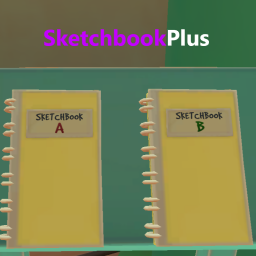
- You can start by saving your existing sketchbooks then turn on Random. (See Below)
How to use:
- When Loading into the Gym, The Next Scene you go to will have the Updated Outfit (doesn't change outfits same scene)
- Mod Starts Working in the First Gym Load, so sometimes it'll Load your Normally Selected Outfit on First Gym Load.
- Hit F10 to Open ModUI and Select SketchbookPlus
- Files Get Stored in 'RUMBLE/UserData/SketchbookPlus'
- In the List of Dropdown Settings, you will see 'Save Outfit'. Turn this On to Save the Selected Outfit under 'Saved Outfit Name'.
- In the List of Dropdown Settings, you will see 'Saved Outfit Name'. This is the File Name when you Save an Outfit (Make Sure to Hit Enter).
- In the List of Dropdown Settings, you will see 'Load Outfit' Turn this On to Load the Selected Outfit under 'Outfit Name to Load'.
- In the List of Dropdown Settings, you will see 'Outfit Name to Load'. This is the File Name to load. Use if you want a Specific Outfit (Make Sure to Hit Enter).
- In the List of Dropdown Settings, you will see 'Random Saved Outfit'. Turn this on to get a Random Outfit Each Time you Leave the Gym. (won't be the same outfit twice in a row)
- In the List of Dropdown Settings, you will see 'Update Files Texts'. Turn this On for the Mod to look at all the files again. Use this only if you Edit/Add/Remove a File.
Help And Other Resources
Get help and find other resources in the Modding Discord:
https://discord.gg/fsbcnZgzfa