
Carturs Portal Network
Pick any portal as another's destination from a Norse menu. Portals open as you near them and show the destination inside. New portal piece. On servers, portals are private to their builder and shareable with friends or a ward.Cartur's Portal Network
Choose where any portal goes. Open a portal, pick another portal from a list, and the first one opens onto it: no matching names, and the choice is kept when you save and reload.
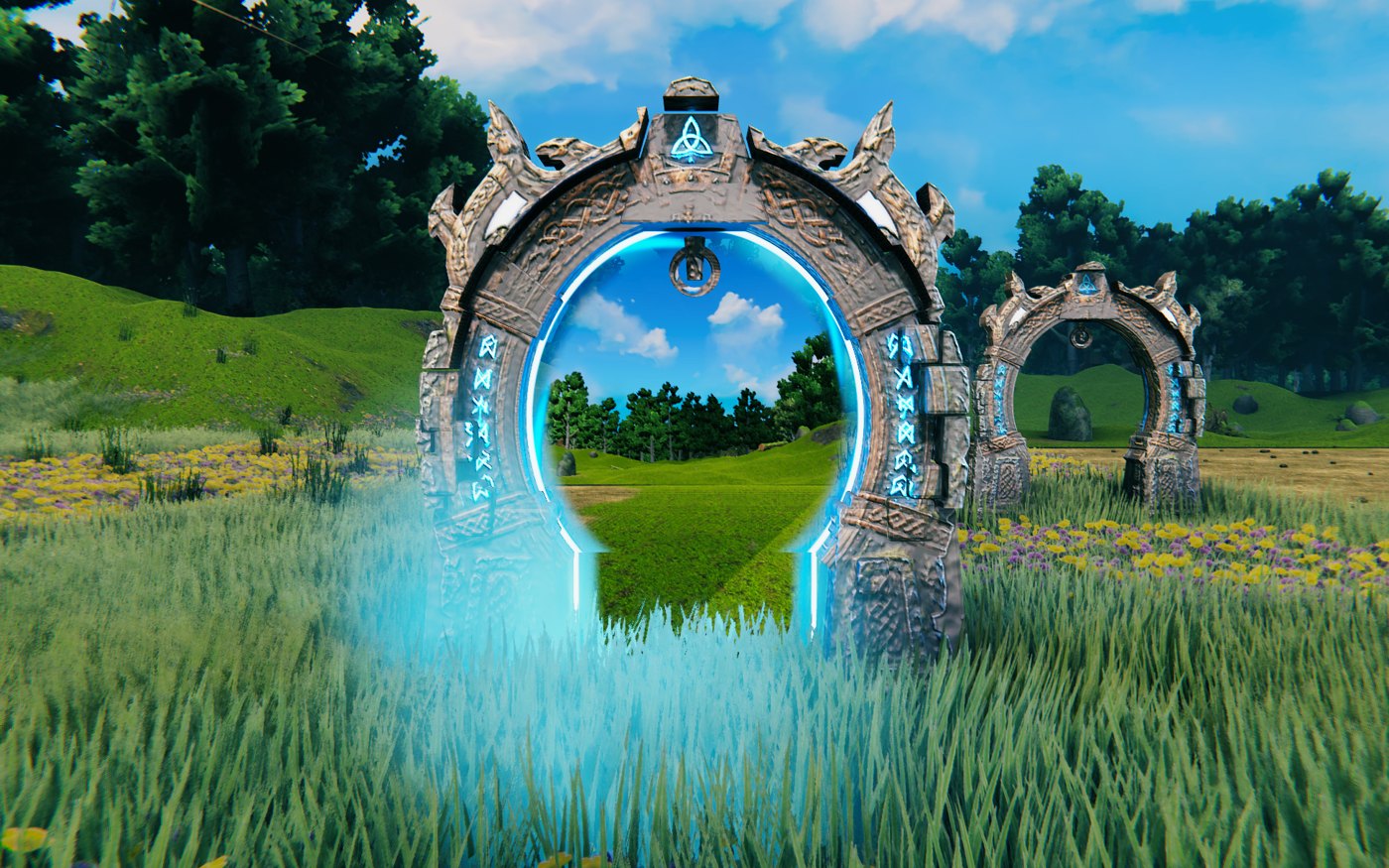 A portal with a destination chosen. The opening shows a picture of the other portal's surroundings; cyan mist spills at the base.
What it does
- Pick any destination. Interact with a portal to open the selection screen. It lists every portal in the world with its name, biome and distance. Search by name or biome, sort by distance or name, rename the portal you are at, activate a destination, or disconnect.
- A framed screen. The selection screen sits inside a carved steel frame with a tree, two ravens and a valknut worked into it. When it opens, light runs through the frame. While it is open the light slowly rises and falls. Rows light up under the pointer and buttons lift a little. Six rows show; a longer list scrolls. Pick a destination and the screen stays open for about a second while the light answers and the row turns ACTIVE. Closing dims the light from the bottom up. Arrow keys and Enter work in the list.
- Favourites, recent and Back. The diamond on a row marks a portal as a favourite; favourites stay at the top of the list. RECENT sorts by the portals you arrived at last. After a jump, BACK on the portal you came out of points it at the portal you came from. These are kept per character and world, in
BepInEx/config/com.cartur.portalnetwork.player.txt. - Show on map. MAP on a row closes the screen and opens the big map on that portal. (Cartur's Map Pins, if installed, already pins portals; this does not add pins.)
- A default destination. MAKE DEFAULT, next to the destination of the portal you are at, saves that destination; a Network portal you build afterwards starts pointed at it. Press again to clear it.
- The destination in the hover text. Looking at a portal with a chosen destination adds "Goes to <name>" under its name.
- Choices persist. A chosen destination survives saving, quitting and reloading, and survives renaming. If the destination is destroyed, the link is dropped.
- Portals that open. A portal with a destination stays dormant until a player comes within range (8 m by default), then its ring charges and the opening grows outward from the centre. Walking away closes it.
- A picture of the other side. The opening shows a snapshot of the destination, taken from in front of it while you stand near it. It is a picture, not a live view: nothing in it moves. The game keeps a day picture and a night picture of each destination and fades between them as the day turns (until a night picture exists, the day picture is darkened at night). Pictures refresh every ten minutes while you are close.
- A new portal piece. Network portal is a carved portal with glowing runes. It is built on the normal portal, so it links, teleports and saves like one. It is added to the Hammer's list.
- Portal sounds. A portal makes an opening sound when it wakes, a steady hum while it is open, and a closing sound when it shuts. They replace the vanilla portal hum and are as loud as it by default. The portal someone just came out of stays quiet while it is closed.
- The jump is a short film. When you step into a Network portal the camera rushes at it: the view widens, tilts a little and shakes, speed streaks run out from the middle of the screen and the colours fringe (the game's own chromatic aberration), with a rising rush of sound. It stops in front of the portal, and the portal you walked into stands alone on black, with its swirl showing the other side, mist, drifting sparks and a slow push-in: that is the loading screen, and the portal's hum is the only sound while it lasts (the rest of the game's sound is paused and comes back on arrival). When the far side is ready, the camera rushes into the swirl, a flash and a boom, and you come out in front of the far portal with a burst of sparks. The camera starts at the very viewpoint the destination's picture was taken from, so what the window showed is what you come out into; after a second (your controls held) it cranes up over the portal and settles behind your character with a whoosh. In first person the arrival is shorter. The setting
PortalZoomturns it off. While menu animations are off, or while Windows has "Show animations in Windows" switched off (Windows does that by itself during a remote session such as Remote Desktop or TeamViewer), the jump is calm: no rush, streaks, shake, flashes, sparks or jump sounds, just a short fade to the portal on black with its hum, and a plain cut back. - Seeing someone arrive. When the server approves a jump it tells the players near the exit portal (within about 120 m). The exit opens for them as a portal does when a player comes near, showing the picture of the place the traveller comes from, and the traveller appears in front of it a moment later (their camera flies at the portal for a second before the game's own teleport starts, which is what gives the exit time to open). Then it closes, because the traveller is the only one near it. It opens again, as any portal, as soon as another player comes near, and that player can use it. The traveller alone cannot walk back into it for 10 seconds, or until they have walked about 5 feet away, or until they open its menu (which is how they go back on purpose); a message tells them when it is refusing. Players without Portal Network see the ordinary portal.
- Faster short jumps. When the destination is already loaded, the jump takes about 2 seconds instead of vanilla's 8 or more. Long jumps are unchanged.
- Private portals. New portals are private to their builder on a server; share them with everyone, with chosen players or with a ward (see below).
- A server check. Before a jump, the server checks the portal is linked, the destination still exists, you are standing at the portal, and the world allows portals.
- Pictures come from the server. On a server, a picture of a destination taken by one player is kept by the server and sent to other players who may use that portal and have none of their own. A player who has never been near a destination still sees it in the opening.
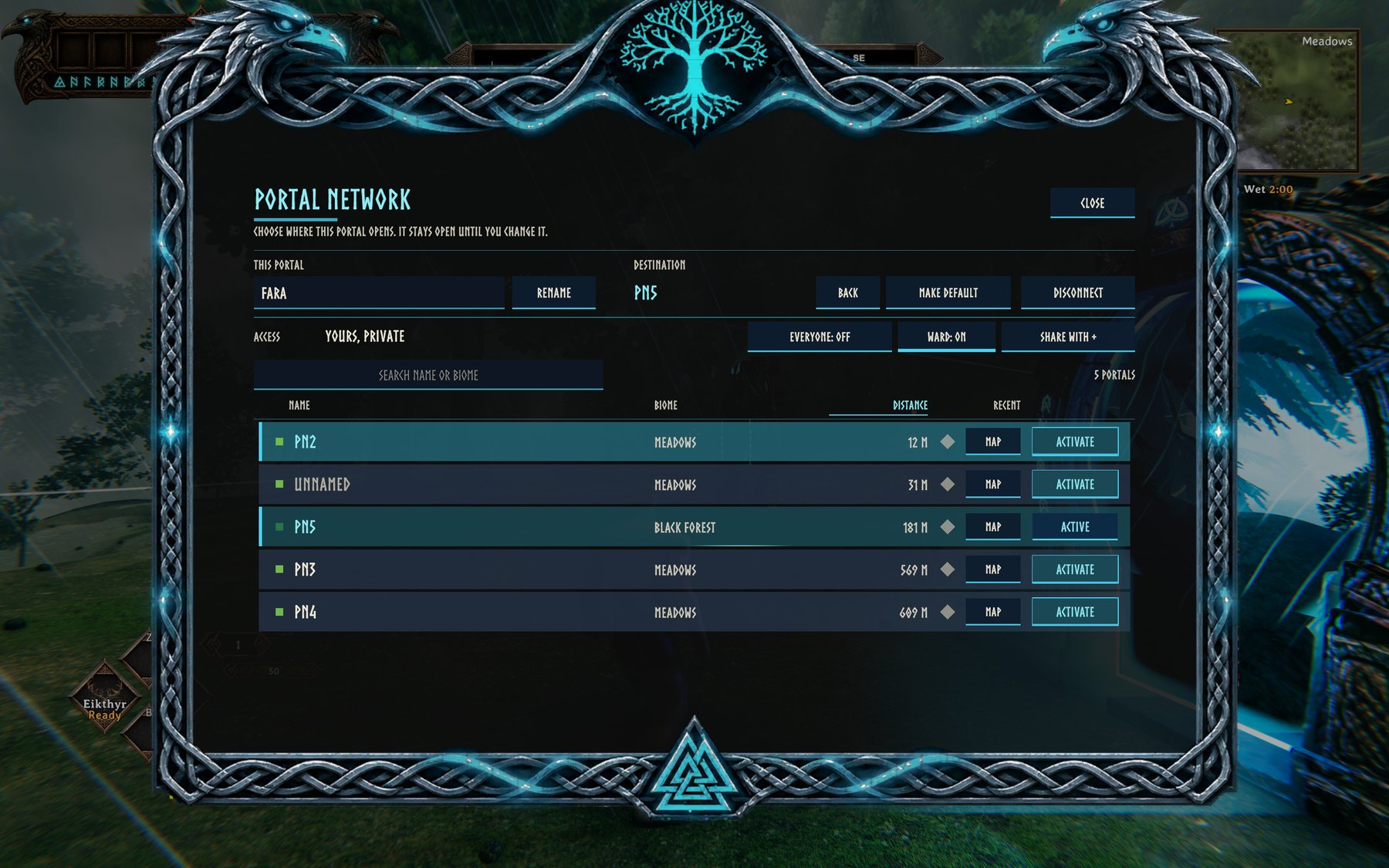 The selection screen in its carved frame, opened at a portal named FARA that is linked to PN5. Top row: rename, destination, BACK, MAKE DEFAULT and DISCONNECT. Below it the access buttons (EVERYONE, WARD, SHARE WITH), a search box, and a list of five portals with biome, distance, a favourite diamond, MAP and ACTIVATE.
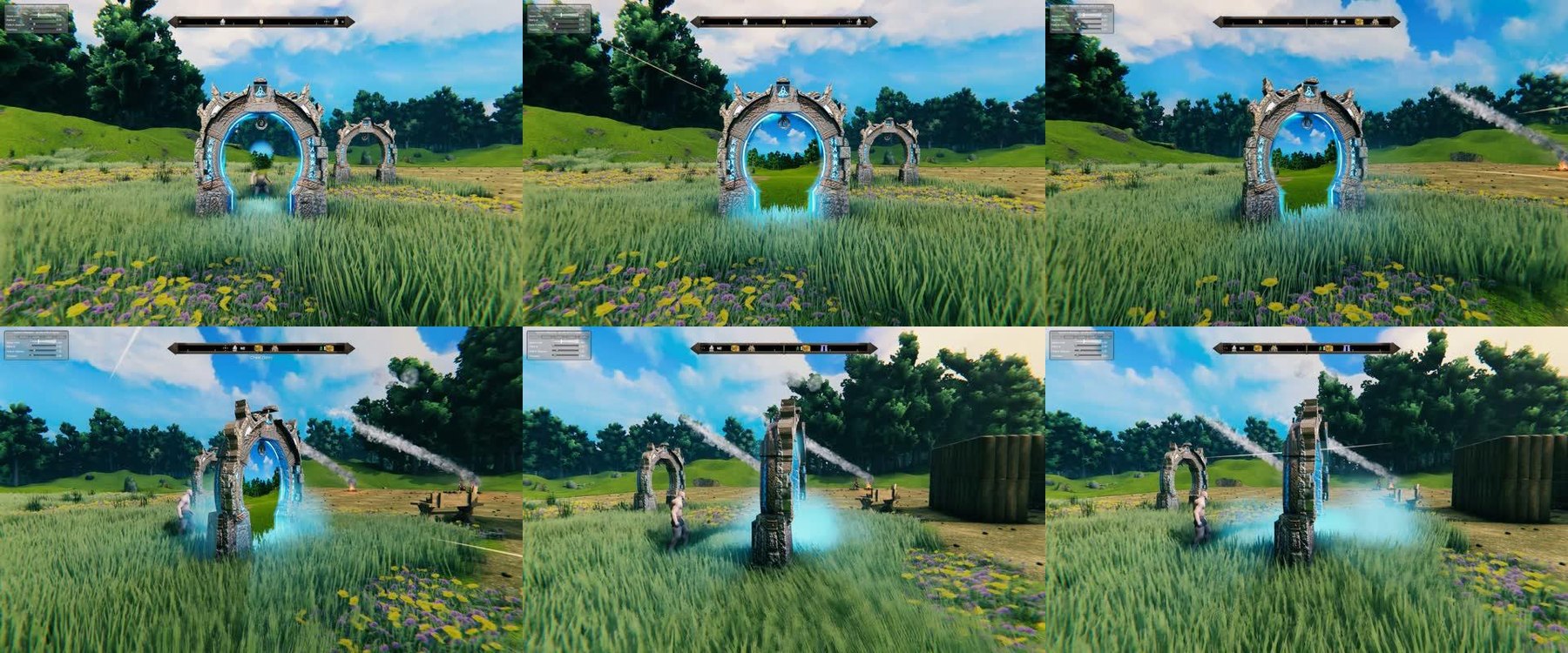 Six frames from one clip, 3 seconds apart: the ring lit and the opening forming, then open with the destination showing and mist at the base, then the camera moving around the portal.
The jump
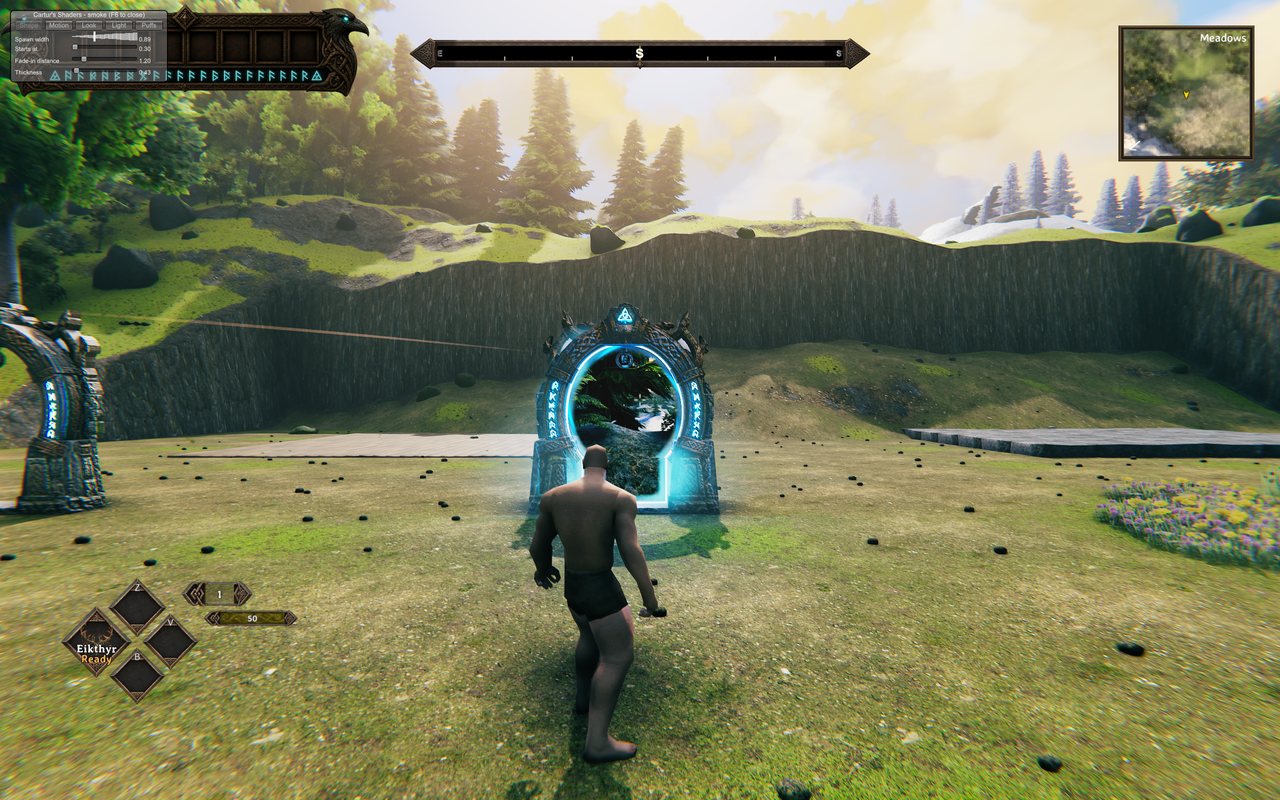 The player running up to a linked portal: the opening has formed and shows the picture of the other side.
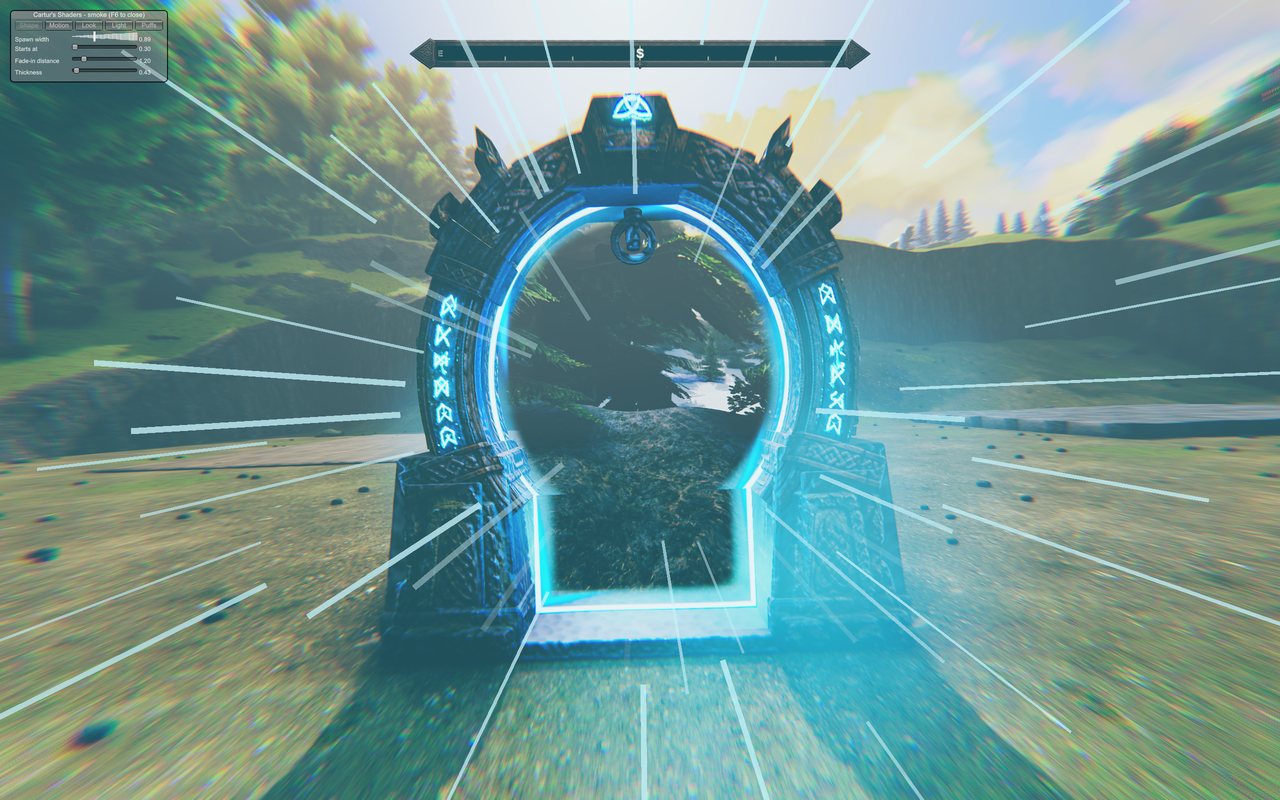 A frame held 0.95 s into the jump (the game was stopped at that moment with a test command): the view is wide, speed streaks run out from the middle and the colours fringe at the edges.
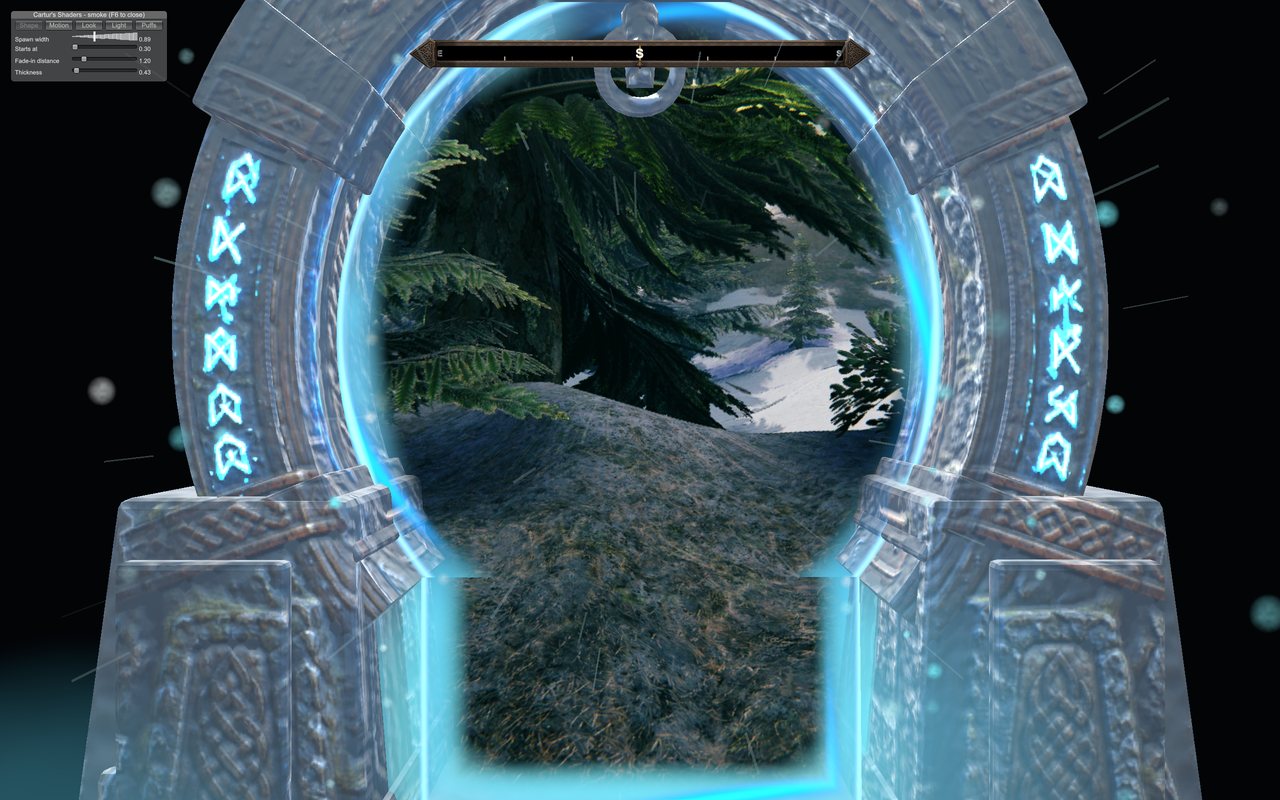 A frame held 3 s into the loading screen (stopped the same way): the portal that was walked into, alone on black, with the picture of the other side in its opening and sparks drifting.
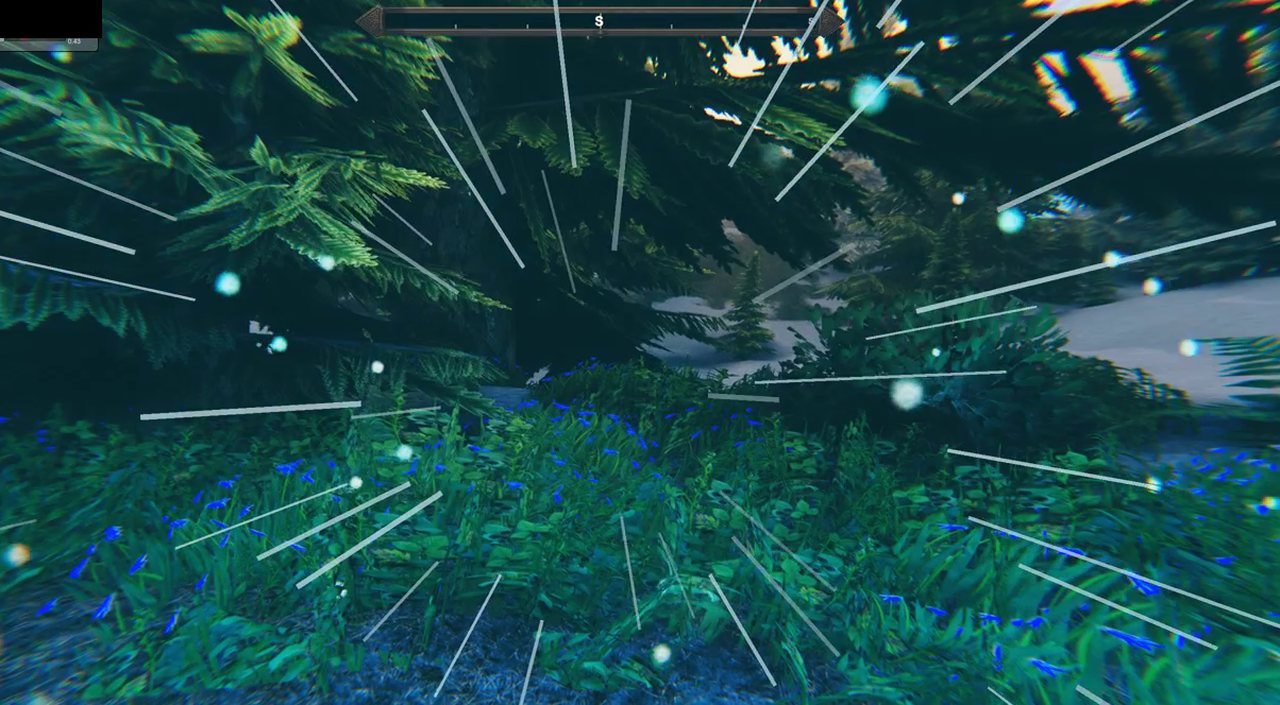 A frame from a recording of a real jump, just after arriving: the first view is the one the picture in the portal was taken from (here a snowy forest), with a burst of sparks and speed streaks.
Admin commands
Type these in the game's console (F5). The server decides who is an admin from its own admin list; anyone else is told no.
wg_listlists every portal with its owner, who may use it and where it goes.wg_statusshows the version, the protocol number, the portal counts and whether the travel check is on.wg_unlink <portal name>removes the destination of every portal with that name. Names, owners and sharing stay.
Versions
A client and a server run the same protocol or the selection screen says so and stays read-only ("This server runs Portal Network x.y, which this version cannot read"). Newer versions add to the portal list without breaking older ones; the protocol number only changes when something cannot be added that way.
Who can use a portal
On a server, a new portal is private to the player who built it: other players do not see it in their list and cannot link to it or jump through it. The owner decides who else gets in, with the row of buttons under the portal's name in the screen:
- EVERYONE shares it with every player.
- SHARE WITH opens a list of everyone who has ever joined the world; click a name to share with that person, click again to take it back. Shares follow the player's account, not the character, and work while they are offline.
- WARD lets members of a ward standing over the portal use it (on by default; turn it off to keep them out). Wards belong to characters, so this one follows the character.
- Admins see and manage every portal.
- A player can point a portal they may use at any other portal they may use, and nowhere else.
- Only the owner (and admins) can rename a portal. A portal with no known builder can be renamed by anyone who may use it.
Portals that already stood in a world when you added Portal Network stay open to everyone until their owner decides: the first time the owner opens one, a question asks whether to keep it shared or make it private. In a single-player game none of this shows.
Settings
Edit BepInEx/config/com.cartur.portalnetwork.cfg (or use Configuration Manager). Restart the game after changing a value.
| Section | Setting | Default | What it does |
|---|---|---|---|
| Portal | OpenRange | 8 | Distance in metres at which a portal with a destination opens. Vanilla uses 5. |
| Portal | PortalZoom | on | The camera flies into the portal when you jump, holds a moment on the far portal on arrival, then pulls back out. Off keeps the normal black loading screen. |
| Portal | SoundVolume | 0.56 | How loud the portal sounds are: opening, hum while open, closing, and the hum while a jump loads. The default is as loud as the vanilla portal hum (measured on the files: -16.1 against -16.2 LUFS); 1 is five decibels above it. They also get quieter with distance, like the vanilla hum. |
| Portal | ArrivalClosedSeconds | 10 | How long you cannot walk back into the portal you came out of. 0 turns it off. |
| Portal | ArrivalClosedFeet | 5 | Walk this many feet away from the portal you came out of and you may use it again at once. |
| Portal | Alive | 1 | How much the opening moves: the edge breathes, the picture ripples, the rune glow pulses. 0 is still. |
| Mist | FloorAmount | 0.5 | Mist that fans out of the front of the portal along the ground, about a foot deep; wind and people walking through move it. 0 turns it off. |
| Mist | FrameEdgeAmount | 0.25 | A faint wisp round the inside edge of the frame. 0 turns it off. |
| Passage | AllowAllItems | off | Lets ore, metal and every other item vanilla blocks go through any portal. |
| Passage | TakeFollowers | off | Tamed animals following you come through the portal with you. |
| Passage | ShortNearbyJump | on | Short jumps take about 2 seconds. |
| Passage | ServerTravelCheck | on | The server checks a jump before it happens. |
| Menu | FilterNames | off | Portal names in the screen go through the game's text filter. |
| Menu | ListOnlyExplored | off | The screen lists only portals whose spot is on your map. Off lists every portal in the world. Set by each player for themselves. |
| Menu animation | Enabled | on | The frame's light, the opening and closing, and the effects on picking a destination. Off shows a still, lit frame. Also turns off the portal camera flight. |
| Menu animation | FollowWindowsSetting | on | When Windows has "Show animations in Windows" switched off (Settings > Accessibility > Visual effects), the menu is still and the portal camera flight is off. |
| Menu animation | Speed | 1 | How fast the menu animations and the portal camera flight run. 0.5 to 2. |
| Menu animation | AmbientGlow | 1.4 | How much the frame's light rises and falls while the screen is open. 0 holds it steady. Up to 1.5. |
| Menu animation | HoverGlow | 1.4 | Strength of the light under a hovered or selected row. 0 is none. Up to 1.5. |
| Menu animation | Streaks | 1.4 | Strength of the thin light streaks that run out from a row when you pick a destination. 0 is none. Up to 1.5. |
| Menu animation | TravellingLight | on | A faint light travels round the frame's carved channels, one circuit about every 8 seconds. Off keeps the channels steady. |
On a server the four Passage settings are the server's: players joining use the server's values and their own file is not changed. Mist, Alive, OpenRange, PortalZoom, the two Arrival settings, Menu and Menu animation stay with each player.
Even with AllowAllItems on, items vanilla treats as never teleportable (tool tier 1000 and above) are still refused.
Compatibility
- Tested on Valheim 1.0.21 with BepInExPack Valheim 5.4.2351, in single player and on a dedicated server with one player.
- Not compatible with XPortal. Portal Network will not load if XPortal is installed, because both change how portals link. Valheim Community Patch's portal-connection fix steps aside when Portal Network is installed (it says so in the log). No other portal mods have been checked; at startup the log names any other mod that patches the same portal code, so a clash shows up there.
- On a server, Portal Network must be installed on the server and on every client. Without it on the server, the selection screen shows "the server does not have Portal Network" and jumps work as vanilla.
Languages
Text is English only for now. It lives in Translations/English.txt next to the DLL. To add a language, copy that file, name it after the game's name for the language (for example German.txt), and translate the part after each =. A line you leave out shows in English.
Known limits
- During a long jump the picture of the other side is the small one used in the portal's window, shown enlarged. It looks soft at high resolutions.
- The portal camera flight does not blur the edges of the picture or split its colours; it widens the view and flashes cyan.
Not tested yet
- A second real player. Private and shared portals, shares to offline friends and ward access have only been tried on a dedicated server with one player. Nobody else has joined a server running it.
- Seeing someone arrive with a real second player. The server's "someone is arriving" message was sent to a real connected client (it arrived, and was not sent to a client 136 m away or to the traveller), but nobody has watched a real arrival from the side.
- Crossplay players (their ids are handled like Steam ids, but this was not tried).
- The Hammer's placement screen itself. The piece was placed with the game's placement function and removed through the Hammer's removal call; the cost taken is the game's own.
- Controllers and the Steam Deck. The list answers the D-pad or left stick (move), A (choose), X (disconnect), Y (sort) and B (close), but no controller has been tried. Ultrawide screens have not been tried either.
- The Windows "Show animations in Windows" switch actually turned off, and the
Speedsetting. - Languages other than English.
- A jump through a portal that has no picture of the other side yet.
- Taking tamed animals through with a follow command from other mods, more than two animals at a time, or animals owned by another player.
Install and uninstall
Install with a mod manager, or copy CarturPortalNetwork.dll and portalnetwork.bundle into BepInEx/plugins/CarturPortalNetwork/.
To remove it: delete that folder. Before you do, take down any Network portals you built, since they will not exist without the mod. Once the mod is gone, the game links portals by name only. Every link you made on the selection screen is lost. Portals that share a name get paired with each other in an order nobody controls, so with three or more of the same name some of them end up joined to the wrong one, and a portal whose name no other portal has goes nowhere. Before you remove the mod, give each pair of portals you want to keep its own matching name, and give every other portal a name that nothing else uses.
Credits
Made with AI assistance: the code, the portal model and its textures were produced with AI tools, working from concept art supplied by the author. The frame round the selection screen is AI-generated artwork supplied by the author, and the portal sounds and the three sounds of the jump were generated with Stable Audio 3 Medium (Powered by Stability AI; this Stability AI Model is licensed under the Stability AI Community License, Copyright © Stability AI Ltd. All Rights Reserved). Built with BepInEx and HarmonyX. Not affiliated with or endorsed by Iron Gate.