
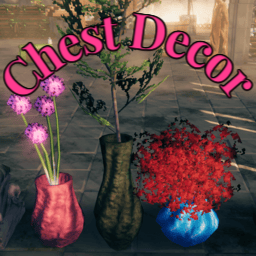
ChestDecor
Decorate your chests: colour them, attach trophies, food, produce, weapons, furniture, lights and KY-Items, then move, rotate and resize each item. Cosmetic only. Paid materials are refunded on removal.ChestDecor (Valheim / BepInEx / Jotunn)
Decorate your chests. Colour them, attach trophies, food, produce, weapons, furniture and more, then move, rotate and resize every attached item. Everything is cosmetic and is saved on the chest itself.
Mod created on special request from people I know in the Valheim community. Hope you'll all enjoy it! Please report any issues you find.
Features
- Colours: colour any chest you built with the colour editor (swatches, Red / Green / Blue, Brightness, hex code). Each part of the chest (wood, metal trim) has its own colour and its own mode (Tint or Full colour).
- Attach items: attach up to 5 things per chest (configurable, 1 - 8) from a large, filterable list: trophies, trader goods and valuables, produce (fruits, vegetables, seeds, plants, bushes and tree saplings), mob drops, food (including every uncooked and food preparation table item), arrows and bolts, weapons, armor, furniture and every light source, plus KY-Items: the items of other KydlDev mods you have installed.
- Position items: move, tilt, turn, roll and resize each attached item with sliders. The chest shows every change live.
- Refunds: removing an attachment, or destroying the chest, returns the materials that were paid.
- Camera: circle the chest while the window is open (keys or mouse, zoom 1 - 5 m, stops at walls and floors), to check colours and placement. No admin rights needed.
- Multiplayer safe: one editor per chest at a time, everything is stored in the chest's data and syncs by itself.
- Cosmetic only: players without the mod can still join and just see normal chests.
Requirements and installation
- BepInEx 5 (BepInExPack for Valheim) and Jotunn.
- Put
ChestDecor.dllinBepInEx/plugins(or install with your mod manager). Players who want to see the decorations and edit chests need the mod; players without it are not blocked (see Multiplayer below). - The config file is
BepInEx/config/com.kydldev.chestdecor.cfg; it is created the first time the game starts with the mod.
Use
Look at a chest you built and press K (configurable). The hover text shows a [K] Decorate chest hint. The window
has three tabs: Colours, Attach items and Position items. It opens on the right side of the screen so the
chest stays visible, can be dragged by its title, scrolls when it does not fit, and your character does not move while
it is open. It closes with Esc or X (unsaved previews are undone) or by itself when you move more than 10 m away
from the chest.
By default only chests that you could open (private chests, wards) and that were built by a player can be decorated; both can be changed in the config. Carts, ship cargo holds, incinerators and cargo crates are never decorated.
Colours tab
- Pick a part in the list, then choose a colour: click a swatch, move the Red / Green / Blue sliders, the Brightness slider (keeps the hue, 0 - 100%; the dots under it jump to 25% steps) or type a hex code. The row's Reset button puts that part back to its original look.
- Valheim chests use a single material and a single small texture for both the wood and the metal, so the mod analyses that texture and splits it into two colour regions, base (the larger area, usually the wood) and trim (the smaller area, usually hinges and bands), which are listed as separate parts. If a texture has no clearly separate second region it stays a single part (setting Split Texture Into Parts).
- Colour mode (per part, below the colour picker):
- Tint multiplies the colour with the chest's existing texture. Bright, saturated colours show best, and very dark textures stay dark.
- Full colour repaints the part: the original texture's grain and shading are kept, but its colour and darkness are replaced, so the colour you pick is the colour you get, even on the dark chests.
- Apply mode to all parts gives every coloured part the mode currently shown.
- Parts you haven't coloured yet start in the last mode you clicked (or the Default Colour Mode setting).
- Preview shows the current colours on the chest without saving. Save stores the colours on the chest; they persist with the world and other players with the mod see them. Revert throws away unsaved edits and goes back to the last saved colours.
Tip: use Full colour for dark wood or dark metal, and Tint when you want to keep the original material's own colour variation showing through.
Attach items tab
The list can be filtered, searched by name and paged. Each row shows what the item costs, in green when you can pay and red when you can't (with the reason). Attach pays and saves immediately; the item appears on top of the chest.
The list holds two kinds of things:
- Things you can craft or build by following a recipe: weapons, armor and the hammer's furniture. A recipe counts when it is enabled, has real ingredients and its crafting station is buildable; a piece counts when it is in a hammer-style build table of a craftable tool and has build materials. Mob weapons and attacks are not listed, and items that would show up twice (same name, icon and recipe) are listed once.
- Items that match an inclusion rule, with or without a recipe (see the filters below).
Items that have no 3D model to show (so nothing could be attached) are never listed. Two different prefabs that share
one shown name (TrophyDraugr / TrophyDraugrFem, both "Draugr Trophy") are both listed; the prefab name is added in
brackets so they can be told apart. An item can be in several filters (a Moose Trophy is a trophy and a mob drop; a Ruby
is a valuable, so it is under Trader).
Filters (a row of buttons):
-
All
-
Trophies: every item prefab whose name contains
trophyorcarrion. A trophy is never listed under Food, even though some recipes (fishing bait) use trophies as an ingredient. -
Trader: every item any trader (Haldor, Hildir, the Bog Witch, ...) sells, and the valuables: every item prefab whose name contains
gem(the Ancient Gemstones Grimvarn / Solryth / Veydris / Draumyx, and Bloodstone / Iolite / Jade), plus the traders' "List of valuables": Amber, Amber Pearl, Ruby, Silver Necklace and Ancient Coin. Entries that are not physical items (the Wider Pockets / Deeper Pockets inventory upgrades) are left out. -
Produce:
- Fruits: Raspberries, Blueberries, Cloudberries, Lingonberries, Vineberry Cluster.
- Vegetables, including grains and fibre plants: Carrot, Turnip, Onion, Kale, Poteitr, Fiddlehead, Barley, Flax, Oats. Mushrooms count too (Mushroom, Yellow / Blue Mushroom, Smoke Puff, Jotun Puffs, Magecap).
- Seeds: all seeds: every crop seed (Carrot, Turnip, Onion, Kale, Poteitr, Oat, Vineberry and Ivy seeds, and any other material whose name says seed) and the seeds, cones and acorns that tree saplings are planted with. Only the Ancient Seed (a boss summoning item, still found under Drops) is not listed here.
- Plants, bushes and saplings (shown as
Name (plant)): every plant the Cultivator can plant that grows something you can pick, shown full-grown, plus the wild berry bushes (Raspberry, Blueberry, Cloudberry, Lingonberry), Ashvine, Fiddlehead and any other wild pickable that gives produce. Wild mushrooms are not listed as plants (they look like the item); the Cultivator's Jotun Puffs and Magecap are. Any pickable whose prefab name containsbushorshrubis a bush, including decorative bushes with nothing to pick (plain scenery, costing 1 Wood). Trees are never shown grown: the saplings of trees (small) are listed, planted with the tree's seed, cone or acorn (setting Include Tree Saplings, on by default; off = no trees at all). - Plants, bushes and saplings are cosmetic only: just the meshes are copied, so they never grow, bear fruit, get picked or drop anything.
- Produce is found from the game's own data (what plants grow into, and what they are planted with), so crops added by the game later or by mods show up by themselves. Seeds and berries are found only by this filter's rules, so nothing is listed twice because of its name. Something you can really eat (a berry, a carrot) is still also under Food, because it feeds you.
-
Drops: every item mobs drop when they die, read from the mobs' drop tables (entries with a drop chance above 0). What a mob only carries or attacks with is not in a drop table, so it is not listed: default and random weapons / armor / shields, attack items and the
FW_/SP_loadout copies. If such an item is also in some mob's drop table, it is listed. -
Food:
- items that feed you (food, stamina or eitr value above 0);
- every item prefab whose name contains
meat,meadorflour(raw meat, uncooked meat dishes, mead, and both kinds of flour, which have no food value of their own); - every uncooked food item: anything a cooking station cooks into food (raw meat, raw fish, bread dough, ...);
- every food preparation table item: everything the food preparation table makes (every enabled recipe the table offers, whatever it costs) and every ingredient those recipes use;
- every ingredient of a food recipe (honey, mushrooms, carrots, ...), except trophies, which are never food.
Items you craft yourself count too (dough is uncooked food even though it is made). What a cooking station makes (cooked meat, bread, ...) is not uncooked, but is still under Food through its food value. This is read from the game's own data, so food added later or by mods is found by itself. Seeds, berries and grains are under Produce.
-
Ammo: arrows and bolts that you can craft (an enabled recipe at a buildable station). Fishing bait, turret bolts and catapult payloads are not arrows / bolts and are not listed.
-
Weapons: one-handed, two-handed, bows, shields, atgeirs (craftable ones), plus the casts of weapons (see below).
-
Armor: helmets, chest, legs, capes (craftable ones), plus the casts of armor (see below).
-
Casts (not a filter of their own, they are under Weapons and Armor): A cast is listed under Armor when the finished item is armor, and under Weapons otherwise (weapons and staffs, and any other non-food result such as a key). It is found from the game's own data, so casts of any mod are included.
-
Decor: the hammer's Furniture pieces (chests / containers excluded), every light source, plus anything listed in the Extra Decorative Prefabs setting. Furniture and extras are listed as long as they can be crafted or built. Light sources are the ones on the Valheim Wiki's "Light source" page (Blue Standing Brazier, Dverger Circlet, Dvergr Pole / Wall Lantern, Hanging Brazier, Hooded Lantern, Jack-O-Turnip, Lava Lantern, Salvaged Lantern, Snow Lantern, Standing Brazier, Standing Iron / Wood Torch, Torch) and everything else that gives light, found from the game's data: any hammer piece with a fire or a light (torches, sconces, braziers, campfires, fire pits, bonfires, hearths, lanterns, ...) in whatever hammer tab it is, any prefab or shown name containing torch, lantern, brazier or sconce, and held or worn items with a light in their model. Machines that merely glow while working (crafting stations, smelters, cooking stations, portals, wards, doors, beds, containers, ships, carts, turrets) are not light sources. A light piece is listed when you can build it; a light item is listed even when it has no recipe (its cost is then the trader's price in coins, or one of the item itself). A few light sources are never listed: the Wisp Torch (
piece_groundtorch_mist, and its itemTorchMist), the goblins' torches (GoblinTorch,GoblinTorchDeepNorth) and the Elaking's attack lantern (Elaking_AttackLantern). Like every attachment, only the model is copied: an attached torch or lantern does not give off light. -
KY-Items (only shown when at least one exists): the items and pieces of the other KydlDev mods you have installed (any mod with a
com.kydldev.id, read from Jotunn), plus every hammer piece in the shared KY-Items build category. They are also listed under their normal filter when they fit one (a KydlDev food item is under Food too). They cost their recipe or build cost, or one of the item itself, like any other entry.
Cost:
- Weapons, armor and other recipe items use their crafting recipe; furniture its build cost.
- Items without a recipe that a trader sells cost the trader's price in coins.
- Plants, bushes and saplings cost what the game asks to plant them: one seed (or the fruit / vegetable, for the plants that are planted from one, such as Seed-carrot or Barley; a cone or acorn for a tree sapling). A wild bush costs one of its fruit. A bush that has no seed or fruit, and every decorative bush, costs 1 Wood.
- Everything else (trophies, gems / valuables, mob drops, seeds and produce items, and food or ammo whose recipe makes several at once) costs one of the item itself, taken from your inventory. So attaching a Ruby uses up a Ruby, and attaching one arrow uses one arrow, not a whole 20-arrow batch.
- No crafting station needs to be nearby: attachments are only visual and can't be taken off the chest again, so only the materials count. Everything goes through the game's own requirement checks, so crafting-from-storage mods such as AzuCraftyBoxes also supply materials from nearby chests.
- Ingredients that recipes list only for upgrades (the Battle and Protection Idols) are left out of every cost; see the Ignored Ingredients setting.
Items that are attached to a chest but are no longer listed (for example because the recipe or the mod that provided them is gone) stay on the chest and can still be moved and removed (the refund still works, in the materials that were paid).
Position items tab
- Pick an attached item, then use the sliders: Left / right, Up / down, Front / back, Tilt, Turn, Roll, Size. The chest shows every change live. Positions are relative to the chest, so they stay right however it is turned. Each slider also has a number box: type a value and press Enter. The dots under each slider are clickable: click one to jump the slider (and the item) straight to that spot. Left / right, Up / down and Front / back have nine evenly spaced dots (-100%, -75%, -50%, -25%, 0, 25%, 50%, 75%, 100% of the slider, 0 being the middle dot); Tilt, Turn, Roll and Size have three (0, 50, 100%).
- How far an item can go: Left / right, Up / down and Front / back move the middle of the item, and items turn and resize around their middle. The middle can be at most 10 cm away from the chest and at most 10 cm into it (measured from the nearest side of the chest's box). This never changes when you tilt, turn, roll or resize the item. A spear lying flat therefore stays (almost) outside the chest; a spear standing up can be pushed half into the lid, like a spike. Items saved with an older version that are further out are moved inside when you select them (only saved if you press Save).
- Save keeps the positions, Revert goes back to the last saved ones, Reset item puts the selected item back to its starting spot. Closing the window drops unsaved moves.
- Remove takes an item off the chest immediately and refunds it (see below).
Refunds
With Refund On Remove on (the default), removing an attachment, or destroying the chest while attachments are still saved on it, gives back the materials it cost.
- Attachments are always broken down, never handed back as the finished item: a weapon or armor gives back its recipe ingredients, furniture its build materials, and a trader item the coins that were paid. Items whose cost is "the item itself" (trophies, gems / valuables, mob drops, one arrow, ...) have no recipe to break down, so the one item that was taken is returned, which is exactly what was paid.
- Who gets it when a chest is destroyed: the player who removed the chest with the hammer, or the player whose hit destroyed it. If no player is responsible (a monster, structural collapse, decay, fire, another mod, or a remover that can't be identified), the materials are dropped on the ground at the chest, like the pieces of any destroyed building. The player who merely happens to be nearest, or whose machine owns the chest, is never used as a stand-in.
- Failed refunds are not lost: an attachment is only taken off the chest's saved list once its materials have really been handed out. If handing them to the player fails part-way, the rest is dropped at the chest instead; if that fails too, the attachment stays on the chest owing only what is still outstanding. The same goes for the Remove button: if its refund can't be completed, the item goes back on the chest (you are told) and removing it again retries without paying anything twice.
- An attachment is only refunded if it was really paid for: each one remembers whether it was attached for free (the Free Attachments setting or the game's no-cost cheat), and a free one is never refunded, even if the setting is turned off later. The reverse holds too: one that was paid for is still refunded if Free Attachments is switched on afterwards. The attachment's own saved state decides, not the current setting.
- Each attachment also stores the exact materials it cost when it was attached, and a refund returns exactly those. Changing a recipe, a build cost or the Ignored Ingredients setting afterwards does not change what comes back, and a paid attachment can still be refunded if the item it came from has left the catalog (removed or changed mod content), as long as the paid materials themselves still exist in the game. A material that no longer exists is skipped (and logged); the others are still returned.
Camera (all tabs)
While the window is open the camera can circle the chest, always aimed at its middle, to check colours and how
attached items line up. It needs no admin rights and is not the game's freefly cheat. The player stays where they are.
| Input | Action |
|---|---|
| A / D (or Left / Right arrow) | Circle left / right around the chest |
| W / S (or Up / Down arrow) | Circle up / down (look from above or from lower) |
| Hold right mouse + move the mouse | Circle with the mouse (start the drag outside the window) |
| Mouse wheel (outside the window), E / Q | Zoom in / out |
| Shift | 3x faster |
| F | Back to the normal game camera |
- Zoom goes from 1 m to 5 m away from the chest (measured from its nearest side, edge or corner; setting Camera Max Distance, 3 - 10 m), so it can't be used to scout the surroundings. 1 m is a hard limit: the camera never gets closer to the chest or inside it.
- The camera stops where it would hit something: it only moves to spots with a free view of the chest, 30 cm of free space around it and above the terrain. Circling into a floor, wall or ceiling simply stops there, like against a wall. It also doesn't look up at the chest from far below.
- The normal camera is left alone until the first camera input, and the camera starts from where the game camera is (moved up or closer to the nearest free spot if that one is blocked). If there is no free spot at all (a chest in a tiny room), you get a message and the normal camera stays.
- Letters typed into the hex or search box don't move the camera. Click out in the world to give the keyboard back to the camera.
- The game's own free fly (admin) takes priority: while it is active this camera stays out of the way.
- Closing the window (Esc / X) returns to the normal camera. Turn the whole feature off with Free Camera = false.
Attached items are purely visual: only the meshes are copied, so they cannot be picked up, hit or collided with, and cost nothing on the network.
Config (BepInEx/config/com.kydldev.chestdecor.cfg)
| Setting | Default | Meaning |
|---|---|---|
| Customize Hotkey | K | Key to open the editor while looking at a chest |
| Require Chest Access | true | Only chests you could open (private chests, wards) |
| Only Player Built Chests | true | Ignore world-generated loot chests |
| Show Hover Hint | true | Add the hotkey hint to the chest hover text |
| Live Preview | false | Apply changes instantly while editing (otherwise use Preview) |
| Split Texture Into Parts | true | Split a chest's single texture into base / trim parts (off = one part per material) |
| Default Colour Mode | Tint | Mode for parts that have no colour yet (Tint or Full) |
Max Attachments Per Chest (Attachments) |
5 | How many items one chest can hold (1 - 8) |
Free Attachments (Attachments) |
false | Attaching costs nothing (admins / testing). Items attached while this is on are never refunded later, even after it is turned off. Items that were paid for earlier are still refunded when removed while this is on |
Require Known Recipe (Attachments) |
true | Only things whose recipe / piece you have already unlocked can be attached |
Refund On Remove (Attachments) |
true | Removing an attachment drops the materials it cost at your feet (ingredients for crafted items and furniture, coins for trader goods; never the finished item) |
Ignored Ingredients (Attachments) |
BattleIdol,ProtectionIdol |
Ingredients left out of every attachment cost (shown, checked, paid, refunded). Some recipes list these only for upgrading the item. Matches prefab / item name, ignoring case and spaces. The idols Upgrader1Weapon..Upgrader7Weapon and Upgrader1Armor..Upgrader7Armor are always left out, whatever this says |
Include Tree Saplings (Attachments) |
true | List the small saplings of trees under Produce (planted with the tree's seed, cone or acorn). Never the grown tree. Off = no trees listed at all (tree seeds stay listed as seeds). Takes effect immediately |
Extra Decorative Prefabs (Attachments) |
(empty) | Comma separated prefab names to also list under Decor (ignored unless the prefab has a craft / build recipe) |
Free Camera (Camera) |
true | Allow the camera that circles the chest while the window is open |
Camera Max Distance (Camera) |
5 | Furthest zoom (m) from the chest; closest is always 1 m (3 - 10) |
Camera Speed (Camera) |
3 | Keys circle at this x 30 degrees/s and zoom at this many m/s, Shift = 3x (0.5 - 20) |
Camera Look Sensitivity (Camera) |
0.2 | Degrees circled per pixel of right-mouse drag (0.02 - 1) |
| EnableAll | true | Switches Chest Decor on / off while playing. Off: no hotkey, hint or window; decorated chests keep their look |
Enable (DebugLog) |
false | Detailed log lines about everything the mod does (for bug reports) |
Every setting applies as soon as it changes (in the config editor or when the file is saved), also in an open window.
Checking the item list
The developer option DumpCatalog (in the KydlTools dev menu, not in the player config) writes every listed entry (with its categories, cost and where it comes from: which trader
sells it, which mobs drop it, whether it is a light source or comes from the food preparation table) and every candidate
that was left out (with the reason) to BepInEx/cache/ChestDecorDump/AttachCatalog.txt each time the list is built. The
log line printed when the list is built also shows how many entries there are per category, including how many Food
entries come from the food preparation table.
Multiplayer
One editor per chest. Only one player at a time can have a chest's Chest Decor window open. If somebody else is already editing that chest, pressing the hotkey shows "<n> is already editing this chest." and the window does not open (other chests are not affected). The window refreshes a heartbeat on the chest every 2 seconds while it is open and releases it when it closes. If a player crashes, disconnects or quits the game, the chest becomes free again after 10 seconds. Every change to the chest (attach, remove, save) re-checks that you are still the editor and that the chest's attachments are still what your window loaded; if not, nothing is done and the window reloads or closes. This is what stops two players from removing (and being refunded for) the same attachment.
Colours (and each part's mode) and attachments are stored in the chest's ZDO (keys ChestDecor_Colors and
ChestDecor_Attach), so they save and sync automatically. The editor lock uses ChestDecor_EditorId, ChestDecor_EditorName
and ChestDecor_EditorBeat. Players without the mod can't open the window, so they can't edit (or hold) a chest.
The mod is cosmetic only (NetworkCompatibility: NotEnforced): players without it can join and just see normal chests.