
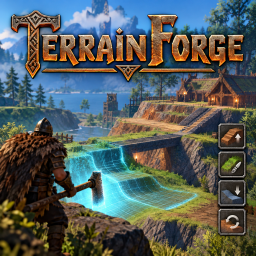
TerrainForge
Free-form terrain brush for Valheim: 9 modes including dedicated terrain copy/paste (snow is a Paint type), 5 selection shapes, undo/redo, path ramps, terrain stamps, snapshots, radial menu, presets, 14 languages, server + client.TerrainForge

A free-form terrain brush for Valheim. Flatten, raise, lower, smooth, build ramps (two-point, fixed-angle and path), shape shorelines, paint and restore terrain of any size — beyond the vanilla ±8 m limit — with undo/redo, five brush shapes, a radial menu, saved profiles, terrain stamps (copy/paste), terrain snapshots and 14 in-game languages with auto-detect.
Free to download: You can download and use TerrainForge at no cost from Thunderstore or GitHub Releases. The source code is public so it can be viewed on GitHub. Please contact the author and get permission before redistributing the files, publishing modified versions, or using this project in another project. GitHub still allows anyone to fork a public repository, so this request cannot technically prevent forks. No open-source license is granted by this notice.
📖 Full documentation & translations (14 languages): Wiki — see the Documentation languages list below.
What's New in 0.3.8 — Hotfix for 0.3.7
- Fixes for TerrainForge Rod registration — the 0.3.7 logs showed repeated failures when its network prefab hash was already registered (
same key ... 506871212), alongside invalid item entries during ObjectDB registration. This hotfix reuses a matching existing network entry, removes invalid ObjectDB entries before index rebuilding, and cleans up the tool clone if registration fails. - Tool state cleanup — terrain editing and its HUD stop when the required tool is unequipped, including while free camera remains active. Equipped-inventory detection covers cases where free camera hides hand slots; press
Fto exit free camera safely. - Verification status: these changes address the failures identified in the supplied logs. Confirm the rod is handed out and terrain editing works in Valheim before treating the hotfix as ready to publish.
Features carried forward from 0.3.6
-
F5 layout refined — six tabs use two clear rows; the window opens larger and adapts to the screen. Controls are grouped by the selected operation.
-
Ramp tools surfaced — the Ramp panel puts Two-Point, Fixed-Angle, and Connected Path modes up front, with width, softness, and fixed-angle controls where relevant. The Connected mode marks a continuous ramp through 3+ points.
-
Circular ramp planned for 0.4.0 — the roadmap tracks a level circular ring and a height-changing spiral as candidate designs.
-
Unified operation UI — F5 glyphs now appear in the Q wheel, beside the terrain target, and in a compact HUD card with key brush status.
-
Dedicated Copy/Paste tab — copy a marked area, start/confirm a paste preview, cycle clipboard history, and manage saved stamps from one visible place in F5.
-
Dedicated Copy / Paste brush mode in the Q wheel; Apply selects the area according to the active shape, and the configured paste shortcut starts or confirms placement. Snow is available as DeepSnow under Paint, including the existing hold-to-clear modifier.
-
Copy/Paste supports precise Rectangle (two corners), Line (two endpoints), Polygon (vertices), and Circle/Square (brush footprint) selection. The HUD shows the next selection step.
-
F5 holds local player controls and camera still, dims the world, and uses a resolution-aware window. The ESC menu still pauses the whole world in single-player.
-
Free camera safeguard — flying camera is kept above terrain so descending controls cannot take it underneath the map.
-
TerrainForge now registers and synchronizes its own TerrainForge Rod. Jotunn is no longer required.
-
The rod registration is repeated for rebuilt world databases, and network registration is retried after the item database is ready. Plugin, project, and Thunderstore versions were aligned at 0.3.6 at that time.
-
The live ObjectDB is also revalidated during gameplay to recover if another mod rebuilds its item index after TerrainForge's initial registration.
-
Free camera (
F) fixed — while flying, right-click no longer triggers lock-on, brush drift or a screenshot;Ctrl+wheel adjusts the brush radius; brush adjustments take priority. -
Docs & wiki in 14 languages — README and CHANGELOG in English, and the full manual on the Wiki (
Home+ 13 translations).
Description
TerrainForge ships its own TerrainForge Rod (a Hammer clone) as the brush tool. It is handed to you automatically when you join a world and everything is explained in an in-game Help tab (menu key, default F5).
Why client AND server
Terrain edits are stored in the world and the server replicates them to every player. Because the game clamps edits to ±8 m, TerrainForge must also be installed on the server; otherwise the server regenerates the clamped terrain while clients see the full edit → desync.
Requirements
- BepInEx 5 (x64, Mono) on both client and server. Thunderstore users already have it.
Installation
- Download the latest version from Thunderstore or GitHub Releases.
- Place it at:
- Client:
...\BepInEx\plugins\TerrainForge\TerrainForge.dll - Server:
<server>\BepInEx\plugins\TerrainForge\TerrainForge.dll
- Client:
- Restart the game / server.
⚠️ Must be on both (client and server) for edits greater than ±8 m and correct replication.
Usage
Equip the TerrainForge Rod (given on world join; get it again with F8), aim at the ground and hold right-click to sculpt.
While aiming, a solid ring marks the real brush area, with faint guides in the operation color (full-strength zone, max radius, max aim distance). For Ramp, the real A–B corridor is drawn while you mark. The HUD (bottom-right) shows operation, radius, shape, paint and undo/redo counters; a second line shows the aimed height, current target and local slope in degrees. Guides can be disabled in Preview > Show guides.
Controls
| Action | Default key |
|---|---|
| Apply brush | Hold Mouse1 (right-click) |
| Radius + | = (also Ctrl + wheel) |
| Radius − | - (also Ctrl + wheel) |
| Cycle operation | , |
| Cycle shape | . |
| Cycle paint | / |
| Use aimed height (instead of your feet) for Flatten | Hold Left Shift |
| Undo last stroke | Ctrl+Z |
| Redo undone stroke | Ctrl+Y |
| Fix / release Flatten height (eyedropper) | G |
| Cycle ramp mode (two-point / fixed-angle / connected path) | H |
| Adjust fixed-ramp angle (with Ramp selected) | Hold Alt + radius keys / wheel |
| Radial operation menu (hold, release to confirm) | Q |
| Adjust mode (wheel = radius, zoom frozen) | V |
| Fine radius steps (0.1 m) | Hold Shift + wheel / radius keys |
| Copy terrain (Stamp) | Ctrl+Shift+C or Apply in the Q wheel's Copy/Paste mode |
| Paste terrain (Stamp) | Ctrl+Shift+V (start/confirm preview) |
| Get the TerrainForge Rod | F8 |
| Open the keys + help menu | F5 |
Extra keys (no default, assign them in KEYS):
- Direct operation: Flatten, Raise, Lower, Smooth, Paint, Restore, Ramp, Shore; the legacy Snow shortcut selects Paint + DeepSnow.
- Next / previous profile
- Next / previous stamp (history)
Operations
The nine Q wheel modes are Flatten, Raise, Lower, Smooth, Ramp, Paint, Restore, Shore, and Copy/Paste. Snow is a Paint type (DeepSnow); hold Shift to remove it and restore the original ground.
Details
- Flatten — follows the ground under the crosshair by default and adapts to what you aim at (e.g. a ramp). Hold
Left Shiftto level at your feet. - Raise / Lower — raise or lower terrain according to the falloff mode and power.
- Smooth — averages each point with its neighbours (a real blur), smoothing ridges, steps and noise. Hold to smooth progressively. Modes:
Full(both ways),Ridges only(lowers only),Dips only(fills only). Shape Line + Smooth = smooth along a path. - Ramp — three modes (
H): two-point (mark A and B, joins both heights with a straight slope), fixed-angle (B gives direction and length, height followsRamp angle, adjustable withAlt+ radius), and connected path (mark 3+ points for one continuous curve A→B→C…, then double-press to build it). The brush radius sets the ramp width and softness only softens the side edges. Preview: filled semi-transparent corridor + height rings at A and B. - Shore — flattens toward the water level + margin (beaches/coastlines), with softness blending like Flatten.
- Paint — types: Dirt, Cultivated, Paved, ClearVegetation, DeepSnow, Reset.
- Restore — returns the terrain to its original state.
Shapes
Circle, Square, Line, Rectangle, Polygon (key .).
Line/Rectangle: two Apply presses (A and B; line half-width = brush radius, corners define the area with soft edges).Polygon: adds a vertex per press and closes on a double-press (3+ vertices).- All area operations apply over these footprints with undo support.
Falloff modes (Raise/Lower)
Cycle in SETTINGS → "Raise/Lower falloff":
| Mode | Effect |
|---|---|
| Pointy (original) | Central peak, controlled by "Falloff power" |
| Flat | Uniform disc, same weight across the whole radius |
| Smooth | Cosine bell, smooth transition |
| Linear | Decreases in a straight line from centre to edge |
In-game languages
15 options: Auto, English, Español, Français, Deutsch, Русский, 中文, 繁體中文, 日本語, 한국어, Polski, Português, Türkçe, Українська, Italiano — default Auto.
Auto-detect: by default Auto detects the language configured in Valheim via reflection. If a language has no complete translation, it falls back to English.
Documentation is available in other languages on the Wiki. See the Documentation languages list at the bottom of this page.
Snapshots (Backups)
SNAPSHOTS tab in SETTINGS: give it a name to save all edited tiles to BepInEx/config/TerrainForge/snapshots/<name>.dat, then load it later (even in another save). Import restores with ownership and is undoable; unloaded tiles warn cleanly.
Stamps (Copy/Paste Terrain)
STAMPS tab in SETTINGS.
- Copy a selected area: choose
Copy/Pastein the Q wheel.Rectanglemarks corners A and B with Apply;Linemarks two endpoints;Polygonadds vertices and copies on a double-press after 3+ points;Circle/Squarecopy the aimed brush footprint. The HUD shows the next step.Ctrl+Shift+Cfollows the same selection flow. Ctrl+Shift+Vshows a ghost (wireframe) preview at the crosshair;Q/Erotate,Alt+wheel rotates continuously,Shift+wheel scales, use the paste shortcut again to confirm.- Pasting writes only inside the copied region; it does not erase terrain outside it.
- History of 10 stamps in RAM: "Next stamp" / "Previous stamp" keys cycle them.
- Save a stamp to disk (
.stampinBepInEx/config/TerrainForge/stamps/, max 12), load it into the clipboard, list and delete from the UI. - Stamp tool: in SETTINGS → "Stamp tool" (4 options):
Same as brush(default),Any,Pickaxe,TerrainForge Rod. The HUD showsSTAMP READY [2/5]when the right tool is equipped and the clipboard has stamps; otherwise it warnsStamp: tool not equipped.Ctrl+Shift+C/Vdo nothing without the tool equipped.
Preview
- Solid ring: the real generated area.
- Faint guides: full-strength zone, max radius, max aim distance.
- For Ramp: the real A–B corridor (edges + semi-transparent fill) + height rings at A and B.
- For Flatten/Shore: a marker ring for the target level.
- Blocked by server/ward: guides in grey.
- Underwater: the preview floats on the surface.
In-game menu (F5)
6 tabs with a global scroll (mouse wheel):
| Tab | Purpose |
|---|---|
| BRUSH | Choose the operation and shape, and tune brush parameters. |
| CONTROLS | Rebind keys: click → press a key/button; Esc cancels. |
| SAVED | Manage profiles, snapshots, and history. |
| OPTIONS | Configure tool, display, server rules, and language. |
| GUIDE | Reference for operations, controls, preview, multiplayer, and saving. |
| COPY/PASTE | Copy selected terrain, place/confirm paste previews, and manage stamps. |
ESC button: the pause menu has a "TerrainForge" button that opens the panel. F5 freezes local movement and camera look; it does not pause the multiplayer world.
Server + Client
- Required on both for edits greater than ±8 m and correct replication.
Serversection (authoritative via config sync):AllowTerrainEdits(default on)AdminOnlyEdits(default off)RespectWards(default on)RadiusCap/DeltaCap(0 = no limit)
- A server without the mod ignores the section → the client still works for testing.
Performance
TilesPerFrame (1–32, default 4): tiles per frame on large strokes. Prevents lag.
Changelog
See CHANGELOG.md.
Links
- Thunderstore: https://thunderstore.io/c/valheim/p/MRAnalytics/TerrainForge/
- Project website: https://marceloanton.github.io/TerrainForge/
- GitHub repository: https://github.com/marceloanton/TerrainForge
- Wiki / documentation: https://github.com/marceloanton/TerrainForge/wiki
- Donations: cafecito.app/byrka
Documentation languages
English (this page) · Español · Français · Deutsch · Русский · 中文 · 繁體中文 · 日本語 · 한국어 · Polski · Português · Türkçe · Українська · Italiano