
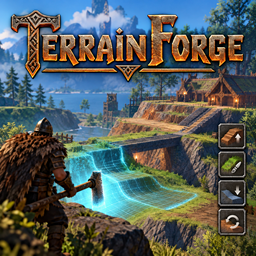
TerrainForge
Free-form terrain brush for Valheim: 8 operations (flatten/raise/lower/smooth/ramp/shore/paint/restore), 5 shapes, undo/redo, path ramps, terrain snapshots, radial menu, presets, EN/ES. Server + client.TerrainForge

A free-form terrain brush for Valheim.
Flatten, raise, lower, smooth, ramp (two-point, fixed-angle and path), shore, paint and restore terrain of any size, beyond the vanilla +/-8 m limit, with undo/redo, five brush shapes, a radial menu, named presets and EN/ES localization.
The mod ships its own TerrainForge Rod (a clone of the Hammer) as the brush
tool, hands it to you automatically and documents everything in an in-game help
tab (press the rebind key, default F5).
Why client AND server
Terrain edits are written into the game's TerrainComp delta arrays and persisted
to the owning ZDO, so the server stores and replicates them to every client.
Because the vanilla TerrainComp.ApplyToHeightmap clamps every vertex to
baseHeight +/- 8 m, TerrainForge must also be installed on the server
(otherwise the server regenerates a clamped terrain while modded clients show the
full edit, causing desync). Install it on the server and on every client.
Requirements
- BepInEx 5 (x64, Mono) on client and server. Thunderstore Mod Manager users already have it.
- Jotunn (
ValheimModding-Jotunn) — used to register the custom tool item. Listed as a dependency inmanifest.json; Thunderstore installs it automatically.
Installation
- Build (see below) or copy
TerrainForge.dll. - Drop it in:
- Client:
...\BepInEx\plugins\TerrainForge\TerrainForge.dll - Server:
<server>\BepInEx\plugins\TerrainForge\TerrainForge.dll
- Client:
- Restart the game / server.
Usage
Equip the TerrainForge Rod (given automatically on entering a world; get it
again with the give tool key, default F8), aim at the ground and hold the
apply key (default right mouse button) to edit terrain under the crosshair.
While aiming, a solid ring marks the real generated area, with thin, faint guides
in the operation colour around it (full-strength zone, maximum brush radius and
maximum aim distance). In the Ramp operation the real A-B corridor is drawn while
marking. The status HUD (bottom-right, default IMGUI typeface) shows the current operation, radius, shape and
paint, plus undo/redo counts; a second line shows the aimed height, the current
target and the local slope in degrees. Guides can be turned off with
Preview > ShowGuides.
| Action | Default key |
|---|---|
| Apply brush | Hold Mouse1 (right mouse) |
| Increase radius | = (also Ctrl + mouse wheel) |
| Decrease radius | - (also Ctrl + mouse wheel) |
| Cycle operation | , |
| Cycle shape (circle/square/line/rect/poly) | . |
| Cycle paint type | / |
| Use aimed height (instead of your own) for Flatten | Hold Left Shift |
| Undo last brush application | Ctrl+Z |
| Redo an undone application | Ctrl+Y |
| Fix / release Flatten height at aim (eyedropper) | G |
| Toggle ramp mode (two-point / fixed angle / path) | H |
| Adjust fixed ramp angle (Ramp selected) | Hold Alt + radius keys / wheel |
| Operation radial menu (hold, release to confirm) | Q |
| Toggle adjust mode (wheel = radius, camera zoom frozen) | V |
| Fine radius adjust (0.1 m steps) | Hold Shift + wheel / radius keys |
| Give yourself the TerrainForge Rod | F8 |
| Open the key binding + help menu | F5 |
Operations cycle through: Flatten, Raise, Lower, Smooth, Ramp, Paint,
Restore, Shore (flattens toward water level + offset, for beaches) and
Snow (paints snow like Paint but snow-only; hold Shift to remove it and
restore the original ground).
Everything is editable live in the in-game menu (F5 → AJUSTES tab):
operation / shape / paint / ramp-mode / smooth-mode, all sizes via sliders,
every toggle, menu/HUD language (Español/English) and named brush
presets. Saved when the menu closes.
Terrain snapshots (backups) live in the same tab: name a snapshot to save
every edited tile to BepInEx/config/TerrainForge/snapshots/<name>.dat, then
load it back later (even in another session). Importing restores the arrays
with ownership and is itself undoable; tiles that are not loaded report
cleanly, so import near the place.
Shapes cycle through: Circle, Square, Line, Rect, Poly (. key).
Line/Rect are marked with two Apply presses (A then B; line half-width =
brush radius, rect corners define the area with soft edges). Poly adds one
vertex per press and closes on a double-press with 3+ vertices. All area
operations apply over these footprints with undo support.
- Flatten follows the ground under the crosshair by default, so it conforms
to whatever you aim at (e.g. a ramp). Hold the modifier (
Left Shift) to level to your own feet instead. - Smooth averages each point with its neighbours (a real blur), smoothing bumps, steps and noise. Hold it down to smooth progressively.
- Ramp has three modes (
H): two-point (mark A then B, a straight slope joins both heights), fixed-angle (B sets direction/length, height followsSlopeAngle, adjustable withAlt+ radius keys), and path (mark a curve A→B→C…, double-press to close). The brush radius sets the ramp width and softness softens only the side edges.
In-game help
Press F5 (configurable) — or the TerrainForge button in the ESC pause
menu — and open the AYUDA tab for an in-game description
of the tool and every operation. The TECLAS tab rebinds keys: click a binding,
press the new key or mouse button, and it is saved to the config immediately.
Esc cancels a capture.
Note: F5 is also Valheim's developer console key, but only when the game is
launched with -console. If your console is enabled, rebind this to e.g. F7/F9.
All hotkeys are also editable directly in BepInEx/config/com.terrainforge.valheim.cfg.
Configuration
Config file: BepInEx/config/com.terrainforge.valheim.cfg
- General:
Enabled,PlayEffects(dust + thud on apply),Language(Español/English). - Brush:
Radius,RadiusMin/Max,RadiusStep,Softness,FalloffPower,RaiseLowerMeters,PaintStrength,DefaultOperation,Shape,Paint,RampMode(TwoPoint/FixedAngle/Path),SlopeAngle(5-60°),SmoothMode(Full/Bumps/Dips),ShoreOffset,UseFixedHeight/FixedHeight(eyedropper state). - Input: all hotkeys (
ApplyKey, radius, cycles,AimHeightModifierKey,UndoKey/RedoKey,EyedropKey,RampModeKey,RadialKey,GiveToolKey,RebindMenuKey), plusRequiredTool(Any,Pickaxe, or the mod'sTerrainForgeTool— default) andAutoGiveTool(hand out the rod on entering a world, defaulttrue). - Limits:
UnlockDeltaLimit(default true),MaxUpDelta,MaxDownDelta. Raising these allows terrain edits past the vanilla +/-8 m; keep them equal on server and clients. - VanillaTools (best effort / optional):
ScaleVanillaToolRadius– enlarge the vanilla hoe / cultivator radius. This only affects the client that applies the op and may not stay consistent across clients, so it is off by default.NoBuildCost– remove material / workstation requirements.AllowInProtectedZones– ignore no-build and ward zones (bypasses protection).
- Preview:
ShowPreview,ShowGuides(reach guides, slope tint, level ring). - History:
UndoDepth(0-500, default 50; 0 disables undo history). - Presets:
Slots(named brush setups, managed in-game). - Performance:
ChunkCompsPerFrame(1-32, default 4 tiles per frame). - Server (authoritative when the server runs the mod — its values win through
config sync):
AllowTerrainEdits(defaulttrue; whenfalse, clients cannot apply, undo or redo) andAdminOnlyEdits(defaultfalse; only admins / host may edit).RespectWards(defaulttrue) blocks edits inside foreign wards.RadiusCap/DeltaCap(0= off) clamp brush radius and delta, visibly in HUD and preview. Servers without the mod ignore this section, so the client tool keeps working there for testing.
Building
Requires the .NET SDK and the reference DLLs (Valheim Managed folder + BepInEx
core folder). Defaults point at the Thunderstore profile; override with:
dotnet build -c Release -p:ValheimDir="D:\Steam\...\Valheim"
Deploy straight into the profile plugins folder:
dotnet build -c Release -p:Deploy=true
Notes / limitations
- Design principle: keep external dependencies to a minimum. Prefer vanilla game APIs + Harmony over third-party mod frameworks when a feature can be done either way. (The custom tool item currently uses Jotunn; the goal is to eventually register the prefab ourselves via a Harmony patch so Jotunn is not required.)
- Larger vanilla-tool radius is best-effort and may desync other clients; the custom brush is the reliable path for big edits.
- Keep
MaxUpDelta/MaxDownDeltaconsistent between server and clients.
Changelog
See CHANGELOG.md.