

ValheimTomrer
In-game blueprint editor. Design a building in 3D or copy one you already built, and the hammer puts it up using materials from your inventory and nearby chests. Short on materials? It builds what it can. Controller friendly, client-side.ValheimTomrer
Blueprints for Valheim 1.0, with an editor inside the game. Design a building in 3D, or copy one you already built, and put the whole thing up with the hammer.
(Tømrer is Norwegian for carpenter.)
Only you need to install it. It adds no new pieces or items, and every piece is built the normal way, with materials you actually have. I play Valheim with a controller, so everything works on a pad too, the editor included.
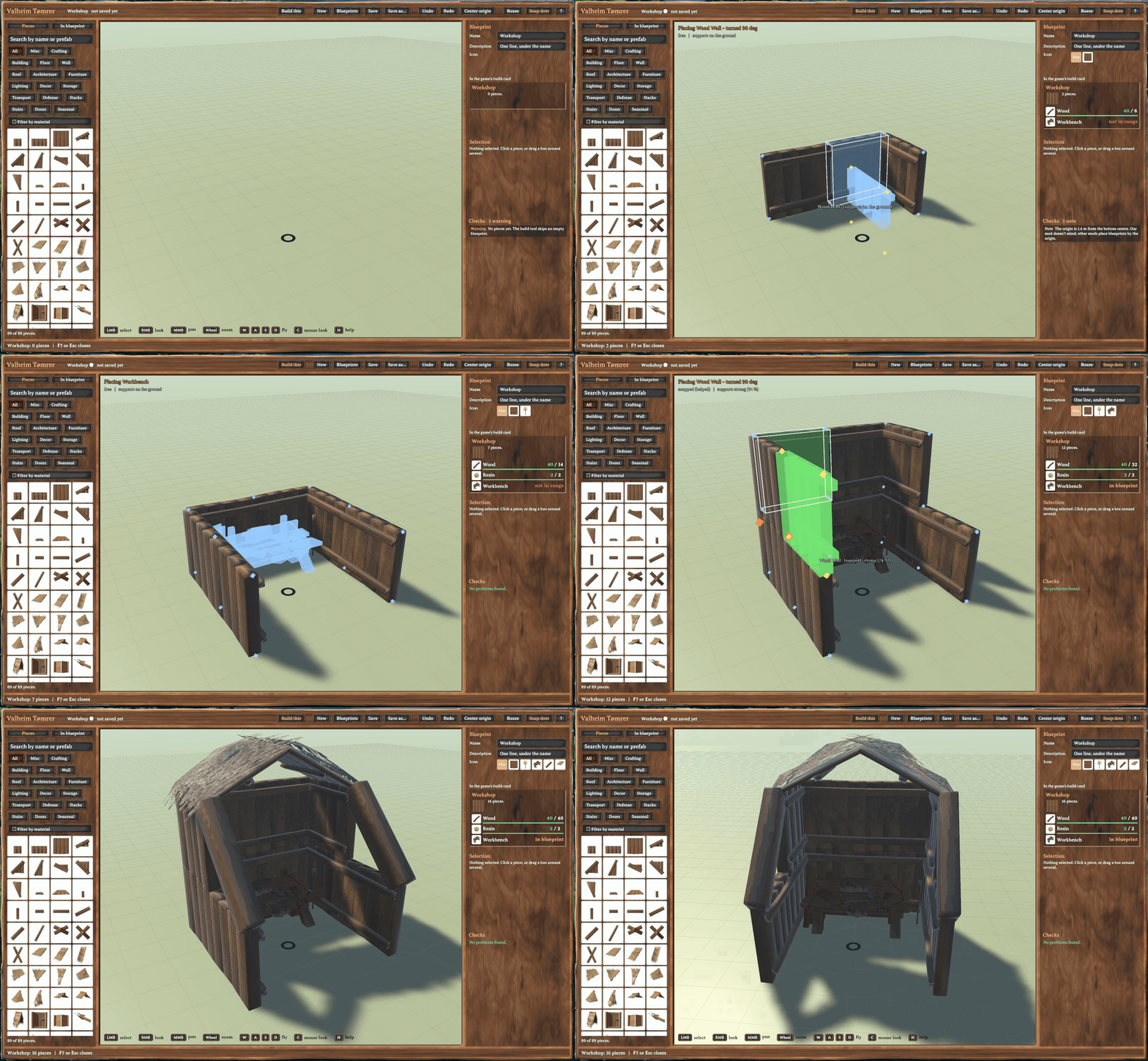
As far as I know, no other Valheim mod lets you draw a blueprint inside the game.
Features
- An editor inside the game (F7), with a 3D view, every piece the hammer has, and the same snapping as the hammer. You don't need a separate program.
- Copy a building you already have (F8). Put a rectangle over it and it becomes a blueprint.
- Build a whole blueprint with the hammer: press B to pick one, aim and click.
- Materials come from your inventory and from chests near you, carts and ship holds included.
- Short on materials? It builds what you can pay for, from the bottom up, and shows the rest as ghost pieces. Come back with more and finish it.
- In the editor, a piece shows the hammer's support colours while you place it, so you see what would fall down before you build it.
- The build card lists every material: what you have and what you need.
- Blueprints are small text files you can share. It also reads
.blueprintfiles from PlanBuild, Buildheim and Infinity Hammer, and.vbuildfiles from BuildShare.
The game's rules still apply. Every piece costs what it normally costs, you need a workbench nearby, and you can only build pieces you have unlocked.
Installation
The easy way is a mod manager (r2modman, Gale or Thunderstore Mod Manager). It installs BepInEx for you.
By hand: install BepInExPack Valheim
5.4.2350 or newer, then unzip the download and put ValheimTomrer.dll in Valheim/BepInEx/plugins/.
On an Apple Silicon Mac, read the Mac section at the bottom first, or no mods will load at all.
Getting started
Build the example
The mod comes with one blueprint, a small covered workshop, so you can try it right away.
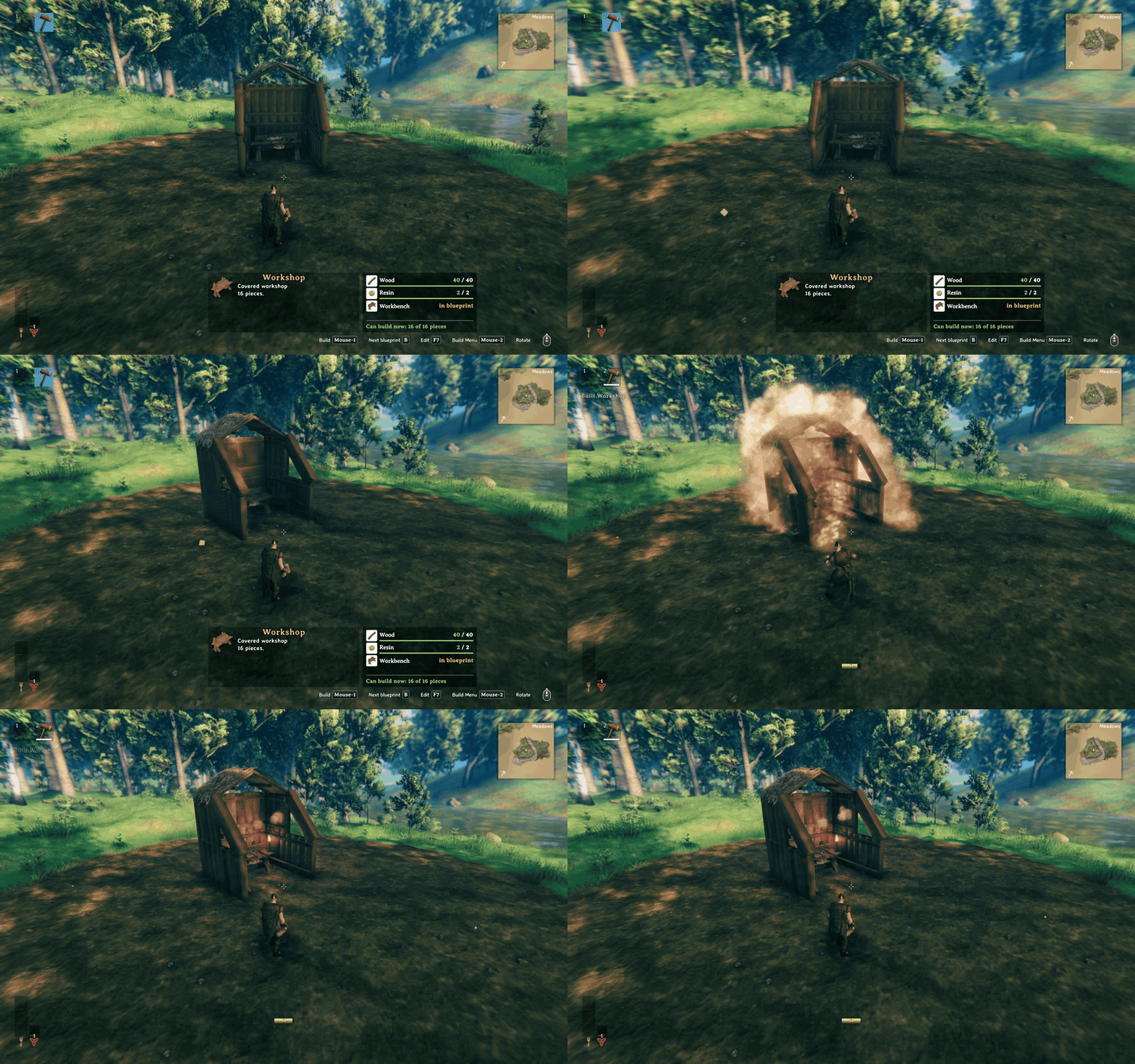
- Take out the hammer and press B (pad: □). The workshop shows up where you aim.
- Turn it with the mouse wheel (pad: L2 + right stick).
- Click (pad: R2).
If you have the materials, the whole workshop goes up at once. If you don't, see "Finishing a build later" below. Press B after the last blueprint to go back to normal building.
While a blueprint is in your hand, the key hints at the bottom of the screen show the blueprint keys instead of the usual ones. They show your own key bindings, or the button icons when you use a pad.
Make your own
- Press F7 (pad: L2 + □) to open the editor. You don't need the hammer for this. The same key closes it.
- Click New in the top bar.
- Pick a piece from the list on the left and click in the 3D view to place it. It snaps to other pieces the same way the hammer does. Hold Shift to place it without snapping.
- The piece stays in your hand, so keep clicking to place more. Esc puts it away.
- Give the blueprint a name on the right (and an icon, if you like) and press Ctrl+S.
- Take out the hammer, open the editor and click Build this in the top bar. The editor closes and the blueprint is in your hand.
Some things that help:
- A piece's colour shows how well it is held up, the same colours the hammer uses. Red and blinking means it would fall down, so the click does nothing. Put a pole or a wall under it first.
- Click a piece to select it. G moves it, R turns it, Delete removes it and Ctrl+Z undoes. Drag a box to select several pieces.
- The Checks list on the right tells you what is wrong with the blueprint, for example pieces that would fall down.
- The workshop that comes with the mod is read only. Use Save as to make your own copy of it.
- Blueprints in the top bar lists all of them. You can open or delete yours from there.
Copy a building
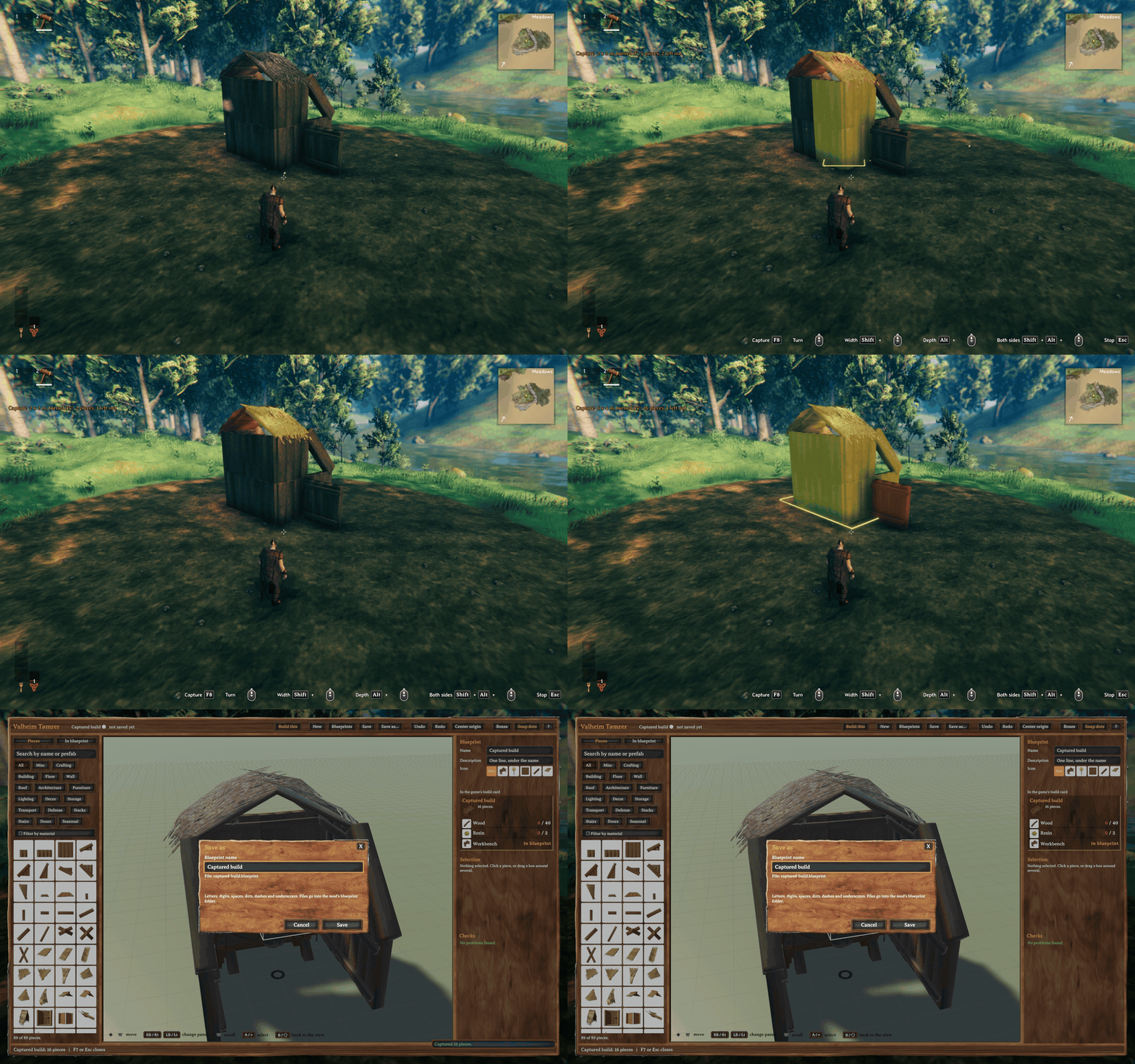
- Stand where you can see the whole building and press F8 (pad: L2 + △). A yellow 8 x 8 m rectangle appears on the ground where you aim.
- Fit it over the building. The wheel turns it, Shift + wheel changes the width and Alt + wheel the depth (the pad buttons are in the Controls section). Pieces that will be copied glow yellow. Pieces that cross the edge are left out and glow orange.
- Press F8 again. The editor opens with the copy and asks for a name.
Esc (pad: ○) cancels it.
The copy takes everything from 8 m below the ground to 64 m above it, so the roof comes along. If the building stands at an angle, the copy is turned straight. Only pieces the hammer can build are copied. Planted crops or pieces from other mods are left out, and the message tells you how many.
Materials
The hammer takes materials from your inventory first, then from chests within 20 m, nearest first. Carts and ship holds count as chests. It only uses chests you are allowed to open, so not someone else's private chest, and nothing inside someone else's ward. You can change the range, or turn chests off, in the settings.
With a blueprint in hand, the build card shows a materials list. For each item you see what you have and what you need (green when it's enough, red when not). It also shows which crafting stations are in range and how many pieces the next click will build. The editor shows the same list.
The click does nothing if a piece is not unlocked yet, the workbench is too far away or something is in the way. The message tells you which.
Finishing a build later
When you don't have enough materials, a click still builds what you can pay for. It goes from the bottom up and skips anything that would not stand yet. The message says how many pieces went up and what is still missing. The rest stays as an unfinished build:
- With the hammer out near the build, the missing pieces show as ghosts. Light blue ones will be built by your next click, red ones are waiting for more materials.
- Right after the click, the hammer stays on that build ("Continue"). Click again when you have more.
- Later, press B near the build. Unfinished builds within 40 m come first in the list, for example "Continue: Workshop (6/16)".
- You can stand inside while you build. The piece where you stand is skipped, and the message says so.
- When the last piece is up, you get "Workshop finished." and the hammer goes back to normal.
Unfinished builds are saved per world in BepInEx/config/ValheimTomrer/sites/, not in the world
save. The mod looks at the world to see what is already built, so pieces you build or break by
hand count too.
Removing an unfinished build
In Continue, press the hammer's Remove key, the one you use to take a piece down (pad: R1).
If nothing of it is built yet, it is removed right away. If some of it is built, you get a choice:
| Button | What it does |
|---|---|
| Cancel | Nothing happens. |
| Unbuilt parts | Removes the plan and the ghosts. What you built stays. |
| Whole structure | Also takes down every built piece, from the top, the same as doing it with the hammer. The materials drop on the ground. |
Some pieces can't be taken down, for example when there is no workbench near, a chest still has items in it, or the piece is inside someone else's ward. Those pieces stay, and so do the pieces holding them up. The message says why.
The window works with the mouse and Esc, or with the pad: D-pad or left stick to choose, × to press, ○ to cancel. It starts on Cancel.
Controls
PlayStation names first, Xbox names in brackets. L2 means the game's modifier button: L2 (LT) in the default controller layout, L1 (LB) in the alternative one.
Hammer and copying a building
| Keyboard and mouse | Controller | |
|---|---|---|
| Next blueprint (unfinished builds nearby come first) | B | □ (X) |
| Build | Left click | R2 (RT) |
| Turn 22.5° | Wheel | L2 (LT) + right stick left, right |
| Remove the unfinished build (in Continue) | The hammer's Remove key | R1 (RB) |
| Open the editor with the blueprint in hand | F7 | L2 (LT) + □ (X) |
| Start copying a building, press again to copy | F8 | L2 (LT) + △ (Y) |
| Copy area: turn 22.5° | Wheel | D-pad left, right |
| Copy area: width, 2 m a step | Shift + wheel | L2 (LT) + D-pad left, right (right is bigger) |
| Copy area: depth, 2 m a step | Alt + wheel | L2 (LT) + D-pad up, down (up is bigger) |
| Copy area: both sides, 2 m a step | Shift + Alt + wheel | D-pad up, down (up is bigger) |
| Stop copying | Esc | ○ (B) |
While the copy area is up, the D-pad and ○ only control it. They don't change your hotbar, use your forsaken power, zoom or jump, and L2 + △ doesn't open the inventory.
Editor, keyboard and mouse
| Key | What it does |
|---|---|
| Click | Select a piece, or place the one in your hand. Shift + click adds to the selection or takes out of it. |
| Drag | Select everything in the box |
| Right drag | Look around |
| Middle drag, Shift + right drag | Move the view sideways |
| Wheel | Zoom toward the cursor. While placing, it turns the piece 22.5°. |
| W A S D | Fly |
| Space, Ctrl | Fly up, down. Hold Shift to fly 3 times faster. |
| C | Lock the mouse to the view and look around like in the game. Esc unlocks it. |
| Ctrl + A | Select all |
| G | Move the selection |
| Ctrl + D | Copy the selection. It keeps making copies until you press Esc. |
| R, Shift + R | Turn 22.5°, the piece in your hand or else the selection |
| Arrow keys | Move the selection 0.5 m along the ground (with Alt, 0.1 m) |
| Page Up, Page Down | Move the selection up, down |
| Shift, held | No snapping |
| Q, E | Change which snap point of the piece goes where you aim |
| Delete, Backspace | Delete the selection |
| Ctrl + Z | Undo |
| Ctrl + Y, Shift + Ctrl + Z | Redo |
| F | Look at the selection, or at everything |
| Ctrl + S | Save |
| H, ? | Help, with these tables |
| Tab, Shift + Tab | Move between the buttons and panels without the mouse. Arrow keys step, Enter presses. |
| Esc | Go back one step, for example stop typing, close a window or put away the piece in your hand. When there is nothing left, it closes the editor. |
On a Mac, Cmd works everywhere Ctrl does.
Editor, controller
The controller works from the crosshair in the middle of the 3D view.
| Button | What it does |
|---|---|
| Left stick | Fly |
| L1 (LB) + left stick | Fly 3 times faster |
| Right stick | Look around, at the game's own gamepad sensitivity |
| D-pad up, down | Fly up, down |
| R2 (RT) | Place the piece in your hand, or select the piece under the crosshair |
| L1 (LB) + R2 (RT) | Add the piece under the crosshair to the selection, or take it out |
| L2 (LT) + R2 (RT) | Place another piece like the one under the crosshair |
| L2 (LT) + right stick left, right | Turn 22.5° |
| L1 (LB), held | No snapping |
| L3, R3 while placing | Change the snap point |
| R3 | Look at the selection |
| × (A) | Pieces menu: D-pad picks, L1 and R1 change the tab, × places, ○ closes |
| □ (X) | Move the piece under the crosshair. R2 drops it. |
| △ (Y) | Copy it. It keeps making copies until you press ○. |
| R1 (RB) | Delete it |
| D-pad left, right | Undo, redo |
| ○ (B) | Go back one step, like Esc. When there is nothing left, it closes the editor. |
| L2 (LT) + □ (X) | Close the editor. The same buttons open it. |
| Options (Menu) | Help |
□, △ and R1 work on the whole selection when the piece under the crosshair is part of it, and on the selection alone when the crosshair is on nothing.
Buttons and panels:
| Button | What it does |
|---|---|
| L3 (LS), nothing in hand | Go to the buttons and panels. An orange ring shows where you are. |
| D-pad, left stick | Move the ring |
| L1 (LB), R1 (RB) | Next panel: top bar, left, right |
| × (A) | Press what the ring is on. On a text box, start typing. |
| Right stick up, down | Scroll the panel, for example a long materials list |
| ○ (B) | Back to the 3D view. In a text box, stop typing first. |
| D-pad, in a text box | Stop typing and move the ring on |
| D-pad right, then ×, in Blueprints | Delete one of your blueprints. It asks first and starts on Cancel. ○ goes back to the list. |
Windows like Blueprints and Save as, and every question, put the ring on themselves as soon as they open: the D-pad moves, × picks, ○ closes. In Save as the name box is selected but not typing, so down and × saves with the name shown. Press × on the box to type a new one.
The rows in the piece grid, the In blueprint list and the Checks list can't be picked with the pad. Use the pieces menu (×) to place pieces.
Settings
The config file is created the first time you start the game with the mod:
BepInEx/config/com.mikamarik.valheimtomrer.cfg. With
Configuration Manager
you can change it in the game (F1).
| Section | Setting | Default | What it does |
|---|---|---|---|
| General | Enabled |
true |
Turns the whole mod on or off |
| Blueprints | Key |
B |
Next blueprint, with the hammer out |
| Editor | Key |
F7 |
Opens and closes the editor |
| Editor | CaptureKey |
F8 |
Copies a building |
| Editor | ShowAllPieces |
false |
Shows every piece in the editor, not only the ones you have unlocked |
| Editor | SnapDots |
true |
Shows the snap points while you place a piece. Snapping works either way. |
| Editor | Boxes |
false |
Draws pieces as plain boxes instead of models |
| Build | UseChests |
true |
Takes materials from nearby chests too, not only from your inventory |
| Build | ChestRange |
20 |
How close a chest must be, in metres (0 to 100) |
The Boxes and Snap dots buttons in the editor change these settings too. The controller buttons follow the game's controller layout.
Blueprint files
Your blueprints are in BepInEx/config/ValheimTomrer/blueprints/, one text file each with a line
per piece. Put a file there and it shows up right away, no restart needed.
Files from PlanBuild, Buildheim and Infinity Hammer (.blueprint) and BuildShare (.vbuild) work
too. If the mod can't save a file back exactly as it was, it opens read only. Save as makes your
own copy.
A blueprint with no pieces is a normal file, so you can name one before you place anything. B skips it until it has pieces.
Compatibility
- Client-side. Nobody else needs the mod, and there is nothing to install on a server.
- Safe to remove. It adds no pieces or items, so nothing in your world breaks, and what you built stays.
- Works in multiplayer, I play it with friends. The others see your builds as normal pieces.
- I haven't tested it together with other building mods yet. If something breaks, please open an issue.
Known issues
- The check for what would fall down assumes flat ground. On a steep slope the game can still let a piece fall, and its materials drop on the ground.
- On the pad, some lists in the editor can't be picked (see the controller table).
Mac
On Apple Silicon Macs, BepInEx loads no mods at all when Valheim runs natively, and it shows no error. This affects every mod, not only this one (BepInEx issue #1303). Running the game through Rosetta fixes it:
- Open
run_bepinex.shin the Valheim folder. - Change
export ARCHPREFERENCE="arm64,x86_64"toexport ARCHPREFERENCE="x86_64,arm64". - If macOS says the developer can't be verified, run
xattr -d com.apple.quarantine libdoorstop.dylibin the same folder.
Updating BepInEx puts the old line back, so do it again after an update.
About
Made by mikamarik. I wrote the code together with Claude Opus 5, an AI model by Anthropic. Every feature was tested in the game, by hand and with automated test runs.
Found a bug or have an idea? Open an issue on GitHub.