

ModConfigs
Change any client-side mod's config (.cfg) in-game.Mod Configs
Change any client-side mod's config in-game with a UI that matches the native Settings panel. Browse and edit BepInEx plugin .cfg settings without leaving the game or alt-tabbing to edit files by hand.
Edits save to your local .cfg files. No server install is required for Mod Configs itself. When a mod uses ServerSync (or tags settings with ReadOnly / IsAdminOnly), this UI shows the current values after sync and disables editing while those settings are locked — so clients display what the server enforced without overwriting it locally.
- Wood-panel Settings-style window (toggles, sliders, steppers, dropdowns, keybind rebind)
- Dynamically lists BepInEx configs from loaded plugins
- CFG description text above each option
- Reset to Defaults for the selected mod (skips read-only / server-locked entries)
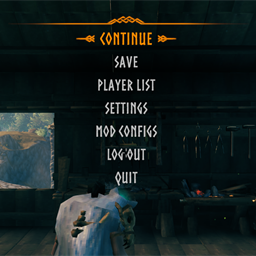
- Open from the pause menu (after Settings); optional main-menu button
Questions or bugs? Discord
Install with r2modman (recommended)
- Install r2modman.
- Select Valheim and open your profile.
- Make sure BepInExPack Valheim is installed.
- Download this mod and click Install with Mod Manager,
or go to Settings → Import local mod and select the downloaded zip. - Click Start modded.
Manual install (BepInEx)
-
Install BepInExPack Valheim if you do not already have it.
-
Extract the zip.
-
Copy files into:
Valheim\BepInEx\plugins\ModdedWolf-ModConfigs\The folder should contain
ModConfigs.dll,manifest.json,icon.png, andREADME.md.Prefer the Thunderstore / r2modman package folder name (
ModdedWolf-ModConfigs) so enable/disable in the mod manager controls the install. A bareplugins\ModdedWolfsConfigs\folder is invisible to r2modman and will always load. -
Launch Valheim.
Configuration
After first launch, settings are saved here:
BepInEx\config\ModdedWolf.ModConfigs.cfg
| Section | Key | Default | Description |
|---|---|---|---|
| General | ShowPauseMenuButton | true | Show Mod Configs on the in-game pause menu |
| General | ShowMainMenuButton | false | Show Mod Configs on the title-screen main menu |
| General | ShowAdvancedSettings | false | Show settings marked as advanced (ConfigurationManagerAttributes.IsAdvanced) |
| General | HideSelfFromList | false | Hide this mod's own settings from the in-game panel |
| General | RememberLastMod | true | Reopen on the last mod you had selected |
Compatible with BepInEx Configuration Manager attributes (Browsable, IsAdvanced, ReadOnly, IsAdminOnly, etc.). ServerSync-driven ReadOnly locks are respected in the UI.
Notes
Mod Configs does not sync settings by itself. It edits local .cfg files. Mods that use ServerSync (or similar) push server values into those entries; when a setting is marked read-only, this UI displays it but will not save local overrides.