

Valheim Admin Tool
A management mod to play Valheim the way you want.[b][size=4]Valheim Admin Tool[/size][/b]
[b]Made by icecub · Version 0.3.9 · Built for Valheim 1.0.7 · Requires BepInEx 5[/b]
Manage your character, spawn items and creatures, restore your world's resources, and handle common admin tasks from one in-game menu.
Valheim Admin Tool works in [b]singleplayer and multiplayer[/b]. Install it on your own client to use its character tools and cheats, or add it to your server to enable admin-only world and player management. [b]Server installation is optional[/b], and Jötunn is not required.
Open the menu with [b]F7[/b]. Close it with F7 or [b]Escape[/b]. In the hotkey editor, Escape first cancels recording or returns to the binding list.
[b][size=4]What can it do?[/size][/b]
[b]Cheats and character tools[/b]
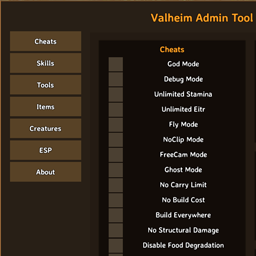
Choose the tools you need with individual toggles:
• [b]God Mode, Debug Mode and Ghost Mode.[/b] • [b]Unlimited Stamina and Unlimited Eitr.[/b] • [b]Disable Food Degradation:[/b] pause eaten food's remaining duration and bonuses while normal healing continues. • [b]Fly Mode, NoClip Mode and FreeCam Mode.[/b] • [b]No Carry Limit, No Build Cost, Build Everywhere and No Structural Damage.[/b] • [b]Death protection:[/b] individually disable item, food, status-effect and skill loss. • [b]Ship cheats:[/b] wind in your back and increased sailing speed. • [b]Quick actions:[/b] heal yourself, receive one hour of Rested, reveal or reset your map, and activate boss powers. • [b]Map Teleport:[/b] hold Shift and click your destination on the map.
To use Map Teleport, enable [b]Cheats → Map Teleport[/b], close the admin menu and open the large map. Hold either [b]Shift[/b] key and [b]left-click[/b] your destination. The large map closes when the teleport is accepted. Normal clicks still work for managing map pins.
[b]Disable Food Degradation[/b] pauses food at its current remaining duration; it does not refresh food that has already degraded. Newly eaten food keeps its full duration. Turn it off to resume normal decay. Eating and food replacement still follow Valheim's normal rules. This option starts off and supports a configurable hotkey. Food loss on death is controlled separately by [b]Disable Food Loss[/b].
[b]Configurable hotkeys[/b]
Click the [b]Hotkeys[/b] gear in the menu header to assign shortcuts to all Cheats functions, including quick actions, death protection, ship cheats and boss powers. You can change the menu shortcut there too.
Choose an action, then [b]Record keys[/b] or select a main key and modifiers using the mouse. The mouse controls let you configure a combination without having to press its keys together. Click [b]Save[/b] to keep your changes or [b]Clear[/b] to remove a cheat shortcut. Use [b]Escape[/b] to cancel recording. Left and right Ctrl, Shift and Alt work interchangeably; mouse buttons are also available.
New cheat shortcuts start [b]unassigned[/b], and the menu keeps [b]F7[/b] unless you change it. Duplicate VAT bindings are flagged. Cheat shortcuts work during gameplay with menus closed, are suppressed while typing or editing bindings, and follow the same server permissions as the menu. VAT does not replace Valheim's own key bindings.
[b]Skills[/b]
Adjust individual skill levels directly with [b]0–100 sliders[/b]. The list follows your character's registered skills, including skills you have not trained yet.
[b]Items[/b]
Browse item categories or search the entire catalog by item name or internal prefab name. Choose an amount, then spawn items in the world or add them to your inventory.
The [b]Quality[/b] dropdown offers levels from 1 to the selected item's supported maximum, including limits from other mods. Both spawn buttons use your selection. Items without upgrades stay at quality 1 and show a disabled selector. Selecting a different item resets the choice to quality 1.
Items without their own icon use a [b]blue V tile[/b], so they remain easy to spot in the catalog.
[b]Creatures[/b]
Browse creatures by biome or search across all categories. Select a creature and its level, then spawn it nearby. The [b]Tamed[/b] option is available for creatures that support taming.
[b]World and player management[/b]
The [b]Tools[/b] category contains:
• Reset dungeons. • Reset resources. • Regenerate nature. • Teleport to another player or bring a player to you. • Kick or ban players.
Automatic dungeon and resource resets are also available through configuration, with adjustable intervals. These run on the world host or server and are [b]off by default[/b].
Access to Tools depends on the server setup described below. Reset operations skip zones around recognized player bases. [b]Make a world backup before using reset or regeneration actions.[/b]
[b]ESP and diagnostics[/b]
Use the ESP overlay to highlight players, creatures, dropped items, resources, pickables and dungeons available to your client. Filter the results by name and set a maximum distance.
The [b]About[/b] page shows the mod version, reloads your configuration, and provides an in-game log viewer. Copy individual messages or the retained log buffer to the clipboard when reporting a problem.
[b][size=4]Installation for players[/size][/b]
- Install [b]BepInEx 5 for Valheim[/b] if you do not already have it.
- Close the game and extract the [b]Valheim Admin Tool[/b] download.
- Place [b]ValheimAdminTool.dll[/b] in your [b]Valheim/BepInEx/plugins/ValheimAdminTool/[/b] folder, creating the folder if needed. When updating, replace the existing DLL.
- Start the game, load a character into a world and press [b]F7[/b].
For a manual DLL installation, the resulting path should be:
[b]Valheim/BepInEx/plugins/ValheimAdminTool/ValheimAdminTool.dll[/b]
The DLL is the only required mod file. A matching .pdb file is optional and helps provide more detailed error reports.
The configuration file is created when the mod first loads:
[b]BepInEx/config/com.icecub.valheimadmintool.cfg[/b]
You can change the menu shortcut there. After editing the file, use [b]About → Reload configuration[/b] to load the changes.
[b][size=4]How does multiplayer work?[/size][/b]
[b]You do not need the mod installed on a server to use its ordinary client features.[/b] These are Cheats, Skills, Items, Creatures, ESP and About, including Map Teleport—subject to the server's Anti Valheim Admin Tool policy.
[b]Without the main mod on the server[/b]
[b]Reset resources[/b] and [b]Regenerate nature[/b] work only in eligible, already loaded areas around you. Your client cannot reset distant areas it has not loaded.
Every other action in [b]Tools[/b] is disabled: dungeon resets, both player-teleport buttons, kicking and banning. This also applies to admins when the main mod is absent from the server.
[b]With the main mod on the server[/b]
The server enables the full Tools category for [b]admins[/b]. Resource and nature resets can process the world's generated zones beyond an individual player's loading range.
Non-admins still have access to ordinary client features, but [b]all Tools actions are disabled[/b]. To restrict the entire mod to admins, also install [b]Anti Valheim Admin Tool[/b].
The server checks admin rights against its own [b]adminlist.txt[/b], using the player's connection identity. Changing a display name does not grant admin access.
[b]Permissions at a glance[/b]
This overview applies to players connecting to a server. “Client features” means Cheats, Skills, Items, Creatures, ESP and About.
[b]Neither mod installed on the server[/b] • Non-admins: client features and nearby resource/nature resets. • Admins: client features and nearby resource/nature resets.
[b]Valheim Admin Tool installed on the server[/b] • Non-admins: client features; all Tools actions disabled. • Admins: client features and full Tools access.
[b]Anti Valheim Admin Tool only[/b] • Non-admins: the entire tool is blocked. • Admins: client features and nearby resource/nature resets.
[b]Both mods installed on the server[/b] • Non-admins: the entire tool is blocked. • Admins: client features and full Tools access.
Singleplayer and the local player hosting a world have full access. After joining a remote server, the menu may briefly show [b]Checking server permissions[/b] while it checks the server setup.
[b][size=4]Optional server installation[/size][/b]
Install the main mod on your server if you want admins to use the full world and player management tools:
- Stop the server and ensure [b]BepInEx 5[/b] is installed for that server.
- Copy [b]ValheimAdminTool.dll[/b] into the server's [b]BepInEx/plugins/ValheimAdminTool/[/b] folder.
- Add your intended admins' platform IDs to the server's [b]adminlist.txt[/b].
- Start the server again.
Admins who want the menu also need the mod on their own clients. [b]Other players do not need to install it.[/b] A player receiving a remote teleport does not need the mod either.
For automatic resets, edit the [b]server's[/b] [b]com.icecub.valheimadmintool.cfg[/b]. Enable the desired dungeon or resource reset and set its interval in hours. Restart the server to apply server configuration changes.
[b][size=4]Server owners: restricting the mod to admins[/size][/b]
[b]Anti Valheim Admin Tool[/b] is a separate, server-only mod that restricts use of the official Admin Tool to your server's admins.
It works independently: you can install the blocker without installing the main Admin Tool on the server. Players do not need to install the blocker.
[b]Install Anti Valheim Admin Tool[/b]
- Stop your server and ensure [b]BepInEx 5[/b] is installed.
- Extract the [b]Anti Valheim Admin Tool[/b] download.
- Copy [b]AntiValheimAdminTool.dll[/b] into the server's [b]BepInEx/plugins/AntiValheimAdminTool/[/b] folder.
- Check that authorized admins are listed in [b]adminlist.txt[/b].
- Start the server again.
With the blocker active, the compatible official Admin Tool closes its menu and disables its active cheats for non-admins. Admin permissions are refreshed while connected, so losing admin rights also removes access. Changes already made to items, skills or the world are not rolled back.
[b]Install both mods on the server to give admins the full toolkit while blocking ordinary players from using it.[/b]
[b]What does the blocker cover?[/b]
The blocker works with [b]compatible official Valheim Admin Tool clients, starting with version 0.3.0[/b]. It does not block older versions that lack the policy, modified clients that ignore it, or unrelated cheat mods. It is not a general-purpose anti-cheat system and does not require ordinary unmodded players to install anything.
[b][size=4]Updating and reporting problems[/size][/b]
Close the game or stop the server before replacing the existing DLL with a newer version. Keep your configuration file and avoid installing duplicate copies of the same mod.
If you are upgrading from a development build with a different configuration filename, rename that mod's existing config to [b]com.icecub.valheimadmintool.cfg[/b] while the game or server is stopped. If the new file already exists, merge your preferred settings instead of overwriting it.
For a bug report, open [b]About → Open log messages[/b] and use [b]Copy to clipboard[/b], or copy an individual error. Include the mod version, what you were doing, and whether you were playing singleplayer or on a server. For multiplayer issues, mention which of the two mods the server has installed.
[b][size=4]Discord[/size][/b] Join the Discord to report issues, suggest features and discuss the mod:
[url=https://discord.gg/sDyAKpXRS6]Icecub's Valheim Mods[/url]
[b][size=4]Credits[/size][/b] Special thanks to Astropilot for releasing ValheimTooler under the MIT license. His code helped develop part of Valheim Admin Tool.