


ImmersiveCameraEnhanced
A configurable Valheim camera overhaul with vegetation culling, collision-aware camera distance, indoor clearance, zoom, brightness, and damage direction indicators.Immersive Camera Enhanced
Current release: 1.1.7
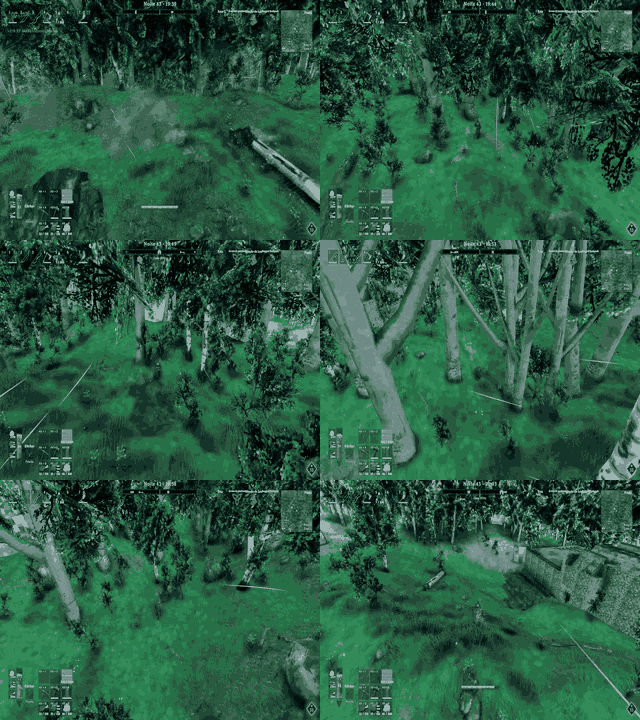
Immersive Camera Enhanced reduces third-person camera jolts caused by trees, bushes, and other natural vegetation between the Viking and the camera. When the path contains only vegetation, the camera recovers its selected distance and the blocking elements are hidden during rendering only.
Quick start
- Scroll to adjust the normal third-person distance. If vanilla first person is enabled, scrolling
to the
0.5 mminimum enters first person; scroll outward to return. - Hold Mouse4 and scroll to zoom in or out. Releasing Mouse4 resets the temporary zoom.
- Hold Left Alt to look around without changing the character's movement heading. Release it to return to the view from when Alt was pressed.
- Open BepInEx Configuration Manager to enable features and tune their settings. Configuration
Manager is optional; the same settings can be edited in the BepInEx
.cfgfile.
Features
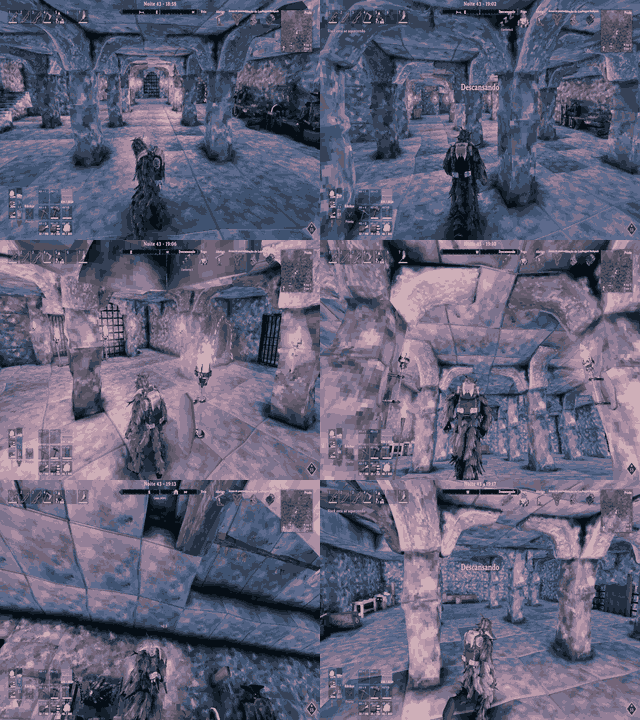
- Removes vegetation interference with camera collision without removing the game's collider.
- Keeps tree cutting, gathering, combat, and interactions intact.
- Hides only the vegetation texture that blocks the camera, preserving shadow casting and restoring the material as soon as the path is clear.
- Uses one physical, world-space cylinder profile from the character center through the camera and beyond it. The apex near the character center closes to zero width; the radius reaches the configured screen percentage at the camera and grows again toward a rear tip. Vegetation is hidden only when its collider or visual geometry touches this cylinder.
- Grass, ground leaves, and small bushes remain visible and are excluded from the tree occlusion pass to avoid unnecessary per-frame work.
- Optional
CullHousePillarshides player-built support pillars and stone arches that enter the cylinder, with a separate camera-collision toggle for those pieces. V1 never hides walls, foundations, floors, ceilings, or roofs. - Optional collision-distance transitions ease the camera toward a wall for up to one second, including small hits at door frames. Indoors, Advanced Camera also eases inward when a horizontal wall shortens the orbit, while preserving the camera's vertical look and floor/ceiling height. With Height Clearance disabled, the camera stays at the head-pivot height. Indoor wall contact never changes the selected distance. A solid surface always defines the safe endpoint. Outdoors, a qualifying collision is observed for one second, and a stable set of readings commits its shortest safe distance only when the requested distance exceeds five metres and the safe endpoint remains at least three metres from the character; a reading more than five metres from the running average restarts the observation. Indoor collisions do not change the selected distance. The lens keeps extra clearance from solid surfaces, and the local player never blocks the camera.
- Optional camera-collision bypasses let the camera pass through vegetation, support pillars, stone arches, chests and storage containers, wall sconces, torches, light fixtures, tables, and the active hammer placement preview. Walls, floors, roofs, terrain, mountain rocks, boulders, and ores remain solid.
- The camera can follow the player below the water surface while the local character is swimming.
When the player is not swimming, Valheim's water-level clamp keeps the camera above the surface.
Swimming state comes from the game's
Character.IsSwimming()method, so compatible swimming changes such as BetterDiving remain authoritative. Water does not enter vegetation-culling candidates, and the local character is always protected from V1 hiding. - Separate day, night, and fog/cave brightness controls adjust Valheim's environment lighting and shader ambient color without changing world simulation. Signed values can darken the scene or apply stronger HDR brightness above 100%.
- Optional client-only vanilla first-person mode enters when the scroll reaches the minimum zoom and returns to third person when the scroll increases the distance. It keeps Valheim's own camera, model visibility, FOV, collision, and animations as the base while the local first-person improvements below are enabled by default.
- Optional first-person camera sway rotates the view without moving the camera position, with a moderate pitch and roll response tuned to remain comfortable.
- Optional first-person camera animations smoothly lower the view by 30% of the character height while crouching.
- Optional first-person FOV adjustment is applied locally while vanilla first person is active.
- First-person camera yaw turns the local character with the view.
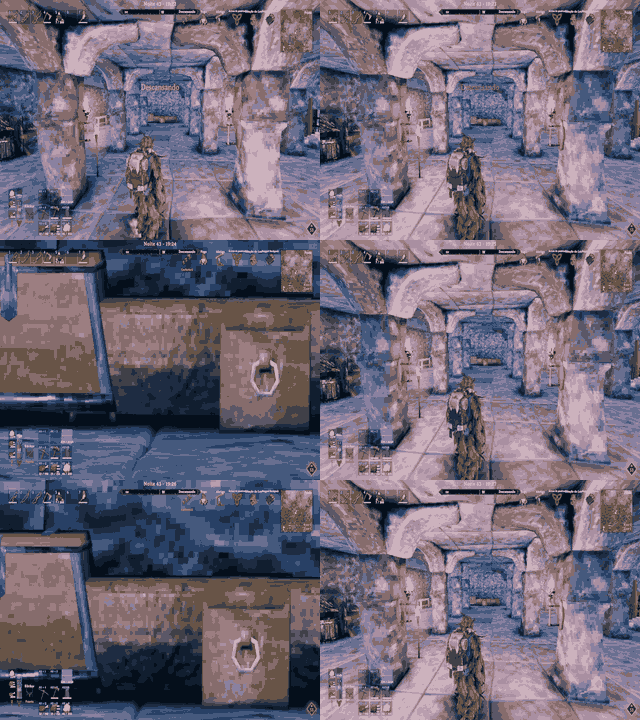
- Hold-to-zoom magnifies the image toward the crosshair in both first and third person. The scroll wheel changes magnification while the key is held; releasing it restores the normal FOV. The wheel does not change camera distance during zoom. Zoom is disabled with the building hammer.
- Optional Alt free look lets the camera look around independently while the configured key is held, preserving the character's movement heading even while WASD and other keys are pressed. It uses raw mouse input while Alt is held; after release, the camera returns smoothly to the view captured when Alt was pressed. Near walls, the camera moves toward the character only as much as the turning angle needs to keep the lens clear.
- Optional Advanced Camera operates only while the player is sheltered beneath a nearby construction ceiling. It caps third-person scrolling and the live distance at three metres indoors. Horizontal orbit and character control remain vanilla. With Height Clearance enabled, height uses the mouse-requested position clamped to local floor and roof space. With it disabled, the camera remains at the head-pivot height while vertical look rotates the view. Both modes smoothly move the camera closer as vertical look increases; Height Clearance adds a separately configurable approach as the camera moves vertically. Neither mode lets floors or ceilings pull the camera closer through collision.
- Optional damage-direction arrow: one local-only 3D marker appears beside the character's shoulder
in third person and at a fixed camera-relative position in first person. It rotates horizontally
and vertically to point toward the attacker or incoming hit direction. When an attacker can be
resolved, the arrow refreshes its bearing every 0.5 seconds by default while visible; the update
interval can be configured. First- and third-person arrow sizes have independent settings, can be
reduced as low as
0.01, and the first-person default is0.25. Fall and drowning damage do not display an arrow. Horizontal walls can shorten the orbit while preserving the clamped height. If the configured clearance does not fit, lens-sized clearance takes priority. Indoor collision never saves a new distance. Outdoors, normal third-person behavior resumes immediately. - An optional camera-distance HUD appears only when scroll or a sustained collision changes the effective distance, or when an outward scroll attempt reaches the indoor or configured maximum. Temporary movement against a wall does not change the displayed number. The background-free label hides after two seconds, has a configurable position, and follows the game language.
- Configurable lists of vegetation names and protected objects.
- Runs locally on the client; it does not change the world, save, or server physics.
Feature demonstrations
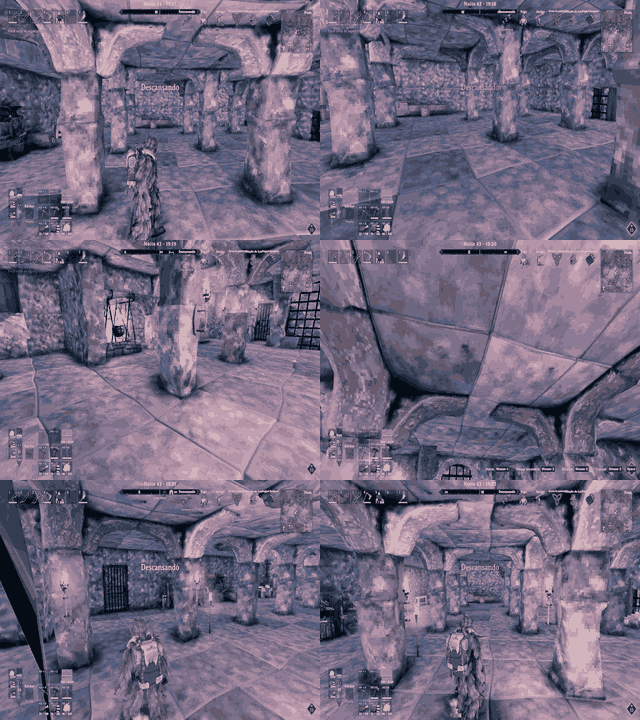
Short demonstrations of the main camera features:
Pillar pass-through and camera smoothing
Tree culling and Leaves Only while moving toward the camera
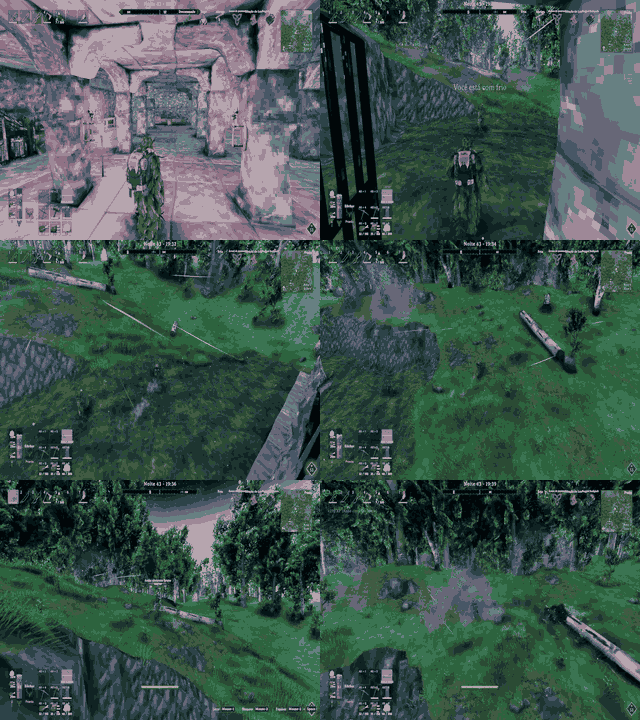
Configurable camera distance
Hold-to-zoom
Vanilla first person
Requirements
- BepInExPack Valheim.
- Valheim updated to the version supported by the installed BepInEx pack.
r2modman or another mod manager is optional. Install this mod only on the client that wants the visual adjustment; other players do not need it.
Installation
Using r2modman
- Open your Valheim profile in r2modman.
- On the Online tab, search for
ImmersiveCameraEnhancedand click Download. - Open Installed and confirm that the mod is enabled.
- Start the game with Start modded.
Manual installation
- In Steam, right-click Valheim and choose Properties → Installed Files → Browse.
- Extract the package into
Valheim/BepInEx/plugins/ImmersiveCameraEnhanced/. - Start the game once so the configuration file is created.
The generated file is located at:
Valheim/BepInEx/config/com.kimbauer.valheim.cameracull.cfg
Configuration
Options appear in BepInEx Configuration Manager, when it is installed, or can be
edited directly in the .cfg file.
Configuration Manager groups the controls by feature. Camera Cull toggles and numeric adjustments are separate collapsible groups: 00 - Camera Cull and 00 - Camera Cull / Adjustments. The other main groups are 10 - Camera Collision, 10 - Camera Collision / Adjustments, 20 - Camera Improvements, 20 - Camera Improvements / Adjustments, 30 - Visual, and 40 - Damage Direction Indicator. Damage settings are grouped under its Adjustments subsection. 90 - Performance, 95 - Detection / Adjustments, and 99 - Debug are at the end. The file sections remain backward-compatible with earlier releases. Display names are shown in English, while the configuration keys stay stable for existing profiles. Brightness and camera-distance preferences are client-only; they are applied locally even when the server exposes its own camera settings. All visible numeric entries use bounded sliders; the old numeric migration keys remain hidden from the interface.
Camera occlusion
EnableMod: global master switch. Whenfalse, all visual culling and camera-collision filtering are inactive and any temporary renderer state is restored.EnableCameraCull: V1 cylinder visual culling toggle. Whenfalse, the cylinder query is disabled while the camera-collision toggles remain available as long asEnableModis enabled.CylinderCameraWidthPercent: width of the end near the camera as a percentage of the visible screen width. The default25corresponds to 25% of the screen. The value is converted to metres using the current FOV and live character-to-camera distance; the volume starts at the real lens position so it also covers trees immediately between the camera and the character. The character-side end closes to zero width.- Trees whose owning root is on the far side of the character are ignored even when their broad leaf bounds graze the cylinder; this keeps foliage in front of the character visible.
ConeCharacterDistance(shown asCylinder Character Distance): distance from the character center to the cylinder apex in metres (default0.5). The apex is placed on the camera-facing side of the center, so the cylinder points at the character center instead of using the head bone.CullHousePillars: includes player-built support pillars and stone arches that touch the cylinder. It is enabled by default.IgnoreHousePillarCollisionseparately controls whether the camera can pass through those supports.LeavesOnly: hides the recognised leaf renderers for a complete large tree while keeping its trunk and branches visible. When a tree exposes leaf and trunk material submeshes in one renderer, the mod temporarily removes only the leaf submeshes. Grass and small bushes are excluded from visual culling. It is disabled by default.MovementLeavesOnlytemporarily uses this same leaf-only mode while the character walks toward the camera. It requires consecutive movement samples and rejects abrupt position corrections, avoiding scene scans and dedicated-server query spikes. Tree trunks, branches, support pillars, and stone arches are restored while this temporary mode is active.MovementLeavesOnlyActivationDelaycontrols how long the character must keep walking toward the camera before the temporary leaf-only view begins (default0.5seconds). Moving away or stopping before the delay expires cancels activation.ThirdPersonCameraDistance: hard local maximum character camera distance in metres (default6, range1to35). It caps the live distance after camera updates and overrides server or other-mod values while preserving vanilla camera rotation and steering.BoatCameraDistance: local maximum camera distance while attached to or controlling a boat or raft, in metres (default6, range1to35). It caps both boat-camera limits and the live distance while attached or steering, overriding server or other-mod values; it never limits the on-foot camera.
Camera improvements
EnableFirstPersonCamera: enables the vanilla first-person view when the scroll reaches the0.5metre minimum through an explicit scroll input. Camera collision alone cannot activate it. Scrolling away from that boundary returns to third person through Valheim's normal camera logic. It is enabled by default and applied only on the local client. V1 occlusion is disabled while this view is active.EnableFirstPersonCameraSway: rotates the first-person view with a lightweight movement sway while leaving the camera position unchanged. Enabled by default.EnableFirstPersonCameraAnimations: enables local first-person camera animation. While the character is crouching, the camera smoothly lowers by 30% of the character height. Enabled by default.FirstPersonCameraFov: local first-person field of view in degrees (default65, range30to120). It is applied only while vanilla first person is active and updates while the Configuration Manager is open.- Turning the first-person camera also turns the local character. Roll direction follows the current movement direction while first person is active.
EnableCameraZoom: enables the temporary hold-to-zoom feature (enabled by default).CameraZoomKey: key held for zooming, defaulting to Mouse4 (Mouse3in Unity's key names).CameraZoomDefaultMagnification: initial optical zoom factor (default2×).CameraZoomMagnificationStep: zoom factor added per scroll notch (default0.5×).CameraZoomMaxMagnification: maximum optical zoom factor (default20×, configurable up to40×). Zoom works in first and third person, leaves camera distance unchanged, reduces mouse sensitivity progressively with a smooth input response, and is disabled with the building hammer.CameraZoomSmoothSpeed: speed of the smooth optical zoom transition (default14).CameraZoomMouseSensitivityFactor: multiplier for zoomed mouse sensitivity (default0.20, where lower values slow the view further). The factor is applied to the magnification curve and is consumed from the normal gameplay mouse-input path.CameraDistanceSmoothSpeed: speed of the smooth normal third-person distance transition after scrolling (default12).EnableFirstPersonFreeLook: enables Alt free look without changing the character's movement direction. While the key is held, the camera follows raw mouse input; its smooth return starts only after release. Enabled by default.FirstPersonFreeLookKey: key held for free look, defaulting to Left Alt. Horizontal look is limited to 120 degrees to either side of the character's forward direction; vertical look is limited to 90 degrees up or down. Other movement keys can be held at the same time.EnableAdvancedCamera: checks for a nearby construction ceiling while Valheim reports that the player is sheltered. Indoors, it caps the scrollable and live third-person distance at3metres. Wall collision brings the camera toward the player without entering first person; the camera keeps the mouse-selected height when the solid path and available room allow it. The mode ends immediately outdoors or with the building hammer equipped. Enabled by default.AdvancedCameraActivationInterval: interval in seconds between ceiling checks while Advanced Camera is inactive (default1).AdvancedCameraDeactivationInterval: interval in seconds between ceiling checks while Advanced Camera is active (default3).EnableAdvancedCameraHeightClearance: keeps the indoor view between floor and ceiling clearance limits while preserving its selected height where possible (enabled by default). Vertical mouse movement no longer shortens the orbit against floors or ceilings; only a horizontal wall may shorten the camera path, while keeping the clamped camera height.EnableAdvancedCameraEdgeClearance: keeps a rounded safety margin around wall corners, raised obstacles, and changes in floor or ceiling height while Advanced Camera is active indoors. Enabled by default.AdvancedCameraLookApproachPercent: maximum share of the indoor camera-to-player distance removed as vertical look moves from level to straight up or down (default25%, range0to100). The approach is smoothed and works with or without Height Clearance.AdvancedCameraHeightApproachPercent: additional maximum share removed as Height Clearance moves the camera vertically (default25%, range0to100). The clearance still limits the camera's height before the smooth approach is applied.AdvancedCameraClearance: maximum vertical travel is constrained to keep the camera at least this many metres from the floor and ceiling (default4, minimum1). This is a height limit, not a collision distance. If the configured margin cannot fit in a room, a smaller lens-sized physical margin is used; structural surfaces still use the normal camera collision rules. Props already ignored by the camera collision filter, including tables, chests, workbenches, portals, beds, torches, and other lights, are excluded from this height calculation.ShowCameraDistanceHud: shows the effective camera distance when scroll or a sustained collision changes it, or when outward scroll is blocked by a camera-distance limit. It hides after two seconds without a change or further scroll attempt (enabled by default).CameraDistanceHudXandCameraDistanceHudY: position the HUD as percentages of screen width from the left and screen height from the top (defaults50and75).BackCylinderLength: additional cylinder length beyond the camera in metres. The single cylinder starts near the character center and ends this far past the camera (default10).ConeGrowthExponent(shown asCylinder Growth Exponent): non-linear radius curve.1is linear; values above1keep the cylinder narrow during the first metres and expand it rapidly near the camera and rear tip (default2.4).CylinderSlicesPerMeter: number of stable profile cuts per metre. This creates the configurable stepped “zip” profile without making the culling query more frequent.CylinderExponentInfluencePercent: how strongly the growth exponent changes each profile cut.0is linear;100applies the full exponent.CylinderCheckInterval: slider for the interval between the expensive cylinder contact checks, in seconds. The cylinder transform still follows the camera every frame; only renderer overlap sampling is throttled. The default is0.60seconds.CylinderRestoreDelay: slider controlling how long an object must remain outside the cylinder before its renderer is restored. The default is0.60seconds;0restores immediately.CylinderVerticalFlattenPercent: slider that removes the upper portion of the cylinder cross-section after the growth exponent is applied. The migrated default is30, which avoids hiding objects above the view path.CylinderFlattenBottom: when enabled, applies the same vertical flattening limit to the lower side of the cylinder. It is disabled by default, preserving the original upper-only behavior.CylinderHorizontalFlattenPercent: slider that narrows the horizontal width of the grown cylinder.0keeps the full width; higher values make the cylinder narrower.ConeRearRadiusMultiplier(shown asCylinder Rear Radius Multiplier): radius at the rear tip relative to the camera radius (default1.75).PreserveVegetationShadows: usesShadowsOnly, removing the texture while keeping shadows.IgnoreVegetationCollision: removes recognized trees, leaves, and other vegetation from Valheim's camera collision ray. It does not disable their gameplay colliders. Enabled by default.IgnoreHousePillarCollision: allows the camera to pass through player-built support pillars and stone arches. Enabled by default. It does not affect wooden walls, foundations, floors, ceilings, roofs, terrain, mountain rocks, boulders, or ores.IgnoreHouseLightCollision: allows the camera to pass through wall sconces, every torch variant, lanterns, braziers, candles, fireplaces, similar light fixtures, and player-built tables. Enabled by default. The configuration key remains unchanged for compatibility.- The currently selected hammer placement preview never blocks the camera. It is identified from the local player's actual placement ghost, so the same piece becomes solid or follows its configured prop category after construction.
IgnoreEntityCollision: allows the camera to pass through players, animals, enemies, fish, and other entity colliders. Enabled by default.EnableCollisionDistanceTransition: when a collision shortens the camera, uses up to one second to move toward the safe position outdoors, including smaller door-frame hits. Advanced Camera applies the wall-safe horizontal position immediately while preserving its clamped height. A solid wall takes priority over smoothing. Outdoors, qualifying safe-distance readings within five metres of their running average are observed for one second, then the shortest is committed. A larger deviation starts a new window. The feature only adjusts the camera when the requested distance exceeds5metres and the safe collision position remains at least3metres from the character. Indoor collision never commits a new distance. Enabled by default.CollisionDistanceMinimumPercent: slider from0to100that sets the minimum percentage reduction between the selected distance and the collision-safe distance before an outdoor collision can commit a new effective distance. The default is10.KeepFoundationFloorRoofCollision: keeps foundations, floors, ceilings, and roofs solid. Only near-horizontal underside hits receive the material-thickness clearance; walls and side contacts always use the normal camera collision distance. This setting never changes wall collider physics. Enabled by default.EnableDamageDirectionIndicator: shows a local-only 3D arrow for incoming damage in both camera modes. In third person it orbits the player; in first person it stays at a fixed camera position while rotating in all three dimensions. The marker has no physics or network object. Enabled by default.DamageDirectionIndicatorPointToSource: prioritizes the attacker as the arrow direction when available; enabled by default. Disable it to use the hit direction/impact point instead.DamageDirectionIndicatorDuration: how long the damage arrow stays visible (default4seconds, range0.5to10).DamageDirectionIndicatorSourceUpdateInterval: how often to refresh the arrow toward a moving attacker while visible (default0.5seconds, range0.1to5). This reuses the attacker resolved at hit time; when no attacker object is available, the arrow uses the incoming hit direction instead.DamageDirectionIndicatorSize: third-person arrow size multiplier (default0.45, range0.01to2).DamageDirectionIndicatorFirstPersonSize: first-person arrow size multiplier (default0.25, range0.01to2).- Damage indicator settings use
40 - Damage Direction Indicatorand its singleAdjustmentssubsection in Configuration Manager. That subsection controls duration, attacker update interval, independent arrow sizes, RGB color, and separate third- and first-person positions. The default color is muted brick red with a dark outline. Detection adjustments and Debug are the final sections. EnableBrightnessAdjustment: enables the local render-only brightness feature.DayBrightnessPercent(shown asDay Brightness): signed daylight adjustment from-100to300; the default is0.NightBrightnessPercent(shown asNight Brightness): signed adjustment at night and in always-dark environments, from-100to300; the migrated default is25.FogCaveBrightnessPercent(shown asFog & Cave Brightness): signed adjustment in dense fog, mist, caves, crypts, mines, and dungeons, from-100to300; the migrated default is25. Brightness is applied locally on each client after Valheim writes the final environment lighting, fog, and ambient shader color. Negative values darken,0preserves vanilla brightness, and values above100increase HDR exposure beyond the original range. Server-side environment settings do not override these client values.
Cylinder contact checks run on the configurable throttled cadence while its transform follows
the camera every frame. V1 only classifies colliders returned by the local camera volume; it does
not scan every renderer loaded in the scene. Collider and hierarchy results are cached between
queries, and exit hysteresis prevents foliage from flickering on transient physics misses.
Young trees and saplings use a ground-anchored upright detection volume with a fixed height of
six metres and three times their original horizontal radius, capped to a normal-tree-sized local
probe. A collider hit resolves the complete young-tree root, so normal culling hides the same
visual group already recognised by Leaves Only. This does not change gameplay physics or create
a global tree scan.
When VerboseLogging is enabled, Immersive Camera Enhanced emits one aggregate V1 status line
every 15 seconds and reports at most 32 previously unknown camera-path colliders per scene, so
diagnostics do not flood the Unity console. Per-renderer hide/restore messages are intentionally
not written from the culling hot path. Each status line includes CPU percentage, process thread
count, frame time, stopwatch ticks, GC collection counts, last and peak V1 query time in
milliseconds, managed and Unity allocated memory in MiB, and the process working set sampled at
that point. Collider-to-renderer and tree-hierarchy lookups are cached between discovery scans to
avoid repeated allocations in the hot path. Nameplate, health-bar, and world-text renderers
are excluded from the cylinder query.
The temporary LeavesOnly mode reuses each renderer's derived leaf-stripped mesh instead
of cloning and destroying it every time movement changes direction. Only actual state
transitions request a new throttled cylinder query; cached meshes and shadow proxies are
released when the scene is reset.
Detection
CollisionLayerMask defines the physics layers queried by the cylinder; -1 includes
all layers. VegetationNameTokens and ProtectedNameTokens are comma-separated lists.
Rocks, stones, ores, and flint fragments are protected automatically and are never
included in culling. The mod uses the actual collider shape and, when available, mesh
vertices to avoid hiding a tree whose broad renderer bounds only graze the volume.
When a tree collider belongs to a prefab root with separate trunk and leaf meshes, V1
uses the real collider as confirmation that the tree entered the cylinder. LeavesOnly then
selects all recognised leaf renderers belonging to that same tree. It uses the object
name and its parents
in the hierarchy, tags, and tree components
(including trunks in child objects) to classify renderers and colliders. Add a modified
prefab name to the vegetation list if it is not recognized; add it to the protected
list if it must never be hidden.
Safety and compatibility
Immersive Camera Enhanced does not destroy GameObjects, disable colliders, or alter saved state. For
vegetation it uses ShadowCastingMode.ShadowsOnly while the texture is hidden and
restores the original mode when the object returns to view, when the scene changes, or
when the mod is disabled. The global EnableMod switch restores all temporary state.
Mods that completely replace the camera may compete with this correction. If behavior
is unexpected, first disable Camera occlusion/EnableCameraCull and test visual
culling separately from the independent collision toggles.
Diagnostics
Enable ShowOcclusionCylinder to draw the physical cylinder in translucent green
(20% by default), with its zero-width character-side apex, camera-width section, and wider rear
section, during calibration. Adjust CylinderOpacity in the Debug section if the
outline needs to be more or less visible. The drawing is optional and does not reveal
the map. It shows one curved cylinder only. Disable
the option after calibration. The overlay remains visible while the pause or Configuration
Manager menu is open, so its position can be checked without losing the last gameplay volume.
Enable VerboseLogging only during a test; routine scene
scan counts are intentionally not written because synchronous console output can stall
the render thread. Set the option back to false after diagnosing.
Credits
Project by Xinelada Lendária. Requires BepInExPack Valheim.