
SmartContainers
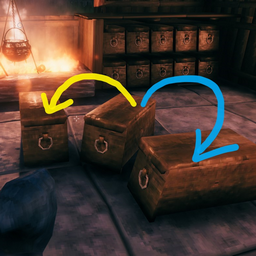
Want to quickly drop your loot? Tired of looking for chest with a specific item-stack in order to store some more of it? Teach your containers to arrange items with their neighbors!Smarter containers
Changelog
Version 1.5.3
    - Improved groups editing from BepInEx.ConfigurationManager by using multiline input element.
    - Added logging(to Console) of matched grouping criteria which caused item to be routed.
Version 1.5.1
    - Fixed mod initialization issue after a logout & new login
Version 1.5.0
    - Enhanced item-groups management with UI dialog helping to deduplicate or merge overlapping groups.
    - Currently-opened-contained will now also be a possible target for group-based items sorting.
    - Tweaked some processing priorities so that now user-groups will be always processed before checking item-types.
    (My arrows occasionally were sent to a chest with fish-bait since they are both 'ammo' ¯\_(ツ)_/¯)
    - added preconfigured "rock" items group (stone,flint,obsidian)
Version 1.4.5
    - fixed and improved gamepad/controller support
Version 1.4.4
    - fixed Unload-itemsList & Unload-itemsSkipList configurability
Version 1.4.3
    - Added 'Unload' ability - click button to automatically distribute all allowed item-types from your inventory to their corresponding chests.
    - Added audio & visual effects feedback for highliting containers where you items were moved.
    - Added full support of changing config from within game via BepInEx.ConfigurationManager (usefull for moving buttons, changing hotkeys, etc).
    - Implemented workarounds for concurrent contaniner modifications.
Version 1.2.1
    - added ability to setup item-groups using chest-inventory UI
    - internal stability fixes
Version 1.1.0
    - Improved 'grouping' mod and made groups configurable via config-file.
    - Added HUD message indicating that item was routed to some other Chest
Version 1.0.0
    - initial release
Features
- Teaches your containers to automatically send items you put in them to other containers if they are already containing this item-stack.
- Puts same-kinded items to their siblings: copper-ore goes to chest containing tin-ore and so on.
- You can create such item-groups from any items combination - just put your carrots, stones and feathers in one box, click the button and from now on your carrots will go to chest with feathers.
- Configure mod to load-out all specific loot-items from your inventory to a proper chests via a single button click.
How it works:
When you put an item stack to a container via <font color="orange">[Ctrl + Click]</font> If container is full or doesn't contain same items:
- check each nearby container and if it is not full and has same item (stack) - your item is routed there.
- otherwise (if none found) check each nearby container and if it is not full and has "relevant" group items - your items are routed there.
In other words: If group contains your item and chest contains any other item from a group, then your item will go to this chest.
General Configuration parameters
- range - defines area to locate 'nearby' containers
- onlyStackableItems - (enabled by default) when enabled - non stackable items (tools, weapons, armor) are NOT rearranged
- hudMessageEnabled - (enabled by default) Enables hud message indicating that item was placed to some other chest.
- hudMessageText - HUD message consists of Icon, item-name plus this hudMessageText
- audioFeedbackEnabled - play ingame-sound if items are successfully distributed
- effectFeedbackEnabled - display a temporary visual effect over chests where your items were distributed
Grouping items
There are three available options to define an item-group:
- by explicitly listing all item-names of group-members
- by matching item-name prefixes: trophyboar and trophytroll are members of group with 'trophy' prefix
- by matching item-name postfixes: carrotSeeds and turnipSeeds are members of group with 'seeds' postfix
- by matching in-game
item-type: Tool, Weapon, Ammo, Armor, Trophie
Grouping Configuration parameters
- enabled - (true by default) enables item groups logic
- itemTypeGroupsEnabled - enables grouping by item-types (Trophie, Tool, Ammo, Armor, Weapon).
- groupingKeyModifier - LeftControl. Change to 'LeftControl + LeftShift' if you want separate hotkey for triggering grouping logic.
    (holding ctrl is mandatory since it's a 'move-stack' ingame key)
- createGroupBtnEnabled - (true by default)  adds a UI button which helps to create custom item-groups
- createGroupBtnPos - adjusts button position
- fuzzyGroupingEnabled - (false by default) enable grouping by more broad criteria.
Preconfigured item groups
[ItemGroup] config section contains a set of item-names based groups.
valuables = ruby,coins,amber,amberpearl
ore = copperore,flametalore,ironore,silverore,tinore,ironscrap,blackmetalscrap
rock = stone,flint,obsidian
ingots = copper,bronze,flametal,iron,silver,tin,blackmetal
wood = wood,finewood,corewood,ancientbark
mushrooms = Mushroom,MushroomBlue,MushroomYellow
berries = Blueberries,Cloudberry,Raspberry,Honey
vegetables = Carrot,Turnip
cookedMeat = CookedLoxMeat,NeckTailGrilled,MeatCooked,FishCooked,SerpentMeatCooked
food = CarrotSoup,Sausages,QueensJam,SerpentStew,TurnipStew,BloodPudding
Preconfigured groups matching item-names by postfixes or prefixes:
[PostfixedItemGroups] posfixes = cone,seeds,pelt,hide # i.e. CarrotSeeds will go to TurnipSeeds
[PrefixedItemGroups] prefixes = trophy,mead,arrow,armor,cape,helmet,atgeir,bow,battleaxe,knife,mace,shield,sledge,spear,sword,tankard # i.e. ArrowFire will go to ArrowFlint
###How it works: When you put an item stack to container via <font color="orange">[Ctrl + Click]</font>
- if simple container lookup by same-item-name described above has no results then:
- check each nearby container and if both container and your item are
- members of same item-names based group (either preconfigured or user-created group form [ItemGroup] config section)
- or members of same item-names-prefix based group
- or members of same item-names-postfix based group
- then item is routed there.
- if none matched - check each nearby container and if container has any item with
item-typesame as your items type then item is routed there (could be disabled withitemTypeGroupsEnabledconfig option) - if none of the above matched and
fuzzyGroupingEnabledoption enabled - additionalitem-typesbased groups are checked: IsMaterial, IsConsumable, IsCustomization, IsMisc
Adding custom item groups
Put desired items set to a chest, click the <font color="orange">[☼]</font> button (at the bottom-left corner of chest panel). New group will contain all unique item-names from this chest.
Unloading items.
Configure item-groups & names which should be allowed for 'unloading'. Open any chest and click the <font color="orange">[⇓⇓]</font> button.
'Unloading' Configuration parameters
enabled - (true by default) enables unloading logic & UI button
btnPos - adjust button position
groupsList - List of items group-ids from [ItemGroup] config section allowed to be 'unloaded'
itemsList - List of item-names allowed to be 'unloaded'
itemsSkipList - High-priority list of item-names to exclude from being 'unloaded'
alwaysGrouping - (true by default)  - grouping logic is always on for uloading. Otherwise - pressing of groupingKeyModifier required.
addToItemsFilterKeyModifier - If pressed - overrides createGroupBtn behaviour by passing item-names to unload 'itemsList' instead of creating new items group
addToSkipItemsFilterKeyModifier - If pressed - overrides createGroupBtn behaviour by passing item-names to unload 'itemsSkipList' instead of creating new items group
materialsFiltering - always allow 'materials' item type to be 'unloaded'
trophiesFiltering - always allow trophies to be 'unloaded'
consumableFiltering - (disabled by default) always allow any consubable item to be 'unloaded'
###How it works: Checks each non-equipped item in your inventory and:
- if item is NOT in
itemsSkipListconfig option - if item matches any group from
groupsListconfig option or item-name is listed initemsListconfig option or item-type isMaterialsandmaterialsFilteringconfig option enabled or item-type isTrophyandtrophiesFilteringconfig option enabled or item-type isConsumableandconsumableFilteringconfig option enabled - try to move item to nearby 'relevant' chest
###Disabling preconfigured groups You can disable any preconfigured group by deleting part after '=' symbol. Example: "vegetables ="
ⓘ You can also manually verify, merge or add new groups to [ItemGroup] config section.
Example: "fishes = FishRaw,FishCooked". (requires game-restart)
Item-names could be discovered by googling some "valheim Spawn items list".
Also "Ctrl + L + click" (instead of Ctrl + click) while moving item to
chest will log item name to console (F5). Item-name will have a '$item_' which you will need to remove before putting it into config.
##Controller support
- set [Grouping] groupingKeyModifier to JoystickButton0 value: RTrigger+A will always use grouping. Alternatively - set it to JoystickButton6 (map button)
- RightStick click : trigger Create group (<font color="orange">[☼]</font>) while at containers-panel .
- RightStick click + RTrigger : same as addToItemsFilterKey.
- RightStick click + LTrigger : same as addToSkipItemsFilterKey.
- menuButton (☰) : triggers Unload-all-items button (<font color="orange">[⇓⇓]</font>) while at containers-panel.
- merge-or-create dialog: LeftBumper= Merge, RightBumper=Create
- I've tried to mimic games tooltips but they overlap with buttons a bit now. Set [Unload] btnPos = {"x":1.5,"y":7.9}
Configuring mod:
- Recommended: enable in-game console (opened by F5) by adding
-consolelaunch option. - Recommended: install latest BepInEx.ConfigurationManager
- Start the game. Adjust config via ConfigurationManager while playing game (press F1 while in menu or at inventory UI)
- Or from a config file at
Valheim\BepInEx\config\flueno.SmartContainers.cfg. Requires game restart.
Installation
automatic:
- Install this mod manager: r2modman
- Install the mod by clicking the button "Install with Mod Manager" on this page or by directly installing it inside of the mod manager
- Launch the game
manual:
- Install the mod BepInExPack Valheim
- Extract this mod's dll file into folder:
Valheim\BepInEx\plugins - Launch the game