ValheimVanillaPlus
Client-side convenience: craft and sign search, sign editor, storage window over nearby chests, craft from chests, waypoints, radar, night vision, pickup filter, repair alert, player stats, auto reconnect.Valheim Vanilla Plus
Client-side convenience for the unmodded game. No cheats: nothing here changes what your character can do, what the world gives you or how the game saves. Features are interface helpers (search boxes, a sign editor, a Clear button) and local visual aids (night vision). Because of that there is no admin / host requirement.
Some things go beyond what an unmodded player can do:
- Signs may hold 150 characters instead of 50 (the text is still ordinary sign text).
- Night vision lets you see in the dark without a torch (off by default).
- The world seed is shown on servers, where the game itself never displays it.
- The radar shows creatures and players around you through walls and terrain (off by default).
- Waypoint markers are drawn in the world, through walls, not only on the map.
- Craft from chests uses materials from nearby chests without you carrying them (off by default).
- The storage window takes from and stores into nearby chests without you opening them.
- Reveal map shows the whole world map without exploring it (off by default; display only).
Install
Install with a mod manager (r2modman, Thunderstore Mod Manager), or by hand: install BepInExPack
Valheim, then put ValheimVanillaPlus.dll in Valheim\BepInEx\plugins\. Only the players who want
the features need it; the server does not.
Source: https://github.com/liekos47/valheim-vanillaplus-mode
Hotkeys (in game)
| Key | Toggle |
|---|---|
| Insert | Options menu: theme, search and tabs Interface / Crafting / Items / Vision / World / Stats / More (frees the cursor, blocks player input while open) |
| F2 | Storage window: all nearby chests as one searchable list with Take / Store |
| Left Alt + click | In the inventory with a chest open: move every stack of the clicked item to the other side |
| Left Alt + Shift + click | In the inventory: drop every stack of the clicked item |
| Home | Night vision (no torch needed at night / in caves) – starts OFF |
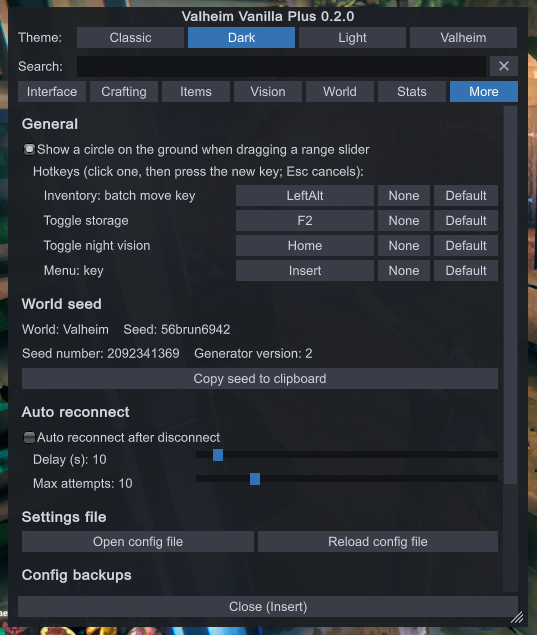
Change any of these in the menu: More → General → Hotkeys. Click a key's button, then press the
new key (hold Ctrl / Shift / Alt for a combination); Esc cancels, "None" unbinds, "Default" puts
the original back. The menu and the storage window can be resized by dragging the grip in their
bottom-right corner; the size is remembered ([Menu] Width / Height, [Storage] Width /
Height).
Defaults and keys are also editable in BepInEx\config\liekos47.valheimvanillaplus.cfg, or from the menu's
More tab (Open config file / Reload config file).
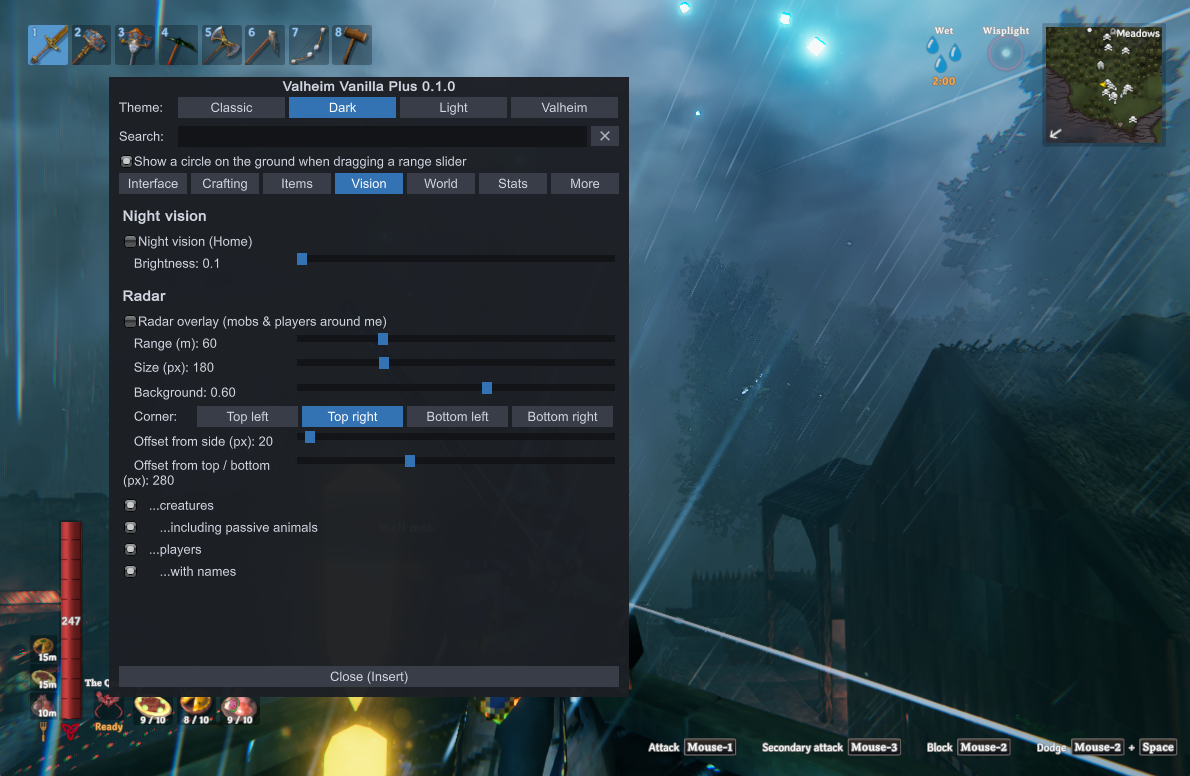
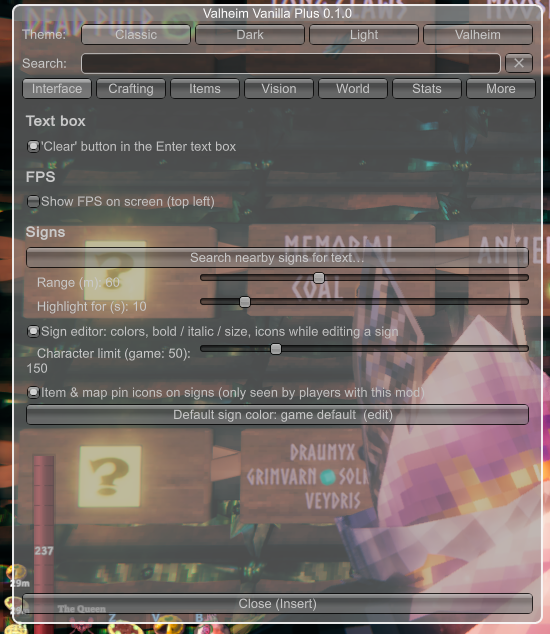
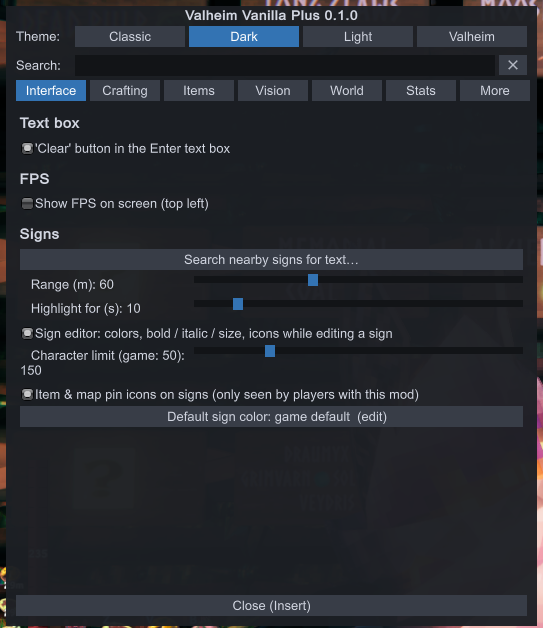
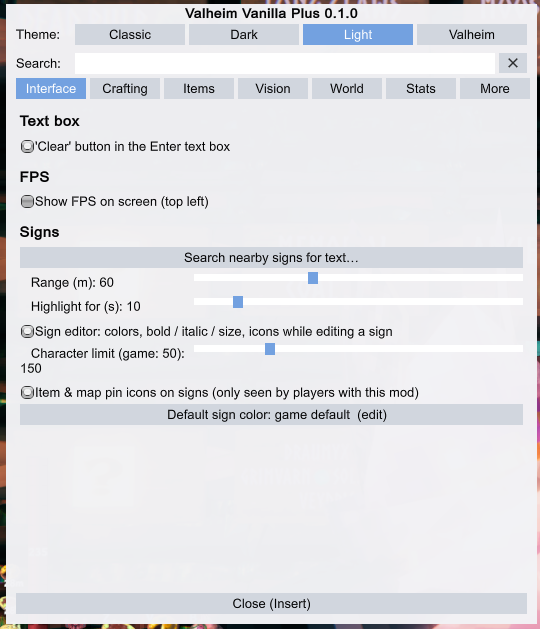
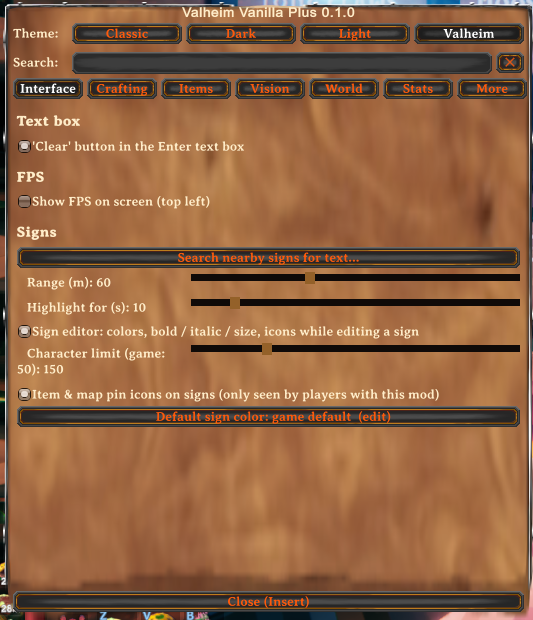
Look ([Menu] Theme, picked at the top of the menu): everything the mod lets you click or
type in (the menu, the storage window, the sign editor panel, the craft search box) is drawn with
one theme. Valheim (default) uses the game's own font and the button, text-field and panel
pictures of the game's "Enter text" box; Dark and Light are flat colors; Classic is Unity's
gray. Markers drawn over the world (waypoints, radar, sign search, FPS) keep their own colors.
| Classic | Dark | Light | Valheim |
|---|---|---|---|
 |
 |
 |
 |
Features
-
Clear button – a "Clear" button in the game's "Enter text" box (signs, names, portal tags), left of Cancel, that empties the field and keeps it focused.
[Interface] ClearButton, default on.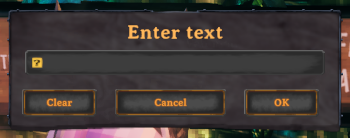
-
FPS counter – frames per second in the top-left corner, averaged over half a second: green from 50, yellow from 25, red below.
[Interface] ShowFps, default off (menu → Interface).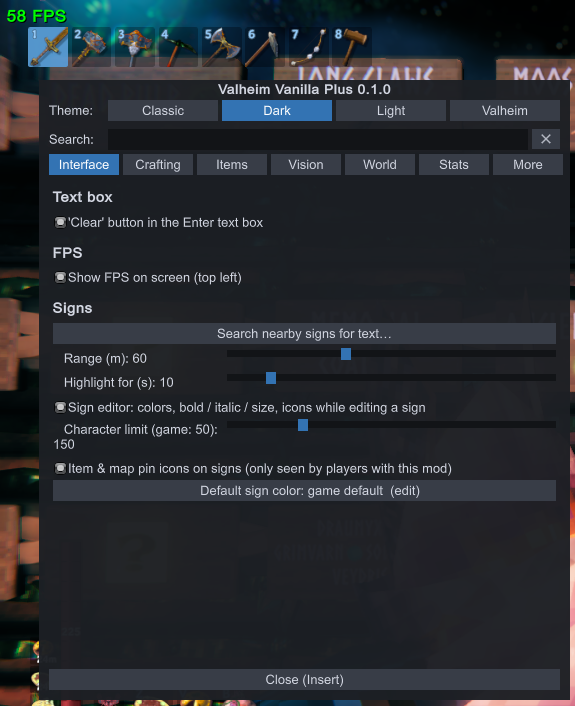
-
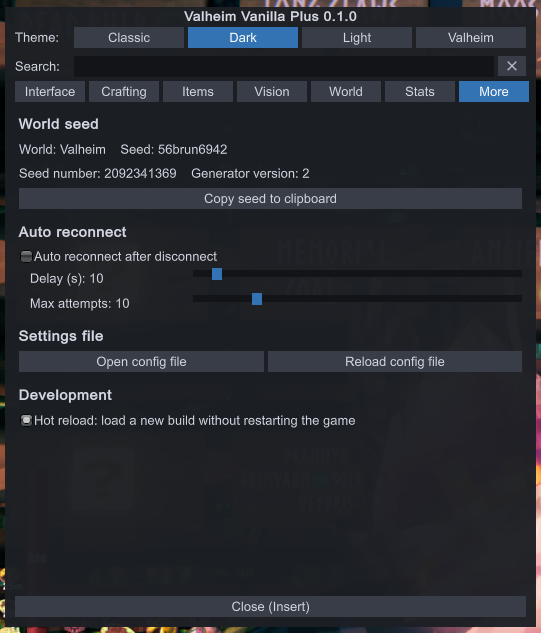
World seed – menu → More shows the name, seed, seed number and generator version of the world you are in, with a "Copy seed to clipboard" button. Works on servers too (see How it works).
-
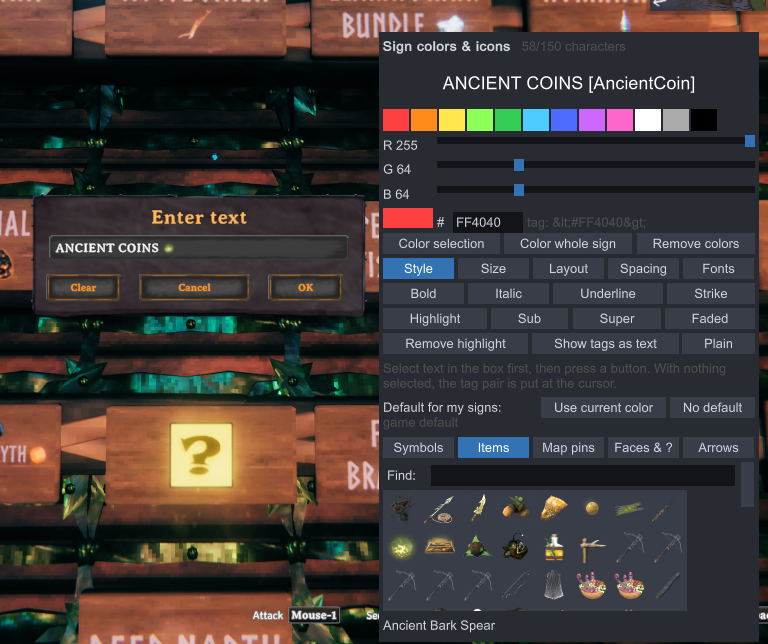
Sign editor – while you edit a sign, a panel next to the text box gives buttons for what signs already understand but the game has no UI for: colors (palette, RGB sliders, hex), bold / italic / underline / strike / highlight, size, alignment, spacing, fonts, two-tone letters, symbols, arrows and icons. The result is ordinary sign text, so other players see it without the mod, except the parts marked "only players with this mod" in the panel (item / map pin icons, extra fonts, the four added two-tones).
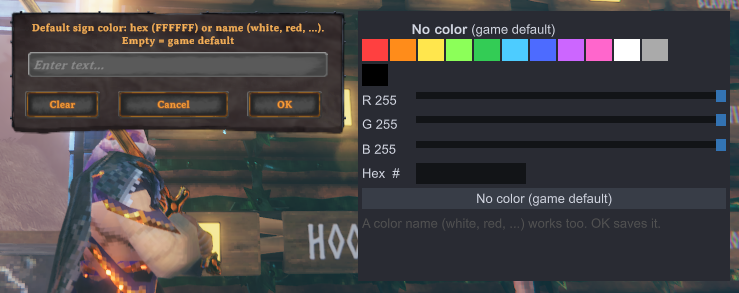
[Signs]section:Editor(on) – the panel itself.CharacterLimit(150) – tags use up characters, so the sign limit is raised from the game's 50.CustomIcons(on) – item and map pin icons.DefaultColor(empty) – color given to a confirmed sign that has none of its own. The menu button "Default sign color … (edit)" (Interface → Signs) opens the game's text box with a color panel beside it, like the sign editor's: a swatch of the current color, ready-made colors to click, R / G / B sliders and a hex box. Type a hex code or color name, then OK. "No color" (or Clear) goes back to the game default. The sign editor's "Use current color" sets it too.
-
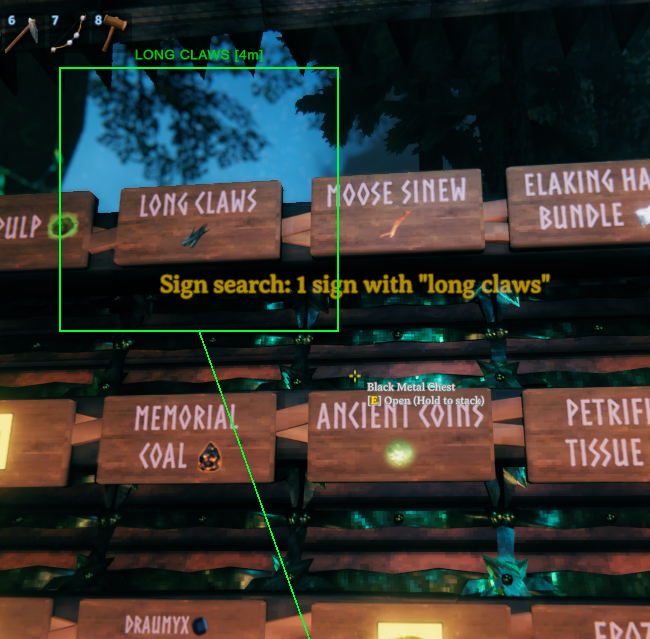
Sign search – menu → Interface → "Search nearby signs for text…": every sign within range whose text contains what you typed (any case, tags ignored; commas = any of several words) is marked for a few seconds with a rainbow box, a line from the bottom of the screen and its text. Visual and local only.
[Signs] SearchRadius(60 m),SearchHighlightSeconds(10),SearchText(the last search).Search Result 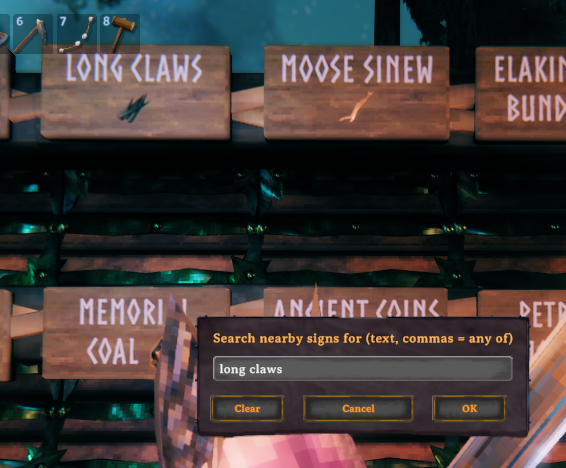
-
Craft search – a search box above the crafting list (inventory, workbench, forge, ...) that filters the recipes by the item made or any ingredient, e.g. "bronze" or "copper". Only recipes the game already lists are shown; nothing is unlocked. Cleared when the inventory closes.
[Crafting] CraftSearch, default on. -
Craft from chests – while crafting or building, materials in nearby player-built chests (also carts and ship storage) count as if they were in your inventory; what you lack is taken from the closest chests first. The numbers in the crafting panel and the hammer's piece info include them, and the recipe list refreshes when chest contents change. Private chests and wards are respected, and a chest another player has open is skipped. Menu → Crafting.
[Crafting] CraftFromChests(off),ChestRange(30 m). Don't combine with another craft-from-containers mod; the menu warns if one is installed.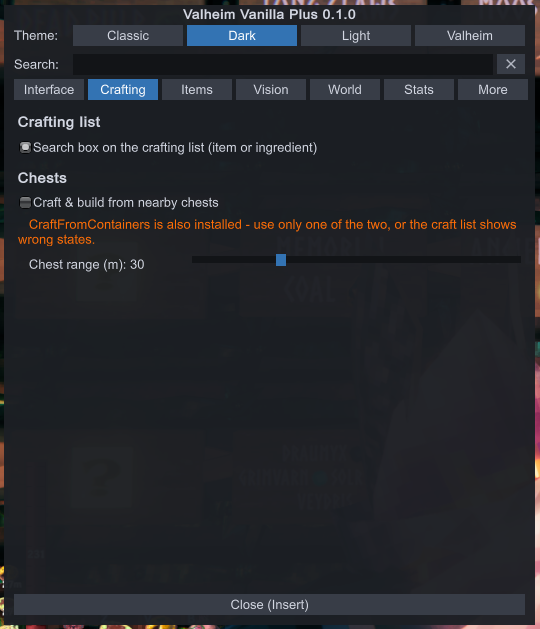
-
Storage window (F2, or menu → Items) – every item in your nearby player-built chests (also carts and ship storage) as one list with icon, total and "in N chests". Search, category filter (Materials / Food & meads / Weapons & tools / Armor / Other), sort by name or count, range slider, remembered position.
- Chests (take): Take 1 / Stack / All into your inventory.
- My inventory (store): Store stack / Store all / Store everything. An item goes only into chests that already hold it: a chest holding nothing else first, then mixed ones, closest first. When those are full it says "chest full"; when no chest holds the item it says "no chest assigned" and stores nothing. Put one in a chest by hand to assign that chest.
- "Store everything" keeps equipped items, the hotbar row (
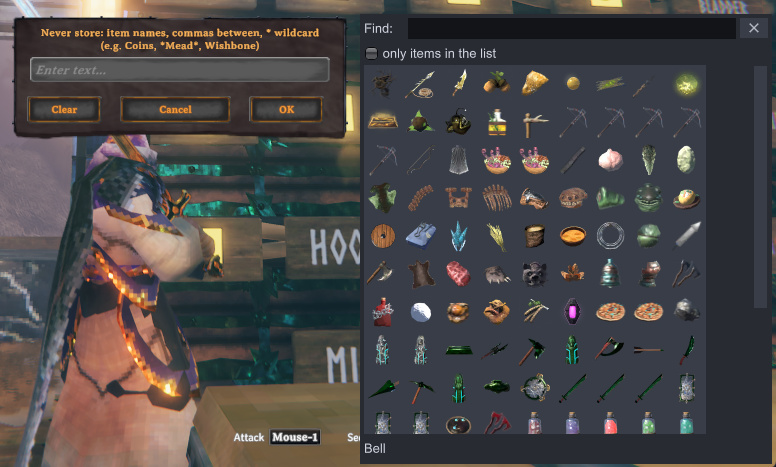
KeepHotbar), the ticked categories (KeepArmor,KeepWeapons,KeepTools,KeepFood,KeepAmmoon by default;KeepTrophiesoff) and the never-store list (NeverStore,*wildcard). "Store stack" and "Store all" on a single item ignore the keep rules. "Edit never-store list" opens the text box with the same grid of item icons beside it as the pickup lists: click to add or remove names. - Private chests and wards are respected; a chest another player has open is skipped.
[Storage] Enabled(on),Range(30 m), theKeep…rules,NeverStore,PositionX/PositionY;[Hotkeys] ToggleStorage(F2).
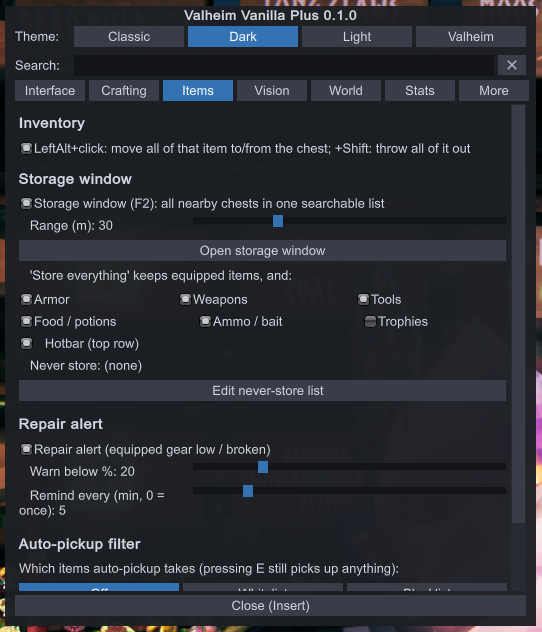
Chests (take) My inventory (store) 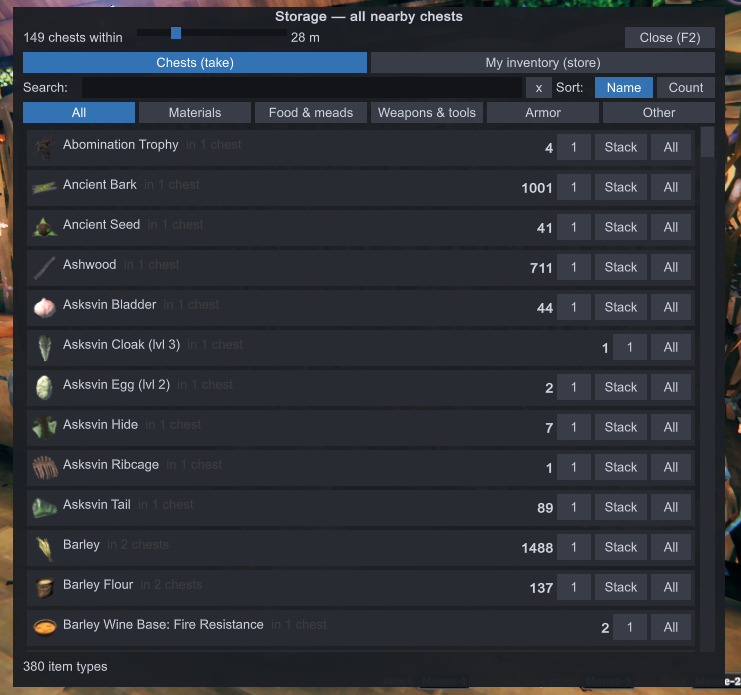
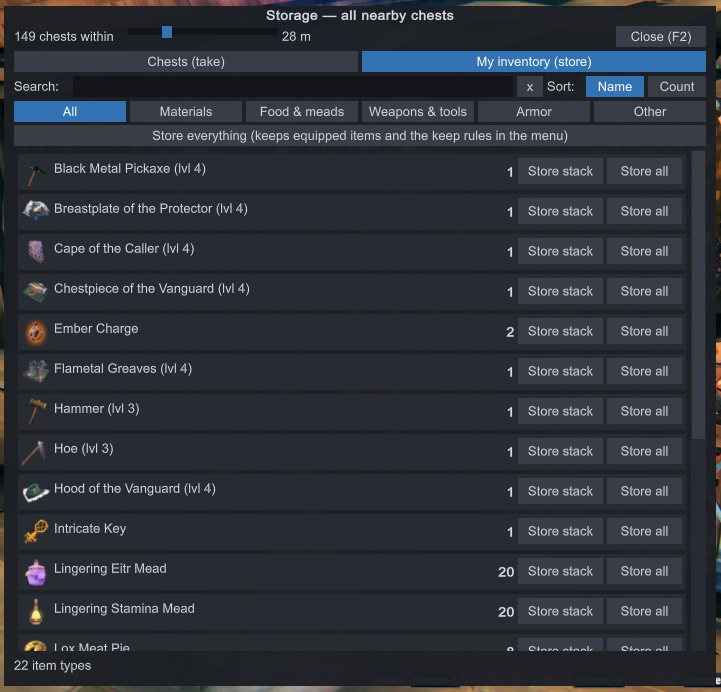
-
Store all button – a "Store all" button under an open chest that moves everything from your inventory into that chest, except equipped items and whatever the storage window's keep rules protect (hotbar row, ticked categories, never-store list; one shared set of rules). It fills the chest you have open whether or not it already holds the item, and shows "Stored N stacks". Menu → Items.
[StoreAll] Enabled(off). -
Batch click – in the inventory screen, Left Alt + click an item with a chest open moves every stack of it to the other side; Left Alt + Shift + click drops every stack of it. A top-left message says how many stacks moved. Quest items are never touched, and equipped copies only if that is the one you clicked.
[Inventory] BatchClick(on),BatchMoveKey(LeftAlt). -
Auto-pickup filter – choose what the game's auto-pickup takes (menu → Items): Off, Whitelist (only the listed items) or Blacklist (everything except them). Pressing E still picks up anything, and the pickup range and speed stay the game's own. List entries are item names, prefab (
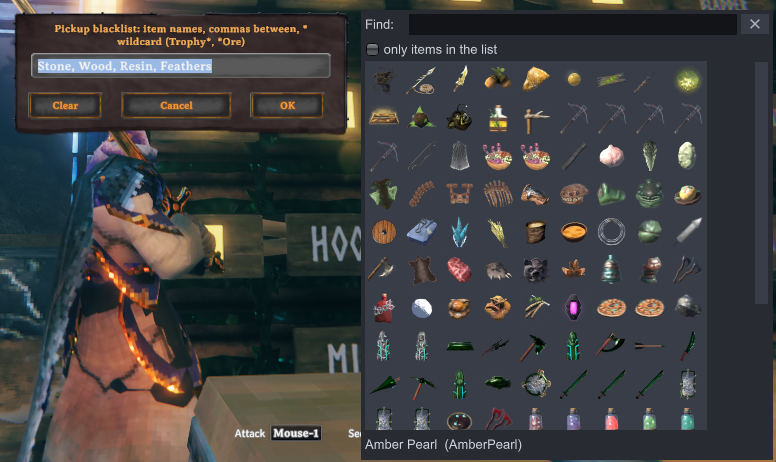
TrophyDeer) or as shown in game (Deer trophy), any case, with*as a wildcard (Trophy*,*Ore,*mead*).[AutoPickup] FilterMode(Off),Whitelist,Blacklist; edit the lists from the menu or in the config file. "Edit whitelist" / "Edit blacklist" open the game's text box with the list in it and, beside it, a grid of every item in the game (read from the running game, so new items appear on their own). Type in Find to narrow down, click an icon to add its name to the text and click a framed one (green = whitelist, red = blacklist) to take it out; "only items in the list" shows what the list holds. You can still type names and*entries by hand. OK saves, Cancel leaves the list alone.Whitelist Blacklist 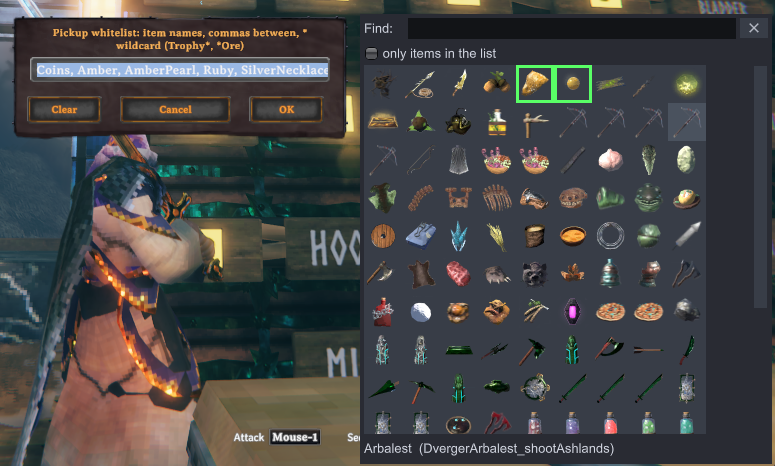
-
Range circle – while you drag a distance slider (storage range, chest range, sign search range, radar range, waypoint range), a circle of that radius is drawn on the ground around you with the value on it; it fades about 2 s after you stop.
[Menu] RangePreview(on), toggle in menu → More → General.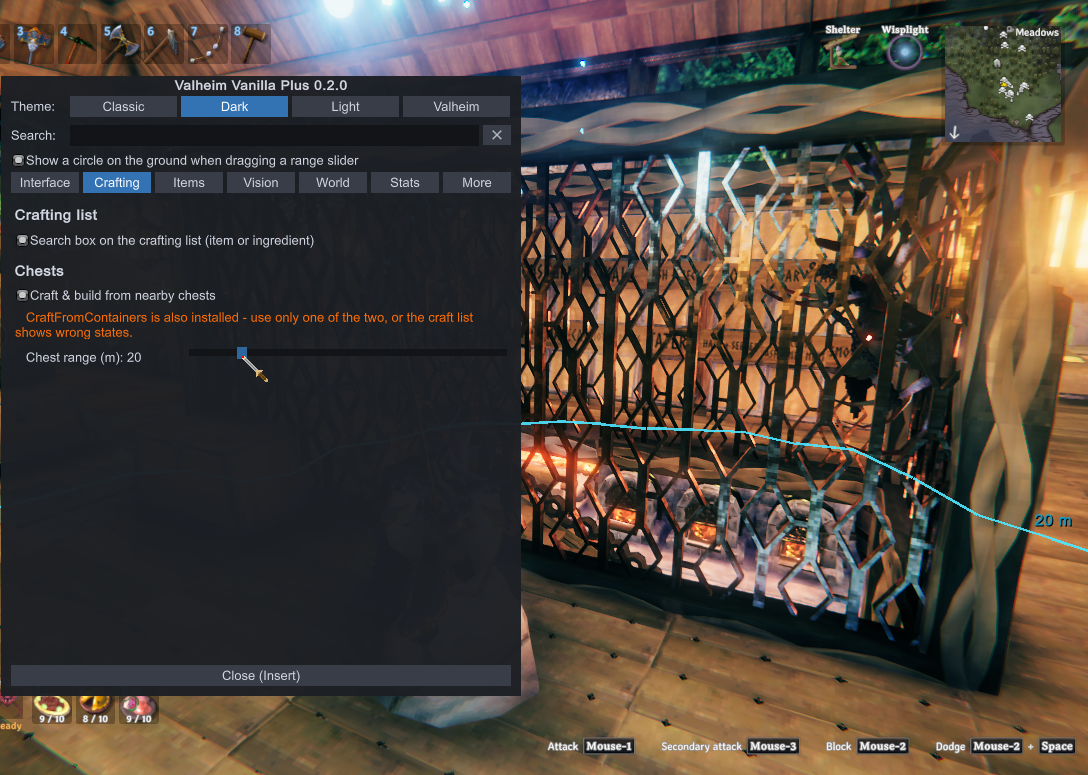
-
Repair alert – warns in the middle of the screen when an equipped weapon, tool, shield or armor piece drops below a durability line (orange, "… is at 18% - repair soon") and again when it breaks (red). Each item warns once per drop; repairing it re-arms the warning. While something is still low, a top-left "Needs repair: …" reminder repeats. Menu → Items.
[RepairAlert] Enabled(on),BelowPercent(20),RepeatMinutes(5, 0 = warn once only). -
Config backups – menu → More → "Save current config as a backup" copies your settings, waypoints and death history files into a dated folder under
BepInEx\config\ValheimVanillaPlus-exports\. The ten newest backups are listed with Import (copies the backup back and reloads settings, waypoints and death history at once, no restart; what you had is first saved as a backup ending in_before-import, so an import can be undone) and Delete (click twice within 4 s to confirm). "Open backup folder" shows them in Explorer. No settings of its own. -
Food alert – messages about the food you have eaten (menu → Items). An orange mid-screen warning when a food drops below a set time ("Cooked boar meat runs out in 2:00"), once per food each time you eat it, and a red one when it runs out. Optional top-left notes when a food can be eaten again and when a food slot is empty, and a "Food: …" reminder that repeats while something is low. It stays quiet while you are resting or indoors at a base and tells you what still applies when you leave.
[FoodAlert] Enabled(on),WarnBelowMinutes(2),CanEatAgain(on),EmptySlot(off),RepeatMinutes(5, 0 = warn once only),QuietWhenSafe(on). -
Reveal map – removes the fog over the map and minimap so the whole world is visible (menu → World). Display only: your real explored map is not changed or saved, and switching it off brings back exactly the fog you had, plus whatever you really explored meanwhile. It shows terrain and biomes only, not bosses, traders or other locations.
[Map] RevealMap(off). -
Waypoints – named spots per world (menu → World → "Add waypoint here"), listed with distance and compass direction and Map / Rename / Delete buttons. Each waypoint uses one of the game's own five map pin icons; click the icon button in its row to switch to the next. Shown on screen as that icon with name and distance, and as map pins that are not saved to your character. A "Last death" waypoint (the game's death marker) is added where you die. With "also show markers for the pins I place on the map" (
MapPinMarkers, off by default), the pins you add on the game's own map get the same on-screen markers: tick which of the five icons count, and cross a pin out on the map to hide its marker. Those pins are only read; pins shared from a cartography table are left out. No teleport. Kept only inBepInEx\config\liekos47.valheimvanillaplus.waypoints.txt.[Waypoints] Enabled(on),OnScreen(on),OnScreenRange(0 = any distance),MapPins(on),LastDeath(on).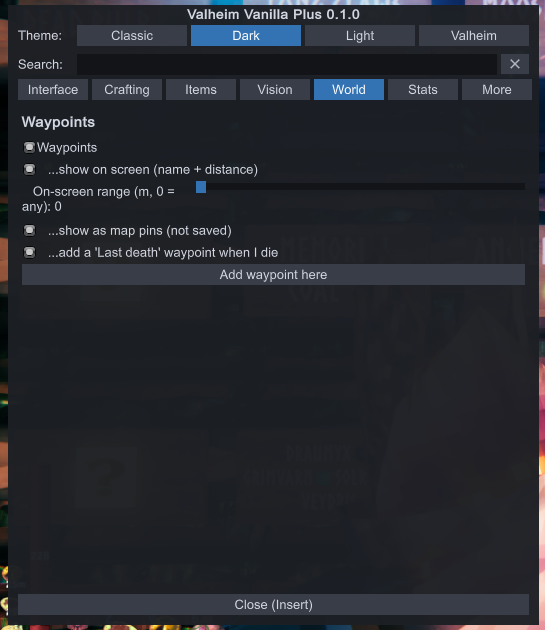
-
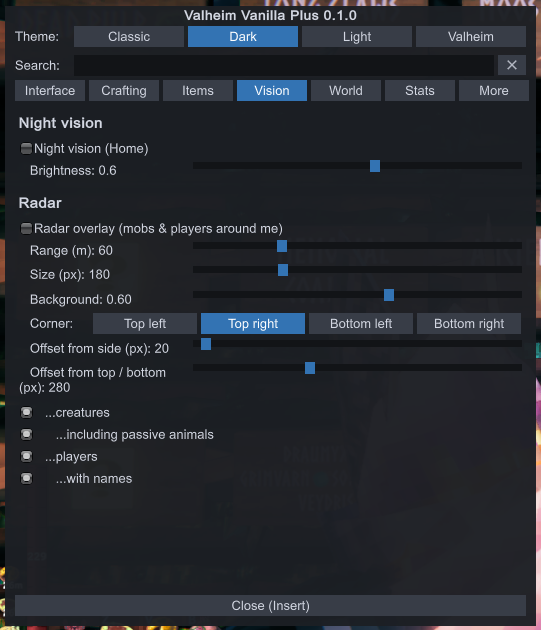
Radar – a round overlay showing creatures and players around you, turning with the camera: red = hostile, yellow = passive, green = tamed, purple = boss, blue = players (with names); ^ / v marks a dot more than 5 m above / below you. Menu → Vision.
[Radar] Enabled(off),Range(60 m),Size,Opacity,Corner,OffsetX/OffsetY,Mobs,Passive,Players,PlayerNames.Radar Settings 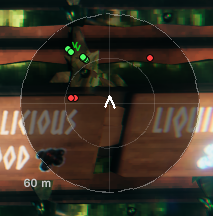
-
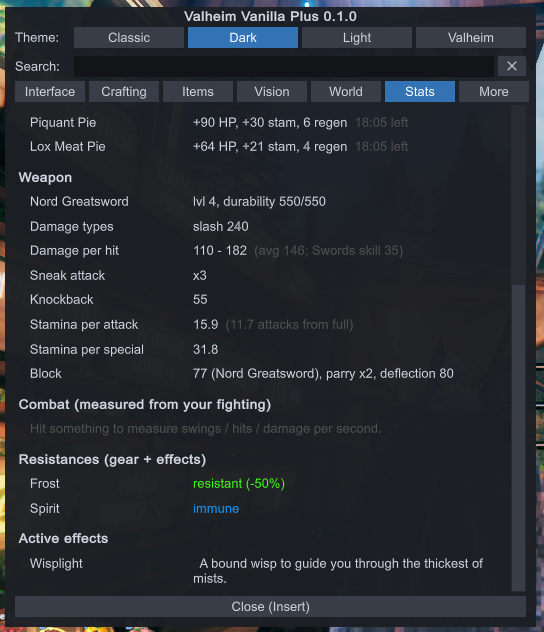
Player stats – menu → Stats: a read-only page of your character's numbers, worked out with the game's own formulas. Vitals (health, stamina, eitr, armor, movement penalty from gear, carry weight), regeneration per second, food eaten with time left, the equipped weapon (damage types, damage per hit range from your skill and buffs, stamina per attack, block and parry), resistances and weaknesses, active effects with time left, and measured combat from your real fighting (swings, hits and damage per second, biggest hit). No settings.
Vitals, regeneration, food Weapon, resistances, effects 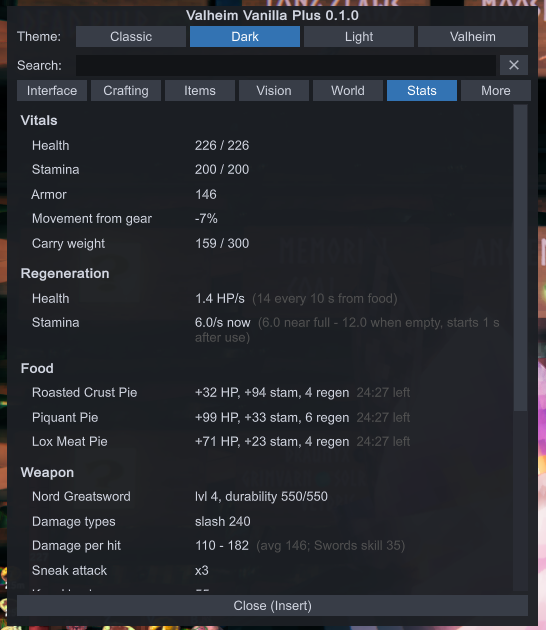
-
Death log – tells you how you died. On death a red mid-screen message names the cause ("Killed by Greydwarf brute ★1 — last hit: 42 blunt", "Died from poison (from Blob)", "Drowned", "Fell to your death", "Crushed by a falling tree", ...), and it is repeated top-left once you respawn. Menu → Stats → Death log lists your last ten deaths with time, world, biome and cause; "Last hits" shows the hits of the 30 s before (source, damage by type, health left), "Map" opens the map at that spot (same world only) and "Copy" puts the details on the clipboard. "Clear death history" asks twice. The history (30 deaths) is kept in
BepInEx\config\liekos47.valheimvanillaplus.deaths.txt, and each death is written to the log.[DeathLog] Enabled(on).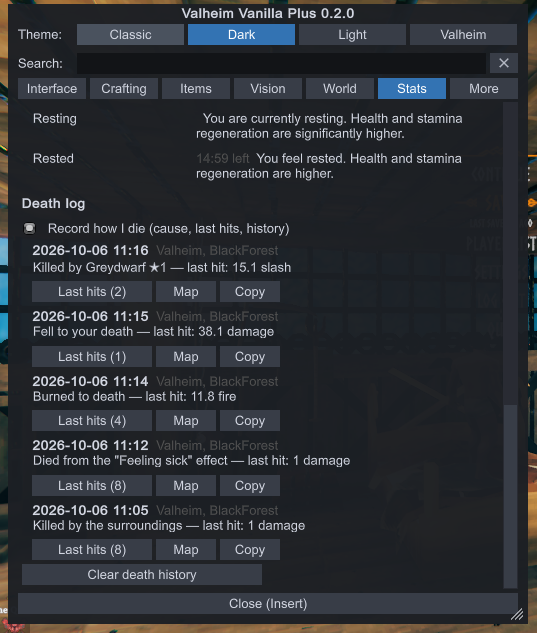
-
Auto reconnect – when a server session ends with "disconnected", the main menu shows a countdown box ("Disconnected — reconnecting in 8 s (attempt 1/10)") and joins the same server again with the same character. Cancel button or Esc stops it. The server password you typed is kept in memory only (never written to disk) and entered for you. Never retries after a kick, a ban, a full server, a wrong version or a wrong password. Menu → More.
[AutoReconnect] Enabled(off),DelaySeconds(10, min 3),MaxAttempts(10). -
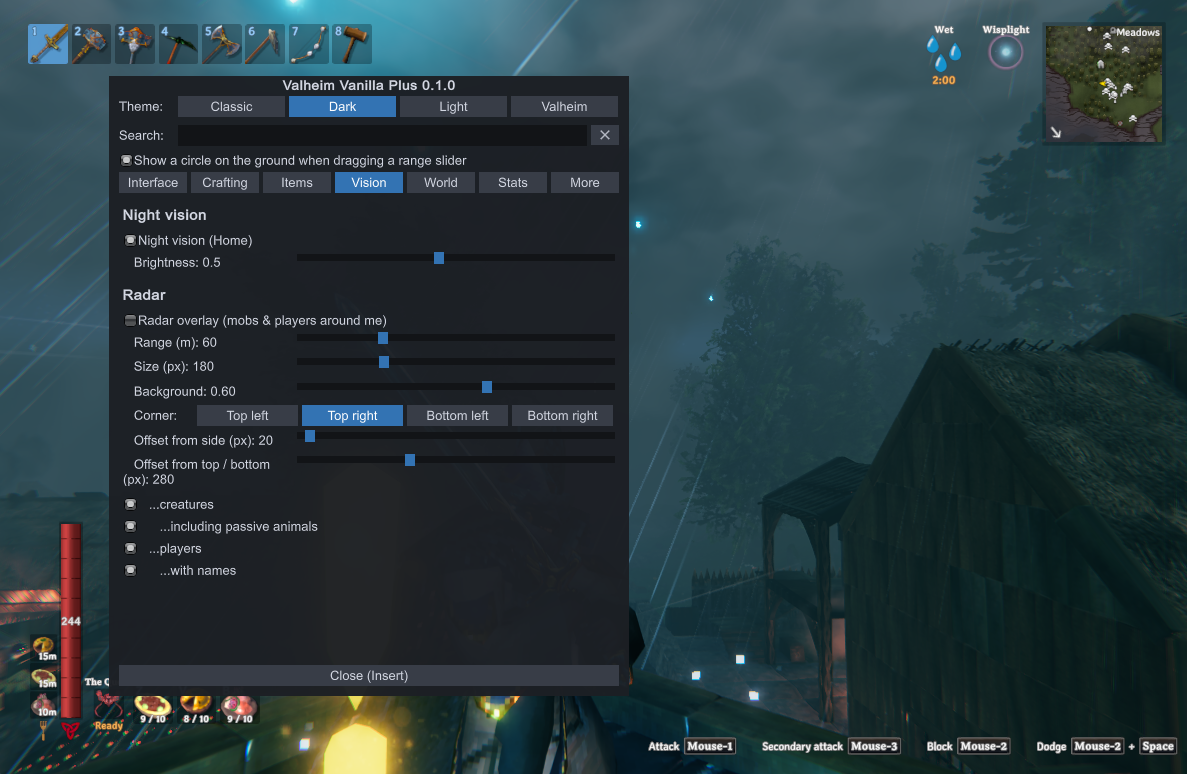
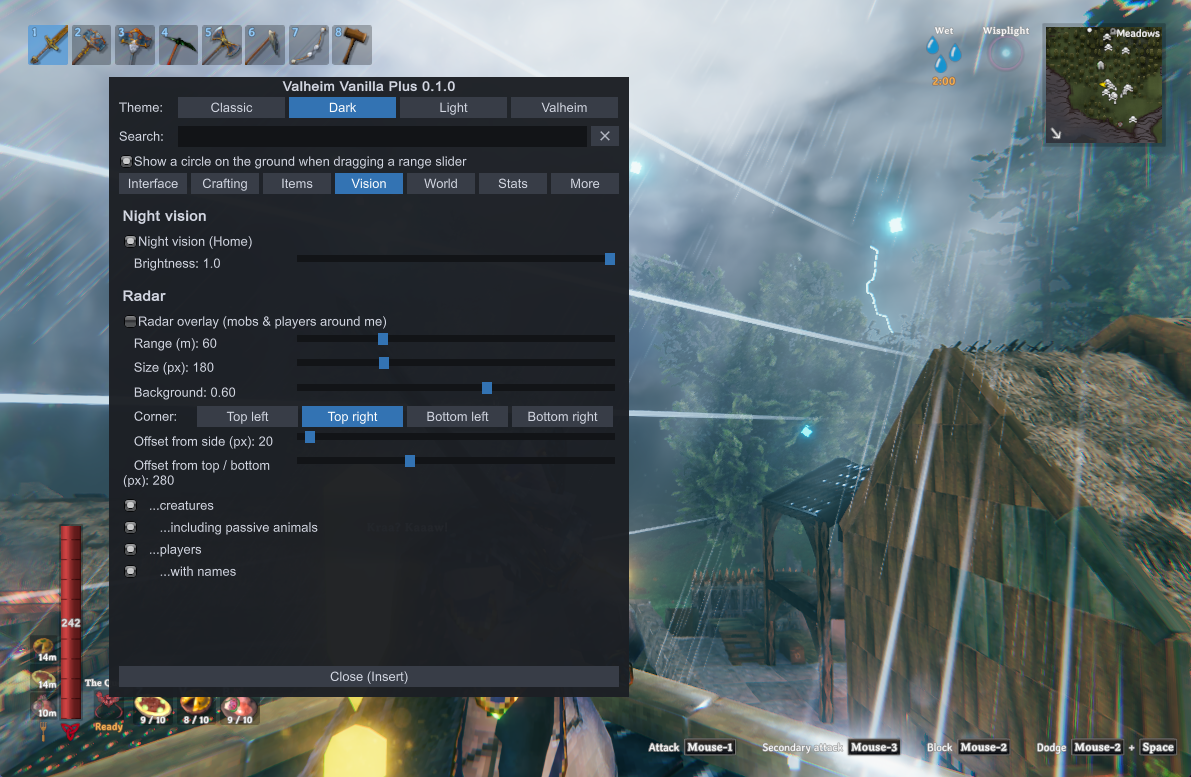
Night vision – see at night and in caves / crypts without a torch (Home, or menu → Vision). Fog is left as the game sets it. Visual and local only.
[NightVision] Enabled(off),Brightness(0.6).Off Brightness 0.5 Brightness 1.0