


Homestead
All-in-one construction mod with blueprints, blueprint shop to trade blueprints, area save/dismantle, adjustable dvergr circlet light attached to buildcamera and placement helpersHomestead

Homestead is a Valheim building mod focused on saving, rebuilding, trading, and cleaning up player structures. It brings blueprint workflows into the hammer tab, with Area Save, Area Dismantle, a Blueprint Store, build camera controls, placement helpers, and Dvergr circlet quality-of-life features.

Homestead tab within vanilla hammer.
Area save to make a blueprint, Area dismantle to teardown the builds, blueprint shop to sell the blueprints

Use build camera and area save to make blueprints.

Place your blueprint and put according materials into blueprint chest and confirm it. (Stations are needed to)
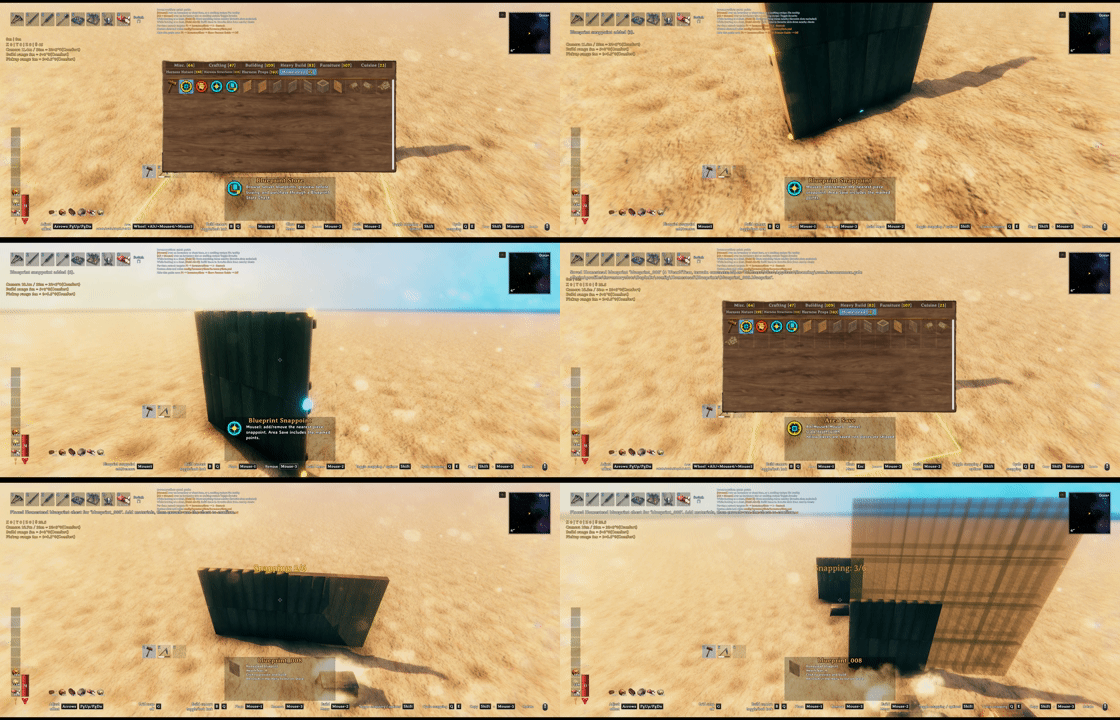
You can set snappoints on the build and save those snappoints in the blueprint.

Alt+click your blueprint and put it on the ground and put a price on your blueprint and list in on blueprint store

You can offer price for blueprints and get notifications for blueprints being enlisted and for offers being accepted/declined/suggested

Buy the blueprints and pay the price for it. And if you have sold your blueprints you can withdraw that from the store.
.

No more clicking all the pieces or using sledge hammer to teardown the build. You can use the tool area dismantle (Only dismantles what each player has built, respectively)

Build camera, dvergr circlet attached to build camera, dvergr circlet light adjustment, lock in pov (freefly feature), position adjustment
What It Adds
- Homestead hammer tab for Area Save, Area Dismantle, Blueprint Store, and saved blueprints.
- Native blueprints that preserve build pieces, required materials, preview placement, and final confirmation.
- Blueprint Store for listing, buying, offering, notifications, and seller payouts.
- Area Dismantle for removing owned builds in a selected rectangle and returning materials.
- Build camera for easier large-scale building from a detached view.
- Placement helpers for grid snap, nudging, rotation step, and X/Z rotation offsets.
- Dvergr circlet controls for light toggle, intensity, range, durability drain, and synced visuals.
- File location:
%USERPROFILE%\AppData\LocalLow\IronGate\Valheim\Homestead
Core Flow
Save And Build
- Equip the hammer.
- Open the
Homesteadtab. - Select
Area Save. - Mark a structure and save it as a blueprint.
- Select the saved blueprint from the Homestead tab.
- Place the blueprint chest.
- Deposit the required materials.
- Confirm the build with
Alt + E
Server owners can configure tab access (keep Lock Configuration = On to enforce synced settings):
- 01 - General / Homestead Tab Access:
Everyone(default) orAdminsOnly. Uses the server's ServerSync admin status, hides the hammer tab/tools for other players, and cancels active tool selection when access is removed. Existing network chests remain available. This controls the normal UI; it is not an anti-cheat restriction on modified clients or all Homestead features.
The upper-left status HUD groups selected area size, placement values and controls, Grid Snap, build camera conditions and ranges, and area repair radius. Circlet adjustments appear briefly at the bottom. Its position and font size use the existing 02 - Client / Status HUD settings, and its height follows the visible content. New configs default to X=30, Y=150 and font size 18; saved values are preserved. Shortcuts use orange keys in a key: action format.
02 - Client / HUD Controls Help (default On) controls the camera, arrow/PgUp/PgDn, rotation and Grid Snap help lines in this HUD. Turning it off keeps numeric status and area repair information. It replaces Build Camera Tooltip without reading or migrating that old setting, and works independently of Valheim's key hints. Cultivators show grid help without hammer-only movement controls; Area Save/Dismantle show movement help without grid. Keyboard placement help is hidden while using a controller.
Selecting repair shows its actual radius below the camera ranges, even with the camera off, and leaves the game's original repair description intact. The radius is base radius plus comfort scale times the cube root of cozy comfort; without cozy comfort only the base radius applies. This information is hidden when Homestead area repair is disabled or another supported area repair mod handles it.
Any player can confirm a construction plan chest; there is no creator-only confirmation setting. Shop listing/purchase/payout authorization is unchanged. Finished pieces keep the original chest creator. The person confirming supplies the existing knowledge/station/no-cost checks and optional inventory/AzuCraftyBoxes material pull.
Confirmation obtains a server reservation before taking chest ownership. Only one confirmation can hold it per chest; authorization must be renewed while building. Missing approval or a lost connection cancels the existing build transaction. A disconnected reservation expires after 60 seconds; confirmed reservations remain blocked until the chest disappears. Both server and clients need this updated DLL. Tab visibility and confirmation access are independent: admins can place plans while other players supply materials and finish them.
Sell A Blueprint
- Open the
Homesteadhammer tab. - Hover a saved blueprint.
- Use the Blueprint Store list modifier and click.
- Place the price chest.
- Set the price.
- Confirm the listing.
Buy A Blueprint
- Open
Blueprint Storefrom the Homestead tab. - Select a listing.
- Preview or place a purchase chest.
- Deposit the listed price materials.
- Confirm the purchase.
The purchased blueprint is saved to the buyer's blueprint list.
Area Tools
Area Save and Area Dismantle use the same rectangle controls:
Wheel: rotate the area.Alt + Wheel: scale width and depth together.Mouse4 + Wheel: adjust depth.Mouse5 + Wheel: adjust width.Arrows/PgUp/PgDn: nudge the tool or preview without a modifier key.
06 - Area Tools / Area Save Creator Mode defaults to AllCreators, allowing Area Save to include pieces built by you, other players, or no recorded creator. Existing config values and server-synced settings are preserved.
With Clan 1.1.4 / API 6 installed on both client and server, OwnedOnly also allows pieces built by current members of your primary clan (Leader, Officer, or Member). OwnedAndCreatorless allows those same pieces plus pieces with no creator. Offline creators are supported; Guest links do not grant access or override primary membership. Membership is checked on the server when selecting and again when saving, so leaving a clan or changing roles can exclude previously selected pieces. Missing Clan, unavailable membership data, or missing creator platform history disables only the extra clan allowance. Area Dismantle permissions, piece creators, and blueprint file formats are unchanged.
Clan checks are grouped by creator, not by piece count. If an area requires checking more than 512 distinct creator identities, reduce the selection; Homestead reports this instead of silently saving a partial result. AllCreators does not require these checks. Area Save remains a client-side file operation; this integration is not an anti-copy protection against modified clients or other blueprint tools.
Area Dismantle is intentionally conservative:
- only matching player-owned pieces are dismantled
- Homestead blueprint/store chests are protected
- containers, item stands, and armor stands with contents are skipped
- extra prefab blacklist entries can be configured
Blueprint Building
Blueprint placement uses a temporary blueprint chest. The chest shows missing requirements, accepts only needed materials, and finalizes the build when everything is ready.
Blueprint Store
The Blueprint Store lets players trade saved Homestead blueprints.
Store actions include:
- list a blueprint
- edit price
- preview before buying
- buy with materials
- make offers
- accept or decline offers
- hide listings locally
- withdraw seller earnings through payout chests
Notifications appear for store events such as new listings, offers, accepted offers, and purchases.
Build Camera
05 - Build Camera / Build Camera Tool Blacklist defaults to Hoe, Cultivator and is synced with the server. It matches exact item prefab names without case sensitivity, ignoring spaces around comma-separated entries. Other tools with a build menu, including mod-added hammers, remain allowed; an empty list excludes none. Changes apply while playing. Switching to a blocked tool exits the camera and restores the original placement distance. Camera HUD/key hints are hidden for blocked tools; Grid Snap and other tool features remain available.
Build camera helps with tall, wide, or awkward builds by letting the camera move away from the player while building.
05 - Build Camera / Require Crafting Station (default On, synced with the server) controls whether a nearby crafting station, such as a workbench, is required to enter build camera mode. Set it to Off to enter without a station. The comfort restriction and normal building requirements still apply. As before, moving the camera beyond station range does not end an active camera session.
It supports:
- configurable distance
- comfort-scaled distance
- pickup range
- look-at lock
- optional Dvergr circlet light follow
Placement Helpers
Homestead adds small controls that make regular building less fussy:
- grid snap
- position nudging
- adjustable rotation step
- X/Z rotation offsets
- key hints for Homestead controls
Ordinary hammer pieces also support local X/Z rotation with the side mouse buttons + wheel, rotation-only copying with [, and resetting all axes to zero with ]. These are configurable under 04 - Placement Controls; set a shortcut to None to disable it. The X/Z defaults use Unity's Mouse3/Mouse4, displayed as Mouse4/Mouse5 in the HUD. If both modifiers are held, X takes priority. Rotation uses Rotation Step, and copying preserves the complete aimed-at rotation without changing the selected piece.
Temporary rotation stays between ordinary hammer pieces and clears on leaving ordinary placement, Escape, death, or world exit. X/Z tilt starts at zero; the former numeric X Axis Rotation and Z Axis Rotation settings are no longer read. These controls do not write rotation changes back to the config. They are disabled while ComfyGizmo is loaded and do not handle cultivators, terrain tools, or Homestead blueprint/area tools. Their HUD help follows HUD Controls Help. Position Control Priority appears first in Placement Controls, followed by grid, position, then rotation controls.
With supported Infinity Hammer positioning loaded, 04 - Placement Controls / Position Control Priority selects the position controls for ordinary hammer pieces. The default Homestead uses Homestead's arrow/PgUp/PgDn controls, step settings and XYZ display. In this mode Infinity Hammer position application and movement/freeze commands are suppressed for ordinary hammer pieces, even when Homestead's Position Adjust is off. Select InfinityHammer to delegate movement to Infinity Hammer: Homestead clears its own ordinary offsets, shows Position: Infinity Hammer instead of its movement help, and hides its XYZ values while rotation remains available. The priority is client-only and changes while playing; without Infinity Hammer, Homestead handles movement as usual. Existing saved priority settings are retained.
Homestead blueprints, area tools, and active Store previews retain their own movement under either priority. Infinity Hammer position application and movement/freeze commands are suppressed in those Homestead contexts without rewriting its config or stored offsets; its normal unfreeze cleanup remains intact. Switching back to InfinityHammer can resume its stored offset/frozen position. This integration follows the loaded position implementation, since Infinity Hammer 1.87's movement commands remain registered even when its general Enabled setting is off.
Homestead Grid Snap pauses for ordinary hammer pieces while Infinity Hammer owns position control and has a nonzero offset or frozen position, preventing the grid from rounding away precise nudges. The HUD and key hint explain the pause; the G toggle retains its state and snapping resumes when the offset/freeze is cleared or priority changes to Homestead. Cultivator and Homestead preview grids are unaffected. Infinity Hammer remains optional and is not bundled.
Dvergr Circlet
Homestead can extend the Dvergr circlet with per-item light controls:
- toggle light on/off
- adjust intensity
- adjust range
- drain durability while lit
- sync custom-slot visuals and light state for nearby players
Github
Build camera code from https://github.com/AzumattDev/BuildCameraCustomHammersEdition
https://github.com/sighsorry1029/Homestead