

PEAK Quick Resume
Autosaves on lighting a campfire. Press F7 to browse and load any saved campfire from anywherePEAK Quick Resume
Automatically saves when you light a campfire. Press F7 to browse your campfires and jump straight back to any of them.
Press F7 anywhere and a save picker opens listing all your checkpoints for the current mode. Choose one with the arrow keys and press F7 (or Enter) and it will:
- Start a fresh run of that save's difficulty, then
- Automatically load that checkpoint. So you're back at that campfire with your items and progress.
The newest save is preselected, so pressing F7 twice will load your latest checkpoint.
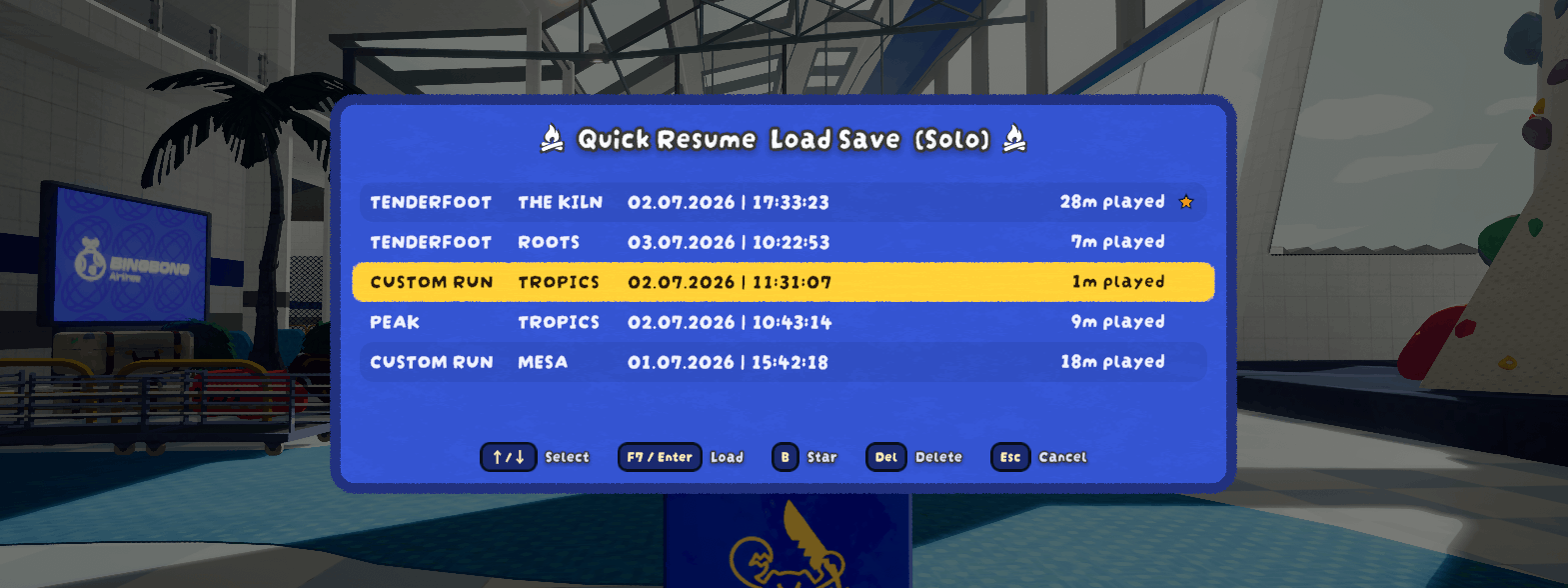
Works after you die, from the Airport, or mid-run (so no need to die first). Full co-op support: the host presses F7 and everyone is brought along and restored.
The mod also adds a few optional Quality of Life pause menu buttons (more details at the bottom of this README).
Credit where it's due
This mod started as an automation layer on top of PEAK Checkpoint Save by dominik0207, and its save file format is still based directly on that mod's own. As of version 2.0.0, Quick Resume has its own independent save/load/teleport implementation and no longer requires PEAK Checkpoint Save to be installed. Huge thanks to dominik0207, this mod wouldn't exist without their original work.
How to use
- Play as normal. Lighting a campfire saves automatically. Each save is added to your history.
- Press F7 to open the save picker.
- Use ↑/↓ to highlight a checkpoint, then press F7 again (or Enter) to load it. Just want the latest? Press F7 twice.
- Press Del to delete the highlighted save (press it twice to confirm).
- Press B to star the highlighted save (press B again to unstar it). Starred saves are moved to the top and can't be deleted until unstarred again.
- Press Esc to close the menu.
In co-op, only the host can use F7 and everyone is restored together.
Configuration
Config file: BepInEx/config/OnlyCook.PEAKQuickResume.cfg.
View config information
If you have PEAKLib.ModConfig installed, every setting below is also editable in the game's settings under Mod Settings → PEAK Quick Resume, no need to touch the config file by hand.
- resume-key: the key to open the picker / load the highlighted save (default F7). Rebindable directly in ModConfig's menu.
- resume-key-also-confirms-load: if disabled, pressing the resume key while the picker is open does nothing, only Enter confirms a load (useful if you keep accidentally reloading while trying to close the picker).
- help-key: the key to open the help menu (default F2).
- allow-mid-game: allow resuming while still alive (default on).
- panel-opacity: how see-through the picker's background panel is (0 = fully see-through; 1 = fully opaque, default).
- Pause-Menu: disable/re-enable any of the 3 added QoL pause menu buttons, and optionally enable
move-rebind-controls-to-settingsto move the 'Rebind Controls' button away from the pause menu. - Timing: advanced settle/timeout values; raise
coop-airport-settleif a client occasionally gets left behind on a slow connection. - Teleport: advanced settings for the restore itself (inventory/afflictions/campfire/... reset/time of day toggles, retry timing). Rarely needs touching.
- Network: advanced co-op networking settings, currently just the readiness-check toggle used before a co-op load starts.
- Teleport-Mitigation: detects and helps recover from occasional teleport glitching after a load (brief up/down snapping, or rarely falling through the world). Everything here is on by default and rarely needs touching; thresholds and delays are all individually configurable if you want to tune them.
- Debug: verbose logging of every step of the resume sequence, on by default. Please keep this on when reporting issues.
Your saved checkpoints live in BepInEx/plugins/QuickResume/Archive/ (split into Offline/ and Coop/).
Notes
- Host-only in co-op. It works fine if only the host has PEAK Quick Resume installed, but it's recommended that everyone has it installed for compatibility reasons.
- Achievement progress is saved and restored correctly when you load a checkpoint. This only applies per-player to whoever has PEAK Quick Resume installed themselves. A co-op player without it keeps the old behavior for their own achievements, which may falsely unlock some Steam achievements, but also not restore the progress/state of other achievements.
- Custom runs are resumed with your current custom settings (the checkpoint file doesn't store the run's original settings).
- Translations were done by AI, so if something is off in your language you are free to open a GitHub Issue (see below).
Feedback & bug reports
Found a bug or have a suggestion? Please open an issue on GitHub or send me an email at [email protected]. It helps a lot to include:
- what you did and what happened (solo or co-op; if co-op, whether you were the host),
- your
LogOutput.log(Quick Resume logs every step of a resume, this file is what makes bugs fixable).
Where is LogOutput.log?
BepInEx rewrites this file every time you launch the game, so reproduce the bug, then quit and grab the file before playing again.
r2modman / Thunderstore Manager:
- Open the manager, pick PEAK, choose your profile, then go to Settings and search for the following setting:
Copy log file contents to clipboard, click on that setting and paste it in your GitHub Issue.
Manual install?
- Find out where your
LogOutput.logfile is on your OS. You can for example use Everything on Windows or use this commandfind ~ -name "LogOutput.log"on Linux/Mac.
Miscellaneous Pause Menu Buttons
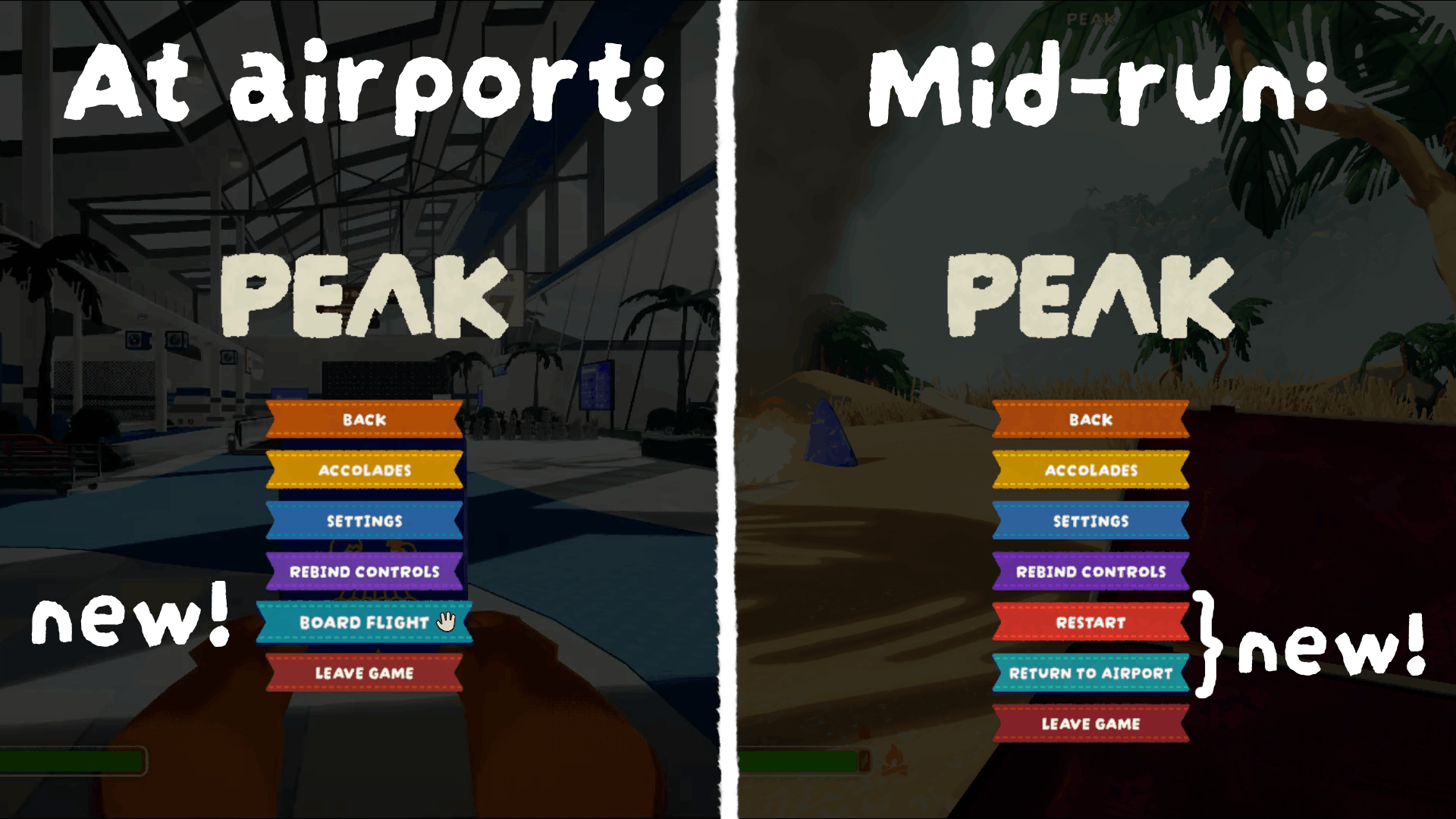
- Board Flight (at the Airport): Opens the gate kiosk directly without having to walk over.
- Restart and Return to Airport (mid-run, host-only): Both buttons do the advertised action and apply it to all clients.
You can disable/hide any of these buttons through 'Mod Settings' (on the PEAK Quick Resume tab, under Pause-Menu)
If you have too many pause menu buttons because of this, you can enable the
move-rebind-controls-to-settingssetting (also underPause-Menu). This will move the 'Rebind Controls' button from the pause menu to the 'Settings' page, below the 'Back' (or if applicable 'Mod Settings') button.