
LightGreen
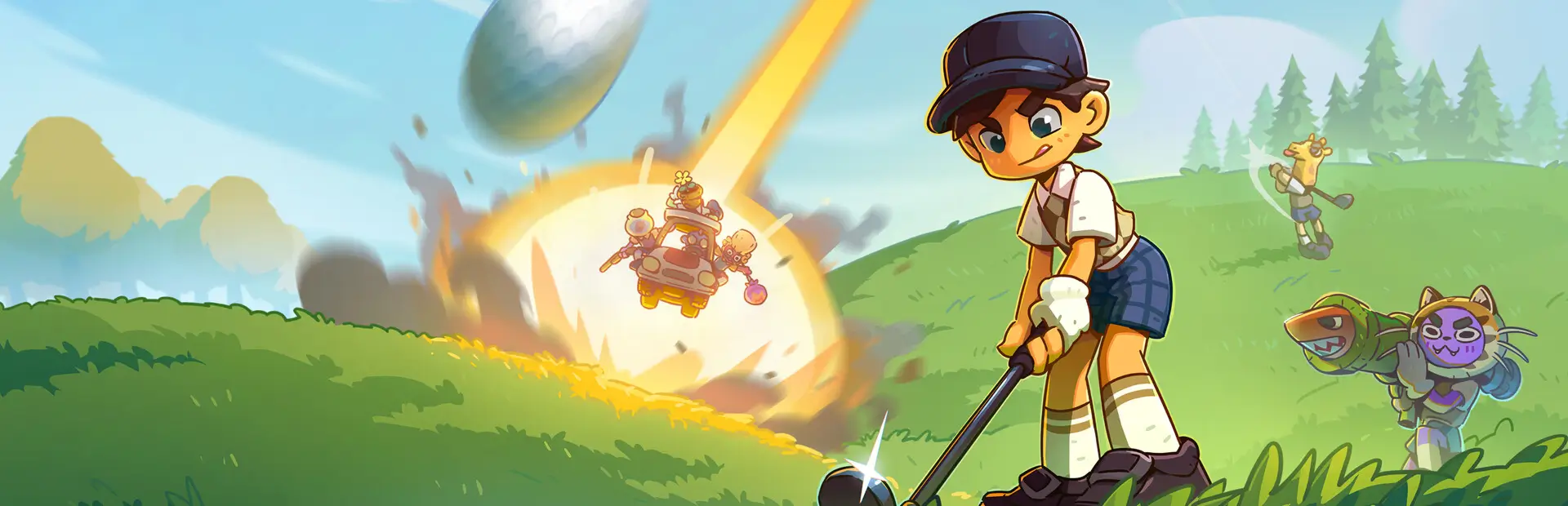
Lighting, atmosphere and weather for Super Battle Golf that keep its cel-shaded look. Client-side: only you need it.LightGreen

Lighting, atmosphere and weather for Super Battle Golf that keep its cel-shaded look. Client-side: only you need it.
Version 0.3.1, tested on Super Battle Golf 1.4.0-798 with BepInEx 5.4.23.5.
LightGreen changes how the game looks for you, using the game's own shaders and effects so it keeps the bright cel-shaded style:
- Time of day. F9 steps through Dawn, Morning, Noon, Golden hour, Sunset, Blue hour and Night, and back to the hole's own. The sun moves, and the sky, light, haze and water follow, blending over a few seconds. Only you see it.
- Colour and atmosphere. Each biome gets its own slight colour grading, distant terrain fades toward the horizon colour, and shadows lean toward the biome's hue: cool in Snow, warm in Desert. Players and their cosmetics keep their colours.
- Water, ice and shadows. Sun highlights on water that follow the time of day, more sparkle on snow, and sharper sun shadows (at least 4096 px) that reach further: out to 200 m, from the game's 150 m.
- Ambient occlusion on every course: soft shading under carts and benches, at the foot of posts, trees and walls, and in corners. Open grass stays even.
- Light from effects. Explosions light the ground and players around them for a moment (the big ones with shadows), muzzle flashes pop, and rocket and freeze-bomb trails carry a light. The Thunderstorm item's strikes light where they land and flicker.
- Night. Balls glow evenly, your own the brightest. On City holes made dark with F9, building windows and vehicle lights glow, lampposts light the street, and bright lights bloom.
- Weather. Footprints in snow last longer (45 seconds) and show as blue-grey dents. Rain, cartoon rain or snow (off by default; F10 steps clear, rain, cartoon rain, snow): rain brings streaks, splashes and a grey overcast sky; cartoon rain brings bold white streaks and a soft blue mist; snow brings soft, round cartoon flakes, a few big ones drifting past the camera, a bright, pale blue sky and slightly colder colours.
- Lens effects. A lens flare toward a low sun, a miniature (tilt-shift) look for the hole overview flyover, and depth of field in photo mode. Vignette and chromatic aberration are there too, off by default.
- Photo filters. Mono, Sepia, Faded Film, Teal & Orange, Toy Camera and more, stepped through with F11, on top of the rest of the look. Your own
.cubeLUTs work too. The HUD isn't filtered. - HUD sizes. Each part of the HUD (progress bar, wind, markers, item bar, power meter, chat, scoreboard, name tags and more) has its own size from 0 (hidden) to 100 %.
- F8 steps between LightGreen on, HUD only (the game's own look with your HUD sizes) and off, to compare with the game's own look.
Table of Contents
Install
Dependencies
- BepInEx 5 (
BepInEx-BepInExPack-5.4.2305, installed for you by mod managers). - Client-side only. Only you need the mod. It works in any lobby, whoever hosts, and other players see no difference.
With a mod manager
Install LightGreen with r2modman or another Thunderstore mod manager.
By hand
Copy LightGreen.dll into the game's BepInEx plugins folder:
Super Battle Golf/
└── BepInEx/
    └── plugins/
        └── LightGreen/
            └── LightGreen.dll
Usage
- Start a hole. LightGreen is on from the start.
- Press F9 to change the time of day, F8 to step between LightGreen on, HUD only and off, F10 to step the weather (clear, rain, cartoon rain, snow), and F11 to step through the photo filters (Shift+F11 goes back). Each key says what it changed with a line in the game's chat box ("LightGreen: Filter: Noir", like a player's message), seen only by you;
General.Noticesmoves it to the top-left corner or turns it off. - Change anything else in
BepInEx/config/com.lightgreen.cfg(in r2modman: Config editor). It's reloaded within a second when you save it, so you can tune while you play. For example, to turn rain on:
[Effects]
Rain = 1
| Setting | Default | What it does |
|---|---|---|
General.Enabled |
true |
false turns LightGreen off: the game looks exactly as it does without the mod. |
General.Notices |
Chat |
Where LightGreen says what a key or a config edit changed. Chat: a line in the game's chat box, seen only by you (with no chat box, the top-left corner). Screen: the top-left corner. Off: nowhere. |
General.NoticeDelay |
0.5 |
Chat only: seconds (0–2) to wait after the last change before posting, so stepping through filters posts one line. 0 posts each change at once. |
General.TimingLog |
false |
For finding hitches: every 10 s, logs frames much longer than usual and how much of each was LightGreen's. |
Keys.ToggleKey |
F8 |
Steps LightGreen while you play: on, HUD only (the game's own look with your HUD sizes), off. |
Keys.TimeKey |
F9 |
Steps through the times of day. |
Keys.RainKey |
F10 |
Steps the weather: clear, rain, cartoon rain, snow, then clear again, each as heavy as it last was (or 1). |
Keys.FilterKey |
F11 |
Steps to the next photo filter (with Shift, the previous one). |
TimeOfDay.Time |
HoleDefault |
HoleDefault keeps each hole's own sun and sky; or Dawn, Morning, Noon, GoldenHour, Sunset, BlueHour, Night. |
TimeOfDay.ProgressionMinutes |
0 |
Minutes for a full day cycle; 0 keeps the time put. |
TimeOfDay.TransitionSeconds |
3 |
How long a change of time of day blends in. |
Brightness.Day |
1 |
How bright daylight is, from 0.5 to 1.5, on every hole and at every time of day. |
Brightness.Night |
1 |
How bright night is, from 0.25 to 1.5 (lower = darker); dusk falls between the two. Lit windows, lampposts, glowing balls and explosions keep their brightness. |
Filters.Filter |
None |
The photo filter (below), or the name of one of your .cube files. In r2modman's config editor it's a dropdown of every filter LightGreen has found, sorted A–Z and kept up to date as filters are added or removed. A .cube file whose name has a comma in it shows up split in two there, but F11 still reaches it. |
Filters.Strength |
1 |
How much of the photo filter shows, from 0 to 1, its vignette, fringes, distortion and glow included. In between, a filter is mixed with the normal picture, so Negative and Solarize turn grey around 0.5. |
Effects.* |
1 |
How strong each effect is: 0 off, 1 as tuned, 2 double, each up to its own most (below). ShadowTint, ColorGrading, DistanceHaze, LensFlare, WaterTuning, IceGlints, TiltShift, PhotoDepthOfField, AmbientOcclusion, EffectLights, BallGlow, Lightning, CityNight, Footprints. |
Effects.Vignette, Effects.ChromaticAberration, Effects.Rain, Effects.CartoonRain, Effects.Snow |
0 |
Off unless you turn them up, on the same scale. |
Effects.CartoonRain |
0 |
Cartoon rain on every course: bold, bright white streaks, easier to see than Effects.Rain but still rain, and a soft blue mist that keeps the colours bright. 0–3, how heavy. One weather at a time, as for snow. |
Effects.Snow |
0 |
Cartoon snow on every course: soft, round flakes drifting with the wind, a few big ones close by, a bright, pale blue sky and blue-white fog, and slightly colder colours. Nothing settles on the ground. 0–3, how heavy. Only one weather shows at a time: turning one on turns the others off, and if more than one is on when the game starts, snow is kept, then cartoon rain. |
Effects.BallGlowOwnOnly |
false |
Only your own ball glows. |
Effects.FootprintSeconds |
45 |
How long a footprint in snow lasts, from 2 to 180 seconds. |
Effects.FootprintMax |
300 |
How many footprints in snow there can be at once; past it the oldest fade out. Lower it for big lobbies on a slower PC. |
Shading.Grass |
true |
false hides the grass blades; the ground's own colour shows instead. |
Quality.SunShadowResolution |
4096 |
Sun shadow sharpness: 2048, 4096 or 8192; 0 keeps the game's. |
Quality.SunShadowDistance |
200 |
How far, in metres, the sun casts shadows; 0 keeps the game's. |
Quality.AmbientOcclusionQuality |
Medium |
Low (cheapest), Medium or High (sharpest). |
Each effect goes up to its own most: where turning it up further stops making a difference, or where it starts to look broken, flash too hard or cost too much. A higher value is lowered to the most.
| Up to | Effects |
|---|---|
| 4 | ShadowTint, DistanceHaze, LensFlare, PhotoDepthOfField, Vignette, ChromaticAberration, AmbientOcclusion, EffectLights, CityNight |
| 3 | ColorGrading, WaterTuning, IceGlints, BallGlow, Lightning, Rain, CartoonRain, Snow |
| 2 | TiltShift, Footprints |
The colours for each biome and time of day are in BepInEx/config/LightGreen.presets.json, written on first start. It's reloaded when you save it. A mistake in it is reported in BepInEx/LogOutput.log with its line and column, and the previous colours stay until it's fixed. A setting name it doesn't recognise, such as a misspelling, is ignored, and that setting keeps its default. The same goes for LightGreen.filters.json.
HUD sizes
Each part of the HUD has its own size in the [HUD] section, in percent: 100 (the default) is the game's size, 50 is half, 0 hides it. Screen elements shrink toward the side they sit at, so the item bar keeps its bottom-right corner and the progress bar its top-left. Changes show at once. Only you see them. The hole's beam and the aim line can't be changed.
| Setting | What it sizes |
|---|---|
ProgressBar |
The top-left corner as one: the hole progress bar (bar, flag, players' portraits), the wind readout and the stroke count |
HoleMarker |
The marker over the hole, with its distance and its arrow at the screen's edge |
BallMarker |
The marker over your ball, with its distance and arrow |
RestartPrompt |
"Hold R to restart" |
ItemBar |
The item bar, bottom right: the slots, the item's name and the angle badge |
PowerMeter |
The swing power meter |
SwingWind |
The wind readout beside the power meter while you swing |
AngleSelector |
The swing angle, bottom right while you swing, and the angle arc shown while you change it |
ControlPrompts |
Control prompts such as "Adjust Angle" |
NameTags |
The names over other players |
TeammateMarkers |
The team icons over your teammates |
OtherMarkers |
Objective, ball dispenser and homing-missile warning icons |
PopupText |
The words that pop up over players |
Chat |
The chat box (at 0, LightGreen's own messages show in the top-left corner instead) |
KillFeed |
The game's event messages: knockouts, chip-ins, players finishing |
Scoreboard |
The scoreboard (Tab) |
VoiceChat |
The icons of players speaking on voice chat |
HoleBanner |
The hole's name, number and par at the start of a hole |
ObjectiveMessage |
The title at the start of a match |
TeamScore |
The team scores and pips in team modes |
SpeedBoost |
The stamina wheel while sprinting |
SpectatorPrompts |
The previous and next prompts while spectating |
QuickChat |
The quick chat wheel |
Reticles |
Item crosshairs, the interact marker and lock-on markers |
GiantTimer |
The Jumbo Burger giant-form countdown |
Hints |
The game's tip pop-ups ("Cancel Swing") and the tutorial's objective box |
F8 steps through three views: LightGreen on, then HUD only (the game's own look with your HUD sizes), then off (the game's own look and HUD).
Photo filters
F11 goes through them in this order. The last three show roughly how the world looks with colour blindness; the HUD isn't filtered, so it isn't included.
| Filter | Look |
|---|---|
| Mono | Neutral black and white |
| Mono Red | Black and white through a red filter: darker skies and water, brighter skin, wood and sand |
| Noir | Hard black and white: deep shadows, bright highlights, dark corners |
| Sepia | Warm brown monochrome |
| Cyanotype | Prussian blue and white, like a blueprint |
| Faded Film | Lifted blacks, softer contrast, slightly warm |
| Instant Film | Lifted blacks, soft highlights, a slight green-yellow cast |
| Bleach Bypass | Silvery, little colour, harsh contrast |
| Two-Strip | Early two-colour film: reds and cyans only |
| Vivid | More contrast and saturation |
| Warm | Golden, sunlit |
| Cool | Blue-teal, crisp |
| Teal & Orange | Teal shadows, warm highlights |
| Cross Process | Yellow-green highlights, blue shadows |
| Day for Night | Daylight graded to look like moonlight: darker, bluer, little colour |
| Duotone | Navy to peach |
| Poster | Fewer colour steps, like a poster or comic |
| GameBoy | Four shades of green, like an old handheld console's screen |
| Solarize | The darkroom effect: the brightest parts turn dark again |
| Negative | Every colour inverted |
| Thermal | False colour from dark blue to white, by brightness (not heat) |
| Night Vision | Green, with glowing highlights and dark corners |
| Toy Camera | Saturated cross-process, dark corners, a bulging lens |
| Dreamy | Pastel and soft, with a glow around bright parts |
| Protanopia | Roughly how the game looks without red-sensitive cones |
| Deuteranopia | Roughly how it looks without green-sensitive cones |
| Tritanopia | Roughly how it looks without blue-sensitive cones |
The filters are in BepInEx/config/LightGreen.filters.json, which you can edit while you play. To use your own LUTs, put .cube files in BepInEx/config/LightGreen.filters/: each becomes a filter named after the file, read only when you pick it, so a big collection doesn't slow the game. In VR, filters keep their colours but not their vignette, distortion or fringes.
Notes
- Lights need the game's Dynamic Lighting setting (Settings > Graphics), which is on by default. With it off, explosions, lightning and City lampposts give no light; everything else still works.
- Frame rate. Ambient occlusion and the sharper shadows cost some frames per second. If yours drops, try
Quality.AmbientOcclusionQuality = Low,Quality.SunShadowResolution = 2048, or turning effects down. - The time of day is only yours: other players see the hole as the game has it.
- The weather is off by default. It's only a look; rain could be mistaken for the Thunderstorm item, and the big snowflakes near the camera can briefly hide the ball. Only one falls at a time, and nothing settles on the ground.
- Removing the mod is safe: nothing it changes is saved, and the game looks as it did the next time it starts.
- After a game update, a part of LightGreen that no longer fits the game switches itself off and puts the game back as it was, and the rest keeps working.
BepInEx/LogOutput.logshows[FAILED]with the part's name.
Maintainers
lmkHenlo, [email protected]
Contributing
Questions, bug reports, suggestions and contributions are welcome by email to [email protected]. Please attach BepInEx/LogOutput.log, and a screenshot if something looks wrong.
License
MIT © 2026 lmkHenlo