

MapTracker
Track creatures, portals, dungeons and resources on both maps. Customize markers, save filters, navigate to targets and share discoveries with friends.MapTracker
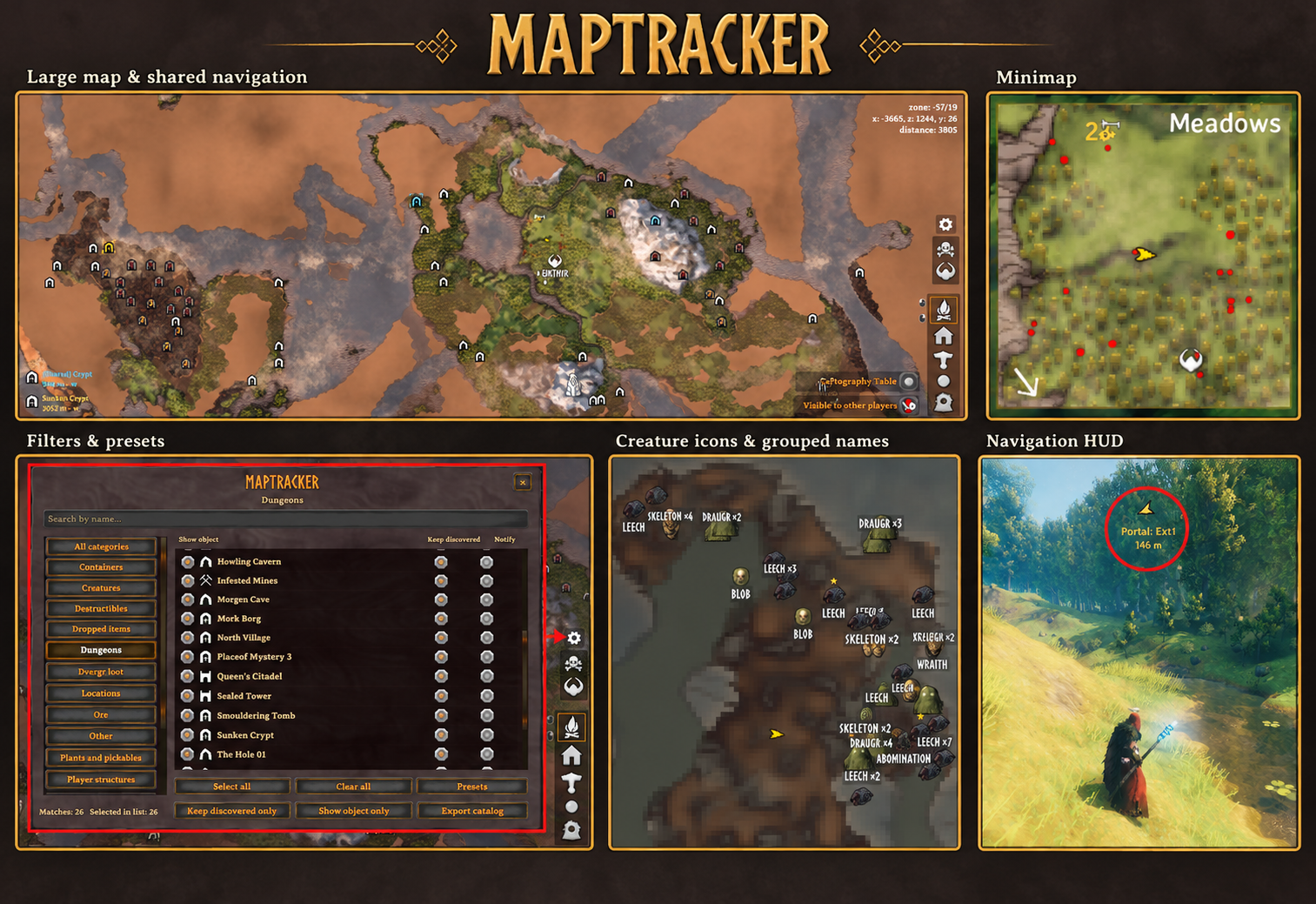
Discover, remember and navigate to useful places on Valheim's native minimap and large map.
MapTracker tracks creatures, portals, dungeon entrances, resources, plants and other world objects. Choose what to show, remember important discoveries and share them with friends.
Client-side. Requires BepInEx. No server plugin required.
Track what matters
Open the large map and click the gear button to open MapTracker's searchable filters. Choose a category or search for an object type, then use:
- Show object to display that type on the map.
- Keep discovered to remember its location after leaving the area.
- Notify to receive a notification when you discover a new object of that type.
The catalog includes creatures, portals, dungeons, ore, plants, containers, dropped items, structures and other registered objects, including supported types from installed mods.
Portals display their tags. Dungeon entrances have distinct symbols, visited states and manual completion marks. Portals and dungeons are remembered by default. Observed portal destruction removes its marker; old portal locations are checked again when you revisit them. Separate settings control collected plants, depleted ore and completed dungeons.
Dungeon states
- White: discovered, but not yet entered.
- Light blue: visited after entering the dungeon.
- Gray with a completion mark: manually marked as completed.
Left-click a dungeon marker on the large map to toggle its completed state. Click it again to remove the mark. If it belongs to a collapsed group, reveal the group first and then click the individual entrance. Alt + left-click selects navigation instead of changing completion. Navigation target highlighting takes priority over these state colors. With Share discoveries enabled, dungeon visits and manual completion changes also update entrances already discovered by your friends. Update both clients to 1.0.4 or later for completion marks and resets to synchronize reliably. Progress changes receive priority within the existing traffic limits; concurrent changes converge using saved logical revisions, independently of PC clocks.
Customize both maps
The Minimap and Large map configuration sections have independent creature icon, size and name controls. Use trophy heads and custom creature icons, or relationship-colored dots:
- Red: hostile creatures.
- Green: friendly creatures.
- Yellow: neutral wildlife.
- Cyan: tamed creatures.
Adjust black silhouette outline thickness and set creature and other-object font sizes separately. Stars and group counts remain visible. Minimap names use a configurable distance from your character; large-map names respond to zoom and available space. Hover reveals names hidden by crowded labels.
New profiles use minimap dots with hidden creature names and large-map creature icons with names at close zoom. Existing settings are preserved when updating.
Keep crowded maps readable
Overlapping markers can group when you zoom out and separate as you zoom in. Counts appear in the center of the representative icon. Click a group to reveal its members at their actual locations; its detail list stays clear of their icons and names.
Plant and creature icon grouping have separate switches. Maximum group span (m) limits the full group span in the world, up to 800 meters, default 400.
Group creature names combines nearby creatures of the same type into one caption, such as Leech ×3, while their icons stay in place. It is enabled by default with a 15-meter radius and works independently of icon grouping.
Discover and remember
Choose a discovery radius in whole meters, the full client-loaded area, or Line of sight. Sight detection accounts for the camera, obstacles and mist, including mist-clearing effects such as the wisplight.
New discoveries come from objects loaded by your client. Remembered locations remain available according to your filters. Live creature and dropped-item positions are temporary. Discovery autosaves serialize and write a detached snapshot in the background, using atomic replacement and keeping the preceding save as a backup; live creature positions are excluded from these saves.
Save, load or delete built-in and custom presets with Presets. The built-in sets are Default, Gathering, Exploration and Household. Presets store the filter window's Show object, Keep discovered and Notify choices. Configuration manager preferences remain independent.
Navigate to objects, players or map locations
Alt + left-click a marker, a public player or any point on the large map to start personal navigation. Player targets follow their public map positions. A gold HUD arrow shows the direction relative to your camera, with the destination icon, name and distance. Empty map locations show their name and distance without an object icon.
- Change the selection gesture with Navigation → Select navigation key.
- Right-click your target to cancel it.
- Press F10 to cancel navigation, or change Cancel navigation key.
- Navigation ends automatically when you arrive within 5 meters of the destination.
Navigation pauses its arrival check while teleporting or inside a dungeon. Player tracking stops when the player disconnects or hides their position.
Share discoveries and destinations
Sharing requires MapTracker 1.0.3 or later on every participating client. The current capability protocol does not exchange data with 1.0.0-1.0.2 clients. Update the participating clients together; existing local discoveries and filter settings are preserved.
Discovery sync runs in small acknowledged batches, sends changes instead of restarting the entire database on each presence check, and pauses when the game's outgoing connection is congested. Traffic is capped across all recipients; large discovery databases synchronize gradually in the background. Share discoveries enables sending and receiving static discoveries; Share creature positions separately enables sending and receiving live creatures. Enable the corresponding setting on both clients. Other player pins only shows or hides ordinary player-created pins shared through the game's cartography table; it does not affect mod exchange or mod markers. When both Share settings are off, MapTracker sends no data, handshakes or acknowledgements, regardless of ordinary pin visibility.
Participating players need MapTracker installed. Enable Sharing → Share discoveries on both clients to exchange static discoveries using your own display and retention filters. All remembered local discoveries are eligible; dungeons and portals are sent before other object types. Previously received retained discoveries are kept when sharing is disabled.
Shared dungeons, ore, roots, plants and other static locations merge into your normal discovery set. Discovering the same object together produces one marker. Keep discovered retains received locations after the sender leaves or you restart. Fresh ally observations can appear in distant zones outside your own detection radius.
Share creature positions enables sending and receiving live creatures, independently of static discoveries, and is disabled by default. Shared creatures use their network identity to avoid duplicate markers; local observations take priority. Live positions disappear when updates stop. Observation lifetimes adapt to the number of creatures and recipients within a 30-180-second limit, allowing crowded groups to synchronize under the traffic budget. This retains the last received position during delayed updates; it does not make remote movement instantaneous.
With Share discoveries enabled, Alt + middle-click an object or any map location to send a shared navigation destination. Change this gesture with Navigation → Share navigation key. Your personal destination remains active alongside the blue shared destination. Targets are highlighted in gold, blue or a blended color when both selections match. Map summaries appear in the lower-left corner of the large map.
Discovery notifications
Enable Notifications → New dungeons or select Notify for individual static types. Newly discovered objects appear in a dark HUD card below the navigation arrows, with an icon, a gold New discovery heading and a bright name.
Cards appear one at a time for four seconds. Opening the large map or menus pauses their display. Saved places, received discoveries, creatures, dropped items and collected resources do not trigger new local discovery notifications.
Installation
Mod manager: install MapTracker in your Valheim profile. The required BepInEx dependency is included in the package manifest.
Manual: install BepInEx for Valheim, then copy the package's BepInEx folder into your game folder.
An in-game Configuration Manager is optional and useful for adjusting display, detection, grouping, navigation and notification settings. The filter window is available through the gear button on the large map.