
WorldEditorBridge
Edit your world while it runs with Valheim World Editor (Windows, Linux, Mac on Apple silicon: experimental): terrain past ±8 m, buildings, dungeons, move or remove anything, undo it all. Modded games too. Install on the host only.WorldEditorBridge
Edit your Valheim world while it runs. WorldEditorBridge connects Valheim World Editor, a 3D world editor for Windows, Linux and Mac (Apple silicon, experimental), to your game or dedicated server. Shape the land, build, place or remove anything, and everyone online sees it appear, as if a very fast Viking had done it by hand.
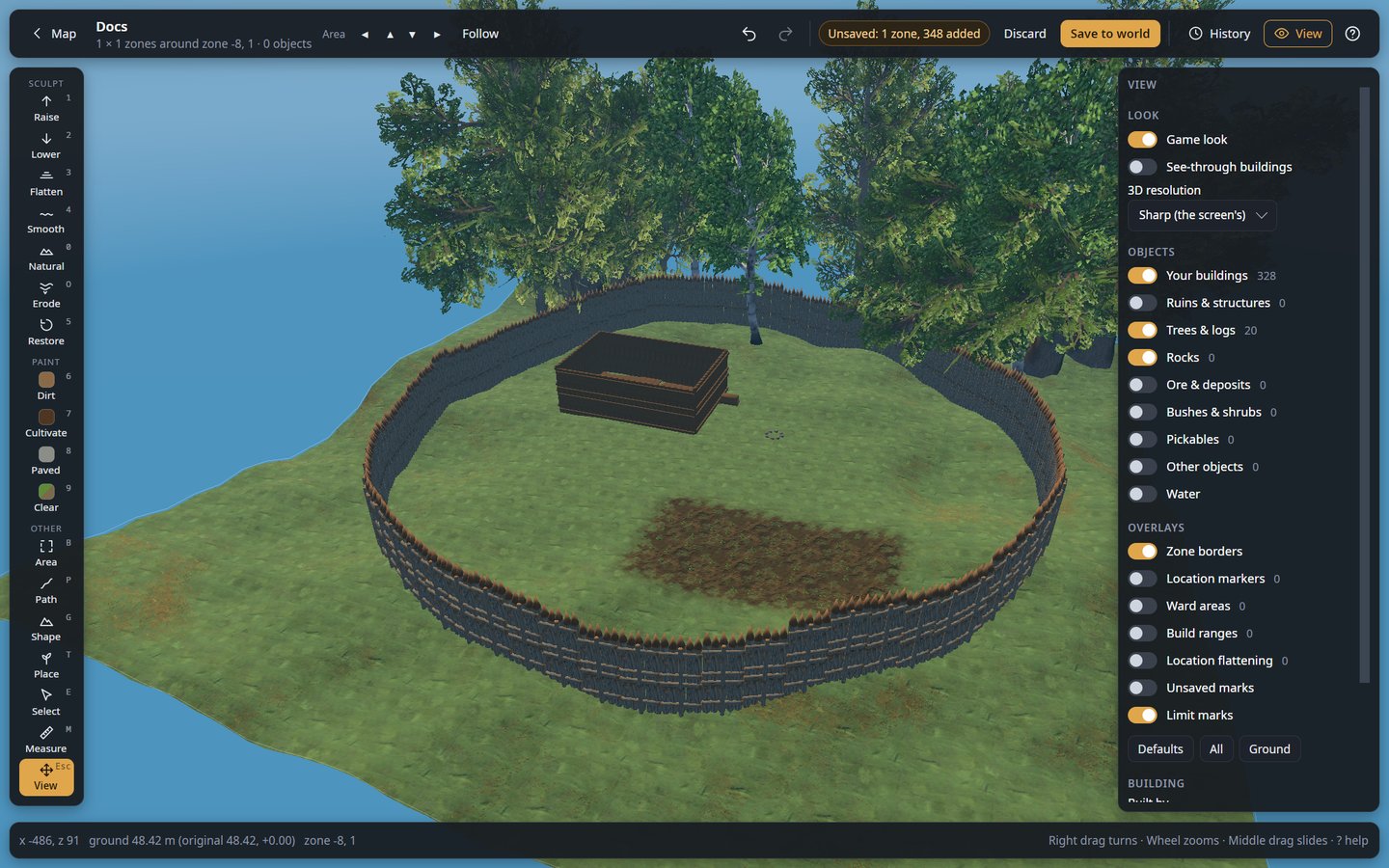
This mod is the bridge, not the editor. Get the editor from its releases page: unpack it and start it, nothing to install. Use the same version of the editor and of this mod.
What people use it for
- Repair griefing. Someone dug a crater next to the portal hub or burned down a forest? Put the ground and the trees back for that spot only, from a backup, without rolling back the world.
- Prepare a building site. Level a hilltop, terrace a slope, pave a courtyard, then build on it in game.
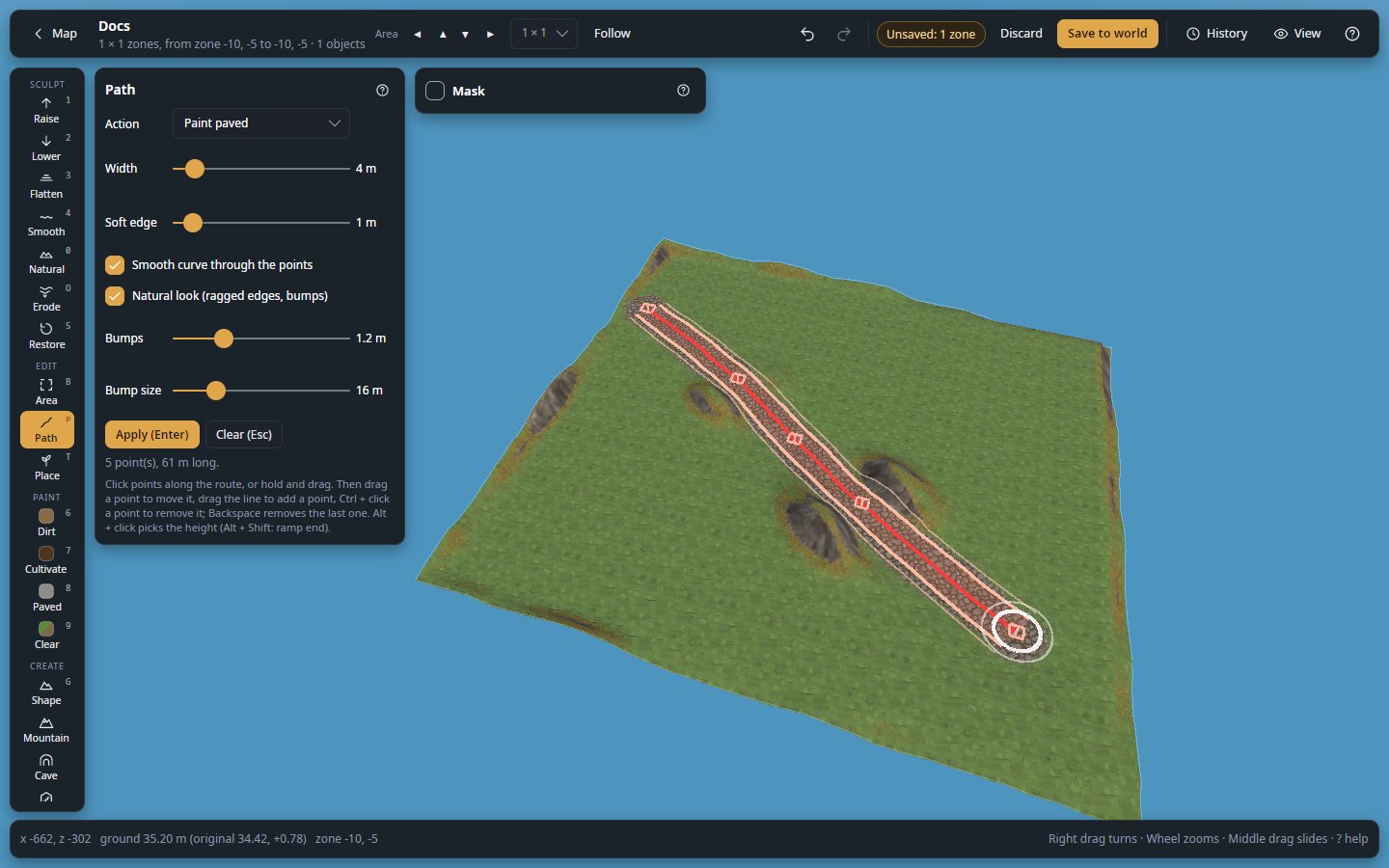
- Build roads between bases. Draw the route on the map: the editor levels and paves it, with ramps where it climbs.
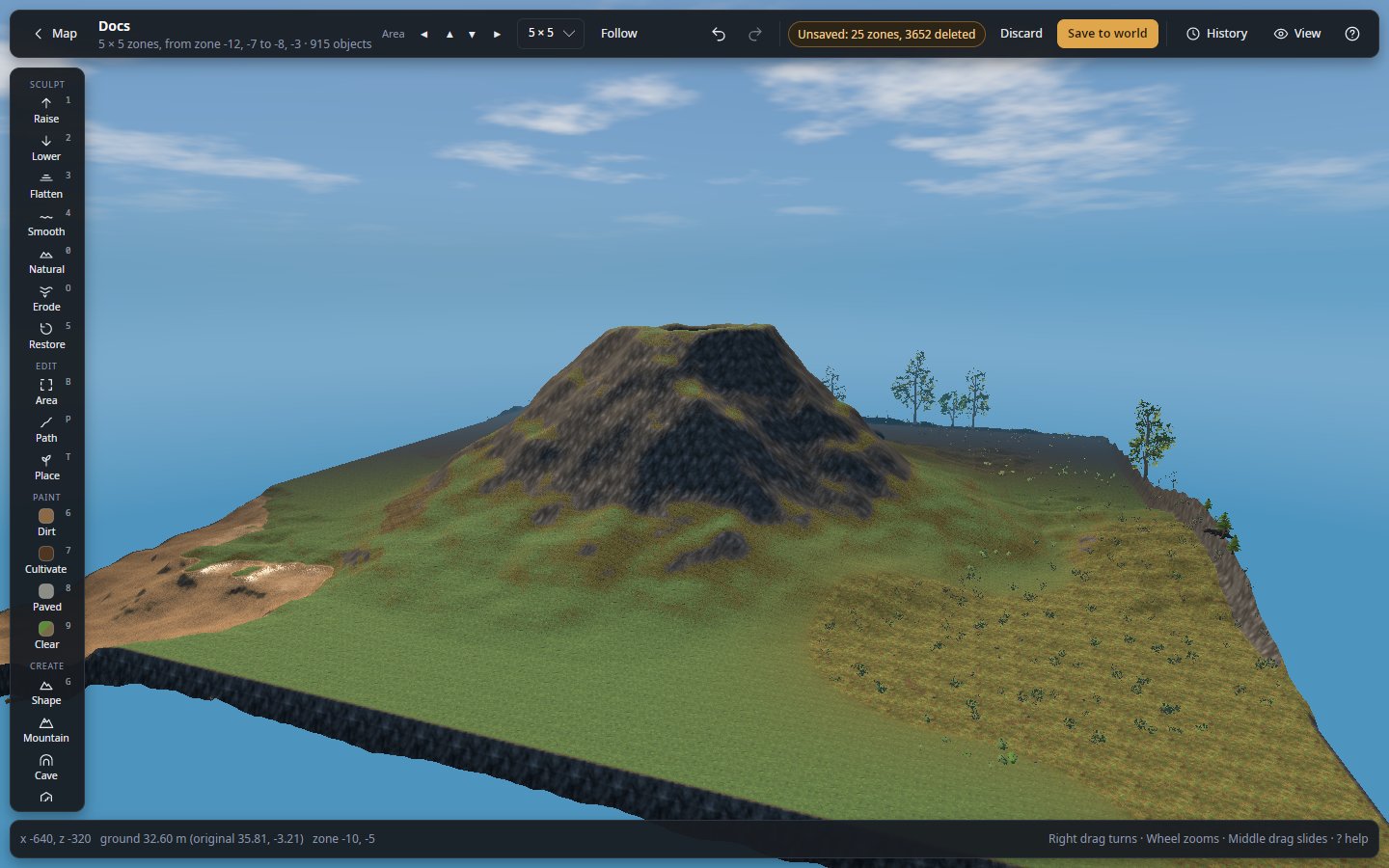
- Make landmarks. Raise a mountain, a volcano or a cliff past the game's ±8 m limit, carve a canyon or dig a cave roofed with boulders. Players see them with no mod at all.
- Make dungeons. Generate a whole dungeon from a style and a seed (crypt, fortress, Dvergr hold, goblin warren…), up to 16 levels deep, with rooms furnished and lit for what they are and stocked with creatures and loot. It goes in behind the game's own entrance of its kind. Or add rooms to the game's own dungeons (Frost Caves, crypts, infested mines…) and remove them. The game builds them, no mod needed for players.
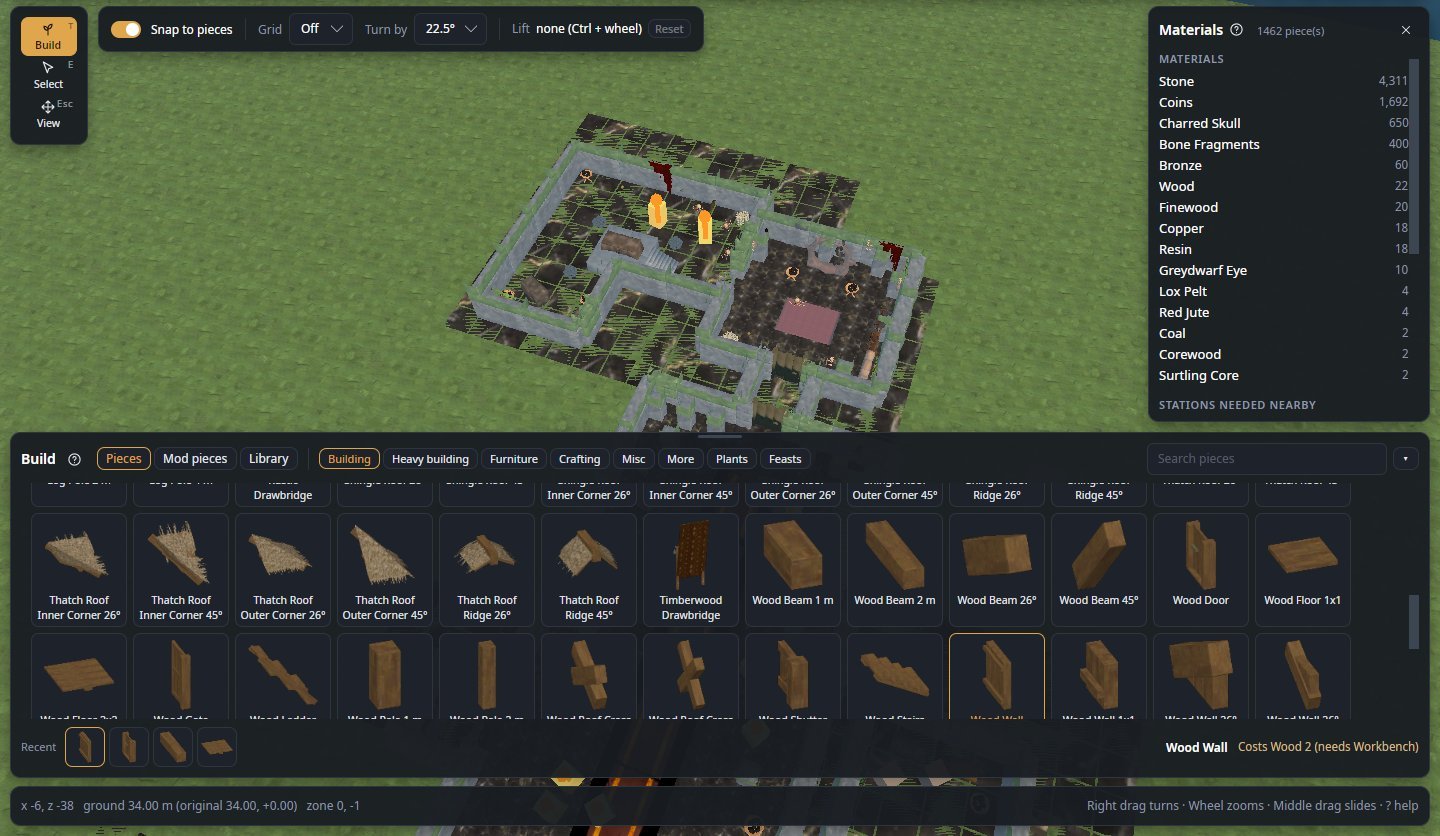
- Bring in a building. Design it in the editor's Workshop (or use a Homestead blueprint) and paste it into the world: the hill in its way is dug out, trees and rocks there are cleared. The blueprint library shows each one's picture and what it costs to build.
- Rearrange a base. Select a whole building and move or turn it, or cut it and paste it somewhere else. In a running game a moved object stays the same object: a chest keeps what is in it, and mods that keep track of it still know it.
- Bring the camps back. Put the game's spawn points and creature nests where you want them, each showing what it spawns, and players meet the creatures there.
- Ask Claude to build it. Let Claude (Claude Code or Claude Desktop) work in the editor from a prompt: shape the ground, lay roads, plant forests, build houses and dungeons. You watch it happen, and nothing changes in the game until you apply it.
- Dress the hall. Fill chests, write signs, hang weapons and trophies on item stands, set the table with food that stays put, and dress armour stands.
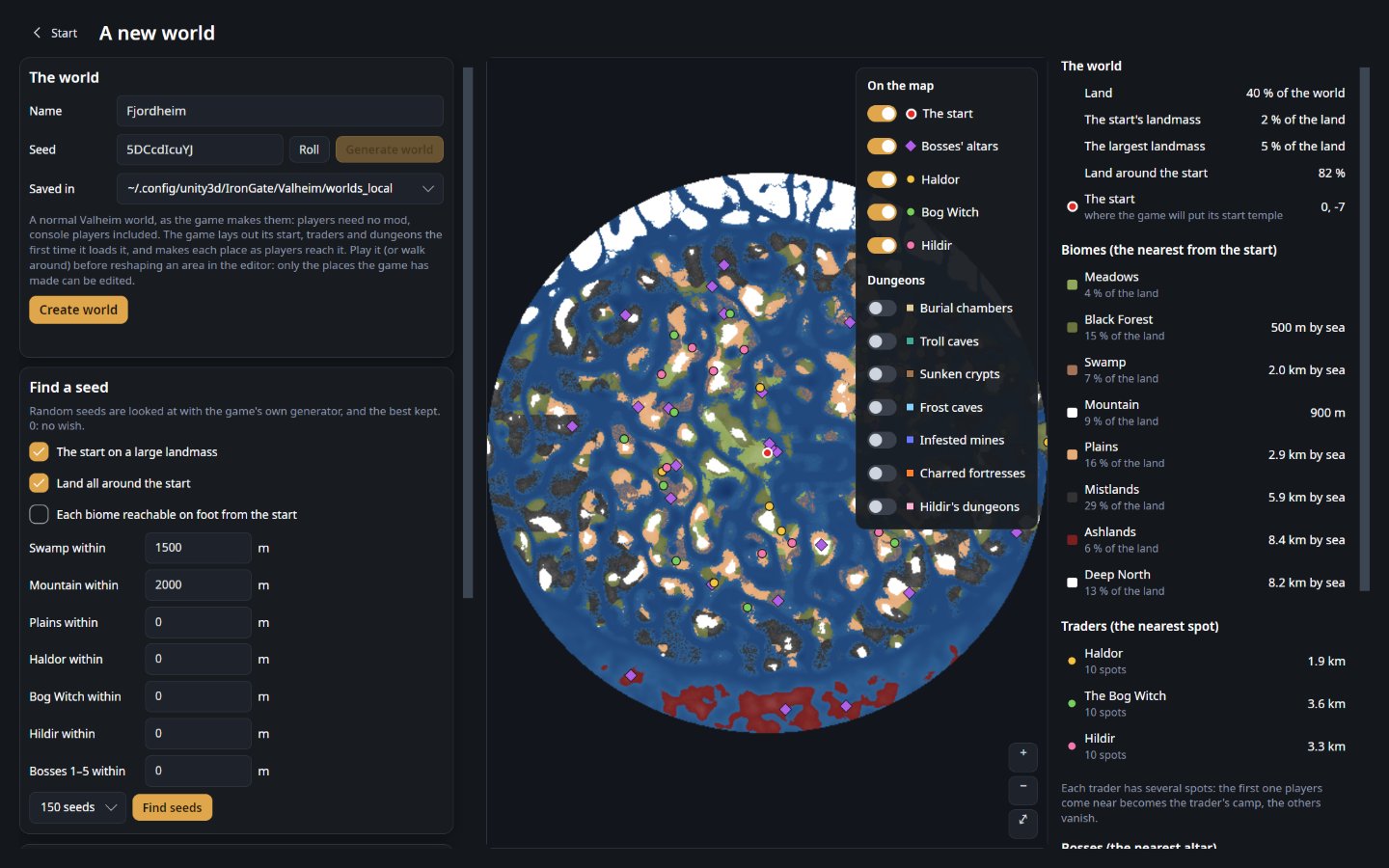
- Start a new world on the right seed. See a seed's world before it exists: the start, the bosses' altars, the traders and the dungeons, exactly where the game will put them. Let the editor search seeds for what you want near the start, then make the world (a normal one: this mod is not needed to play it).
- Grow it back, or swap it. Regrow nature puts back the trees, rocks and bushes the game grows there, by the game's own rules, where a wood was cleared or the ground reshaped. Replace turns every object of one kind in an area into another: the beeches into oaks, the wood walls into stone.
- Shape the land in another tool. Export the ground as a heightmap, work on it in GIMP, Krita, Gaea or World Machine, and bring it back.
- Do it by rule with a script. A few lines of C# shape, paint and fill the area at once: a mountain range, boulders where the noise says, a forest only on gentle slopes, terraces. Start from the examples; the whole script is one undo step.
- Tidy up. Plant a forest, clear the rocks off a field, remove every tree in an area, find the chest that holds the last of your black metal.
Every change can be undone, even after it is applied, and the history is still there the next time you open the world.
How it works
- The mod runs inside the game that hosts the world (your game, or the dedicated server) and waits for the editor. It only listens on that computer, and only answers with its secret token.
- The editor loads the world from it and shows it in 3D, with the game's own terrain, textures and models. Players stay connected, and what they build, remove or dig in the area you edit shows up in the editor as they do it.
- You edit. Nothing reaches the game until you press Apply live (or turn on Auto). Then the game gets the changed ground and objects, players see them, and the game saves them as usual.
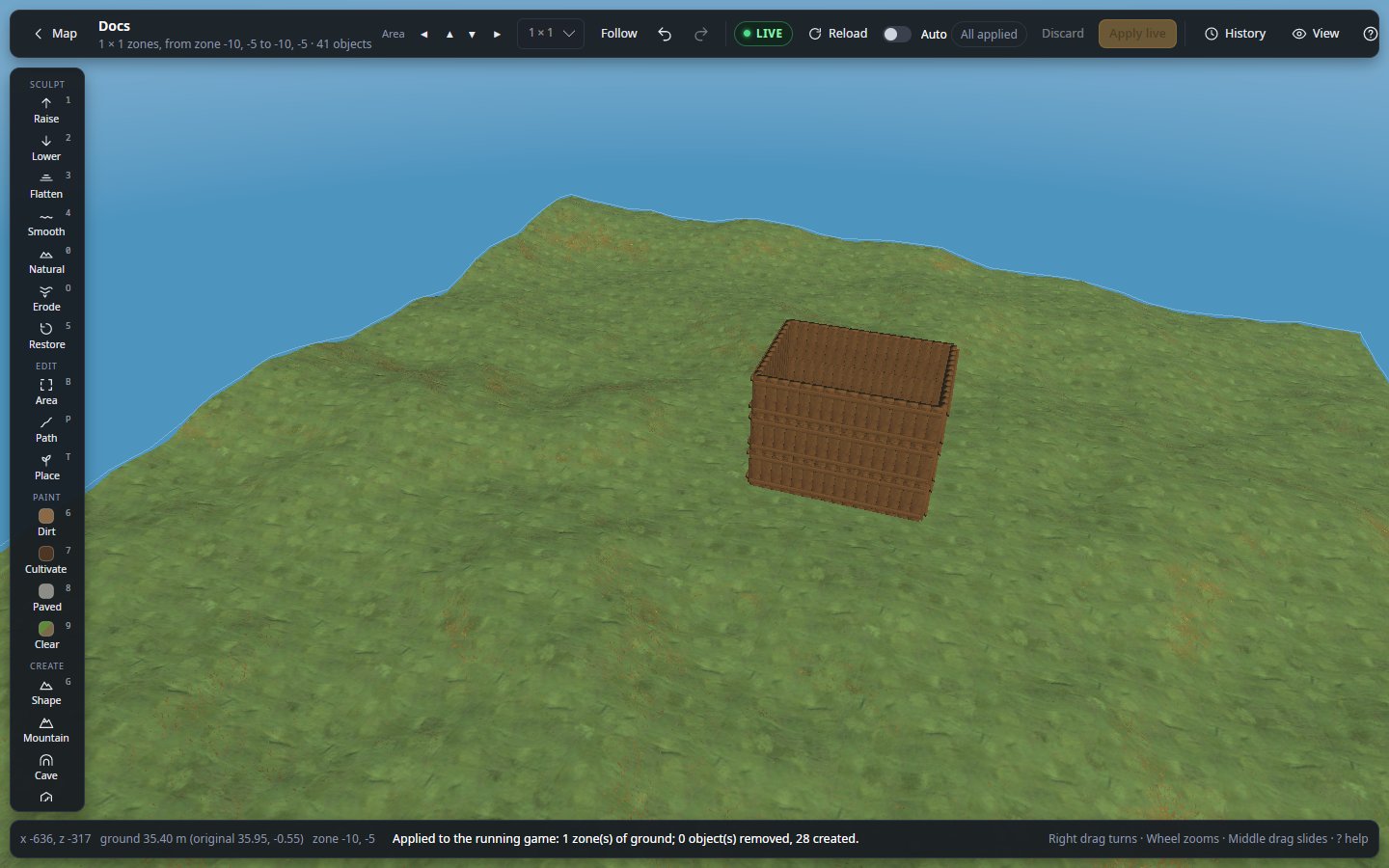
The area you edit can be up to 17 × 17 zones (over a kilometre across), and it grows by itself as you look towards its edge.
A dedicated server is reached through an encrypted SSH connection the editor opens by itself: the mod is never exposed to the internet, and you have nothing else to set up.
Modded games
Open a modded game live and the editor asks it for the pieces and objects its mods add. They get their names, are drawn with the mods' own models and textures (read from the mods' files on the editor's computer; a mesh a mod builds in code while the game runs shows untextured), and can be placed, or built from the Workshop's Mods tab with their cost. What the editor learned is kept, so the same world opened offline afterwards shows them too. Mod authors can teach the editor more about their mod, up to hooks for their own plugin in live mode: see For mod authors.
Install
Install it where the world is hosted, nowhere else.
| You play… | Install the mod in… |
|---|---|
| Single player, or a world you host from the game | Your game, with your mod manager like any other mod |
| On a dedicated server | The server: a mod manager's server profile, or WorldEditorBridge.dll copied into its BepInEx/plugins |
Players who join need nothing: no mod, no BepInEx. Console and crossplay players join as usual and see every change.
Then start the game or server once with the mod. That first start writes
BepInEx/config/Tie.WorldEditorBridge.cfg with a random Token, which the editor needs.
Connect
- Your own game: in the editor, choose My game and load your world in Valheim. The editor finds the mod and its token by itself (mod manager profiles included) and shows Edit live.
- A dedicated server: choose A dedicated server, enter the server's address, your SSH login
and the token from the server's
Tie.WorldEditorBridge.cfg, then Connect. The server is remembered: next time it is one click.
The BepInEx log shows WorldEditorBridge <version> listening on http://127.0.0.1:5182/ when the mod
is running.
Good to know
- Loading the world pauses the game for a moment. The editor reads every object of the world at once; on a large, old world that can take a few seconds. Load once, then edit as long as you like. Very large changes (thousands of objects at once) can make the server hitch when applied.
- Only the host can be edited. In a game that joined someone else's server the mod refuses to change anything.
- Zone resets (generate a zone again from scratch) cannot be undone once applied.
- Keep the token secret. With it, and access to the port, anyone can change the world. Leave it empty in the file to get a new one at the next start.
- The editor's changes are ordinary game objects and ground: other mods and the game treat them like anything a player built, planted or dug.
If it does not connect
The editor says what went wrong:
| The editor says | What to do |
|---|---|
| refused the login | Check the SSH user and the password or key file. |
| No answer | Check the server's address, and that SSH is enabled on it. |
| refused the token | Copy the Token line from the server's .cfg file again. |
| does not answer | The game or server is not running with BepInEx and this mod (check the log line above). |
| does not host the world | The mod runs in a game that joined someone else's server. Install it on the server instead. |
| identity changed | The server's SSH identity is not the one seen before. If you did not reinstall it, do not connect. |
Settings
In BepInEx/config/Tie.WorldEditorBridge.cfg:
| Setting | Default | Meaning |
|---|---|---|
BindAddress |
127.0.0.1 |
Only this computer can connect. Keep it: a server is reached through the editor's SSH tunnel. |
Port |
5182 |
Change it if something else uses 5182 (the editor reads it from the file, or asks). |
Token |
random | The secret the editor sends. Leave it empty to get a new one at the next start. |
More
- The editor, with screenshots of every tool
- Live editing in detail
- Report a problem or suggest an idea
- What changed in each version
Support
The editor and this mod are free and open source. If they saved you some work:

License
MIT, © 2026 Shuiei. The source is on GitHub. Not affiliated with or endorsed by Iron Gate or Coffee Stain.